User Profiles - Create and Move During Windows 7 Installation

How to Create User Accounts on another Partition or Disk During Windows 7 Installation

   Information
There are several methods to move user profiles to another disk or partition after you have installed Windows 7. The easiest way is to use Audit Mode and System Preparation Tool, both built-in Windows 7 features, to permanently move the location of the folder Users.

This tutorial shows how to relocate both Users and ProgramData to another disk or partition when doing a new, fresh and clean install of Windows 7. If you have already installed Seven, and you'd like to move those folders away from their default location in C: drive, please read first post number 22 in this thread. Follow the steps told in that post, and continue then from beginning of the page 4 in this tutorial.
When Windows 7 is installed, 5 or 6 system folders are created depending on chosen bit-version:

  • PerfLogs (Performance Logs), where Windows stores performance and reliability logs
  • Program Files, where applications and software are installed. Windows x86 (32-bit) stores all applications here, Windows x64 (64-bit) only native 64-bit applications
  • Program Files (x86), only in Windows x64. All non-x64 applications are stored here
  • Windows, which contains core operating system files and drivers
  • ProgramData, where some applications store application and user specific settings and configuration files
  • Users. This is the "home" of all user folders. When a new user account is created and this new user logs in first time, Windows creates a set of user specific folders Users\New_User
Moving Windows and Program Files folders is not recommend by Microsoft. However, moving both Users and ProgramData folders is safe and can save a lot of space on system disk. Pictures, mp3’s videos, documents and so on, a user folder with its subfolders can be tens, sometimes hundreds of gigabytes.

For instance, using this laptop of mine as an example, the total size of Users folder and subfolders is at the moment about 240 GB. The size of ProgramData folder is at the moment almost 18 GB. I simply could not have these folders stored in my system C: drive, there’s not enough space.

When installing Windows 7, I recommend using Windows System Preparation Tool (Sysprep) in so called Audit Mode to relocate Users and ProgramData, leaving C: drive only for Windows and applications.

   Warning

An upgraded Windows cannot be sysprepped. As this method is based in sysprepping, this tutorial is valid only for Windows setups which have not been upgraded.

This means that if you have for instance in-place upgraded Vista to Seven, you cannot sysprep. The same applies if you have upgraded from a lesser edition to a better edition, for instance from Windows 7 Home Premium to Professional.

Notice that a repair install is also an upgrade install, so if you have ever done a repair install (= in-place upgrade to same edition), you cannot sysprep.

In other words, when sysprepping an existing Windows setup it only works if the Windows was installed clean and has never been upgraded or repaired using repair install, or if it is the original pre-installed Windows.

Using this method causes Windows 7 to lose activation information, and it needs to be reactivated afterwards. If your Windows 7 is an OEM version, you might not be able to reactivate it, at least not without phone activation option.

   Warning
IE10 Users: Please read this article first: Sysprep Fatal Error With IE 10 (FIX) | System Administration


Complete tutorial as PDF: View attachment Relocate User folders during Windows 7 installation.pdf (1.22 MB)

Kari


Last edited:
Awesome tutorial, great work.
I have a quick question.
What is the proper syntax for setting the path for Program Files (x86) and Program Files.

<FolderLocations>
<ProfilesDirectory>d:\Users</ProfilesDirectory>
<ProgramData>d:\ProgramData</ProgramData>
</FolderLocations>

I am aware that changing these directories isn't reccomended but I need the space.

Thanks in Advance

-Zach
 

My Computer

Computer Manufacturer/Model Number
AMD Awesome
OS
Windows 7 Professional
CPU
AMD Phenom II X4 970 3.5GHz
Motherboard
ASUS M4A89GTD PRO/USB3
Memory
G.SKILL Ripjaws 8GB (2 x 4GB) 240-Pin DDR3 DDR3 1333
Graphics Card(s)
MSI R6870 Twin Frozr II Radeon HD 6870 1GB
Monitor(s) Displays
SyncMaster P2370 23in
Screen Resolution
1920x1080
Hard Drives
16GB Kingston S100 SSD | 320GB SAMSUNG Spinpoint F4 | 1TB Seagate
PSU
CORSAIR CMPSU-650TX 650W
Case
LIAN LI ARMORSUIT PC-P50R
Cooling
ARCTIC COOLING Freezer 7 Pro Rev.2 92mm
Keyboard
Saitek Cyborg
Mouse
Razer Death Adder
Internet Speed
15/1 mbit
:) Thanks!

Windows native imaging always includes Users and ProgramData in a system image, so no, I do not know how not to include D: or whatever drive where your user profiles are saved.

Using third party imaging, as you told you do, is as far as I know the only option.

Kari

As a noob, may I ask if it is desirable to include Users and ProgramData when imaging the C drive OS, or can these folders be treated the same as the rest of one's data disk and be backed up independently? If the answer is that Users / ProgramData can be treated independent of OS image, then can an image program like Macrium or Acronis accomplished this whereas Seven's image utility cannot? Finally, if these 3rd party programs must also include Users then would it be OK to install Users and/or ProgramData on a smaller partition for this sole use...separate from a 1TB data drive to avoid including the data partition in the OS image? I hope my Qs make sense!
 

My Computer

OS
Win7 Pro 64-bit
CPU
i7 870
Motherboard
Gigabyte GA-55A-UD3
Memory
16GB
Graphics Card(s)
FireGL 4800
Hard Drives
90 GB OCZ Vertex 2 SSD
1TB Samsung Spinpoint F3R
PSU
Antec Tru Power 650W
Case
Lian Li
As a noob, may I ask if it is desirable to include Users and ProgramData when imaging the C drive OS, or can these folders be treated the same as the rest of one's data disk and be backed up independently? If the answer is that Users / ProgramData can be treated independent of OS image, then can an image program like Macrium or Acronis accomplished this whereas Seven's image utility cannot? Finally, if these 3rd party programs must also include Users then would it be OK to install Users and/or ProgramData on a smaller partition for this sole use...separate from a 1TB data drive to avoid including the data partition in the OS image? I hope my Qs make sense!
The problem is, when you use this method to permanently relocate these folders, the information is "hard coded" to the system (registry etc.). If you now create a system image without these folders, it can result a non-responding system when image is restored, or at least create some serious file / folder ownership problems.

The only way to make a system image I recommend is to always let the image include all system folders, including for instance Users. I really want to make this very clear: I, or this tutorial, can not be held responsible if you do not include the relocated folders in your system image and you find yourself in deep s*** ;) after restoring a non-complete, deficient image.
Kari
 

My Computer

Computer type
Laptop
Computer Manufacturer/Model Number
HP ENVY 17-1150eg
OS
Windows 10 Pro x64 EN-GB
CPU
1.6 GHz Intel Core i7-720QM Processor
Memory
6 GB
Graphics Card(s)
ATI Mobility Radeon HD 5850 Graphics
Sound Card
Beats sound system with integrated subwoofer
Monitor(s) Displays
17" laptop display, 22" LED and 32" Full HD TV through HDMI
Screen Resolution
1600*900 (1), 1920*1080 (2&3)
Hard Drives
Internal: 2 x 500 GB SATA Hard Disk Drive 7200 rpm
External: 2TB for backups, 3TB USB3 network drive for media
Cooling
As Envy runs a bit warm, I have it on a Cooler Master pad
Keyboard
Logitech diNovo Media Desktop Laser (bluetooth)
Mouse
Logitech Performance Mouse MX
Internet Speed
50/10 Mbps VDSL
Antivirus
Windows Defender 4.3.9431.0
Browser
Maxthon 3.5.2., IE11
Thank you, Kari, for the clarification. If one images the OS, then it only makes sense to image the Users and App folders. But it makes no sense to have to include the user data (files, movies, music, stuff, etc).

Hence, if one has the OS on SSD and data files on 2nd HDD, would it not be prudent to place the Users and App folders on a small partition for this sole use and then one's files (data, movies, music, etc.) on the larger partition of the same HDD drive? Then associate the data files with Users and App folders through Libraries? Does this seem like it would work?

Thanks!
 

My Computer

OS
Win7 Pro 64-bit
CPU
i7 870
Motherboard
Gigabyte GA-55A-UD3
Memory
16GB
Graphics Card(s)
FireGL 4800
Hard Drives
90 GB OCZ Vertex 2 SSD
1TB Samsung Spinpoint F3R
PSU
Antec Tru Power 650W
Case
Lian Li
That's quite close to what I'm doing.

All my Windows 7 rigs have the same basic setup:
  • C: has only Windows and Program Files
  • D: has Users and Program Data
  • Additional drives have all media folders and act as default download save location
I like Windows 7 Libraries system very much, it's making my computing easier than ever before. Only the library Documents contains save locations on drive D: (%userprofile%\Documents and Public\Documents). All other libraries, in my case Music, Pictures, Videos, Work, Recorded TV, Downloads and Virtual Machines have been set up so that they contain locations on other drives. This way all files taking a lot of space (media and virtual machine vhd's) are saved outside the two drives included in system image, C: and D:.

Kari
 

My Computer

Computer type
Laptop
Computer Manufacturer/Model Number
HP ENVY 17-1150eg
OS
Windows 10 Pro x64 EN-GB
CPU
1.6 GHz Intel Core i7-720QM Processor
Memory
6 GB
Graphics Card(s)
ATI Mobility Radeon HD 5850 Graphics
Sound Card
Beats sound system with integrated subwoofer
Monitor(s) Displays
17" laptop display, 22" LED and 32" Full HD TV through HDMI
Screen Resolution
1600*900 (1), 1920*1080 (2&3)
Hard Drives
Internal: 2 x 500 GB SATA Hard Disk Drive 7200 rpm
External: 2TB for backups, 3TB USB3 network drive for media
Cooling
As Envy runs a bit warm, I have it on a Cooler Master pad
Keyboard
Logitech diNovo Media Desktop Laser (bluetooth)
Mouse
Logitech Performance Mouse MX
Internet Speed
50/10 Mbps VDSL
Antivirus
Windows Defender 4.3.9431.0
Browser
Maxthon 3.5.2., IE11
Again, this is very helpful. I am sorry to belabor a few of these points but there are probably other novice users like me that could benefit from even more details.

When you say "Only the library Documents contains save locations on drive D" does this mean that you save "My Documents" type files like msoffice files (excl video, recorded tv, etc.) in this partition...or is D really just the Users and ProgramData "system files"? Sorry for my ignorance on what gets saved to Users and ProgramData folders. I am asking because I'd like some feedback on how to "size" this partition used solely for Users and ProgramData folders. If it were just system files would 5-10GB be sufficient? If its broader and includes "My Docs" (I brand new to Win7 and using XP language) then maybe 100GB would do on a 1TB HDD?
 

My Computer

OS
Win7 Pro 64-bit
CPU
i7 870
Motherboard
Gigabyte GA-55A-UD3
Memory
16GB
Graphics Card(s)
FireGL 4800
Hard Drives
90 GB OCZ Vertex 2 SSD
1TB Samsung Spinpoint F3R
PSU
Antec Tru Power 650W
Case
Lian Li
Here's how I've done:

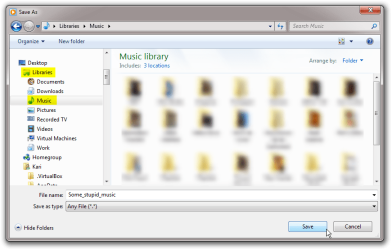
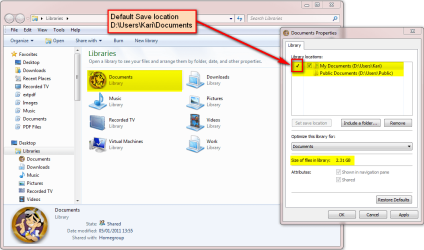
All documents, like Word, Excel, PowerPoint files and for instance PDF manuals and so on I save to Documents library. This library includes two physical locations, D:\Users\Kari\Documents and D:\Users\Public\Documents, default library save location is set to Kari\Documents. When saving for instance a Word doc, I do not select this actual physical folder from Save As dialog. Instead, I select Libraries > Documents.

Libraries_locations_1.png

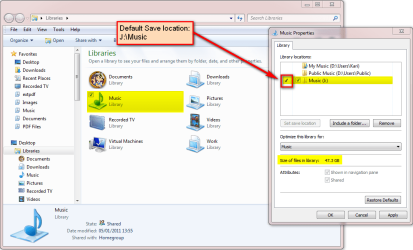
The Music library contains three locations. I have left D:\Users\Kari\Music and D:\Users\Public\Muclic there in case I accidentally save some music to these folders, but library default save location is set to J:\Music. All music is there.

Libraries_locations_2.png

When saving any kind of files, I never select the actual folder as save location. I always select the respective library as save location, so I do not have to remember the actual location nor do I have to browse deep in the folder structure. Just select the correct library and the file is there.

Libraries_locations_3.png

In Media Center, I have set default recording to go to drive H:. My Recorded TV library only contains one location, H:\Recorded TV, so also these lot of space demanding files are saved outside those two system drives included in system image.

Kari
 

My Computer

Computer type
Laptop
Computer Manufacturer/Model Number
HP ENVY 17-1150eg
OS
Windows 10 Pro x64 EN-GB
CPU
1.6 GHz Intel Core i7-720QM Processor
Memory
6 GB
Graphics Card(s)
ATI Mobility Radeon HD 5850 Graphics
Sound Card
Beats sound system with integrated subwoofer
Monitor(s) Displays
17" laptop display, 22" LED and 32" Full HD TV through HDMI
Screen Resolution
1600*900 (1), 1920*1080 (2&3)
Hard Drives
Internal: 2 x 500 GB SATA Hard Disk Drive 7200 rpm
External: 2TB for backups, 3TB USB3 network drive for media
Cooling
As Envy runs a bit warm, I have it on a Cooler Master pad
Keyboard
Logitech diNovo Media Desktop Laser (bluetooth)
Mouse
Logitech Performance Mouse MX
Internet Speed
50/10 Mbps VDSL
Antivirus
Windows Defender 4.3.9431.0
Browser
Maxthon 3.5.2., IE11
Wow, what a fantastic and thorough reply to my questions. Thank you Kari.

This way of separating Users and ProgramData for the C drive could really benefit those concerned about: (1) space issues on C, (2) too much write activity on a SSD on which the OS is located or (3) unnecessarily bloating up the OS partition. Is there any technical reason (aside from the add'l complexity in setup and imaging procedures) why one might NOT want to do this? I have read posts on other forums that suggest that these folders are so integrated in Win7 that separating them onto another partition or disk just causes the OS extra work. In the case where the OS and Users / ProgramApp folders are installed on an HDD, I've read that the disk head now has to work much harder with the added distance the disk head must move to access Users / ProgramApp folders? With an SSD and HDD setup, this is a bit different. Is this a genuine issue? I guess the practical matter is whether one's perception of response time is different in any meaningful way, whether one's sees more error messages or whether one's disks could be expected to wear out materially faster? Any thoughts on whether these technical issues are legitimate concerns in this context?
 

My Computer

OS
Win7 Pro 64-bit
CPU
i7 870
Motherboard
Gigabyte GA-55A-UD3
Memory
16GB
Graphics Card(s)
FireGL 4800
Hard Drives
90 GB OCZ Vertex 2 SSD
1TB Samsung Spinpoint F3R
PSU
Antec Tru Power 650W
Case
Lian Li
Kari, this is a great tutorial and I followed it rather successfully now that I got a SSD and I wanted to keep the folders which are repeatedly written to by Windows off the SSD (otherwise I don't care much for the C:\Users\ folder structure for I never store my files there, that came from the old days when I hated the "My ..." folder names and also since I am using Cygwin and want to keep folder names without spaces).

Now, the real question that bothers me, is that the hard drive that I used to put the those Program Data folders on started making some weird stuttering noise (or at least that's where I think the noise is coming from since it disappeared when I disconnected the drive). So now what happens if I need to change the drive, or rather (as it is the case with my current install) just need to move those folders to another existing drive (I'd rather not buy another drive for this PC, it's aging and the money is better spent on a new machine).

So, I understand that I can move the D:\User to some other drive by using one of the relevant tutorials. But what about the Program Data? how can I move it to another drive once the system is already installed? Of course I may re-install, but that's what I'd try to avoid if possible.

Thanks in advance!
 

My Computer

Computer Manufacturer/Model Number
Dell Inspiron 530
OS
Windows 7 Ultimate (x64)
CPU
Q6600
Memory
8 GB
Graphics Card(s)
ATI Radeon HD 2600 XT
Monitor(s) Displays
Samsung Syncmaster P2450
Screen Resolution
1920x1080
Hard Drives
Samsung HD103UJ
Samsung HD501LJ
Internet Speed
25 Mb/s
So, I understand that I can move the D:\User to some other drive by using one of the relevant tutorials. But what about the Program Data? how can I move it to another drive once the system is already installed? Of course I may re-install, but that's what I'd try to avoid if possible.

Thanks in advance!
You can relocate (move) the ProgramData back to C: or any other drive, then change the faulty disk and repeat the steps to relocate it again to the new disk.

So for instance if you have used this tutorial to relocate ProgramData to D:, and the disk must be replaced, you could do it like this:
  • Follow the steps told here to boot to Audit Mode
  • Edit the XML script to put ProgramData back to C: (if you don't have to think about Users, remove that line from script):
    <FolderLocations>
    <ProfilesDirectory>d:\Users</ProfilesDirectory> :ar: Remove this line if Users must not be moved
    <ProgramData>C:\ProgramData</ProgramData> :ar: Change the drive to C:
    </FolderLocations>
  • Run sysprep with the script
  • Replace the faulty disk D:
  • Boot to Audit Mode again
  • Edit the script to move ProgramData back to D:
  • Run sysprep with the script

Kari
 
Last edited:

My Computer

Computer type
Laptop
Computer Manufacturer/Model Number
HP ENVY 17-1150eg
OS
Windows 10 Pro x64 EN-GB
CPU
1.6 GHz Intel Core i7-720QM Processor
Memory
6 GB
Graphics Card(s)
ATI Mobility Radeon HD 5850 Graphics
Sound Card
Beats sound system with integrated subwoofer
Monitor(s) Displays
17" laptop display, 22" LED and 32" Full HD TV through HDMI
Screen Resolution
1600*900 (1), 1920*1080 (2&3)
Hard Drives
Internal: 2 x 500 GB SATA Hard Disk Drive 7200 rpm
External: 2TB for backups, 3TB USB3 network drive for media
Cooling
As Envy runs a bit warm, I have it on a Cooler Master pad
Keyboard
Logitech diNovo Media Desktop Laser (bluetooth)
Mouse
Logitech Performance Mouse MX
Internet Speed
50/10 Mbps VDSL
Antivirus
Windows Defender 4.3.9431.0
Browser
Maxthon 3.5.2., IE11
Hmm, I thought I made this post, it's disappeared somehow :(.

Anyway, I just wanted to say thanks, it worked out great. The system won't let me rep you though.
 

My Computer

Computer Manufacturer/Model Number
Dell Inspiron 530
OS
Windows 7 Ultimate (x64)
CPU
Q6600
Memory
8 GB
Graphics Card(s)
ATI Radeon HD 2600 XT
Monitor(s) Displays
Samsung Syncmaster P2450
Screen Resolution
1920x1080
Hard Drives
Samsung HD103UJ
Samsung HD501LJ
Internet Speed
25 Mb/s
No need to rep, for a not too modest, vain person like me ;), a public thank you works better.

Kari
 

My Computer

Computer type
Laptop
Computer Manufacturer/Model Number
HP ENVY 17-1150eg
OS
Windows 10 Pro x64 EN-GB
CPU
1.6 GHz Intel Core i7-720QM Processor
Memory
6 GB
Graphics Card(s)
ATI Mobility Radeon HD 5850 Graphics
Sound Card
Beats sound system with integrated subwoofer
Monitor(s) Displays
17" laptop display, 22" LED and 32" Full HD TV through HDMI
Screen Resolution
1600*900 (1), 1920*1080 (2&3)
Hard Drives
Internal: 2 x 500 GB SATA Hard Disk Drive 7200 rpm
External: 2TB for backups, 3TB USB3 network drive for media
Cooling
As Envy runs a bit warm, I have it on a Cooler Master pad
Keyboard
Logitech diNovo Media Desktop Laser (bluetooth)
Mouse
Logitech Performance Mouse MX
Internet Speed
50/10 Mbps VDSL
Antivirus
Windows Defender 4.3.9431.0
Browser
Maxthon 3.5.2., IE11
Kari, have you had any issues with imaging after using this? I had to re-install because Macrium Reflect (Free) would no longer schedule a daily backup (image). I was getting a "Keyset does not exist" message which relates to Windows Task Scheduler. After not finding a solution that worked, I decided to reinstall Win 7 Ultimate.

My original partitioning was C & D only which as mentioned earlier above made using Win 7's native imaging a problem (& also time consuming). So I adopted your partition structure of C-OS, D-Users/ProgramData & M-Media/Downloads. By keeping D small, I thought I could again use Win 7's native imaging as a second option. The install went without a hitch & then imaged C & D using Reflect.

Next, restored both C & D to check the integrity of the images. No problems or so I thought. Decided to create system image via W7 -Backup & Restore which showed the problem I am now encountering. Error message: The service cannot be started, either because the service it is disabled or because it has no enabled devices associated with it. (0x80070422)
I verified that all required services are running but no solution has corrected this issue. Any suggestions?

See System Specs for configuration.

Please forgive me for posting this here in your tutorial thread if you think this request for resolution would be better served in a thread of its own. I have no objection to moving it. Thanks for any help.
 

My Computer

Computer Manufacturer/Model Number
Gateway M-6862
OS
W7 x64 Ultimate
CPU
T5750 2.0 Ghz
Motherboard
PM965
Memory
4 GB
Graphics Card(s)
Mobility Radeon HD 2600
Hard Drives
WD2500BEVS 250GB
Cooling
Undervolting Works!
I have had no imaging problems, both Macrium and Windows Backup have worked.

Two services important to check, ensure they are running: Background Intelligent Transfer Service and System Restore Service.

Kari
 

My Computer

Computer type
Laptop
Computer Manufacturer/Model Number
HP ENVY 17-1150eg
OS
Windows 10 Pro x64 EN-GB
CPU
1.6 GHz Intel Core i7-720QM Processor
Memory
6 GB
Graphics Card(s)
ATI Mobility Radeon HD 5850 Graphics
Sound Card
Beats sound system with integrated subwoofer
Monitor(s) Displays
17" laptop display, 22" LED and 32" Full HD TV through HDMI
Screen Resolution
1600*900 (1), 1920*1080 (2&3)
Hard Drives
Internal: 2 x 500 GB SATA Hard Disk Drive 7200 rpm
External: 2TB for backups, 3TB USB3 network drive for media
Cooling
As Envy runs a bit warm, I have it on a Cooler Master pad
Keyboard
Logitech diNovo Media Desktop Laser (bluetooth)
Mouse
Logitech Performance Mouse MX
Internet Speed
50/10 Mbps VDSL
Antivirus
Windows Defender 4.3.9431.0
Browser
Maxthon 3.5.2., IE11
Two services important to check, ensure they are running: Background Intelligent Transfer Service and System Restore Service.

Thanks for the suggestions. Background Intelligent Transfer Service is in manual and not currently running. Cannot find a service named System Restore Service though. Can you verify the service name again?
 

My Computer

Computer Manufacturer/Model Number
Gateway M-6862
OS
W7 x64 Ultimate
CPU
T5750 2.0 Ghz
Motherboard
PM965
Memory
4 GB
Graphics Card(s)
Mobility Radeon HD 2600
Hard Drives
WD2500BEVS 250GB
Cooling
Undervolting Works!
Sorry, that was a bad typo. I meant Windows Backup Service, SDRSVC, not Restore Service. It is manual by default, should start automatically when you start backup.
 

My Computer

Computer type
Laptop
Computer Manufacturer/Model Number
HP ENVY 17-1150eg
OS
Windows 10 Pro x64 EN-GB
CPU
1.6 GHz Intel Core i7-720QM Processor
Memory
6 GB
Graphics Card(s)
ATI Mobility Radeon HD 5850 Graphics
Sound Card
Beats sound system with integrated subwoofer
Monitor(s) Displays
17" laptop display, 22" LED and 32" Full HD TV through HDMI
Screen Resolution
1600*900 (1), 1920*1080 (2&3)
Hard Drives
Internal: 2 x 500 GB SATA Hard Disk Drive 7200 rpm
External: 2TB for backups, 3TB USB3 network drive for media
Cooling
As Envy runs a bit warm, I have it on a Cooler Master pad
Keyboard
Logitech diNovo Media Desktop Laser (bluetooth)
Mouse
Logitech Performance Mouse MX
Internet Speed
50/10 Mbps VDSL
Antivirus
Windows Defender 4.3.9431.0
Browser
Maxthon 3.5.2., IE11
Sadly this is one of the 5 or 6 service to be checked via this thread: Backup aborts with error code 0x80070422

All are running as suggested. Any other suggestions. If not I think I'll try a re-image again.
 

My Computer

Computer Manufacturer/Model Number
Gateway M-6862
OS
W7 x64 Ultimate
CPU
T5750 2.0 Ghz
Motherboard
PM965
Memory
4 GB
Graphics Card(s)
Mobility Radeon HD 2600
Hard Drives
WD2500BEVS 250GB
Cooling
Undervolting Works!
I have no ideas, I have to admit that. But if I understood your first post correctly, youy managed both to create an image and restore it with Macrium? If it works for you, use it.

As most of the geeks have at least sometimes noticed, to really understand computing you need a diploma in parapsychology ;). I for instance have almost never had any problems with imaging and restoring an image when it's done straight after booting. The longer I wait, running other apps and so on, the bigger the chance that something goes wrong. Of course it shouldn't be like this, thus the reference to parapsychology ;)

Based on the above, I would strip down the boot configuration removing everything not needed, reboot and create the image straight away before doing anything else, letting backup work alone, not starting any other apps or doing anything else iat the same time. But, this is just how I do it, works for me. You must not be as superstitious :o as I am, some other method might be better for you.

Kari
 

My Computer

Computer type
Laptop
Computer Manufacturer/Model Number
HP ENVY 17-1150eg
OS
Windows 10 Pro x64 EN-GB
CPU
1.6 GHz Intel Core i7-720QM Processor
Memory
6 GB
Graphics Card(s)
ATI Mobility Radeon HD 5850 Graphics
Sound Card
Beats sound system with integrated subwoofer
Monitor(s) Displays
17" laptop display, 22" LED and 32" Full HD TV through HDMI
Screen Resolution
1600*900 (1), 1920*1080 (2&3)
Hard Drives
Internal: 2 x 500 GB SATA Hard Disk Drive 7200 rpm
External: 2TB for backups, 3TB USB3 network drive for media
Cooling
As Envy runs a bit warm, I have it on a Cooler Master pad
Keyboard
Logitech diNovo Media Desktop Laser (bluetooth)
Mouse
Logitech Performance Mouse MX
Internet Speed
50/10 Mbps VDSL
Antivirus
Windows Defender 4.3.9431.0
Browser
Maxthon 3.5.2., IE11
to really understand computing you need a diploma in parapsychology
wink.gif
How very true! Not sure if I'm as superstitious as you but yes, I do take what some might say are overly cautious (unnecessary) precautions. I think I'll start a thread to get to the route of this issue. Maybe Wolfgang (WHS) can chime in.


New thread started to solve initial problem of not being able to schedule a backup:
http://www.sevenforums.com/performa...not-schedule-backups-anymore.html#post1238820
 
Last edited:

My Computer

Computer Manufacturer/Model Number
Gateway M-6862
OS
W7 x64 Ultimate
CPU
T5750 2.0 Ghz
Motherboard
PM965
Memory
4 GB
Graphics Card(s)
Mobility Radeon HD 2600
Hard Drives
WD2500BEVS 250GB
Cooling
Undervolting Works!
Wolfgang is our Macrium guru, he should be able to help you. Start a thread.

Please put a link here to your thread then for others to follow.

Kari
 

My Computer

Computer type
Laptop
Computer Manufacturer/Model Number
HP ENVY 17-1150eg
OS
Windows 10 Pro x64 EN-GB
CPU
1.6 GHz Intel Core i7-720QM Processor
Memory
6 GB
Graphics Card(s)
ATI Mobility Radeon HD 5850 Graphics
Sound Card
Beats sound system with integrated subwoofer
Monitor(s) Displays
17" laptop display, 22" LED and 32" Full HD TV through HDMI
Screen Resolution
1600*900 (1), 1920*1080 (2&3)
Hard Drives
Internal: 2 x 500 GB SATA Hard Disk Drive 7200 rpm
External: 2TB for backups, 3TB USB3 network drive for media
Cooling
As Envy runs a bit warm, I have it on a Cooler Master pad
Keyboard
Logitech diNovo Media Desktop Laser (bluetooth)
Mouse
Logitech Performance Mouse MX
Internet Speed
50/10 Mbps VDSL
Antivirus
Windows Defender 4.3.9431.0
Browser
Maxthon 3.5.2., IE11
Back
Top