Upgrade Install - XP to Windows 7

How to Do an Upgrade Install from XP to Windows 7

As you have certainly heard, Windows XP cannot be directly in-place upgraded to Windows 7. However, it is completely possible, legal and valid using Windows Vista as "springboard" to Seven.

   Warning
Even though I belong to that amazingly small minority speaking for in-place upgrade, I seriously do not recommend you to do this without a strong motivation and need. For the first, it takes time; I've done this now almost 20 times and the shortest project took a bit over 5 hours. Secondly, when in-place upgrading not only to one operating system but also to one after that, so much can go wrong. Not necessarily, but the possibility exists.

Don't misunderstand me. A well planned and done in-place upgrade on a well maintained system is not a bad alternative, and I for instance have never met any problems. The key is to do exactly as things should be done, without shortcuts. Prepare by backing up, read this short memo before starting: A simple guide to a successful in-place upgrade

OK, that was the required warning part. When to do this then? You might for instance have an extensive amount of software installed, half of them missing original install media. You might have very complicated settings for a specific application, or maybe you don't have enough external backup capacity to transfer all your music and videos.

That said, it's time to begin. What you need is the Windows 7 install media, and a copy of Vista (DVD or ISO) that you can borrow for a couple of hours. You can use any valid Vista install media, you do not need the product key. Key is not needed because you are only going to have Vista on your computer for a couple of hours; as an owner of a legal and valid XP, you are entitled to upgrade to Windows 7.

The table below shows possible scenarios. Notice please: This method is not possible if you have a 64-bit XP Professional or XP Media Center 2002 Edition. Because of this limitation, this method can only be used when upgrading to a 32-bit Windows 7.

XP_Upgrade_paths.png


How to read the table? Let's start with the in-place upgrade principle #1: "No downgrading when upgrading". It simply means that the new OS has to be the same edition or better than the old one. Vista Home Premium can be in-place upgraded to Seven Home Premium or Ultimate but not to Seven Home Basic. One curiosity of Windows upgrade paths is that to in-place upgrade to Seven Professional is only possible from Vista Business, so if your goal is to get Seven Professional, you need to start with upgrading your XP with Vista Business.


The table shows which XP editions can be in-place upgraded to which Vista and further to Seven editions. Two examples:
  • You have XP Home Edition. You can use first any other version of Vista but Starter, to be then upgraded to to the same or better version of Seven
  • You have XP Tablet Edition. You can use Vista Business to then upgrade to Seven Professional or Ultimate, or you can use Vista Ultimate to then upgrade to Seven Ultimate
The GUI experience of Vista and Seven is somewhat new and strange to XP users. For this reason, I'm going to use a lot of screenshots so you don't have to give up only because a new dialog is so strange you are not sure if you can continue without doing any harm.


STEP 1: Upgrade XP to Vista

This is where we start. An XP Professional Service Pack 3. About 40 odd applications, some 10+ old games, nothing special. Joined my home network, four user accounts:

Upgrade_to_Seven_1.png


Upgrade_to_Seven_2.png


Start installing Vista:
  1. Uninstall, or at least turn off, any antivirus, malware and Firewall applications
  2. Run Vista Setup from XP's desktop. Select Install Now:
    .
    Upgrade_to_Seven_3.png

    .
  3. To speed things up as much as possible, select Do not get the latest updates for installation. (You might also want to check I want to make Windows installation better.):
    .
    Upgrade_to_Seven_4.png

    .
  4. You don't have to enter the product key. Unselect Automatically activate Windows when I'm online:
    .
    Upgrade_to_Seven_5.png

    .
  5. If you chose not to enter product key, confirm it here by clicking No:
    .
    Upgrade_to_Seven_6.png

    .
  6. If you chose not to enter product key, you have to choose the right Vista version here:
    .
    Upgrade_to_Seven_7.png

    .
  7. Accept the license terms:
    .
    Upgrade_to_Seven_8.png

    .
  8. Select Upgrade installation:
    .
    Upgrade_to_Seven_9.png

    .
  9. At this point you get warning if setup finds errors or incompatible hardware. Our goal is Seven and Seven is known to be really good to find correct drivers, so I decided to continue even though setup warned me that the NIC driver might not work:
    .
    Upgrade_to_Seven_10.png

    .
  10. Setup starts. Depending on your system, this can take anything from half an hour to several hours. My average is very close to an hour:
    .
    Upgrade_to_Seven_11.png

    .
  11. Finally, after a few reboots, Vista starts for the first time. Because our Vista visit is going to be very short, you can tell your computer to Ask me later:
    .
    Upgrade_to_Seven_12.png

    .
  12. Confirm the time zone:
    .
    Upgrade_to_Seven_13.png

    .
  13. Say "You are welcome!" and click Start:
    .
    Upgrade_to_Seven_14.png

    .
  14. Surprise surprise! Vista has even found the four old XP user accounts, with the correct avatars:
    .
    Upgrade_to_Seven_15.png

    .
  15. Once again Ask me later, I will install the network driver manually, having downloaded it already earlier to an external drive:
    .
    Upgrade_to_Seven_17.png

    .
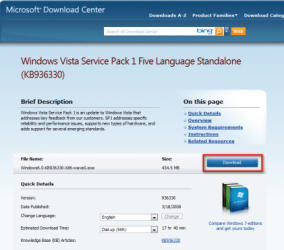
  16. To upgrade install Seven on top of Vista, we need Service Pack 1. If Vista found the correct NIC drivers, or if you installed them manually as I did, you can now download the needed Vista Service Pack 1 from Microsoft. You can also use another rig to download it. The address is: http://www.microsoft.com/downloads/en/details.aspx?familyid=b0c7136d-5ebb-413b-89c9-cb3d06d12674&displaylang=en
  17. Click Download button:
    .
    Upgrade_to_Seven_20.png
    .
  18. No need to save, click Run:
    .
    Upgrade_to_Seven_22.png

    .
  19. You have to click Run again:
    .
    Upgrade_to_Seven_23.png

    .
  20. User Account Control (UAC) is one of the new things you have to get used to. Give Vista a permission to install service pack by clicking Continue:
    .
    Upgrade_to_Seven_24.png

    .
  21. Three next steps are self explaining:
    .
    Upgrade_to_Seven_25.png

    .
    Upgrade_to_Seven_26.png

    .
    Upgrade_to_Seven_27.png

    .
  22. Good time to go to your local pub now, this takes an hour, give or take ten minutes:
    .
    Upgrade_to_Seven_28.png

    .
  23. Vista reboots several times and you are getting used to see this:
    .
    Upgrade_to_Seven_29.png

    .
  24. Finally:
    .
    Upgrade_to_Seven_30.png

    .
Step 2: Upgrade to Windows 7


Reboot your computer, insert Seven DVD and continue as told in this tutorial:
Upgrade Install with Windows 7

After doing as told in that excellent tutorial by Brink, you have finally upgraded your XP to Seven. This test PC of mine had everything working from the first moment, I only had to find and install the sound card drivers. It's a very nice feeling to see this after over five hours project:

Upgrade_to_Seven_50.png


Clicking my avatar to log in first time:

Upgrade_to_Seven_51.png


Looks good. All desktop icons from XP still there, although reorganized:

Upgrade_to_Seven_52.png


Network found straight away, I just had to change global sharing prefences for other rigs to see this:

Upgrade_to_Seven_54.png


All programs, even the old games, installed on XP still working:

Upgrade_to_Seven_55b.png


One of the most used arguments against in-place upgrade is how "bloated" it makes your computer, keeping old no longer needed files and trash. Here's to those spreading this untrue rumor, compare this to your Windows folder:

Upgrade_to_Seven_58.png


And this after XP Pro was upgraded to Vista Ultimate, which in turn was upgraded to Seven Ultimate. Honestly, geeks, how bloated is that?

Everything is possible!

Kari
 
Last edited:
Nice work Kari, very interesting tutorial.
 

My Computer

Computer type
PC/Desktop
Computer Manufacturer/Model Number
76~2.0
OS
Windows 7 Ult x64 - SP1/ Windows 8 Pro x64
CPU
Intel Core i5-3570K 4.6GHz
Motherboard
Gigabyte GA-Z77X UD3H, f18
Memory
8GB (2X4GB) DDR3 1600 Corsair Vengeance CL8 1.5v
Graphics Card(s)
Sapphire HD 7770 Vapor-X OC 1GB DDR5
Sound Card
Onboard VIA VT2021
Monitor(s) Displays
22" LCD Dell
Screen Resolution
1680x1050
Hard Drives
Samsung 840Pro 128GB SSD,
Seagate Barracuda 500GB SATA2 7200rpm 32MB cache, Seagate Barracuda 1TB SATA2 7200rpm 32MB cache,
PSU
Corsair HX650W
Case
Cooler Master Storm Scout
Cooling
Corsair H80 2x12cm Noctua NF P12 , 2x14cm case fans
Keyboard
Logitech Wave
Mouse
CM Sentinel
Internet Speed
Dismal
Antivirus
Avast
Browser
Opera Next
Other Info
Haswell laptop: HP Envy 17t-j, i7-4700MQ, GeForce 740M 2GB DDR3, 17.3" Full HD 1920x1080, 16GB RAM, Samsung 840 Pro 128GB, 1TB Hitachi 7200 HDD,
Desktop: eSATA ports,
External eSATA Seagate 500GB SATA2 7200rpm,
External WD USB 500GB
Nice tutorial for those who wish to go this route. Well Done!
 

My Computer

Computer Manufacturer/Model Number
Custom (Self Build)
OS
Windows 7 Home Premium 64bit
CPU
Intel Core i7 2700k
Motherboard
eVGA P67 SLI
Memory
8GB Mushkin Redline Ridgebacks @1866
Graphics Card(s)
EVGA GTX570 SC
Sound Card
XiFi Titanium HD
Monitor(s) Displays
LG W2453V
Screen Resolution
1920x1080
Hard Drives
Intel 320 80GB -- Intel X25-V 40GB --WD Black 1TB x2 -- WD Blue 640GB
PSU
Seasonic x750
Case
Corsair 600T SE White
Cooling
eVGA Superclocked CPU Cooler
Keyboard
Saitek Cyborg
Antivirus
Kaspersky
Browser
IE
Other Info
LG BD/DVD
It's quite impressive how you get that amount of disk used... maybe you are using a x86 version of Seven, but my lappy and desk had around that without nothing installed... maybe because I installed a x64 version of Seven on each...

Seems to take a bit long to get this acomplisshed... personally, I just preffer to backup everythng (as I did on my old XP install) and do a clean install of Seven... but honestly, is a great method for people that doesn't want or don't have the way to backup everything and want just to upgrade.

Great tutorial man, was very nformative ;)

See ya!!! :D
 

My Computer

Computer type
PC/Desktop
Computer Manufacturer/Model Number
Assembled Desktop PC
OS
Microsoft Windows 7 Home Premium SP1 64-bit Build 7600
CPU
AMD Athlon 64 X2 5200+ Dual Core CPU @ 2.7 Ghz (Brisbane)
Motherboard
PCChips A13G+ v3.0
Memory
2x2 GB DDR2 PC-5300 (667 Mhz) Kingston ValueRAM
Graphics Card(s)
XFX ATI Radeon HD 4350 GPU (512 MB + 512 MB HM)
Sound Card
Realtek High Definition Audio Driver ALC660 @ MCP61S
Monitor(s) Displays
HP S2031 20" LED HD Widescreen Display Monitor
Screen Resolution
1600 x 900 px
Hard Drives
Maxtor Diamond Max 10 (160 GB, 7200 RPM, SATA-II Hard Disk)
Western Digital Scorpion Blue (250 GB, 5400 RPM, SATA-II External Hard Disk - Personal Data)
Toshiba MQ01ABD050 (500 GB, 5400 RPM, SATA-II External Hard Disk - Software & ISOs)
PSU
Pixxo Transformer 850W 80+ Certification PSU
Case
Compaq 5BW353 Case
Cooling
Many solutions, see other info...
Keyboard
Green Leaf (Mitzu) Standard Keyboard
Mouse
Microsoft USB Lasser Pointing Device
Internet Speed
10 MB
Antivirus
Avast Antivirus Free
Browser
Firefox, Chrome, Internet Explorer
Other Info
Windows Experience Index Result: 3.8 of 7.9.

Cooling solutions:
- AVC @ 2000/5000 RPM Copper Heatpipes (For Athlon 64 X2 6000+ CPU used in an Athlon 64 X2 5200+)
- Rear Fan 80 mm @ 2700 RPM for heat extraction
- Manhatan Chipset Cooler @ 4700/7200 RPM (For nVidia Chipset in MoBo)
- Foxconn @ 2500 RPM (Old Pentium III heatsink fan) in XFX ATI Radeon HD 4350
Yes, because you can only start from 32-bit XP your only option is to use Vista x86 in between, and then upgrade to Seven x86.

I am not saying this is a recommended route to migrate from XP to Seven. Purpose of this tutorial is only to show it is possible, and that when upgrade install is made correctly it can be done without problems.

Kari
 

My Computer

Computer type
Laptop
Computer Manufacturer/Model Number
HP ENVY 17-1150eg
OS
Windows 10 Pro x64 EN-GB
CPU
1.6 GHz Intel Core i7-720QM Processor
Memory
6 GB
Graphics Card(s)
ATI Mobility Radeon HD 5850 Graphics
Sound Card
Beats sound system with integrated subwoofer
Monitor(s) Displays
17" laptop display, 22" LED and 32" Full HD TV through HDMI
Screen Resolution
1600*900 (1), 1920*1080 (2&3)
Hard Drives
Internal: 2 x 500 GB SATA Hard Disk Drive 7200 rpm
External: 2TB for backups, 3TB USB3 network drive for media
Cooling
As Envy runs a bit warm, I have it on a Cooler Master pad
Keyboard
Logitech diNovo Media Desktop Laser (bluetooth)
Mouse
Logitech Performance Mouse MX
Internet Speed
50/10 Mbps VDSL
Antivirus
Windows Defender 4.3.9431.0
Browser
Maxthon 3.5.2., IE11
My 6 year old desktop might be too outdated to bother with this. I may use laplink software to bring my old XP to a Windows 8.1 installation on a newer computer.

My dad's 6 year old desktop will probably have to be upgraded at least to Vista.
 

My Computer

Computer type
Laptop
Computer Manufacturer/Model Number
HP
OS
Windows 7 Professional x64
Memory
8 GB
Screen Resolution
1024x768 External monitor
Hard Drives
1 TB
Keyboard
External USB
Mouse
Wireless external mouse
Internet Speed
10 Mbps/1 Mbps
Antivirus
Avast! 8
Browser
Chrome
Back
Top