
How to Turn On or Off Media Streaming using Windows Media Player in Windows 7
Information
Media streaming (media sharing) allows you to send your music, pictures, and videos to other computers and devices on your same home or work network. If you have a home network, you can use Windows Media Player (WMP) to stream media to computers and media devices in your home.
This will show you how to turn media streaming using Windows Media Player on or off for all users in Windows 7.
This will show you how to turn media streaming using Windows Media Player on or off for all users in Windows 7.
Note
The N and KN editions of Windows 7 have all the features that normally come with each individual Windows 7 edition, except for Windows Media Player 12 and related programs, such as Windows Media Center or Windows DVD Maker.
The N editions of Windows 7 allow you to choose your own media player and software required to manage and play CDs, DVDs, and other digital media files. If you choose to use Windows Media Player 12, downloading it, along with related software, is free. Download Media Feature Pack for Windows 7 N with Service Pack 1 and Windows 7 KN with Service Pack 1 (KB968211) from Official Microsoft Download Center
The N editions of Windows 7 allow you to choose your own media player and software required to manage and play CDs, DVDs, and other digital media files. If you choose to use Windows Media Player 12, downloading it, along with related software, is free. Download Media Feature Pack for Windows 7 N with Service Pack 1 and Windows 7 KN with Service Pack 1 (KB968211) from Official Microsoft Download Center
OPTION ONE
To Turn On Media Streaming in Windows 7
2. To Turn On Media Streaming from Windows Media Player 12 A) Open Windows Media Player (wmplayer.exe).
B) If WMP is in Now Playing mode, click the Switch to Library button

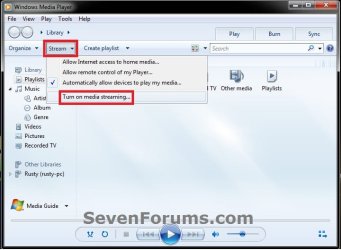
C) Click on the Stream toolbar button, and click on Turn on media streaming. (see screenshot below)
NOTE: If the Stream toolbar button is missing, then media sharing is disabled, and will need to be enabled first.
D) Go to step 5.
3. To Turn On Media Streaming from HomeGroup Settings
NOTE: You will only be able to use this step if you have created and/or joined a homegroup first. A) Open the Control Panel (icons view), and click on the HomeGroup icon.
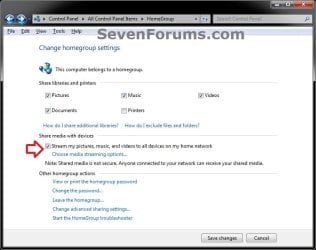
B) Under Share media with devices, either check the "Stream my pictures....." box and click on the Save changes button, or click on the Choose media streaming options link. (see screenshot below)
NOTE: If the "Stream my pictures....." box is grayed out, then media sharing is disabled, and will need to be enabled first.
C) Go to step 5.
4. To Turn On Media Streaming from Advanced Sharing Settings A) Open the Control Panel (icons view), and click on the Network and Sharing Center icon.
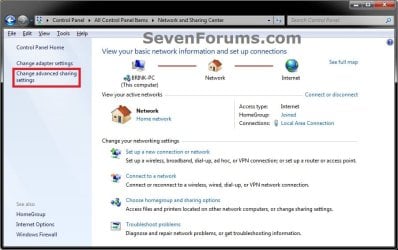
B) In the upper part of the left pane in the Network and Sharing Center, click on the Change advanced sharing settings link. (see screenshot below)
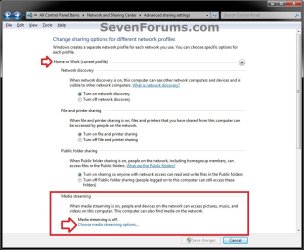
C) Under Media streaming in the Home or Work or Public profile section, click on the Choose media streaming options link. (see screenshots below)

5. Click on the Turn on media streaming button. (see screenshot below)
NOTE: If this is red with Media streaming is not turned on instead, then media sharing is disabled, and will need to be enabled first.
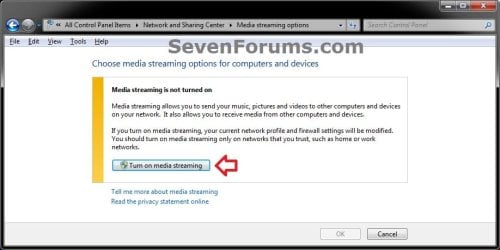
6. If prompted by UAC, then click on Yes (if administrator) or enter the administrator's password (if standard user).
7. Select to show devices or computers on the Local network or All networks to have them allowed or blocked to access your shared media. (see screenshots below)
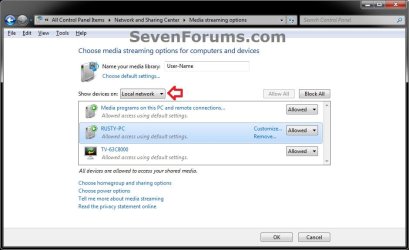
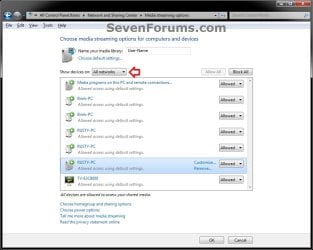
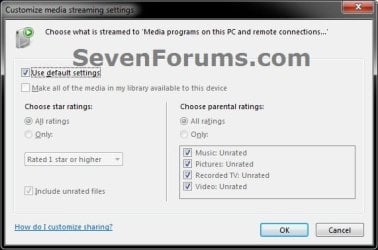
8. You can click on the Choose default settings link (see screenshots above) to choose what is streamed by default to all computers and devices on your network. Click on OK when finished. (see screenshot below)
NOTE: These settings can also be modified for each computer and device in step 9.
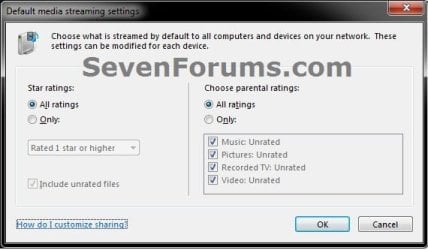
9. You can click on the Customize link of a selected computer or device (see screenshots below step 7) to choose what is streamed to media programs on this computer and remote connections. Click on OK when finished. (see screenshot below)
10. When finished setting the Media streaming options, click on OK. (see screenshots below step 7)
Note
- If your computer is on a public network, you will be prompted to change the network location to home or work before you can stream media.
- If you have created and/or joined a homegroup, you might be prompted to share your media libraries with your homegroup before you can stream media.
OPTION TWO
To Turn Off Media Streaming in Windows 7
2. To Turn Off Media Streaming from Windows Media Player 12 A) Open Windows Media Player (wmplayer.exe).
B) If WMP is in Now Playing mode, click the Switch to Library button
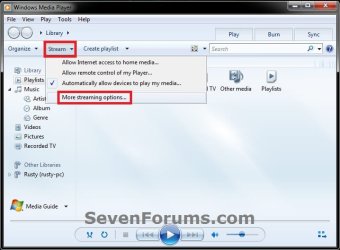
C) Click on the Stream toolbar button, and click on More streaming options. (see screenshot below)
D) Go to step 5.
3. To Turn Off Media Streaming from HomeGroup Settings A) Open the Control Panel (icons view), and click on the HomeGroup icon.
B) Under Share media with devices, either uncheck the "Stream my pictures....." box and click on the Save changes button, or click on the Choose media streaming options link. (see screenshot below)
C) Go to step 5.
4. To Turn Off Media Streaming from Advanced Sharing Settings A) Open the Control Panel (icons view), and click on the Network and Sharing Center icon.
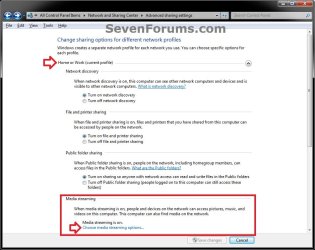
B) In the upper part of the left pane in the Network and Sharing Center, click on the Change advanced sharing settings link. (see screenshot below)
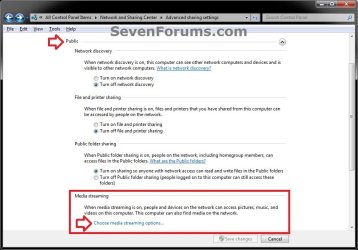
C) Under Media streaming in the Home or Work or Public profile section, click on the Choose media streaming options link. (see screenshots below)
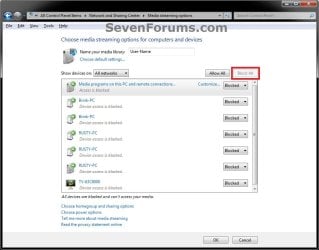
5. With the devices or computers on either the Local network or All networks showing, click on the Block All button, then click on OK. (see screenshot below)
That's it,
Shawn
Related Tutorials
- How to Enable or Disable Media Sharing from Windows Media Player in Windows 7
- How to Change Windows 7 Homegroup File and Folder Sharing Settings
- How to Link your Live ID and Share Files in Windows 7 HomeGroup
- How to Turn DVD Playback Restrictions On or Off in Windows 7 Media Player
- How to Turn Network Discovery On or Off in Windows 7
Attachments

Last edited:


