
How to Turn "SmartScreen Filter" On or Off in Internet Explorer
Information
SmartScreen Filter is a feature in IE8, IE9, IE10, or IE11 that helps detect phishing websites, and can also help protect you from installing malicious software or malware.
For more detailed information about the SmartScreen filter, see:
- Online phishing (pronounced like the word fishing) is a way to trick computer users into revealing personal or financial information through an e‑mail message or website. A common online phishing scam starts with an e‑mail message that looks like an official notice from a trusted source, such as a bank, credit card company, or reputable online merchant. In the e‑mail message, recipients are directed to a fraudulent website where they are asked to provide personal information, such as an account number or password. This information is then typically used for identity theft.
- The terms malicious software and malware refer to programs that pose a security or privacy risk by demonstrating illegal, viral, fraudulent, or malicious behavior. For example, viruses, worms, and Trojan horses are malicious software.
For more detailed information about the SmartScreen filter, see:
Note
SmartScreen Filter helps to protect you in three ways:
- It operates in the background as you browse the web, analyzing webpages and determining if they have any characteristics that might be suspicious. If it finds suspicious webpages, SmartScreen will display a message giving you an opportunity to provide feedback and advising you to proceed with caution.
- SmartScreen Filter checks the sites you visit against an up-to-the-hour, dynamic list of reported phishing sites and malicious software sites. If it finds a match, SmartScreen Filter will show you a red warning notifying you that the site has been blocked for your safety.
- SmartScreen Filter also checks files downloaded from the web against the same dynamic list of reported malicious software sites. If it finds a match, SmartScreen Filter will show a red warning notifying you that the download has been blocked for your safety.
Warning
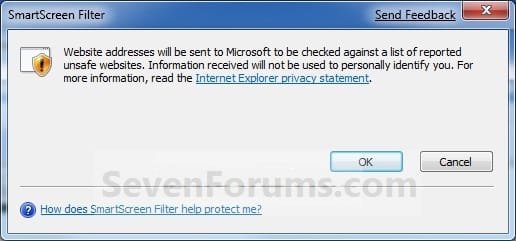
SmartScreen Filter uses an SSL (Secure Socket Layer) web connection to send website addresses to Microsoft. For more information about what data is sent and how it is used, go to the Internet Explorer Privacy Statement online.
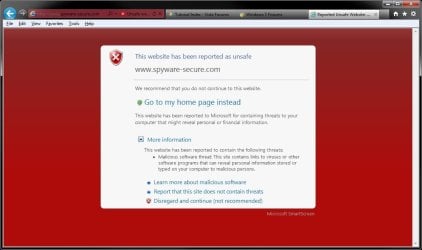
EXAMPLE: SmartScreen Filter Enabled with a Considered Unsafe Website
NOTE: If the SmartScreen Filter is turned on and you attempt to visit a website that isn't considered safe, the below screen will appear prompting you to take alternative actions. When active, the SmartScreen Filter will also notify you when you attempt to download software that is potentially unsafe.
OPTION ONE
Enable or Disable SmartScreen Filter in Internet Options
2. Open Internet Explorer, click/tap on Tools (Menu Bar or Command Bar or gear icon), and go to step 4 below.
3. Open the Control Panel (icons view), click/tap on Internet Options, click/tap on the Advanced tab, scroll down to the Security section, and go to step 4 below. (See screenshot below)
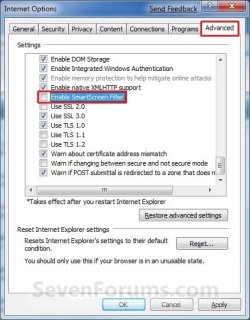
4. To Turn On the SmartScreen Filter A) Check the Enable SmartScreen Filter box, and click/tap on OK. (See screenshot above)
B) Click/tap on OK to confirm. (See screenshot below)
5. To Turn Off the SmartScreen Filter A) Uncheck the Enable SmartScreen Filter box, and click/tap on OK. (See screenshot below step 4)
OPTION TWO
Enable or Disable SmartScreen Filter using Command Bar in IE
NOTE: In Windows 8, this would only apply to the IE10 desktop version, and not the IE10 Metro (Windows UI) version.
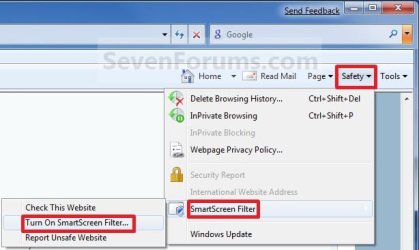
2. Click/tap on the Command Bar Safety icon button. (See screenshot below)
3. To Turn On SmartScreen Filter
NOTE: This is if it SmartScreen Filter is currently turned off. A) Click/tap on SmartScreen Filter and Turn On SmartScreen Filter. (See screenshot above)
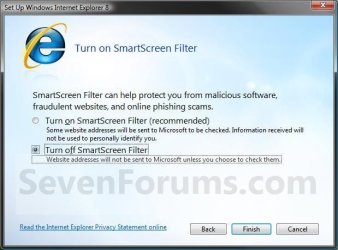
B) Dot Turn on SmartScreen Filter (recommended) and click/tap on OK. (See screenshot below step 4)
4. To Turn Off SmartScreen Filter
NOTE: This is if it SmartScreen Filter is currently turned on. A) Click/tap on SmartScreen Filter and Turn Off SmartScreen Filter. (See screenshot below step 2)
B) Dot Turn off SmartScreen Filter,and click/tap on OK. (See screenshot below)

OPTION THREE
Enable or Disable SmartScreen Filter using a REG File Download
NOTE: Thank you to Shinjitai for pointing this option out. 1. Do step 2, 3, 4, or 5 below depending on if you have IE8, IE9, IE10, or IE11 and what you would like to do.
2. To Turn On SmartSceen Filter in IE8 A) Click/tap on the Download button below to download the .reg file below. Enable_IE8_SmartScreenFilter.reg
Download
B) Go to step 6.
3. To Turn Off SmartSceen Filter in IE8 A) Click/tap on the Download button below to download the .reg file below. Disable_IE8_SmartScreenFilter.reg
Download
B) Go to step 6.
4. To Turn On SmartSceen Filter in IE9, IE10, or IE11 A) Click/tap on the Download button below to download the .reg file below. Enable_IE9_SmartScreenFilter.reg
Download
B) Go to step 6.
5. To Turn Off SmartSceen Filter in IE9, IE10, or IE11 A) Click/tap on the Download button below to download the .reg file below. Disable_IE9_SmartScreenFilter.reg
Download
B) Go to step 6.
6. Save the .reg file to your desktop.
7. Double click/tap on the downloaded .reg file to merge it.
8. If prompted, click/tap on Run, Yes (UAC-Windows 7/8) or Continue (UAC-Vista), Yes, and OK to approve the merge.
9. When finished, you can delete the downloaded .reg file if you like.
That's it,
Shawn
Related Tutorials
- How to Turn On or Off "Windows SmartScreen" in Windows 8 and 8.1
- Turn On or Off SmartScreen Filter to Check Web Content (URLs) that Store Apps Use
- How to Enable or Disable Toolbars and Extensions in Internet Explorer InPrivate Browsing
- How to Open a Internet Explorer InPrivate Browsing Window
- How to Turn InPrivate Filtering On or Off in Internet Explorer 8
- How to Turn Internet Explorer Pop-up Blocker On or Off
- How to Allow Pop-ups from a Website in Internet Explorer
- How to Turn Internet Explorer Protected Mode On or Off
- How to Turn On or Off Enhanced Protected Mode in IE10 and IE11
- How to Turn "ActiveX Filtering" On or Off in IE9 and IE10
- How to Manually Check a Website with SmartScreen Filter in Internet Explorer
- How to Report a Unsafe Website with SmartScreen Filter in Internet Explorer
- How to Allow or Block Cookies in Internet Explorer in Vista and Windows 7
- How to Enable or Disable DOM Storage "Cookies" in Internet Explorer and Firefox
- How to Allow or Prevent Websites to Request Your Location in IE9, IE10, and Firefox
- How to Turn the Cross-site Scripting (XSS) Filter On or Off in IE8 and IE9
- How to Prevent Users from Bypassing SmartScreen Filter Warnings in Internet Explorer
Attachments
-
 Setup-2.jpg33.1 KB · Views: 564
 -
 Smartscreen.jpg41.4 KB · Views: 675
 -
Enable_IE8_SmartScreenFilter.reg626 bytes · Views: 3,226
-
Disable_IE8_SmartScreenFilter.reg626 bytes · Views: 3,602
-
Enable_IE9_SmartScreenFilter.reg626 bytes · Views: 4,006
-
Disable_IE9_SmartScreenFilter.reg626 bytes · Views: 5,944
Last edited:


 doooh
doooh 


