
How to Turn GPU "Hardware Acceleration" On or Off in IE9 and IE10
Information
To speed up performance, IE9 and IE10 uses the power of your computer's graphics processor, also known as a GPU, to handle graphics-heavy tasks like video streaming or online gaming. By tapping into the GPU, Internet Explorer 9 delivers a faster and more immersive web experience.
This tutorial will show you how to turn GPU Hardware Acceleration on or off in IE9 and IE10.
This tutorial will show you how to turn GPU Hardware Acceleration on or off in IE9 and IE10.
Note
By default, IE9 and IE10 uses GPU Rendering mode (hardware acceleration). However, some outdated video cards/chips and video drivers do not support GPU hardware acceleration. If IE9 or IE10 determines that your current video card/chip or video driver does not support GPU hardware acceleration, Internet Explorer uses Software Rendering mode (off).
If GPU hardware acceleration is turned off, then you may experience slow performance when you browse a webpage using IE9 or IE10.
If GPU hardware acceleration is turned off, then you may experience slow performance when you browse a webpage using IE9 or IE10.
Here's How:
1. In IE9 or IE10, click/tap on Tools (Menu bar or gear icon) and Internet Options.
NOTE: In Windows 8, you would open the IE10 desktop version, and not the IE10 Metro (Windows UI) version.
2. To Turn On GPU Hardware Acceleration in IE9 and IE10
NOTE: This is the default setting.
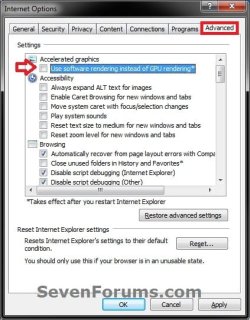
A) Click/tap on the Advanced tab, uncheck the Use software rendering instead of GPU rendering box, and click/tap on OK. (see screenshot below)
NOTE: If the Use software rendering instead of GPU rendering option is greyed out and checked, then your current video card/chip or video driver does not support GPU hardware acceleration.
B) Go to step 4.
3. To Turn Off GPU Hardware Acceleration in IE9 and IE10
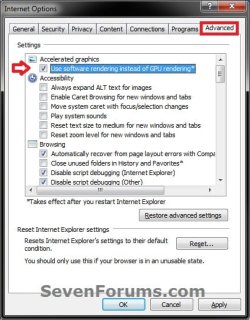
A) Click/tap on the Advanced tab, check the Use software rendering instead of GPU rendering box, and click/tap on OK. (see screenshot below)
4. Close and reopen IE9 or IE10 to apply.
That's it,
Shawn
Last edited:


