
How to Import Firefox Bookmarks into Internet Explorer Favorites
Information
This will show you how to import your Firefox Bookmarks into your Internet Explorer Favorites.
Here's How:
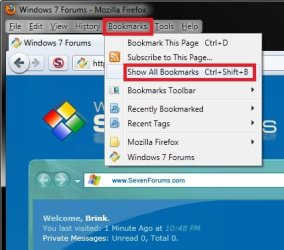
1. Open Firefox, and click on Bookmarks (Menu bar) and on Show All Bookmarks. (see screenshot below)
NOTE: You could also press Ctrl+Shift+B in Firefox instead.
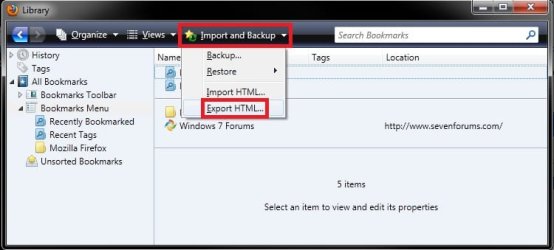
2. In the Firefox Library window, select All Bookmarks in the left pane, click on the Import and Backup toolbar button, then click on Export HTML. (see screenshot below)
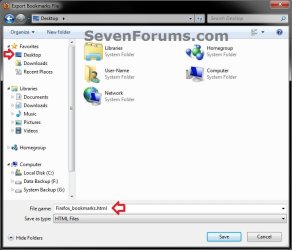
3. Navigate to your Desktop, type in a name (ex: Firefox_Bookmarks), then click on the Save button. (see screenshot below)
NOTE: This HTML file is your Firefox bookmarks.
4. Close both the Firefox and Firefox Library windows above.
5. Open Internet Explorer, click on File (Menu bar) and on Import and export. (see screenshot below)

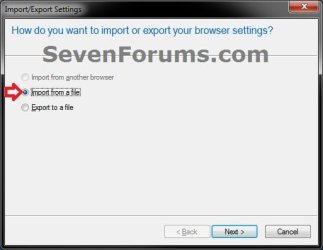
6. Select (dot) Import from a file, and click on Next. (see screenshot below)
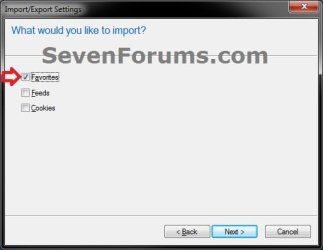
7. Select (dot) Favorites, and click on Next. (see screenshot below)
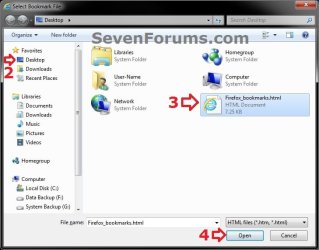
8. Click on the Browse button. Navigate to your Desktop, select the HTML file (ex: Firefox_Bookmarks) from step 3, click on Open, then click on Next. (see screenshots below)

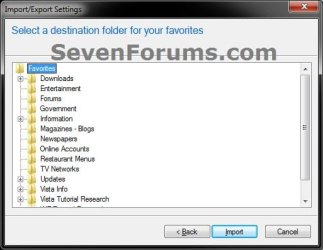
9. Select a Internet Explorer Favorites folder that you want to import the HTML file into, and click on Import. (see screenshot below)
10. Click on Finish. (see screenshot below)
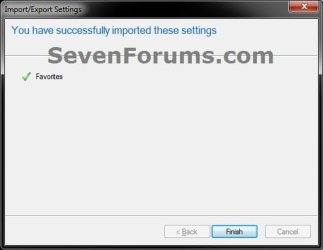
11. Your Firefox Bookmarks have now been imported into your selected Internet Explorer Favorites folder, and into the same C:\Uses\(user-name)\Favorites folder.
That's it,
Shawn
Last edited:


