
UEFI (Unified Extensible Firmware Interface) - Install Windows 7 with

How to Install Windows 7 Using the "Unified Extensible Firmware Interface" (UEFI)


   Information
In addition to better interoperability, UEFI firmware provides several technical advantages:
  • Compatibility with operating systems that support only BIOS
  • Ability to boot from large disks
  • CPU-independent architecture
  • CPU-independent drivers
  • Flexible pre-OS environment
  • Modular design
Two of the most notable Windows features for UEFI systems are the following:
  • Multicast deployment, which enables large scale network-based image deployment in manufacturing and enterprise settings.
  • Fast boot and resume from hibernation, which improves user experience.
The rich UEFI interface provides ample room for innovation in the development of operating system features. Along with the other members of the Unified EFI Forum, Microsoft is investigating the following:
  • Rootkit prevention
  • Network authentication
-Microsoft Corporation
This method can also be used for the UEFI installation of Windows 8, Windows Server 2008 SP1, Windows Server 2008 R2, and Windows Vista SP1.

   Note
You will need to satisfy the following requirements in order to proceed:

  • A Windows 7 compatible system
  • A Windows 7 x64-bit installation media. 32-bit is not supported.
  • A UEFI v2.0+ compliant PC. Check your chipset manufacturer/firmware documentation.
  • A blank, partition-free, hard disk for installation.
   Warning

  • Disabling UEFI will make the system unbootable as there is no MBR on the disks.
  • You CANNOT make a sector-by-sector copy of GPT disks. The Disk and Partition GUIDs will no longer be unique. This must never happen. You can make a sector-by-sector copy of the contents of ESP or basic data partitions.
  • Disable secure boot before installing Windows 7.


Here's How:

1. Do step 2 or 3 below depending on what installation Media you are using.

2. If using a Retail 64-bit Windows 7 Installation DVD A) Insert the DVD, restart the computer, and go to step 4 below.
3. If using a 64-bit Windows 7 Installation USB Flash Drive with UEFI A) If you have not already, you will need to create a Windows 7 installation bootable USB flash drive for UEFI from either a Windows 7 installation ISO or DVD.

B) Connect the USB, restart the computer, and go to step 4 below.
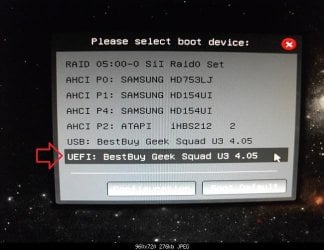
4. Press whatever key (ex: F11) it shows to boot to your motherboard's boot menu, and select to boot from the DVD or UEFI USB. (see screenshot below) UEFI_USB_Boot_Menu.jpg
5. Do steps 3 to 7 in the tutorial link below. http://www.sevenforums.com/tutorials/1649-clean-install-windows-7-a.html
6. Delete all partitions/volumes on the disk # (ex: Disk 0) that you want to install Windows 7 as UEFI on until that disk # shows as unallocated space. (see screenshot below) Step7.jpg
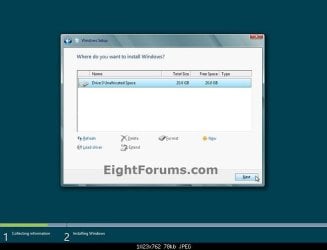
7. When you are finished, click/tap on New, Apply (for full size of disk), and OK. (see screenshot above)

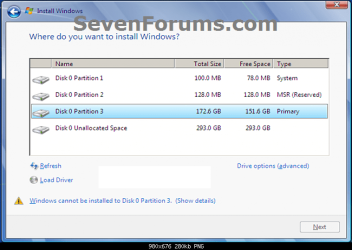
8. You will notice that the disk has now been formatted as GPT with 3 partitions. Select the "Primary" partition 3, and click/tap on Next. (see screenshot below)
NOTE: You might receive a "Windows can't be installed on drive 0" warning, but as long as you can click on the Next button, you're fine.
   Note
The 3 partitions are:
  • Partition 1 - System - The EFI System partition that contains the NTLDR, HAL, Boot.txt, and other files that are needed to boot the system, such as drivers.
  • Partition 2 - MSR - The Microsoft Reserved (MSR) partition that reserves space on each disk drive for subsequent use by operating system software.
  • Partition 3 - Primary - Where Windows is to be installed to.

    It is imperative that these 3 partitions remain in the exact order as they are


Windows7.PNG
9. You can now finish doing the steps in either tutorial below.

10. That's it. You have successfully installed Windows 7 on an UEFI system.


External Links:


Windows and GPT FAQ
Unified Extensible Firmware Interface - Wikipedia, the free encyclopedia
UEFI and Windows
 
Last edited by a moderator:
Hello Cheesum,

Yep, the 100 MB "System" partition will still be there, but it'll also have the partitions used for UEFI like in the screenshot under step 8 here. :)

246030d1355766218-uefi-unified-extensible-firmware-interface-install-windows-7-windows7.png
 

My Computer My Computer

Computer type
PC/Desktop
Computer Manufacturer/Model Number
Self built custom
OS
64-bit Windows 11 Pro for Workstations
CPU
Intel i7-8700K OC'd to 5 GHz
Motherboard
ASUS ROG Maximus XI Formula Z390
Memory
64 GB (4x16GB) G.SKILL TridentZ RGB DDR4 3600 MHz
Graphics Card(s)
ASUS ROG-STRIX-GTX1080TI-O11G-GAMING
Sound Card
Integrated
Monitor(s) Displays
2 x Samsung Odyssey G7 27"
Screen Resolution
2560x1440
Hard Drives
1TB Samsung 990 PRO M.2,
4TB Samsung 990 PRO PRO M.2,
TerraMaster F8 SSD Plus NAS
PSU
Seasonic Prime Titanium 850W
Case
Thermaltake Core P3
Cooling
Corsair Hydro H115i
Keyboard
Logitech wireless K800
Mouse
Logitech MX Master 4
Internet Speed
2 Gb/s Download and 100 Mb/s Upload
Antivirus
Malwarebyte Anti-Malware Premium
Browser
Google Chrome
Other Info
Logitech Z625 speaker system,
Logitech BRIO 4K Pro webcam,
HP Color LaserJet Pro MFP M477fdn,
APC SMART-UPS RT 1000 XL - SURT1000XLI,
Galaxy S23 Plus phone
Hi - Thanks for the fast reply. Please be patient....complete novice here....:( Can i confirm with you that under the UEFI mode, the 100MB "system" partition (that existed when we install under normal BIOS mode) will be included in Disk 0 Partition 2 - MSR Reserved ??
Also, another question. From the printscreen at step 8 - there are two partitions being:
Disk 0 Partition 3
Disk 0 Unallocated space
Can we combine both of these together under 1 partition?

The reason i am asking this is because the end result that i am looking for is 3x partitions being:
Disk 0 Partition 1 - System,
Disk 0 Partition 2 - MSR Reserved,
Disk 0 Partition 3 - of ALL the remaining space whereby Windows 7 OS will be installed here @ partition 3.

Thanks for your help and patience on this matter.
 

My Computer My Computer

Computer type
Laptop
Computer Manufacturer/Model Number
Lenovo Ideapad Y580
OS
Windows 7 Home Premium 64Bit
Cheesum,

No worries.

Nothing from the original installation will be left. This will completely delete and format the drive. When it's formatted, it adds those new partitions for UEFI. The new 100 MB "System" Disk 0 Partition 1 (like in screenshot) is the same as the other "System Reserved" partition.

The unallocated space should be included during the installation. If not for some reason, then yes you will be able to extend partition 3 into the unallocated space to have it all used by Windows.
 

My Computer My Computer

Computer type
PC/Desktop
Computer Manufacturer/Model Number
Self built custom
OS
64-bit Windows 11 Pro for Workstations
CPU
Intel i7-8700K OC'd to 5 GHz
Motherboard
ASUS ROG Maximus XI Formula Z390
Memory
64 GB (4x16GB) G.SKILL TridentZ RGB DDR4 3600 MHz
Graphics Card(s)
ASUS ROG-STRIX-GTX1080TI-O11G-GAMING
Sound Card
Integrated
Monitor(s) Displays
2 x Samsung Odyssey G7 27"
Screen Resolution
2560x1440
Hard Drives
1TB Samsung 990 PRO M.2,
4TB Samsung 990 PRO PRO M.2,
TerraMaster F8 SSD Plus NAS
PSU
Seasonic Prime Titanium 850W
Case
Thermaltake Core P3
Cooling
Corsair Hydro H115i
Keyboard
Logitech wireless K800
Mouse
Logitech MX Master 4
Internet Speed
2 Gb/s Download and 100 Mb/s Upload
Antivirus
Malwarebyte Anti-Malware Premium
Browser
Google Chrome
Other Info
Logitech Z625 speaker system,
Logitech BRIO 4K Pro webcam,
HP Color LaserJet Pro MFP M477fdn,
APC SMART-UPS RT 1000 XL - SURT1000XLI,
Galaxy S23 Plus phone

My Computer My Computer

Computer type
Laptop
Computer Manufacturer/Model Number
Lenovo Ideapad Y580
OS
Windows 7 Home Premium 64Bit
You're welcome Cheesum. It looks like the others are giving you good help over there now. :)
 

My Computer My Computer

Computer type
PC/Desktop
Computer Manufacturer/Model Number
Self built custom
OS
64-bit Windows 11 Pro for Workstations
CPU
Intel i7-8700K OC'd to 5 GHz
Motherboard
ASUS ROG Maximus XI Formula Z390
Memory
64 GB (4x16GB) G.SKILL TridentZ RGB DDR4 3600 MHz
Graphics Card(s)
ASUS ROG-STRIX-GTX1080TI-O11G-GAMING
Sound Card
Integrated
Monitor(s) Displays
2 x Samsung Odyssey G7 27"
Screen Resolution
2560x1440
Hard Drives
1TB Samsung 990 PRO M.2,
4TB Samsung 990 PRO PRO M.2,
TerraMaster F8 SSD Plus NAS
PSU
Seasonic Prime Titanium 850W
Case
Thermaltake Core P3
Cooling
Corsair Hydro H115i
Keyboard
Logitech wireless K800
Mouse
Logitech MX Master 4
Internet Speed
2 Gb/s Download and 100 Mb/s Upload
Antivirus
Malwarebyte Anti-Malware Premium
Browser
Google Chrome
Other Info
Logitech Z625 speaker system,
Logitech BRIO 4K Pro webcam,
HP Color LaserJet Pro MFP M477fdn,
APC SMART-UPS RT 1000 XL - SURT1000XLI,
Galaxy S23 Plus phone
Cheesum,

No worries.

Nothing from the original installation will be left. This will completely delete and format the drive. When it's formatted, it adds those new partitions for UEFI. The new 100 MB "System" Disk 0 Partition 1 (like in screenshot) is the same as the other "System Reserved" partition.

The unallocated space should be included during the installation. If not for some reason, then yes you will be able to extend partition 3 into the unallocated space to have it all used by Windows.

Hi Brink,
What is the impact of combining both the
- Disk 0 partition 3, and
- Disk 0 Unallocated space? to make it into 1 single partition?
 

My Computer My Computer

Computer type
Laptop
Computer Manufacturer/Model Number
Lenovo Ideapad Y580
OS
Windows 7 Home Premium 64Bit
That's exactly correct. However, I would recommend to wait until the installation is finished first to see if you even needed to afterwards.
 

My Computer My Computer

Computer type
PC/Desktop
Computer Manufacturer/Model Number
Self built custom
OS
64-bit Windows 11 Pro for Workstations
CPU
Intel i7-8700K OC'd to 5 GHz
Motherboard
ASUS ROG Maximus XI Formula Z390
Memory
64 GB (4x16GB) G.SKILL TridentZ RGB DDR4 3600 MHz
Graphics Card(s)
ASUS ROG-STRIX-GTX1080TI-O11G-GAMING
Sound Card
Integrated
Monitor(s) Displays
2 x Samsung Odyssey G7 27"
Screen Resolution
2560x1440
Hard Drives
1TB Samsung 990 PRO M.2,
4TB Samsung 990 PRO PRO M.2,
TerraMaster F8 SSD Plus NAS
PSU
Seasonic Prime Titanium 850W
Case
Thermaltake Core P3
Cooling
Corsair Hydro H115i
Keyboard
Logitech wireless K800
Mouse
Logitech MX Master 4
Internet Speed
2 Gb/s Download and 100 Mb/s Upload
Antivirus
Malwarebyte Anti-Malware Premium
Browser
Google Chrome
Other Info
Logitech Z625 speaker system,
Logitech BRIO 4K Pro webcam,
HP Color LaserJet Pro MFP M477fdn,
APC SMART-UPS RT 1000 XL - SURT1000XLI,
Galaxy S23 Plus phone
Hi Brink;
Now, i got a problem again ~! I am able to load Win7 in BIOS mode. When trying to load Win7 in UEFI mode, i followed on the following steps;

Enter the Win7 DVD.
Then, turn off the laptop and then start again.
Press F2 to enter BIOS,
Then, inside BIOS, disable "Secure Boot"
Then, under boot mode: select UEFI.
There, the help section shows the following:
"Windows 8 64 bit please use UEFI boot mode. Other legacy OS please use Legacy support mode."

Now, my computer seems to be stuck at the following screen: --------------> "STARTING WINDOWS" with the Windows logo smiling at me. It is not going anywhere...~!

Where have i erred now?
 

My Computer My Computer

Computer type
Laptop
Computer Manufacturer/Model Number
Lenovo Ideapad Y580
OS
Windows 7 Home Premium 64Bit
On a separate note, when i choose
Boot Mode: Legacy Support (NOT UEFI),
then, another button will pop up: Boot Priority: Legacy First
There, the help section shows the following:
"Determine UEFI device first or Legacy device first."

Hence, for Boot Mode: should i choose UEFI or Legacy Support?
If i choose Legacy Support; in the Boot Priority, should i choose UEFI device first of Legacy device first?
 

My Computer My Computer

Computer type
Laptop
Computer Manufacturer/Model Number
Lenovo Ideapad Y580
OS
Windows 7 Home Premium 64Bit
Cheesum,

It sounds like you are dual booting with Windows 8 with UEFI on one hard drive, and Windows 7 BIOS (Legacy) on a separate hard drive??

If so, you'll need to select Legacy Support for Windows 7.

As far as boot priority goes, it just depends on what you want.
  • UEFI device to have Windows 8 auto boot.
  • Legacy device to have Windows 7 auto boot.
 

My Computer My Computer

Computer type
PC/Desktop
Computer Manufacturer/Model Number
Self built custom
OS
64-bit Windows 11 Pro for Workstations
CPU
Intel i7-8700K OC'd to 5 GHz
Motherboard
ASUS ROG Maximus XI Formula Z390
Memory
64 GB (4x16GB) G.SKILL TridentZ RGB DDR4 3600 MHz
Graphics Card(s)
ASUS ROG-STRIX-GTX1080TI-O11G-GAMING
Sound Card
Integrated
Monitor(s) Displays
2 x Samsung Odyssey G7 27"
Screen Resolution
2560x1440
Hard Drives
1TB Samsung 990 PRO M.2,
4TB Samsung 990 PRO PRO M.2,
TerraMaster F8 SSD Plus NAS
PSU
Seasonic Prime Titanium 850W
Case
Thermaltake Core P3
Cooling
Corsair Hydro H115i
Keyboard
Logitech wireless K800
Mouse
Logitech MX Master 4
Internet Speed
2 Gb/s Download and 100 Mb/s Upload
Antivirus
Malwarebyte Anti-Malware Premium
Browser
Google Chrome
Other Info
Logitech Z625 speaker system,
Logitech BRIO 4K Pro webcam,
HP Color LaserJet Pro MFP M477fdn,
APC SMART-UPS RT 1000 XL - SURT1000XLI,
Galaxy S23 Plus phone
Hi Brink
No. I do not dual boot with both Windows 8 and Windows 7. Now, my sole OS is just Windows 7. I believe currently i am in the BIOS mode since i have selected the following in my BIOS:
disable "Secure Boot"
Then, under boot mode: select legacy support;
Boot priority: Legacy device
Also, how do i check my mode now is BIOS mode and not UEFI?

However, i would like to load Win7 on UEFI. How do i go about doing it? I think there are some additional steps before this tutorial.
 

My Computer My Computer

Computer type
Laptop
Computer Manufacturer/Model Number
Lenovo Ideapad Y580
OS
Windows 7 Home Premium 64Bit
Hi Brink
No. I do not dual boot with both Windows 8 and Windows 7. Now, my sole OS is just Windows 7. I believe currently i am in the BIOS mode since i have selected the following in my BIOS:
disable "Secure Boot"
Then, under boot mode: select legacy support;
Boot priority: Legacy device
Also, how do i check my mode now is BIOS mode and not UEFI?

However, i would like to load Win7 on UEFI. How do i go about doing it? I think there are some additional steps before this tutorial.

Windows 8 - Downgrade Instructions

Lenovo said:
Performing the recovery process for Windows 7


Notes:
•You must have an internal or external DVD drive to use the recovery discs.
•During the recovery process, all data on the hard disk drive will be deleted. Copy any important data or personal files that you want to keep onto removable media or a network drive before you start the recovery process.

To restore your computer to the original factory configuration using the recovery disc set, do the following:
1.Make the CD/DVD drive the first startup device in the startup sequence using the following procedure:
?Repeatedly press and release the F1 key when turning on the computer. When you hear multiple beeps or see a logo screen, release the F1 key. The Setup Utility program opens.
?Use the arrow keys to select Startup. Depending on your computer model, select Primary Boot Sequence, Boot, or Startup Sequence.
?Select the CD/DVD drive as the first boot device by following the instructions and the help messages on the screen.


LENOVO said:
6.Read the messages on the screen and then select GPT partition style or MBR partition style as you desire. Click Next. ¦Note: GPT partition style is selected by default.
 

My Computer My Computer

OS
ME/XP/Vista/Win7
HI all;
How do i check if Windows 7 is running on UEFI mode? Is there any command prompt, etc..which can tell me Win7 is running on UEFI mode?

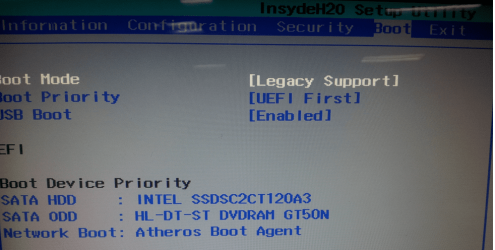
The last time i checked, the settings are shown per the below printscreen.
2013-06-20 13_45_23-1 (3264×2448).png
 
Last edited:

My Computer My Computer

Computer type
Laptop
Computer Manufacturer/Model Number
Lenovo Ideapad Y580
OS
Windows 7 Home Premium 64Bit
It looks like its in Legacy and not UEFI, both because the Legacy setting says so and there are no UEFI options in the actual Priority list.

What other choices exists for Boot Mode and Boot Priority settings?

What are the settings choices for the listing we can only see as EFI in the screenshot?

Will it boot and install now, deleting all partitions in case you need to clear GPT formatting? If not run Diskpart Clean Command
 

My Computer My Computer

OS
ME/XP/Vista/Win7
Hi
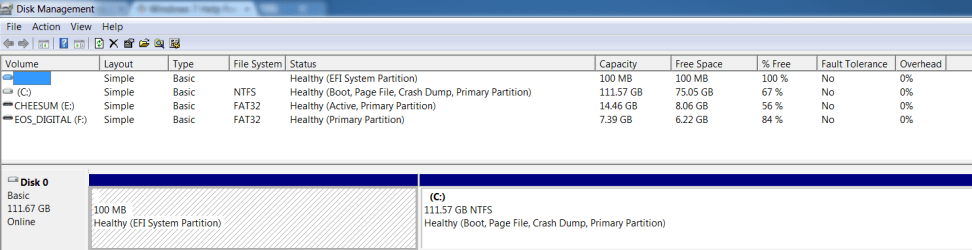
Just completed a clean installation yet again ~! Hopefully, this is the last time...:cry: Please confirm whether i have Windows 7 on UEFI mode.
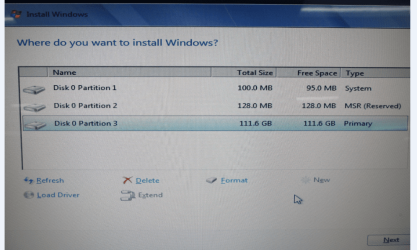
This shows during my clean installation.
Windows 7 clean installation.png

Also, this shows in my Disk Management.
Disk Management.png

Any other way that i can know whether i have installed correctly on UEFI mode? Thanks.
 

My Computer My Computer

Computer type
Laptop
Computer Manufacturer/Model Number
Lenovo Ideapad Y580
OS
Windows 7 Home Premium 64Bit
Hello Cheesum,

From your screenshots, you have successfully installed Windows 7 with UEFI. :)
 

My Computer My Computer

Computer type
PC/Desktop
Computer Manufacturer/Model Number
Self built custom
OS
64-bit Windows 11 Pro for Workstations
CPU
Intel i7-8700K OC'd to 5 GHz
Motherboard
ASUS ROG Maximus XI Formula Z390
Memory
64 GB (4x16GB) G.SKILL TridentZ RGB DDR4 3600 MHz
Graphics Card(s)
ASUS ROG-STRIX-GTX1080TI-O11G-GAMING
Sound Card
Integrated
Monitor(s) Displays
2 x Samsung Odyssey G7 27"
Screen Resolution
2560x1440
Hard Drives
1TB Samsung 990 PRO M.2,
4TB Samsung 990 PRO PRO M.2,
TerraMaster F8 SSD Plus NAS
PSU
Seasonic Prime Titanium 850W
Case
Thermaltake Core P3
Cooling
Corsair Hydro H115i
Keyboard
Logitech wireless K800
Mouse
Logitech MX Master 4
Internet Speed
2 Gb/s Download and 100 Mb/s Upload
Antivirus
Malwarebyte Anti-Malware Premium
Browser
Google Chrome
Other Info
Logitech Z625 speaker system,
Logitech BRIO 4K Pro webcam,
HP Color LaserJet Pro MFP M477fdn,
APC SMART-UPS RT 1000 XL - SURT1000XLI,
Galaxy S23 Plus phone
Thanks alot Brinks for your invaluable help all this while. :)
 

My Computer My Computer

Computer type
Laptop
Computer Manufacturer/Model Number
Lenovo Ideapad Y580
OS
Windows 7 Home Premium 64Bit
You're welcome. :)
 

My Computer My Computer

Computer type
PC/Desktop
Computer Manufacturer/Model Number
Self built custom
OS
64-bit Windows 11 Pro for Workstations
CPU
Intel i7-8700K OC'd to 5 GHz
Motherboard
ASUS ROG Maximus XI Formula Z390
Memory
64 GB (4x16GB) G.SKILL TridentZ RGB DDR4 3600 MHz
Graphics Card(s)
ASUS ROG-STRIX-GTX1080TI-O11G-GAMING
Sound Card
Integrated
Monitor(s) Displays
2 x Samsung Odyssey G7 27"
Screen Resolution
2560x1440
Hard Drives
1TB Samsung 990 PRO M.2,
4TB Samsung 990 PRO PRO M.2,
TerraMaster F8 SSD Plus NAS
PSU
Seasonic Prime Titanium 850W
Case
Thermaltake Core P3
Cooling
Corsair Hydro H115i
Keyboard
Logitech wireless K800
Mouse
Logitech MX Master 4
Internet Speed
2 Gb/s Download and 100 Mb/s Upload
Antivirus
Malwarebyte Anti-Malware Premium
Browser
Google Chrome
Other Info
Logitech Z625 speaker system,
Logitech BRIO 4K Pro webcam,
HP Color LaserJet Pro MFP M477fdn,
APC SMART-UPS RT 1000 XL - SURT1000XLI,
Galaxy S23 Plus phone
Hello Cheesum,

From your screenshots, you have successfully installed Windows 7 with UEFI. :)
Out of pure curiosity since I haven't bother with UEFI so far, why doesn't the Ceesum's Disk management screenshot show 3 partitions. I would have thought to see a partition other than EFI called MSR or something similar?
 

My Computer My Computer

Computer type
PC/Desktop
Computer Manufacturer/Model Number
Own build
OS
Windows 7x64 Home Premium SP1
CPU
Intel i7 2600k
Motherboard
ASUS P8Z68 Deluxe
Memory
G.Skill Ripjaws (DDR3-1600) 2x4GB
Graphics Card(s)
Nvidia GeForce GTS 450; Intel HD Graphics 3000(GT2+)
Monitor(s) Displays
Dell Ultrasharp IPS panel U2311H, Samsung SyncMaster P2350
Screen Resolution
1920x1080
Hard Drives
Samsung 850 Pro SSD 256GB, Samsung SSD 840 120GB, Seagates 1TB Barracuda ST31000528AS x2
PSU
Seasonic M12II 520W
Case
Lian Li Lancool PC-K60
Cooling
Case: 1x120mm, 3x140mm CPU: Hyper 212+
Keyboard
Logitech MK520 (wireless)
Mouse
Logitech MK520
Internet Speed
6-7 Mbps
Antivirus
Norton Security Premium, Malwarebytes on 2 (MSE on 3rd PC)
Browser
FireFox
Other Info
Audio: Logitech Z523 2.1
Back
Top