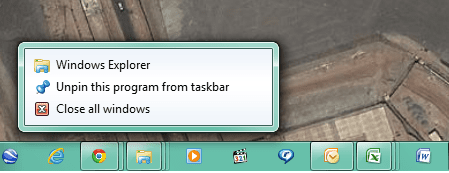
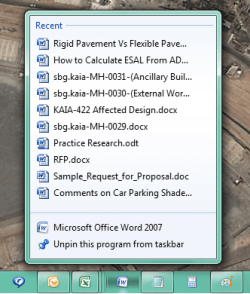
Jump Lists - Pin or Unpin Items

How to Pin or Unpin Items in Windows 7 Jump Lists

   Information
Jump Lists are lists of recent items, such as files, folders, or websites, organized by the program that you use to open them. In addition to being able to open recent and frequent items using a Jump List, you can also pin favorites to a Jump List, so you can quickly get to the items that you use every day.

This will show you how to pin or unpin items such as recent and frequent items, files, folders, and websites to your Jump Lists in the Start Menu and taskbar in Windows 7.

The same items appear in a program's Jump List on the Start menu and on the taskbar.

   Note
On a computer that is running Windows 7 or Windows Server 2008 R2, the Jump List of an application may disappear permanently when you use the application to open or save a new item. This issue occurs when there are 999 items in the Jump List already.

Installing the update at the link below resolves the issue and enables the displaying of the Jump Lists.

A Jump List is not displayed in Windows 7 or in Windows Server 2008 R2 if the list contains more than 999 items


OPTION ONE

To Pin or Unpin Items to Jump Lists in Start Menu


NOTE: Jump Lists don't appear in the All Programs area in the Start menu.
1. Open the Start Menu, and do either step 2 or 3 below for what you would like to do.

2. To Pin a Item to a Jump List in Start Menu
A) Open the pinned or recent program's jump list, and click on the Pin.jpg pushpin icon of a recent or frequent item you that want to pin to this list. (see screenshot below)
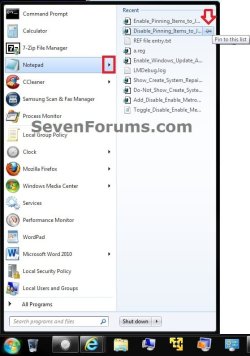
Pin_Start-Menu.jpg
3. To Unpin a Item from a Jump List in Start Menu
A) Open the pinned or recent program's jump list, and click on the Unpin.jpg pushpin icon of a pinned item you want to unpin from this list. (see screenshot below)
Unpin_Start-Menu.jpg
OR

B) Open the pinned or recent program's jump list, right click on the pinned item that you want to unpin, and click on unpin from this list. (see screenshot below)
right-click_Start_Menu.jpg


OPTION TWO

To Pin or Unpin Items to Jump Lists on Taskbar


NOTE: Jump Lists don't appear in the All Programs area in the Start menu.
1. To Pin a Item to a Jump List on Taskbar
A) Right click on a pinned program's icon on the taskbar, and click on the Pin.jpg pushpin icon of a recent or frequent item that you want to pin to this list. (see screenshot below)
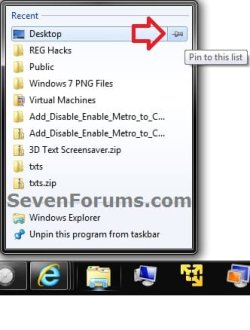
Pin_Taskbar.jpg
OR

B) Drag a file icon or shortcut to the taskbar until you see the pin to.... type message like below, and release. This pins the item to the program's Jump List, and also pins the program to the taskbar, if it isn’t pinned already.
NOTE: Folders are considered Windows Explorer items, and appear in the Windows Explorer Jump List when pinned or opened.

Pin-Drag.jpg
2. To Unpin a Item from a Jump List on Taskbar
A) Right click on a pinned program's icon on the taskbar, and click on the Unpin.jpg pushpin icon of a pinned item you want to unpin from this list. (see screenshot below)
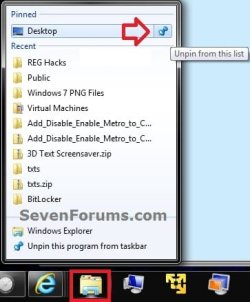
Unpin-Taskbar.jpg
OR

B) Right click on a pinned program's icon on the taskbar, right click on the pinned item that you want to unpin, and click on unpin from this list. (see screenshot below)
right-click_taskbar.jpg
That's it,
Shawn


Last edited:
I'm astounded to be adding the first reply to this Tutorial.

I have experimented a little with creating a Jump List for Windows Explorer. I put some folders into the JL using the icon on the Taskbar. But there's a couple of problems with it that make it not really useful for me. (I hate acronyms usually but it seems the appropriate thing to do here.) The biggest issue is that clicking any folder in a WinExp JL causes a new WinExp window to open. I want to click my entry in the JL & have it appear in the already open WinExp window. It's just too disorganized for my taste to have a proliferation of WinExp windows.

My second issue with it is I couldn't figure out a way of getting the JL to appear from the Taskbar icon without using the mouse. (There's also no way to access the JL from within the WinExp window itself.) I'm a big fan of mouseless operation & W7 has hugely improved the mouseless operation of both the Start Menu & the Taskbar. But JLs are one thing that won't work without the mouse. I expected the usual keyboard sequence, meaning Shift+F10, to pop up something that included the JL. Instead, Shift+F10 on any Taskbar icon pops up the same menu you get from doing Alt+Enter in any window (or single-clicking the icon in the upper left corner of any window). You know, the menu with Move, Size, Maximize, Minimize, Restore, Close, or more or fewer or some other grouping altogether, depending on the window in question. Simultaneous with displaying this menu, focus also switches to the task in question & brings it to the foreground. No, the only way to access a JL is to right click using the mouse.

In WinXP, which I was using until I got a new computer with W7 a couple of weeks ago, there used to be a Favorites item on the WinExp menu bar. Don't confuse this with the Favorites in Internet Explorer. The WinXP WinExp has its own Favorites & a whole user interface for managing it. I could run through the Favorites & select a few Folders. Once selected, I could navigate through these favorite Folders using Alt+LeftArrow & Alt+RightArrow in the WinExp window. (Which is similar to surfing web pages in IE, but again, don't confuse that with what I'm talking about.) This allowed me to use a single WinExp window to walk back & forth through my most used Folders. I'm looking for a way to do the same thing in W7. Right now in W7, I launch WinExp & then manually select the handful of folders I use all the time. This primes my one and only WinExp window that I ever open, and I just Alt+Left/Alt+Right through my favorites. Problem is that I have to do this little chore after every fresh bootup. Granted, it takes under a minute to set it up. But given that it is tedious, repetitious, and 100% the exact same thing I do every time, I would expect there's a way to automate it.
 

My Computer My Computer

Computer type
PC/Desktop
Computer Manufacturer/Model Number
ASUS (assembled myself)
OS
Windows 7 Professional 64-bit
CPU
Intel Core i7-4790K Quad CPU @ 4.00 GHz
Motherboard
ASUS Z97-AR, Intel Z97 Express chipset, ATX form factor
Memory
2x4G DDR3 1600MHz DIMMs
Graphics Card(s)
Intel HD Graphics 4600 on mobo; NVidia GeForce GT 710 PCI-E
Sound Card
Realtek High Definition Audio, integrated on mobo
Monitor(s) Displays
Dell SE2417HGX, 20.5"x11.5" viewable area; 32" Toshiba HDTV
Screen Resolution
1920 x 1080 @ 60 Hz, 32-bit color depth
Hard Drives
Western Digital 500G SATA
Seagate 150G SATA
2 x Seagate 6T SATA
2 x Seagate 18T SATA
PSU
EVGA 500B (500 Watts)
Case
NZXT H230 mid-tower
Cooling
CPU fan, PSU fan, 2 case fans, NVidia fan
Keyboard
Perixx 513H
Mouse
Touch pad integrated into keyboard
Internet Speed
Intel Ethernet Conn(2)I218-V, on mobo, ISP=cableTV 400Mbps
Antivirus
Comodo
Browser
Firefox
Other Info
Ext'l DVD rec: LG HL-DT-ST DVDRAM GP10NB20 USB
Monitor conn to VideoPort via HDMI-to-VideoPort adap
Realtek ALC892 8-channel High Definition Audio CODEC featuring Crystal Sound 2
Audio conn to surr recv via 25' optical S/PDIF TOSLINK audio cable
SYSINFO: 11 NIC ports but only 1 actively conn via DHCP to ISP
ISP bundled w/ cable TV+cell, claims 400Mbps,
but really 50 million bytes/sec
Hello WildWilly,

You can press press the Windows + ALT + (1-10) keys to open the jump list of the icon in the numerical order from either left to right or top to bottom on the taskbar.

Hope this helps some,
Shawn
 

My Computer My Computer

Computer type
PC/Desktop
Computer Manufacturer/Model Number
Self built custom
OS
64-bit Windows 11 Pro for Workstations
CPU
Intel i7-8700K OC'd to 5 GHz
Motherboard
ASUS ROG Maximus XI Formula Z390
Memory
64 GB (4x16GB) G.SKILL TridentZ RGB DDR4 3600 MHz
Graphics Card(s)
ASUS ROG-STRIX-GTX1080TI-O11G-GAMING
Sound Card
Integrated
Monitor(s) Displays
2 x Samsung Odyssey G7 27"
Screen Resolution
2560x1440
Hard Drives
1TB Samsung 990 PRO M.2,
4TB Samsung 990 PRO PRO M.2,
TerraMaster F8 SSD Plus NAS
PSU
Seasonic Prime Titanium 850W
Case
Thermaltake Core P3
Cooling
Corsair Hydro H115i
Keyboard
Logitech wireless K800
Mouse
Logitech MX Master 4
Internet Speed
2 Gb/s Download and 100 Mb/s Upload
Antivirus
Malwarebyte Anti-Malware Premium
Browser
Google Chrome
Other Info
Logitech Z625 speaker system,
Logitech BRIO 4K Pro webcam,
HP Color LaserJet Pro MFP M477fdn,
APC SMART-UPS RT 1000 XL - SURT1000XLI,
Galaxy S23 Plus phone
Windows+Alt . . . Aha! OK, that helps, as you say, "some." Of course, if you have more than 10 icons on the Taskbar, you're out of luck, right? Also, it's a bit hard to do with one hand. I'm still working that out.

Ooooooo........... I just discovered Windows+Tab as an alternative to Alt+Tab for switching tasks. That one is pretty cool. And it goes backwards if you do Windows+Shift+Tab. It doesn't allow navigation with the Arrow keys like the Alt+Tab ribbon does, but that's not exactly critical.

OK. Back on topic . . .

That keyboard sequence will be handy, but what about the business of proliferating WinExp windows? Is there some way to have a WinExp JL reuse an existing open WinExp window instead of opening a new instance with each entry in the JL?

Or maybe the JL isn't the mechanism. Any ideas?

--------------------------

I'm a kid with a new toy.
Windows+<digit> switches to a task in the order of the icons on the Taskbar. If the icon has multiple choices (e.g.: multiple web browser windows), the Aero peek hover window opens & when you release the Windows key, the left-most choice gets selected. (This automatic selection of only the leftmost of a group means the Windows+t option described below is superior.) Of course, it works for only the first 10 icons on the Taskbar (which is another argument for Windows+t).
Windows+e opens a WinExp window on the Computer item.
Windows+r opens the Run dialog.
Windows+t (revised) pops up the Aero hover window above the leftmost icon on the Taskbar. Once you have done the first one, you have a choice of how to proceed. You can hold the Windows key down & then click t (to go right) or Shift+t (to go left) repeatedly. When you reach either end of the icons, you can wrap around to the other end. Or you can release the Windows button & hit Windows+t (with or without Shift) again. Or you can release those keys & just use the LeftArrow & RightArrow. Once you've displayed the hover window of the icon you want to select, hit Enter to switch focus to that task. If the hover window has multiple choices, UpArrow gets you into the group of choices, then LeftArrow & RightArrow cycle around that group. (In this situation, UpArrow works the same as LeftArrow.) Once you highlight the one you want, hit Enter & focus switches to that window. (DownArrow from a hover group puts you back on the icons on the Taskbar & you can resume navigating to other icons.) This relieves the limitation to 10 in the Windows+<digit> key sequence. But it doesn't help that limit in the Windows+Alt+<digit> key sequence. If you hit Tab or Shift+Tab, you navigate to the other parts of the Taskbar (System Tray, Show Desktop, Start Menu). If you hit Enter or Spacebar when you're on your Start Menu Orb, the Start Menu opens, but you'll be "trapped" in there until you hit Esc, at which point you can (Shift+)Tab to resume your trip around the sections of the Taskbar. I did find that between the Show Desktop button & the Start Menu Orb, focus appears to go into limbo. It's actually on the Desktop but the Desktop doesn't come to the foreground. If you have an image of your Desktop firmly implanted in your memory, you can navigate around it (blind) with Arrow keys & hit Enter to open something. This is clearly . . . what's the term? . . . a deprecated way of doing that, but you need to be aware of it when you think focus has left the building. Alternates to Windows+t to start this process are the following. Windows, then Esc, then Tab. (Paradoxically Windows, Windows, Tab doesn't do it, because hitting the Windows key twice in a row essentially does nothing. It cancels the Start Menu & returns focus to where it was.) Or Ctrl+Esc, Esc, Tab. If you navigate around these hover windows & decide you don't want to select any of them, you'd think that hitting Esc would return focus to the window that had focus before you started this process. But it doesn't. Once you're in this, you have to make an explicit choice, even if it's just the place you were before you first got into it.
Windows+u brings up the Ease of Access Center.
Windows+p brings up . . . I don't know what it is. A Projector dialog?
Windows+d brings up the Desktop. Hitting it again restores all windows.
Windows+f brings up Search. I think. I disabled Search to get rid of the Search entry field on the Start Menu so I'm guessing a bit here.
Windows+l locks the display.
Windows+b does something but I'm not sure what it is. Focus goes away from the current window but I'm not sure where it goes to. Maybe that's what it does, push the current window to background. You know, b for background. Guessing . . .
Windows+m minimizes all tasks & the Show Desktop button on the far right of the Taskbar doesn't restore them all. I would classify this key sequence as a bit radioactive.
Windows+F1 brings up the Help & Support window.
Windows+Spacebar shows the Desktop as if you hovered the mouse over the Show Desktop button on the right end of the Taskbar. Release Windows & focus reverts to where it had been before you pressed the key sequence.
Windows+LeftArrow/Windows+RightArrow work in a "ring." If you repeatedly press Windows+LeftArrow, the window with focus successively gets (1) chopped to half-screen width & full screen height & occupies the left half of the screen, then (2) same size window on the right side, then (3) restored to original size & position, then cycles through the same transformations again as you continue to hit the key sequence. Windows+RightArrow does the same cycle in the reverse direction.
Windows+UpArrow/Windows+DownArrow are related but you have to be careful about the order in which you use them. Windows+UpArrow maximizes the current window. Repeating that does nothing. If instead you follow that with Windows+DownArrow, it restores the maximized window. If you do it again, it minimizes the window & another window gains focus. So if you do it again, that new window will get minimized, so pay attention. :D
Windows+ any other key on the keyboard acts like you pressed that key by itself. I tried them all.

OK. Play time is over. Time to post this.
 
Last edited:

My Computer My Computer

Computer type
PC/Desktop
Computer Manufacturer/Model Number
ASUS (assembled myself)
OS
Windows 7 Professional 64-bit
CPU
Intel Core i7-4790K Quad CPU @ 4.00 GHz
Motherboard
ASUS Z97-AR, Intel Z97 Express chipset, ATX form factor
Memory
2x4G DDR3 1600MHz DIMMs
Graphics Card(s)
Intel HD Graphics 4600 on mobo; NVidia GeForce GT 710 PCI-E
Sound Card
Realtek High Definition Audio, integrated on mobo
Monitor(s) Displays
Dell SE2417HGX, 20.5"x11.5" viewable area; 32" Toshiba HDTV
Screen Resolution
1920 x 1080 @ 60 Hz, 32-bit color depth
Hard Drives
Western Digital 500G SATA
Seagate 150G SATA
2 x Seagate 6T SATA
2 x Seagate 18T SATA
PSU
EVGA 500B (500 Watts)
Case
NZXT H230 mid-tower
Cooling
CPU fan, PSU fan, 2 case fans, NVidia fan
Keyboard
Perixx 513H
Mouse
Touch pad integrated into keyboard
Internet Speed
Intel Ethernet Conn(2)I218-V, on mobo, ISP=cableTV 400Mbps
Antivirus
Comodo
Browser
Firefox
Other Info
Ext'l DVD rec: LG HL-DT-ST DVDRAM GP10NB20 USB
Monitor conn to VideoPort via HDMI-to-VideoPort adap
Realtek ALC892 8-channel High Definition Audio CODEC featuring Crystal Sound 2
Audio conn to surr recv via 25' optical S/PDIF TOSLINK audio cable
SYSINFO: 11 NIC ports but only 1 actively conn via DHCP to ISP
ISP bundled w/ cable TV+cell, claims 400Mbps,
but really 50 million bytes/sec

My Computer My Computer

Computer type
PC/Desktop
Computer Manufacturer/Model Number
Self built custom
OS
64-bit Windows 11 Pro for Workstations
CPU
Intel i7-8700K OC'd to 5 GHz
Motherboard
ASUS ROG Maximus XI Formula Z390
Memory
64 GB (4x16GB) G.SKILL TridentZ RGB DDR4 3600 MHz
Graphics Card(s)
ASUS ROG-STRIX-GTX1080TI-O11G-GAMING
Sound Card
Integrated
Monitor(s) Displays
2 x Samsung Odyssey G7 27"
Screen Resolution
2560x1440
Hard Drives
1TB Samsung 990 PRO M.2,
4TB Samsung 990 PRO PRO M.2,
TerraMaster F8 SSD Plus NAS
PSU
Seasonic Prime Titanium 850W
Case
Thermaltake Core P3
Cooling
Corsair Hydro H115i
Keyboard
Logitech wireless K800
Mouse
Logitech MX Master 4
Internet Speed
2 Gb/s Download and 100 Mb/s Upload
Antivirus
Malwarebyte Anti-Malware Premium
Browser
Google Chrome
Other Info
Logitech Z625 speaker system,
Logitech BRIO 4K Pro webcam,
HP Color LaserJet Pro MFP M477fdn,
APC SMART-UPS RT 1000 XL - SURT1000XLI,
Galaxy S23 Plus phone
I'm not aware of a way to have folders opened in a Jump List open in the same window. Since they basically act like shortcuts, they will always open in a separate window. :(

Durn! Maybe some day I'll stumble across a way to do it, like I stumbled across the concept of Jump Lists. They're so close to what I want . . .

You could also press CTRL+Windows+TAB, release, tap TAB to flip through your open windows, and press Enter to select the one in front.

http://www.sevenforums.com/tutorials/19772-flip-3d-change-number-windows-displayed.html

Ooooooo........... More eye candy. Thanks for the pointer.
 

My Computer My Computer

Computer type
PC/Desktop
Computer Manufacturer/Model Number
ASUS (assembled myself)
OS
Windows 7 Professional 64-bit
CPU
Intel Core i7-4790K Quad CPU @ 4.00 GHz
Motherboard
ASUS Z97-AR, Intel Z97 Express chipset, ATX form factor
Memory
2x4G DDR3 1600MHz DIMMs
Graphics Card(s)
Intel HD Graphics 4600 on mobo; NVidia GeForce GT 710 PCI-E
Sound Card
Realtek High Definition Audio, integrated on mobo
Monitor(s) Displays
Dell SE2417HGX, 20.5"x11.5" viewable area; 32" Toshiba HDTV
Screen Resolution
1920 x 1080 @ 60 Hz, 32-bit color depth
Hard Drives
Western Digital 500G SATA
Seagate 150G SATA
2 x Seagate 6T SATA
2 x Seagate 18T SATA
PSU
EVGA 500B (500 Watts)
Case
NZXT H230 mid-tower
Cooling
CPU fan, PSU fan, 2 case fans, NVidia fan
Keyboard
Perixx 513H
Mouse
Touch pad integrated into keyboard
Internet Speed
Intel Ethernet Conn(2)I218-V, on mobo, ISP=cableTV 400Mbps
Antivirus
Comodo
Browser
Firefox
Other Info
Ext'l DVD rec: LG HL-DT-ST DVDRAM GP10NB20 USB
Monitor conn to VideoPort via HDMI-to-VideoPort adap
Realtek ALC892 8-channel High Definition Audio CODEC featuring Crystal Sound 2
Audio conn to surr recv via 25' optical S/PDIF TOSLINK audio cable
SYSINFO: 11 NIC ports but only 1 actively conn via DHCP to ISP
ISP bundled w/ cable TV+cell, claims 400Mbps,
but really 50 million bytes/sec
You're most welcome. If you come across a way to, then please post back how if you would. :)
 

My Computer My Computer

Computer type
PC/Desktop
Computer Manufacturer/Model Number
Self built custom
OS
64-bit Windows 11 Pro for Workstations
CPU
Intel i7-8700K OC'd to 5 GHz
Motherboard
ASUS ROG Maximus XI Formula Z390
Memory
64 GB (4x16GB) G.SKILL TridentZ RGB DDR4 3600 MHz
Graphics Card(s)
ASUS ROG-STRIX-GTX1080TI-O11G-GAMING
Sound Card
Integrated
Monitor(s) Displays
2 x Samsung Odyssey G7 27"
Screen Resolution
2560x1440
Hard Drives
1TB Samsung 990 PRO M.2,
4TB Samsung 990 PRO PRO M.2,
TerraMaster F8 SSD Plus NAS
PSU
Seasonic Prime Titanium 850W
Case
Thermaltake Core P3
Cooling
Corsair Hydro H115i
Keyboard
Logitech wireless K800
Mouse
Logitech MX Master 4
Internet Speed
2 Gb/s Download and 100 Mb/s Upload
Antivirus
Malwarebyte Anti-Malware Premium
Browser
Google Chrome
Other Info
Logitech Z625 speaker system,
Logitech BRIO 4K Pro webcam,
HP Color LaserJet Pro MFP M477fdn,
APC SMART-UPS RT 1000 XL - SURT1000XLI,
Galaxy S23 Plus phone
I catch on real quick if you explain things to me often enough. :doh:
Every time WinExp opens, it's sitting on something called Libraries. I had been just skipping over that almost like it wasn't there. But for some reason, after not really seeing it even though it was right in my face every day for 2 solid weeks, I decided to read a little of the Help on it. It dawned on me this could serve my purpose. Quite the DOH moment . . .

In a way, it's actually a little better than navigating from directory to directory with Alt+Left & Alt+Right because collecting all my most frequently used directories into a single Library flattens the structure. It brings the entirety of the multiple directories into a single virtual directory & I no longer have to navigate from one directory to another; I can just scroll through the files almost as if they were just in one directory.

This solves my problem. No need for keyboard shortcuts. No multiple WinExp windows. Simple simple simple. A KISS solution. I love it.
 

My Computer My Computer

Computer type
PC/Desktop
Computer Manufacturer/Model Number
ASUS (assembled myself)
OS
Windows 7 Professional 64-bit
CPU
Intel Core i7-4790K Quad CPU @ 4.00 GHz
Motherboard
ASUS Z97-AR, Intel Z97 Express chipset, ATX form factor
Memory
2x4G DDR3 1600MHz DIMMs
Graphics Card(s)
Intel HD Graphics 4600 on mobo; NVidia GeForce GT 710 PCI-E
Sound Card
Realtek High Definition Audio, integrated on mobo
Monitor(s) Displays
Dell SE2417HGX, 20.5"x11.5" viewable area; 32" Toshiba HDTV
Screen Resolution
1920 x 1080 @ 60 Hz, 32-bit color depth
Hard Drives
Western Digital 500G SATA
Seagate 150G SATA
2 x Seagate 6T SATA
2 x Seagate 18T SATA
PSU
EVGA 500B (500 Watts)
Case
NZXT H230 mid-tower
Cooling
CPU fan, PSU fan, 2 case fans, NVidia fan
Keyboard
Perixx 513H
Mouse
Touch pad integrated into keyboard
Internet Speed
Intel Ethernet Conn(2)I218-V, on mobo, ISP=cableTV 400Mbps
Antivirus
Comodo
Browser
Firefox
Other Info
Ext'l DVD rec: LG HL-DT-ST DVDRAM GP10NB20 USB
Monitor conn to VideoPort via HDMI-to-VideoPort adap
Realtek ALC892 8-channel High Definition Audio CODEC featuring Crystal Sound 2
Audio conn to surr recv via 25' optical S/PDIF TOSLINK audio cable
SYSINFO: 11 NIC ports but only 1 actively conn via DHCP to ISP
ISP bundled w/ cable TV+cell, claims 400Mbps,
but really 50 million bytes/sec

My Computer My Computer

Computer type
PC/Desktop
Computer Manufacturer/Model Number
Self built custom
OS
64-bit Windows 11 Pro for Workstations
CPU
Intel i7-8700K OC'd to 5 GHz
Motherboard
ASUS ROG Maximus XI Formula Z390
Memory
64 GB (4x16GB) G.SKILL TridentZ RGB DDR4 3600 MHz
Graphics Card(s)
ASUS ROG-STRIX-GTX1080TI-O11G-GAMING
Sound Card
Integrated
Monitor(s) Displays
2 x Samsung Odyssey G7 27"
Screen Resolution
2560x1440
Hard Drives
1TB Samsung 990 PRO M.2,
4TB Samsung 990 PRO PRO M.2,
TerraMaster F8 SSD Plus NAS
PSU
Seasonic Prime Titanium 850W
Case
Thermaltake Core P3
Cooling
Corsair Hydro H115i
Keyboard
Logitech wireless K800
Mouse
Logitech MX Master 4
Internet Speed
2 Gb/s Download and 100 Mb/s Upload
Antivirus
Malwarebyte Anti-Malware Premium
Browser
Google Chrome
Other Info
Logitech Z625 speaker system,
Logitech BRIO 4K Pro webcam,
HP Color LaserJet Pro MFP M477fdn,
APC SMART-UPS RT 1000 XL - SURT1000XLI,
Galaxy S23 Plus phone
Interesting alternatives. Thanks for those. I will keep those in the back of my mind. I like what I've done just fine. There's like no startup steps I need to do any more. I'm quite happy the way I've got it now.

Thank you for being here. Thank you for the thoroughness & variety of your contributions here. (I've read a lot more of them than I've posted on.) And thank you for your timeliness with responses. Do you own this web site? Are you the webmaster? Do you have a life outside these forums? :)
 

My Computer My Computer

Computer type
PC/Desktop
Computer Manufacturer/Model Number
ASUS (assembled myself)
OS
Windows 7 Professional 64-bit
CPU
Intel Core i7-4790K Quad CPU @ 4.00 GHz
Motherboard
ASUS Z97-AR, Intel Z97 Express chipset, ATX form factor
Memory
2x4G DDR3 1600MHz DIMMs
Graphics Card(s)
Intel HD Graphics 4600 on mobo; NVidia GeForce GT 710 PCI-E
Sound Card
Realtek High Definition Audio, integrated on mobo
Monitor(s) Displays
Dell SE2417HGX, 20.5"x11.5" viewable area; 32" Toshiba HDTV
Screen Resolution
1920 x 1080 @ 60 Hz, 32-bit color depth
Hard Drives
Western Digital 500G SATA
Seagate 150G SATA
2 x Seagate 6T SATA
2 x Seagate 18T SATA
PSU
EVGA 500B (500 Watts)
Case
NZXT H230 mid-tower
Cooling
CPU fan, PSU fan, 2 case fans, NVidia fan
Keyboard
Perixx 513H
Mouse
Touch pad integrated into keyboard
Internet Speed
Intel Ethernet Conn(2)I218-V, on mobo, ISP=cableTV 400Mbps
Antivirus
Comodo
Browser
Firefox
Other Info
Ext'l DVD rec: LG HL-DT-ST DVDRAM GP10NB20 USB
Monitor conn to VideoPort via HDMI-to-VideoPort adap
Realtek ALC892 8-channel High Definition Audio CODEC featuring Crystal Sound 2
Audio conn to surr recv via 25' optical S/PDIF TOSLINK audio cable
SYSINFO: 11 NIC ports but only 1 actively conn via DHCP to ISP
ISP bundled w/ cable TV+cell, claims 400Mbps,
but really 50 million bytes/sec
You're most welcome Willy.

No, John (z3r010) owns the site. I just help and contribute as much as I'm able to. I'm usually living on the computer, but every once in a while something outside the ship's window catches my eye though.

aliensmiley.gif
 

My Computer My Computer

Computer type
PC/Desktop
Computer Manufacturer/Model Number
Self built custom
OS
64-bit Windows 11 Pro for Workstations
CPU
Intel i7-8700K OC'd to 5 GHz
Motherboard
ASUS ROG Maximus XI Formula Z390
Memory
64 GB (4x16GB) G.SKILL TridentZ RGB DDR4 3600 MHz
Graphics Card(s)
ASUS ROG-STRIX-GTX1080TI-O11G-GAMING
Sound Card
Integrated
Monitor(s) Displays
2 x Samsung Odyssey G7 27"
Screen Resolution
2560x1440
Hard Drives
1TB Samsung 990 PRO M.2,
4TB Samsung 990 PRO PRO M.2,
TerraMaster F8 SSD Plus NAS
PSU
Seasonic Prime Titanium 850W
Case
Thermaltake Core P3
Cooling
Corsair Hydro H115i
Keyboard
Logitech wireless K800
Mouse
Logitech MX Master 4
Internet Speed
2 Gb/s Download and 100 Mb/s Upload
Antivirus
Malwarebyte Anti-Malware Premium
Browser
Google Chrome
Other Info
Logitech Z625 speaker system,
Logitech BRIO 4K Pro webcam,
HP Color LaserJet Pro MFP M477fdn,
APC SMART-UPS RT 1000 XL - SURT1000XLI,
Galaxy S23 Plus phone
Dears,

I lost my Jump List for Win Explorer - other applications are fine - & I cannot pin again new items to Win Explorer Jump list (refer to attachments)

appreciate your feedback
mohamad
 

Attachments

  • Win Explorer Jump List.png
    Win Explorer Jump List.png
    27.7 KB · Views: 569
  • Word Jump List.png
    Word Jump List.png
    28.8 KB · Views: 575

My Computer My Computer

Computer type
PC/Desktop
Computer Manufacturer/Model Number
DELL
OS
Windows 7 Ultimate x64
CPU
Core i5 @ 3.1 GHz
Memory
8.00 GB
Browser
chrome Version 31.0.1650.57 m
Hello Mohamad,

It looks like you may have cleared your recent items that would also clear you jump lists. If so, then as you open items in Windows Explorer, they should eventually (usually within 24 hours) start showing up as "Recent" items in the jump lists. When they do, you should be able to pin them again.

For now, double check to make sure that you have Recent Items turned on and set to display however many items you want to display in the jump lists.

http://www.sevenforums.com/tutorials/2013-recent-items-turn-off.html

http://www.sevenforums.com/tutorials/4820-jump-lists-change-number-recent-items-display.html

Hope this helps for now, :)
Shawn
 

My Computer My Computer

Computer type
PC/Desktop
Computer Manufacturer/Model Number
Self built custom
OS
64-bit Windows 11 Pro for Workstations
CPU
Intel i7-8700K OC'd to 5 GHz
Motherboard
ASUS ROG Maximus XI Formula Z390
Memory
64 GB (4x16GB) G.SKILL TridentZ RGB DDR4 3600 MHz
Graphics Card(s)
ASUS ROG-STRIX-GTX1080TI-O11G-GAMING
Sound Card
Integrated
Monitor(s) Displays
2 x Samsung Odyssey G7 27"
Screen Resolution
2560x1440
Hard Drives
1TB Samsung 990 PRO M.2,
4TB Samsung 990 PRO PRO M.2,
TerraMaster F8 SSD Plus NAS
PSU
Seasonic Prime Titanium 850W
Case
Thermaltake Core P3
Cooling
Corsair Hydro H115i
Keyboard
Logitech wireless K800
Mouse
Logitech MX Master 4
Internet Speed
2 Gb/s Download and 100 Mb/s Upload
Antivirus
Malwarebyte Anti-Malware Premium
Browser
Google Chrome
Other Info
Logitech Z625 speaker system,
Logitech BRIO 4K Pro webcam,
HP Color LaserJet Pro MFP M477fdn,
APC SMART-UPS RT 1000 XL - SURT1000XLI,
Galaxy S23 Plus phone
Dear Brink,
Thanks for the feedback

I cleared all jump lists, rebuild those for WE and than restore all except those for WE from recycle bin.
That works for me

Regards,
Mohamad
 

My Computer My Computer

Computer type
PC/Desktop
Computer Manufacturer/Model Number
DELL
OS
Windows 7 Ultimate x64
CPU
Core i5 @ 3.1 GHz
Memory
8.00 GB
Browser
chrome Version 31.0.1650.57 m
You're most welcome Mohamad. I'm happy to hear it helped :)
 

My Computer My Computer

Computer type
PC/Desktop
Computer Manufacturer/Model Number
Self built custom
OS
64-bit Windows 11 Pro for Workstations
CPU
Intel i7-8700K OC'd to 5 GHz
Motherboard
ASUS ROG Maximus XI Formula Z390
Memory
64 GB (4x16GB) G.SKILL TridentZ RGB DDR4 3600 MHz
Graphics Card(s)
ASUS ROG-STRIX-GTX1080TI-O11G-GAMING
Sound Card
Integrated
Monitor(s) Displays
2 x Samsung Odyssey G7 27"
Screen Resolution
2560x1440
Hard Drives
1TB Samsung 990 PRO M.2,
4TB Samsung 990 PRO PRO M.2,
TerraMaster F8 SSD Plus NAS
PSU
Seasonic Prime Titanium 850W
Case
Thermaltake Core P3
Cooling
Corsair Hydro H115i
Keyboard
Logitech wireless K800
Mouse
Logitech MX Master 4
Internet Speed
2 Gb/s Download and 100 Mb/s Upload
Antivirus
Malwarebyte Anti-Malware Premium
Browser
Google Chrome
Other Info
Logitech Z625 speaker system,
Logitech BRIO 4K Pro webcam,
HP Color LaserJet Pro MFP M477fdn,
APC SMART-UPS RT 1000 XL - SURT1000XLI,
Galaxy S23 Plus phone
Hi Brink, hope you're well :D

I wanted to add 'pin to jumplist' context control to the fixlist, but I'm stuck.

My situation is that, whever I'd like to be able to pin a location (explorer jump list), it's the current. It's not common. It's... not listed as recent.

I see the data being created when I monitor my user process of pinning some random folders I recently visited... but Murphy's Law usually dictates that my intended target location isn't an option...

Any workaround? I'd be willing to forsake recent, if, for example, I could call a quick batch that would (ideally) clear (only explorer's) recent history, so that EVERY location I then visit is an option to pin...

Or a shell resource hack?! (Pin current)?

Just a thought... If not it's more favorites for me
 

My Computer My Computer

Computer type
Laptop
Computer Manufacturer/Model Number
Dell
OS
Windows 7 Ultimate 64bit
CPU
2.2
Memory
8Gb
Graphics Card(s)
NVIDIA
Screen Resolution
1280/762
Mouse
built in pad || iphone || MS wireless
Internet Speed
100MB
Antivirus
Avast
Browser
Chrome, Chrome portable
aaaaaaaaaaaaaaaaaaaah. I was dragging an explorer window that was browsing the address... you have to drag the folder..

Cool. Ignore my above!
 

My Computer My Computer

Computer type
Laptop
Computer Manufacturer/Model Number
Dell
OS
Windows 7 Ultimate 64bit
CPU
2.2
Memory
8Gb
Graphics Card(s)
NVIDIA
Screen Resolution
1280/762
Mouse
built in pad || iphone || MS wireless
Internet Speed
100MB
Antivirus
Avast
Browser
Chrome, Chrome portable
Back
Top