
How to Change the Listed OS Arrangement Order in Windows Boot Manager Screen
Information
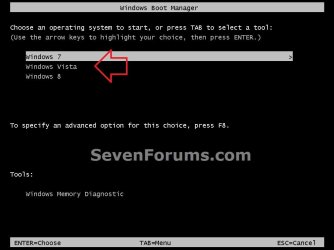
If you have more than one OS installed on your computer, then this will show you how to change the order of the listed operating systems in the Windows Boot Manager screen to be arranged in any listed order that you would like them to be.
You must be logged in as an administrator to be able to do the steps in this tutorial.
You must be logged in as an administrator to be able to do the steps in this tutorial.
Note
This does not change what OS will run at startup by default, only the order in which the operating systems are listed.
EXAMPLE: Listed Operating Systems in "Windows Boot Manager" Screen
Here's How: 1. If you have not already, download and install the free version of the EasyBCD program, then run it.
NOTE: The free version download is at the bottom under "Download free for limited, non-commercial use". Registration is not required to download.
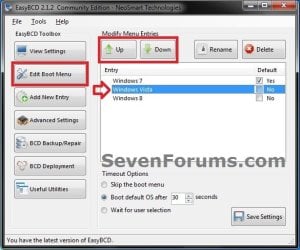
2. Click on the Edit Boot Menu button, then click on a listed OS that you would like to change the order it's listed as to highlight it. (see screenshots below step 3)
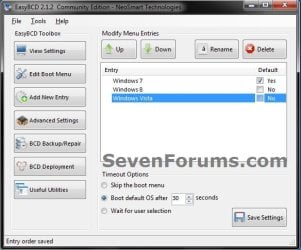
3. Click on the Up or Down button the move the select OS up or down in the list until the OS is listed in the order you wanted it to be. (see screenshots below)
4. When finished, close EasyBCD.
5. The OS will now be listed how you arranged it in EasyBCD in the "Windows Boot Manager" screen now.
That's it,
Shawn
Related Tutorials
- How to Change the Default Operating System to Start in Windows 7
- How to Change the OS Name in Windows Boot Manager
- How to Change Time to Display Operating Systems at Boot in Windows 7 and Vista
- How to Delete an Operating System Listed in Windows Boot Manager
- How to Add Windows 7 "Safe Mode" to Windows Boot Manager Screen
- How to Add Windows 7 "Safe Mode with Command Prompt" to Windows Boot Manager Screen
- How to Add Windows 7 "Safe Mode with Networking" to Windows Boot Manager Screen
- How to Setup a Dual Boot Installation with Windows 7 and Vista
- How to Setup a Dual Boot Installation with Windows 7 and XP
Last edited:


