Taskbar Button: Change Color of Orange Flashing Button

How to Change the Orange Flashing Taskbar Button Color in Windows 7

   Information
This tutorial will show you how to change the orange flashing taskbar button color in Windows 7. You could use it to change to other states also.

   Tip
You should make a new theme so the defaut aero.msstyles does not get corrupt. Look at Post #38 to see how http://www.sevenforums.com/customization/135985-start-menu-color-change-4.html#post1358071

You will need to do 1 of these 2 ways of Enabling custom themes so the new theme will work.
http://www.sevenforums.com/tutorials/34579-enabling-custom-themes-windows-7-a.html
Or
http://www.sevenforums.com/tutorials/28377-theme-how-apply-custom-themes.html?filter
   Note
These image #s are only for the default aero.msstyles 3rd party custom themes have different #s
   Note
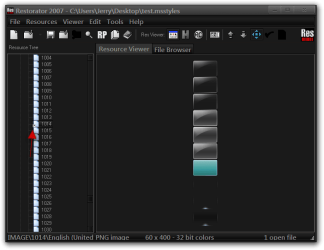
The Top and Bottom taskbar button image are each 60px wide x 40px high. The #s are 1014,1015,1016,1017 and all have the top 7 states just #1014 has 10 states.

The Left and Right taskbar button image are each 60px wide x 46px high. The #s are 1024,1025,1026,1027 and all have the top 7 states just #1024 has 10 states.
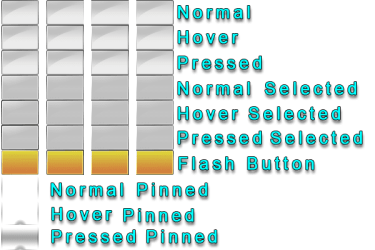
bb.png
   Note
The Pinned states are anything pinned on the taskbar.


You can get a 30 day free trial of Restorator - Bome Software - Restorator - the resource editor for customization, localization, and translation.

Gimp free GIMP - Downloads


1: Open Restorator and Click on the open button. 1.png
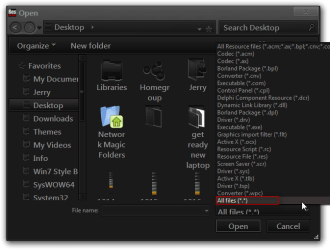
2: In the Open window lower right change it to All files(*.*). 2.png
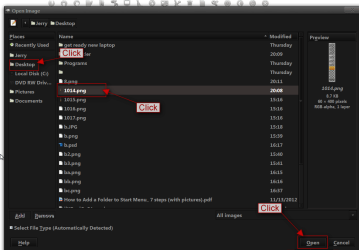
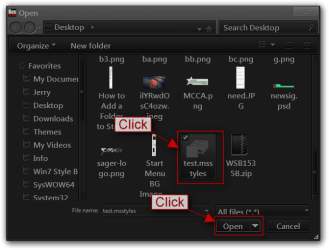
3: Navagate to the .msstyles that you just made, Click on it, then Click on Open. 3.png
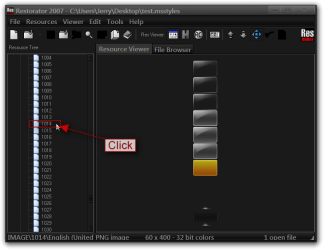
4: Click on the Arrow at Image to expand it and Scroll down to 1014 and Click on it. 4.png
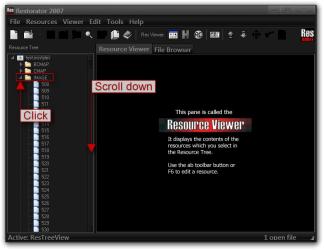
5.png

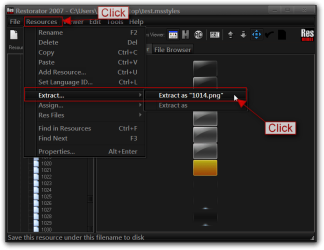
5: Click on Resources > Extract > Click on Extract as "1014.png". 6.png
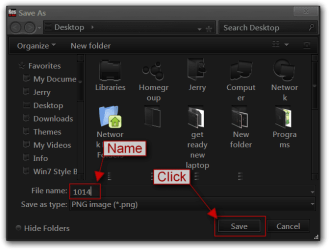
6: Name it 1014 and Click Save (save it to your desktop). 7.png
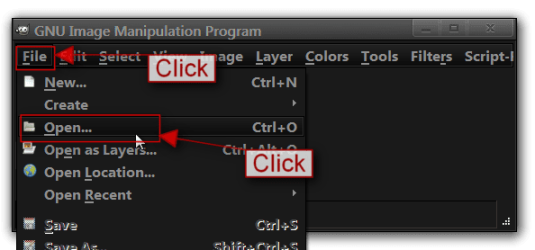
7: Open Gimp, Click on File then Click on Open.
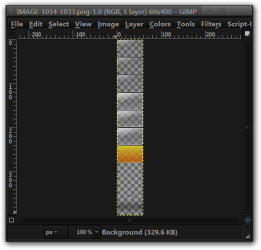
Navagate to the 1014.png you just saved on Click Open. Image is open in Gimp 8.png
8A.png

9.png

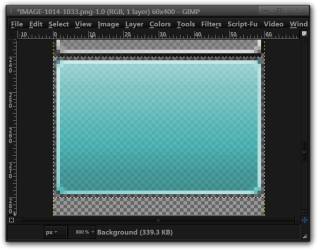
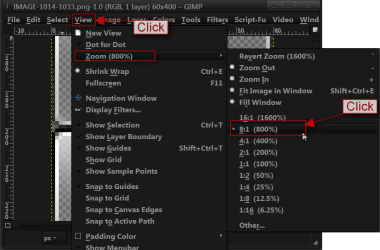
8: Click on View > Zoom > Click on 8:1 (800) (will be easier to see). 10.png
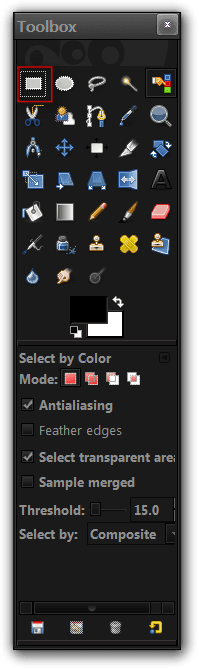
9: On the Gimp Toolbox top left Click on the Rectangular Marquee Tool. 11.png
10: Scroll down to 240px, with the Rectangular Marquee Tool left click and hold down on the mouse button and from 240px draw to the right and down to 280px > x 60px wide, there should be a move line around the area. 12.png
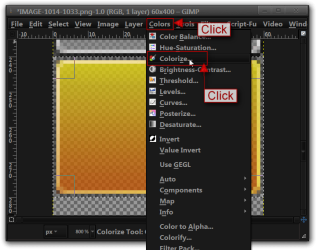
11: Click on Color then Click on Colorize. 13.png
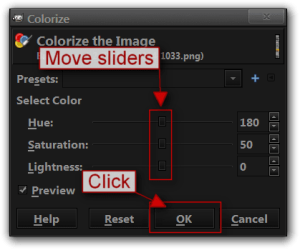
12: In the Colorize window move the sliders to your liking Click OK (if preview is checked you will see the changes before you click OK). 14.png
15.png

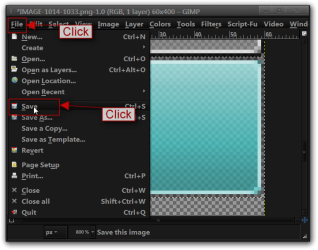
13: When done editing Click File, Click Save. 16.png
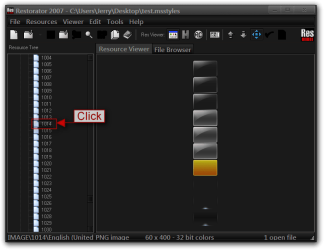
14: Back at Restorator Click on 1014. Click on Resources > Assign > Click on Assign to "1014.png". 17.png
18.png

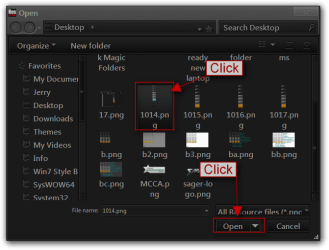
15: Navagate to the 1014.png you just edited Click on it and Click Open. You will see the change. 19.png
20.png

16: Click File > Click Save. Restorator will save a backup copy. 21.png
Done


Last edited by a moderator:
Very nice, Jerry.
 

My Computer

Computer type
Laptop
Computer Manufacturer/Model Number
Sony Vaio VPCEB47GM Laptop
OS
Win 7 Pro 64-bit
CPU
Intel i5 2.4 Ghz
Memory
8GB DDR3
Graphics Card(s)
Intel HD 3000
Sound Card
IDT High Definition
Monitor(s) Displays
15.6 WGXA Anti-Glare LED
Screen Resolution
1280x800
Hard Drives
640Gb 7200rpm
Antivirus
MSE
Browser
Opera (primary) with IE9 backup
Great work Jerry! You are a master at this stuff!
 

My Computer

Computer type
PC/Desktop
Computer Manufacturer/Model Number
Golden Mk. I.4
OS
Windows 10 Pro x64 ; Xubuntu x64
CPU
Intel i7 860 @ 2.80 GHz O/C'ed to 4.0GHz
Motherboard
Gigabyte P55A-UD3R Rev.1. Award BIOS F13
Memory
16GB Corsair Vengance DDR3 @ 661 MHz Dual Channel (9-9-9-24)
Graphics Card(s)
EVGA NVidia GTX 560 1024MB
Sound Card
Realtek Integrated
Monitor(s) Displays
Dual Samsung SyncMaster 2494HS
Screen Resolution
1920*1080 and 1920*1080
Hard Drives
1*Samsung 840 EVO 120GB SSD;
1*OCZ Vertex 2 60GB SSD;
2*Samsung F3 SpinPoint 1TB in RAID0;
1*Samsung F1 SpinPoint 1TB;
2*Western Digital 1TB External USB 3.0
1*Western Digital 500GB External USB 3.0
1*Seagate 500GB External USB 2.0
PSU
Thermaltake ToughPower QFan 750W
Case
Thermaltake Element S VK60001W2Z
Cooling
Corsair H60 Water Cooling, 2*230mm and 2*80mm case fans
Keyboard
Logitech G110
Mouse
Logitech MX518
Thank you Lee and Colin
 

My Computer

Computer type
Laptop
Computer Manufacturer/Model Number
Sager NP9170
OS
Win 7 Pro x64 / Win 10 Pro
CPU
Intel(R) Core(TM) i7-3630QM CPU @ 2.40GHz
Motherboard
CLEVO P170EM
Memory
12 GB
Graphics Card(s)
(1) Intel(R) HD Graphics 4000 (2) NVIDIA GeForce GTX 675M
Sound Card
(1) Realtek High Definition Audio (2) Intel(R) Display Aud
Monitor(s) Displays
17.3
Screen Resolution
1920x1080
Hard Drives
(1) Samsung 860 EVO 500GB(OS) (1) Samsung 860 EVO 500GB(Data)
Keyboard
Backlite
Antivirus
MSE, Malwarebytes Pro
Browser
Firefox
Other Info
DESKTOP: Custom-built.
OS: Win 10 Pro x64.
CASE: Rosewill R5.
CPU: Intel I5 4670K CPU @ 3.40GHz.
CPU COOLER: Cool Master Hyper 212 EVO.
MOTHERBOARD: Asus Z87-A.
MEMORY: Kingston HyperX 2x4 GB.
GPU: Nvidia Geforce 650 TI.
PSU: Corsair TX750.
DRIVES: (1) Samsung 840 120 GB SSD (2) Western Digital blue 500 GB 7200 RPM.
Okay, I'm really feaking confused. I managed to change the flashing orange button on my virtual machine (it was IMAGE 1151 for me) but using the very same .msstyle on my main install, it apparently doesn't use the same graphic resource. What determines which resource is used? The resolution you are using in Windows, or something along those lines? It's super weird.
 

My Computer

OS
win7 x64 enterprise
You must be using a third-party custom theme post a link to it and I will look at it and give you the numbers for the buttons.

There are 8 different images for the taskbar (4 for horizontal and 4 for vertical) and you said you only edited one that would probably be why.
There are different images depending on how you have the taskbar set like Never Combine etc.

Jerry
 

My Computer

Computer type
Laptop
Computer Manufacturer/Model Number
Sager NP9170
OS
Win 7 Pro x64 / Win 10 Pro
CPU
Intel(R) Core(TM) i7-3630QM CPU @ 2.40GHz
Motherboard
CLEVO P170EM
Memory
12 GB
Graphics Card(s)
(1) Intel(R) HD Graphics 4000 (2) NVIDIA GeForce GTX 675M
Sound Card
(1) Realtek High Definition Audio (2) Intel(R) Display Aud
Monitor(s) Displays
17.3
Screen Resolution
1920x1080
Hard Drives
(1) Samsung 860 EVO 500GB(OS) (1) Samsung 860 EVO 500GB(Data)
Keyboard
Backlite
Antivirus
MSE, Malwarebytes Pro
Browser
Firefox
Other Info
DESKTOP: Custom-built.
OS: Win 10 Pro x64.
CASE: Rosewill R5.
CPU: Intel I5 4670K CPU @ 3.40GHz.
CPU COOLER: Cool Master Hyper 212 EVO.
MOTHERBOARD: Asus Z87-A.
MEMORY: Kingston HyperX 2x4 GB.
GPU: Nvidia Geforce 650 TI.
PSU: Corsair TX750.
DRIVES: (1) Samsung 840 120 GB SSD (2) Western Digital blue 500 GB 7200 RPM.
Hey, i did everything the tutorial said and it doesnt change for some reason. I rebooted, i patched the files to allow custom themes. And when i open the .msstyles with restorator again i can see my file there. I am supposed to double click on jack.theme to apply? If yes - it doesnt change.
 

My Computer

Computer type
PC/Desktop
OS
Windows 7 Ultimate x64
Can you edit the .msstyles file in Resource Hacker? Because I kind of don't have Restorator...
 

My Computer

Computer type
PC/Desktop
Computer Manufacturer/Model Number
MrMiios (Custom Build by Me)
OS
Windows 7 Professional x64 (SP1)
CPU
AMD FX-6300 Six Core Processor 3.5GHz (Not OC'd)
Motherboard
ASROCK 980DE3/US3S
Memory
G.Skill Ripjaws - 4x4GB (16GB)
Graphics Card(s)
MSI GeForce GTX 970 TwinFrozr 4GB
Sound Card
[[Using Onboard HD Audio]]
Monitor(s) Displays
HP 27es
Screen Resolution
1920x1080
Hard Drives
Western Digital Red 1TB (Internal)
Toshiba Canvio 2TB USB 3.0 Desktop Hard Drive (External)
PSU
EVGA 850W 80+ GOLD 220-G2-0850-XR (Fully Modular)
Case
DIYPC Ranger-R4-R
Cooling
Cooler Master Hyper 212 Evo
Keyboard
Dell USB Keyboard
Mouse
Red Logitech Wireless Mouse
Internet Speed
DL: 95mb/s, UL: 5.9mb/s
Antivirus
Norton Security (previous year's)
Browser
Google Chrome
Other Info
Now Aero SOMETIMES works on start, but everything's sluggish and Aero will usually crash back to Basic. Restarting still resolves the issue. I'll probably clean install later... But what a pain reinstalling the programs will be... ugh...
Back
Top