
How to Create a New Rectangular Windows 7 Start Menu Button
Somebody suggested I put this here in tutorials. Here it goes.
Short - A simple rectangle start button with no messing with layers and only using free software. This is my first tutorial, good luck. The button I made is one pixel too high, so you may try moving 16 pixels down instead of 15 when you get to those steps.
There are 20 steps, but they are all simple.
Long -
After trying to follow other make your own start button tutorials and all that playing with layers and alpha channel this and that and 8 bit channels and whatever... I found an easier method using three free programs.
This tutorial is for a rectangular start button that will fit nicely in the task bar with "Use Small Icons" enabled. I don't like the orbs, especially when they stick up above the task bar when small icons are chosen. You could probably get away with 28 instead of 27 pixels high for the button and 54 instead of 52 pixels wide for it as well. I like the 1 pixel gap under and around it though.
The button I made is one pixel too high, so you may try moving 16 pixels down instead of 15 when you get to those steps. I didn't want to revise it after all the screenshots.
Each step, except steps zero and one, has a screenshot to help.
This is my first tutorial, good luck. Any suggestions on improving the tutorial are welcomed.
Note
What You will need...
A Picture - Any picture you like, though some will work better than others.
The Gimp -
GIMP - for Windows
Real World Cursor Editor
RealWorld Cursor Editor - make animated cursors
Windows 7 Start Button Changer -
Win 7 Start Button Changer 2.6 by =Kishan-Bagaria on deviantART
0. Ok, download them all and install the first two... then lets start.
1. Run Gimp
2. Open a picture of your choice A) If you don't want the whole picture, select the part you do want and copy it, then paste it as a new image.
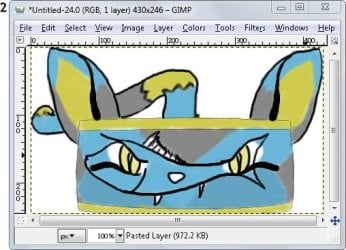
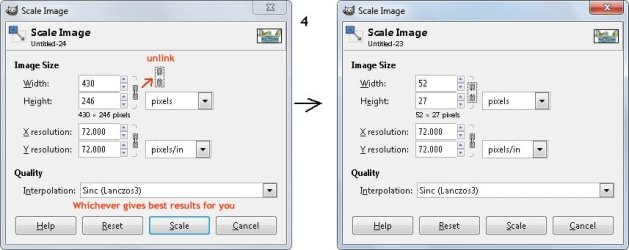
3. Click on Image then choose Scale Image

4. Click the chain to Unlink the values. Change Width to 52, height to 27. Choose whichever value of Interpolation gives you the best result after you press Scale. If you don't like the interpolation, undo with CTRL+Z and try a different one.
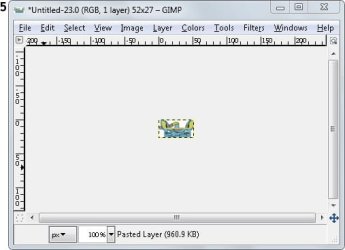
5. You now have a tiny 52x27 picture. That's one of three buttons finished.
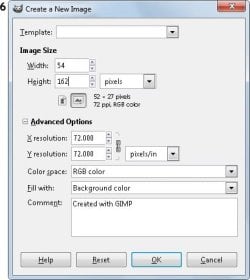
6. Click File and choose New. Change Width to 54 and Height to 162. Change resolution to 72 for X and Y if they are not already. RGB is fine.
7. Using a Size 1 Circle Pencil, put a dot at pixel 0,27, pixel 0,81, and pixel 0,135. These are where the center of each button will be close to. You will move the picture up or down as you choose.

8. Click on the Small button image's window, Select All(CTRL + A), then Copy. Select the 54x162 image's window again. Paste the button. Move the bottom left corner of the button to right next to the top dot. Move the button down 15 pixels while keeping the picture against, but not on, the dot. Anchor it by clicking out of the selected area. The Normal start button is in place.

9. Select the small button image window again. Click on Filters, apply whichever you like.
NOTE: I chose Sharpen and set it to 58 for a highlight effect.
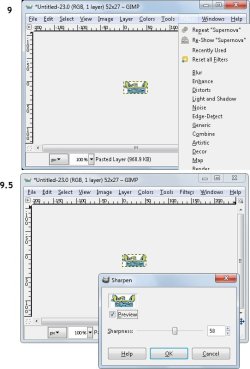
10. Select All, choose copy. Select the 54x162 image window again. Paste the button and move it next to the second dot at 0,81. Again move it down 15 pixels and anchor it.
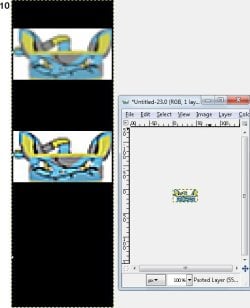
11. Select the small button image window again. Add another filter.
NOTE: I added a second Sharpen filter for more brightening effect.
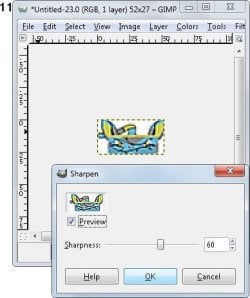
12. Select All, choose copy. Select the 54x162 image window again. Paste the button and move it next to the second dot at 0,135. Again move it down 15 pixels and anchor it.
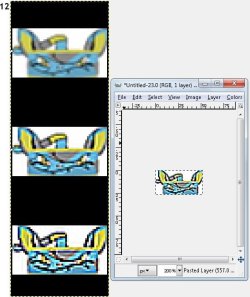
13. Save your picture(optional), Select All, Choose Copy, you are now Done with The Gimp though you may want to leave it open anyway for now in case you want to make any edits.
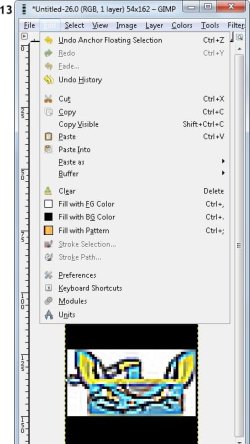
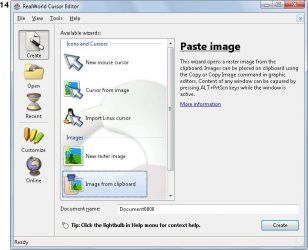
14. Run Real World Cursor Editor. Select Create. Choose Paste Image From Clipboard.
NOTE: Your picture from The Gimp should be on the screen and ready to finish. If not, try copying again from the gimp.
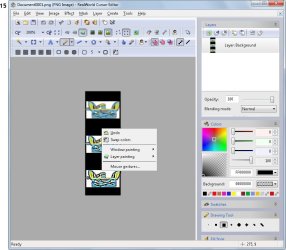
15. Select Pencil, Right click on the picture, choose Swap Colors. Choose your favorite pencil shape, I suggest a square.
16. Since you swapped the default colors, you are drawing Alpha color(the grid) Draw the Alpha around your buttons remembering to get the single pixel column left on the sides.
NOTE: You may play with Flood Fill to do this too. If you do want to use flood fill... swap the colors back to how they started. Be careful you don't flood into the button itself.
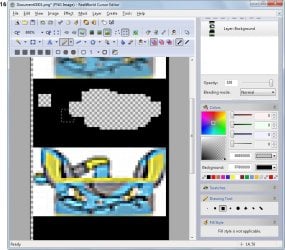
17. When the buttons have been surrounded by Alpha you are ready to save. If you want to be more creative, you may draw partial alpha over edges and whatever, feel free to experiment.
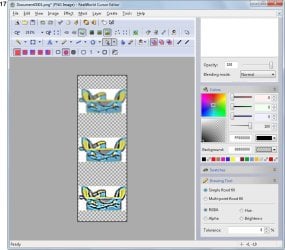
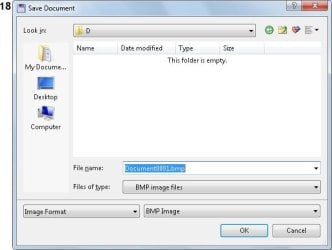
18. Save as BMP.
19. Load Windows 7 Start Button Changer and click on the orb. Select your BMP, you are done except for any corrections you want to make.
NOTE: If the button is too high, Restore Explorer. In The Gimp - move each button down the same number of pixels they were too high.
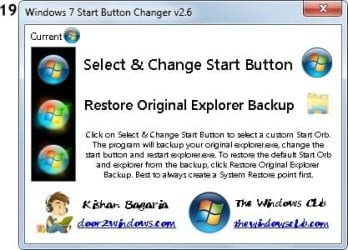
20. As you can see, I accidentally set it to one pixel too high. Apparently I should have dropped it 16 pixels instead of 15. I would have fixed it, but it's good to show errors and I didn't want to redo the screenshots.

Last edited by a moderator:


