

How to Apply Local Group Policies to All Users Except Administrators
InformationThis tutorial will show you how to apply Local Group Policies to all users except administrators in Vista, Windows 7, Windows 8, and Windows 10.
You must be logged in as an administrator to be able to do this tutorial.
WarningThe Local Group Policy Editor is only available in:
- Vista Business, Ultimate, and Enterprise editions.
- Windows 7 Professional, Ultimate, and Enterprise editions
- Windows 8/8.1 Pro and Enterprise editions.
- Windows 10 Pro and Enterprise editions.
Here's How:
1. Open the Start Menu, type mmc.exe in the search box, and press Enter.That's it,
NOTE: In Windows 8, you could press Windows+R keys to open the Run dialog, then type mmc.exe, and click/tap on OK instead.
2. If prompted by UAC, then click on Yes (Windows 7/8/10) or Continue (Vista).
3. In the MMC Console window, click on File (Menu bar) and Add/Remove Snap-in. (see screenshot below)
4. In the left pane, select Group Policy Object Editor, and click on the Add button. (see screenshot below)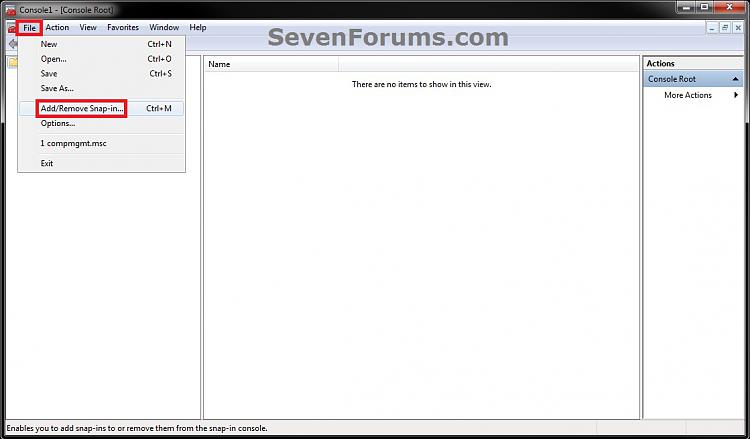
5. Click on the Browse button. (see screenshot below)
6. Click on the Users tab, select an Non-Administrators, and click on OK. (see screenshot below)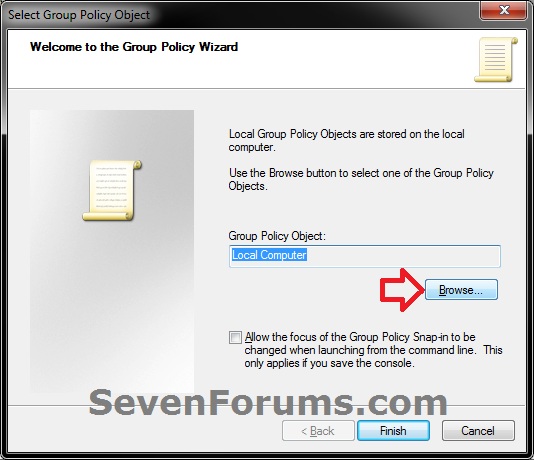
7. Click on the Finish button. (see screenshot below)
8. Click on OK. (see screenshot below)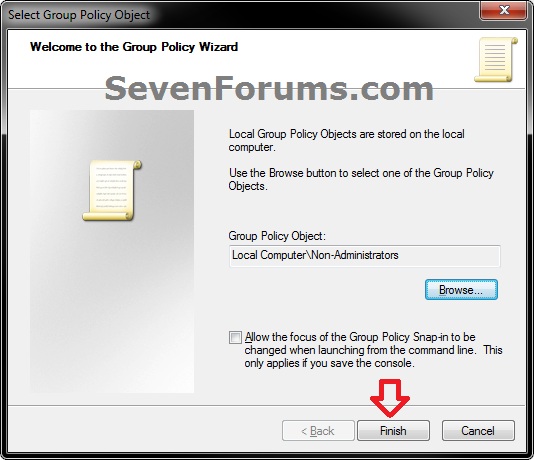
9. In the MMC Console window, click on File (Menu bar) and Save As. (see screenshot below)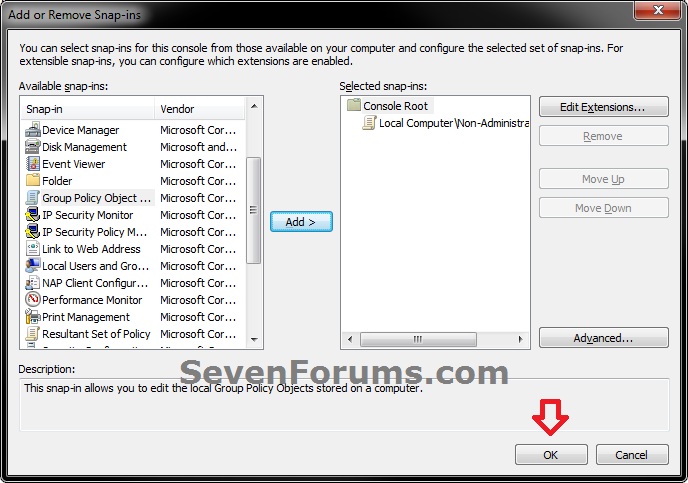
10. Select to save to your Desktop, type in a name (ex: Non-Administrators-Group-Policy) that you would like to have for this "all users except administrators" group policy MSC file, then click on the Save button. (see screenshot below)
NOTE: You can use any name you like, but it would make it easier for you to know what user (ex: Test) or group this "specific" group policy MMC console was for later if you included the user or group name.
11. Move the MSC file (ex: Non-Administrators-Group-Policy.msc) to where you would to keep it saved at. (see screenshot below)
NOTE: You can also Pin to Taskbar or Pin to Start Menu this MSC file.
12. Whenever you open this MSC file (ex: Non-Administrators-Group-Policy.msc), it will only apply group policies to all users except administrators. (see screenshot below)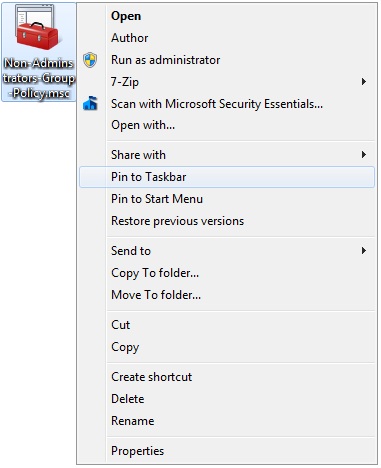

Shawn
Related Tutorials
- How to Add Local Group Policy Editor to the Control Panel in Windows
- How to Open the Local Group Policy Editor in Windows
- How to Apply Local Group Policies to a Specific User or Group in Vista, Windows 7, and Windows 8
- How to Back Up and Restore Local Group Policy in Windows
- How to Reset Local Group Policy to Default in Vista, Windows 7, and Windows 8
- How to Quickly View Enabled Group Policies in Windows
- How to Force Group Policy Updates to be Applied Instantly in Windows
Local Group Policies - Apply to All Users Except Administrators
-
New #1
Confused about permanence of policy
Hi,
Thanks for the step-by-step, but I am a little confused by step #12:
Whenever you open this MSC file (ex: Non-Administrators-Group-Policy.msc), it will only apply group policies to all users except administrators. (see screenshot below)
I want the Group Policy I created to ALWAYS apply to limited user accounts automatically. How do I make that happen?
Thanks!
-
New #2
Hello Pallipe,
The MSC file that you created doesn't need to be kept running for the policy changes you make in it to remain enforced. The MSC file acts just like your normal Local Group Policy Editor, but will only enforce policies for all user accounts except those in the administrators group instead. If you wanted to make changes to that policy, then you would just need to run the MMC, make the changes you like, and close it. Any changes will be enforced as applied in that MSC file. That's all. :)
-
New #3
This is a great help indeed. Thanks.
But I am just a beginner in System Administration. I have created .msc file successfully but I don't know how to configure different policies. For example I do not want a student account:
1. to be able to install/unstall a program.
2. to read/write in c:drive
3. access to internet.
I don't know where to find these configuration in the .msc file. Please help.
Regards
-
New #4
Hello mq15,
The link below can help you to search and find whatever you need in group policy.
If you like for #1, you could use the tutorial below to disable access to "Programs and Features".
If you do #2, then the user will not be able to run Windows since that is on the C drive. They would at least need to have rights to read to be able to function.
It would be best to post a separate thread for #3 to get a variety of options that may work best for you for this.
Hope this helps some. :)
-
New #5
Thanks a lot Brink.
I would start a separate thread if I could not find. Thanks again. :)
-
-
New #7
Hi,
Hi Brink, I have enabled RUN ONLY SPECIFIED APPLICATIONS IN WINDOWS 7 GROUP POLICY , but after this settings has been applied to administrator also, so i'm unable to revert back (unable to open gpedit or regedit ).. can u guys tell to how to revert this back ???
This operation has been cancelled to restrictions in effect on this computer . please contact your system administrator. ( This is the error shown)
-
New #8
Hello Globaluser, and welcome to Seven Forums.
Did you create the MSC for "Non-Administrators" before setting the policy with this MSC?
You could either do a system restore using a restore point created before this, or reset group policy back to default to undo this. :)Last edited by Brink; 24 Feb 2014 at 01:48. Reason: typo
-
New #9
Awesome Brink

Local Group Policies - Apply to All Users Except Administrators
How to Apply Local Group Policies to All Users Except AdministratorsPublished by Brink


 Quote
Quote
Related Discussions