

How to Change Windows Update Settings in Windows 7
InformationThis will show you how to change the automatic updating, important updates, recommended updates, who can install, featured update notifications, and Microsoft products Windows Update settings in Windows 7.NoteTo learn more about the types of updates that Microsoft publishes, go to this Knowledge Base article on the Microsoft Help and Support website.
Here's How:1. Open the Control Panel (icons view), and click on the Windows Update icon.That's it,
2. In the left blue pane, click on the Change settings link. (see screenshot below)3. You can now set your Windows Update settings. (see screenshots below)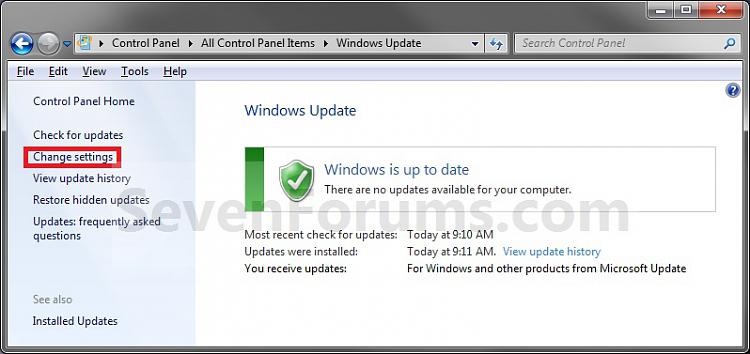
NOTE: See steps 4 to 8 below for each setting, then step 9 when finished.4. "Important Updates" Settings
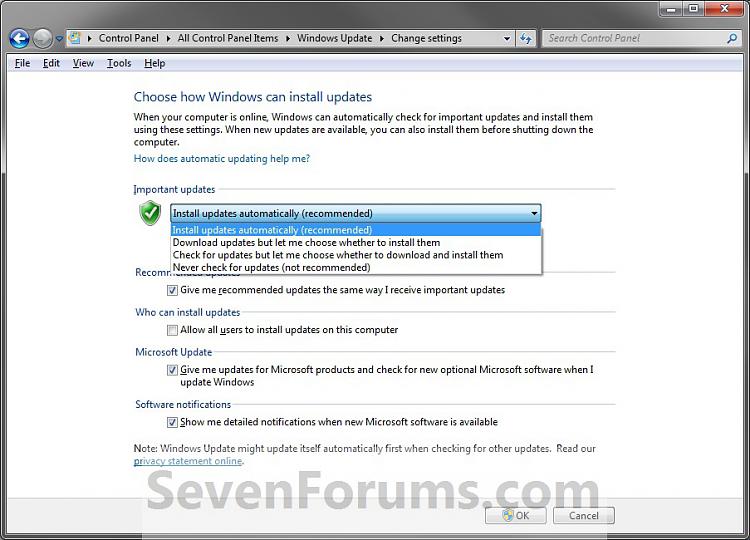
NOTE: This is to turn automatic updating on or off to have Windows 7 install important updates automatically (on), download updates but let you choose which ones to install, check for updates but let you choose to download and install them, or never check for updates (off).A) Click on the drop down menu and select how you want Windows 7 to check for and have important Windows Updates be installed. (See screenshots above)5. "Recommended Updates" Settings
NOTE: If you select Install updates automatically, then you will need to also select how often and when you would like to schedule Windows 7 to automatically install available important updates. Optional updates will never automatically be installed, and will have to be manually installed when available.
NOTE: You can turn this on off to set Windows 7 to automatically install important and recommended updates, which can address non-critical problems and help enhance your computing experience. Optional updates are not downloaded or installed automatically when automatic updates is turned on in step 3 above.A) Check the box to turn on Recommended Updates. (see screenshots below step 3)6. "Who Can Install Updates"
NOTE: You will also need to turn on automatic updates in step 3 to also have important and recommended updates installed automatically.
B) Uncheck the box to turn off Recommended Updates. (see screenshots below step 3)
NOTE: If you turn this off, then you can choose to install the important and recommended updates manually by reviewing available updates when you check for updates in Windows Update.
NOTE: This will let you allow or deny standard user accounts to also be able to install Windows Updates.A) Check (allow) or uncheck (deny) the box. (see screenshots below step 3)7. Get a "Microsoft Update" for other Microsoft Products
NOTE: This will let you turn on or off to also receive updates for other products from Microsoft Update that you have installed on your computer in Windows Update.A) If you see this instead of the screenshots under step 3, then:8. "Software Notifications"
WARNING: This requires that you have Internet Explorer, and it not turned off in Windows Features.
- Go back to Windows Update.
- Click on the Find out more link to the right of "Get updates for other Microsoft products".
- Check the I ageee box, and click on Install.
- If prompted by UAC, then click on Yes.
- You should now be able to do step 7B below.
B) Check (on) or uncheck (off) the Give me updates for Microsoft products and check for optional Microsoft Software when I update Windows box. (see screenshots below step 3)
C) If you unchecked this option, then click on OK. (see screenshot below)
NOTE: This will let you turn on or off getting a notice in the taskbar notification area when new Microoft software (featured updates) are available for download in Windows Update.A) If you see this instead of the screenshots under step 3, then:9. When done, click on the OK button at the bottom to apply. (see screenshots below step 3)
WARNING: This requires that you have Internet Explorer, and it not turned off in Windows Features.
- Go back to Windows Update.
- Click on the Find out more link to the right of "Get updates for other Microsoft products".
- Check the I ageee box, and click on Install.
- If prompted by UAC, then click on Yes.
- You should now be able to do step 7B below.
B) You must have the option Give me updates for Microsoft products and check for optional Microsoft Software when I update Windows in step 7B above checked.
C) Check (on) or uncheck (off) the Show me detailed notifications when new Microsoft software is available box. (see screenshots below step 3)
10. If prompted by UAC, then click on Yes.
Shawn
Related Tutorials
- How to Change the Device Driver and Information Installation Settings in Windows 7
- How to Create a "Windows Update" Shortcut in Windows 7
- How to View Windows Update History Details in Windows 7
- How to Uninstall a Windows Update in Windows 7
- How to Hide or Restore Hidden Windows Updates in Windows 7
- How to Enable or Disable Windows Updates from Automatically Restarting the Computer
- How to Create a Installed Windows Updates Shortcut in Windows 7
- How to Create a Windows Update Troubleshoot Shortcut in Windows 7
- How to Enable or Disable Access to Windows Updates in Windows 7
- How to Reset Windows Update in Windows 7
- How to Enable or Disable the Windows Update "Who can install updates" Setting
- How to Download the Standalone MSU Installer File of a Windows Update
- How to Enable or Disable "Install Updates and Shut Down" Option in Windows 7
Windows Update Settings - Change
-
New #1
I have followed the instruction, disabled windows update, but time to time the windows update is enabled and new updates are ready for installation...
I have not got a clue how this is done despite keep disabling it.
Thanks
-
-
-
New #4
Is this happening after any common event?
Be sure that you are not also enabling Windows Updates by mistake through Action Center messages.
-
New #5
No. Today i also amended the local group policy, so will monitor it.
Yesterday my system crashed, while i was browsing it locked. Upon rebooting the system, got msg that windows is installing new updates, do not switch off. Very odddddddddddddd.
-
New #6
Cannot Install Microsoft Update Extension.
Hi,
Please Help!
I am having trouble installing the microsoft update extension for windows update, listed in step 7.
Here is an image of my settings in windows updates
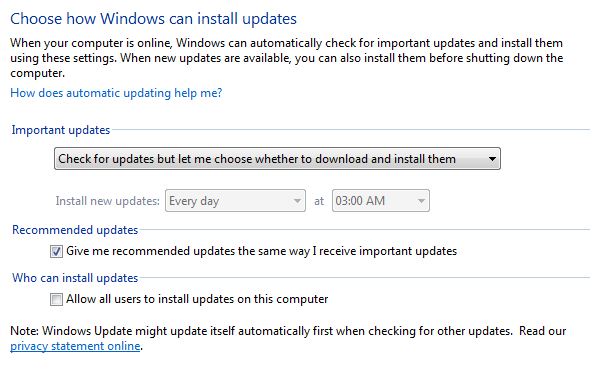
When I click on the "Find out more" link to get updates for other microsoft products and change the setting from - "You receive updates: For Microsoft Windows only" to "You receive updates: For Windows and other products from Microsoft Update" I get nowhere.
See below:
I click on the Link Find Out More
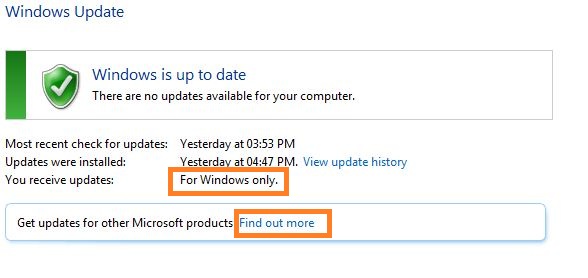
I am taken to this website:
http://go.microsoft.com/fwlink/?LinkId=70156
this redirects me to this website http://update.microsoft.com/microsoftupdate/v6/vistadefault.aspx?ln=en-us
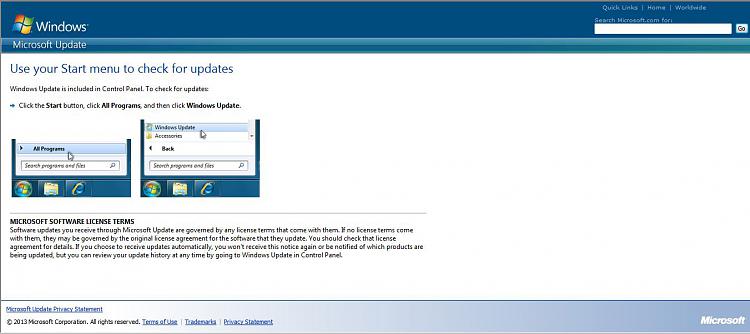
I do not get the option to install the microsoft update extension as listed in step 7.
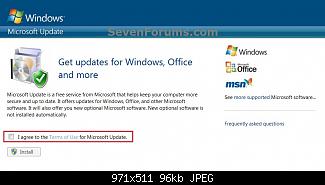
Your help will be appreciated.
-
New #7
Workaround for Microsoft Update webpage error
Hi kadz,
I'm a few years late on this, but I figured it out. You have to add the page to IE's compatibility list. Go to the gearbox in the top-right, then click "Compatibility View settings". Microsoft.com will already be filled in, then click Add, then Close. Reload the page and you can then get the proper page to get this rolling. When you're done, remove Microsoft.com from the compatibility list.
Brink, could you update the guide to include this?
Thanks,
Red
-
New #8
windows update
I know this is months later, but I just had the same issue with windows update on a refurbished pc
I purchased as a spare. None of the solutions worked for me. On Microsoft site someone solved the
issue by downloading Microsoft Silverlight. I downloaded it, and the funny thing is it works. Windows Update settings are normal offering the optional updates etc. I do not use Microsoft Silverlight, but it
is not hurting anything.:)
Windows Update Settings - Change
How to Change Windows Update Settings in Windows 7Published by Brink


 Quote
Quote


Related Discussions