

How to Join or Add a Computer to Homegroup in Windows 7
InformationA homegroup makes it easy to share pictures, music, documents, videos, and printers with other people on your home network. This will show you how to join or add a computer to a Windows 7 homegroup.Note
- Computers must be running Windows 7 or Windows 8 to participate in a homegroup.
- HomeGroup is available in all editions of Windows 7. In the Windows 7 Starter and Windows 7 Home Basic editions, you can join a homegroup, but you can’t create one.
- HomeGroup is available in all editions of Windows 8. In the Windows 8 RT edition, you can join a homegroup, but you can’t create one.
- The computer must be connected to the same network the homegroup is on. Only computers on the same subnet will be able to connect to the homegroup, so if you have a wireless router, it would only be the computers connected to that router. You can check if your computers are on the same network by verifying that the first 3 parts of their IP addresses are the same. (ex: 192.168.0.189)
- If your computer belongs to a domain network, you can join a homegroup but you can't create one. You can access files and resources on other homegroup computers, but you can't share your own files and resources with the homegroup.
- When you join a homegroup, all user accounts, except the Guest account, on your computer become members of the homegroup. Each user controls access to his or her own libraries.
- All computers that will be on the homegroup must have (be on) the same workgroup or domain name.
- You can create or join a Homegroup with a virtual machine in Windows Virtual PC.
WarningYou will need to make sure to have these Services set as below. They are by default.
- DNS Client - Started and Automatic
- Function Discovery Provider Host - Started and Manual
- Function Discovery Resource Publication - Started and Automatic
- HomeGroup Listener - Started and Manual
- HomeGroup Provider - Started and Manual
- Network List Service - Started and Manual
- Peer Networking Grouping - Started and Manual
- Server - Started and Automatic
- SSDP Discovery - Started and Manual
- UPnP Device Host - Started and Manual
Here's How:1. If you have not already, make sure that all PCs that are already in the homegroup you want to join are turned on and not asleep.That's it,
2. Make sure to synchronize the clocks on all computers that will be part of the home network so that they are showing the correct date and time. If the clocks are not synchronized, the HomeGroup feature will not work.
3. Be sure that you have already created a homegroup on another computer on your home network to be able to add this computer to that homegroup.
4. If you are using a wireless network through a wireless router, then check to make sure that say for example WLAN Partition (D-Link) or Enable Wireless Isolation (Netgear) are unchecked in the router's wireless settings. When it is enabled (checked), it prevents wireless devices from being able to see and communicate with each other. (see screenshots below)
NOTE: The screenshots below are from a D-Link DIR-855 (left) and Netgear WNDR3800 (right) wireless router. You will need to look at your router's manual for how with it.5. Make sure that the computer is set to have a home network location type.
6. Open the Control Panel (icons view), and click on the Network and Sharing Center icon.A) Click on the Change adapter settings link. (see screenshot below)7. In the Network and Sharing Center, click on the Choose homegroup and sharing options link. (see screenshot below)B) Right click on your network connection adapter, and click on Properties. If prompted by UAC, then click on Yes. Make sure that the items below are checked, and click on OK. (see screenshot below)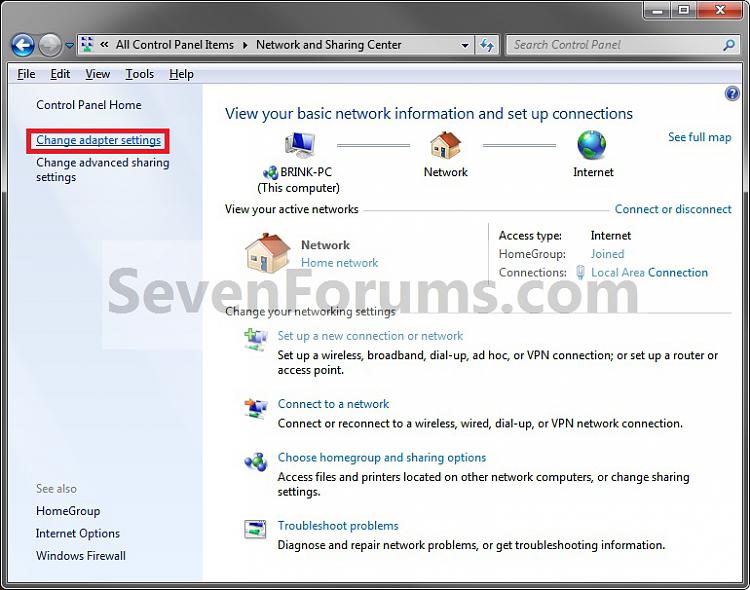
NoteSometimes the registry setting does not get updated even though you enable IPv6 via the GUI interface here. You can check the setting in the registry (regedit) by going to the key location below:HKEY_LOCAL_MACHINE\SYSTEM\CurrentControlSet\Services\Tcpip6\ParametersIn the right pane, right-click on DisabledComponents and select Modify. Make sure the value is set to 0.
- File and Printer Sharing for Microsoft Networks
- Internet Protocol Version 6 (TCP/IPv6)
- Internet Protocol Version 4 (TCP/IPv4)
C) Click on the back arrow button (left arrow) in Network Connections to return to the Network and Sharing Center. (see screenshot above)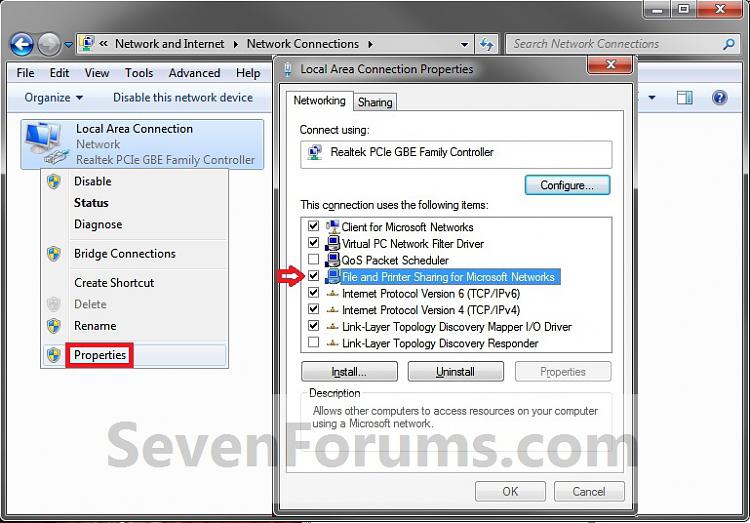
D) Click on the Change advanced sharing settings link. (see screenshot below)E) Make sure that the Home or Work (current profile) settings for network discovery, file sharing, and homegroup connections are set as they are below for the ones pointed out with the red arrows, then click on Save changes. If prompted by UAC, then click on Yes. (see screenshot below)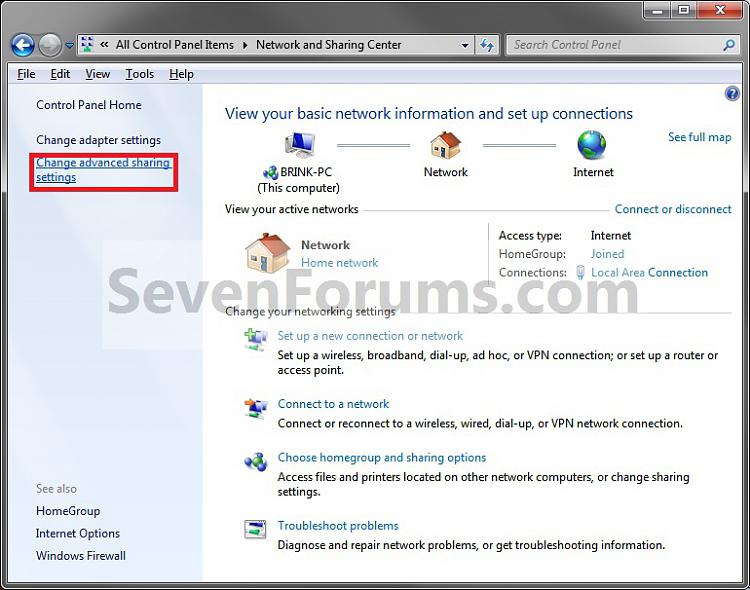 8. Click on the Join now button. (see screenshot below)
NOTE: Sometimes it may take a moment to detect the other computer on the home network. If a homegroup does not already exists (already created) on your home network, then Windows 7 will ask if you would like to Create a homegroup instead of joining a new one.9. Select (check) what libraries and printers that you want to share from this computer with any other computer that joins this homegroup, then click on Next. (see screenshot below) 10. Type in the homegroup password of the created homegroup that you want to join or add the computer to, then click on Next. (see screenshot below)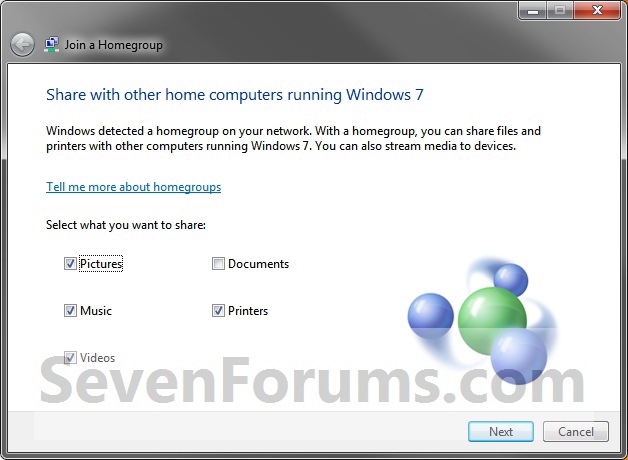
NOTE: The password is case sensitive, so be sure to type it in correctly.11. After a few seconds, this computer has been joined to the homegroup. Click on Finish. (see screenshot below)
NOTE: If you are having problems joining the homegroup, then double check everything above to make sure it is correct and try the troubleshooting link in the failure notice.12. Close the HomeGroup window. (see screenshot below)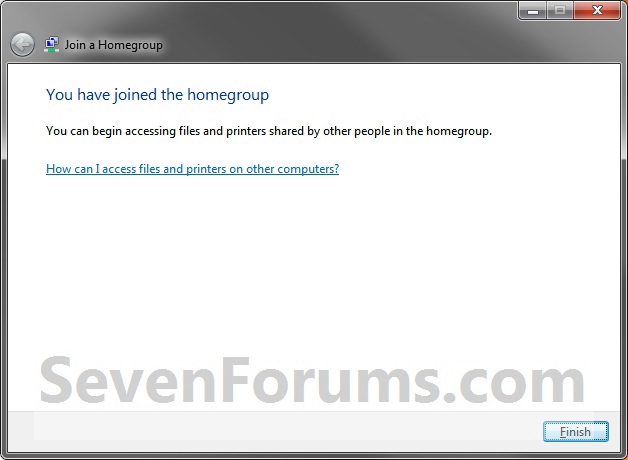 13. If you open Windows Explorer and click on Homegroup in the navigation pane, you will now see the other joined computers that are online listed in your homegroup. (see screenshot below)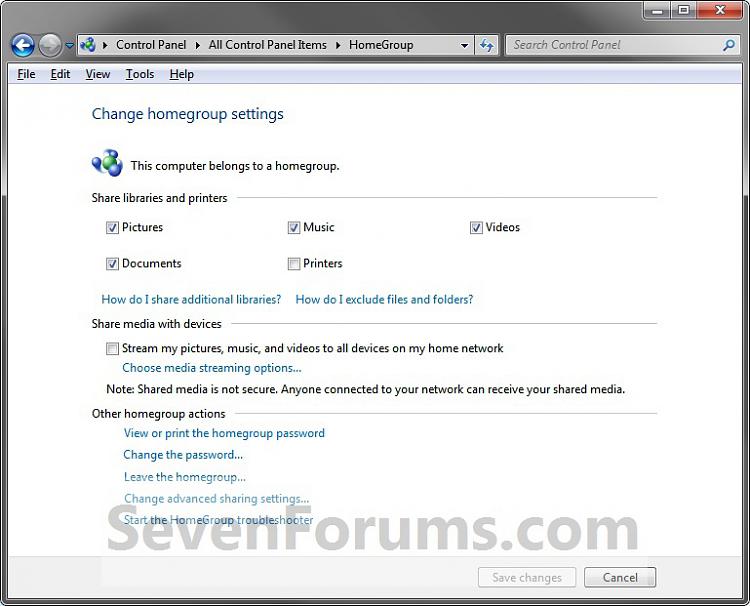
Shawn
Related Tutorials
- How to Join a Homegroup in Windows 8 and 8.1
- How to Link your Live ID and Share Files in Windows 7 HomeGroup
- How to Change the Default HomeGroup Icon in Windows 7
- How to Add or Remove Homegroup from the Windows 7 Navigation Pane
- How to Add or Remove the HomeGroup Desktop Icon in Windows 7
- How to View or Print Your Windows 7 Homegroup Password
- How to Change the Windows 7 Homegroup Password
- How to Create a Homegroup in Windows 7
- How to Leave a Windows 7 Homegroup
- How to Remove Currently Unavailable PC you no longer have from Homegroup in Windows 7 and Windows 8
- How to Change Windows 7 Homegroup File and Folder Sharing Settings
- How to Create a HomeGroup Troubleshoot Shortcut in Windows 7
- How to Create a HomeGroup Settings Shortcut in Windows 7
- How to Create a HomeGroup Folder Shortcut in Windows 7
- How to Allow or Prevent your PC to Join a Homegroup in Windows 7 and Windows 8
- How to Turn Network Discovery On or Off in Windows 7
- How to Turn Public Folder Sharing On or Off in Windows 7
- How to Turn Password Protected Sharing On or Off in Windows 7
Homegroup - Add Computer or Join
-
New #1
A friend of mine had a desktop and 2 laptops, all running Windows 7 and all connected to the internet via wifi through a Cisco LinkSys E1000 router. Despite all being in the same Workgroup, none of the PCs could see each other on the network and thus could not share a printer or join a homegroup created on another PC. Each PC insisted on creating their own homegroup.
So I went into the router's setup looking a WLAN Partition setting that was described in the article above. That setting doesn't existing in a LinkSys router but I did noticed that the Wireless Security was set to "WPA2/WPA Mixed Mode". I changed that to "WPA2 Personal" and saved the settings. Once I did that and reconnected the individual wifi connections, the PCs were now showing up in each other's network list. I could then share a printer and join them all into the same homegroup. Just thought I'd pass that along.
-
-
New #3
I was wondering, to what extent is the homegroup information stored on the computer that was used to firstly create said HG? If I take out the "creator pc" from the network, if it is a laptop, do the other computers still work as a HG?
-
New #4
Hello Coram,
Yes, any computer that joined or added to the Homegroup will still be part of the HG no matter which computer left the HG.
When a computer leaves a HG, it is free to join or create a new HG, but the old HG still exists as long as the other computers didn't leave it as well. :)
-
-
-
New #7
I have tried my best to set up 'join a Homegroup' with my Notebook running Starter 7. I have set up my desktop (Win 7 P) with a Homegroup. The notebook sees the home group, I enter the pass word and it says "Windows cannot set up a home group on this computer". I have followed the instructions exactly having checked them over 4 times but always the same. Now I know it is more than likely something I am doing wrong, but what I don't know any mor help would be appreciated.
Bob
-
New #8
Try running this Microsoft Fixit. Why can't I join a homegroup?
TroubleshootingLast edited by Brink; 12 Sep 2011 at 22:26. Reason: added link
-
New #9
I appreciate your suggestion and I went to Microsoft and trie the fixit but it just ran the trouble shooter to the same answer I have been recieving. Soryy it did not work. Thanks for your time.
Bob

Homegroup - Add Computer or Join
How to Join or Add a Computer to a Windows 7 HomegroupPublished by Brink


 Quote
Quote
Related Discussions