

How to Enable or Disable Access to Windows Updates in Windows 7
InformationThis will allow you to enable or disable specific or all users access to use all Windows Update features in Windows 7. The Windows Update features include installing updates, check for updates, change settings, view update history, and restore hidden updates.
It may be handy to set Windows Update settings the way want them, then disable access to prevent changes or unwanted updates from being manually installed by another user.
When disabled, you will see the Some settings are managed by your system administrator information message.
EXAMPLE: Windows Update Enabled and Disabled
OPTION ONEUsing a REG File Download
1. To Enable Windows Update Access for Only Current User
A) Click on the Download button below to download the file below.
Enable_Windows_Update_Access.regB) Go to step 4.2. To Disable Windows Update Access with No Notifications for Only Current User
NOTE: This setting will remove all access to Windows Update features and no notifications will be shown.
A) Click on the Download button below to download the file below.
Disable_Windows_Update_Access_and_No_Notifications.regB) Go to step 4.3. To Disable Windows Update Access and Show Restart Notifications for Only Current User
NOTE: This setting will remove all access to Windows Update features, but will show notifications about restarts that are required to complete an installation.
A) Click on the Download button below to download the file below.4. Click on Save, and save the .reg file to the desktop.
Disable_Windows_Anytime_Upgrade.reg
5. Right click the downloaded .reg file on the Desktop and click on Merge.
6. Click on Run, Yes, Yes, and OK when prompted.
7. When done, you can delete the downloaded .reg file if you like.
OPTION TWOThrough the Local Group Policy Editor
1. Open the all users, specific users or groups, or all users except administrators Local Group Policy Editor for how you want this policy applied.2. In the left pane, click on to expand User Configuration, Administrative Templates, Windows Components, and Windows Update. (see screenshot below)That's it,
3. In the right pane, right click on Remove access to use all Windows Update features and click on Edit. (see screenshot above)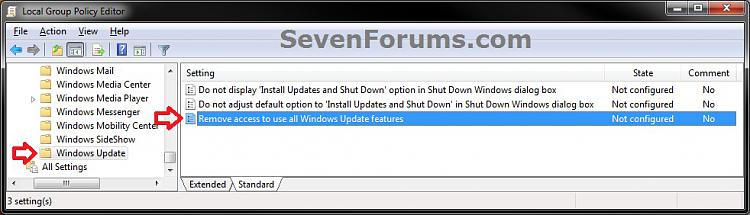
4. To Enable Windows Update Access
A) Select (dot) either Not Configured or Disabled. (see screenshot below step 7)B) Go to step 7.5. To Disable Windows Update Access with No Notifications
NOTE: This setting will remove all access to Windows Update features and no notifications will be shown.
A) Select (dot) Enabled, then select 0 - Do not show any notifications under Options. (see screenshot below step 7)6. To Disable Windows Update Access and Show Restart Notifications
B) Go to step 7.
NOTE: This setting will remove all access to Windows Update features, but will show notifications about restarts that are required to complete an installation.
A) Select (dot) Enabled, then select 1 - Show restart required notifications under Options. (see screenshot below step 7)7. Click on OK. (see screenshot below)
8. Close the Local Group Policy Editor window.
Shawn
Related Tutorials
- How to Uninstall a Windows Update in Windows 7
- How to Create a Installed Windows Updates Shortcut in Windows 7
- How to Create a "Windows Update" Shortcut in Windows 7
- How to View Windows Update History Details in Windows 7 and Windows 8
- How to Hide or Restore Hidden Windows Updates in Windows 7 and Windows 8
- How to Enable or Disable Uninstalling Windows Updates in Windows 7
- How to Create a Windows Update Troubleshoot Shortcut in Windows 7
- How to Change the Windows Update Settings in Windows 7
- How to Enable or Disable Windows Updates from Automatically Restarting the Computer
- How to Reset Windows Update in Vista, Windows 7 and Windows 8
- How to Enable or Disable the Windows Update "Who can install updates" Setting
- How to Download the Standalone MSU Installer File of a Windows Update
Windows Update - Enable or Disable Access
-
New #1
I met this problem on a friend's win 7 but the above reg file didn't fix it. Damn.
After upgrading to win 10, the win 10 update failed with error code 8024002e. Double damn!
In the end I tracked it down to a reg entry under HKLM\Software\Policies\Microsoft\Windows\WindowsUpdate.
The entry was "DisableWindowsUpdate" with value 1. Deleting this fixed the friend's problem.
Hope this helps someone quicker than I took!!
-
New #2
Hello linw!!
Thank you, Thank you for posting this fix!
Worked for me!!!
-
New #3
Shawn,
If you get a chance could you please take a look at the thread I started in the General Discussions subtopic:
Ssettings are managed by your administrator - PC was part of a Domain - Windows 7 Help Forums?
Since you wrote this tutorial, you may see something that nobody else has.
Thanks!
-
New #4
Hey boweasel, :)
I posted something there below that will hopefully help.
Ssettings are managed by your administrator - PC was part of a Domain - Page 2 - Windows 7 Help Forums

Windows Update - Enable or Disable Access
How to Enable or Disable Access to Windows Updates in Windows 7Published by Brink


 Quote
Quote
Related Discussions