Dual Boot Installation with Windows 7 and XP

How to Setup a Dual Boot Installation with Windows 7 and XP


   Information
This will show you how to install Windows 7 and XP to dual boot with when you already have either Windows 7 or XP installed first.
   Note
With a dual boot installaton, you will have two operating systems (OS) installed. When you start the computer, you will have the choice to choose which OS you would like to start up to. This method is the easiest way of doing a dual boot with these two operating systems.
   Tip
When dual booting with another OS (ex: Vista or XP), you may not always have that OS partition show up in Computer with a driver letter in Windows 7. If this happens, then you will just need to add a drive letter to the OS (ex: Vista or XP) partition in Windows 7 Disk Management for it to show up in Computer with a driver letter.
   Warning
To stop XP from deleting your Windows 7 System Restore Points everytime XP is started, then see System Restore Points - Stop XP Dual Boot Delete to hide Windows 7 from XP.

Windows 7 Minimum Hardware Requirements


NOTE: For more information on this, see: Windows 7 system requirements
  • 1 GHz 32-bit or 64-bit processor
  • 1 GB RAM for 32-bit Windows 7 OR 2 GB RAM for 64-bit Windows 7
  • 16 GB available disk space 32-bit Windows 7 OR 20 GB for 64-bit Windows 7
  • Support for DirectX 9 graphics with 128 MB memory (in order to enable Aero theme)
  • DVD-R/W Drive
  • Internet or phone access to activate Windows 7.
Windows XP Minimum Hardware Requirements

NOTE: For more information on this, see: System requirements for Windows XP operating systems
  • PC with 300 megahertz (MHz) or higher processor clock speed recommended; 233-MHz minimum required;* Intel Pentium/Celeron family, AMD K6/Athlon/Duron family, or compatible processor recommended
  • 128 megabytes (MB) of RAM or higher recommended (64 MB minimum supported; may limit performance and some features)
  • 1.5 gigabyte (GB) of available hard disk space.*
  • Super VGA (800 × 600) or higher resolution video adapter and monitor
  • CD-ROM or DVD drive
  • Keyboard and Microsoft Mouse or compatible pointing device
EXAMPLE: Windows Boot Manager
NOTE: This is the boot screen where you select what operating system that you would like to start. By default, you have 30 seconds to choose another operating system before the default operating system will start automatically.
Example.jpg


OPTION ONE

When XP is Installed First


NOTE: If you have a RAID setup, you will need to have the Windows 7 RAID drivers on a USB flash drive available to select and load while installing Windows 7.
1. Do step 2 or 3 below for where you wanted to install Windows 7 at.

2. To Create a New Partition from the XP Hard Disk Drive
A) With your Windows 7 installation disc boot into the Command Prompt from the System Recovery Options screen.
NOTE: Make sure that the CD/DVD drive is selected first in the boot order in the BIOS.

B) In the command prompt, select and shrink the XP volume by how many MB (1024 MB = 1 GB) you want to have for this Windows 7 partition. (See screenshot below)
NOTE: You would do steps 2 to 9 in METHOD TWO at that link. Windows 7 will need a minimum of 16 GB (16384 MB).

XP-W7_1.jpg
C) Click on the X at the top right corner to close the command prompt. (See screenshot above)

D) Click on the X at the top right corner to close System Recovery Options. (See screenshot below)
XP-W7_2.jpg
E) Go to step 4.
3. To Use a Separate Hard Disk Drive than the XP Drive
A) Boot from your Windows 7 installation disc.
NOTE: Make sure that the CD/DVD drive is selected first in the boot order in the BIOS.
4. Click on the Install now button. (See screenshot below)

XP-W7_3.jpg
5. When you get to this point, select the partition (step 2) or hard drive to install Windows 7 on. (See screenshot below)

XP-W7_4.jpg
6. Finish installing Windows 7.
NOTE: You would start at step 9 in that link to finish installing Windows 7.

7. When finished, restart the computer to have the option to boot from XP (Earlier Verision of Windows) or Windows 7. (See screenshot below)

   Note
If you are only booting into Windows 7 and do not have XP listed in the Windows Boot Manager, then you can install only EasyBCD (step 8 Option Two below) to add XP (or Windows 7) while started in Windows 7 the same way to the boot list.

Example.jpg


OPTION TWO

When Windows 7 is Installed First


   Warning

1. To Create a New Partition from the Windows 7 Hard Disk Drive
NOTE: If you want to install XP on a separate internal hard drive instead, then skip this step and go to step 2.
A) In Windows 7, select and shrink the Windows 7 volume in Disk Management by how many MB (1024 MB = 1 GB) you want to have for this XP partition. (See screenshots below)
NOTE: You would do all of Method One at that link.

W7-XP-1.jpg

W7-XP-2.jpg

W7-XP-3.jpg
2. Insert your XP installation disc, then restart the computer and press any key to boot from it when prompted. (See screenshot below)
NOTE: Make sure that the CD/DVD drive is selected first in the boot order in the BIOS.

Step1.jpg
3. From XP Setup, Press Enter. (See screenshot below)


   Warning

W7-XP-4.jpg
4. Press F8. (See screenshot below)
NOTE: On some multimedia keyboards, you may need to press the F-Lock or Function key before pressing F8.
W7-XP-5.jpg
5. Select the partition (step 1) or hard drive that you want to install XP on using the arrow keys and press Enter.

W7-XP-6.jpg
6. Finish installing XP.


   Tip
If you get Error loading Operating System after XP restarts:
  • Using your Windows 7 installation disc, boot to the command prompt at startup.
  • Type in these comands below, and press enter after each one.
    • bootrec /FixMbr
    • bootrec /FixBoot
    • bootrec /RebuildBcd
  • Exit the command prompt and restart the computer.
  • At this point, Windows 7 should boot up the same way before trying to install XP.
  • Continue to step 8 below and run EasyBCD from Windows 7 instead.

7. In XP, download and install .Net Framework 2.0 (32-bit) version or .Net Framework 2.0 (64-bit) version first, and EasyBCD (free version) for your 32-bit (x86) or 64-bit (x86) XP.
NOTE: In XP, Net Framework is required to be installed to run EasyBCD. After you click on Register (at bottom of link) for the free EasyBCD, registration is not required to download it.

8. Run EasyBCD (free version).
NOTE: This is required to repair the Windows 7 boot file and add XP to the Windows Boot Manager list.

9. On the left side of EasyBCD, click on the Add New Entry button. (See screenshot below)
A) In the top section under Operating Systems, click on the Windows tab. (See screenshot below)
B) To the right of Type, select Windows NT/2k/XP/2k3 from the drop down menu. (See screenshot below)
:warn:WARNING: Be sure to leave the Automatically detect correct drive box checked.

C) To the right of Name, you can leave the default Microsoft Windows XP as the name to be displayed in the Windows Boot Manager, or you can type whatever name you would like to have instead. (See screenshot below)
D) Click on the Add Entry button. (See screenshot below)
W7-XP-7.jpg
10. On the left side of EasyBCD, click on the BCD Deployment button, select (dot) the Install the Windows Vista/7 bootloader to the MBR option, and click on the Write MBR button. (See screenshot below)

W7-XP-9.jpg
11. Close EasyBCD.

12. Restart the computer to have the option to boot from Microsoft Windows XP or Windows 7. (See screenshot below)

Example2.jpg
   Tip
If Windows 7 will not start up when selected, then use your Windows 7 installation DVD to do a Startup Repair.

That's it,
Shawn


Last edited:
The only way I know to always have the booted OS seen as C is to install XP first to C, then boot the Win7 installer to install to a second partition. Win7 will autoconfigure the Dual Boot and always see itself as C when booted, and will XP.

You should consider using MS Security Essentials or Avast 5 with the Win7 firewall for best performance and least intrusion. Then you could consider virtualizing XP if it is Symantec which is forcing you to Dual Boot.
 
Hi guys.

Just a few questions before i start the dual booting process. These might be dumb questions, so i send my apologies.

How do i know whether its a RAID setup or a SATA drive?

Ive got the asus P6X58D-E motherboard, i7 950 processor with windows 7 home premium 64bit installed. (i have the windows 7 cd and xp cd) So my question is, what drivers do i need ready to do a dual boot with xp? I have the motherboard cd, will they be on there? Or do i need to download, if so, any chance of a push in the right direction?

Sorry for this, i dont have the net on my pc till next week, so im currently using my iphone and doing research is kinda hard. I just want to get prep'd before i star.

Thanks in advance
 

My Computer

OS
Windows 7 home premium 64bit
There will be two or more HD's merged together to form a RAID. You'll be presented with a BIOS pre-screen to access the RAID controls when they're in effect. Your SATA controller in BIOS setup would be set to RAID.

If you don't currently have RAID, it would be much better to install XP to another HD with Win7 unplugged during install. After install you'd plug up both drives, set the preferred one to boot first in BIOS setup, then boot the other one using one-time BIOS Boot Menu key.

If you must install to another partition on the same HD, follow the steps in tutorial to install EasyBCD to XP after install to add Win7 to Dual Boot Menu. If this fails we can help you start Win7 to add XP using EasyBCD which sometimes works better.

If during install XP fails to see your HD then you''ll need to insert your XP SATA controller driver at the F6 prompt during initial driver-loading phase, using a floppy drive. If you don't have floppy then you'll have to slipstream driver into installer: http://www.sevenforums.com/tutorials/72185-sata-drivers-slipstream-into-windows-xp-cd.html?ltr=S

Have you considered virtualizing XP from within Win7 to save all of this trouble? In Ultimate or Pro you can use XP Mode. Otherwise use Virtual Player or Virtual Box.
 
Where would i find the xp SATA driver compatible with my machine from? On the cd provided with my mother board? Or online?

If i was to install xp on another HD, would it work with an external USB hard drive? Or does it have to be built in? As i only have one 2TB hard drive on my computer.

I dont have a floppy, so i would have to slipstream the xp sata driver onto my xp disc. Will it then install automatically when installing xp?

If i use the xp mode with windows 7, will it act 'exactly' the same as a fresh copy of xp. Meaning, will the old games i play which dont work on 7, work with xp mode? Im not 100% sure how xp mode would work. Is it easy to switch between 7 and xp mode with this method?

Sorry to hassel you as much as this, im trying to weigh up my best option before i go ahead with it. I only really need xp so i can play some of my older games what dont work well with 7.
 

My Computer

OS
Windows 7 home premium 64bit
Hello Leighton, and welcome to Seven Forums.

Answers inline. :)

Where would i find the xp SATA driver compatible with my machine from? On the cd provided with my mother board? Or online?
Yes to both. You will be able to get the lastest version of the driver from your motherboard manufacturer's website though.
If i was to install xp on another HD, would it work with an external USB hard drive? Or does it have to be built in? As i only have one 2TB hard drive on my computer.
Windows XP will have to be installed on an internal HDD. You could create a new partition on your internal 2TB HD large enough to install XP to though.
I dont have a floppy, so i would have to slipstream the xp sata driver onto my xp disc. Will it then install automatically when installing xp?
Yes, you would need to slipstream the XP SATA driver, and it will install with the XP installation automatically afterwards.
If i use the xp mode with windows 7, will it act 'exactly' the same as a fresh copy of xp. Meaning, will the old games i play which dont work on 7, work with xp mode? Im not 100% sure how xp mode would work. Is it easy to switch between 7 and xp mode with this method?

Sorry to hassel you as much as this, im trying to weigh up my best option before i go ahead with it. I only really need xp so i can play some of my older games what dont work well with 7.
It would be worth a try using XP Compatibility Mode with the games to see if that may allow them to run properly in Windows 7 or not.

You would not be able to use Windows XP Mode since it can only be installed in Windows 7 Professional, Enterprise, or Ultimate editions. Instead, you could use something like VMWare and create a XP virtual machine with it. Using a virtual machine for gaming may not be a good solution since it will only use generic drivers in the VM.

It's no bother.
Hope this helps some,
Shawn
 

My Computer

Computer type
PC/Desktop
Computer Manufacturer/Model Number
Self built custom
OS
64-bit Windows 11 Pro for Workstations
CPU
Intel i7-8700K OC'd to 5 GHz
Motherboard
ASUS ROG Maximus XI Formula Z390
Memory
64 GB (4x16GB) G.SKILL TridentZ RGB DDR4 3600 MHz
Graphics Card(s)
ASUS ROG-STRIX-GTX1080TI-O11G-GAMING
Sound Card
Integrated
Monitor(s) Displays
2 x Samsung Odyssey G7 27"
Screen Resolution
2560x1440
Hard Drives
1TB Samsung 990 PRO M.2,
4TB Samsung 990 PRO PRO M.2,
TerraMaster F8 SSD Plus NAS
PSU
Seasonic Prime Titanium 850W
Case
Thermaltake Core P3
Cooling
Corsair Hydro H115i
Keyboard
Logitech wireless K800
Mouse
Logitech MX Master 4
Internet Speed
2 Gb/s Download and 100 Mb/s Upload
Antivirus
Malwarebyte Anti-Malware Premium
Browser
Google Chrome
Other Info
Logitech Z625 speaker system,
Logitech BRIO 4K Pro webcam,
HP Color LaserJet Pro MFP M477fdn,
APC SMART-UPS RT 1000 XL - SURT1000XLI,
Galaxy S23 Plus phone
Thanks so much, that has cleared up a lot. I think im going to go with a seperate partition for xp, around 50GB, to cover a few old games im wanting to play on.

When i get my monitor back from repair monday, ill give it a go and ill let you guys know how it went. I'd expect a few more replies come monday, unless i get it right first time!
 

My Computer

OS
Windows 7 home premium 64bit
You're most welcome. I'm glad that we could help.

Just let us know if you have any other questions or troubles with this. :)
 

My Computer

Computer type
PC/Desktop
Computer Manufacturer/Model Number
Self built custom
OS
64-bit Windows 11 Pro for Workstations
CPU
Intel i7-8700K OC'd to 5 GHz
Motherboard
ASUS ROG Maximus XI Formula Z390
Memory
64 GB (4x16GB) G.SKILL TridentZ RGB DDR4 3600 MHz
Graphics Card(s)
ASUS ROG-STRIX-GTX1080TI-O11G-GAMING
Sound Card
Integrated
Monitor(s) Displays
2 x Samsung Odyssey G7 27"
Screen Resolution
2560x1440
Hard Drives
1TB Samsung 990 PRO M.2,
4TB Samsung 990 PRO PRO M.2,
TerraMaster F8 SSD Plus NAS
PSU
Seasonic Prime Titanium 850W
Case
Thermaltake Core P3
Cooling
Corsair Hydro H115i
Keyboard
Logitech wireless K800
Mouse
Logitech MX Master 4
Internet Speed
2 Gb/s Download and 100 Mb/s Upload
Antivirus
Malwarebyte Anti-Malware Premium
Browser
Google Chrome
Other Info
Logitech Z625 speaker system,
Logitech BRIO 4K Pro webcam,
HP Color LaserJet Pro MFP M477fdn,
APC SMART-UPS RT 1000 XL - SURT1000XLI,
Galaxy S23 Plus phone
HELP!

I was following the guide but I think I'm in trouble.

I have a HP G62 laptop that come with Win 7 Home premium 64 bit. After I followed the directions to create the new partition and boot from WinXP CD I was getting the 7B STOP so I created a new CD slipstreamed with the intel drivers.

Now the WinXP CD booted and installed. Once it got to the point where it needed to reboot to complete the install it went straight to the WinXP startup screen but then quit and rebooted.

Now it goes to winXP startup asking to start in safe mode or normal (menu). It appears that there is a boot loader problem so I was going to try this tip

If you get Error loading Operating System after XP restarts:
  • Using your Windows 7 installation disc, boot to the command prompt at startup.
  • Type in these comands below, and press enter after each one.
    • bootrec /FixMbr
    • bootrec /FixBoot
    • bootrec /RebuildBcd
  • Exit the command prompt and restart the computer.
  • At this point, Windows 7 should boot up the same way before trying to install XP.
  • Continue to step 8 below and run EasyBCD from Windows 7 instead.
BUT...... It will not boot from CD

I have tried the the internal CD, and external USB CD, I have adjusted BIOS for boot order, I have tried F9 (select boot order on startup) I select the CD (or USB CD) and it stilol goes to the XP safe mode startup menu. I have tried F11 for recovery and It goes to the XP safe mode startup menu.

What can I try next?
 

My Computer

OS
Windows 7 Home Premium 64bit
Will it boot into Safe Mode? If so check Device manager for drivers in error, update problem drivers.

See if the DVD drive shows up in BIOS setup. If so, burn another XP CD at 4x using ImgBurn, test CD to see if it boots on another machine.

Once you boot the CD, try the commands given. Next see if it detects the installation and offers a Repair Install: http://www.sevenforums.com/tutorials/3413-repair-install.html?ltr=R

The G62 has limited BIOS settings and does not display connected devices like the old Phoneix or award. I was able to grab a screen shot with the video camera on my crackberry and it looks like I am still getting a BSOD 7B between XP boot attempts. I did slipstream the Intel drivers as described in other posts to get past the 7B error.

The BIOS is InsydeH20 rev 3.5

Still stuck
 
Last edited:

My Computer

OS
Windows 7 Home Premium 64bit
BIOS should have SATA controller settings. If it's set to AHCI you may have the wrong driver slipstreamed. But if you change to IDE mode Win7 won't boot again.

Many or most XP programs that won't outright install in Win7 can be made to run using Win7 http://www.sevenforums.com/tutorials/316-compatibility-mode.html.

There are also free virtualization programs like Virtual Player, VMWare and Virtual Box that can run XP virtually for programs which can't be run in Win7.
 
Hi guys.

Just a few questions before i start the dual booting process. These might be dumb questions, so i send my apologies.

How do i know whether its a RAID setup or a SATA drive?

Ive got the asus P6X58D-E motherboard, i7 950 processor with windows 7 home premium 64bit installed. (i have the windows 7 cd and xp cd) So my question is, what drivers do i need ready to do a dual boot with xp? I have the motherboard cd, will they be on there? Or do i need to download, if so, any chance of a push in the right direction?

Sorry for this, i dont have the net on my pc till next week, so im currently using my iphone and doing research is kinda hard. I just want to get prep'd before i star.

Thanks in advance
Hi Leighton1011

First check for all the Win XP drivers for your hardware.
If your Win XP CD, does not support your Sata Controller, you will need to load drivers to uses at F6.
Load Sata Controller drivers with a floppy disk is the best way.

http://www.sevenforums.com/tutorials/66010-sata-drivers-load-windows-xp-setup-dual-boot.html
OR
http://www.sevenforums.com/tutorials/72185-sata-drivers-slipstream-into-windows-xp-cd.html

Your Asus P6X58D-E has a Intel Sata Controller.
You can download your F6 Sata Controller drivers from here:
Intel Sata Controller Drivers
 

My Computer

OS
ME/XP/Vista/Win7
I was following the guide but I think I'm in trouble.

I have a HP G62 laptop that come with Win 7 Home premium 64 bit. After I followed the directions to create the new partition and boot from WinXP CD I was getting the 7B STOP so I created a new CD slipstreamed with the intel drivers.

Now the WinXP CD booted and installed. Once it got to the point where it needed to reboot to complete the install it went straight to the WinXP startup screen but then quit and rebooted.

Now it goes to winXP startup asking to start in safe mode or normal (menu). It appears that there is a boot loader problem so I was going to try this tip


If you get Error loading Operating System after XP restarts:
  • Using your Windows 7 installation disc, boot to the command prompt at startup.
  • Type in these comands below, and press enter after each one.
    • bootrec /FixMbr
    • bootrec /FixBoot
    • bootrec /RebuildBcd
  • Exit the command prompt and restart the computer.
  • At this point, Windows 7 should boot up the same way before trying to install XP.
  • Continue to step 8 below and run EasyBCD from Windows 7 instead.
BUT...... It will not boot from CD

I have tried the the internal CD, and external USB CD, I have adjusted BIOS for boot order, I have tried F9 (select boot order on startup) I select the CD (or USB CD) and it stilol goes to the XP safe mode startup menu. I have tried F11 for recovery and It goes to the XP safe mode startup menu.

What can I try next?

Hi

If your HP G62 has a Intel Sata Controller, did you slipstream all the drivers in?
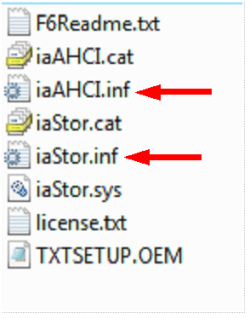
The Intel F6 drivers have two inf files.

Capture3-1.PNG
 

My Computer

OS
ME/XP/Vista/Win7
I was following the guide but I think I'm in trouble.

I have a HP G62 laptop that come with Win 7 Home premium 64 bit. After I followed the directions to create the new partition and boot from WinXP CD I was getting the 7B STOP so I created a new CD slipstreamed with the intel drivers.

Now the WinXP CD booted and installed. Once it got to the point where it needed to reboot to complete the install it went straight to the WinXP startup screen but then quit and rebooted.

Now it goes to winXP startup asking to start in safe mode or normal (menu). It appears that there is a boot loader problem so I was going to try this tip


If you get Error loading Operating System after XP restarts:
  • Using your Windows 7 installation disc, boot to the command prompt at startup.
  • Type in these comands below, and press enter after each one.
    • bootrec /FixMbr
    • bootrec /FixBoot
    • bootrec /RebuildBcd
  • Exit the command prompt and restart the computer.
  • At this point, Windows 7 should boot up the same way before trying to install XP.
  • Continue to step 8 below and run EasyBCD from Windows 7 instead.
BUT...... It will not boot from CD

I have tried the the internal CD, and external USB CD, I have adjusted BIOS for boot order, I have tried F9 (select boot order on startup) I select the CD (or USB CD) and it stilol goes to the XP safe mode startup menu. I have tried F11 for recovery and It goes to the XP safe mode startup menu.

What can I try next?

Hi

If your HP G62 has a Intel Sata Controller, did you slipstream all the drivers in?
The Intel F6 drivers have two inf files.

]

Got it solved,

The problem was my Hard Drive - It had three Primary Partitions before I started and It created the new partition as a Logical instead of Primary.

I created my restore DVD's removed the restore partition, created a new partition for XP then the install went without a hitch.

I will make a new post with a few more suggestions for other users doing this.

Darcypa
 

My Computer

OS
Windows 7 Home Premium 64bit
HP G62-358CA Laptop Hints

I have just completed the dual boot setup using this tutorial and I would like to offer a few hints to others users doing the same on the HP G62-358CA model.

These hints may help users with other newer HP laptops that come pre-installed with Win 7.

I take no responsibility if you pooch this - I only provide these hints as a result of my efforts to make the dual boot work for me.

1. - Before starting the process use the disk management tools as mentioned in this guide to see how many primary partitions you have. If it is a new laptop, I suspect you will have a three primary partitions already - System (I suspect this is the boot partition), Win 7 -your windows 7 partitions, and Recovery ( the HP Recovery partition).

1a. You need a primary partition to boot WinXP from so one of the above needs to go. Use the HP Recovery tools to make your backup media (4 DVD's).

1b After you have created your backup media ( 4 DVD's) you can use the disk management tools to remove the recovery partition. Then expand the Win 7 partition to add in the recovered recovery partition to the Win 7 partition, then shrink the win 7 partition to create the new partition for Win XP ( I used 80 gig). - All the methods for expanding and shrinking is covered in this guide.

2. Download the extra tools you will need before starting. You can store these on a thumb drive.

Get all the XP Drivers for the HP G62-358CA from Here. ( Note under Win 7, use the device manager to examine the types of devices installed such as Audio card type, NIC Card types so you know which soft packs to download).

This Link is to the drivers for the 32 bit version of XP

Software & Driver Downloads HP G62-358CA Notebook PC - HP Customer Care (United States - English)

Will will also need the .NET redistributable to install some of these softpacs and to use EasyBCD.

2.0 here Download details: Microsoft .NET Framework Version 2.0 Redistributable Package (x86)

3.0 here http://go.microsoft.com/fwlink/?LinkId=70848

3.5 here http://download.microsoft.com/download/6/0/f/60fc5854-3cb8-4892-b6db-bd4f42510f28/dotnetfx35.exe


3. With all these downloads stored on a thumbdrive, you can start at the beginning of the guide. You will need to slipstream the SATA drivers from Intel into your XP CD before starting the install. I used the complete intel package using this tutorial (http://www.sevenforums.com/tutorials/72185-sata-drivers-slipstream-into-windows-xp-cd.html) and the complete intel SATA drivers file here http://downloadcenter.intel.com/Detail_Desc.aspx?DwnldID=18860 (f6flpy96x86.zip)

Good luck
 

My Computer

OS
Windows 7 Home Premium 64bit
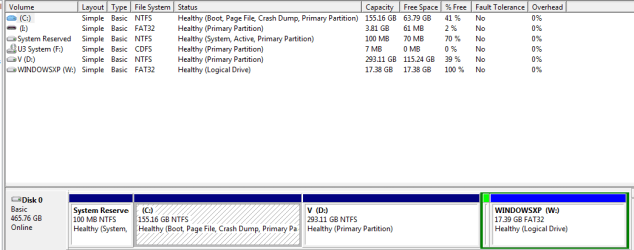
Hey people. i am believing that my XP does recognize the hard drive but he shows me some space which i can't recognize what is what and i am afraid to delete my Win7 which is kinda very impotent for me..
I have a partition which i have made and called Win XP (:W) but he does not shows me in the space list..

And i have no idea what to choose or how to find what is what..
 

My Computer

OS
Windows 7 x64 ultimate
Hey people. i am believing that my XP does recognize the hard drive but he shows me some space which i can't recognize what is what and i am afraid to delete my Win7 which is kinda very impotent for me..
I have a partition which i have made and called Win XP (:W) but he does not shows me in the space list..

And i have no idea what to choose or how to find what is what..

Can you post a screen shot Disk management?
http://www.sevenforums.com/tutorials/9733-how-post-screenshot-seven-forums.html

Screenshot tools.
http://www.sevenforums.com/tutorials/9717-screenshot-paint.html
http://www.sevenforums.com/tutorials/51160-screenshot-upload-using-mwsnap.html
fscapture free download
 

My Computer

OS
ME/XP/Vista/Win7
Have no idea though for what you need it ..
Could made NTFS but as i remember XP works better with FAT.

And please could you take a look at your post- about slipstream the drivers to cd cause
it may be the problem. i have posted there but you have not answered.
 

Attachments

  • 1q4124132.PNG
    1q4124132.PNG
    36 KB · Views: 277

My Computer

OS
Windows 7 x64 ultimate
Got it solved,

The problem was my Hard Drive - It had three Primary Partitions before I started and It created the new partition as a Logical instead of Primary.

I created my restore DVD's removed the restore partition, created a new partition for XP then the install went without a hitch.

I will make a new post with a few more suggestions for other users doing this.

Darcypa

@VoLtrex31

I think Darcypa solved your issue as well.

http://www.sevenforums.com/1215628-post1094.html
 

My Computer

Computer type
PC/Desktop
Computer Manufacturer/Model Number
Dell OP7010
OS
Windows 7 Enterprise (x64); Windows Server 2008 R2 (x64)
Memory
16GB
Monitor(s) Displays
4 Dell 24" LCD
Screen Resolution
1280x1024
Keyboard
Dell
Mouse
Dell Optical
Internet Speed
40meg
Hi darcypa
+1
Very nice post, it nice to see someone doing there homework, & reporting back.

Well done.
 

My Computer

OS
ME/XP/Vista/Win7
Back
Top