
You are using an out of date browser. It may not display this or other websites correctly.
You should upgrade or use an alternative browser.
You should upgrade or use an alternative browser.
Tutorials
Windows 7 tutorials, tricks, tips, and guides.
Filters
Show only:
Loading…
How to Enable or Disable Page File Encryption in Vista and Windows 7
This will show you how to enable or disable encrypting the virtual memory page file in Vista and Windows 7.
Encrypting the page file prevents malicious users from reading data that has been paged to a NTFS disk, but will also add processing overhead for file system operations.
You must be logged in as an administrator to be able to do this tutorial.
Using a REG File Download
1. To Enable Page File Encryption
A) Click on the Download button below to download the file below.
Enable_Page_File_Encryption.reg
http://www.sevenforums.com/attachment.php?attachmentid=156429&stc=1&d=1306378325
B) Go to step 3.
2. To Disable Page File Encryption
NOTE: This is the...
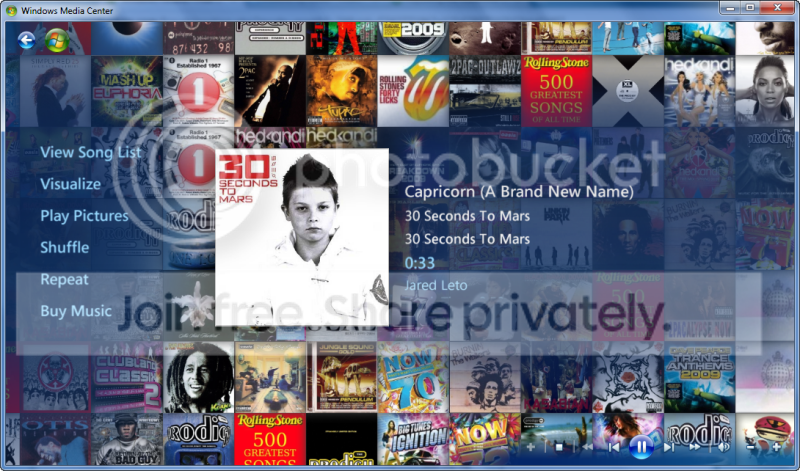
How to Speed up the Windows 7 Media Center Background
Those of you who used W7 Beta may have noticed that when you play an album in WMC, the animated background displays all of your album art as a 'waterfall'. In newer builds this has significantly slowed down.
Windows Media Center is not available in the Windows 7 Starter and Windows 7 Home Basic editions.
Please create a backup copy of ehres.dllThe N and KN editions of Windows 7 have all the features that normally come with each individual Windows 7 edition, except for Windows Media Player 12 and related programs, such as Windows Media Center or Windows DVD Maker.
The N editions of Windows 7 allow you to choose your own media player and software required to manage and play CDs...
How to Create a "ODBC Data Source Administrator" Shortcut
This will show you how to download or create a ODBC Data Source Administrator shortcut in Windows 7.
For more detailed information about ODBC Data Source Administrator, see:
Using the ODBC Data Source Administrator
ODBC Data Source Administrator
You must be logged in as an administrator to be able to use this shortcut.
EXAMPLE: ODBC Data Source Administrator
To Download a "ODBC Data Source Administrator" Shortcut
1. Click on the Download button below to download the file below.
ODBC_Data_Source_Administrator.zip
http://www.sevenforums.com/attachment.php?attachmentid=155081&stc=1&d=1305696571
2. Save the .zip file to the desktop.
3. Open the .zip file and extract...
How to Show More Rows of Sites in "about:Tabs" in IE9 and IE10
This tutorial will show you how to have 2 to 5 rows of Your most popular sites (IE9) or Frequent (IE10) sites when you open the about:Tabs page (New Tab page) in IE9 and IE10.
Unless you changed what the new tab page opens to, it opens to the about:Tabs page by default when you click on the New Tab button or press Ctrl+T in IE9 or IE10.
You can also type about:Tabs in the IE9 or IE10 address bar and press enter to open it in the currently opened tab.
If you have the Delete browsing history on exit box checked in Internet Options and have History check in Delete Browsing History, then this will also reset and clear the IE9 or IE10 about:Tabs Show More Rows of...
How to Enable or Disable the Windows 7 Log On Screen Saver
By default the log on screen saver is disabled in Windows 7. This will show you how to enable a blank screen saver to run at the log on screen after an amount of idle time that you specify. This affects all log on screens in Windows 7 including the Welcome, Lock computer, Log off, and Switch User log on screens.Enabling the log on screen saver will add these registry entries, and disabling it will remove them.
This will only work using the blank black C:\Windows\System32\scrnsave.scr screen saver as the value for SCRNSAVE.EXE. Using any other screen saver will result in this error below when it tries to run from the log on screen.
You can only do this tutorial while...
How to Set IE8 and IE9 to "Delete browsing history on exit"
This tutorial will show you how to turn on or off for IE8 and IE9 to Delete browsing history on exit.
Whatever you have checked (selected) in the Delete Browsing History window is what will be deleted each time you close IE8 or IE9.
If you have the Delete browsing history on exit box checked in step 3 below and have History check in Delete Browsing History, then this will also reset and clear the Internet Explorer 9 (IE9) about:Tabs Show More Rows of Sites setting back to the default of showing 2 rows each time you close IE9.
Here's How:
1. Open the Control Panel (icons view), and click on the Internet Options icon.
A) Go to step 3 or 4.
OR
2. In Internet...
How to Set Internet Explorer to "Empty Temporary Internet Files folder when browser is closed"
The Temporary Internet Files folder is the cache folder where copies of webpages, images, and media are saved at for faster viewing in Internet Explorer. By default, the Temporary Internet Files folder is a hidden protected operating system file located below:
C:\Users\user-name\AppData\Local\Microsoft\Windows\Temporary Internet Files
This tutorial will show you how to turn on or off to Empty Temporary Internet Files folder when browser is closed for only your user account's Internet Explorer.
To Turn On or Off in Internet Options
1. Open the Control Panel (icons view), click/tap on the Internet Options icon, and go to step 3 below...
Hide or Show File Names of Shortcuts and Folders in Windows 7 and Windows 8
This will show you how to hide the text label (file name) default desktop icons, shortcut icons, and folder icons in Windows 7 and Windows 8.
EXAMPLE: Hide or Show Test of Desktop Icons, Shortcut, and Folder icons Text
To Hide Text Label of Desktop Icons
1. Open Character Map, scroll down and select a blank character in the grid, click on the Select button, and click on the Copy button. (see screenshot below)
NOTE: If you like, you can also select a blank character from a different font as well.
2. Right click or press and hold on a folder, shortcut, or desktop icon that you want to hide the text of, click on Rename, right click inside the rename box...
How to Create a Bootable Live Linux USB Using UNetbootin
In this tutorial you'll learn how to create a bootable Live USB drive for Ubuntu, Fedora, and other Linux distributions without burning a CD.
This article may helps you to choose best Linux distro for you.
Choosing the Best Linux Distro for You
This program can be downloaded from here UNetbootin .
I'm using version 5.27
Before starting with the turorial make sure that you have inserted a USB in your computer.
This will delete all the data on usb,so before doing this,backup your files.
The current version(5.27) has built-in support for automatically downloading and loading the following distributions:
Ubuntu (and official derivatives)
6.06 LTS
6.10
7.04
7.10
8.04 LTS
8.10...
Add or Remove "Next desktop background" from Desktop Context Menu in Windows 7 and Windows 8
A desktop slideshow is a slideshow of wallpaper images (pictures) of your choice on your desktop.
When a desktop slideshow is being used in Windows 7 or Windows 8, Windows automatically adds Next desktop background to your desktop context menu.
This tutorial will show you how to add or remove Next desktop background from the desktop context menu of all users when a user is using a desktop slideshow in Windows 7 and Windows 8.
The Windows 7 Starter and Home Basic editions do not have this feature included in them.
You must be logged in as an administrator to be able to apply this tutorial.
EXAMPLE: "Next desktop background" in Desktop...
How to View the Webpage Privacy Report in Internet Explorer
This will show you how to view a webpage's privacy report in Internet Explorer, which tells you what sites have content on the webpage and what cookies are stored on your computer after visiting the webpage.
Here's How:
1. If Using Internet Explorer 9 (IE9) or Internet Explorer 10 (IE10)
A) While on the webpage that you want to view the privacy report of, click/tap on the tools gear icon, Safety, and Webpage privacy policy. (see screenshot below)
B) Go to step 3.
2. If Using Internet Explorer 8 (IE8), Internet Explorer 9 (IE9), or Internet Explorer 10 (IE10)
A) While on the webpage that you want to view the privacy report of, click/tap on Safety (command bar), and...
How to Create an Offline Files "Sync Setup" Shortcut in Windows 7 and Windows 8
Sync Center allows you to check the results of your recent sync activity if you've set up your computer to sync files with a network server (often called offline files). When you sync with a network server, you can access files by keeping synced copies of those files on your computer, even when the network server is unavailable. Sync Center can tell you if the files synced successfully or if there are any sync errors or warnings.
This tutorial will show you how to download or create an Offline Files Sync Setup shortcut to set up new sync partnerships in Windows 7 and Windows 8.
In Windows 7, offline files is only available in the Windows 7...
How to Create an Offline Files "Sync Results" Shortcut in Windows 7 and Windows 8
Sync Center allows you to check the results of your recent sync activity if you've set up your computer to sync files with a network server (often called offline files). When you sync with a network server, you can access files by keeping synced copies of those files on your computer, even when the network server is unavailable. Sync Center can tell you if the files synced successfully or if there are any sync errors or warnings.
This tutorial will show you how to download or create an Offline Files view Sync Results shortcut in Windows 7 and Windows 8.
In Windows 7, offline files is only available in the Windows 7 Professional, Ultimate, and...
How to Create an Offline Files "Sync Conflicts" Shortcut in Windows 7 and Windows 8
Sync Center allows you to check the results of your recent sync activity if you've set up your computer to sync files with a network server (often called offline files). When you sync with a network server, you can access files by keeping synced copies of those files on your computer, even when the network server is unavailable. Sync Center can tell you if the files synced successfully or if there are any sync errors or warnings.
This tutorial will show you how to download or create an Offline Files Sync Conflicts shortcut in Windows 7 and Windows 8.
In Windows 7, offline files is only available in the Windows 7 Professional, Ultimate, and...

How to Customize Existing Windows 7 Gadgets
The question having been asked in the "post your seven desktop" thread, i thought it was maybe interesting to deepen that with a new and clear post...
So, the subject here is how to change icons and type/color of font in a windows gadget :orb: to make it match better with your own style...
IMPORTANT NOTE : If you wanna follow these steps, remember that it's for personal use ONLY, please never share a customized gadget without the owner/creator permission!!! Thanks... ;)
I could not be responsible for any exceed due to the use of this tutorial...
For the icons change, i choose the "BandwidthMeter" gadget, credits for this are for "RolRain".
For the font change, i used...
How to Use "Open in New Process" Context Menu Item With or Without Shift+Right Click
This will show you how to be able to use the Open in New Process context menu item with or without Shift+Right Click on a folder or drive for all users in Windows 7 and Windows 8.
You must be logged in as an administrator to be able to do this tutorial.
EXAMPLE: "Open in new process" with or without Shift+Right Click in the Context Menu
Here's How:
1. Shift+Right Click "Open in new process" in the Context Menu
NOTE: This is the default setting.
A) Click/tap on the Download button below to download the file below, and go to step 3 below.
Shift+Right-Click_Open_in_New_Process.reg...
How to Create a "Desktop Icon Settings" Shortcut in Windows
This will show you how to create or download a Desktop Icon Settings shortcut to add or remove and restore or change the default icon for the Computer, User's Files (user-name Folder), Network, and Recycle Bin desktop icons in Vista, Windows 7, and Windows 8.
EXAMPLE: Desktop Icon Settings
To Download a "Desktop Icon Settings" Shortcut
1. Click/tap on the Download button below to download the .zip file below.
Desktop_Icon_Settings.zip
http://www.sevenforums.com/attachment.php?attachmentid=152173&stc=1&d=1304225052
2.Save the .zip file to your desktop.
3. Open the .zip file, and extract (drag and drop) the Desktop Icon Settings shortcut to your desktop.
4...
How to Add a "System Tools" Cascading Desktop Context Menu in Windows 7
This will show you how to add or remove a cascading (expandable) System Tools menu to the desktop context menu for all users in Windows 7.
This is the same folder and items as in the Start Menu - All Programs - Accessories - System Tools folder.
You must be logged in as an administrator to be able to do this tutorial.
EXAMPLE: System Tools Cascading Desktop Context Menu
Here's How:
1. Add "System Tools" Cascading Desktop Context Menu
A) Click on the Download button below to download the file below.
Add_System_Tools_to_Desktop_Context_Menu.reg
http://www.sevenforums.com/attachment.php?attachmentid=187282&stc=1&d=1323305946
B) Go to step 3.
2...
How to Add a "Administrative Tools" Cascading Desktop Context Menu in Windows 7
This will show you how to add or remove a cascading (expandable) Administrative Tools menu to the desktop context menu for all users in Windows 7.
You must be logged in as an administrator to be able to do this tutorial, and to use the items in the context menu.
EXAMPLE: Administrative Tools Cascading Context Menu
NOTE: The left screenshot is for the Windows 7 Starter, Home Basic, and Home Premium editions, and the right screenshot is for the Windows 7 Professional, Ultimate, and Enterprise editions.
Here's How:
1. Add "Administrative Tools" Cascading Desktop Context Menu
NOTE: Use this download if you have Windows 7 Starter, Home Basic, or Home...