system recovery option not compatible with version of windows

UserHAL

New member
Local time
5:52 AM
Messages
20
Was organizing the SATA connectors in case disconnecting/reconnecting a few HDDs, one with the W7 64 bit OS (H1). Then disconnected all HDDs leaving a new one and installed W7 64 bit on it (H2) with only it connected. Performed fine. Disconnected it (H2) and reconnected the first one (H2) and W7 would not launch, so inserted OS disc and it would repair something (I have no idea what as it did not indicate, I found that to be particular helpful by MS) and then W7 would launch. From there on, any time I switched between the two drives each having the respective OS (H1 or H2), the OS disc would need to be used to repair the unspecified problem and launch Win. Did this a few times until the first OS (H1) the disc no longer could 'repair' what ever needed to be fixed and the famous message follows:

"This version of System Recovery Options is not compatible with the version of Windows you are trying to repair. Try using a recovery disc that is compatible with this version of Windows"

The real (dis)interesting part to all of this, is that yes important data is off on drives other than the OS drive though did have a few files with mostly shortcuts on the desktop. In accessing the first OS (H1) via the second (H2), after fighting through the "access is denied" and "ownership rights" UAL BuSines, only half of the files that were on the desktop are actually in the desktop folder/directory. Is it worth fixing the OS on H1 to get into Windows to see if these files magically reappear or is what I'm seeing directly in the folder all that remains.

What happened to files that were on the desktop and what is it with all of these fundamental OS/HDD issues with W7? Wow - epic issues for MS. //Someone should launch a complaint.//

--
Responses: at 1 hour with 171 views: 0 responses
Next: at 2 hours with x views: x responses
 
Last edited:

My Computer My Computer

OS
Windows 7 64 bit
CPU
?
Motherboard
?
Memory
?
Graphics Card(s)
?
Sound Card
?
Monitor(s) Displays
?
Hard Drives
HDD
PSU
?
Case
?
Cooling
?
What happened to files that were on the desktop and what is it with all of these fundamental OS/HDD issues with W7? Wow - epic issues for MS. //Someone should launch a complaint.//

--
Responses: at 1 hour with 171 views: 0 responses
Next: at 2 hours with x views: x responses

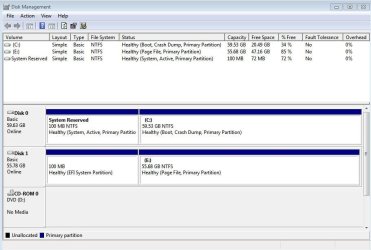
Using the Recovery Disk multiple times on different partitions did not help the situation. I would guess that your boot partition is messed up because of that. Post a screen shot of your expanded column Disk Management using your Snipping Tool and we will see what you have. http://www.sevenforums.com/tutorials/9733-screenshots-files-upload-post-seven-forums.html
 

My Computer My Computer

Computer type
PC/Desktop
Computer Manufacturer/Model Number
Custom Build
OS
Windows 7 Home Premium 32-Bit - Build 7600 SP1
CPU
Intel Core i3-2120 3.30Ghz
Motherboard
Asus P8Z68-V LX Intel Z68 Socket H2 ATX
Memory
Kingston 4 GB DDR3 1333 mhz
Graphics Card(s)
AMD Radeon HD6670
Sound Card
Sound Blaster Audigy SE 24-Bit
Monitor(s) Displays
Asus VE228
Screen Resolution
1440 X 900
Hard Drives
OCZ Vertex 3 120 GB Sata 3 SSD ==
Kingston SH103/S3 120 G Hyper X 120 GB SSD ==
Western Digital 500 GB Caviar Green 7200 RPM ==
PSU
Corsair CX600M == 600 Watt
Case
NZXT Apollo - Silver with Clear Side Panel
Cooling
Three 120 mm Fans
Keyboard
Microsoft Natural 4000
Mouse
Microsoft Custom Optical 3000
Internet Speed
AT&T Fiber Optic Wireless Network
Antivirus
Microsoft Security Essentials
Browser
Chrome
Other Info
120 mm Blue LED Fan -- Three Blue LED Lazer Light Sticks
Well actually, it was used multiple times on different HDDs with separate installations of the OS (i.e., partitions on different disks). How could that affect the boot partitions on different/separate drives/OS installations. Each drive was repaired and OS launched without the other connected. They wouldn't even know the other existed. Getting the screen shots...

/As another little issue: before all of this, there were multiple other HDDs with data, however they couldn't be connected when booting or the OS wouldn't load, dash/underscore would just blink on screen. To boot system (soft or hard - reset, power down/up), all other HDDs had to be disconnected (except for the HDD w/OS). That was fun.

/And: is there a fixmbr on the W7 OS install disc? Why this is not an option at reinstall... MS is such a mess.
 

My Computer My Computer

OS
Windows 7 64 bit
CPU
?
Motherboard
?
Memory
?
Graphics Card(s)
?
Sound Card
?
Monitor(s) Displays
?
Hard Drives
HDD
PSU
?
Case
?
Cooling
?
DM screen shot
 

Attachments

  • 1.jpg
    1.jpg
    57 KB · Views: 92

My Computer My Computer

OS
Windows 7 64 bit
CPU
?
Motherboard
?
Memory
?
Graphics Card(s)
?
Sound Card
?
Monitor(s) Displays
?
Hard Drives
HDD
PSU
?
Case
?
Cooling
?
The System Reserved on Disk 0 looks OK to me. I assume you also have your OS on C: drive. == The first thing I would do is unplug Disk 1, and try to boot. See if that works. If it does, you will know the problem is with Disk 1. I suspect the 100 MB partition on Disk 1 is fouling up the works.
 

My Computer My Computer

Computer type
PC/Desktop
Computer Manufacturer/Model Number
Custom Build
OS
Windows 7 Home Premium 32-Bit - Build 7600 SP1
CPU
Intel Core i3-2120 3.30Ghz
Motherboard
Asus P8Z68-V LX Intel Z68 Socket H2 ATX
Memory
Kingston 4 GB DDR3 1333 mhz
Graphics Card(s)
AMD Radeon HD6670
Sound Card
Sound Blaster Audigy SE 24-Bit
Monitor(s) Displays
Asus VE228
Screen Resolution
1440 X 900
Hard Drives
OCZ Vertex 3 120 GB Sata 3 SSD ==
Kingston SH103/S3 120 G Hyper X 120 GB SSD ==
Western Digital 500 GB Caviar Green 7200 RPM ==
PSU
Corsair CX600M == 600 Watt
Case
NZXT Apollo - Silver with Clear Side Panel
Cooling
Three 120 mm Fans
Keyboard
Microsoft Natural 4000
Mouse
Microsoft Custom Optical 3000
Internet Speed
AT&T Fiber Optic Wireless Network
Antivirus
Microsoft Security Essentials
Browser
Chrome
Other Info
120 mm Blue LED Fan -- Three Blue LED Lazer Light Sticks
Yes, OS is on C:

I only had the second HDD (Disk1) connected so the parameters could be referenced etc. It always is/was disconnected when booting the first HDD (Disk0). As each HDD/OS was booted, the other HDD/OS was never connected. So the problem remains, booting with only Disk0 connected (and no other HDD/OS connected) still produces The Problem (thanks Bill)...
 

My Computer My Computer

OS
Windows 7 64 bit
CPU
?
Motherboard
?
Memory
?
Graphics Card(s)
?
Sound Card
?
Monitor(s) Displays
?
Hard Drives
HDD
PSU
?
Case
?
Cooling
?

My Computer My Computer

Computer type
PC/Desktop
Computer Manufacturer/Model Number
Custom Build
OS
Windows 7 Home Premium 32-Bit - Build 7600 SP1
CPU
Intel Core i3-2120 3.30Ghz
Motherboard
Asus P8Z68-V LX Intel Z68 Socket H2 ATX
Memory
Kingston 4 GB DDR3 1333 mhz
Graphics Card(s)
AMD Radeon HD6670
Sound Card
Sound Blaster Audigy SE 24-Bit
Monitor(s) Displays
Asus VE228
Screen Resolution
1440 X 900
Hard Drives
OCZ Vertex 3 120 GB Sata 3 SSD ==
Kingston SH103/S3 120 G Hyper X 120 GB SSD ==
Western Digital 500 GB Caviar Green 7200 RPM ==
PSU
Corsair CX600M == 600 Watt
Case
NZXT Apollo - Silver with Clear Side Panel
Cooling
Three 120 mm Fans
Keyboard
Microsoft Natural 4000
Mouse
Microsoft Custom Optical 3000
Internet Speed
AT&T Fiber Optic Wireless Network
Antivirus
Microsoft Security Essentials
Browser
Chrome
Other Info
120 mm Blue LED Fan -- Three Blue LED Lazer Light Sticks
To be clear. Disk 0 boots the operating system (Windows), so there is no problem with it. Disk 1 does not boot the OS (Windows), and so with it is The Problem (each have their own separate OS loaded). The files on Disk 1 can only be accessed when it is connected and done so via the OS of Disk 0. Because of that, there is no way to attempt a restore point with Disk 1 currently.
 

My Computer My Computer

OS
Windows 7 64 bit
CPU
?
Motherboard
?
Memory
?
Graphics Card(s)
?
Sound Card
?
Monitor(s) Displays
?
Hard Drives
HDD
PSU
?
Case
?
Cooling
?

My Computer My Computer

Computer type
PC/Desktop
Computer Manufacturer/Model Number
Custom Build
OS
Windows 7 Home Premium 32-Bit - Build 7600 SP1
CPU
Intel Core i3-2120 3.30Ghz
Motherboard
Asus P8Z68-V LX Intel Z68 Socket H2 ATX
Memory
Kingston 4 GB DDR3 1333 mhz
Graphics Card(s)
AMD Radeon HD6670
Sound Card
Sound Blaster Audigy SE 24-Bit
Monitor(s) Displays
Asus VE228
Screen Resolution
1440 X 900
Hard Drives
OCZ Vertex 3 120 GB Sata 3 SSD ==
Kingston SH103/S3 120 G Hyper X 120 GB SSD ==
Western Digital 500 GB Caviar Green 7200 RPM ==
PSU
Corsair CX600M == 600 Watt
Case
NZXT Apollo - Silver with Clear Side Panel
Cooling
Three 120 mm Fans
Keyboard
Microsoft Natural 4000
Mouse
Microsoft Custom Optical 3000
Internet Speed
AT&T Fiber Optic Wireless Network
Antivirus
Microsoft Security Essentials
Browser
Chrome
Other Info
120 mm Blue LED Fan -- Three Blue LED Lazer Light Sticks
Disk1 shows an EFI System partition which means the OS was installed using EFI BIOS to a GPT formatted disk.

Click on Disk 1 in Disk Mgmt to see if it's available to be converted to MBR disk as shown in this tutorial: Convert GPT Disk to MBR Disk - Windows 7 Forums

If that is the case then you have an MBR disk for DISK0 and a GPT disk installed using EFI on Disk1 which are not compatible. I would move the data off of DISK1, wipe it with Diskpart Clean Command then format it MBR disk and partition it as desired.
 
I am confused by a couple of things. Your Disk 0 is your boot disk with a 100MB system reserved,active and the 2nd partition "Boot" is your OS. But my confusion is that:
1) you have your pagefile which is a system file on Disk 1.
2) Disk 1 which is GPT/EFI seems unnecessary for such a tiny HDD.

I would put your pagefile back on the Disk 0 2nd partition and run Disk 1 as a standard MBR.
 

My Computer My Computer

Computer type
PC/Desktop
Computer Manufacturer/Model Number
Own build
OS
Windows 7x64 Home Premium SP1
CPU
Intel i7 2600k
Motherboard
ASUS P8Z68 Deluxe
Memory
G.Skill Ripjaws (DDR3-1600) 2x4GB
Graphics Card(s)
Nvidia GeForce GTS 450; Intel HD Graphics 3000(GT2+)
Monitor(s) Displays
Dell Ultrasharp IPS panel U2311H, Samsung SyncMaster P2350
Screen Resolution
1920x1080
Hard Drives
Samsung 850 Pro SSD 256GB, Samsung SSD 840 120GB, Seagates 1TB Barracuda ST31000528AS x2
PSU
Seasonic M12II 520W
Case
Lian Li Lancool PC-K60
Cooling
Case: 1x120mm, 3x140mm CPU: Hyper 212+
Keyboard
Logitech MK520 (wireless)
Mouse
Logitech MK520
Internet Speed
6-7 Mbps
Antivirus
Norton Security Premium, Malwarebytes on 2 (MSE on 3rd PC)
Browser
FireFox
Other Info
Audio: Logitech Z523 2.1
Okay okay. To clean up the misconception here some... Neither of these two HDDs (disk 0 or disk 1) were ever used/booted together continually. They're actually SSDs, but anyway they each were used separately, in the same box. They were only connected simultaneously for 2 reasons:

1. When Disk 1 was no longer bootable, Disk 0 was booted with Disk 1 connected (hot-plugged after Disk 0 loaded the OS), so that the files on it (Disk 1) could be accessed via the booted Disk 0.

2. To show both of the drives parameters in the DM screen shot as requested in this thread/post.

Both used to work fine independently, and why wouldn't they - they were connected separately, hence my previous comment about they had no idea the other existed - i.e., no conflict between the two could arise since they never were together (so to speak).

All I'm interested in doing now is having a look at the desktop from within Win 7 (booting Disk 1 without Disk 0) to see what files are there, or see if a restore is available to access/retrieve them.

This has nothing to do with compatibility - I don't and won't ever use them together. The one (Disk 0) was only implemented to access the other (Disk 1), via explorer.
 
Last edited:

My Computer My Computer

OS
Windows 7 64 bit
CPU
?
Motherboard
?
Memory
?
Graphics Card(s)
?
Sound Card
?
Monitor(s) Displays
?
Hard Drives
HDD
PSU
?
Case
?
Cooling
?
bigmck:

Why two OS installs on two different disks: When the one was no longer bootable, it's not good practice to all of a sudden load another instance of the OS on the same disk - reason: data to be preserved could be overwritten (think forensics, though that's not the application here). So, to be SAFE - load another instance of the/a OS on another separate physical disk, boot into it and access the the other damaged OS via the file system. In other words, to break this down further: no disk write operations to a volume with data to recover, only read operations. I hope that clears it up.

greg: this had nothing to do with compatibility. The two disks were used separate of one another. They were only connected simultaneously for two purposes:

1. To access the damaged OS (on disk 1) from a known good working OS (on disk 0).
2. To indicate both drive parameters in the DM screen shot for this thread/post.

The two will never be used together. All I'd like to do is access or repair the damaged OS (on disk 1 in this arrangement with both connected, or it would be disk 0 if only it were connected - as it was before Win failed to boot/launch) to have a look at the desktop from within the windows environment (not accessing via the file structure via a second connected disk/os) to see what files are on the desktop or if a restore is available for the desktop etc.
 

My Computer My Computer

OS
Windows 7 64 bit
CPU
?
Motherboard
?
Memory
?
Graphics Card(s)
?
Sound Card
?
Monitor(s) Displays
?
Hard Drives
HDD
PSU
?
Case
?
Cooling
?
mjf: I didn't change anything here. Two instances of the OS were loaded onto two separate drives. I'd swap one in the box for the other, then all of as sudden the one (currently showing as disk 1) stopped booting and required the recovery process. These two were never connected simultaneously prior to the booting problem. Only now for troubleshooting to see the parameters for both in the DM.
 

My Computer My Computer

OS
Windows 7 64 bit
CPU
?
Motherboard
?
Memory
?
Graphics Card(s)
?
Sound Card
?
Monitor(s) Displays
?
Hard Drives
HDD
PSU
?
Case
?
Cooling
?
Of course the GPT/EFI was unnecessary, not being 2TB, was just experimental - however nothing to prevent it from functioning it being "small", just because GPT is to accommodate massive storage devices (capacity).

BTW: they're SSDs, not HDDs - just stated that so most could follow along.

Why change it to MBR when it worked previously as GPT etc.? I'm not sure that's the problem here.
 

My Computer My Computer

OS
Windows 7 64 bit
CPU
?
Motherboard
?
Memory
?
Graphics Card(s)
?
Sound Card
?
Monitor(s) Displays
?
Hard Drives
HDD
PSU
?
Case
?
Cooling
?
bigmck: re: buying two different product keys, I don't think that's necessary for a temporary install to recover files. In other words, no long-term continual usage. That was your interpretation though, I have many OSs with separate keys - not a EULA issue. Difference between OS (version/type) and license (SN).
 
Last edited:

My Computer My Computer

OS
Windows 7 64 bit
CPU
?
Motherboard
?
Memory
?
Graphics Card(s)
?
Sound Card
?
Monitor(s) Displays
?
Hard Drives
HDD
PSU
?
Case
?
Cooling
?
If an answer doesn't come along won 't be able to wait much longer than today to get this resolved. Probably have to just wipe the drive - typical.
 

My Computer My Computer

OS
Windows 7 64 bit
CPU
?
Motherboard
?
Memory
?
Graphics Card(s)
?
Sound Card
?
Monitor(s) Displays
?
Hard Drives
HDD
PSU
?
Case
?
Cooling
?
Now you have explain some things. I think you should be able to retain Disk 1 (the non boot SSD) as GPT if it's only for data but move the pagefile back to the 2nd partition of disk 0.
But after the experiment I'd still make disk 1 an MBR (data) disk because of any potential software compatibility issues.
 

My Computer My Computer

Computer type
PC/Desktop
Computer Manufacturer/Model Number
Own build
OS
Windows 7x64 Home Premium SP1
CPU
Intel i7 2600k
Motherboard
ASUS P8Z68 Deluxe
Memory
G.Skill Ripjaws (DDR3-1600) 2x4GB
Graphics Card(s)
Nvidia GeForce GTS 450; Intel HD Graphics 3000(GT2+)
Monitor(s) Displays
Dell Ultrasharp IPS panel U2311H, Samsung SyncMaster P2350
Screen Resolution
1920x1080
Hard Drives
Samsung 850 Pro SSD 256GB, Samsung SSD 840 120GB, Seagates 1TB Barracuda ST31000528AS x2
PSU
Seasonic M12II 520W
Case
Lian Li Lancool PC-K60
Cooling
Case: 1x120mm, 3x140mm CPU: Hyper 212+
Keyboard
Logitech MK520 (wireless)
Mouse
Logitech MK520
Internet Speed
6-7 Mbps
Antivirus
Norton Security Premium, Malwarebytes on 2 (MSE on 3rd PC)
Browser
FireFox
Other Info
Audio: Logitech Z523 2.1
Since I reinstalled the OS on Disk 0, isn't by default the pagefile then also on Disk 0? I suppose I can check..
 

My Computer My Computer

OS
Windows 7 64 bit
CPU
?
Motherboard
?
Memory
?
Graphics Card(s)
?
Sound Card
?
Monitor(s) Displays
?
Hard Drives
HDD
PSU
?
Case
?
Cooling
?
Please post back another Disk Mgmt screenshot so we can see the config after reinstall.

Is the data seen from the GPT disk in Win7 now?
 
Back
Top