Missing, disappearing folder thumbnails only from the Desktop

uchkur

New member
Local time
3:58 PM
Messages
10
Hello

I have a weird problem that started happening few weeks ago.
This only happens to the folders on the Desktop.
The thumbnails that are shown on the folder (attached image) well they simply disappear (it changes to a normal folder like icon) if I add a new file to the folder, regardless of the type (picture, video, txt doc, exe etc) or even if I delete or cut a file from that folder to another folder. It's like the folders have a certain memory of itself and a slight change messes up the thumbnails.

I have tried uninstalling the last few software applications I've installed but the problem still persists.
I have tried deleting the hidden system file desktop.ini but nothing.

Again, this only happens to the folders on the Desktop.
A possible solution might be creating a new user account but I'm not willing to do that and searching for alternatives.

Thumbnails inside the folders work flawlessly.
 

Attachments

  • UlQmnan.jpg
    UlQmnan.jpg
    1.3 KB · Views: 119

My Computer

Computer type
PC/Desktop
OS
windows 7 ultimate 32bit
~~~
A possible solution might be creating a new user account but I'm not willing to do that and searching for alternatives.

Thumbnails inside the folders work flawlessly.
Welcome to the Seven Forums. Nice first post. Good details. Love the screenshot example.

If you need to upload other screenshots, please see this tutorial:
http://www.sevenforums.com/tutorials/9733-screenshots-files-upload-post-seven-forums.html

Just as a test, maybe you could create a new user and see how the thumbnails behave ob that user's desktop. you can delete that user and the files after we are done testing.

You might also try the steps in this tutorial:
http://www.sevenforums.com/tutorials/49819-icon-cache-rebuild.html
 

My Computer

Computer type
Laptop
Computer Manufacturer/Model Number
Employer provided Dell Latitude
OS
W7 Pro SP1 64bit
CPU
i7
Memory
8GB
Graphics Card(s)
Intel HD Graphics
Hard Drives
crappy SSD
Antivirus
Employer mandated Symantec Endpoint Protection
Browser
Pale Moon 64bit, IE11 64bit & Chrome 64bit
Welcome to the Seven Forums. Nice first post. Good details. Love the screenshot example.
Thank you, I consider myself fairly experienced with computers and forums and stuff, I know how frustrating is when people scream in their subjects etc.

Fixed, and will do that from now on.

Just as a test, maybe you could create a new user and see how the thumbnails behave ob that user's desktop. you can delete that user and the files after we are done testing.

Just tested and as I suspected, it works great there.

Tried this as well, no success.
 

My Computer

Computer type
PC/Desktop
OS
windows 7 ultimate 32bit
Rather than continue to uninstall stuff, let's try this troubleshooting method:
http://www.sevenforums.com/tutorial...ation-conflicts-performing-clean-startup.html

If that fails to locate an offending app, then I tend to dive straight into a tool like Process Monitor (nothing to install). Let me know if you opt to use that tool, there are some tricks that might reduce the labor of wading thru the thousands of entries that it can capture.

I assume that your desktop.ini files have been recreated. Can you post their content. You should have two such ini files on your desktop once those files are set to show.


Have you used any registry cleaning tools?

What antivirus tool do you use?
(although you would think this would be system wide, so have user specific settings)

What OS theme? (test that theme on the test profile)

What happens if you put a check by the folder option:
"Always show icons, never thumbnails"
apply that, refresh the desktop, uncheck that, apply, refresh. test.

What happens if you put a check by the folder option:
"Display file icon on thumbnails"
apply that, refresh the desktop, uncheck that, apply, refresh. test.
(just hoping to reset some setting)
 

My Computer

Computer type
Laptop
Computer Manufacturer/Model Number
Employer provided Dell Latitude
OS
W7 Pro SP1 64bit
CPU
i7
Memory
8GB
Graphics Card(s)
Intel HD Graphics
Hard Drives
crappy SSD
Antivirus
Employer mandated Symantec Endpoint Protection
Browser
Pale Moon 64bit, IE11 64bit & Chrome 64bit
Rather than continue to uninstall stuff, let's try this troubleshooting method:
http://www.sevenforums.com/tutorial...ation-conflicts-performing-clean-startup.html

If that fails to locate an offending app, then I tend to dive straight into a tool like Process Monitor (nothing to install). Let me know if you opt to use that tool, there are some tricks that might reduce the labor of wading thru the thousands of entries that it can capture.

I assume that your desktop.ini files have been recreated. Can you post their content. You should have two such ini files on your desktop once those files are set to show.
I have tried the clean start up but it does not fix the problem.

I would like you to guide me with Process Monitor. I have tried a similar tool (processactivityview) but it loads up a lot of stuff... and I'm not that experienced.

I forgot to mention that there's a troublesome temporary fix to this, if I cut the contents from the desktop folders to a new folder in C:\, then cut that folder back to the Desktop, folder thumbnails work. But only until there's a change in the content of the folder.

Desktop.ini does not recreate. The contents of that file

Code:
[.ShellClassInfo]
LocalizedResourceName=@%SystemRoot%\system32\shell32.dll,-21769
IconResource=%SystemRoot%\system32\imageres.dll,-183
No, I don't believe in registry cleaning tools.

I don't use an antivirus. I'm kind of a malware expert and decided I don't need it and I'm running fine for 6 months without one.

I have never changed themes, I think I'm using the standard windows 7 aero theme.
I just shared that theme with the other account and still thumbs work fine on that account.

What happens if you put a check by the folder option:
"Always show icons, never thumbnails"
apply that, refresh the desktop, uncheck that, apply, refresh. test

What happens if you put a check by the folder option:
"Display file icon on thumbnails"
apply that, refresh the desktop, uncheck that, apply, refresh. test.
(just hoping to reset some setting)
They do what what they are supposed to do and work fine but it does not fix my problem.
 

My Computer

Computer type
PC/Desktop
OS
windows 7 ultimate 32bit
I wonder why desktop ini files recreate themselves on some systems but not on others. There should be one desktop.ini file for the public desktop and one for the user desktop. If you drag a pinned item from the start menu and let it create a shortcut on the desktop, that should make a new desktop.ini file, but it will only contain the info for that pinned shortcut.

Anyway, using Process Monitor:
The first time you open it, you agree to the EULA, then the window opens and it starts capturing tons of stuff. You can stop the collection via the magnifying glass on the tool bar. Mouse over the various icons on the tool bar to learn what each does. Clear the data that it has gathered. Add a filter for the process name explorer.exe. (Let me know if you need help doing that.)

On the far right of the toolbar, there should be a few icons that show various types of activity. Deselect all but the one for file system activity.

Now you want to setup the conditions that cause the thumbnail issue to occur, but you want to do as few things as possible while gathering data via Process Monitor, so do whatever it takes to get the thumbnails back on the folder, open the folder, start gathering data via Process Monitor, make your change in the folder, halt gathering data in Process Monitor.

At this point, it just takes time to read thru the data and see if anything comes to mind. You can save the data that was collected and repeat the experiment on the test profile... saving that data too. Then manually compare the two files.
 

My Computer

Computer type
Laptop
Computer Manufacturer/Model Number
Employer provided Dell Latitude
OS
W7 Pro SP1 64bit
CPU
i7
Memory
8GB
Graphics Card(s)
Intel HD Graphics
Hard Drives
crappy SSD
Antivirus
Employer mandated Symantec Endpoint Protection
Browser
Pale Moon 64bit, IE11 64bit & Chrome 64bit
Well, with a simple refresh on the desktop (it is needed (actually 2 refreshes are needed) for this problem to happen/be fixed) Process Monitor with a filter for explorer.exe only, still fires up thousands of entries.

I have used the previous application I mentioned, ProcessActivityView
and that shoots up about 40 entries.

These are the 2 differences I was able to notice

A = main account, thumbs dont work
B = 2nd account, thumbs work


In B this file was called, it wasn't in A
C:\Windows\System32\ieframe.dll
This file also seems to be modified on 21 march which might actually be the date around I've noticed this problem.

In A it seems that many more desktop inis were called (C:\Users\desktop.ini, C:\Users\MyName\Videos\Desktop.ini, C:\desktop.ini, D:\desktop.ini, C:\Users\Public\Desktop\desktop.ini and few more inis from other foldes on the desktop)

While in B only C:\Users\My2ndName\Desktop\test2\desktop.ini
 

My Computer

Computer type
PC/Desktop
OS
windows 7 ultimate 32bit
sorry - I got a call from a local friend about a computer problem...

Excellent job on finding that DLL. Did you happen to install IE10 on that date? It seems that installing IE creates several files in that folder that begin with "ie". Those files have a date modified time stamp which reflects the date and time of the installation rather than something that can be compared from one computer to the next.

While it was fun to learn something about that DLL, I'm not sure that it matters much to the issue at hand. I too see that DLL being called, but not during operations that update the thumbnail database files. I'll make this post and then do some experimenting inside a virtual machine to see what I can learn.

Please let me know if you are using IE10 - just in case that does happen to come into play.

BTW, I meant to convey that there should only be two desktop.ini files that pertain to you desktop (the public one and yours). But now that I think about it some more, perhaps the desktop.ini files that reside inside of the folders with the images also comes into play... but I don't see them being accessed in the Process Manager data that I briefly gathered.
 
Last edited:

My Computer

Computer type
Laptop
Computer Manufacturer/Model Number
Employer provided Dell Latitude
OS
W7 Pro SP1 64bit
CPU
i7
Memory
8GB
Graphics Card(s)
Intel HD Graphics
Hard Drives
crappy SSD
Antivirus
Employer mandated Symantec Endpoint Protection
Browser
Pale Moon 64bit, IE11 64bit & Chrome 64bit
Excellent job on finding that DLL. Did you happen to install IE10 on that date?
I think so, yes. I don't use it but it came with the windows updates I guess.

I'm really thankful for your involvement in this.
 

My Computer

Computer type
PC/Desktop
OS
windows 7 ultimate 32bit
~~~
I'm really thankful for your involvement in this.
I hope that you still feel that way if the end result is: we don't fix this :-)

About all I can do is help you do the work. I don't know much about how this particular part of the OS works. Let's hope that I'm not leading you down the wrong path, but at least you are getting to play with Process Monitor.

I've made two videos detailing some of what we have already covered (setting up Process Monitor), but they also show two experiments that you should be able to replicate. Hopefully, you will see some anomaly on your end that might help you solve the problem that you are seeing with thumbnails going away.

You don't have to use the sample pictures folder, but I would try to use a folder that is directly on your desktop and not just a shortcut to a folder elsewhere. The more shortcuts that you have on your desktop the more entries you might have in Process Monitor as explorer updates them all during a refresh.

Perhaps best viewed at 720p and in the full screen mode.


The videos also show how I setup things so that I don't have too many entries to dig thru.

Some of the details shown in the videos and some of the pausing on items, hovering over icons and pointing to things are not really meant for you per se; they are included for the benefit of others that I might direct to this post since I did not have videos in my repertoire showing the use of Process Monitor.
 
Last edited:

My Computer

Computer type
Laptop
Computer Manufacturer/Model Number
Employer provided Dell Latitude
OS
W7 Pro SP1 64bit
CPU
i7
Memory
8GB
Graphics Card(s)
Intel HD Graphics
Hard Drives
crappy SSD
Antivirus
Employer mandated Symantec Endpoint Protection
Browser
Pale Moon 64bit, IE11 64bit & Chrome 64bit
I started getting headaches troubleshooting this problem and I was kinda on the verge of stopping this until I accidentally found probably the best temporary workaround.

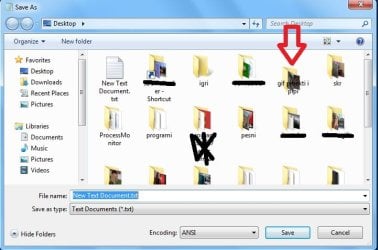
The problems seems to be fixed if I open a new txt doc, click on save as and as the save as dialog opens up, the desktop location is the default one, on this window the thumbs appear and then a single refresh on the actual desktop, not on the save as dialog box desktop, fixes the problem. Of course, fixed until there's another change of content in a folder.

[edit] This temporary workaround kinda stopped working. It appears that it only works if all the files go into their original folder.

This above might sound confusing, if you didn't understand me say so and I'll record a video.
Scratch that, it's simply weird, sometimes work sometimes doesn't.

As for the process monitor, I was doing exactly the same thing you were doing on both accounts and the differences I was able to get are

A = main account, thumbs dont work
B = 2nd account, thumbs work

In A this folder was called
C:\Windows\winsxs\x86_microsoft.windows.common-controls_6595b64144ccf1df_6.0.7601.17514_none_41e6975e2bd6f2b2
in B it wasn't.

and in A this file was called C:\Users\MyName\Desktop\desktop.ini
but I have deleted it and ProcMon says NOT FOUND
I have also deleted that file in B but ProcMon didn't say it was called
 
Last edited:

My Computer

Computer type
PC/Desktop
OS
windows 7 ultimate 32bit
Well, Process Monitor is getting us nowhere fast.

I scanned back thru the thread - maybe I missed it - but have you tried changing themes. I know we discussed that you are probably using the default aero theme. I'm just wondering what happens while using the basic theme.

I'm not sure what else to try since you don't want to move to a fresh profile. Maybe others will stop by your thread and offer some suggestions.
 

My Computer

Computer type
Laptop
Computer Manufacturer/Model Number
Employer provided Dell Latitude
OS
W7 Pro SP1 64bit
CPU
i7
Memory
8GB
Graphics Card(s)
Intel HD Graphics
Hard Drives
crappy SSD
Antivirus
Employer mandated Symantec Endpoint Protection
Browser
Pale Moon 64bit, IE11 64bit & Chrome 64bit
I changed to the basic theme and it still does happen.
It's ok no worries, I can live with this minor annoyance.

What about this problem though, have you ever noticed some weird thing like this? Attached image.
This used to happen a year ago or something and I think it went away. But I guess it's back again.
 

Attachments

  • w0t.jpg
    w0t.jpg
    45.5 KB · Views: 7

My Computer

Computer type
PC/Desktop
OS
windows 7 ultimate 32bit
On a different topic:

I'm not going to try and convince you to use antivirus software, but I am curious to know how you know that you are not infected. Do you run an occasional offline scan? (e.g. WDO or the like)

Just wondering....
 

My Computer

Computer type
Laptop
Computer Manufacturer/Model Number
Employer provided Dell Latitude
OS
W7 Pro SP1 64bit
CPU
i7
Memory
8GB
Graphics Card(s)
Intel HD Graphics
Hard Drives
crappy SSD
Antivirus
Employer mandated Symantec Endpoint Protection
Browser
Pale Moon 64bit, IE11 64bit & Chrome 64bit
I regulary scan with malwarebytes anti malware, I use a tool DDS by subs, NoScript and AdBlock add ons for firefox, mvpshosts, I never install untrusted software, and I do scan any .exe I come in contact with virustotal, common sense.
I was in a malware removal school for several months few years ago.

These things are enough. I don't need an anti virus.
 

My Computer

Computer type
PC/Desktop
OS
windows 7 ultimate 32bit

My Computer

Computer type
PC/Desktop
Computer Manufacturer/Model Number
Custom build
OS
Windows 7 Ultimate x64
CPU
Intel Core i3-2120 3,30 GHz
Motherboard
Asus P8Z68-V
Memory
Apacer 4GB
Graphics Card(s)
Nvidia GeForce GTX 275
Hard Drives
SanDisk Extreme SDSSDX-120G-G25 2.5" - 120GB
WD 3200AAKS - 320GB
Seagate ST3400832AS - 400GB
Samsung HM16HJI - 160GB
Browser
Google Chrome
Try to delete thumbnail cache.
Thumbnail Cache - Clear and Reset
Welcome to the Seven Forums!


Try to delete thumbnail cache.
Thumbnail Cache - Clear and Reset
I've tried that before, it did not fix my problem.
For others that might be reading this thread, the link that I put in post #2 is different than the one that uns posted. You might have tried them both, but I just wanted other folks to know that one is for icons, the 2nd link is for thumbnails.
 

My Computer

Computer type
Laptop
Computer Manufacturer/Model Number
Employer provided Dell Latitude
OS
W7 Pro SP1 64bit
CPU
i7
Memory
8GB
Graphics Card(s)
Intel HD Graphics
Hard Drives
crappy SSD
Antivirus
Employer mandated Symantec Endpoint Protection
Browser
Pale Moon 64bit, IE11 64bit & Chrome 64bit
Yup one says Icon Cache and the other Thumbnail cache. ;)
 

My Computer

Computer type
PC/Desktop
Computer Manufacturer/Model Number
Home Built Desktop By DataTech
OS
Windows 7 Ultimate X64 SP1
CPU
Intel i5-2550K, Differing ~4.4-4.8GHz No built in GPU
Motherboard
ASUS P8Z68-V PRO/GEN3
Memory
16GB G.Skill Sniper 1866MHz @ 2133MHz 2x8GB
Graphics Card(s)
ASUS GTX650TIB-DC2OC-2GD5, (650TI Boost)
Sound Card
Onboard Realtek 5-1
Monitor(s) Displays
Samsung P2570HD
Screen Resolution
1920x1080
Hard Drives
Samsung 840 Pro 256GB SSD for OS, 500GB Seagate Constellation (Enterprise drive) for Data
PSU
Corsair HX650W
Case
Inwin Dragon Rider
Cooling
Hyper 212 EVO w/two Noctua fans, push-pull, @1300 RPM
Keyboard
E-Z Eyes, bright yellow keys with large characters
Mouse
steelseries SENSEI Laser Pro Gaming
Internet Speed
48-51Mbs Mbs down, 11 Mbs up Xfinity Cable
Antivirus
Norton Internet Security 2013
Browser
IE 10, Opera, Pale Moon if needed
Other Info
4 case fans, LG BluRay-RE, ASUS DVD-RW, Mr. Fusion power supply, 1.21 gigawatts.
Hi uchkur, fancy meeting you here :D

Since it works correctly with a new account, what about keeping the new account and copying everything from the old account to the new one. Then if all is well, delete the old account????????

See here: Fix a corrupted user profile

You can also use the Windows Easy Transfer to transfer your profiles and settings to a new account:
  1. Go to Start –> type Easy Transfer –> Click Windows Easy Transfer in the search results.
  2. You will get a welcome message to Windows Easy Transfer. Click Next.
  3. Choose a different partition or internal hard drive, external hard disk or USB flash drive. Can't be the same drive you are transferring from (the "old computer").
  4. Select This is my old computer.
  5. Check the box before your current user account, and click Next.
  6. You can input a password if you want.
  7. Click Save to save the transfer file. The transfer file will be a single file with the extension .MIG. Please remember the location.
  8. Create a new account via Control Panel - User Accounts.
  9. Log off the current account and log on the new account.
  10. Open Windows Easy transfer again and click This is my New Computer.
  11. Choose "Yes, open the file" to navigate to the .MIG file.
  12. Check the box before your old account, then click the Advanced Options above the Transfer button, then you choose which user account you want to transfer.
  13. Click Save and Transfer. Now, you can see what are the files that were transferred.
Test if everything works correctly in the new account now. If yes you can delete the old account via User Accounts.

If not, please delete the new account via User Accounts. Go back to step 8, and repeat the step 9 and 10, then check the box before your old account, and click on the Customize button next to this old account, and uncheck the box before Windows Settings, then click the Transfer button.

I seem to have lost the site this came from originally, sorry.
 

My Computer

Computer type
PC/Desktop
Computer Manufacturer/Model Number
Lenovo IdeaCenter 450
OS
Windows 10 Pro X64
CPU
Intel Quad Core i7-4770 @ 3.4Ghz
Memory
16.0GB PC3-12800 DDR3 SDRAM 1600 MHz
Graphics Card(s)
Intel Integrated HD Graphics
Sound Card
Realtek HD Audio
Monitor(s) Displays
HP 22" LCD
Screen Resolution
1680 x 1050
Hard Drives
250GB Samsung EVO SATA-3 SSD
2TB Seagate ST2000DM001 SATA-2
1.5TB Seagate ST3150041AS SATA
Keyboard
Dell USB
Mouse
Lenovo USB
Internet Speed
Cable via Road Runner 3MB Upload, 30MB Download
Antivirus
Windows Defender, MBAM Pro, MBAE
Browser
Seamonkey
Other Info
UEFI/GPT
PLDS DVD-RW DH16AERSH
Back
Top