
You are using an out of date browser. It may not display this or other websites correctly.
You should upgrade or use an alternative browser.
You should upgrade or use an alternative browser.
Solved Cant delete file and folder , even with cmd
- Thread starter nick0920
- Start date

HasanaliMomin
New member
try in safemode i think there working very well
My Computer
- Computer type
- PC/Desktop
- Computer Manufacturer/Model Number
- iBall
- OS
- Windows 7 Ultimate
- CPU
- AMD
- Motherboard
- ASUS
- Memory
- 2 GB
- Graphics Card(s)
- None
- Hard Drives
- 1 TB
- Antivirus
- Guardian Antivirus 2013
- Browser
- Mozilla or Chrome

You could try killing explorer.exe and then use the cmd line and see if you can delete the file.
This guide explains the process quite well - Can't Delete a File? Use Command Prompt
Regards,
Jamie
This guide explains the process quite well - Can't Delete a File? Use Command Prompt
Regards,
Jamie
My Computer
- Computer type
- PC/Desktop
- Computer Manufacturer/Model Number
- Self Built
- OS
- Windows 8.1 Pro x64
- CPU
- Intel Core i5-2500K @ 3.30GHz - S1155
- Motherboard
- Asus P8P67 LE Rev3, Intel P67, S115
- Memory
- 8GB Corsair DDR3 XMS3, PC3-12800
- Graphics Card(s)
- NVIDIA GeForce GTX 650
- Sound Card
- On-Board
- Monitor(s) Displays
- 3 x 24" {Extended Display}
- Screen Resolution
- 1920 x 1080
- Hard Drives
- 300GB Seagate Barracuda 7200
- PSU
- 550W Coolermaster GX550
- Case
- Silverstone Precision PS04B
- Cooling
- Stock
- Keyboard
- Logitech K120
- Mouse
- World of Warcraft Cataclysm MMO Gaming Mouse
- Internet Speed
- 80 MB
- Antivirus
- MSE / Windows Defender
- Browser
- Chrome

Suggestion
Well take a look at this post:
http://www.sevenforums.com/general-...te-o-byte-file-doesn-t-exist.html#post2824798
You can try PowerTool 64bit version and browse to the file and attempt to force delete it or you can right click the directory and delete that.
If it works please let us know!
Another similar powerful tool: Download PC Hunter - MajorGeeks
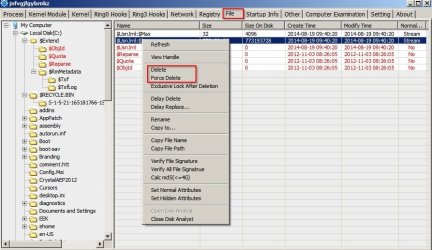
Well take a look at this post:
http://www.sevenforums.com/general-...te-o-byte-file-doesn-t-exist.html#post2824798
You can try PowerTool 64bit version and browse to the file and attempt to force delete it or you can right click the directory and delete that.
If it works please let us know!
Another similar powerful tool: Download PC Hunter - MajorGeeks
My Computer
- Computer type
- Laptop
- Computer Manufacturer/Model Number
- ASUS
- OS
- Microsoft Windows 7 Home Premium 64-bit 7601 Multiprocessor Free Service Pack 1
- CPU
- AMD C-60 APU with Radeon(tm) HD Graphics
- Motherboard
- ASUSTeK COMPUTER INC. X501U
- Memory
- 4.00 GB
- Graphics Card(s)
- AMD Radeon HD 6290 Graphics
- Sound Card
- (1) AMD High Definition Audio Device (2) Realtek High Defi
- Screen Resolution
- 1366 x 768 x 32 bits (4294967296 colors) @ 60 Hz
- Hard Drives
- Hitachi HTS545050A7E380 SATA Disk Device
- Antivirus
- Comodo CIS & FW, SecureAplus App Whitelisting, Threatfire
- Browser
- Cyberfox 64bit, Opera 64bit, Airfox
- Other Info
- Spy-The-Spy, HitmanPro.Alert, Norton Connect Safe, MJRegWatcher, BitDefender TrafficLight, Voodoo Shield, Zemana AntiMalware

What are the attributes of the folder hehe?
attrib hehe
You can change the attributes:
attrib -s -h hehe
Who is the owner of the folder?
The command is either rmdir or rd, not both ...
f:
cd \
rd hehe /s
or
rmdir hehe /s
attrib hehe
You can change the attributes:
attrib -s -h hehe
Who is the owner of the folder?
The command is either rmdir or rd, not both ...
f:
cd \
rd hehe /s
or
rmdir hehe /s
help rmdir
Removes (deletes) a directory.
RMDIR [/S] [/Q] [drive:]path
RD [/S] [/Q] [drive:]path
/S
Removes all directories and files in the specified directory in addition to the directory itself. Used to remove a directory tree.
/Q
Quiet mode, do not ask if ok to remove a directory tree with /S
You tried to remove a directory named /rdRemoves (deletes) a directory.
RMDIR [/S] [/Q] [drive:]path
RD [/S] [/Q] [drive:]path
/S
Removes all directories and files in the specified directory in addition to the directory itself. Used to remove a directory tree.
/Q
Quiet mode, do not ask if ok to remove a directory tree with /S
My Computer
- Computer type
- Laptop
- Computer Manufacturer/Model Number
- HP Pavilion dv6-6c10us
- OS
- x64 (6.3.9600) Win8.1 Pro & soon dual boot x64 (6.1.7601) Win7_SP1 HomePrem
- CPU
- AMD A6-3420M APU with Radeon(tm) HD Graphics
- Motherboard
- Hewlett-Packard 1805
- Memory
- 6.00 GB
- Graphics Card(s)
- AMD Radeon(TM) HD 6520G
- Sound Card
- (1) AMD High Definition Audio Device (2) IDT High Definiti
- Monitor(s) Displays
- HP W2072a 20" LCD (1600 x 900) @ 60 Hz
- Screen Resolution
- 1366 x 768 x 32 bits (4294967296 colors) @ 60 Hz
- Hard Drives
- ST640LM0 00 HM641JI SATA Disk Device
- Keyboard
- Logitech k520 wireless KB
- Mouse
- Logitech m320 wireless mouse (bundled with KB)
- Internet Speed
- 15/5 | 54 MB Wireless 'n'
- Antivirus
- Realtime: Defender or Avast | On-demand: Malwarebytes, ESET
- Browser
- IE 11 on Win8, IE 10 on win 7
- Other Info
- Media: [Gimp, Audacity, VLC] || Comm: [WEmail 2012, Skype] || Productivity: [OpenOffice,| Textpad] || Utils: [Sysinternals, cCleaner, Speccy, Defraggler]
What are the attributes of the folder hehe?
attrib hehe
You can change the attributes:
attrib -s -h hehe
Who is the owner of the folder?
The command is either rmdir or rd, not both ...
f:
cd \
rd hehe /s
or
rmdir hehe /s
help rmdirYou tried to remove a directory named /rd
Removes (deletes) a directory.
RMDIR [/S] [/Q] [drive:]path
RD [/S] [/Q] [drive:]path
/S
Removes all directories and files in the specified directory in addition to the directory itself. Used to remove a directory tree.
/Q
Quiet mode, do not ask if ok to remove a directory tree with /S

Yep try this, but still nope haha
i tried del 01wb► too but doesnt work
I scanned the disk with malwarebyte and detect no virus, just not sure wad's that and it's bugging me
My Computer
- Computer type
- PC/Desktop
- OS
- Window 7 Home 64 bit
Well take a look at this post:
http://www.sevenforums.com/general-...te-o-byte-file-doesn-t-exist.html#post2824798
You can try PowerTool 64bit version and browse to the file and attempt to force delete it or you can right click the directory and delete that.
If it works please let us know!

Tried, doesnt work too... haha, atleast now i can tell what's inside that thing.. system file??
My Computer
- Computer type
- PC/Desktop
- OS
- Window 7 Home 64 bit
You could try killing explorer.exe and then use the cmd line and see if you can delete the file.
This guide explains the process quite well - Can't Delete a File? Use Command Prompt
Regards,
Jamie
tried this way too, same problem.
Really sry for all the trouble guys, but this file really is killing me

i tried takeown /f as well but it says
"file ownership cannot be applied on insecure file systems; there is no support for ACLs."
My Computer
- Computer type
- PC/Desktop
- OS
- Window 7 Home 64 bit
Did you answer yes - remove it when reboot the system?
No? - Run the program again and answer Yes
Did you reboot (restart)?
No? Please restart your system
That is an odd character set for a system file, and it is in an odd location.
You should probably run a few malware scanners to see if there is anything lurking on your system
Start with Adwcleaner
AdwCleaner is a two step process. Scan then Clean
Download: Click here to download AdwCleaner (author: Xplode)
>> save the application to your Desktop.
No? - Run the program again and answer Yes
Did you reboot (restart)?
No? Please restart your system
That is an odd character set for a system file, and it is in an odd location.
You should probably run a few malware scanners to see if there is anything lurking on your system
Start with Adwcleaner
AdwCleaner is a two step process. Scan then Clean
Download: Click here to download AdwCleaner (author: Xplode)
>> save the application to your Desktop.
- Right-click AdwCleaner.exe on your Desktop and select Run As Administrator to run the scanner with full privilege rights.
AdwCleaner is a standalone executable, there is no install.
- Click on the Scan button.
>> AdwCleaner begins scanning your system. It might take some time to complete.
>> You can review the objects that will be cleaned at this point of the process. Objects are grouped under the tabs. If there is something you KNOW should not be cleaned, untick the box [_] next to the object. Otherwise, go to the next step.
- After the scan has finished... click on the Clean button.
- Answer OK to the "close all programs" prompt, then follow the onscreen prompts.
- Answer OK to the "restart the computer" prompt to complete the removal process.
>> The AdwCleaner[S#].txt log is opened in your default Text editor when the machine has restarted.
[R#] gets incremented every time you run AdwCleaner - the highest number is the most recent.
- Paste the entire AdwCleaner log in your next post.
AdwCleaner logs are located in the C:\AdwCleaner folder if you need to reference them again
My Computer
- Computer type
- Laptop
- Computer Manufacturer/Model Number
- HP Pavilion dv6-6c10us
- OS
- x64 (6.3.9600) Win8.1 Pro & soon dual boot x64 (6.1.7601) Win7_SP1 HomePrem
- CPU
- AMD A6-3420M APU with Radeon(tm) HD Graphics
- Motherboard
- Hewlett-Packard 1805
- Memory
- 6.00 GB
- Graphics Card(s)
- AMD Radeon(TM) HD 6520G
- Sound Card
- (1) AMD High Definition Audio Device (2) IDT High Definiti
- Monitor(s) Displays
- HP W2072a 20" LCD (1600 x 900) @ 60 Hz
- Screen Resolution
- 1366 x 768 x 32 bits (4294967296 colors) @ 60 Hz
- Hard Drives
- ST640LM0 00 HM641JI SATA Disk Device
- Keyboard
- Logitech k520 wireless KB
- Mouse
- Logitech m320 wireless mouse (bundled with KB)
- Internet Speed
- 15/5 | 54 MB Wireless 'n'
- Antivirus
- Realtime: Defender or Avast | On-demand: Malwarebytes, ESET
- Browser
- IE 11 on Win8, IE 10 on win 7
- Other Info
- Media: [Gimp, Audacity, VLC] || Comm: [WEmail 2012, Skype] || Productivity: [OpenOffice,| Textpad] || Utils: [Sysinternals, cCleaner, Speccy, Defraggler]
System File?
Well if it's not the drive that contains Windows it's probably time to make an image backup of all your drives before further attempts. If nothing else is in the same directory you can also try deleting the directory instead of the file.
Run the suggested malware scan though!
Well if it's not the drive that contains Windows it's probably time to make an image backup of all your drives before further attempts. If nothing else is in the same directory you can also try deleting the directory instead of the file.
Run the suggested malware scan though!
My Computer
- Computer type
- Laptop
- Computer Manufacturer/Model Number
- ASUS
- OS
- Microsoft Windows 7 Home Premium 64-bit 7601 Multiprocessor Free Service Pack 1
- CPU
- AMD C-60 APU with Radeon(tm) HD Graphics
- Motherboard
- ASUSTeK COMPUTER INC. X501U
- Memory
- 4.00 GB
- Graphics Card(s)
- AMD Radeon HD 6290 Graphics
- Sound Card
- (1) AMD High Definition Audio Device (2) Realtek High Defi
- Screen Resolution
- 1366 x 768 x 32 bits (4294967296 colors) @ 60 Hz
- Hard Drives
- Hitachi HTS545050A7E380 SATA Disk Device
- Antivirus
- Comodo CIS & FW, SecureAplus App Whitelisting, Threatfire
- Browser
- Cyberfox 64bit, Opera 64bit, Airfox
- Other Info
- Spy-The-Spy, HitmanPro.Alert, Norton Connect Safe, MJRegWatcher, BitDefender TrafficLight, Voodoo Shield, Zemana AntiMalware
Did you answer yes - remove it when reboot the system?
No? - Run the program again and answer Yes
Did you reboot (restart)?
No? Please restart your system
That is an odd character set for a system file, and it is in an odd location.
You should probably run a few malware scanners to see if there is anything lurking on your system
Start with Adwcleaner
AdwCleaner is a two step process. Scan then Clean
Download: Click here to download AdwCleaner (author: Xplode)
>> save the application to your Desktop.
- Right-click AdwCleaner.exe on your Desktop and select Run As Administrator to run the scanner with full privilege rights.
AdwCleaner is a standalone executable, there is no install.
- Click on the Scan button.
>> AdwCleaner begins scanning your system. It might take some time to complete.
>> You can review the objects that will be cleaned at this point of the process. Objects are grouped under the tabs. If there is something you KNOW should not be cleaned, untick the box [_] next to the object. Otherwise, go to the next step.
- After the scan has finished... click on the Clean button.
.
- Answer OK to the "close all programs" prompt, then follow the onscreen prompts.
- Answer OK to the "restart the computer" prompt to complete the removal process.
>> The AdwCleaner[S#].txt log is opened in your default Text editor when the machine has restarted.
[R#] gets incremented every time you run AdwCleaner - the highest number is the most recent.- Paste the entire AdwCleaner log in your next post.
AdwCleaner logs are located in the C:\AdwCleaner folder if you need to reference them again
Yeh, did the remove when reboot the system and restart like you said,
as for adwcleaner,
PHP:
# AdwCleaner v3.310 - Report created 19/09/2014 at 10:50:11
# Updated 12/09/2014 by Xplode
# Operating System : Windows 7 Home Premium Service Pack 1 (64 bits)
# Username : Nick - NICK-PC
# Running from : C:\Users\Nick\Desktop\AdwCleaner.exe
# Option : Clean

***** [ Services ] *****


***** [ Files / Folders ] *****


***** [ Scheduled Tasks ] *****


***** [ Shortcuts ] *****


***** [ Registry ] *****


***** [ Browsers ] *****

-\\ Internet Explorer v11.0.9600.17280


-\\ Mozilla Firefox v32.0 (x86 en-US)

[ File : C:\Users\Nick\AppData\Roaming\Mozilla\Firefox\Profiles\oznncy0f.default\prefs.js ]


-\\ Google Chrome v37.0.2062.120

[ File : C:\Users\Nick\AppData\Local\Google\Chrome\User Data\Default\preferences ]

Deleted [Search Provider] : hxxp://search.aol.com/aol/search?q={searchTerms}
Deleted [Search Provider] : hxxp://www.ask.com/web?q={searchTerms}

*************************

AdwCleaner[R0].txt - [932 octets] - [19/09/2014 10:45:58]
AdwCleaner[R1].txt - [991 octets] - [19/09/2014 10:49:32]
AdwCleaner[S0].txt - [1059 octets] - [19/09/2014 10:50:11]

########## EOF - C:\AdwCleaner\AdwCleaner[S0].txt - [1119 octets] ##########
Maybe it's really something impossible to delete... lol... I ran malwarebyte as well, found nothing.
My Computer
- Computer type
- PC/Desktop
- OS
- Window 7 Home 64 bit
Well if it's not the drive that contains Windows it's probably time to make an image backup of all your drives before further attempts. If nothing else is in the same directory you can also try deleting the directory instead of the file.
Run the suggested malware scan though!
Yep i tried deleting the directory, that "hehe" directory have nothing other than that questionable system file.
Ran Malwarebyte and AdwCleaner
My Computer
- Computer type
- PC/Desktop
- OS
- Window 7 Home 64 bit
Another idea
I have another idea but need some info. If you inspect the file properties does it show any extension?
It might be possible to use a different tool to replace the problem file with another file. The problem is that you'd need to create a dummy file with the same name and extension using notepad in order to replace it.
Here's the tool needed if you want to give it a go:
http://www.technibble.com/sysmate-replace-windows-system-files/
I have another idea but need some info. If you inspect the file properties does it show any extension?
It might be possible to use a different tool to replace the problem file with another file. The problem is that you'd need to create a dummy file with the same name and extension using notepad in order to replace it.
Here's the tool needed if you want to give it a go:
http://www.technibble.com/sysmate-replace-windows-system-files/
My Computer
- Computer type
- Laptop
- Computer Manufacturer/Model Number
- ASUS
- OS
- Microsoft Windows 7 Home Premium 64-bit 7601 Multiprocessor Free Service Pack 1
- CPU
- AMD C-60 APU with Radeon(tm) HD Graphics
- Motherboard
- ASUSTeK COMPUTER INC. X501U
- Memory
- 4.00 GB
- Graphics Card(s)
- AMD Radeon HD 6290 Graphics
- Sound Card
- (1) AMD High Definition Audio Device (2) Realtek High Defi
- Screen Resolution
- 1366 x 768 x 32 bits (4294967296 colors) @ 60 Hz
- Hard Drives
- Hitachi HTS545050A7E380 SATA Disk Device
- Antivirus
- Comodo CIS & FW, SecureAplus App Whitelisting, Threatfire
- Browser
- Cyberfox 64bit, Opera 64bit, Airfox
- Other Info
- Spy-The-Spy, HitmanPro.Alert, Norton Connect Safe, MJRegWatcher, BitDefender TrafficLight, Voodoo Shield, Zemana AntiMalware
Please follow the advice of one member in the order that advice was given, including any follow-up analysis or suggestion.
Callender suggested technibble - follow that path before anything offered here.
An orderly approach to trouble shooting is the only way to maintain sanity
From the picture in post# 9, the file has no extension. It has the system attribute set and it has been around for quite a while (modify 2013-01-07)
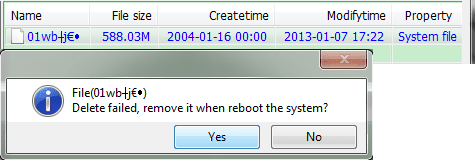
Nick, please post the attributes of the file
command prompt
f:
cd \
attrib hehe\*.*
exit
There are a few ways to get around Windows - both require booting to another device.
Windows Repair Disc
--OR--
Linux flash drive.
Whichever boot you decide on, there is probably still a permissions issue - you'll need to change the attributes / permissions before you try to delete the file.
Even if you get the file removed, you still need to determine where it came from ... is it malicious? I believe it is, but Malwarebytes and AdwCleaner came back clean.
I would try the following before resorting to the boot option above, but it's your choice.
There are a few other utilities you might want to try
Old Timer-Temp File Cleaner (TFC)
Junkware Removal Tool (JRT)
 Junkware Removal Tool (JRT)
1. Click on the Save button on the Do you want to run or save ... action bar to save the package in your Downloads folder.
For example: C:\Users\Dad\Downloads
2. Click the Run button when the ... download has completed action bar is presented
--> Answer Yes to the UAC dialog window
3. JRT opens a Command Prompt widow which displays some operational information. Read the screen and press any key when you're ready to continue.
4. The scanner initializes and runs. When JRT finishes, it reports the status of the scan in the Command Window and presents the log in your default text editor.
-> Save the log as JRT_SFProfileName.txt
For example: JRT_Slartybart.txt
RESTART your machine after running JRT
5.Attach the log file to a new post on your thread.
Attach the JRT log
Callender suggested technibble - follow that path before anything offered here.
An orderly approach to trouble shooting is the only way to maintain sanity
From the picture in post# 9, the file has no extension. It has the system attribute set and it has been around for quite a while (modify 2013-01-07)
Nick, please post the attributes of the file
command prompt
f:
cd \
attrib hehe\*.*
exit
There are a few ways to get around Windows - both require booting to another device.
Windows Repair Disc
--OR--
Linux flash drive.
1. Download the Rufus bootable USB drive creation utility 2. Download the Linux Mint Mate ISO
Select a download mirror from the pages below that is nearest your location to lessen download time
Linux Mint Mate 32 bit (32 or 64 bit machines)
Linux Mint Mate 64 bit (only 64 bit machines)
Linux Mint Mate documentation [PDF]
3. Create a bootable USB thumb drive using Rufus and the Linux Mint Mate ISOLinux Mint Mate 32 bit (32 or 64 bit machines)
Linux Mint Mate 64 bit (only 64 bit machines)
Linux Mint Mate documentation [PDF]
Mint Mate is 1.3 GB, so you need a thumb drive with at least 2 GB.
:warn: Creating a bootable thumb drive erases all data on the thumb drive.
:warn: If you have data on the thumb drive that you need, move it to your Hard Drive or burn it to an Optical Disc.
Leave the Linux Mint Mate thumb drive connected for the next steps
4. Boot to Linux Mint Mate:warn: Creating a bootable thumb drive erases all data on the thumb drive.
:warn: If you have data on the thumb drive that you need, move it to your Hard Drive or burn it to an Optical Disc.
- Connect the USB thumb drive to a USB port
- Launch Rufus
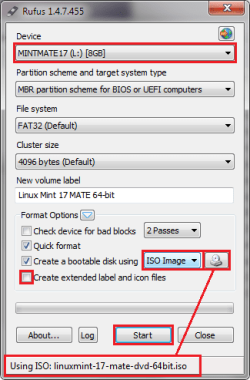
- The fields in Rufus are filled in with defaults. The defaults work well, but a few things need to be verified or changed.
- Verify that Rufus selected the thumb drive you want to write. Change the Device if the wrong USB thumb drive is presented in that field.
- Change Create a bootable disk using from the default to ISO image
- Select Linux Mint Mate ISO as the source. The file should appear on the status bar
- unTick Create extended label and icon files
- Compare your Rufus window with the image above. If everything other than the Device field are the same, then continue to the next step. Note that the ISO name in the status bar is subject to change as new versions are released
- Press the Start button
- The status bar notifies you when the process is Done
- Press the Close button
Leave the Linux Mint Mate thumb drive connected for the next steps
Save any files you are working on, then Restart your machine
Check your machine documentation to determine the key that brings up the Boot Order startup menu. This example is from an HP laptop that assigns it to the F9 key.
When the machine begins to start again (black screen) tap the F9 key to bring up the Boot Order startup menu. There is only a short time to "catch" the Boot Order menu. If Windows starts, you will have to try again.
Check your machine documentation to determine the key that brings up the Boot Order startup menu. This example is from an HP laptop that assigns it to the F9 key.
When the machine begins to start again (black screen) tap the F9 key to bring up the Boot Order startup menu. There is only a short time to "catch" the Boot Order menu. If Windows starts, you will have to try again.
Whichever boot you decide on, there is probably still a permissions issue - you'll need to change the attributes / permissions before you try to delete the file.
Even if you get the file removed, you still need to determine where it came from ... is it malicious? I believe it is, but Malwarebytes and AdwCleaner came back clean.
I would try the following before resorting to the boot option above, but it's your choice.
There are a few other utilities you might want to try
Warning
Before running any repair utility:
- Save any open files
- Close ALL applications
- Disconnect from the Internet unless the application requires a connection
- If the application prompts you to restart your system - restart your system.
Restart your machine in case there are any system operations pending
Old Timer-Temp file Cleaner (TFC)
1. Click on the Save button on the Do you want to run or save ... action bar to save the package in your Downloads folder.
For example: C:\Users\Dad\Downloads
2. Click the Open folder button when the ... download has completed action bar is presented
Right click TFC (it should be highlighted) and select run as administrator
--> Answer Yes to the UAC dialog window
:warn:Save your work and close all open windows.
TFC will close ALL open programs including your browser!
3. Click the Start button to begin the cleaning up temporary files and folders.
:warn: Do not work on other things while TFC is running - most applications use some sort of temporary files. Just let TFC run by itself on the machine until it completes.
:busted: If TFC prompts you to reboot, do so immediately.
:busted: If TFC does NOT prompt you, then reboot your machine immediately after TFC has completed.
RESTART your machine after running TFC
Note
This utility
- is a standalone application, there is no install.
- does not require a connection, please disconnect after the download has completed.
1. Click on the Save button on the Do you want to run or save ... action bar to save the package in your Downloads folder.
For example: C:\Users\Dad\Downloads
2. Click the Open folder button when the ... download has completed action bar is presented
Right click TFC (it should be highlighted) and select run as administrator
--> Answer Yes to the UAC dialog window
:warn:Save your work and close all open windows.
TFC will close ALL open programs including your browser!
3. Click the Start button to begin the cleaning up temporary files and folders.
:warn: Do not work on other things while TFC is running - most applications use some sort of temporary files. Just let TFC run by itself on the machine until it completes.
:busted: If TFC prompts you to reboot, do so immediately.
:busted: If TFC does NOT prompt you, then reboot your machine immediately after TFC has completed.
RESTART your machine after running TFC
Junkware Removal Tool (JRT)
Information
Author's page: Malware Analysis and Removal: Junkware Removal Tool (JRT) Released - Freeware
About
Many of the infections we see on the forums and in the work environment nowadays involve a user that has an unwanted program, toolbar, or browser helper object (BHO) on their computer.
Some examples include (but not limited to):
Ask Toolbar, Babylon, Browser Manager, Claro / iSearch, Conduit, Coupon Printer for Windows, Crossrider, Facemoods / Funmoods, iLivid , IncrediBar , MyWebSearch, Searchqu, Web Assistant
The tool is designed to remove all traces of these types of programs which includes services, registry values, registry keys, files, and folders. The tool will also restore some default settings for Internet Explorer and Mozilla FireFox. Google Chrome is not supported (perhaps in future).
The tool is non-interactive so the user can simply open it by double-clicking and wait for the log report (JRT.txt) to open when the tool is finished.
A copy of the log is saved to the user's desktop incase you want the user to attach the log.
About
Many of the infections we see on the forums and in the work environment nowadays involve a user that has an unwanted program, toolbar, or browser helper object (BHO) on their computer.
Some examples include (but not limited to):
Ask Toolbar, Babylon, Browser Manager, Claro / iSearch, Conduit, Coupon Printer for Windows, Crossrider, Facemoods / Funmoods, iLivid , IncrediBar , MyWebSearch, Searchqu, Web Assistant
The tool is designed to remove all traces of these types of programs which includes services, registry values, registry keys, files, and folders. The tool will also restore some default settings for Internet Explorer and Mozilla FireFox. Google Chrome is not supported (perhaps in future).
The tool is non-interactive so the user can simply open it by double-clicking and wait for the log report (JRT.txt) to open when the tool is finished.
A copy of the log is saved to the user's desktop incase you want the user to attach the log.
Note
This utility
- is a standalone application, there is no install.
- does not require a connection, please disconnect after the download has completed.
1. Click on the Save button on the Do you want to run or save ... action bar to save the package in your Downloads folder.
For example: C:\Users\Dad\Downloads
2. Click the Run button when the ... download has completed action bar is presented
--> Answer Yes to the UAC dialog window
3. JRT opens a Command Prompt widow which displays some operational information. Read the screen and press any key when you're ready to continue.
4. The scanner initializes and runs. When JRT finishes, it reports the status of the scan in the Command Window and presents the log in your default text editor.
-> Save the log as JRT_SFProfileName.txt
For example: JRT_Slartybart.txt
RESTART your machine after running JRT
5.Attach the log file to a new post on your thread.
Attach the JRT log
My Computer
- Computer type
- Laptop
- Computer Manufacturer/Model Number
- HP Pavilion dv6-6c10us
- OS
- x64 (6.3.9600) Win8.1 Pro & soon dual boot x64 (6.1.7601) Win7_SP1 HomePrem
- CPU
- AMD A6-3420M APU with Radeon(tm) HD Graphics
- Motherboard
- Hewlett-Packard 1805
- Memory
- 6.00 GB
- Graphics Card(s)
- AMD Radeon(TM) HD 6520G
- Sound Card
- (1) AMD High Definition Audio Device (2) IDT High Definiti
- Monitor(s) Displays
- HP W2072a 20" LCD (1600 x 900) @ 60 Hz
- Screen Resolution
- 1366 x 768 x 32 bits (4294967296 colors) @ 60 Hz
- Hard Drives
- ST640LM0 00 HM641JI SATA Disk Device
- Keyboard
- Logitech k520 wireless KB
- Mouse
- Logitech m320 wireless mouse (bundled with KB)
- Internet Speed
- 15/5 | 54 MB Wireless 'n'
- Antivirus
- Realtime: Defender or Avast | On-demand: Malwarebytes, ESET
- Browser
- IE 11 on Win8, IE 10 on win 7
- Other Info
- Media: [Gimp, Audacity, VLC] || Comm: [WEmail 2012, Skype] || Productivity: [OpenOffice,| Textpad] || Utils: [Sysinternals, cCleaner, Speccy, Defraggler]
File extension
Note: If the file has no extension it can't be replaced using my suggested method! So skip that!
Please follow the advice of one member in the order that advice was given, including any follow-up analysis or suggestion.
Callender suggested technibble - follow that path before anything offered here.
An orderly approach to trouble shooting is the only way to maintain sanity
From the picture in post# 9, the file has no extension.
Note: If the file has no extension it can't be replaced using my suggested method! So skip that!
My Computer
- Computer type
- Laptop
- Computer Manufacturer/Model Number
- ASUS
- OS
- Microsoft Windows 7 Home Premium 64-bit 7601 Multiprocessor Free Service Pack 1
- CPU
- AMD C-60 APU with Radeon(tm) HD Graphics
- Motherboard
- ASUSTeK COMPUTER INC. X501U
- Memory
- 4.00 GB
- Graphics Card(s)
- AMD Radeon HD 6290 Graphics
- Sound Card
- (1) AMD High Definition Audio Device (2) Realtek High Defi
- Screen Resolution
- 1366 x 768 x 32 bits (4294967296 colors) @ 60 Hz
- Hard Drives
- Hitachi HTS545050A7E380 SATA Disk Device
- Antivirus
- Comodo CIS & FW, SecureAplus App Whitelisting, Threatfire
- Browser
- Cyberfox 64bit, Opera 64bit, Airfox
- Other Info
- Spy-The-Spy, HitmanPro.Alert, Norton Connect Safe, MJRegWatcher, BitDefender TrafficLight, Voodoo Shield, Zemana AntiMalware
Note: If the file has no extension it can't be replaced using my suggested method! So skip that!
I made that statement based on the screen shot - I don't know how PowerTool presents the data.
If the file name and file type is presented in the same column or if there is a separate column for file type.
That's where your expertise with PowerTool comes into play, Chris. If you don't think the method you suggested will work, then Nick should run the two utilities (TFC & JRT) before trying the alternate boot options I gave.
A completely different tact would be to move all good data off of the F: partition, delete the F: partition, and then recreate the F: partition and move the good data back. The only issue with this would be if there is malicious code on the machine - the funky file would probably be recreated either on the F: partition or somewhere else (same issue as using an alternate boot to clean the file though).
I guess we'll have to wait for feedback from Nick on how he wants to proceed.
Bill
.
My Computer
- Computer type
- Laptop
- Computer Manufacturer/Model Number
- HP Pavilion dv6-6c10us
- OS
- x64 (6.3.9600) Win8.1 Pro & soon dual boot x64 (6.1.7601) Win7_SP1 HomePrem
- CPU
- AMD A6-3420M APU with Radeon(tm) HD Graphics
- Motherboard
- Hewlett-Packard 1805
- Memory
- 6.00 GB
- Graphics Card(s)
- AMD Radeon(TM) HD 6520G
- Sound Card
- (1) AMD High Definition Audio Device (2) IDT High Definiti
- Monitor(s) Displays
- HP W2072a 20" LCD (1600 x 900) @ 60 Hz
- Screen Resolution
- 1366 x 768 x 32 bits (4294967296 colors) @ 60 Hz
- Hard Drives
- ST640LM0 00 HM641JI SATA Disk Device
- Keyboard
- Logitech k520 wireless KB
- Mouse
- Logitech m320 wireless mouse (bundled with KB)
- Internet Speed
- 15/5 | 54 MB Wireless 'n'
- Antivirus
- Realtime: Defender or Avast | On-demand: Malwarebytes, ESET
- Browser
- IE 11 on Win8, IE 10 on win 7
- Other Info
- Media: [Gimp, Audacity, VLC] || Comm: [WEmail 2012, Skype] || Productivity: [OpenOffice,| Textpad] || Utils: [Sysinternals, cCleaner, Speccy, Defraggler]
Power Tool
Power Tool - it shows extensions and any hidden or super hidden files so the mystery file appears not to have an extension! I see some strange characters after the detected file name but they make no sense to me.
Power Tool - it shows extensions and any hidden or super hidden files so the mystery file appears not to have an extension! I see some strange characters after the detected file name but they make no sense to me.
My Computer
- Computer type
- Laptop
- Computer Manufacturer/Model Number
- ASUS
- OS
- Microsoft Windows 7 Home Premium 64-bit 7601 Multiprocessor Free Service Pack 1
- CPU
- AMD C-60 APU with Radeon(tm) HD Graphics
- Motherboard
- ASUSTeK COMPUTER INC. X501U
- Memory
- 4.00 GB
- Graphics Card(s)
- AMD Radeon HD 6290 Graphics
- Sound Card
- (1) AMD High Definition Audio Device (2) Realtek High Defi
- Screen Resolution
- 1366 x 768 x 32 bits (4294967296 colors) @ 60 Hz
- Hard Drives
- Hitachi HTS545050A7E380 SATA Disk Device
- Antivirus
- Comodo CIS & FW, SecureAplus App Whitelisting, Threatfire
- Browser
- Cyberfox 64bit, Opera 64bit, Airfox
- Other Info
- Spy-The-Spy, HitmanPro.Alert, Norton Connect Safe, MJRegWatcher, BitDefender TrafficLight, Voodoo Shield, Zemana AntiMalware
Similar threads


- Replies
- 9
- Views
- 3K
