Backup to image, create system repair disk fails...

Cr00zng

New member
Pro User
Local time
1:57 AM
Messages
568
I am trying create a backup image of my Win7 OS on a system that has these drives:
Code:
DISKPART> list volume
 
  Volume ###  Ltr  Label        Fs     Type        Size     Status     Info
  ----------  ---  -----------  -----  ----------  -------  ---------  --------
  Volume 0     J                       DVD-ROM         0 B  No Media
  Volume 1     I                       DVD-ROM         0 B  No Media
  Volume 2     D   Win          NTFS   Partition    154 GB  Healthy
  Volume 3     G                NTFS   Partition    143 GB  Healthy
  Volume 4     E   Games        NTFS   Partition    298 GB  Healthy
  Volume 5         System Rese  NTFS   Partition    100 MB  Healthy  [COLOR=red][B]System[/B][/COLOR]
  Volume 6     H                NTFS   Partition    297 GB  Healthy
  Volume 7     F   Application  NTFS   Partition    298 GB  Healthy
  Volume 8     C                NTFS   Partition    119 GB  Healthy  [B][COLOR=red]Boot[/COLOR][/B]
  Volume 9     K   PATRIOT      NTFS   Removable     29 GB  Healthy
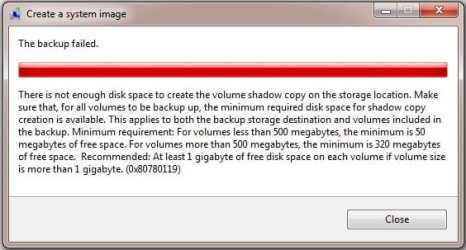
The available space for the volumes listed varies from 29GB (K) to 218GB (F), the backup requires 25GB available storage to complete the image creation. No matter which drive selected for saving the image, the backup fails. The error message goes a long way about not enough disk space, please see the image below...
failed backup.jpg

Creating system repair disk fails with an unspecified error as well, which is ok in a sense; I do have retail version of Windows 7.

A little background how the current volumes came about...

Drive H and F has/had my previous version of Windows 7 that I think I can still boot. My current Windows 7 has been installed on the C drive without realizing that the "System" partition remained on Volume 6 or H drive.

Maybe having the System and Boot volumes on a different drive prevent creating the repair disk and backing up the image. If that's the case, is there a way moving the System partition to drive C without reinstalling Windows 7? I don't believe that it matters, but the C drive is an SSD drive.
TIA...

Cr00zng
 

My Computer My Computer

Computer type
PC/Desktop
Computer Manufacturer/Model Number
Custom built at Home
OS
Windows 7 64-bit, Windows 8.1 64-bit, OSX El Capitan, Windows 10 (VMware)
CPU
Intel i5-3350P 3.1 GHz
Motherboard
Gigabyte GA-Z77X-UP5 TH
Memory
16 GBs GSkill Sniper
Graphics Card(s)
Radeon HD 7850
Sound Card
VIA HD Audio
Monitor(s) Displays
Dell U2410 24"
Screen Resolution
1920x1200
Hard Drives
1 x Intel 520 240 GBs
1 x Seagate 1TBs SATA 2.0,
1 x Seagate 1TBs eSATA 2.0
PSU
Thermaltake 850W
Case
Antec P183
Cooling
Noctua NH-D14 Heatsink 2 x 120mm fans, 4 x 120mm case fans
Keyboard
Dell Multimedia keyboard
Mouse
Logitech Trackball
Internet Speed
28.5 Mb/s
I think the error is referring to shadow volume space available on the 100MB system reserved partition. 100MB being less than the 500MB specified means that it needs 50MB of free space for a shadow copy.
Go to "Disk Management" and see how much free space you have on your 100MB system reserved partition.
If this is the problem:
In time it generally clears itself. But there are a couple of more immediate changes that can be made. One is to increase the size of the 100MB partition, the other is to transfer the boot functions to the Windows partition. You may need further advice on how to go about this.

Edit: I wouldn't have the system reserved and boot on different drives. So getting rid of the 100MB system reserved on E: may be the best way forward.
 
Last edited:

My Computer My Computer

Computer type
PC/Desktop
Computer Manufacturer/Model Number
Own build
OS
Windows 7x64 Home Premium SP1
CPU
Intel i7 2600k
Motherboard
ASUS P8Z68 Deluxe
Memory
G.Skill Ripjaws (DDR3-1600) 2x4GB
Graphics Card(s)
Nvidia GeForce GTS 450; Intel HD Graphics 3000(GT2+)
Monitor(s) Displays
Dell Ultrasharp IPS panel U2311H, Samsung SyncMaster P2350
Screen Resolution
1920x1080
Hard Drives
Samsung 850 Pro SSD 256GB, Samsung SSD 840 120GB, Seagates 1TB Barracuda ST31000528AS x2
PSU
Seasonic M12II 520W
Case
Lian Li Lancool PC-K60
Cooling
Case: 1x120mm, 3x140mm CPU: Hyper 212+
Keyboard
Logitech MK520 (wireless)
Mouse
Logitech MK520
Internet Speed
6-7 Mbps
Antivirus
Norton Security Premium, Malwarebytes on 2 (MSE on 3rd PC)
Browser
FireFox
Other Info
Audio: Logitech Z523 2.1

My Computer My Computer

Computer Manufacturer/Model Number
HP, Dell, Gateway, Toshiba - 4 laptops and 2 desktops
OS
Vista, Windows7, Mint Mate, Zorin, Windows 8
CPU
from 1.6GHz Duo to i7
Monitor(s) Displays
2x HP w2207
Hard Drives
5x HDD, 7x SSD, 12x Externals
Keyboard
with trackball - no mices
Mouse
Trackball mice
Internet Speed
DSL 6000
Windows7 imaging is a dog (I know some, few other people disagree). I made my life easy and use Macrium. Has never failed (yet). I made at least 500 images and 30 restores - plus half a dozen recovery CDs for my different OS systems. http://www.sevenforums.com/tutorials/73828-imaging-free-macrium.html?ltr=I
I'm one of them. I've made many of images and restores with the built in version including to a new disk. Windows imaging remains my primary imaging tool, however, I use Macrium as well. Imaging is so important I wouldn't trust any single package.
 

My Computer My Computer

Computer type
PC/Desktop
Computer Manufacturer/Model Number
Own build
OS
Windows 7x64 Home Premium SP1
CPU
Intel i7 2600k
Motherboard
ASUS P8Z68 Deluxe
Memory
G.Skill Ripjaws (DDR3-1600) 2x4GB
Graphics Card(s)
Nvidia GeForce GTS 450; Intel HD Graphics 3000(GT2+)
Monitor(s) Displays
Dell Ultrasharp IPS panel U2311H, Samsung SyncMaster P2350
Screen Resolution
1920x1080
Hard Drives
Samsung 850 Pro SSD 256GB, Samsung SSD 840 120GB, Seagates 1TB Barracuda ST31000528AS x2
PSU
Seasonic M12II 520W
Case
Lian Li Lancool PC-K60
Cooling
Case: 1x120mm, 3x140mm CPU: Hyper 212+
Keyboard
Logitech MK520 (wireless)
Mouse
Logitech MK520
Internet Speed
6-7 Mbps
Antivirus
Norton Security Premium, Malwarebytes on 2 (MSE on 3rd PC)
Browser
FireFox
Other Info
Audio: Logitech Z523 2.1
Windows7 imaging is a dog (I know some, few other people disagree). I made my life easy and use Macrium. Has never failed (yet). I made at least 500 images and 30 restores - plus half a dozen recovery CDs for my different OS systems. http://www.sevenforums.com/tutorials/73828-imaging-free-macrium.html?ltr=I
I'm one of them. I've made many of images and restores with the built in version including to a new disk. Windows imaging remains my primary imaging tool, however, I use Macrium as well. Imaging is so important I wouldn't trust any single package.
I know you are one of the few far and apart who use it (KarlSnooks is the other one I know). And I have used it too with mediocre success. But why complicate your life - see my slogan below.
 

My Computer My Computer

Computer Manufacturer/Model Number
HP, Dell, Gateway, Toshiba - 4 laptops and 2 desktops
OS
Vista, Windows7, Mint Mate, Zorin, Windows 8
CPU
from 1.6GHz Duo to i7
Monitor(s) Displays
2x HP w2207
Hard Drives
5x HDD, 7x SSD, 12x Externals
Keyboard
with trackball - no mices
Mouse
Trackball mice
Internet Speed
DSL 6000
I've got a suspicion there are a few more of us closet Windows Imaging users out there. Mind you:
Can it be improved? - You bet.
What if it seriously lets me down? - I'll dump it.
 

My Computer My Computer

Computer type
PC/Desktop
Computer Manufacturer/Model Number
Own build
OS
Windows 7x64 Home Premium SP1
CPU
Intel i7 2600k
Motherboard
ASUS P8Z68 Deluxe
Memory
G.Skill Ripjaws (DDR3-1600) 2x4GB
Graphics Card(s)
Nvidia GeForce GTS 450; Intel HD Graphics 3000(GT2+)
Monitor(s) Displays
Dell Ultrasharp IPS panel U2311H, Samsung SyncMaster P2350
Screen Resolution
1920x1080
Hard Drives
Samsung 850 Pro SSD 256GB, Samsung SSD 840 120GB, Seagates 1TB Barracuda ST31000528AS x2
PSU
Seasonic M12II 520W
Case
Lian Li Lancool PC-K60
Cooling
Case: 1x120mm, 3x140mm CPU: Hyper 212+
Keyboard
Logitech MK520 (wireless)
Mouse
Logitech MK520
Internet Speed
6-7 Mbps
Antivirus
Norton Security Premium, Malwarebytes on 2 (MSE on 3rd PC)
Browser
FireFox
Other Info
Audio: Logitech Z523 2.1
Michael I believe you are on the right track that 100mb needs to extended using Partition Wizard CD to see if it will free up enough space to create VSS file and let image proceed.

However I am not clear on why you would also want to move System Files to C if this works? Unless the OP wants to get rid of SysReserved, it is worth keeping if only for WinRe it places on F8 Boot Tools menu - unless it causes more trouble.
 
I thought the 100MB partition was on a different drive to the new SSD (Boot/Windows) drive. If so you wouldn't want to be booting through another physical drive.
 

My Computer My Computer

Computer type
PC/Desktop
Computer Manufacturer/Model Number
Own build
OS
Windows 7x64 Home Premium SP1
CPU
Intel i7 2600k
Motherboard
ASUS P8Z68 Deluxe
Memory
G.Skill Ripjaws (DDR3-1600) 2x4GB
Graphics Card(s)
Nvidia GeForce GTS 450; Intel HD Graphics 3000(GT2+)
Monitor(s) Displays
Dell Ultrasharp IPS panel U2311H, Samsung SyncMaster P2350
Screen Resolution
1920x1080
Hard Drives
Samsung 850 Pro SSD 256GB, Samsung SSD 840 120GB, Seagates 1TB Barracuda ST31000528AS x2
PSU
Seasonic M12II 520W
Case
Lian Li Lancool PC-K60
Cooling
Case: 1x120mm, 3x140mm CPU: Hyper 212+
Keyboard
Logitech MK520 (wireless)
Mouse
Logitech MK520
Internet Speed
6-7 Mbps
Antivirus
Norton Security Premium, Malwarebytes on 2 (MSE on 3rd PC)
Browser
FireFox
Other Info
Audio: Logitech Z523 2.1
In layman's terms, I think mjf is right...

Currently, the system partition has 31.8 MBs free space; this partition is at the beginning of the Seagate SATA2 mechanical drive. And yes, the boot drive is the SSD where the Windows 7 is residing.

I do want to move the system partition to the SSD drive and don't really care about the previous version of Windows 7. It does not boot anyway, just goes in constant repair/reboot option. I guess the previous version of Windows did not like the new CPU, MB, etc, changes.

I also don't want to wait until the system partition clears up enough to create an image; especially, after seeing the tip of the iceberg for the Windows image discussion...:)

I rather move it now before I break everything by "accident". I did end up creating a repair disk (don't ask); can I use that to restore the system partition to the SSD drive (currently shown as C, boot drive)? I can just unplug the other four drives until the repair disk does its job.

I think that is what you advised Greg in this topic:

http://www.sevenforums.com/general-discussion/96755-system-reserved-partition-second-drive.html

Thanks guys...
 

My Computer My Computer

Computer type
PC/Desktop
Computer Manufacturer/Model Number
Custom built at Home
OS
Windows 7 64-bit, Windows 8.1 64-bit, OSX El Capitan, Windows 10 (VMware)
CPU
Intel i5-3350P 3.1 GHz
Motherboard
Gigabyte GA-Z77X-UP5 TH
Memory
16 GBs GSkill Sniper
Graphics Card(s)
Radeon HD 7850
Sound Card
VIA HD Audio
Monitor(s) Displays
Dell U2410 24"
Screen Resolution
1920x1200
Hard Drives
1 x Intel 520 240 GBs
1 x Seagate 1TBs SATA 2.0,
1 x Seagate 1TBs eSATA 2.0
PSU
Thermaltake 850W
Case
Antec P183
Cooling
Noctua NH-D14 Heatsink 2 x 120mm fans, 4 x 120mm case fans
Keyboard
Dell Multimedia keyboard
Mouse
Logitech Trackball
Internet Speed
28.5 Mb/s
Are you saying the new install to C configured a Dual Boot by placing its boot files on 100mb System Reserved on the H disk?

If so, then you have the right idea to recover the System boot files into C so that it boots independently via the BIOS. This should clear up your imaging error as well.

To do this, unplug all other HDs, boot Win7 DVD Repair console, open a Command line to mark C Active using Dispart: http://www.sevenforums.com/tutorials/71432-partition-mark-active.html

Close Command Line, run Startup Repair up to 3 separate times until it writes the System MBR to Win7 partition: http://www.sevenforums.com/tutorials/105541-startup-repair-run-3-separate-times.html

When you plug the H drive back in, see if it will boot using one-time BIOS Boot Menu key at bootup. If not, you may have to follow the same procedure to repair its MBR, either marking 100mb or H active first.
 
That's the way I'd go in your situation. Only if you're heavily into multi booting would I have a rethink.
It's quite straight forward, just remember to unplug H. Make sure C: (SSD) is booting on it's own and then with other HDD plugged in. Then clean up the remnant 100MB partition.
 

My Computer My Computer

Computer type
PC/Desktop
Computer Manufacturer/Model Number
Own build
OS
Windows 7x64 Home Premium SP1
CPU
Intel i7 2600k
Motherboard
ASUS P8Z68 Deluxe
Memory
G.Skill Ripjaws (DDR3-1600) 2x4GB
Graphics Card(s)
Nvidia GeForce GTS 450; Intel HD Graphics 3000(GT2+)
Monitor(s) Displays
Dell Ultrasharp IPS panel U2311H, Samsung SyncMaster P2350
Screen Resolution
1920x1080
Hard Drives
Samsung 850 Pro SSD 256GB, Samsung SSD 840 120GB, Seagates 1TB Barracuda ST31000528AS x2
PSU
Seasonic M12II 520W
Case
Lian Li Lancool PC-K60
Cooling
Case: 1x120mm, 3x140mm CPU: Hyper 212+
Keyboard
Logitech MK520 (wireless)
Mouse
Logitech MK520
Internet Speed
6-7 Mbps
Antivirus
Norton Security Premium, Malwarebytes on 2 (MSE on 3rd PC)
Browser
FireFox
Other Info
Audio: Logitech Z523 2.1
That's the way I'd go in your situation. Only if you're heavily into multi booting would I have a rethink.
It's quite straight forward, just remember to unplug H. Make sure C: (SSD) is booting on it's own and then with other HDD plugged in. Then clean up the remnant 100MB partition.

I used to be in multi-booting, including Linux; I've never cleaned up afterward, other than the Linux partitions. Having four drives in the box made me lazy and I still have these OS's on the drives:

  • Drive D: Windows Vista
  • Drive G: Windows 7 Evaluation version
  • Drive H: Windows 7 Professional (previous version)
No wonder that installing a new version of Windows 7 on the SSD drive put the system partition on H. It already had the system partition and the installation just changed the boot order. In retrospect...

Interestingly, the evaluation version that I haven't booted in years does boot up just fine despite the change in CPU, motherboard, etc.

Close Command Line, run Startup Repair up to 3 separate times until it writes the System MBR to Win7 partition: http://www.sevenforums.com/tutorials/105541-startup-repair-run-3-separate-times.html

The C drive is marked active...

Would it better to use the installation DVD instead of the repair disk I've created? The latter one may restore the current system partition content, while the installation DVD knows nothing about current system partition. It seems logical, but could be wrong...

The "up to 3 separate times" part does not give me much confidence in the process. It seems that this is the automated recovery process that requires booting in to Windows as well between the reboot. Wouldn't this repair process (manual process?) do the same?

bootrec /fixboot

This should fix it, if not, restart repair process and run this command:

bootrec /rebuildbcd
It seems that this would not require booting in to Windows at all.
Thanks guys...
 

My Computer My Computer

Computer type
PC/Desktop
Computer Manufacturer/Model Number
Custom built at Home
OS
Windows 7 64-bit, Windows 8.1 64-bit, OSX El Capitan, Windows 10 (VMware)
CPU
Intel i5-3350P 3.1 GHz
Motherboard
Gigabyte GA-Z77X-UP5 TH
Memory
16 GBs GSkill Sniper
Graphics Card(s)
Radeon HD 7850
Sound Card
VIA HD Audio
Monitor(s) Displays
Dell U2410 24"
Screen Resolution
1920x1200
Hard Drives
1 x Intel 520 240 GBs
1 x Seagate 1TBs SATA 2.0,
1 x Seagate 1TBs eSATA 2.0
PSU
Thermaltake 850W
Case
Antec P183
Cooling
Noctua NH-D14 Heatsink 2 x 120mm fans, 4 x 120mm case fans
Keyboard
Dell Multimedia keyboard
Mouse
Logitech Trackball
Internet Speed
28.5 Mb/s
Windows7 imaging is a dog (I know some, few other people disagree). I made my life easy and use Macrium. Has never failed (yet). I made at least 500 images and 30 restores - plus half a dozen recovery CDs for my different OS systems. http://www.sevenforums.com/tutorials/73828-imaging-free-macrium.html?ltr=I
I'm sure you have your reasons as to why you don't like. But I'm just curious to know what you don't like about it if you don't mind telling us. I use it on a regular basis and have had no problems. A couple of times I even restored an image and it restored it back to exactly what it was. Of course, just because I like it, doesn't necessarily mean that everyone has to like it.
 

My Computer My Computer

Computer type
Laptop
Computer Manufacturer/Model Number
HP Pavilion g7-1260us Notebook
OS
Desk Top with Win 7 Home Premium 64 bit and Lap Top with Windows 8.1 Pro 64 bit
Memory
8Gig
Screen Resolution
1600x900
Close Command Line, run Startup Repair up to 3 separate times until it writes the System MBR to Win7 partition: http://www.sevenforums.com/tutorials/105541-startup-repair-run-3-separate-times.html

The C drive is marked active...

Would it better to use the installation DVD instead of the repair disk I've created? The latter one may restore the current system partition content, while the installation DVD knows nothing about current system partition. It seems logical, but could be wrong...

The "up to 3 separate times" part does not give me much confidence in the process. It seems that this is the automated recovery process that requires booting in to Windows as well between the reboot. Wouldn't this repair process (manual process?) do the same?

bootrec /fixboot

This should fix it, if not, restart repair process and run this command:

bootrec /rebuildbcd
It seems that this would not require booting in to Windows at all.
Thanks guys...

The DVD Repair console and Repair CD are identical WinRe - use either. When 100mb is installed WinRE is also conveniently placed on the F8 advanced boot tools menu, though subject to corruption along with OS in some cases.

It's best to let Startup Repair run the bootrec commands along with the other tests done in automated order sometimes requiring restart(s) to apply the fix(es).

You're certainly welcome to use the older methods if you feel better, but Win7 Startup Repair is fully automated with all commands and fixes.

The exception is when no OS shows up in WinRE to repair. Running bootrec /fixmbr and /fixboot can sometimes force it to show up so repairs can proceed.

Let us know how it goes. If you'd like further help in removing the archived OS's you can post back a screenshot of your full Disk Mgmt drive map/listings with all drives plugged, using Snipping Tool in Start Menu.
 
I agree with Greg and I'd be using the "automated" startup repair in the first instance. It has a record of getting it right and doing the repairs in the correct order.
 

My Computer My Computer

Computer type
PC/Desktop
Computer Manufacturer/Model Number
Own build
OS
Windows 7x64 Home Premium SP1
CPU
Intel i7 2600k
Motherboard
ASUS P8Z68 Deluxe
Memory
G.Skill Ripjaws (DDR3-1600) 2x4GB
Graphics Card(s)
Nvidia GeForce GTS 450; Intel HD Graphics 3000(GT2+)
Monitor(s) Displays
Dell Ultrasharp IPS panel U2311H, Samsung SyncMaster P2350
Screen Resolution
1920x1080
Hard Drives
Samsung 850 Pro SSD 256GB, Samsung SSD 840 120GB, Seagates 1TB Barracuda ST31000528AS x2
PSU
Seasonic M12II 520W
Case
Lian Li Lancool PC-K60
Cooling
Case: 1x120mm, 3x140mm CPU: Hyper 212+
Keyboard
Logitech MK520 (wireless)
Mouse
Logitech MK520
Internet Speed
6-7 Mbps
Antivirus
Norton Security Premium, Malwarebytes on 2 (MSE on 3rd PC)
Browser
FireFox
Other Info
Audio: Logitech Z523 2.1
Based on popularity, I did run the repair disk created yesterday...:)

After the first time booting in to the repair disk, the automated process did ask to reboot. Booting into the repair disk at the second time has taken substantially longer, but it did get there; I guess during this time the boot records were created. Once the repair disk came on, it stated that the repair had been completed and Windows is ready to boot from the drive. It did and tested it couple of times without any issues; thanks guys :thumbsup:!!

You know, I've been using Windows 7 for couple of years now, including the evaluation version, but I've never used the snipping tool; nice one...

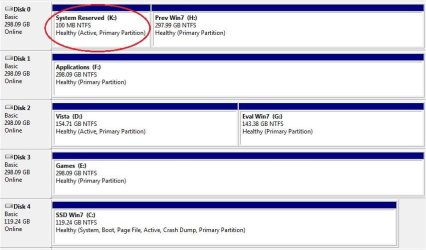
The Disk Manager has 11 or 12 disks showing up, main reason is that I've replaced the floppy drive with a memory card reader. That added four or five drives, two CD/DVD burners, and plus now there's five physical disks in this desktop. When I put in couple of USB devices, it can get really messy with the drive letters. Here's an image of the relevant disks and please note, I renamed them to keep track of the drives:

Disk_Mgmt.jpg

Drive K is new and it is the previous boot/system partition. I can browse it, add, delete, etc, within that partition. I could just delete the partition and extend the H drive, but there's no use. I am planning to remove both of the a create a single partition anyway. And before I forget....

Drive K, marked as "System Reserved" in the image, has used 31.8 MBs of disk space. I am not certain as to what actually happened, but the disk image creation does work now. Despite the fact that I do not see "System Reserved" partition being part disk 4. The boot loader must be somewhere since I can boot this drive without an issue.

Looking at the drive in CMD window with the "dir /ah" command shows the folder named "Boot" and a file named "bootmgr", among others of course. It seems that the recovery disk just dumped everything in the C drive, certainly at strategical places. As long as it works and recoverable via the disk image, no argument from me, that would be just dandy.
 

Attachments

  • Disk_Mgmt.jpg
    Disk_Mgmt.jpg
    56 KB · Views: 18

My Computer My Computer

Computer type
PC/Desktop
Computer Manufacturer/Model Number
Custom built at Home
OS
Windows 7 64-bit, Windows 8.1 64-bit, OSX El Capitan, Windows 10 (VMware)
CPU
Intel i5-3350P 3.1 GHz
Motherboard
Gigabyte GA-Z77X-UP5 TH
Memory
16 GBs GSkill Sniper
Graphics Card(s)
Radeon HD 7850
Sound Card
VIA HD Audio
Monitor(s) Displays
Dell U2410 24"
Screen Resolution
1920x1200
Hard Drives
1 x Intel 520 240 GBs
1 x Seagate 1TBs SATA 2.0,
1 x Seagate 1TBs eSATA 2.0
PSU
Thermaltake 850W
Case
Antec P183
Cooling
Noctua NH-D14 Heatsink 2 x 120mm fans, 4 x 120mm case fans
Keyboard
Dell Multimedia keyboard
Mouse
Logitech Trackball
Internet Speed
28.5 Mb/s
I guess the only question that remains is the system reserved drive....

Is it "normal" under Windows 7 that there's no system reserved drive and the boot manager resides within the "C" drive?
 

My Computer My Computer

Computer type
PC/Desktop
Computer Manufacturer/Model Number
Custom built at Home
OS
Windows 7 64-bit, Windows 8.1 64-bit, OSX El Capitan, Windows 10 (VMware)
CPU
Intel i5-3350P 3.1 GHz
Motherboard
Gigabyte GA-Z77X-UP5 TH
Memory
16 GBs GSkill Sniper
Graphics Card(s)
Radeon HD 7850
Sound Card
VIA HD Audio
Monitor(s) Displays
Dell U2410 24"
Screen Resolution
1920x1200
Hard Drives
1 x Intel 520 240 GBs
1 x Seagate 1TBs SATA 2.0,
1 x Seagate 1TBs eSATA 2.0
PSU
Thermaltake 850W
Case
Antec P183
Cooling
Noctua NH-D14 Heatsink 2 x 120mm fans, 4 x 120mm case fans
Keyboard
Dell Multimedia keyboard
Mouse
Logitech Trackball
Internet Speed
28.5 Mb/s
I'm trying to recap on your thread again. There was another similar one.
To answer your question. It is ok that the SSD has the 100MB system reserved, active function incorporated into the one OS partition (your SSD, C: ). Some people much prefer it that way.

We got to the stage that C: was booting by itself and not through your now disk 0. Ideally your C: should be disk 0. Try
1) swapping cables on Disk0 & 4 and make sure everything boots ok.
2) What do you want to use K:, H: for?

Quick aside: an area of confusion is that in Windows 7, MS name their main boot function "system" and their OS partition "Boot" (presumably because the OS boot loading winload.exe lives there). Other 3rd party software will use reverse naming.
 

My Computer My Computer

Computer type
PC/Desktop
Computer Manufacturer/Model Number
Own build
OS
Windows 7x64 Home Premium SP1
CPU
Intel i7 2600k
Motherboard
ASUS P8Z68 Deluxe
Memory
G.Skill Ripjaws (DDR3-1600) 2x4GB
Graphics Card(s)
Nvidia GeForce GTS 450; Intel HD Graphics 3000(GT2+)
Monitor(s) Displays
Dell Ultrasharp IPS panel U2311H, Samsung SyncMaster P2350
Screen Resolution
1920x1080
Hard Drives
Samsung 850 Pro SSD 256GB, Samsung SSD 840 120GB, Seagates 1TB Barracuda ST31000528AS x2
PSU
Seasonic M12II 520W
Case
Lian Li Lancool PC-K60
Cooling
Case: 1x120mm, 3x140mm CPU: Hyper 212+
Keyboard
Logitech MK520 (wireless)
Mouse
Logitech MK520
Internet Speed
6-7 Mbps
Antivirus
Norton Security Premium, Malwarebytes on 2 (MSE on 3rd PC)
Browser
FireFox
Other Info
Audio: Logitech Z523 2.1
I'm trying to recap on your thread again. There was another similar one.
To answer your question. It is ok that the SSD has the 100MB system reserved, active function incorporated into the one OS partition (your SSD, C: ). Some people much prefer it that way.
As long as the backed up image can be restored, I am fine with that. Having the boot records incorporated into the C drive does eliminate SVS related errors, which is a plus.

We got to the stage that C: was booting by itself and not through your now disk 0. Ideally your C: should be disk 0. Try
1) swapping cables on Disk0 & 4 and make sure everything boots ok.
2) What do you want to use K:, H: for?
Well, that's not up to me; that's how the BIOS sees them and hands it over to the OS. Disks 0 through 3 are on the SATA 2.0 bus while disk 4 is on the SATA 3.0 bus. I could select any of the disks to boot in the BIOS; the current disk 0 used to be disk 2 until I've replaced the motherboard and messed up the cabling. In either case, I cannot make disk 4 to look as disk 0 for the OS.

K&H will be deleted and create a single partition used for storage. Alternatively, I might get a SATA 2.0 PCIe RAID card and collect all four mechanical drive hard drives in to a RAID 0. The transfer rate of this RAID would be pretty close to the SSD drive's performance.

Quick aside: an area of confusion is that in Windows 7, MS name their main boot function "system" and their OS partition "Boot" (presumably because the OS boot loading winload.exe lives there). Other 3rd party software will use reverse naming.
I'll keep that in mind at least until the SATA 2.0 drives are cleaned up.

You and Greg have been very helpful and thank you guys for your help...
 
Last edited:

My Computer My Computer

Computer type
PC/Desktop
Computer Manufacturer/Model Number
Custom built at Home
OS
Windows 7 64-bit, Windows 8.1 64-bit, OSX El Capitan, Windows 10 (VMware)
CPU
Intel i5-3350P 3.1 GHz
Motherboard
Gigabyte GA-Z77X-UP5 TH
Memory
16 GBs GSkill Sniper
Graphics Card(s)
Radeon HD 7850
Sound Card
VIA HD Audio
Monitor(s) Displays
Dell U2410 24"
Screen Resolution
1920x1200
Hard Drives
1 x Intel 520 240 GBs
1 x Seagate 1TBs SATA 2.0,
1 x Seagate 1TBs eSATA 2.0
PSU
Thermaltake 850W
Case
Antec P183
Cooling
Noctua NH-D14 Heatsink 2 x 120mm fans, 4 x 120mm case fans
Keyboard
Dell Multimedia keyboard
Mouse
Logitech Trackball
Internet Speed
28.5 Mb/s
Back
Top