Dual Boot Installation with Windows 7 and XP

How to Setup a Dual Boot Installation with Windows 7 and XP


   Information
This will show you how to install Windows 7 and XP to dual boot with when you already have either Windows 7 or XP installed first.
   Note
With a dual boot installaton, you will have two operating systems (OS) installed. When you start the computer, you will have the choice to choose which OS you would like to start up to. This method is the easiest way of doing a dual boot with these two operating systems.
   Tip
When dual booting with another OS (ex: Vista or XP), you may not always have that OS partition show up in Computer with a driver letter in Windows 7. If this happens, then you will just need to add a drive letter to the OS (ex: Vista or XP) partition in Windows 7 Disk Management for it to show up in Computer with a driver letter.
   Warning
To stop XP from deleting your Windows 7 System Restore Points everytime XP is started, then see System Restore Points - Stop XP Dual Boot Delete to hide Windows 7 from XP.

Windows 7 Minimum Hardware Requirements


NOTE: For more information on this, see: Windows 7 system requirements
  • 1 GHz 32-bit or 64-bit processor
  • 1 GB RAM for 32-bit Windows 7 OR 2 GB RAM for 64-bit Windows 7
  • 16 GB available disk space 32-bit Windows 7 OR 20 GB for 64-bit Windows 7
  • Support for DirectX 9 graphics with 128 MB memory (in order to enable Aero theme)
  • DVD-R/W Drive
  • Internet or phone access to activate Windows 7.
Windows XP Minimum Hardware Requirements

NOTE: For more information on this, see: System requirements for Windows XP operating systems
  • PC with 300 megahertz (MHz) or higher processor clock speed recommended; 233-MHz minimum required;* Intel Pentium/Celeron family, AMD K6/Athlon/Duron family, or compatible processor recommended
  • 128 megabytes (MB) of RAM or higher recommended (64 MB minimum supported; may limit performance and some features)
  • 1.5 gigabyte (GB) of available hard disk space.*
  • Super VGA (800 × 600) or higher resolution video adapter and monitor
  • CD-ROM or DVD drive
  • Keyboard and Microsoft Mouse or compatible pointing device
EXAMPLE: Windows Boot Manager
NOTE: This is the boot screen where you select what operating system that you would like to start. By default, you have 30 seconds to choose another operating system before the default operating system will start automatically.
Example.jpg


OPTION ONE

When XP is Installed First


NOTE: If you have a RAID setup, you will need to have the Windows 7 RAID drivers on a USB flash drive available to select and load while installing Windows 7.
1. Do step 2 or 3 below for where you wanted to install Windows 7 at.

2. To Create a New Partition from the XP Hard Disk Drive
A) With your Windows 7 installation disc boot into the Command Prompt from the System Recovery Options screen.
NOTE: Make sure that the CD/DVD drive is selected first in the boot order in the BIOS.

B) In the command prompt, select and shrink the XP volume by how many MB (1024 MB = 1 GB) you want to have for this Windows 7 partition. (See screenshot below)
NOTE: You would do steps 2 to 9 in METHOD TWO at that link. Windows 7 will need a minimum of 16 GB (16384 MB).

XP-W7_1.jpg
C) Click on the X at the top right corner to close the command prompt. (See screenshot above)

D) Click on the X at the top right corner to close System Recovery Options. (See screenshot below)
XP-W7_2.jpg
E) Go to step 4.
3. To Use a Separate Hard Disk Drive than the XP Drive
A) Boot from your Windows 7 installation disc.
NOTE: Make sure that the CD/DVD drive is selected first in the boot order in the BIOS.
4. Click on the Install now button. (See screenshot below)

XP-W7_3.jpg
5. When you get to this point, select the partition (step 2) or hard drive to install Windows 7 on. (See screenshot below)

XP-W7_4.jpg
6. Finish installing Windows 7.
NOTE: You would start at step 9 in that link to finish installing Windows 7.

7. When finished, restart the computer to have the option to boot from XP (Earlier Verision of Windows) or Windows 7. (See screenshot below)

   Note
If you are only booting into Windows 7 and do not have XP listed in the Windows Boot Manager, then you can install only EasyBCD (step 8 Option Two below) to add XP (or Windows 7) while started in Windows 7 the same way to the boot list.

Example.jpg


OPTION TWO

When Windows 7 is Installed First


   Warning

1. To Create a New Partition from the Windows 7 Hard Disk Drive
NOTE: If you want to install XP on a separate internal hard drive instead, then skip this step and go to step 2.
A) In Windows 7, select and shrink the Windows 7 volume in Disk Management by how many MB (1024 MB = 1 GB) you want to have for this XP partition. (See screenshots below)
NOTE: You would do all of Method One at that link.

W7-XP-1.jpg

W7-XP-2.jpg

W7-XP-3.jpg
2. Insert your XP installation disc, then restart the computer and press any key to boot from it when prompted. (See screenshot below)
NOTE: Make sure that the CD/DVD drive is selected first in the boot order in the BIOS.

Step1.jpg
3. From XP Setup, Press Enter. (See screenshot below)


   Warning

W7-XP-4.jpg
4. Press F8. (See screenshot below)
NOTE: On some multimedia keyboards, you may need to press the F-Lock or Function key before pressing F8.
W7-XP-5.jpg
5. Select the partition (step 1) or hard drive that you want to install XP on using the arrow keys and press Enter.

W7-XP-6.jpg
6. Finish installing XP.


   Tip
If you get Error loading Operating System after XP restarts:
  • Using your Windows 7 installation disc, boot to the command prompt at startup.
  • Type in these comands below, and press enter after each one.
    • bootrec /FixMbr
    • bootrec /FixBoot
    • bootrec /RebuildBcd
  • Exit the command prompt and restart the computer.
  • At this point, Windows 7 should boot up the same way before trying to install XP.
  • Continue to step 8 below and run EasyBCD from Windows 7 instead.

7. In XP, download and install .Net Framework 2.0 (32-bit) version or .Net Framework 2.0 (64-bit) version first, and EasyBCD (free version) for your 32-bit (x86) or 64-bit (x86) XP.
NOTE: In XP, Net Framework is required to be installed to run EasyBCD. After you click on Register (at bottom of link) for the free EasyBCD, registration is not required to download it.

8. Run EasyBCD (free version).
NOTE: This is required to repair the Windows 7 boot file and add XP to the Windows Boot Manager list.

9. On the left side of EasyBCD, click on the Add New Entry button. (See screenshot below)
A) In the top section under Operating Systems, click on the Windows tab. (See screenshot below)
B) To the right of Type, select Windows NT/2k/XP/2k3 from the drop down menu. (See screenshot below)
:warn:WARNING: Be sure to leave the Automatically detect correct drive box checked.

C) To the right of Name, you can leave the default Microsoft Windows XP as the name to be displayed in the Windows Boot Manager, or you can type whatever name you would like to have instead. (See screenshot below)
D) Click on the Add Entry button. (See screenshot below)
W7-XP-7.jpg
10. On the left side of EasyBCD, click on the BCD Deployment button, select (dot) the Install the Windows Vista/7 bootloader to the MBR option, and click on the Write MBR button. (See screenshot below)

W7-XP-9.jpg
11. Close EasyBCD.

12. Restart the computer to have the option to boot from Microsoft Windows XP or Windows 7. (See screenshot below)

Example2.jpg
   Tip
If Windows 7 will not start up when selected, then use your Windows 7 installation DVD to do a Startup Repair.

That's it,
Shawn


Last edited:
Thanks for the tutorial, great job.

BUT... Using method two, I can never actually finish the XP set up.

You know when the XP setup copies a bunch of files to the target drive and reboots (then the system should boot off the XP partition to complete the set up) ?

Well, I get the "Error loading OS" message. I fix it with the tip in the yellow section, Windows 7 boots again but the XP installation was never completed.

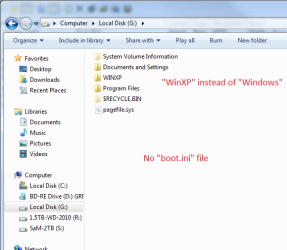
All I have in the partition is this WINXP folder and that's it.

Win7 is on a SATA SSD drive and the target drive for XP is IDE.


EasyBCD does not recognize a Windows XP installation there, quite expectably since the installation is not complete.

So, what am I doing wrong ?


Wipe the IDE drive using Diskpart "Clean All" command from Win7 elevated Command Line: http://www.sevenforums.com/tutorials/52129-disk-clean-clean-all-diskpart-command.html

Unplug the Win7 HD, boot XP CD to partition and full format, install directly to IDE drive by itself.

After install plug back in Win7 HD, set preferred HD as first HD to boot in BIOS setup, then boot the other HD using one-time BIOS Boot Menu key (F8, ESC or DEL on Asus'). This keeps the HD's independent to come and go as you please.

If you prefer a WIndows-managed Dual Boot which interlocks HD's, install EasyBCD 2.0 to Win7 to Add XP.
 
Last edited by a moderator:
Your use of "first HD" and "the other HD" got me confused. Can you clarify ?

Right now, I managed to get XP installed on its own hard drive/partition while the SSD drive that has Win7 was unplugged. When I plugged back the Win7 drive, I went in the BIOS and made the SSD drive top priority at boot. So I am writing this from Win7.

But EasyBCD still does not recognize the XP partition though.

Thanks alot for you rhelp.
 

My Computer My Computer

At a glance

Windows 7 Enteprise x64 SP1Intel Q8200Nvidia GTX 260
Computer Manufacturer/Model Number
ASUS
OS
Windows 7 Enteprise x64 SP1
CPU
Intel Q8200
Motherboard
P5Q SE
Graphics Card(s)
Nvidia GTX 260
Now try booting the XP HD using the one-time BIOS Boot Menu.

On Asus boards, the key to tap at startup for Boot Menu is F8, ESC or DEL. Try each until you get a boot menu, then choose the XP HD to boot.

See if this method for Dual Booting suits you.

If not, what happens when you try to Add XP using EasyBCD 2.0 from Win7?
 
Can't boot XP. Windows 7 took it upon itself to go on my other HDD's XP partition and tell it to look for Win7's boot manager. So now I am getting "BOOTMGR is missing" when booting XP.

I wonder how much of Win7's cost is due to paying engineers to put in those very undesirable behaviours...

EDIT: OK, I've managed to copy to the root of the XP partition NTLDR, NTDETECT.COM + a valid boot.ini so from the BIOS boot menu, I can choose which OS I want. EasyBCD still does not detect Windows XP though.

Anyways, you've been of great help.
 
Last edited:

My Computer My Computer

At a glance

Windows 7 Enteprise x64 SP1Intel Q8200Nvidia GTX 260
Computer Manufacturer/Model Number
ASUS
OS
Windows 7 Enteprise x64 SP1
CPU
Intel Q8200
Motherboard
P5Q SE
Graphics Card(s)
Nvidia GTX 260
When Win7 is installed second while XP HD is attached, it writes its boot files to XP while configuring the Dual Boot.

This is why it's better with separate HD's to keep the one OS unplugged when installing another, then boot either via the BIOS Boot Order or one-time BIOS Boot Menu. This keeps the HD's independent to come and go as you please.

It sounds like you've got both booting via BIOS now which is optimal.

I am not sure why EasyBCD won't add XP. It will not be detected on front listings page until you Add New Entry by type, name and drive.
 
My first post, so Hello All :)

To the point.

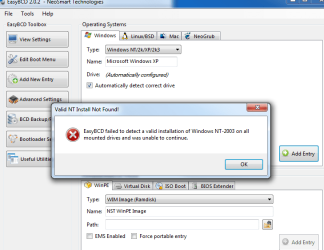
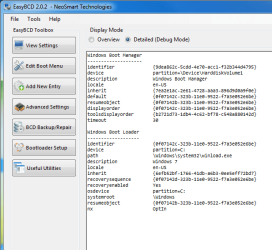
Windows 7 (64bit & ahci) on disk samsung (500GB, only one partition, check screen #3).
Under Disk Management I've created new ~20GB partition.

Created floppy disk with sata/ahci drivers. Booted pc from winxp cd. Installed drivers, choose new partition for xp (performed a quick ntfs format). Absolutely no problems during the installation. After the installation, reboot, automatically loaded winxp (all according to the plan), every thing worked fine. No problems with disks size detection etc. Reboot, inserted win 7 dvd, fix my computer->choose win 7 installation->fix autostart->successfully repaired. Reboot, win 7 loaded without any problems. Opened (in administrator mod) newest EasyBCD, and here starts my problem.

I can't add a new entry with my winxp - check screens #1, #2, #4. Obviously, when I reboot, win 7 is automatically loading.


Any idea, that wouldn't require further re-installation?


Thx in advance :)
 

Attachments

  • Untitled3.png
    Untitled3.png
    23 KB · Views: 225
  • Untitled2.png
    Untitled2.png
    48.4 KB · Views: 163
  • Untitled1.png
    Untitled1.png
    30.5 KB · Views: 170
  • Untitled.png
    Untitled.png
    22.4 KB · Views: 231

My Computer My Computer

At a glance

Windows 7 Ultimate x64
OS
Windows 7 Ultimate x64
If I remember correctly (forgive if I am wrong) but you cannot boot Windows XP off a logical partition.
 

My Computer My Computer

At a glance

Windows 7 Enterprise (x64); Windows Server 20...16GB
Computer type
PC/Desktop
Computer Manufacturer/Model Number
Dell OP7010
OS
Windows 7 Enterprise (x64); Windows Server 2008 R2 (x64)
Memory
16GB
Monitor(s) Displays
4 Dell 24" LCD
Screen Resolution
1280x1024
Keyboard
Dell
Mouse
Dell Optical
Internet Speed
40meg
@bolekilolek

first you need to Assign drive letter to system reserved drive (100mb in size)
(assign any drive letter its temporary)

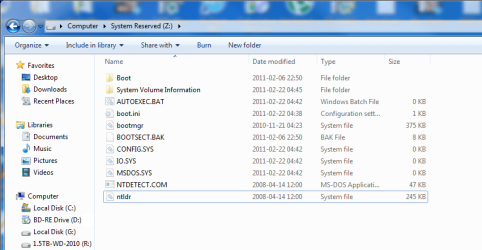
After you need to Find & copy Ntdetect.com, ntldr & boot.ini files to System reserved drive.

Next in EasyBcd Add new entry
select Type Windows NT
UN-check box Automatically detect correct drive
Add Entry

Reboot to check.
(Once its done you can remove system reserved assigned drive letter)

best of luck
 

My Computer My Computer

At a glance

Windows 7AMD Phenom II X4 925A-DATA 2GB DDR3ATI 4200 256MB
Computer Manufacturer/Model Number
AMD.ATI.ASUS
OS
Windows 7
CPU
AMD Phenom II X4 925
Motherboard
Asus M4A785T-M
Memory
A-DATA 2GB DDR3
Graphics Card(s)
ATI 4200 256MB
Sound Card
VIA Vinyl HD Audio
Monitor(s) Displays
Samsung 22" 2233
Hard Drives
WD Sata II 500GB X2 (RAID 0)
PSU
VIP 400W Gold
Case
iBall Gamer
Cooling
AMD Cooler
Keyboard
Logitech Wired
Mouse
Logitech Wired
Internet Speed
512kbps Unlimited
@WindowsStar
So i gues, that the fixing tool from win 7 dvd, deleted boot file and chenged partition type to logical. Is that normal?

@

I have found Ntdetect.com and ntldr on my win xp cd, but I coulndt find boot.ini - so I created my own:

Code:
[boot loader] 
timeout=30 
default=multi(0)disk(0)rdisk(0)partition(1)\WINXP 
[operating systems] 
multi(0)disk(0)rdisk(0)partition(1)\WINXP="Microsoft Windows XP Professional" /fastdetect /NoExecute=OptInM


Is it ok? I have chenged windows to winxp (check screens).

Thx for your help, guys :)
 

My Computer My Computer

At a glance

Windows 7 Ultimate x64
OS
Windows 7 Ultimate x64
Hi, I have windows 7 on my laptop. I created a primary partition for XP but when I try to load it I get a message that says "windows can not find any drives on this computer". What part of the tutorial did I miss?
 

Attachments

  • sshot.png
    sshot.png
    33.1 KB · Views: 157

My Computer My Computer

At a glance

windows 7 pro 32
OS
windows 7 pro 32
If I remember correctly (forgive if I am wrong) but you cannot boot Windows XP off a logical partition.
You're right - XP works fine in logical partition, but its boot files have to be in an active primary, either a "system reserve" mini-partition that's just for boot files (XP and/or 7), or a different primary system partition.

Code:
[boot loader] 
timeout=30 
default=multi(0)disk(0)rdisk(0)partition(1)\WINXP 
[operating systems] 
multi(0)disk(0)rdisk(0)partition(1)\WINXP="Microsoft Windows XP Professional" /fastdetect /NoExecute=OptInM
Is it ok? I have chenged windows to winxp.
No, you should change WINXP back to WINDOWS, and if you want to change what appears in the multi-boot menu, only change the part inside the quotation marks, e.g. change "Microsoft Windows XP Professional" to "XP Pro" or what you want.
 

My Computer My Computer

At a glance

Windows 7
OS
Windows 7
Hi, I have windows 7 on my laptop. I created a primary partition for XP but when I try to load it I get a message that says "windows can not find any drives on this computer". What part of the tutorial did I miss?

Newer hardware often requires having the SATA controller driver loaded into the XP installer, either at the F6 prompt during initial driver-loading phase using a floppy drive, or by slipstreaming them into install CD.
http://www.sevenforums.com/tutorials/66010-sata-drivers-load-windows-xp-setup-dual-boot.html
http://www.sevenforums.com/tutorials/72185-sata-drivers-slipstream-into-windows-xp-cd.html?ltr=S
 
@toobyteme

This is b'cos you are trying to create 5th primary partition which is impossible in MBR disk. You can create only 4 primary partition or you can create 3 primary partition & 1 extended primary partition (Extended primary partition is used to create logical partitions upto 128)

use freeware software to convert P: & E: drive to Logical partition & then create Unallocated free space as primary partition to install XP.
Partition Wizard home Edition

How to

http://www.sevenforums.com/tutorials/93322-partition-wizard-use-bootable-cd.html

Best of Luck
harjit
 
Last edited by a moderator:

My Computer My Computer

At a glance

Windows 7AMD Phenom II X4 925A-DATA 2GB DDR3ATI 4200 256MB
Computer Manufacturer/Model Number
AMD.ATI.ASUS
OS
Windows 7
CPU
AMD Phenom II X4 925
Motherboard
Asus M4A785T-M
Memory
A-DATA 2GB DDR3
Graphics Card(s)
ATI 4200 256MB
Sound Card
VIA Vinyl HD Audio
Monitor(s) Displays
Samsung 22" 2233
Hard Drives
WD Sata II 500GB X2 (RAID 0)
PSU
VIP 400W Gold
Case
iBall Gamer
Cooling
AMD Cooler
Keyboard
Logitech Wired
Mouse
Logitech Wired
Internet Speed
512kbps Unlimited
No, you should change WINXP back to WINDOWS, and if you want to change what appears in the multi-boot menu, only change the part inside the quotation marks, e.g. change "Microsoft Windows XP Professional" to "XP Pro" or what you want.

OK. The only reason I have changed 'windows' to 'winxp', is because this is the name of the folder where XP is located. I will try with 'windows'.


[+]
How to edit the Boot.ini file in Windows XP

This is a sample of the above Boot.ini file with a previous installation of Windows 2000 on a separate partition.
[boot loader]
timeout=30
default=multi(0)disk(0)rdisk(0)partition(1)\WINDOWS
[operating systems]
multi(0)disk(0)rdisk(0)partition(1)\WINDOWS="Windows XP Professional" /fastdetect
multi(0)disk(0)rdisk(0)partition(2)\WINNT="Windows 2000 Professional" /fastdetect

In section with win 2000, it doesn't have 'windows' in its path, thats because 'winnt' was the actual name of the folder with windows files. Isn't this a similar situation to my 'winxp' folder name?


[++]
After accessing System Reserved this is what I've found - check screen.

I didn't copy anything, it was all already there.
boot.ini
Code:
[boot loader]
timeout=30
default=multi(0)disk(0)rdisk(0)partition(3)\WINXP
[operating systems]
multi(0)disk(0)rdisk(0)partition(3)\WINXP="Microsoft Windows XP Professional" /noexecute=optin /fastdetect
 

Attachments

  • boot.png
    boot.png
    36.6 KB · Views: 177
Last edited:

My Computer My Computer

At a glance

Windows 7 Ultimate x64
OS
Windows 7 Ultimate x64
'winxp' ... is the name of the folder where XP is located
Sorry, I didn't get that. So WINXP it is.

Why and how did the WINDOWS directory get named WINXP? Seems that can only be trouble.
 

My Computer My Computer

At a glance

Windows 7
OS
Windows 7
It was all by default, I didn't interfere in it. I have Windows XP Professional SP3 x86 (January 2011).

So, what next? :( I still can't add a new entry in EasyBCD.
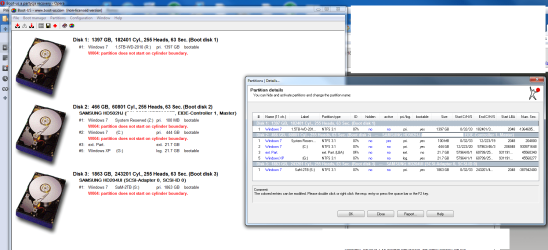
[+]
screen from boot-us

btw. Any idea why the disks order list looks like this? I mean, why disk #2 isn't on first place?
 

Attachments

  • bootus.png
    bootus.png
    114.9 KB · Views: 196
Last edited:

My Computer My Computer

At a glance

Windows 7 Ultimate x64
OS
Windows 7 Ultimate x64
It was all by default, I didn't interfere in it. I have Windows XP Professional SP3 x86 (January 2011).

So, what next? :( I still can't add a new entry in EasyBCD.

[+]
screen from boot-us

btw. Any idea why the disks order list looks like this? I mean, why disk #2 isn't on first place?
Check to make sure your WinXP DVD is a Legal copy.
 

My Computer My Computer

At a glance

ME/XP/Vista/Win7
OS
ME/XP/Vista/Win7
Check to make sure your WinXP DVD is a Legal copy.

It looks like normal oem cd, it have label on it, holograms etc., beside during the installation I was asked for the cd key (which is printed on the envelope).
 

My Computer My Computer

At a glance

Windows 7 Ultimate x64
OS
Windows 7 Ultimate x64
Weird stuff going on. Maybe it's time to wipe the disk and start again (drastic, but you're not getting anywhere at the moment.) I start to wonder about corrupt MBR that isn't getting fixed by normal means.

Can you get Partition Wizard Bootable CD? Burn the iso file to a CD. I like to use ImgBurn. Boot the Partition Wizard CD, with only the one hard drive connected, and when the GUI comes up select the disk, right click and select "wipe". Everything, including any traces of MBR should be erased. It may take hours.

Then you can follow the tutorial again.

Or you could do what I do instead: Use Partition Wizard bootable CD to create a 200MB primary partition (system reserve) and set it active. Create a logical partition for XP. (Make sure you Apply changes - bottom left of P.W. GUI). Install XP, selecting to keep formatting intact, or else the XP installation may change the partition to primary and make it active, bypassing your system reserve mini-partition.

If that works out, then you can create a partition for Windows 7, install, and normally it finds the XP system and sets up a multiboot for you with XP under the menu title "Earlier versions of Windows".

If you get no joy after all this, start to wonder about the XP disk and maybe getting a replacement.
 

My Computer My Computer

At a glance

Windows 7
OS
Windows 7
Try booting Partition Wizard bootable CD to rightclick XP partition>Modify>Convert to Primary.

See if you can add XP on EasyBCD 2.0 Add New Entry tab now.
 
Last edited:
Back
Top