Startup Repair (or image restore) after Partition Problem

buckscaper

New member
Local time
4:53 PM
Messages
19
Hi,
Brand new win 7 sp1 home premium x32 install on new blank 1Tb HDD. Was working great. I couldn't leave well enough alone and had to do a partition move.

- C: partition had full install/system, etc including boot. Was 200Gb partition. 15gb used.
- All space after C: partition was unallocated.
- 100mb partition at front of HDD (was boot, now unallocated because I moved boot, etc to C: - was working great - no problems after deleting this 100mb partition)

Wanted to reclaim that 100mb and move C: partition to beginning of HDD.

Made System Repair Disk and System Image Disk

Used Easus Partition Master on HDD to move the C: to front of HDD. It froze. Had to manually reboot. Now there are start up problems.

System Repair disk doesn't seem to be able to repair anything. Before I screw anything else up...

Main question is: If the System Repair disk and System Image Disk were made when the partitions on the HDD were organized one way (100mb unallocated, 200Gb C:, 786Gb unallocated) can they still be used if the HDD is now organized differently - say (200Gb C:, 786.1Gb unallocated) assuming the partition move actually did occur?

How can a system image restore work if the partitions aren't in the same place that they were in when the system image was made in the first place?

Same thing with System Repair Disk. In the System Repair tutorial in this forum and the associated tutorials and posts (all of which I've read), there is never any mention of how to use these tools if the organization of the HDD (partitions, etc) changed after the disks were burned.

Really appreciate any advice, help you can offer.
Thanks
Buck
P.S. I think I posted in right forum, sorry if I didn't - please move as needed.
 

My Computer My Computer

Computer Manufacturer/Model Number
HP Pavilion
OS
Win7 Home Premium SP1 32bit
CPU
core 2 quad
Hard Drives
WD Black 1Tb
Hello buckscaper, welcome to Seven Forums!


First use the outline in Option Two #3 in the first tutorial at the link below to see if the Windows 7 partition is marked as Active if not use #2 to mark it active and do the startup repairs to see if Windows will boot and be sure to post back with any further questions you may have and to keep us informed.


Startup Repair - Run 3 Separate Times

DISKPART : At PC Startup
 

My Computer My Computer

Computer Manufacturer/Model Number
* BFK Customs *
OS
W 7 64-bit Ultimate
CPU
Intel Q9550 Yorkfield
Motherboard
ASUS P5Q Pro
Memory
8GB Dominator 8500C5D
Graphics Card(s)
ATI : XFX 5870
Sound Card
Realtek HD Audio 7-1
Monitor(s) Displays
1x 47" LCD HDMI & 3x 26" LCD HDMI
Screen Resolution
1920x1080P & 1920x1200
Hard Drives
1x 80GB Intel X25-M G2 SSD : 1x 500GB & 1x 640GB WD Caviar Black(s)
PSU
Corsair 620HX
Case
Cooler Master RC-690
Cooling
Tuniq Tower 120, 2x 140mm and 3x 120mm case fans
Keyboard
Microsoft 500
Mouse
Razer Diamondback 3G
Internet Speed
14 Mb/s
Other Info
1x Koutech 3Gb/s SATA HDD Hot Swap Rack
Hi and thanks for responding.

Yes, the system (c:) partition was marked as active as part of the process to add the boot files to it while getting rid of that 100mb system partition. The PC was running great after doing all that - started up fine. Rebooted fine, etc. So it seems that I did it correctly.

No problems until I tried moving C: partition.

Prior to my original post I:
1. Ran system repair from disk made prior to partition move - it failed saying it could not fix the problems it found and in the details was this long list of stuff. I knew that it's usually necessary to run repair several times so I rebooted to the system repair disk and...
2. Ran system repair again and it said it made repairs after running super fast - just a few seconds. Then...removed sys repair disk and rebooted again, this time to HDD.
3. Wouldn't start. Got message looking for start up media or boot disk. Put sys repair disk back in and hit enter and it booted into sys repair disk.
4. Ran sys repair again - said it found no errors. Rebooted to sys repair disk again. Said it found no errors.
5. Rebooted to sys repair disk one more time just to be sure (3 times a charm) and it has been stuck on "Startup Repair is checking your system for problems...Attempting Repairs" for 2 hours. No sounds from HDD. Blue "progress" bar keeps moving from left to right "attempting repairs" but nothing is happening.
6. Clicked "cancel" and it said that the "current repair function can not be cancelled."
 

My Computer My Computer

Computer Manufacturer/Model Number
HP Pavilion
OS
Win7 Home Premium SP1 32bit
CPU
core 2 quad
Hard Drives
WD Black 1Tb
Download the Partition Wizard boot disk ISO from the link below and burn it to CD then boot it and see if it will rebuild the partition for you.

Partition Wizard Free Bootable CD


click to enlarge
Recovery.jpg
 

My Computer My Computer

Computer Manufacturer/Model Number
* BFK Customs *
OS
W 7 64-bit Ultimate
CPU
Intel Q9550 Yorkfield
Motherboard
ASUS P5Q Pro
Memory
8GB Dominator 8500C5D
Graphics Card(s)
ATI : XFX 5870
Sound Card
Realtek HD Audio 7-1
Monitor(s) Displays
1x 47" LCD HDMI & 3x 26" LCD HDMI
Screen Resolution
1920x1080P & 1920x1200
Hard Drives
1x 80GB Intel X25-M G2 SSD : 1x 500GB & 1x 640GB WD Caviar Black(s)
PSU
Corsair 620HX
Case
Cooler Master RC-690
Cooling
Tuniq Tower 120, 2x 140mm and 3x 120mm case fans
Keyboard
Microsoft 500
Mouse
Razer Diamondback 3G
Internet Speed
14 Mb/s
Other Info
1x Koutech 3Gb/s SATA HDD Hot Swap Rack
Use the Partition Recovery Wizard on Partition Wizard CD to see if it can piece back together your partition.

This is what happens when you don't pay close enough attention in the same forums you seek emergency help in, as otherwise you would know that PW is the only 3rd party partitioning manager that never fails in hundreds of operations we have helped with here.

If you need to repartition and post up your Disk Mgmt screenshot we will give you the exact steps to do it without fail.

Generally if PW boot disk shows any remaining partitions and you can Explore the data in them, you should be able to recover the partition using the Wizard or the data using Recuva - if you didn't back it up.
 
Hi,
While waiting for a response, my machine rebooted. My repair dvd was still in there so I booted to it and ran system repair again and it found errors and corrected them. Reboot. Ran system repair again and it detected no errors and clicking finish booted me right to Windows start up screen. Seemed pretty good.

Logged in, looked around, looks good. Checked on partition situation in Disk Mgr and it showed C: at front of disk and 100mb part is gone. Just what I had tried to do. Hooray.

Restart, boot to DVD, system repair one more time just to be sure. No errors and went right to windows start up screen. Logged in. Per another tutorial in here somewhere (not sure which one, have read so many today) ran defrag. 1% fragmented. Completed defrag in 10 mins or so. Reboot.

Also per same tutorial, ran Tool-Error Checking. Ran without incident or error, completed in 50 mins. Saw no mention of any errors, bad sectors, etc. Final screen flashed by and it went to boot process.

NOW I have a black screen (looks like cmd screen but its not) which says "Reboot and select proper Boot Device or Insert Boot Media in selected Boot Device and press a key."

And that's where I am right now. Since it looked like system repair was working again, I didn't want to go down another path and start a whole new process (esp since according to DSKMGR and Checkdisk, everything was fine. But now I have this screen.

Hitting Enter just brings up the same message again. If I put the system repair disk in it will boot to it but after booting and rebooting several times to windows start up screen why would it be doing this now after Sys Repair and Chkdsk bot said it's good?

Do I Hard Shutdown and try rebooting to the HDD? This did happen during the stuff I was encountering prior to writing in and that's how I got to going thru the sys repair so many times.

Thank you

P.S. To be clear, I did not proceed with the Partition Wizard when recommended because the repair seemed to finally work itself out. I have not run it now because the situation has changed and I don't know if it is still your recommended course of action.
 

My Computer My Computer

Computer Manufacturer/Model Number
HP Pavilion
OS
Win7 Home Premium SP1 32bit
CPU
core 2 quad
Hard Drives
WD Black 1Tb
Yes, run it to see what it comes up with, it's free and extremely reliable.
 

My Computer My Computer

Computer Manufacturer/Model Number
* BFK Customs *
OS
W 7 64-bit Ultimate
CPU
Intel Q9550 Yorkfield
Motherboard
ASUS P5Q Pro
Memory
8GB Dominator 8500C5D
Graphics Card(s)
ATI : XFX 5870
Sound Card
Realtek HD Audio 7-1
Monitor(s) Displays
1x 47" LCD HDMI & 3x 26" LCD HDMI
Screen Resolution
1920x1080P & 1920x1200
Hard Drives
1x 80GB Intel X25-M G2 SSD : 1x 500GB & 1x 640GB WD Caviar Black(s)
PSU
Corsair 620HX
Case
Cooler Master RC-690
Cooling
Tuniq Tower 120, 2x 140mm and 3x 120mm case fans
Keyboard
Microsoft 500
Mouse
Razer Diamondback 3G
Internet Speed
14 Mb/s
Other Info
1x Koutech 3Gb/s SATA HDD Hot Swap Rack
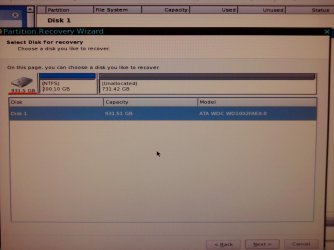
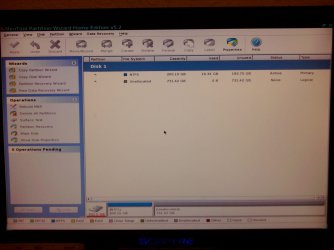
Looking at opening screen in PW - there is nothing jumping out - shows NTFS Active Primary (200Gb, 16Gb used) and unallocated logical. Sizes are correct. What do I apply the wizard partition recovery wizard to? In the wizard, the partitions come up as well as the entire 1Tb disk.

If there's actually nothing wrong, can I damage anything by doing this?

Thanks
 

My Computer My Computer

Computer Manufacturer/Model Number
HP Pavilion
OS
Win7 Home Premium SP1 32bit
CPU
core 2 quad
Hard Drives
WD Black 1Tb
Run the wizard and after the search select the Windows partition for repair.


No if it won't run, the wizard will say so and prompt you to close the wizard.
 

My Computer My Computer

Computer Manufacturer/Model Number
* BFK Customs *
OS
W 7 64-bit Ultimate
CPU
Intel Q9550 Yorkfield
Motherboard
ASUS P5Q Pro
Memory
8GB Dominator 8500C5D
Graphics Card(s)
ATI : XFX 5870
Sound Card
Realtek HD Audio 7-1
Monitor(s) Displays
1x 47" LCD HDMI & 3x 26" LCD HDMI
Screen Resolution
1920x1080P & 1920x1200
Hard Drives
1x 80GB Intel X25-M G2 SSD : 1x 500GB & 1x 640GB WD Caviar Black(s)
PSU
Corsair 620HX
Case
Cooler Master RC-690
Cooling
Tuniq Tower 120, 2x 140mm and 3x 120mm case fans
Keyboard
Microsoft 500
Mouse
Razer Diamondback 3G
Internet Speed
14 Mb/s
Other Info
1x Koutech 3Gb/s SATA HDD Hot Swap Rack
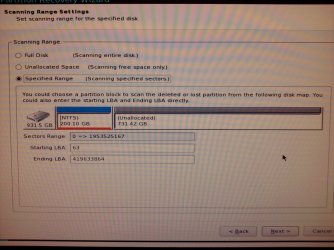
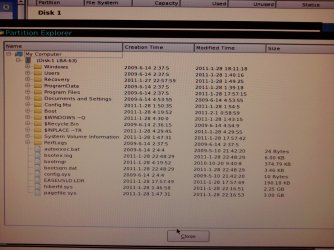
Not sure what it's supposed to be doing. Ran wizard. Got to the Choose searched partitions screen and there was my NTFS partition - proper size, etc. (see attached). I could double click it and see everything on the disk. When I click "finish" nothing else happens. It takes me back to opening screen.

So...
(and is there an option in PW to just shut down the pc after leaving app? It keeps restarting machine and I just want to shut down.)

Thanks
 

Attachments

  • 2011-02-28 18.41.22.jpg
    2011-02-28 18.41.22.jpg
    184.9 KB · Views: 17
  • 2011-02-28 19.12.14.jpg
    2011-02-28 19.12.14.jpg
    223.6 KB · Views: 12
  • 2011-02-28 19.12.38.jpg
    2011-02-28 19.12.38.jpg
    282.6 KB · Views: 15
  • 2011-02-28 19.12.58.jpg
    2011-02-28 19.12.58.jpg
    165.8 KB · Views: 10
  • 2011-02-28 19.14.11.jpg
    2011-02-28 19.14.11.jpg
    309.2 KB · Views: 10

My Computer My Computer

Computer Manufacturer/Model Number
HP Pavilion
OS
Win7 Home Premium SP1 32bit
CPU
core 2 quad
Hard Drives
WD Black 1Tb
Ok, so I guess the wizard was showing that all was well. Since it didn't really do anything I wasn't sure :-)

I had to bag it for the night and shut down right after that last email. I had to do all the work I didn't do for the last 48 hours because of this stuff.

I used PW to set the partition to inactive and shut down. I reconnected my other HDD that has Vista on it and booted right up to get to work.

I won't be able to revisit this until the weekend but when I do, I'll reset the partition to active with PW, then reboot into the system repair CD and run System Repair 3 times and see what happens.

On another note, my original question wasn't really answered:


  • If you have a good system and then create a windows system image DVD and a system repair DVD, THEN change the partition structure on the HDD, can the system repair DVD still be used with no problems? Can the system image recovery DVD be used to restore the entire system - even if the partitions on the HDD have changed since making the DVD?

There's a lot of info on this site about system image recovery but none of it addresses issues like this nor do they address system images being on a DVD (the instructions and tutorials all apply to external and internal drives with images on them). I have a fresh system with only 15gb on it and the image that windows backup and restore created fit on one DVD. If necessary, can I boot into that image DVD and restore the HDD even though I moved the system partition to the front of the HDD? It's still the same size by the way.

Thanks!
 

My Computer My Computer

Computer Manufacturer/Model Number
HP Pavilion
OS
Win7 Home Premium SP1 32bit
CPU
core 2 quad
Hard Drives
WD Black 1Tb
Try also Rebuild MBR on PW CD Disk tab. It may save having to do the Repairs.

If you change partitioning on the HD, when you reimage the Win7 imaging app will require you to format the HD before reimaging, no matter how you saved your image - which is never bootable itself when on a DVD as you must always use the Repair CD or DVD Repair console to reimage.

Use Macrium Reflect or Paragon 11 for freeware that has more flexibility on reimaging to resized partitions. Acronis also has premium free editions with cloning if you own a WD or Seagate HD.
 
Try also Rebuild MBR on PW CD Disk tab. It may save having to do the Repairs.

Will run the Rebuild MBR for sure first thing after making active again (or do I have to? Could I do this while it's an inactive partition on a 2nd HDD in my machine which is currently back to running on it's original HDD with vista?).

If you change partitioning on the HD, when you reimage the Win7 imaging app will require you to format the HD before reimaging, no matter how you saved your image - which is never bootable itself when on a DVD as you must always use the Repair CD or DVD Repair console to reimage.

In first sentence, when you say "when you reimage" do you mean "try to put the saved image that's on my dvd back onto the HDD"? I ask because "reimage" to me means make another image "snapshot" of an HDD onto another DVD eg "make another back up DVD".

Are you also saying that the System Recovery Image DVD I made with Windows of my c: system partition will want to reformat the entire HDD even though my system partition c: was only 200Gb (with 16Gb of data) on a 1Tb HDD? If that's the case, what's the point of partitioning an HDD into a system partition and a data partition? I thought that would allow me to restore (via a saved image) my system c: partition without affecting my data d: partition.

I hope I explained that right. :-)

Thanks
 

My Computer My Computer

Computer Manufacturer/Model Number
HP Pavilion
OS
Win7 Home Premium SP1 32bit
CPU
core 2 quad
Hard Drives
WD Black 1Tb
If you want to keep Vista on separate HD on your machine unplug it during any repairs, set the Win7 HD first to boot in BIOS setup. Mark Win7 active then repair it's System boot files.

After Win7 starts, plug back in Vista and boot it when needed using the one-time BIOS Boot menu key which on HP is normally ESC. This keeps the HD's independent to come and go as you please. If you install EasyBCD 2.0 to one to add the other to Dual Boot Menu, it will interlock the second one requiring the same repairs to extricate it later.

I was only referring to what would likely happen if you repartition your HD and try to use Win7 backup imaging to reimage whatever partitions you saved. I believe any change in partition sizes after image is taken would "grey-in" the choice to format HD when reimaging the saved partitions.

If you want to save an image of only your OS/programs partition, then only check that partition during imaging. It should allow you to exclude formatting the data partition during reimaging.

To be sure, I would save a Macrium or Paragon 11 image as a secondary backup as they will allow more flexibility to change partition sizes during reimaging, what can be saved, and where it can be applied during reimaging.
 
If you want to keep Vista on separate HD on your machine unplug it during any repairs, set the Win7 HD first to boot in BIOS setup. Mark Win7 active then repair it's System boot files.

After Win7 starts, plug back in Vista and boot it when needed using the one-time BIOS Boot menu key which on HP is normally ESC. This keeps the HD's independent to come and go as you please.

"After Win 7 starts" - you don't mean get it started and while it's running I'm supposed to fiddle with the PC's innards and hook up the other HD, right? You mean that after all repairs and win 7 is working again that then I should shut down, open case, plug Vista HDD back in and proceed...Right? Just want to be completely clear so as not to misstep.

"Keeps HDs independent to come and go as you please"

Are you saying that I don't have to do anything special to have two HDDs in my PC, each with its own OS, each with a system partition marked active, and not have them conflict with each other? As long as one of them is marked first to boot in the bios setup and I don't mind hitting ESC if I want to use the other OS?

I thought it was a whole lot more complicated than that. This would be great.


I was only referring to what would likely happen if you repartition your HD and try to use Win7 backup imaging to reimage whatever partitions you saved. I believe any change in partition sizes after image is taken would "grey-in" the choice to format HD when reimaging the saved partitions.

If you want to save an image of only your OS/programs partition, then only check that partition during imaging. It should allow you to exclude formatting the data partition during reimaging.

To be sure, I would save a Macrium or Paragon 11 image as a secondary backup as they will allow more flexibility to change partition sizes during reimaging, what can be saved, and where it can be applied during reimaging.

Just for the sake of definitions and because I'm having trouble understanding the difference...am I correct that when you say "imaging" you are only referring to the process of saving a backup image of some partition or drive and that when you say "reimaging" you are only referring to the process of trying to get that backed up image back onto some partition or drive after some calamity caused the original to have some problem?

Thank you for the clarifications!
 

My Computer My Computer

Computer Manufacturer/Model Number
HP Pavilion
OS
Win7 Home Premium SP1 32bit
CPU
core 2 quad
Hard Drives
WD Black 1Tb
Will run the Rebuild MBR for sure first thing after making active again (or do I have to? Could I do this while it's an inactive partition on a 2nd HDD in my machine which is currently back to running on it's original HDD with vista?)..


It can't hurt to try this and I'd be interested to learn the outcome.
 

My Computer My Computer

Computer Manufacturer/Model Number
* BFK Customs *
OS
W 7 64-bit Ultimate
CPU
Intel Q9550 Yorkfield
Motherboard
ASUS P5Q Pro
Memory
8GB Dominator 8500C5D
Graphics Card(s)
ATI : XFX 5870
Sound Card
Realtek HD Audio 7-1
Monitor(s) Displays
1x 47" LCD HDMI & 3x 26" LCD HDMI
Screen Resolution
1920x1080P & 1920x1200
Hard Drives
1x 80GB Intel X25-M G2 SSD : 1x 500GB & 1x 640GB WD Caviar Black(s)
PSU
Corsair 620HX
Case
Cooler Master RC-690
Cooling
Tuniq Tower 120, 2x 140mm and 3x 120mm case fans
Keyboard
Microsoft 500
Mouse
Razer Diamondback 3G
Internet Speed
14 Mb/s
Other Info
1x Koutech 3Gb/s SATA HDD Hot Swap Rack
q.gif
Quote: Originally Posted by buckscaper
Will run the Rebuild MBR for sure first thing after making active again (or do I have to? Could I do this while it's an inactive partition on a 2nd HDD in my machine which is currently back to running on it's original HDD with vista?)..


For clarification: I currently have my vista drive back in as the boot/system drive in this pc and the 'damaged' win7 drive, is in the machine, its single 200gb partition with boot and system is marked inactive. I'm running this machine as a vista machine just fine and I can use windows explorer to view the win7 drive.

In this configuration, can I boot to the PW cd and run the Rebuild MBR on the win7 drive/partition or do I have to disconnect the Vista drive again?

Please let me know what I should and shouldn't be doing in the process of doing this Rebuild MBR on the win7 drive.

Also just fyi, the win7 drive is in SATA0 and the vista drive is in SATA2.

Thanks

P.S. I will definitely report back on all my results.
P.P.S Thanks for clarification on imaging terms.
 

My Computer My Computer

Computer Manufacturer/Model Number
HP Pavilion
OS
Win7 Home Premium SP1 32bit
CPU
core 2 quad
Hard Drives
WD Black 1Tb
Please post a snip of Vista disk management with a full explanation of what is what.


In the Windows start menu right click computer and click manage, in the left pane of the "Computer Management" window that opens click disk management and post a snip of that.

How to Upload and Post a Screenshot and File in Seven Forums
 

My Computer My Computer

Computer Manufacturer/Model Number
* BFK Customs *
OS
W 7 64-bit Ultimate
CPU
Intel Q9550 Yorkfield
Motherboard
ASUS P5Q Pro
Memory
8GB Dominator 8500C5D
Graphics Card(s)
ATI : XFX 5870
Sound Card
Realtek HD Audio 7-1
Monitor(s) Displays
1x 47" LCD HDMI & 3x 26" LCD HDMI
Screen Resolution
1920x1080P & 1920x1200
Hard Drives
1x 80GB Intel X25-M G2 SSD : 1x 500GB & 1x 640GB WD Caviar Black(s)
PSU
Corsair 620HX
Case
Cooler Master RC-690
Cooling
Tuniq Tower 120, 2x 140mm and 3x 120mm case fans
Keyboard
Microsoft 500
Mouse
Razer Diamondback 3G
Internet Speed
14 Mb/s
Other Info
1x Koutech 3Gb/s SATA HDD Hot Swap Rack
Back
Top