Solved OS drive icon changed

Redhouse

New member
Member
Local time
5:10 AM
Messages
36
(I searched but didn't find a thread about this specifically)

When I first got this new PC (has Win7x64), the drive it booted from (system drive) had a different icon than the other drives, with a Windows logo on it.

DriveIconWin7.jpg


Now after a few weeks (and Windows Updates) it's changed to a regular drive icon:

DriveIconHasChanged.jpg


Is there any way to bring back the original system drive icon?

This box is destined to be a multi-boot box, it would be nice if that functionality was back so I could tell at a glance which is the boot drive when in an Explorer window.


-Brad
 

My Computer

OS
Windows 7 Home Premium
Hello Brad,

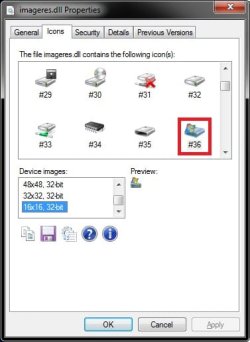
You could check to see if you have autorun.inf file as in OPTION ONE of the tutorial below. If so, delete it. If not, then you can use the path below in OPTION TWO of the same tutorial below to change the icon back. :)

icon path:
C:\Windows\System32\imageres.dll,-36

http://www.sevenforums.com/tutorials/65828-drive-icon-change.html

Hope this helps,
Shawn
 

My Computer

Computer type
PC/Desktop
Computer Manufacturer/Model Number
Self built custom
OS
64-bit Windows 11 Pro for Workstations
CPU
Intel i7-8700K OC'd to 5 GHz
Motherboard
ASUS ROG Maximus XI Formula Z390
Memory
64 GB (4x16GB) G.SKILL TridentZ RGB DDR4 3600 MHz
Graphics Card(s)
ASUS ROG-STRIX-GTX1080TI-O11G-GAMING
Sound Card
Integrated
Monitor(s) Displays
2 x Samsung Odyssey G7 27"
Screen Resolution
2560x1440
Hard Drives
1TB Samsung 990 PRO M.2,
4TB Samsung 990 PRO PRO M.2,
TerraMaster F8 SSD Plus NAS
PSU
Seasonic Prime Titanium 850W
Case
Thermaltake Core P3
Cooling
Corsair Hydro H115i
Keyboard
Logitech wireless K800
Mouse
Logitech MX Master 4
Internet Speed
2 Gb/s Download and 100 Mb/s Upload
Antivirus
Malwarebyte Anti-Malware Premium
Browser
Google Chrome
Other Info
Logitech Z625 speaker system,
Logitech BRIO 4K Pro webcam,
HP Color LaserJet Pro MFP M477fdn,
APC SMART-UPS RT 1000 XL - SURT1000XLI,
Galaxy S23 Plus phone
Hello Brad,

You could check to see if you have autorun.inf file as in OPTION ONE of the tutorial below. If so, delete it. If not, then you can use the path below in OPTION TWO of the same tutorial below to change the icon back. :)

icon path:
C:\Windows\System32\imageres.dll,-36

http://www.sevenforums.com/tutorials/65828-drive-icon-change.html

Hope this helps,
Shawn

Ok thanks Shawn.

I'll try option 2 because I have no autorun.inf in the root of my boot drive.


{Edit} Well, that changed the icon:

imageres-36.jpg


but not the icon I was looking for, was looking for the original icon:

DriveIconWin7.jpg


Didn't see it in imageres.dll either, I created a shortcut on the desktop so I could open the change icon property sheet, had a look through imageres.dll but didn't see it there. It must live elsewhere.
 
Last edited:

My Computer

OS
Windows 7 Home Premium
Strange, that's the icon above for it. Did you use step 11 in OPTION TWO and used the icon path above? :confused:

icon.jpg
 

My Computer

Computer type
PC/Desktop
Computer Manufacturer/Model Number
Self built custom
OS
64-bit Windows 11 Pro for Workstations
CPU
Intel i7-8700K OC'd to 5 GHz
Motherboard
ASUS ROG Maximus XI Formula Z390
Memory
64 GB (4x16GB) G.SKILL TridentZ RGB DDR4 3600 MHz
Graphics Card(s)
ASUS ROG-STRIX-GTX1080TI-O11G-GAMING
Sound Card
Integrated
Monitor(s) Displays
2 x Samsung Odyssey G7 27"
Screen Resolution
2560x1440
Hard Drives
1TB Samsung 990 PRO M.2,
4TB Samsung 990 PRO PRO M.2,
TerraMaster F8 SSD Plus NAS
PSU
Seasonic Prime Titanium 850W
Case
Thermaltake Core P3
Cooling
Corsair Hydro H115i
Keyboard
Logitech wireless K800
Mouse
Logitech MX Master 4
Internet Speed
2 Gb/s Download and 100 Mb/s Upload
Antivirus
Malwarebyte Anti-Malware Premium
Browser
Google Chrome
Other Info
Logitech Z625 speaker system,
Logitech BRIO 4K Pro webcam,
HP Color LaserJet Pro MFP M477fdn,
APC SMART-UPS RT 1000 XL - SURT1000XLI,
Galaxy S23 Plus phone
Strange, that's the icon above for it. Did you use step 11 in OPTION TWO and used the icon path above? :confused:

View attachment 150389

Yes.

Where can I get that icon app/shell-ext you're using in these screenshots?

Strangely I can get a desktop shortcut to display what you see if I use -32, but when i tried to alter the registry entry i made, explorer keeps the on pictured above, I even log-off/log-on and didn't change.
 

My Computer

OS
Windows 7 Home Premium
Redhouse,

Use OPTION THREE instead for all users since it's not being applied in OPTION TWO. It should work better. The program that adds the Icons tab is IconViewer in step 10. :)
 

My Computer

Computer type
PC/Desktop
Computer Manufacturer/Model Number
Self built custom
OS
64-bit Windows 11 Pro for Workstations
CPU
Intel i7-8700K OC'd to 5 GHz
Motherboard
ASUS ROG Maximus XI Formula Z390
Memory
64 GB (4x16GB) G.SKILL TridentZ RGB DDR4 3600 MHz
Graphics Card(s)
ASUS ROG-STRIX-GTX1080TI-O11G-GAMING
Sound Card
Integrated
Monitor(s) Displays
2 x Samsung Odyssey G7 27"
Screen Resolution
2560x1440
Hard Drives
1TB Samsung 990 PRO M.2,
4TB Samsung 990 PRO PRO M.2,
TerraMaster F8 SSD Plus NAS
PSU
Seasonic Prime Titanium 850W
Case
Thermaltake Core P3
Cooling
Corsair Hydro H115i
Keyboard
Logitech wireless K800
Mouse
Logitech MX Master 4
Internet Speed
2 Gb/s Download and 100 Mb/s Upload
Antivirus
Malwarebyte Anti-Malware Premium
Browser
Google Chrome
Other Info
Logitech Z625 speaker system,
Logitech BRIO 4K Pro webcam,
HP Color LaserJet Pro MFP M477fdn,
APC SMART-UPS RT 1000 XL - SURT1000XLI,
Galaxy S23 Plus phone
...Use OPTION THREE instead for all users since it's not being applied in OPTION TWO. It should work better. ...

I get the same result.

This time I booted onto my D: drive (Win7x32) to see if that made any difference, didn't.
(screen shot of explorer and the reg file)

DriveIcon_HKLM.jpg


No idea why I'm getting a different result (icon) than you.
 

My Computer

OS
Windows 7 Home Premium
I even just tried this with no different result...

Copied imageres.dll to a temp folder, ran batchiconextractor.exe on it, grabbed the icon we're trying to use, edited the registry to point to this new file, didn't change to the one we're trying to get.

I then tried, right-click the drive, properties, customize, choose file, selected my icon file (from the above paragraph), hit ok, ...no change, hit F5 a few times, no change.

I then tried the batch file from this thread: http://www.sevenforums.com/tutorials/49819-icon-cache-rebuild.html and then re-booted, my drive icon still looks like in the post above

(yes I'm in the admin group on the box)


{Edit}...

Windows heal thyself?
...man I dunno WTF's going on but I just did all this stuff again, when the machine rebooted this time the icon was correct ...so weird.
 
Last edited:

My Computer

OS
Windows 7 Home Premium
LOL, that's great news Redhouse. I'm happy to hear that it got sorted by the Twilight Zone. :)
 

My Computer

Computer type
PC/Desktop
Computer Manufacturer/Model Number
Self built custom
OS
64-bit Windows 11 Pro for Workstations
CPU
Intel i7-8700K OC'd to 5 GHz
Motherboard
ASUS ROG Maximus XI Formula Z390
Memory
64 GB (4x16GB) G.SKILL TridentZ RGB DDR4 3600 MHz
Graphics Card(s)
ASUS ROG-STRIX-GTX1080TI-O11G-GAMING
Sound Card
Integrated
Monitor(s) Displays
2 x Samsung Odyssey G7 27"
Screen Resolution
2560x1440
Hard Drives
1TB Samsung 990 PRO M.2,
4TB Samsung 990 PRO PRO M.2,
TerraMaster F8 SSD Plus NAS
PSU
Seasonic Prime Titanium 850W
Case
Thermaltake Core P3
Cooling
Corsair Hydro H115i
Keyboard
Logitech wireless K800
Mouse
Logitech MX Master 4
Internet Speed
2 Gb/s Download and 100 Mb/s Upload
Antivirus
Malwarebyte Anti-Malware Premium
Browser
Google Chrome
Other Info
Logitech Z625 speaker system,
Logitech BRIO 4K Pro webcam,
HP Color LaserJet Pro MFP M477fdn,
APC SMART-UPS RT 1000 XL - SURT1000XLI,
Galaxy S23 Plus phone
Back
Top