Merging two unallocated spaces

shashank646

New member
Local time
10:05 AM
Messages
8
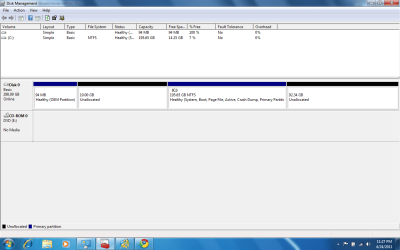
How to merge the two unallocated spaces, for which inbetwee I have a C:Drive. Please look at the pictures.I am using the mini tool partition wizard home.
 

Attachments

  • Merge.png
    Merge.png
    35.8 KB · Views: 1,093

My Computer My Computer

OS
Widows 7 64 bit
I can only tell you that I know GParted would do it.
 

My Computer My Computer

Computer Manufacturer/Model Number
Custom
OS
Windows 7 Ultimate RTM (Technet)
CPU
3.00 gigahertz Intel Core2 Duo E8400
Motherboard
ASUSTeK Computer INC. P5K/EPU Rev 1.xx
Memory
4GB
Graphics Card(s)
ATI Radeon X1950 Pro
Sound Card
Built in HD Audio
Monitor(s) Displays
22" Gateway LCD
Screen Resolution
1920 x 1200
Hard Drives
ST3160023A [Hard drive] (160.04 GB) -- drive 0, rev 8.01, ST3500630AS [Hard drive] (500.11 GB) -- drive 2, rev 3.AAK
ST3500630AS [Hard drive] (500.11 GB) -- drive 1, rev 3.AAK
Keyboard
Logitech G11
Mouse
Microsoft Wireless Laser Mouse 5000
Internet Speed
13.44 Mbps
How do you want to merge them. Into the C drive? Or combine them and make a D drive.

In any event what you are going to have to do is first merge the first unallocated into the C drive. then you can either merge the last one into the C or shrink the C drive leaving unallocated behind it. That will put those two together as unallocated then create a partition of the 2 merged.
 

My Computer My Computer

Computer Manufacturer/Model Number
Built be Me
OS
Windows 7 Pro x64
CPU
i5 760
Motherboard
Asus P7P55D-E Pro
Memory
16GB
Graphics Card(s)
Nvidia GTS450
Sound Card
On board
Monitor(s) Displays
Dell 2007WFP Dell 1800FP
Screen Resolution
1680x1050 1280x1024
Hard Drives
Seagate 250GB & 750GB
WD 1TB
PSU
Antec 750
Case
In Win
Cooling
Cooler Master Hyper 212+
Keyboard
IBM
Mouse
MS
You can actually move C: without allocating any of the additional space to it. Then all the unallocated space will be at the end in one chunk.
 

My Computer My Computer

Computer Manufacturer/Model Number
Custom
OS
Windows 7 Ultimate RTM (Technet)
CPU
3.00 gigahertz Intel Core2 Duo E8400
Motherboard
ASUSTeK Computer INC. P5K/EPU Rev 1.xx
Memory
4GB
Graphics Card(s)
ATI Radeon X1950 Pro
Sound Card
Built in HD Audio
Monitor(s) Displays
22" Gateway LCD
Screen Resolution
1920 x 1200
Hard Drives
ST3160023A [Hard drive] (160.04 GB) -- drive 0, rev 8.01, ST3500630AS [Hard drive] (500.11 GB) -- drive 2, rev 3.AAK
ST3500630AS [Hard drive] (500.11 GB) -- drive 1, rev 3.AAK
Keyboard
Logitech G11
Mouse
Microsoft Wireless Laser Mouse 5000
Internet Speed
13.44 Mbps
How to merge the two unallocated spaces, for which inbetwee I have a C:Drive. Please look at the pictures.I am using the mini tool partition wizard home.
What do you want to end up with... the same size C but moved to the left, and the 10GB currently unallocated on the left now added to the 92GB to the right (producing 102GB unallocated on the right) which you can then use to "create" a new D partition?

Or do you want to re-size C to be smaller, as well as moving it to the left, and then add all of the unallocated space together (10GB from the left, 92GB from the right, plus whatever shrinkage you take from C) so that you can allocate a new partition D?

Whatever you want to do, you can do it with the intuitive steps you'd expect, using Partition Wizard.

First, use "move/resize" for C, manipulating the size and location you want to end up with by setting the "unallocate space before" and "unallocate space after" values. You can manually set the values by typing, or you can use the sliders on the left or right side of the "size and location" horizontal visualization graphic itself. You can also use the up/down arrow controls to slowly adjust the values displayed.

Once you complete the adjustments, Partition Wizard will re-draw that visualization graphic and present proper numbers, to reflect whatever you have specified for the NEW arrangement.

After that, the rest is again intuitive... depending on what you want to end up with. If you want to create a new D partition in the newly aggregated unallocated space to the right of the newly re-sized/re-located C partition on the left, select that space and use the "create partition" function. You can choose "primary" or "logical" partition type, and I would strongly recommend "logical". There is no particular reason for you to specify "primary" and choosing "logical" avoids all future limitations and considerations. So just go with "logical".

In fact, you can choose just one new partition (which will be assigned with the next available drive letter... probably one higher than your CD/DVD drive of E, meaning it will get F, or perhaps it will get D since I don't see a D on your screenshot), or you can allocate multiple "logical" partitions in this free space (using "create partition" repeatedly).

It really doesn't matter what letters get assigned initially, because you can always come back and use either Partition Wizard or DISKMGMT.MSC to change/assign drive letters as you want to end up with.


Anyway, this should give you how you should accomplish what you want.

Incidentally, when you take a screenshot of Partition Wizard, I suggest you first "spread" the columns using the spreaders, so that all of the text that's displayed in those column cells actually can be seen in the resulting screenshot. Unfortunately, the default column widths do NOT present everything which would be helpful to us to see.
 

My Computer My Computer

Computer type
PC/Desktop
Computer Manufacturer/Model Number
Home-built, two systems (1) and (2)
OS
Windows 7 Pro x64 (1), Win7 Pro X64 (2)
CPU
i5-3350p 3.1Ghz/6MB-cache (1); E8400 3.0Ghz/6MB-cache (2)
Motherboard
ASUS P8Z77-V Pro (1); ASUS P5Q3 (2)
Memory
8GB PC3-12800 DDR3 (1); 4GB PC3-10600 DDR3 (2)
Graphics Card(s)
ATI HD7750 (1), (see TV cards); ATI R7 250 (2)
Sound Card
Realtek ALC892 HD Audio (1); Realtek ALC1200 HD Audio (2)
Monitor(s) Displays
Eizo HD2441W LCD, Eizo S2433W (1); Eizo 24" S2433W (2)
Screen Resolution
1920x1200, 1920x1200 (1); 1920x1200 (2)
Hard Drives
(1) 1TB SATA-II (7200RPM), 2x2TB SATA-III (7200RPM), 250GB SATA-III (10000RPM) for OS; 2x2TB external USB 3.0

(2) 320GB SATA-II (7200RPM), 750GB SATA-II (7200RPM), 150GB SATA-II (10000RPM) for OS; 2TB external USB 3.0
PSU
Nesteq ECS-6001 600W (1); Nesteq ECS-5001 500W (2)
Case
Acousti-Case 360 (1) and (2)
Cooling
Noctua NH-U12P SE2 for CPU, 2x120mm case fans (1) and (2)
Keyboard
IBM PS/2 (1) and (2)
Mouse
Logitech MX Revolution wireless (1); Microsoft wired (2)
Internet Speed
100mbps down / 10mbps up
Antivirus
Microsoft Security Essentials; Malwarebyte Anti-Malware Pro
Browser
Firefox
Other Info
Ceton InfiniTV 4-tuner cablecard-enabled TV card as well as Hauppauge HVR-2250 OTA/ATSC 2-tuner TV card in (1), running under Win7 WMC
merging

It doesn't allow me to merge the left unallocated space with C: drive


How do you want to merge them. Into the C drive? Or combine them and make a D drive.

In any event what you are going to have to do is first merge the first unallocated into the C drive. then you can either merge the last one into the C or shrink the C drive leaving unallocated behind it. That will put those two together as unallocated then create a partition of the 2 merged.
 

My Computer My Computer

OS
Widows 7 64 bit
merging

I want to merge two unallocated spaces into a single partition drive D: on the right of C:.


How to merge the two unallocated spaces, for which inbetwee I have a C:Drive. Please look at the pictures.I am using the mini tool partition wizard home.
What do you want to end up with... the same size C but moved to the left, and the 10GB currently unallocated on the left now added to the 92GB to the right (producing 102GB unallocated on the right) which you can then use to "create" a new D partition?

Or do you want to re-size C to be smaller, as well as moving it to the left, and then add all of the unallocated space together (10GB from the left, 92GB from the right, plus whatever shrinkage you take from C) so that you can allocate a new partition D?

Whatever you want to do, you can do it with the intuitive steps you'd expect, using Partition Wizard.

First, use "move/resize" for C, manipulating the size and location you want to end up with by setting the "unallocate space before" and "unallocate space after" values. You can manually set the values by typing, or you can use the sliders on the left or right side of the "size and location" horizontal visualization graphic itself. You can also use the up/down arrow controls to slowly adjust the values displayed.

Once you complete the adjustments, Partition Wizard will re-draw that visualization graphic and present proper numbers, to reflect whatever you have specified for the NEW arrangement.

After that, the rest is again intuitive... depending on what you want to end up with. If you want to create a new D partition in the newly aggregated unallocated space to the right of the newly re-sized/re-located C partition on the left, select that space and use the "create partition" function. You can choose "primary" or "logical" partition type, and I would strongly recommend "logical". There is no particular reason for you to specify "primary" and choosing "logical" avoids all future limitations and considerations. So just go with "logical".

In fact, you can choose just one new partition (which will be assigned with the next available drive letter... probably one higher than your CD/DVD drive of E, meaning it will get F, or perhaps it will get D since I don't see a D on your screenshot), or you can allocate multiple "logical" partitions in this free space (using "create partition" repeatedly).

It really doesn't matter what letters get assigned initially, because you can always come back and use either Partition Wizard or DISKMGMT.MSC to change/assign drive letters as you want to end up with.


Anyway, this should give you how you should accomplish what you want.

Incidentally, when you take a screenshot of Partition Wizard, I suggest you first "spread" the columns using the spreaders, so that all of the text that's displayed in those column cells actually can be seen in the resulting screenshot. Unfortunately, the default column widths do NOT present everything which would be helpful to us to see.

 

My Computer My Computer

OS
Widows 7 64 bit
It doesn't allow me to merge the left unallocated space with C: drive
Any message?

You can't just re-size C, making it 10GB larger (on the left side) by absorbing that currently unallocated 10GB to its left?

Note that you cannot do these functions while booted to Windows... because the OS partition itself is in use, and is also involved in the manipulations.

So you have to get the operations queued up, and then push "apply", and let it re-boot your system. Partition Wizard will then kick in pre-boot of the OS, to do its thing and apply all of the queued partition operations, before actually letting the rest of the normal boot process proceed. But it should still finish everything you pre-scheduled before you let it restart.

Or, you can accomplish the exact same thing by booting to the standalone Partition Wizard bootable CD, and doing these operations right then and there... since you're not running under Windows, moving/re-sizing the C-partition is allowed right there.

That would seem to be the first goal... to get the C partition to absorb that 10GB on its left, thus enlarging it by 10GB to the left.

Once that's done, you can then shrink the newly sized C partition on the right, adding whatever you remove from the right end of C to the other 92GB unallocated space from there through the end of the drive... and then turning it all into D, as you want.


So, is there some message when you try to enlarge C to the left, absorbing that 10GB unallocated space?

Are you using the slider method, or typing, or using the up/down arrows?

Have you tried this while booted to the standalone bootable Partition Wizard CD?
 

My Computer My Computer

Computer type
PC/Desktop
Computer Manufacturer/Model Number
Home-built, two systems (1) and (2)
OS
Windows 7 Pro x64 (1), Win7 Pro X64 (2)
CPU
i5-3350p 3.1Ghz/6MB-cache (1); E8400 3.0Ghz/6MB-cache (2)
Motherboard
ASUS P8Z77-V Pro (1); ASUS P5Q3 (2)
Memory
8GB PC3-12800 DDR3 (1); 4GB PC3-10600 DDR3 (2)
Graphics Card(s)
ATI HD7750 (1), (see TV cards); ATI R7 250 (2)
Sound Card
Realtek ALC892 HD Audio (1); Realtek ALC1200 HD Audio (2)
Monitor(s) Displays
Eizo HD2441W LCD, Eizo S2433W (1); Eizo 24" S2433W (2)
Screen Resolution
1920x1200, 1920x1200 (1); 1920x1200 (2)
Hard Drives
(1) 1TB SATA-II (7200RPM), 2x2TB SATA-III (7200RPM), 250GB SATA-III (10000RPM) for OS; 2x2TB external USB 3.0

(2) 320GB SATA-II (7200RPM), 750GB SATA-II (7200RPM), 150GB SATA-II (10000RPM) for OS; 2TB external USB 3.0
PSU
Nesteq ECS-6001 600W (1); Nesteq ECS-5001 500W (2)
Case
Acousti-Case 360 (1) and (2)
Cooling
Noctua NH-U12P SE2 for CPU, 2x120mm case fans (1) and (2)
Keyboard
IBM PS/2 (1) and (2)
Mouse
Logitech MX Revolution wireless (1); Microsoft wired (2)
Internet Speed
100mbps down / 10mbps up
Antivirus
Microsoft Security Essentials; Malwarebyte Anti-Malware Pro
Browser
Firefox
Other Info
Ceton InfiniTV 4-tuner cablecard-enabled TV card as well as Hauppauge HVR-2250 OTA/ATSC 2-tuner TV card in (1), running under Win7 WMC
You will need to use Method Two.
http://www.sevenforums.com/tutorials/2670-partition-volume-extend.html

It is the only way to get the unallocated to the left of "C" into "C".
See Step #5 in Method One. It tells you this.

When you are done with that then you can add space to unallocated to the right of "C" and letter it
and make it active through Disk Management- or absorb it into "C" using Method One.

Mike

This above method is using Windows.
There may be other 3rd party software that will work easier but I have no knowledge of which or how to use it.
 

My Computer My Computer

Computer Manufacturer/Model Number
Hopalong/ Godzilla
OS
Windows7 Pro 64bit SP-1; Windows XP Pro 32bit
CPU
Intel Core i7-870 Lynnfield 2.93GHz LGA 1156 95W Quad-Core
Motherboard
ASUS P7P55D-E PRO
Memory
8GB@1400MHz Crucial Ballistix DDR3-1600 4x2GB
Graphics Card(s)
ASUS ENGTX460 DirectCU/2DI/1GD5 1GB 256-bit GDDR5
Sound Card
VIA Onboard
Monitor(s) Displays
Asus VS248H-P 24"; Samsung SyncMaster 941BW 19"ws
Screen Resolution
1920x1080; 1440x900
Hard Drives
Samsung 830 120GB SSD
Intel 320 120GB SSD
Western Digital Caviar Black WD7501AALS 750GB 7200 RPM SATA 3.0Gb/s
Western Digital Caviar Black WD6401AALS 640GB 7200 RPM SATA 3.0Gb/s
PSU
COOLER MASTER Silent Pro RS850-AMBAJ3-US 850W Modular
Case
COOLER MASTER HAF 932 RC-932-KKN5-GP Black
Cooling
Scythe "Mugen-2 Rev.B" (2 ScytheKaze-Jyuni PWM fans)
Keyboard
Logitech K-320
Mouse
Kensington
Antivirus
Avast Inernet Suite
Browser
IE 9 ; Chrome
Whatever you are going to do with those 2 unallocated spaces you are going to need a 3rd party program to so it with. Windows disk management won't allow you to do it.
 

My Computer My Computer

Computer Manufacturer/Model Number
Built be Me
OS
Windows 7 Pro x64
CPU
i5 760
Motherboard
Asus P7P55D-E Pro
Memory
16GB
Graphics Card(s)
Nvidia GTS450
Sound Card
On board
Monitor(s) Displays
Dell 2007WFP Dell 1800FP
Screen Resolution
1680x1050 1280x1024
Hard Drives
Seagate 250GB & 750GB
WD 1TB
PSU
Antec 750
Case
In Win
Cooling
Cooler Master Hyper 212+
Keyboard
IBM
Mouse
MS
Boot free Partition Wizard bootable CD, which is safer for moving OS partition.

Rightclick on C, select Resize, left click hold in the center of partition, drag the partition to the left to take up the Unallocated space on the left, click OK, Apply steps.
 
Hello shashank646, welcome to Seven Forums!


Have a look through this tutorial at the link below to get some basics on the way to use the Partition Wizard Bootable Disk (PWBD), it will do what you want and it's free and be sure to post back with any further questions you may have and to keep us informed.

Partition Wizard : Use the Bootable CD


First download the PWBD ISO file to the desktop, be sure to get the PWBD and not the installed version; scroll down to see the download link for the bootable CD ISO file at this link below.

Partition Wizard Free Bootable CD

Then use ImgBurn to burn the ISO to a CD, at no greater than 4x speed with a verify; it was designed for use and works best from a CD rather that a DVD then boot the created CD to make the changes.

ImgBurn Free ISO Burning Software
 

My Computer My Computer

Computer Manufacturer/Model Number
* BFK Customs *
OS
W 7 64-bit Ultimate
CPU
Intel Q9550 Yorkfield
Motherboard
ASUS P5Q Pro
Memory
8GB Dominator 8500C5D
Graphics Card(s)
ATI : XFX 5870
Sound Card
Realtek HD Audio 7-1
Monitor(s) Displays
1x 47" LCD HDMI & 3x 26" LCD HDMI
Screen Resolution
1920x1080P & 1920x1200
Hard Drives
1x 80GB Intel X25-M G2 SSD : 1x 500GB & 1x 640GB WD Caviar Black(s)
PSU
Corsair 620HX
Case
Cooler Master RC-690
Cooling
Tuniq Tower 120, 2x 140mm and 3x 120mm case fans
Keyboard
Microsoft 500
Mouse
Razer Diamondback 3G
Internet Speed
14 Mb/s
Other Info
1x Koutech 3Gb/s SATA HDD Hot Swap Rack
Back
Top