Startup Programs - Change

How to Change, Add, or Remove Startup Programs in Windows 7

   Information
This will show you how to either add, remove, enable, or disable a startup program in Windows 7.
   Note
You can also view the startup logs in Event Viewer (C:\Windows\system32\eventvwr.msc) under Applications and Services Logs, Microsoft, Windows, Diagnostics-Performance, and Operational. The logs will be in the middle to show you what ran at startup, how long it took, and more.
   Warning
User Account Control prevents programs that require elevated (run as administrator) permission or an administrator password from running automatically when Windows 7 starts. If a program is blocked, you'll see a message in the notification area that says some startup programs need permission to run. You can then right click on the notification area message and either select to run the blocked program by giving UAC permission, remove the blocked program from the startup program list, or ignore the notification and not run the program.


:note: For the Windows 10 tutorial please see here - Startup Items - Add, Delete, Enable, Disable in Windows 10 - Windows 10 Tutorials


METHOD ONE

Through the Program Itself


NOTE: Some programs may have a setting in them to allow it to run at startup or not. You will need to consult the program's documentations on how to do this specifically for their program if it is available for that program.
1. Open the program's settings menu.

2. To Add the Program to Startup
A) Select the program's Run at startup type option.
3. To Remove the Program from Startup
A) Unselect the program's Run at startup type option.


METHOD TWO

Through the Startup Folder


NOTE: You can add or remove shortcuts to programs or files from the Startup folder to have them run or open at the startup of Windows 7.

1. Right click on the exe file of the program you want to run at startup, or file to open at startup, and click on Create Shortcut.
NOTE: This is the shortcut that you will add to the Startup folder in either Option One or Option Two below. Skip this step if you are only removing a shortcut from the Startup folder.
A) Do either OPTION ONE "Current User" or OPTION TWO "All Users" below for what you want.


OPTION ONE

For Current Single User Only


:note:NOTE: The single (current) user Startup folder is a hidden system folder located at:
C:\Users\(User-Name)\AppData\Roaming\Microsoft\Windows\Start Menu\Programs\Startup
2. Open the Start Menu, click on All Programs, right click on the Startup folder, click on Open or Explore, and go to step 4 below. (See screenshot below)
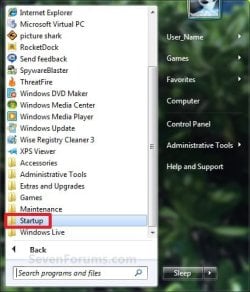
Start_Menu_Startup_Folder.jpg
OR

3. In the Start Menu search line, type shell:startup, press Enter, and go to step 4 below. (See screenshot below)
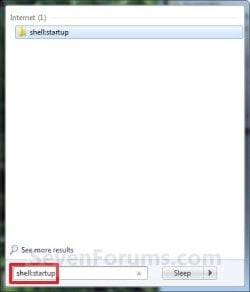
Start_Menu_shell-Startup.jpg
4. Do step 5 or 6 below for what you would like to do.

5. To Add a Startup Program or File Shortcut
A) Drag the shortcut created from step 1 to inside the Startup folder and drop it. (See screenshot below)
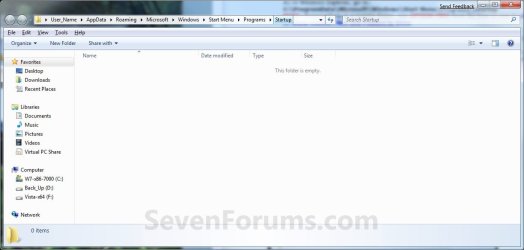
Startup_Folder.jpg
6. To Remove a Startup Program or File Shortcut
A) Right click on the shortcut in the Startup folder and click on Delete. (See screenshot above)
7. Close the Startup folder when done. (See screenshot below step 5A)


OPTION TWO

For All Users


:note:NOTE: The all users Startup folder is a hidden system folder located at:

C:\ProgramData\Microsoft\Windows\Start Menu\Programs\Startup
2. Open the Start Menu, click on All Programs, right click on the Startup folder, click on Open All Users or Explore All Users, and go to step 4 below. (See screenshot below)
Start_Menu_Startup_Folder.jpg
OR

3. In the Start Menu search line, type shell:common startup, press Enter, and go to step 4 below.

4. Do step 5 or 6 below for what you would like to do.

5. To Add a Startup Program or File Shortcut
A) Drag the shortcut created from step 1 to inside the Startup folder and drop it. (See screenshot below)
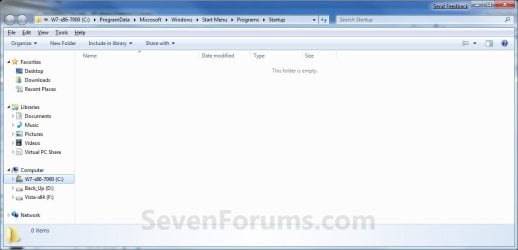
Startup_Folder_All.jpg
6. To Remove a Startup Program or File Shortcut
A) Right click on the shortcut in the Startup folder and click on Delete. (See screenshot above)
6. Close the Startup folder when done. (See screenshot below step 4A)


METHOD THREE

Through System Configuration (msconfig)


NOTE: Using the Selective Startup option in System Configuration (msconfig), you can enable or disable startup programs. You will need to be logged into an administator account, or provide the administrator password to open System Configuration.

WARNING: It would be best to also check the registry entries in METHOD FOUR below as well, since msconfig may not always show all startup programs.
1. Open the Start Menu, type msconfig in the search box, press Enter, and go to step 3 below. (See screenshot below)
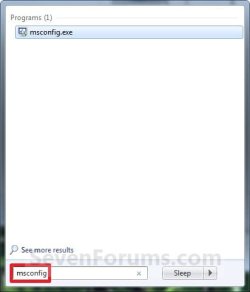
Start_Menu_msconfig.jpg
OR

2. Open the Control Panel (icons view) and click on the Administrative Tools icon, then click on System Configuration. Close the Control Panel and Administrative Tools windows.

3. If prompted, click on Continue for the UAC prompt, or type in the administrator's password.

4. Click on the Startup tab. (See screenshot below)

   Tip
If you look under the Location column for the Start Item, you will see the registry location for it that you can use to remove the startup item using METHOD FOUR below instead.
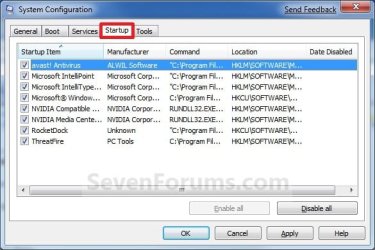
System_Configuration_Startup_Tab.jpg
5. To Disable a Startup Program
A) Select a listed startup program and uncheck it. (See screenshot above)

B) Repeat to disable anymore listed startup programs.
6. To Enable a Startup Program
A) Select a listed startup program and check it. (See screenshot below step 4)

B) Repeat to enable anymore listed startup programs.
7. To Disable All Listed Startup Programs
A) Click on the Disable all button. (See screenshot below step 4)

B) Go to step 9.
8. To Enable All Listed Startup Programs
A) Click on the Enable all button. (See screenshot below step 4)
9. Click on Apply. (See screenshot below step 4)

10. Click on the Boot tab, then check the Make all boot settings permanent box and click on OK. (See screenshot below)
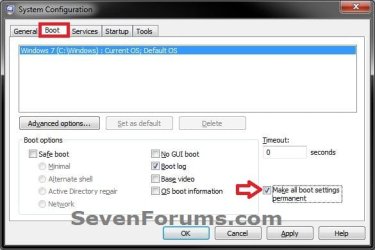
Boot-1.jpg
11. Click on Yes. (See screenshot below)
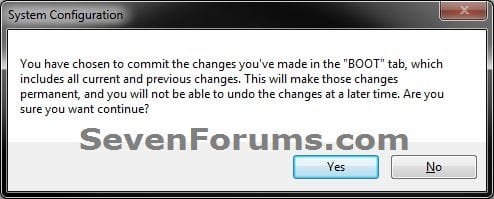
Boot-2.jpg
12. Click on the Restart button to apply. (See screenshot below)
WARNING: This will restart your computer immediately. Save and close anything that you are working on first.
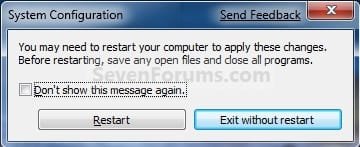
Restart.jpg


METHOD FOUR

Manually in Registry Editor


NOTE: This will allow you to remove a startup program for either the current single user or all users. If you wanted to add a startup program, then METHOD TWO above would be a safer and easier way to do so.
1. Open the Start Menu.

2. In the search line, type regedit and press Enter. (See screenshot below)
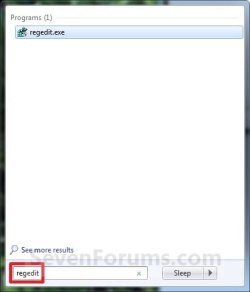
Start_Menu_regedit.jpg
3. For "Current User" Only Locations
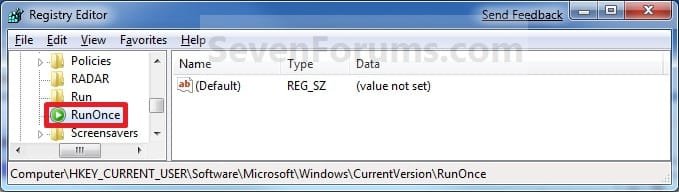
A) In regedit, go to: (See screenshots below)

HKEY_CURRENT_USER\Software\Microsoft\Windows\CurrentVersion\Run
AND
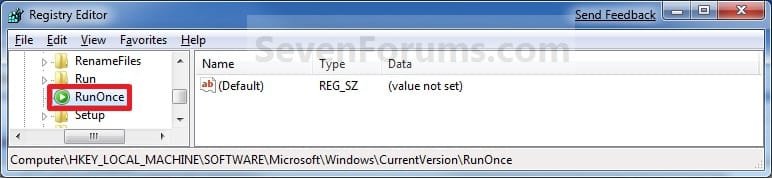
HKEY_CURRENT_USER\Software\Microsoft\Windows\CurrentVersion\RunOnce
Current_Reg_Run.jpg

Current_Reg_RunOnce.jpg
4. For "All Users" Locations
A) In regedit, go to: (See screenshots below)
For 32-bit and 64-bit Windows 7:
HKEY_LOCAL_MACHINE\SOFTWARE\Microsoft\Windows\CurrentVersion\Run
AND
HKEY_LOCAL_MACHINE\SOFTWARE\Microsoft\Windows\CurrentVersion\RunOnce
AND (If added by Group Policy)
HKEY_CURRENT_USER\Software\Microsoft\Windows\CurrentVersion\Policies\Explorer\Run
AND (If added by Group Policy)
HKEY_LOCAL_MACHINE\SOFTWARE\Microsoft\Windows\CurrentVersion\Policies\Explorer\Run
AND
For 64-bit Windows 7 only:
HKEY_LOCAL_MACHINE\SOFTWARE\Wow6432Node\Microsoft\Windows\CurrentVersion\Run
AND
HKEY_LOCAL_MACHINE\SOFTWARE\Wow6432Node\Microsoft\Windows\CurrentVersion\RunOnce
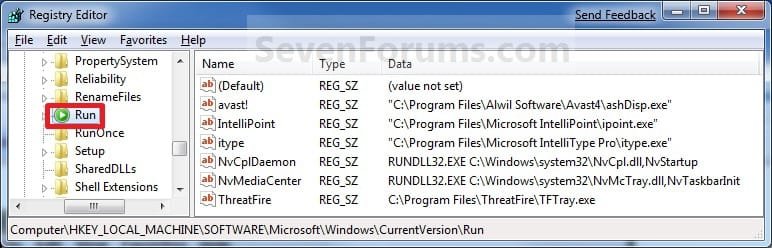
All_Users_Reg_Run.jpg

All_Users_Reg_RunOnce.jpg
5. In the right pane of Run and/or RunOnce, right click on the startup program you want to remove and click on Delete. (See screenshots above)
NOTE: RunOnce is only to run the program once for the next time that Windows 7 starts up. Run is to run the program everytime that Windows 7 starts up.

6. Click on Yes to confirm deletion.

7. When done, close regedit.


METHOD FIVE

Using CCleaner


1. If you have not already, download and install the free program CCleaner.

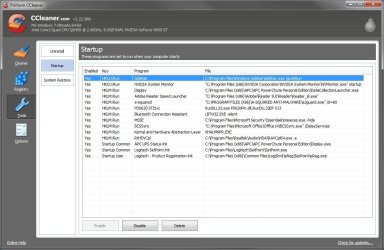
2. Open CCleaner, and click on the Tools icon (left side) and on the Startup button. (See screenshot below)
CCleaner.jpg
3. Select a startup item, then either enable, disable, or delete it from the Vista startup programs list. (See screenshot above)


METHOD SIX

Through Task Scheduler


   Note
By default, you cannot run a elevated (Run as administrator) program that requires UAC permission at startup using the normal Windows 7 startup programs above.

For a Administrator User Account:
You can have Run as administrator (elevated) programs run at startup for a administrator account by running it in a startup task in Task Scheduler.

For a Standard User Account:
You will not be able to run elevated programs at startup for a standard user account though. Only unelevated programs (ex: Notepad).


1. For how to create a startup task, see:

How to Create a Task to Run a Program at Startup and Log On in Windows 7
That's it,
Shawn


Last edited:
You're welcome LabTech. I'm happy to hear that you got it sorted. :)
 

My Computer

Computer type
PC/Desktop
Computer Manufacturer/Model Number
Self built custom
OS
64-bit Windows 11 Pro for Workstations
CPU
Intel i7-8700K OC'd to 5 GHz
Motherboard
ASUS ROG Maximus XI Formula Z390
Memory
64 GB (4x16GB) G.SKILL TridentZ RGB DDR4 3600 MHz
Graphics Card(s)
ASUS ROG-STRIX-GTX1080TI-O11G-GAMING
Sound Card
Integrated
Monitor(s) Displays
2 x Samsung Odyssey G7 27"
Screen Resolution
2560x1440
Hard Drives
1TB Samsung 990 PRO M.2,
4TB Samsung 990 PRO PRO M.2,
TerraMaster F8 SSD Plus NAS
PSU
Seasonic Prime Titanium 850W
Case
Thermaltake Core P3
Cooling
Corsair Hydro H115i
Keyboard
Logitech wireless K800
Mouse
Logitech MX Master 4
Internet Speed
2 Gb/s Download and 100 Mb/s Upload
Antivirus
Malwarebyte Anti-Malware Premium
Browser
Google Chrome
Other Info
Logitech Z625 speaker system,
Logitech BRIO 4K Pro webcam,
HP Color LaserJet Pro MFP M477fdn,
APC SMART-UPS RT 1000 XL - SURT1000XLI,
Galaxy S23 Plus phone
From all programs, I deleted the startup folder by mistake and my setpoint mouse software stopped starting up on it's own. Fortunantly I found this tutorial which shows the location of the default hidden location of the startup folder and I was able to navigate there and recreate the startup file. Fixed!
 
Last edited:

My Computer

OS
7 premeim
STARTUP COP Reply

Sorry to "bump" this thread from a couple months ago, but I have been working on this myself with a startup utility called "StartupCop Pro 3". I used it on Windows xp and it is incredibly useful, but it seems to struggle with starting itself up in Windows 7. I tried all the different methods described in the first post from startup folders to registry entries, and it still refuses to launch when I start the computer.
It does work when I launch it manually, although it does provide that annoying "program wants to modify your hard drive" that every stupid application provokes the machine to do, so any hints would be very helpful.

Thanks!

- 2 Bunny
 

My Computer

Computer type
Laptop
Computer Manufacturer/Model Number
Lenovo N200 0769-AUU
OS
Windows 7 64Bit
CPU
Intel Pentium T2390 1.87Ghz (Dual Core)
Motherboard
Lenovo IEL10
Memory
1.5GB DDR2 PC2-5300 (Soon to Upgrade)
Graphics Card(s)
Intel GMA X3100
Sound Card
Lenovo Motherboard Standard Built in (HD)
Monitor(s) Displays
Built in display (Usable Quality)
Screen Resolution
1280X800
Hard Drives
SEAGATE!
PSU
External Lenovo (20Volt, 65Watt)
Case
Lenovo stock case
Cooling
Generic Lenovo Cooler
Keyboard
Stock Standard Lenovo Keyboard (High quality)
Mouse
Built in high quality trackpad
Internet Speed
As fast as it goes
Antivirus
Avast! Free
Browser
Firefox (2006-2014), Pale Moon (2014-?)
Hello 2 Bunny,

You might see if setting the program's shortcut to Windows XP compatibility mode may allow this shortcut to run at startup afterwards.

Does this program give you a UAC prompt when you double click on it to run it?

Hope this helps,
Shawn
 

My Computer

Computer type
PC/Desktop
Computer Manufacturer/Model Number
Self built custom
OS
64-bit Windows 11 Pro for Workstations
CPU
Intel i7-8700K OC'd to 5 GHz
Motherboard
ASUS ROG Maximus XI Formula Z390
Memory
64 GB (4x16GB) G.SKILL TridentZ RGB DDR4 3600 MHz
Graphics Card(s)
ASUS ROG-STRIX-GTX1080TI-O11G-GAMING
Sound Card
Integrated
Monitor(s) Displays
2 x Samsung Odyssey G7 27"
Screen Resolution
2560x1440
Hard Drives
1TB Samsung 990 PRO M.2,
4TB Samsung 990 PRO PRO M.2,
TerraMaster F8 SSD Plus NAS
PSU
Seasonic Prime Titanium 850W
Case
Thermaltake Core P3
Cooling
Corsair Hydro H115i
Keyboard
Logitech wireless K800
Mouse
Logitech MX Master 4
Internet Speed
2 Gb/s Download and 100 Mb/s Upload
Antivirus
Malwarebyte Anti-Malware Premium
Browser
Google Chrome
Other Info
Logitech Z625 speaker system,
Logitech BRIO 4K Pro webcam,
HP Color LaserJet Pro MFP M477fdn,
APC SMART-UPS RT 1000 XL - SURT1000XLI,
Galaxy S23 Plus phone
WINDOWS Reply

Hello 2 Bunny,

You might see if setting the program's shortcut to Windows XP compatibility mode may allow this shortcut to run at startup afterwards.

Does this program give you a UAC prompt when you double click on it to run it?

Hope this helps,
Shawn

Actually, I get the "program wants to make changes to a hard drive..." box whem I single click it. I hadn't tried "xp mode" before though. I'll have to give that a try.

Update: Looks like compatibility mode didn't do the trick. I found that turing off UAC, StartupCop Pro would actually run at startup how it is supposed to. Maybe there is some UAC setting that can be adjusted, or I could just leave UAC off. Is it even necessary?

Thanks.

- 2 Bunny
 
Last edited:

My Computer

Computer type
Laptop
Computer Manufacturer/Model Number
Lenovo N200 0769-AUU
OS
Windows 7 64Bit
CPU
Intel Pentium T2390 1.87Ghz (Dual Core)
Motherboard
Lenovo IEL10
Memory
1.5GB DDR2 PC2-5300 (Soon to Upgrade)
Graphics Card(s)
Intel GMA X3100
Sound Card
Lenovo Motherboard Standard Built in (HD)
Monitor(s) Displays
Built in display (Usable Quality)
Screen Resolution
1280X800
Hard Drives
SEAGATE!
PSU
External Lenovo (20Volt, 65Watt)
Case
Lenovo stock case
Cooling
Generic Lenovo Cooler
Keyboard
Stock Standard Lenovo Keyboard (High quality)
Mouse
Built in high quality trackpad
Internet Speed
As fast as it goes
Antivirus
Avast! Free
Browser
Firefox (2006-2014), Pale Moon (2014-?)
cannot remove startup programs

Hi,
thanks for a great guide, Brink.

However I still have a problem removing some startup programs. I tried it with Ccleaner and msconfig method. But everytime I reboot, those programs are running. Also tried searching for them Registry Editor (regedit), but couldn't even find them with this method, they are simply not there.

I am pretty sure I followed the guide and I tried it all under normal user acc and undet administrator acc, so far no luck.

Is anybody able to help?
 

My Computer

OS
Windows 7 Home Premium 64bit
Hello RedFlag, and welcome to Seven Forums. :)

What programs are you trying to stop from running at startup?

Did you also check the Startup folder in the Start Menu in case they may be in there?
 

My Computer

Computer type
PC/Desktop
Computer Manufacturer/Model Number
Self built custom
OS
64-bit Windows 11 Pro for Workstations
CPU
Intel i7-8700K OC'd to 5 GHz
Motherboard
ASUS ROG Maximus XI Formula Z390
Memory
64 GB (4x16GB) G.SKILL TridentZ RGB DDR4 3600 MHz
Graphics Card(s)
ASUS ROG-STRIX-GTX1080TI-O11G-GAMING
Sound Card
Integrated
Monitor(s) Displays
2 x Samsung Odyssey G7 27"
Screen Resolution
2560x1440
Hard Drives
1TB Samsung 990 PRO M.2,
4TB Samsung 990 PRO PRO M.2,
TerraMaster F8 SSD Plus NAS
PSU
Seasonic Prime Titanium 850W
Case
Thermaltake Core P3
Cooling
Corsair Hydro H115i
Keyboard
Logitech wireless K800
Mouse
Logitech MX Master 4
Internet Speed
2 Gb/s Download and 100 Mb/s Upload
Antivirus
Malwarebyte Anti-Malware Premium
Browser
Google Chrome
Other Info
Logitech Z625 speaker system,
Logitech BRIO 4K Pro webcam,
HP Color LaserJet Pro MFP M477fdn,
APC SMART-UPS RT 1000 XL - SURT1000XLI,
Galaxy S23 Plus phone
Thanks for the welcome.

I am trying to block Sony Ericson's PC Companion. Couldn't find the "don't start at the startup" button in settings.

Yes I did, it is not in there.
 

My Computer

OS
Windows 7 Home Premium 64bit
Hi,

You could try the registry...

Click :orb: and type regedit then press enter. Now navigate to HKEY_LOCAL_MACHINE\Software\Microsoft\Windows\CurrentVersion\Run and remove the entry that indicates the software you want to remove from the startup.

   Note
Make sure that you always Backup the Registry in case you need to restore it at a later date
 

My Computer

Computer Manufacturer/Model Number
Compaq Desktop
OS
Windows 7 Ultimate x64
CPU
AMD Sempron Dual Core
Memory
3GB
Graphics Card(s)
NVIDIA GeForce 6150SE nForce 430
Screen Resolution
1024x768
Hard Drives
150GB Sata
In additional from Orbital Shark opinion,be sure that you have created a backup from your registry.
Always backup registry before editing it. ;)
 

My Computer

Computer type
PC/Desktop
Computer Manufacturer/Model Number
Custom Build
OS
Windows 10 Pro x64
CPU
Intel Core i5 4440 @Stock
Motherboard
Gigabyte Z97 D3H
Memory
4 x 4GB HyperX Fury DDR3
Graphics Card(s)
Gigabyte GTX 1050Ti O4G
Sound Card
Integrated
Monitor(s) Displays
Dell P2417H
Screen Resolution
1920 x 1080
Hard Drives
Samsung EVO 850 120GB / Toshiba DT01ACA050 1TB 7200prm 32MB
PSU
Riotoro Onyx 750W
Case
NZXT H500 Black-Red
Cooling
Stock CPU + NZXT 120mm + 2x120mm red fans
Keyboard
Modecom Volcano Lanparty
Mouse
Asus ROG Gladius / DeepCool E-Pad Plus
Internet Speed
DOCSIS 50/3 Mbit
Browser
Google Chrome
Other Info
Asus K55VJ(i5 3210M, GT635M / 2GB, 8GB DDR3, 500GB HDD)
Thanks for the welcome.

I am trying to block Sony Ericson's PC Companion. Couldn't find the "don't start at the startup" button in settings.

Yes I did, it is not in there.

If you did not plan on using that program, then you might check in Programs and Features in the Control Panel and uninstall the program. That should remove it from running at startup. :)
 

My Computer

Computer type
PC/Desktop
Computer Manufacturer/Model Number
Self built custom
OS
64-bit Windows 11 Pro for Workstations
CPU
Intel i7-8700K OC'd to 5 GHz
Motherboard
ASUS ROG Maximus XI Formula Z390
Memory
64 GB (4x16GB) G.SKILL TridentZ RGB DDR4 3600 MHz
Graphics Card(s)
ASUS ROG-STRIX-GTX1080TI-O11G-GAMING
Sound Card
Integrated
Monitor(s) Displays
2 x Samsung Odyssey G7 27"
Screen Resolution
2560x1440
Hard Drives
1TB Samsung 990 PRO M.2,
4TB Samsung 990 PRO PRO M.2,
TerraMaster F8 SSD Plus NAS
PSU
Seasonic Prime Titanium 850W
Case
Thermaltake Core P3
Cooling
Corsair Hydro H115i
Keyboard
Logitech wireless K800
Mouse
Logitech MX Master 4
Internet Speed
2 Gb/s Download and 100 Mb/s Upload
Antivirus
Malwarebyte Anti-Malware Premium
Browser
Google Chrome
Other Info
Logitech Z625 speaker system,
Logitech BRIO 4K Pro webcam,
HP Color LaserJet Pro MFP M477fdn,
APC SMART-UPS RT 1000 XL - SURT1000XLI,
Galaxy S23 Plus phone
Hey there,

I tried the registry, i did everything as described in the awesome guide at the beggining of the thread, so far no luck :(

I would welcome any more suggestions.

EDIT: Yeah and I plan on using that program, I just don't want it to start with my pc everytime (:
 

My Computer

OS
Windows 7 Home Premium 64bit
Redflag,

From the description of the program, it may be a service running in the background instead waiting for you to connect the phone for it to run. You might check in the programs settings (if available) to see if there's anything about it running at startup.
 

My Computer

Computer type
PC/Desktop
Computer Manufacturer/Model Number
Self built custom
OS
64-bit Windows 11 Pro for Workstations
CPU
Intel i7-8700K OC'd to 5 GHz
Motherboard
ASUS ROG Maximus XI Formula Z390
Memory
64 GB (4x16GB) G.SKILL TridentZ RGB DDR4 3600 MHz
Graphics Card(s)
ASUS ROG-STRIX-GTX1080TI-O11G-GAMING
Sound Card
Integrated
Monitor(s) Displays
2 x Samsung Odyssey G7 27"
Screen Resolution
2560x1440
Hard Drives
1TB Samsung 990 PRO M.2,
4TB Samsung 990 PRO PRO M.2,
TerraMaster F8 SSD Plus NAS
PSU
Seasonic Prime Titanium 850W
Case
Thermaltake Core P3
Cooling
Corsair Hydro H115i
Keyboard
Logitech wireless K800
Mouse
Logitech MX Master 4
Internet Speed
2 Gb/s Download and 100 Mb/s Upload
Antivirus
Malwarebyte Anti-Malware Premium
Browser
Google Chrome
Other Info
Logitech Z625 speaker system,
Logitech BRIO 4K Pro webcam,
HP Color LaserJet Pro MFP M477fdn,
APC SMART-UPS RT 1000 XL - SURT1000XLI,
Galaxy S23 Plus phone
I that don't help,try to uninstall SE PC Companions,and install it again. Then you should have it in start up tab in msconfig. Disable it from startup then. ;)
 

My Computer

Computer type
PC/Desktop
Computer Manufacturer/Model Number
Custom Build
OS
Windows 10 Pro x64
CPU
Intel Core i5 4440 @Stock
Motherboard
Gigabyte Z97 D3H
Memory
4 x 4GB HyperX Fury DDR3
Graphics Card(s)
Gigabyte GTX 1050Ti O4G
Sound Card
Integrated
Monitor(s) Displays
Dell P2417H
Screen Resolution
1920 x 1080
Hard Drives
Samsung EVO 850 120GB / Toshiba DT01ACA050 1TB 7200prm 32MB
PSU
Riotoro Onyx 750W
Case
NZXT H500 Black-Red
Cooling
Stock CPU + NZXT 120mm + 2x120mm red fans
Keyboard
Modecom Volcano Lanparty
Mouse
Asus ROG Gladius / DeepCool E-Pad Plus
Internet Speed
DOCSIS 50/3 Mbit
Browser
Google Chrome
Other Info
Asus K55VJ(i5 3210M, GT635M / 2GB, 8GB DDR3, 500GB HDD)
Redflag,

From the description of the program, it may be a service running in the background instead waiting for you to connect the phone for it to run. You might check in the programs settings (if available) to see if there's anything about it running at startup.

I don't know if we are on the same page here. I just don't want the app to start with my computer, when I connect my phone I want it to run, but I can do that manually since it is from time to time.
I checked the program settings (which are virtually non-existent) and there are only two options, none of them is to disable the app from running at startup.

I that don't help,try to uninstall SE PC Companions,and install it again. Then you should have it in start up tab in msconfig. Disable it from startup then. ;)

I unninstaled the app, restarted my pc, installed the newest version, restart, but still no sign of it in the registry or the startup folder.


I did some searching on my own, didn't find anything thou, but I observed, that when I go to my admin account, the app doesn't start at the startup, but when I go to "normal" account, which I use 99,9% of the time, it starts at the startup. This might be useful I hope.
 

My Computer

OS
Windows 7 Home Premium 64bit
Hi,

You could try the registry...

Click :orb: and type regedit then press enter. Now navigate to HKEY_LOCAL_MACHINE\Software\Microsoft\Windows\CurrentVersion\Run and remove the entry that indicates the software you want to remove from the startup.

   Note
Make sure that you always Backup the Registry in case you need to restore it at a later date

I've located another registry key that you may want to look at

HKEY_CURRENT_USER\Software\Microsoft\Windows\CurrentVersion\Run
 

My Computer

Computer Manufacturer/Model Number
Compaq Desktop
OS
Windows 7 Ultimate x64
CPU
AMD Sempron Dual Core
Memory
3GB
Graphics Card(s)
NVIDIA GeForce 6150SE nForce 430
Screen Resolution
1024x768
Hard Drives
150GB Sata
Oh u are my hero, I am so dumb.

Everything was in the guide, I just didn't look at this particular key, I only looked at the "all users" keys and not the "CURRENT_USER" keys.

I am so sorry for taking all your time gentleman!

Thank you, my problem is solved I am currently looking how to give u all some "reputation" staff or whatever.
Once again, thank you all, awesome guide.
 

My Computer

OS
Windows 7 Home Premium 64bit
It's no problem RedFlag. I'm happy to hear that you got it sorted. :)
 

My Computer

Computer type
PC/Desktop
Computer Manufacturer/Model Number
Self built custom
OS
64-bit Windows 11 Pro for Workstations
CPU
Intel i7-8700K OC'd to 5 GHz
Motherboard
ASUS ROG Maximus XI Formula Z390
Memory
64 GB (4x16GB) G.SKILL TridentZ RGB DDR4 3600 MHz
Graphics Card(s)
ASUS ROG-STRIX-GTX1080TI-O11G-GAMING
Sound Card
Integrated
Monitor(s) Displays
2 x Samsung Odyssey G7 27"
Screen Resolution
2560x1440
Hard Drives
1TB Samsung 990 PRO M.2,
4TB Samsung 990 PRO PRO M.2,
TerraMaster F8 SSD Plus NAS
PSU
Seasonic Prime Titanium 850W
Case
Thermaltake Core P3
Cooling
Corsair Hydro H115i
Keyboard
Logitech wireless K800
Mouse
Logitech MX Master 4
Internet Speed
2 Gb/s Download and 100 Mb/s Upload
Antivirus
Malwarebyte Anti-Malware Premium
Browser
Google Chrome
Other Info
Logitech Z625 speaker system,
Logitech BRIO 4K Pro webcam,
HP Color LaserJet Pro MFP M477fdn,
APC SMART-UPS RT 1000 XL - SURT1000XLI,
Galaxy S23 Plus phone
awesome post... i just registered to post this reply.. imgine how well this post addressed my issue...

thanks
 

My Computer

OS
win 7 64
Back
Top