
Backup

Ukthesis,

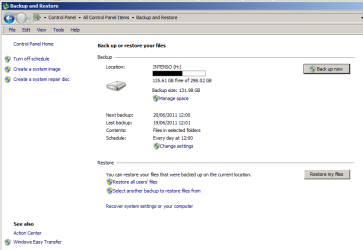
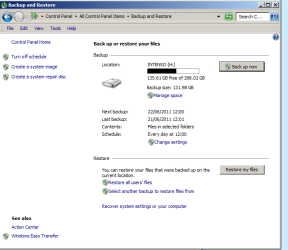
Everything is fine with what is showing in your screenshot. You do not have a Set up backup button anymore because you have already setup a backup schedule and created a backup. If you wanted to make changes to this, you would click on the Change Settings link instead now.

Not to be critcal of you at all since we were all new to this at one point, but the only issue I see is you not seeming to understand or follow what's outlined in the steps. You said you wanted to see what was backed up, so I pointed you to a link to click on the Restore My Files button to go through the steps just far enough to see what they are, then cancel the restore process. Afterwards, you go back to changing the backup settings with no mention of viewing the backup files. :confused:

We want to help you do what you are wanting as much as we can, but it is difficult when you are not staying on the same page or not being consistent. Let's start over again with a fresh slate by letting us know exactly what you wanted to do at this point now to see if we can iron this out for you. We'll get there. :)
 

My Computer My Computer

Computer type
PC/Desktop
Computer Manufacturer/Model Number
Self built custom
OS
64-bit Windows 11 Pro for Workstations
CPU
Intel i7-8700K OC'd to 5 GHz
Motherboard
ASUS ROG Maximus XI Formula Z390
Memory
64 GB (4x16GB) G.SKILL TridentZ RGB DDR4 3600 MHz
Graphics Card(s)
ASUS ROG-STRIX-GTX1080TI-O11G-GAMING
Sound Card
Integrated
Monitor(s) Displays
2 x Samsung Odyssey G7 27"
Screen Resolution
2560x1440
Hard Drives
1TB Samsung 990 PRO M.2,
4TB Samsung 990 PRO PRO M.2,
TerraMaster F8 SSD Plus NAS
PSU
Seasonic Prime Titanium 850W
Case
Thermaltake Core P3
Cooling
Corsair Hydro H115i
Keyboard
Logitech wireless K800
Mouse
Logitech MX Master 4
Internet Speed
2 Gb/s Download and 100 Mb/s Upload
Antivirus
Malwarebyte Anti-Malware Premium
Browser
Google Chrome
Other Info
Logitech Z625 speaker system,
Logitech BRIO 4K Pro webcam,
HP Color LaserJet Pro MFP M477fdn,
APC SMART-UPS RT 1000 XL - SURT1000XLI,
Galaxy S23 Plus phone
I understand and I'm not wanting to cause problems.

It seems to me, then, that the key to this is the phrase "go through the steps just far enough to see what they are, then cancel the restore process." In other words, we first have to cancel the default instructions on this computer, as they are causing this problem.

I don't know if this helps. But I timed the backup facility to go off at noon today. And it did do so (the "backup in progress" label came up and the color moved across the bar as it saved). So the problem doesn't seem to be with the timer not going off when set (set to operate an noon daily) since this "Backup in progress" label comes up and the colour moves across it as required.

But the updated folders are not saved. I know this because the updated folders I just attempted to save across to the external drive at noon contain 3 new files I deliberately put in there a week ago in order to test it, and they've not been saved on the external drive.

So it's what it's saving that's the issue and that needs to be addressed.

As for the objective, I want daily backups (ie updated versions) of those two folders ticked to be saved on the external hard drive.

Referring to the tutorial, again. Which of the steps am I up to?
 
Last edited:

My Computer My Computer

OS
64 bit
You're not causing any problems mate. :)

You're backup settings are fine. If you just navigate to and look at the backup folder contents in Windows Explorer, you will not be able to see what has or has not actually been backed up.

I have updated the restore backup tutorial below to help better with this. To see what files you have available in your backups, you would go through the steps in the tutorial to select the backup period and date (step 8) you would like to look at, then do steps 9 and 10 to see what files and folders are in it that can be restored. When you get to step 11, just click on cancel to backout of the restore process since you only wanted to view and not restore them.

http://www.sevenforums.com/tutorials/648-restore-backup-user-system-files.html
 

My Computer My Computer

Computer type
PC/Desktop
Computer Manufacturer/Model Number
Self built custom
OS
64-bit Windows 11 Pro for Workstations
CPU
Intel i7-8700K OC'd to 5 GHz
Motherboard
ASUS ROG Maximus XI Formula Z390
Memory
64 GB (4x16GB) G.SKILL TridentZ RGB DDR4 3600 MHz
Graphics Card(s)
ASUS ROG-STRIX-GTX1080TI-O11G-GAMING
Sound Card
Integrated
Monitor(s) Displays
2 x Samsung Odyssey G7 27"
Screen Resolution
2560x1440
Hard Drives
1TB Samsung 990 PRO M.2,
4TB Samsung 990 PRO PRO M.2,
TerraMaster F8 SSD Plus NAS
PSU
Seasonic Prime Titanium 850W
Case
Thermaltake Core P3
Cooling
Corsair Hydro H115i
Keyboard
Logitech wireless K800
Mouse
Logitech MX Master 4
Internet Speed
2 Gb/s Download and 100 Mb/s Upload
Antivirus
Malwarebyte Anti-Malware Premium
Browser
Google Chrome
Other Info
Logitech Z625 speaker system,
Logitech BRIO 4K Pro webcam,
HP Color LaserJet Pro MFP M477fdn,
APC SMART-UPS RT 1000 XL - SURT1000XLI,
Galaxy S23 Plus phone
Will try later and let you know.

:D

Okay, now one of the issues is that the screens on the tutorial are somewhat different from the Control, Panel window that you've seen from me.

To recap. Select all files option 7. I assume that we don't need to do this one, since I managed before to select just the two folders I need to save. (BTW - I'm presuming that once the backup has run, I should be able to check on the external drive to see that the updates have gone through successfully.)

Option 8 to select a different time and date. That's also displayed differently on the Control Panel here, though you've seen how it's used. (I wonder if the fact that we're looking at different screens is the problem?)

Option 9. This is now the problem. There is no "search" button to type in a file name. Again, this seems to be because we're looking at different Control Panel displays.

Here is my Control Panel again. How do I get to your different one?
 

Attachments

  • 1.png
    1.png
    16.8 KB · Views: 2
Last edited by a moderator:

My Computer My Computer

OS
64 bit
The screenshot you have posted is what you see at the end of step 2. In this screenshot, you would click on the Restore all users' files link (step 4).

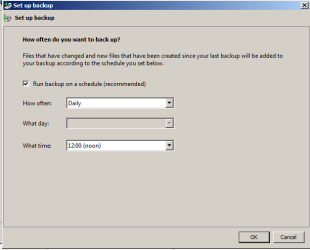
After step 6 and 8, do you see the date of the backup you want to view listed?

If so, then you should be able to view the files in that backup using steps 9, 10, and 11.
 

My Computer My Computer

Computer type
PC/Desktop
Computer Manufacturer/Model Number
Self built custom
OS
64-bit Windows 11 Pro for Workstations
CPU
Intel i7-8700K OC'd to 5 GHz
Motherboard
ASUS ROG Maximus XI Formula Z390
Memory
64 GB (4x16GB) G.SKILL TridentZ RGB DDR4 3600 MHz
Graphics Card(s)
ASUS ROG-STRIX-GTX1080TI-O11G-GAMING
Sound Card
Integrated
Monitor(s) Displays
2 x Samsung Odyssey G7 27"
Screen Resolution
2560x1440
Hard Drives
1TB Samsung 990 PRO M.2,
4TB Samsung 990 PRO PRO M.2,
TerraMaster F8 SSD Plus NAS
PSU
Seasonic Prime Titanium 850W
Case
Thermaltake Core P3
Cooling
Corsair Hydro H115i
Keyboard
Logitech wireless K800
Mouse
Logitech MX Master 4
Internet Speed
2 Gb/s Download and 100 Mb/s Upload
Antivirus
Malwarebyte Anti-Malware Premium
Browser
Google Chrome
Other Info
Logitech Z625 speaker system,
Logitech BRIO 4K Pro webcam,
HP Color LaserJet Pro MFP M477fdn,
APC SMART-UPS RT 1000 XL - SURT1000XLI,
Galaxy S23 Plus phone
Where on the screen shown is the Backup and Restore icon?
 

My Computer My Computer

OS
64 bit
That's not in the screenshot. You would click on Backup and Restore in the Control Panel (Icon views) first, then see the screenshot.
 

My Computer My Computer

Computer type
PC/Desktop
Computer Manufacturer/Model Number
Self built custom
OS
64-bit Windows 11 Pro for Workstations
CPU
Intel i7-8700K OC'd to 5 GHz
Motherboard
ASUS ROG Maximus XI Formula Z390
Memory
64 GB (4x16GB) G.SKILL TridentZ RGB DDR4 3600 MHz
Graphics Card(s)
ASUS ROG-STRIX-GTX1080TI-O11G-GAMING
Sound Card
Integrated
Monitor(s) Displays
2 x Samsung Odyssey G7 27"
Screen Resolution
2560x1440
Hard Drives
1TB Samsung 990 PRO M.2,
4TB Samsung 990 PRO PRO M.2,
TerraMaster F8 SSD Plus NAS
PSU
Seasonic Prime Titanium 850W
Case
Thermaltake Core P3
Cooling
Corsair Hydro H115i
Keyboard
Logitech wireless K800
Mouse
Logitech MX Master 4
Internet Speed
2 Gb/s Download and 100 Mb/s Upload
Antivirus
Malwarebyte Anti-Malware Premium
Browser
Google Chrome
Other Info
Logitech Z625 speaker system,
Logitech BRIO 4K Pro webcam,
HP Color LaserJet Pro MFP M477fdn,
APC SMART-UPS RT 1000 XL - SURT1000XLI,
Galaxy S23 Plus phone
Okay, that's the one I use.:D

Okay, so that's option 2 finished.

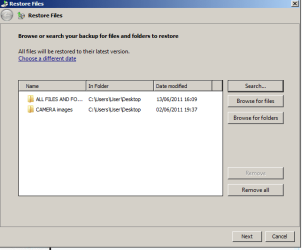
The next one that seems to fit is option 8, but the screen is different (see screen shot). However, the function is the one I used before (change date and time)

Okay, now I press the button "Restore Files." I don't want to change the date.

Now I got to this stage. These are the two folders I need to send these UPDATED versions of to the external hard drive (they presently only have the old versions of them).

What next?
 

Attachments

  • 1.png
    1.png
    7.5 KB · Views: 2
  • 2.png
    2.png
    9.4 KB · Views: 2

My Computer My Computer

OS
64 bit
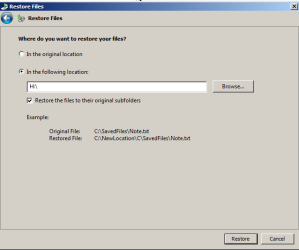
Okay, I'm up to this stage. Is it all in order? I want those 2 folders saved to H drive (external hard drive). What comes next?

What I don't want is to just carry on as though I'm on the right track, find out I'm not and then back to the start.:D I want to confirm this one step at a time, so that this can be concluded.

Do I simply press the "Restore" button? It it "restoring" the updated file? (Why label it as restore when it's actually an update?)

Should I leave the ticked box "Restore the files to their original subfolders"?
 

Attachments

  • 1.png
    1.png
    7.6 KB · Views: 1
Last edited:

My Computer My Computer

OS
64 bit
It's called restore instead of update because you are restore it from a backup. Since it's a backup, it's an older copy and not an update.

If you wanted to restore those two folders from your backup to your H drive, then yes you would click on Restore to do so. The "Restore the files to their original subfolders" option is to also keep all the contents in these backup folders in them as they were when restored to the H drive instead of extracted.
 

My Computer My Computer

Computer type
PC/Desktop
Computer Manufacturer/Model Number
Self built custom
OS
64-bit Windows 11 Pro for Workstations
CPU
Intel i7-8700K OC'd to 5 GHz
Motherboard
ASUS ROG Maximus XI Formula Z390
Memory
64 GB (4x16GB) G.SKILL TridentZ RGB DDR4 3600 MHz
Graphics Card(s)
ASUS ROG-STRIX-GTX1080TI-O11G-GAMING
Sound Card
Integrated
Monitor(s) Displays
2 x Samsung Odyssey G7 27"
Screen Resolution
2560x1440
Hard Drives
1TB Samsung 990 PRO M.2,
4TB Samsung 990 PRO PRO M.2,
TerraMaster F8 SSD Plus NAS
PSU
Seasonic Prime Titanium 850W
Case
Thermaltake Core P3
Cooling
Corsair Hydro H115i
Keyboard
Logitech wireless K800
Mouse
Logitech MX Master 4
Internet Speed
2 Gb/s Download and 100 Mb/s Upload
Antivirus
Malwarebyte Anti-Malware Premium
Browser
Google Chrome
Other Info
Logitech Z625 speaker system,
Logitech BRIO 4K Pro webcam,
HP Color LaserJet Pro MFP M477fdn,
APC SMART-UPS RT 1000 XL - SURT1000XLI,
Galaxy S23 Plus phone
Right, forgetting that. Am I on the right course for UPDATING those two folders (see screenshot above) on the external drive?
 

My Computer My Computer

OS
64 bit
What you are currently doing is not updating. In your screenshots, you are about to restore (extract a copy of) the two folders and their contents from the selected backup to your H drive. These two folders are older versions of them for when the backup was created.

If you wanted to update the backup instead, then you would need to click on the Back up now button instead in Backup and Restore (Control Panel) to create a new backup to have your current version of these two folders included in it.

It seems that we may have update and restore confused here. Please clarify if so.

Update = create new backup
Restore = restore copy of files/folders from a backup as they were when the backup was created.
 

My Computer My Computer

Computer type
PC/Desktop
Computer Manufacturer/Model Number
Self built custom
OS
64-bit Windows 11 Pro for Workstations
CPU
Intel i7-8700K OC'd to 5 GHz
Motherboard
ASUS ROG Maximus XI Formula Z390
Memory
64 GB (4x16GB) G.SKILL TridentZ RGB DDR4 3600 MHz
Graphics Card(s)
ASUS ROG-STRIX-GTX1080TI-O11G-GAMING
Sound Card
Integrated
Monitor(s) Displays
2 x Samsung Odyssey G7 27"
Screen Resolution
2560x1440
Hard Drives
1TB Samsung 990 PRO M.2,
4TB Samsung 990 PRO PRO M.2,
TerraMaster F8 SSD Plus NAS
PSU
Seasonic Prime Titanium 850W
Case
Thermaltake Core P3
Cooling
Corsair Hydro H115i
Keyboard
Logitech wireless K800
Mouse
Logitech MX Master 4
Internet Speed
2 Gb/s Download and 100 Mb/s Upload
Antivirus
Malwarebyte Anti-Malware Premium
Browser
Google Chrome
Other Info
Logitech Z625 speaker system,
Logitech BRIO 4K Pro webcam,
HP Color LaserJet Pro MFP M477fdn,
APC SMART-UPS RT 1000 XL - SURT1000XLI,
Galaxy S23 Plus phone
I'm unclear how this confusion was caused, since I mentioned several times that I want to save the updates and that this is the problem. If the screenshots I showed you were wrong, that's part of the problem that we need to address. This is also why I need to be clear (and to check regularly with you) at each stage that I'm on the right track, no matter how long it then takes.

As I've said before, I already have copies of the old versions but they have been updated and I want the updates saved.

Anyhow, going back to square one ... so is this the instructions?


How to Backup User and System Files in Windows 7


There are 16 parts. Do I have to go through them all?
 
Last edited:

My Computer My Computer

OS
64 bit
The confusion appears to be caused by either your lack of understanding the functionality of the "Backup and Restore" feature in Windows 7, and/or what we are trying to explain how to do what you wanted to do. We'll get there eventually though. :)

When you click on the "Back up now" button, it creates a time stamped backup of the current version of the selected two folders as they are on your computer now. This is what you would do after you have updated the same selected two folders (and contents) to create a new backup to have them saved in the new backup.

Before we go further, I need to make sure that we are on the same page at this point to avoid further confusion.

How to Backup User and System Files in Windows 7

There are 16 parts. Do I have to go through them all?

The steps are outlined like a flowchart. The steps with bold blue lettering in the step number indicates a choice if you want to do that or not. If not, move on to the next step without the blue lettering.

In your case, you would do either step 1 or 2, then do step 5 on to create a new backup of your already configured (selected files/folders) backup from the last backup.

http://www.sevenforums.com/tutorials/615-backup-user-system-files.html
 

My Computer My Computer

Computer type
PC/Desktop
Computer Manufacturer/Model Number
Self built custom
OS
64-bit Windows 11 Pro for Workstations
CPU
Intel i7-8700K OC'd to 5 GHz
Motherboard
ASUS ROG Maximus XI Formula Z390
Memory
64 GB (4x16GB) G.SKILL TridentZ RGB DDR4 3600 MHz
Graphics Card(s)
ASUS ROG-STRIX-GTX1080TI-O11G-GAMING
Sound Card
Integrated
Monitor(s) Displays
2 x Samsung Odyssey G7 27"
Screen Resolution
2560x1440
Hard Drives
1TB Samsung 990 PRO M.2,
4TB Samsung 990 PRO PRO M.2,
TerraMaster F8 SSD Plus NAS
PSU
Seasonic Prime Titanium 850W
Case
Thermaltake Core P3
Cooling
Corsair Hydro H115i
Keyboard
Logitech wireless K800
Mouse
Logitech MX Master 4
Internet Speed
2 Gb/s Download and 100 Mb/s Upload
Antivirus
Malwarebyte Anti-Malware Premium
Browser
Google Chrome
Other Info
Logitech Z625 speaker system,
Logitech BRIO 4K Pro webcam,
HP Color LaserJet Pro MFP M477fdn,
APC SMART-UPS RT 1000 XL - SURT1000XLI,
Galaxy S23 Plus phone
Ok, we both want to get there as quickly as possible. Will get back when I've a bit more time to go through this one. But you understand what I want.
 

My Computer My Computer

OS
64 bit
Back to this thing again. Where (step 3) is the Set up backup button? Don't forget that I want to save updates of folders. Here is my screen.
 

Attachments

  • 1.png
    1.png
    17.2 KB · Views: 1

My Computer My Computer

OS
64 bit
Once you set up a backup to backup the files/folders you have selected, you will no longer have a Set up backup button. The selected files/folders will be remembered and backed up each time manually ("Back up now" button) or automatically (scheduled) until changed.

From this point on, you would just have to click on the Back up now button to create a new updated backup copy of these same selected files/folders.

If you ever wanted to change what files/folders are selected to have a new updated backup of each time you click on the Back up now button, you would click on the Change settings link to do so.
 

My Computer My Computer

Computer type
PC/Desktop
Computer Manufacturer/Model Number
Self built custom
OS
64-bit Windows 11 Pro for Workstations
CPU
Intel i7-8700K OC'd to 5 GHz
Motherboard
ASUS ROG Maximus XI Formula Z390
Memory
64 GB (4x16GB) G.SKILL TridentZ RGB DDR4 3600 MHz
Graphics Card(s)
ASUS ROG-STRIX-GTX1080TI-O11G-GAMING
Sound Card
Integrated
Monitor(s) Displays
2 x Samsung Odyssey G7 27"
Screen Resolution
2560x1440
Hard Drives
1TB Samsung 990 PRO M.2,
4TB Samsung 990 PRO PRO M.2,
TerraMaster F8 SSD Plus NAS
PSU
Seasonic Prime Titanium 850W
Case
Thermaltake Core P3
Cooling
Corsair Hydro H115i
Keyboard
Logitech wireless K800
Mouse
Logitech MX Master 4
Internet Speed
2 Gb/s Download and 100 Mb/s Upload
Antivirus
Malwarebyte Anti-Malware Premium
Browser
Google Chrome
Other Info
Logitech Z625 speaker system,
Logitech BRIO 4K Pro webcam,
HP Color LaserJet Pro MFP M477fdn,
APC SMART-UPS RT 1000 XL - SURT1000XLI,
Galaxy S23 Plus phone
So I now press the Back Up Now button? That's all?

To reiterate, I don't want to save the existing folders on the external hard drive. I want to update them from the desktop folder, where updates exist, to the external drive. In other words, the backups are of the updates now on the desktop.


And how do I check that it's then backing the updated folders to the hard drive?
 

My Computer My Computer

OS
64 bit
Correct. When you click on "Back up now", it will create a new updated backup copy of the "selected" folders on your desktop to your "selected" external drive location automatically. :)
 

My Computer My Computer

Computer type
PC/Desktop
Computer Manufacturer/Model Number
Self built custom
OS
64-bit Windows 11 Pro for Workstations
CPU
Intel i7-8700K OC'd to 5 GHz
Motherboard
ASUS ROG Maximus XI Formula Z390
Memory
64 GB (4x16GB) G.SKILL TridentZ RGB DDR4 3600 MHz
Graphics Card(s)
ASUS ROG-STRIX-GTX1080TI-O11G-GAMING
Sound Card
Integrated
Monitor(s) Displays
2 x Samsung Odyssey G7 27"
Screen Resolution
2560x1440
Hard Drives
1TB Samsung 990 PRO M.2,
4TB Samsung 990 PRO PRO M.2,
TerraMaster F8 SSD Plus NAS
PSU
Seasonic Prime Titanium 850W
Case
Thermaltake Core P3
Cooling
Corsair Hydro H115i
Keyboard
Logitech wireless K800
Mouse
Logitech MX Master 4
Internet Speed
2 Gb/s Download and 100 Mb/s Upload
Antivirus
Malwarebyte Anti-Malware Premium
Browser
Google Chrome
Other Info
Logitech Z625 speaker system,
Logitech BRIO 4K Pro webcam,
HP Color LaserJet Pro MFP M477fdn,
APC SMART-UPS RT 1000 XL - SURT1000XLI,
Galaxy S23 Plus phone
Let's go over this again. I am on the control panel. I now press the Backup and Restore button?
 

My Computer My Computer

OS
64 bit
Back
Top