Solved Publisher 2010 - Snap To

robertg

New member
Local time
11:03 AM
Messages
30
In my 2003 version of Publisher, when I moved or drew something, I could choose to have it snap to layout guides, the ruler or other items. I can't figure out how to do this in Publisher 2010. Just trying to make things line up with the red alignment lines that appear is a joke. Is there somewhere I can set the "snap-to" function? Any help is appreciated.
 

My Computer My Computer

At a glance

Windows 7 Professional 64bit
OS
Windows 7 Professional 64bit
I am not very experienced in Publisher, so I am not certain what you mean.
Perhaps on the Page Design Tab - in the 'Guides' section

Also, I wonder if the following might be of any help:

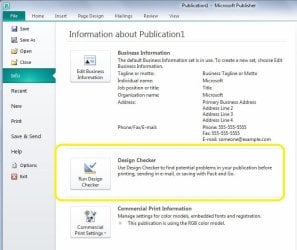
From the File tab - Info - Design Checker...
.
.
 

Attachments

  • Publisher Design checker.JPG
    Publisher Design checker.JPG
    61.2 KB · Views: 48

My Computer My Computer

At a glance

Windows 7 Home Premium 64bitIntel(R) Core(TM) i3-2120 CPU @ 3.30GHz3.00 GB(1) Intel(R) HD Graphics (2) VNC Mirror Driver
Computer type
PC/Desktop
Computer Manufacturer/Model Number
Packard Bell
OS
Windows 7 Home Premium 64bit
CPU
Intel(R) Core(TM) i3-2120 CPU @ 3.30GHz
Motherboard
Packard Bell IPISB-AG
Memory
3.00 GB
Graphics Card(s)
(1) Intel(R) HD Graphics (2) VNC Mirror Driver
Sound Card
Realtek High Definition Audio
Monitor(s) Displays
AIO LCD
Screen Resolution
1920 x 1080
Hard Drives
WDC WD10EADX-22TDHB0 ATA Device
Fixed hard disk media
4 partitions
931.51 GB
Keyboard
Wireless
Mouse
Wireless
Antivirus
Microsoft Security Essentials
Browser
IE; Firefox
Other Info
Also:
Samsung N220 Plus Netbook - Windows 7 Home
HP laptop
iPad 5
Thanks for the reply, Irene. Neither of your suggestions, however, address the situation. Thanks for the effort, though.
 

My Computer My Computer

At a glance

Windows 7 Professional 64bit
OS
Windows 7 Professional 64bit

My Computer My Computer

At a glance

Windows 7 Home Premium 64bitIntel(R) Core(TM) i3-2120 CPU @ 3.30GHz3.00 GB(1) Intel(R) HD Graphics (2) VNC Mirror Driver
Computer type
PC/Desktop
Computer Manufacturer/Model Number
Packard Bell
OS
Windows 7 Home Premium 64bit
CPU
Intel(R) Core(TM) i3-2120 CPU @ 3.30GHz
Motherboard
Packard Bell IPISB-AG
Memory
3.00 GB
Graphics Card(s)
(1) Intel(R) HD Graphics (2) VNC Mirror Driver
Sound Card
Realtek High Definition Audio
Monitor(s) Displays
AIO LCD
Screen Resolution
1920 x 1080
Hard Drives
WDC WD10EADX-22TDHB0 ATA Device
Fixed hard disk media
4 partitions
931.51 GB
Keyboard
Wireless
Mouse
Wireless
Antivirus
Microsoft Security Essentials
Browser
IE; Firefox
Other Info
Also:
Samsung N220 Plus Netbook - Windows 7 Home
HP laptop
iPad 5
Thanks for the link. What they're discussing in the 2007 and 2010 versions of Publisher apparently doesn't exist in my version of Publisher 2010 (version 14.0.5128.5000).

I have checked these locations:

HOME | ARRANGE | ALIGN
Nothing there about "snap to"

PAGE DESIGN | LAYOUT | ALIGN TO
This has check boxes to "align to" guides and objects. It isn't the same thing as "snap to". They're both checked and apparently give me the red alignment indicators that aren't worth much.

PAGE DESIGN | LAYOUT | GUIDES | GRID AND BASELINE GUIDES
Nothing here that addresses "snap to"

CUSTOMIZE QUICK ACCESS TOOLBAR | ALL COMMANDS
There was one command, "Snap to Ruler Marks" but it doesn't seem to do anything that I can tell.

The tabs across the top of my page are:
FILE, HOME, INSERT, PAGE DESIGN, MAILINGS, REVIEW, VIEW, and ACROBAT
When an object is chosen, two more come up - FORMAT DRAWING TOOLS and FORMAT TEXT BOX TOOLS. Again, I get alignment choices but no snap to.

In the other thread, Suzanne S Barnhill posted this:
In Word 2007 (and perhaps therefore in 2010 as well), there is a Grid
Settings dialog that can be accessed in numerous ways, but the only way to
access it without selecting a drawing object or the like is via Page Layout
| Arrange | Align | Grid Settings.

You can also use Format | Arrange | Align | Grid Settings on the Drawing
Tools, Organization Chart Tools, Chart Tools, Diagram Tools, SmartArt Tools,
Picture Tools, WordArt Tools, and Text Box Tools contextual tabs.

Regardless of how accessed, the dialog has a check box for "Snap objects to
grid whenthe gridlines are not displayed."
For the life of me, I can't find "Snap objects to grid when the gridlines are not displayed" anywhere, even following her directions because under "Align" the only option I find is "Relative to Margin Guides."

I appreciate all your help, but it's beginning to look like loading Publisher 2003 may be in order here.

 

My Computer My Computer

At a glance

Windows 7 Professional 64bit
OS
Windows 7 Professional 64bit
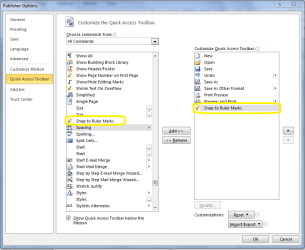
File > Options > Quick Access Toolbar

Choose commands from: All Commands

Scroll down and select "Snap to Ruler Marks"

Click "Add > >" button

Now the snap to function can be toggled from the quick access toolbar.

Oh, the grid guides are in the Page Design tab, Guides drop menu and Align to check boxes. Not sure how to snap-to a guide line that isn't displayed.

Hope that helps.

Regards,
GEWB
 

My Computer My Computer

At a glance

Linux Mint / XP / Win7 Home, Pro, Ultimate / ...
Computer type
PC/Desktop
Computer Manufacturer/Model Number
(7 different computers booting up to 10 systems)
OS
Linux Mint / XP / Win7 Home, Pro, Ultimate / Win8.1 / Win10
Other Info
Four desktops, two laptops, one notebook and one tablet
Thanks, GEWB but I already tried that. It doesn't do anything that I can tell. At least, it doesn't "snap to" anything. Grid lines aren't the point, either since I want to snap to all objects or ruler marks. I appreciate the input.
 

My Computer My Computer

At a glance

Windows 7 Professional 64bit
OS
Windows 7 Professional 64bit
Publisher 2010 Snap feature

Did you ever get your answer?
If not, try this ...

page design - layout - align to - objects
then select object 2 and drag it toward object 1
watch for the pink lines when you get close to another object
it's not better - just different - you'll get used to it - probably
 

My Computer My Computer

At a glance

win 7
OS
win 7
Thanks for the reply, stevecrest. I never did get a solution. I already know about the red lines and I'm not impressed since they are never consistent or accurate. You can have a red line when two objects are quite misaligned. I appreciate your post and it's nice to know someone cares about unanswered issues. Again, thanks.
 

My Computer My Computer

At a glance

Windows 7 Professional 64bit
OS
Windows 7 Professional 64bit
Is this the command which you are looking for? :
.
.
 

Attachments

  • Snap to Ruler.PNG
    Snap to Ruler.PNG
    28.7 KB · Views: 508

My Computer My Computer

At a glance

Windows 7 Home Premium 64bitIntel(R) Core(TM) i3-2120 CPU @ 3.30GHz3.00 GB(1) Intel(R) HD Graphics (2) VNC Mirror Driver
Computer type
PC/Desktop
Computer Manufacturer/Model Number
Packard Bell
OS
Windows 7 Home Premium 64bit
CPU
Intel(R) Core(TM) i3-2120 CPU @ 3.30GHz
Motherboard
Packard Bell IPISB-AG
Memory
3.00 GB
Graphics Card(s)
(1) Intel(R) HD Graphics (2) VNC Mirror Driver
Sound Card
Realtek High Definition Audio
Monitor(s) Displays
AIO LCD
Screen Resolution
1920 x 1080
Hard Drives
WDC WD10EADX-22TDHB0 ATA Device
Fixed hard disk media
4 partitions
931.51 GB
Keyboard
Wireless
Mouse
Wireless
Antivirus
Microsoft Security Essentials
Browser
IE; Firefox
Other Info
Also:
Samsung N220 Plus Netbook - Windows 7 Home
HP laptop
iPad 5
Right on, Irene! That's exactly it. I've even been through the options in the quick access toolbar before and tried this but it didn't seem to work. Maybe one of the Windows updates corrected something. Anyway, I tried it again and it works as it should. Thank you for the great solution.:thumbsup:
 

My Computer My Computer

At a glance

Windows 7 Professional 64bit
OS
Windows 7 Professional 64bit
Great! Enjoy.... ;)

irenec.gif
 

My Computer My Computer

At a glance

Windows 7 Home Premium 64bitIntel(R) Core(TM) i3-2120 CPU @ 3.30GHz3.00 GB(1) Intel(R) HD Graphics (2) VNC Mirror Driver
Computer type
PC/Desktop
Computer Manufacturer/Model Number
Packard Bell
OS
Windows 7 Home Premium 64bit
CPU
Intel(R) Core(TM) i3-2120 CPU @ 3.30GHz
Motherboard
Packard Bell IPISB-AG
Memory
3.00 GB
Graphics Card(s)
(1) Intel(R) HD Graphics (2) VNC Mirror Driver
Sound Card
Realtek High Definition Audio
Monitor(s) Displays
AIO LCD
Screen Resolution
1920 x 1080
Hard Drives
WDC WD10EADX-22TDHB0 ATA Device
Fixed hard disk media
4 partitions
931.51 GB
Keyboard
Wireless
Mouse
Wireless
Antivirus
Microsoft Security Essentials
Browser
IE; Firefox
Other Info
Also:
Samsung N220 Plus Netbook - Windows 7 Home
HP laptop
iPad 5
I am having the same issues. It's so frustrating. I have used publisher since Publisher 98 came out and never had problems like this one. I've tried all sorts of things, including 'snap to ruler' commands. None of them work. Why is it that every time Microsoft update the Office package they manage to leave out many of the good features that were in the original software? Meanwhile, I am going to reload Office 2007. I'm also finding it difficult to 'save as' in Word 2010. Where it used to be very simple to modify a document and use 'save as' to save it with a new file name, it now seems quite complex and requires several steps. I have even managed to lose files. :confused:

AHA! I think I've found a solution to the alignment problem! From the HOME tab, click on 'Align'. Select 'Relative To Margin Guides'. Then whenever you draw a text box etc, it will snap to the margin. This works regardless of whether or not you have the 'snap to ruler marks' box checked. I hope this help those of you who have become quite frustrated by this issue. :D
 
Last edited by a moderator:

My Computer My Computer

At a glance

Windows 7 Home Premium 32 bit
OS
Windows 7 Home Premium 32 bit
AHA! I think I've found a solution to the alignment problem! From the HOME tab, click on 'Align'. Select 'Relative To Margin Guides'. Then whenever you draw a text box etc, it will snap to the margin. This works regardless of whether or not you have the 'snap to ruler marks' box checked. I hope this help those of you who have become quite frustrated by this issue. :D

Thank you for that contribution, Kerba. :D
 

My Computer My Computer

At a glance

Windows 7 Home Premium 64bitIntel(R) Core(TM) i3-2120 CPU @ 3.30GHz3.00 GB(1) Intel(R) HD Graphics (2) VNC Mirror Driver
Computer type
PC/Desktop
Computer Manufacturer/Model Number
Packard Bell
OS
Windows 7 Home Premium 64bit
CPU
Intel(R) Core(TM) i3-2120 CPU @ 3.30GHz
Motherboard
Packard Bell IPISB-AG
Memory
3.00 GB
Graphics Card(s)
(1) Intel(R) HD Graphics (2) VNC Mirror Driver
Sound Card
Realtek High Definition Audio
Monitor(s) Displays
AIO LCD
Screen Resolution
1920 x 1080
Hard Drives
WDC WD10EADX-22TDHB0 ATA Device
Fixed hard disk media
4 partitions
931.51 GB
Keyboard
Wireless
Mouse
Wireless
Antivirus
Microsoft Security Essentials
Browser
IE; Firefox
Other Info
Also:
Samsung N220 Plus Netbook - Windows 7 Home
HP laptop
iPad 5
I think I've found a solution to the alignment problem! From the HOME tab, click on 'Align'. Select 'Relative To Margin Guides'. Then whenever you draw a text box etc, it will snap to the margin. This works regardless of whether or not you have the 'snap to ruler marks' box checked. I hope this help those of you who have become quite frustrated by this issue (as I have been!).:)
 

My Computer My Computer

At a glance

Windows 7 Home Premium 32 bit
OS
Windows 7 Home Premium 32 bit
GEWB,
Your solution worked for me (MS Publisher 2010 v.14). The trick in your instruction was to make sure "All Commands" was selected from the pulldown. Found the "snap to ruler markers" listed, added it, works great! The "no snap" has been driving me crazy for weeks. Whew!
Thanks,
CB
 

My Computer My Computer

At a glance

Windows 7 home
OS
Windows 7 home

My Computer My Computer

At a glance

Linux Mint / XP / Win7 Home, Pro, Ultimate / ...
Computer type
PC/Desktop
Computer Manufacturer/Model Number
(7 different computers booting up to 10 systems)
OS
Linux Mint / XP / Win7 Home, Pro, Ultimate / Win8.1 / Win10
Other Info
Four desktops, two laptops, one notebook and one tablet
Irene -- "Snap To" in Publisher 2010

Irene ... This is a reply to an o-l-d thread, but if it hasn't been solved, I hope you will be notified. As other respondents have said, you must go to the Home tab ... Options ... Quick Access Toolbar, and under "Choose Commands From," open the drop-down menu and select "All Commands." Scroll down and click on "Snap to Ruler Marks," click on the "Add" button, and then click on "OK."

This will place the "Snap to Ruler Marks" feature on the toolbar at the top of your page. It does NOT, however, automatically enable that feature. You then have to place a tic in the check box to the left of that command to activate it in your document. Only after placing the check mark will the "Snap to..." function. I hope that you've already discovered this feature, but if not, perhaps this will help.

I know what you mean about the Snap To feature being valuable. I use it not only for alignment, but also for centering objects on the page (feel free to ask about this if you want). Good luck with Publisher 2010.
 

My Computer My Computer

At a glance

Windows 7 Home Premium 32bit
Computer Manufacturer/Model Number
Dell
OS
Windows 7 Home Premium 32bit
Thanks Jerry, all contributions are very welcome. :D
 

My Computer My Computer

At a glance

Windows 7 Home Premium 64bitIntel(R) Core(TM) i3-2120 CPU @ 3.30GHz3.00 GB(1) Intel(R) HD Graphics (2) VNC Mirror Driver
Computer type
PC/Desktop
Computer Manufacturer/Model Number
Packard Bell
OS
Windows 7 Home Premium 64bit
CPU
Intel(R) Core(TM) i3-2120 CPU @ 3.30GHz
Motherboard
Packard Bell IPISB-AG
Memory
3.00 GB
Graphics Card(s)
(1) Intel(R) HD Graphics (2) VNC Mirror Driver
Sound Card
Realtek High Definition Audio
Monitor(s) Displays
AIO LCD
Screen Resolution
1920 x 1080
Hard Drives
WDC WD10EADX-22TDHB0 ATA Device
Fixed hard disk media
4 partitions
931.51 GB
Keyboard
Wireless
Mouse
Wireless
Antivirus
Microsoft Security Essentials
Browser
IE; Firefox
Other Info
Also:
Samsung N220 Plus Netbook - Windows 7 Home
HP laptop
iPad 5
Back
Top