Copy & Paste - in Windows Recovery Console

How to Copy & Paste in Recovery Console on Windows 7 or Vista

1) Boot from your Windows installation DVD/USB or System Repair Disc.

2) Click Repair my Computer
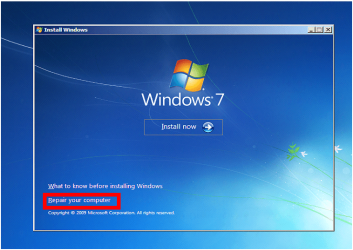
Capture1.PNG

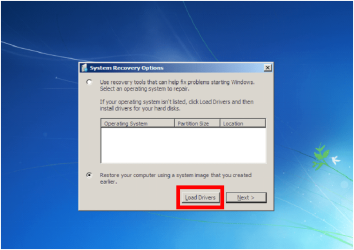
3) Click Load Drivers.
Capture2.PNG
4) Click OK
Capture3.PNG
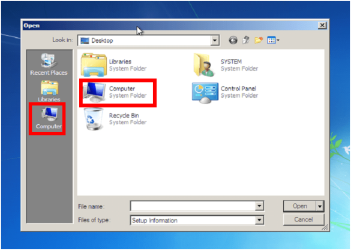
5) Click Computer.
Capture4.PNG
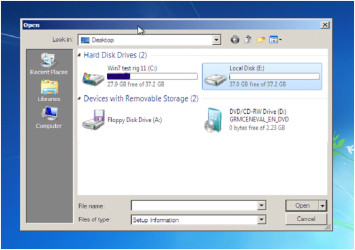
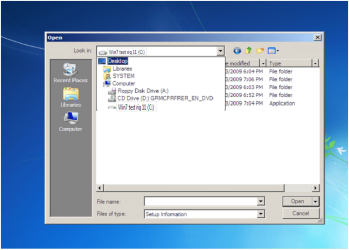
6) Choose the HD to copy from.
Capture5.PNG
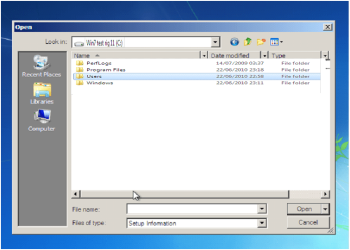
7) Choose the Data you want to copy
Capture6.PNG
Capture7.PNG
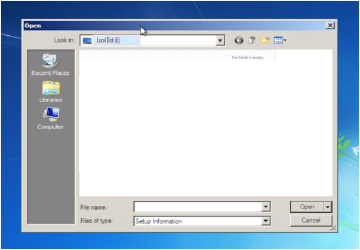
8) Choose the HD to paste to.
Capture8.PNG
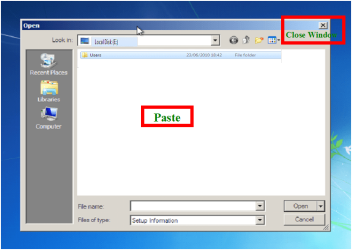
9) Close Window.
Capture9.PNG
10) Click Cancel.
Capture10.PNG
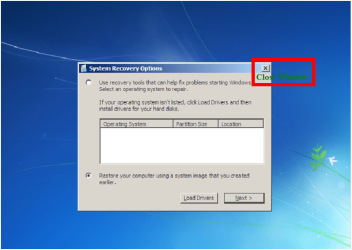
11) Close Window.
Capture11.PNG
12) Continue with Repair.


Note your PC's Hardrive must be readable.


Last edited by a moderator:
Just to follow up, I ended up finding out that by rebooting my PC and pressing F10 that I had the Sony Recovery options already stored in my HD. I went ahead and had it format everything and it was restored to factory conditions. Everything is working fine and I am transferring my data back over off my External HDD (your tutorial helped me transfer my data over) as we speak. Thanks a lot for everything!
 

My Computer My Computer

Computer Manufacturer/Model Number
Sony VGN-SR510G
OS
Windows 7 Pro 64 Bit
I tried to recover my original windows that's loaded on the (14GB) hidden recovery drive, but it seems those file are damaged, so I created a bootable flash memory and decided to have a fresh installation, but I ran to two problems regarding backing up my user profile.

1-my laptop cannot find my external HD - I tried the HD on my other laptop and it's working fine- is that because I have two USB connections ?

2-Since my laptop couldn't find my external HD, I tried to copy my user profile to the recovery hard drive. However, I got a permission error, but it did copy some trivial files only :confused:

just now I used the win7 installation CD that I had burned earlier, but it's not helping at all, it doesn't let me get to the recovery screen, the cd could be damaged too I don't really know :rolleyes:.. maybe I need to burn another copy ?

Please help, what I can do ?:cry:
 

My Computer My Computer

OS
Windows 7 Ultimate x64
I tried to recover my original windows that's loaded on the (14GB) hidden recovery drive, but it seems those file are damaged, so I created a bootable flash memory and decided to have a fresh installation, but I ran to two problems regarding backing up my user profile.

1-my laptop cannot find my external HD - I tried the HD on my other laptop and it's working fine- is that because I have two USB connections ?

2-Since my laptop couldn't find my external HD, I tried to copy my user profile to the recovery hard drive. However, I got a permission error, but it did copy some trivial files only :confused:

just now I used the win7 installation CD that I had burned earlier, but it's not helping at all, it doesn't let me get to the recovery screen, the cd could be damaged too I don't really know :rolleyes:.. maybe I need to burn another copy ?

Please help, what I can do ?:cry:

You may like to start a thread in
http://www.sevenforums.com/installation-setup/
Why do you need to reinstall?
We may be able to help you repair your PC.

   Information
We always assume you have made your Recovery Disks using the OEM manufacturer's Recovery Media Creator app the first day you had your new PC.
& made the Startup Repair CD.
startup repair disc-create


Did you make the OEM manufacturer's Recovery Disks?


For better help with problems, Can you post your specs.
http://www.sevenforums.com/general-discussion/22550-filling-out-system-specs.html
http://www.sevenforums.com/tutorials/180324-system-info-see-your-system-specs.html

http://www.sevenforums.com/hardware-devices/6936-dont-know-what-hardware-you-have.html
http://www.vistax64.com/tutorials/176785-vistaforums-sysinfo-tool.html
 

My Computer My Computer

OS
ME/XP/Vista/Win7
Why do you need to reinstall?

A virus attacked my laptop, the windows got corrupted while I was restoring the it. I'm not able to start my windows any more.

when I bought my DEL XPS I got it with the basic version of win7, I bought the ultimate upgrade CD which I though I lost it, but luckily founded yesterday after my previous post. I tried it and it took me to the recovery screens, but it's not able to recover my basic version nor repair the current one. I just wanna have a fresh one but I need to back up my user profile.

I'm still unable to see my extremal HD :confused:

Do I need to post my problem somewhere else ?


Did you make the OEM manufacturer's Recovery Disks?
No , i don't need it because I have the CD
 

My Computer My Computer

OS
Windows 7 Ultimate x64
I will try that when I go back home, still at work :S... but I'm wondering how Paragon will make the recovery to recognized my external HD ?
 

My Computer My Computer

OS
Windows 7 Ultimate x64
I will try that when I go back home, still at work :S... but I'm wondering how Paragon will make the recovery to recognized my external HD ?

The windows DVD May be having problems with the drivers for your external HD
 

My Computer My Computer

OS
ME/XP/Vista/Win7
I was able to fix the repair files using the following command:
D:\windows\systems32>sfc /scannow /offbootdir=d:\ /offwindir=d:\windows

it scanned the integrity and repaired the damaged files.. then I was able to restore my windows at least :party::party:

Now I'm fighting this virus (AV Gaurd) which it's still on my system
picnic.gif


Thank you "theog" for your time. :)
 

My Computer My Computer

OS
Windows 7 Ultimate x64
I was able to fix the repair files using the following command:
D:\windows\systems32>sfc /scannow /offbootdir=d:\ /offwindir=d:\windows

it scanned the integrity and repaired the damaged files.. then I was able to restore my windows at least :party::party:

Now I'm fighting this virus (AV Gaurd) which it's still on my system
picnic.gif


Thank you "theog" for your time. :)

Download the liveCD & Run, this is a free tool from MS:
http://www.sevenforums.com/tutorials/166445-microsoft-standalone-system-sweeper.html?ltr=M
 

My Computer My Computer

OS
ME/XP/Vista/Win7
How to Rescue files using F8 Repair console

For quite some time we've been giving out the handy method to rescue files from unbootable Win7 using the Repair CD or Installation DVD, by clicking on the Load Drivers link below the window where it discovers (or not) an installation to repair: Copy & Paste - in Windows Recovery Console

This opens a mini-Explorer which can browse anywhere on the System, rightclick>Copy a folder or file, then browse to an external or USB flash stick to rightclick>paste the files. It often runs into trouble trying to paste to DVD/CD when you remove the Install/Repair disk for this purpose.

Previously it wasn't thought this could be done using the F8 System Recovery Options because there is no such Load Drivers link offered. However it turns out there is, it is just hidden. Click on Recover Using A System Image, then Select A System Image, then Advanced, then Install A Driver, then OK to the message box. Copy and paste to your heart's delight, including to a DVD/CD without interference from the boot disk's removal.
 
Last edited:
If you can use the F8 key to enter the Recovery Console from the HD Drive, the OS is most likely repairable.

http://www.sevenforums.com/tutorials/181058-sata-drivers-load-windows-system-image-recovery.html

Please explain how it is any more reparable from F8 than from disk?

I have repeated failures of OP's trying to copy files from DVD/Repair CD mini-explorer to CD or DVD. After replacing disk the screen will not refresh to show empty disk to copy onto. Do you know a workaround to this, Ray, other than using a USB drive?
 
Please explain how it is any more reparable from F8 than from disk?

When F8 is booting you are most likely going towards low Corruption/good HD drive.
When F8 is not booting you are most likely going towards high Corruption/bad HD drive.
But not set in stone.


I have repeated failures of OP's trying to copy files from DVD/Repair CD mini-explorer to CD or DVD. After replacing disk the screen will not refresh to show empty disk to copy onto. Do you know a workaround to this, Ray, other than using a USB drive?

theog said:
7) Choose the HD to paste to.

Note your PC's Hardrive must be readable.

theog said:
If you have a External HD, you could copy & paste your data.

copy-paste-windows-recovery-console


than copy & paste your data to new HD.

I personally would not tell a OP to copy & paste to a CD/DVD.
 

My Computer My Computer

OS
ME/XP/Vista/Win7
Unable to detect external HDD

Hi,
I tried to use the copy-paste method for an unbootable windows 7 disk. The recovery console can read my HD but not my external HD. It does not show up in the list.

What can i do?

Please advise.

Regards,
Neel
 

My Computer My Computer

OS
Windows 7 Home Premium 64 Bit
Thanks! Brilliant suggestion of making it a slave. Let me try that.

Lastly, when i use the "Startup Repair" option, it says that chksk failed "System volume on disk is corrupt". File system repair, chkdsk failed. Anything i can do to fix? I can get the command prompt and browse my disk. Can I use fixmbr or something to fix the disk?
 

My Computer My Computer

OS
Windows 7 Home Premium 64 Bit

My Computer My Computer

OS
ME/XP/Vista/Win7
It looks great but am I missing something? I mean, where's the program to download? Or is this something already in Windows 7?

If so, how do I get the the very first screen of your tutorial?
Thanks Rich:confused:
 

My Computer My Computer

Computer type
PC/Desktop
Computer Manufacturer/Model Number
Custom Built
OS
Microsoft Windows 7 Home Premium 64-bit 7601 Multiprocessor Free Service Pack 1
CPU
Intel(R) Core(TM) i7-4790K CPU @ 4.00GHz
Motherboard
MSI Z97 MPOWER MAX AC (MS-7888)
Memory
G-Skill 24ooMhz (2x8GB)16.00 GB
Graphics Card(s)
NVIDIA GeForce GTX 1070
Sound Card
(1) USB Audio Class 1.0 and 2.0 Device Driver (2) NVIDIA H
Monitor(s) Displays
Acer 28" 4K Monitor
Screen Resolution
2560 x 1440 x 32 bits (4294967296 colors) @ 59 Hz
Hard Drives
(1) Crucial_CT500MX200SSD1 ATA Device (2) Crucial_CT500MX200SSD1 ATA Device (3) Crucial_CT512MX100SSD1 ATA Device (4) PLEXTOR PX-256M5Pro ATA Device (5) Samsung SSD 840 EVO 500GB ATA Device (6) Generic- USB3.0 CRW-CF/MD USB Device (7) Gen
PSU
Corsair RM1000i 1000w PSU
Case
Corsair Graphite Series 780T
Cooling
Swiftech H220 and additional Swiftech 120mm radiator
Keyboard
Logitech G910
Mouse
G602
Internet Speed
150 Mb/ps
Antivirus
Malwarebytes & MSE
Browser
Google Chrome
Other Info
All Liquid cooling radiators are stradled by 120mm fans in a Push/Pull config.
Back
Top