Solved Re-Installed windows 7 home premium, now RECOVERY(C:) drive is full.

LaurenTrumpe

New member
Local time
7:34 AM
Messages
20
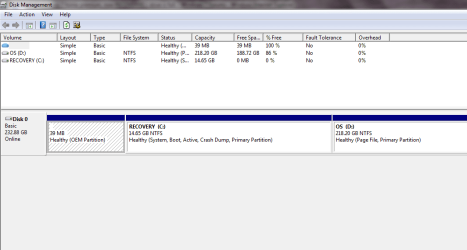
Hi! my laptop recently erased all of its windows 7 files, I took it too geeksquad and they explained to me that I needed to get the operating system disk and I could install it and everything would be okay. I installed everything properly I thought, but when i tried to install all of my updates again I got that I was very low on space and i couldn't install the updates. I know I have well over enough space on my laptop, I tried to restore to factory settings and that didn't work, and the previous version of windows 7 is still on the computer which is useless. If anyone can help me I will greatly apreciate it. Thanks

Its A Dell Insprion 1440. I would include a picture but it wouldn't let me save it.
 

My Computer My Computer

At a glance

Windows 7 Home Premium 64bit.
OS
Windows 7 Home Premium 64bit.
It seems that you accidentally installed windows 7 onto your Recovery partition. While not ideal this can be remedied. You could attempt to install Windows again, but this time, delete all partitions and create a new one with the unallocated space and install again. It should be possible to delete the old partition and extend the one you currently have Windows 7 installed to, although I remember that this is usually difficult to do. If you do not wish to reinstall Windows again, I will be asking gregrocker, our resident expert on such matters, to take a look at this thread just in case.
 

My Computer My Computer

At a glance

Windows 7 Professional SP1 64-bitIntel Core i5-2450M @2.5 GHz6 GB DDR3 1333MHzIntel HD 3000
Computer type
Laptop
Computer Manufacturer/Model Number
Toshiba P775-S7100
OS
Windows 7 Professional SP1 64-bit
CPU
Intel Core i5-2450M @2.5 GHz
Memory
6 GB DDR3 1333MHz
Graphics Card(s)
Intel HD 3000
Monitor(s) Displays
Built-in 17.3" LED; 22" Insignia NS-L22Q-10A
Screen Resolution
1600x900; 1360x768
Hard Drives
750 GB Hitachi
1TB Seagate FreeAgent External
Internet Speed
Verizon DSL Speed(Down/Up): 3360 Kbps / 800 Kbps
Antivirus
MSE and MBAM Pro
Browser
IE10
Thanks for taking the time out to reply to my post, it sounds difficult to do could you or your friend explain the steps through this?
 

My Computer My Computer

At a glance

Windows 7 Home Premium 64bit.
OS
Windows 7 Home Premium 64bit.
To do a clean install refer to the link below which will take you to a very well written turorial on this site. Note when you get to step 7 and 8, choose to delete the partitions and then select the unallocated space as where you want to install Windows. If you want to delete the old Windows partition and extend the current one, I would wait for Greg to reply to this thread. I could try to get you through it but I honestly think he could do a much better job of it.

http://www.sevenforums.com/tutorials/1649-clean-install-windows-7-a.html
 

My Computer My Computer

At a glance

Windows 7 Professional SP1 64-bitIntel Core i5-2450M @2.5 GHz6 GB DDR3 1333MHzIntel HD 3000
Computer type
Laptop
Computer Manufacturer/Model Number
Toshiba P775-S7100
OS
Windows 7 Professional SP1 64-bit
CPU
Intel Core i5-2450M @2.5 GHz
Memory
6 GB DDR3 1333MHz
Graphics Card(s)
Intel HD 3000
Monitor(s) Displays
Built-in 17.3" LED; 22" Insignia NS-L22Q-10A
Screen Resolution
1600x900; 1360x768
Hard Drives
750 GB Hitachi
1TB Seagate FreeAgent External
Internet Speed
Verizon DSL Speed(Down/Up): 3360 Kbps / 800 Kbps
Antivirus
MSE and MBAM Pro
Browser
IE10
Okay I will wait thank you very much :)
 

My Computer My Computer

At a glance

Windows 7 Home Premium 64bit.
OS
Windows 7 Home Premium 64bit.
Can you post up a screenshot of your maximized Disk management drive map and listings, using the Snipping Tool in Start Menu?

Type DIsk Management in Start Search box, open it and maximize.

Create a Rectangular Snip and attach in reply using Paper Clip. We can help you better this way.
 
How do i put the images on here? Sorry im a rookie
 

My Computer My Computer

At a glance

Windows 7 Home Premium 64bit.
OS
Windows 7 Home Premium 64bit.
In the quick reply box at the bottom of the screen click the paper clip with is to the right of the smily face icon. A window should open. From there, click browse, select the image you want, and then click upload. Then click the little arrow next to the paper click and select the image you uploaded. The image will be attached to the post automatically.
.
 

My Computer My Computer

At a glance

Windows 7 Professional SP1 64-bitIntel Core i5-2450M @2.5 GHz6 GB DDR3 1333MHzIntel HD 3000
Computer type
Laptop
Computer Manufacturer/Model Number
Toshiba P775-S7100
OS
Windows 7 Professional SP1 64-bit
CPU
Intel Core i5-2450M @2.5 GHz
Memory
6 GB DDR3 1333MHz
Graphics Card(s)
Intel HD 3000
Monitor(s) Displays
Built-in 17.3" LED; 22" Insignia NS-L22Q-10A
Screen Resolution
1600x900; 1360x768
Hard Drives
750 GB Hitachi
1TB Seagate FreeAgent External
Internet Speed
Verizon DSL Speed(Down/Up): 3360 Kbps / 800 Kbps
Antivirus
MSE and MBAM Pro
Browser
IE10
Got It!

There's a 2nd picture
 

Attachments

  • Untitled.png
    Untitled.png
    16.3 KB · Views: 59
  • Untitled.png
    Untitled.png
    70 KB · Views: 52
Last edited by a moderator:

My Computer My Computer

At a glance

Windows 7 Home Premium 64bit.
OS
Windows 7 Home Premium 64bit.
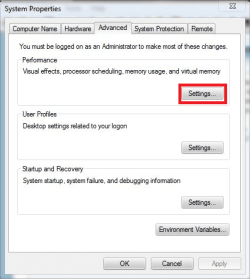
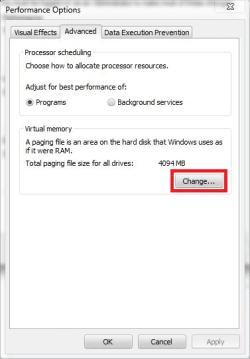
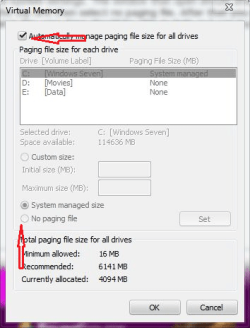
Sorry it took a while to write back. Greg seems to busy at the moment, and I am currently try to help a couple other people with there issues. Your page file is currently on your D drive, so it will have to be turned off first. Open the start menu, right-click Computer and click properties. From there, click advanced system settings. The window that open should already be in the advenced tab. Click settings under performance, go to the advanced tab in that window and click change under Virtual Memory. Uncheck the box at the top and then select no paging file. After that you should be able to follow the steps in the links below, but I seem to recall extending the partition your current OS is on as impossible to do within Windows 7. If that is the case Greg should be able to help or I can try to find the relevent information for doing this myself.

http://www.sevenforums.com/tutorials/2668-partition-volume-delete.html
http://www.sevenforums.com/tutorials/2670-partition-volume-extend.html
 

My Computer My Computer

At a glance

Windows 7 Professional SP1 64-bitIntel Core i5-2450M @2.5 GHz6 GB DDR3 1333MHzIntel HD 3000
Computer type
Laptop
Computer Manufacturer/Model Number
Toshiba P775-S7100
OS
Windows 7 Professional SP1 64-bit
CPU
Intel Core i5-2450M @2.5 GHz
Memory
6 GB DDR3 1333MHz
Graphics Card(s)
Intel HD 3000
Monitor(s) Displays
Built-in 17.3" LED; 22" Insignia NS-L22Q-10A
Screen Resolution
1600x900; 1360x768
Hard Drives
750 GB Hitachi
1TB Seagate FreeAgent External
Internet Speed
Verizon DSL Speed(Down/Up): 3360 Kbps / 800 Kbps
Antivirus
MSE and MBAM Pro
Browser
IE10
Sorry it took a while to write back. Greg seems to busy at the moment, and I am currently try to help a couple other people with there issues. Your page file is currently on your D drive, so it will have to be turned off first. Open the start menu, right-click Computer and click properties. From there, click advanced system settings. The window that open should already be in the advenced tab. Click settings under performance, go to the advanced tab in that window and click change under Virtual Memory. Uncheck the box at the top and then select no paging file. After that you should be able to follow the steps in the links below, but I seem to recall extending the partition your current OS is on as impossible to do within Windows 7. If that is the case Greg should be able to help or I can try to find the relevent information for doing this myself.

http://www.sevenforums.com/tutorials/2668-partition-volume-delete.html
http://www.sevenforums.com/tutorials/2670-partition-volume-extend.html

Here's some screenshots to go with Petey's instructions,
 

Attachments

  • ss1.png
    ss1.png
    36.3 KB · Views: 8
  • ss2.png
    ss2.png
    25.2 KB · Views: 9
  • ss3.png
    ss3.png
    39.9 KB · Views: 10

My Computer My Computer

At a glance

Win 10 Pro x64Intel I5-2500K @3.3GHz16GB G.Skill Ripjaws X (4x4GB)EVGA GeForce 750 Ti SC 2GB
Computer type
PC/Desktop
Computer Manufacturer/Model Number
Self Built
OS
Win 10 Pro x64
CPU
Intel I5-2500K @3.3GHz
Motherboard
Asrock P67 Extreme4
Memory
16GB G.Skill Ripjaws X (4x4GB)
Graphics Card(s)
EVGA GeForce 750 Ti SC 2GB
Sound Card
ASUS Xonar DG 5.1 Channels 24-bit 96KHz PCI Interface Sound
Monitor(s) Displays
auria eq2367
Screen Resolution
1920 x 1080
Hard Drives
250GB Samsung 850 EVO SSD
1TB WD Blue
1TB Hitachi
PSU
SeaSonic X 650W 80 Plus Gold
Case
Corsair Obsidian 750D
Cooling
Corsair H60, Three 140mm case fans
Keyboard
Logitech Wireless Keyboard K520
Mouse
Logitech Wireless Mouse M310
Internet Speed
Wave Broadband ~ 100 dn 5 up
Antivirus
Windows Defender, Malwarebytes Premium
Browser
Edge, IE11, Chrome
Other Info
Laptop specs: HP g7-1365dx /
CPU: AMD A6-3420M APU with Radeon(tm) HD Graphics /
RAM: Crucial 8Gb (2x4Gb) /
SSD: Crucial M4-CT128M4SSD2 ATA Device/ FW 000F /
GFX: AMD Radeon HD 6520G /
OS: Windows 10 Pro x64
Hi Lauren -

Petey is exactly right about the need for deleting the page file on D so you can delete D and extend C into its space. Derek has provided you screenshots to make it even easier.

Hopefully you can save the install you accidentally did to the Recovery Partition as long as the performance is good and it all sorts out satisfactorily. If not clean reinstall following these steps to get a perfect reinstall of factory OEM: Reinstalling Windows 7. Check these steps to help you finish setup after the issues are resolved.

Here is a link to a thread today with the identical issue if special commands are required to delete D: http://www.sevenforums.com/installa...k-space-after-reinstalling-windows-seven.html. It is unusual to have two identical rare reinstall issues on the same day but proves that is it not hard to do.
 
Last edited:
Ok thank you very much Petey & Greg, you guys are a lifesaver truely =)
 

My Computer My Computer

At a glance

Windows 7 Home Premium 64bit.
OS
Windows 7 Home Premium 64bit.
Sorry it took a while to write back. Greg seems to busy at the moment, and I am currently try to help a couple other people with there issues. Your page file is currently on your D drive, so it will have to be turned off first. Open the start menu, right-click Computer and click properties. From there, click advanced system settings. The window that open should already be in the advenced tab. Click settings under performance, go to the advanced tab in that window and click change under Virtual Memory. Uncheck the box at the top and then select no paging file. After that you should be able to follow the steps in the links below, but I seem to recall extending the partition your current OS is on as impossible to do within Windows 7. If that is the case Greg should be able to help or I can try to find the relevent information for doing this myself.

http://www.sevenforums.com/tutorials/2668-partition-volume-delete.html
http://www.sevenforums.com/tutorials/2670-partition-volume-extend.html

Here's some screenshots to go with Petey's instructions,

Thank You So Much:)
 

My Computer My Computer

At a glance

Windows 7 Home Premium 64bit.
OS
Windows 7 Home Premium 64bit.
Back
Top