
How to Create a Custom MSC in Microsoft Management Console in Windows
Information
This will show you how to add MSC snap-ins of your choice (ex: gpedit.msc and compmgmt.msc) in the Microsoft Management Console to then save it as a custom MSC file to always open this file with the added snap-ins included in Vista, Windows 7, and Windows 8.
You can place this custom.msc file where you like for easy use, or create a shortcut of the custom.msc file (if saved at C:\Windows\System32) to use the shortcut where you like instead.
You can place this custom.msc file where you like for easy use, or create a shortcut of the custom.msc file (if saved at C:\Windows\System32) to use the shortcut where you like instead.
Note
The settings below will be remembered when you save your custom MSC console, and each time you close it afterwards.
- Column widths
- Action pane (off/on)
- Default opening location/position
- Window size
EXAMPLE: Custom MSC File
NOTE: For example, I created a custom MSC file that has the gpedit.msc (Local Group Policy Object Editor) and compmgmt.msc (Computer Management) snap-in added in one MSC console. The custom MSC file will open with these two snap-ins, or the ones you added, always included.

Here's How: 1. Press the Windows + R keys to open the Run dialog, type mmc in the search box, and press Enter.
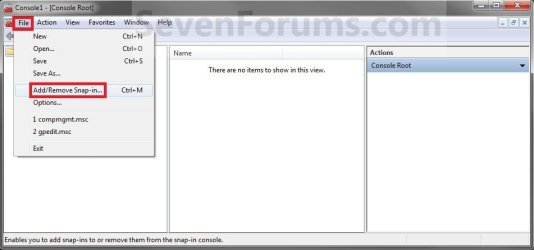
2. Click/tap on File (menu bar) and Add/Remove Snap-in. (see screenshot below)
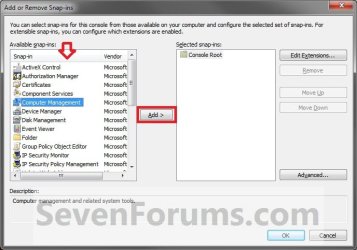
3. In the left pane, select the msc snap-in (ex: Computer Management) you want to add, and click on the Add button in the middle. (see screenshot below)
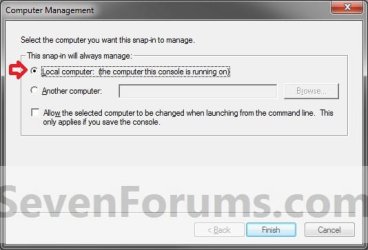
4. If you get option dialog windows for the snap-in, then you can set them to how you like, and click/tap on Next, OK, or Finish until finished. (see screenshots below)
NOTE: Each snap-in will have it's own set of options.
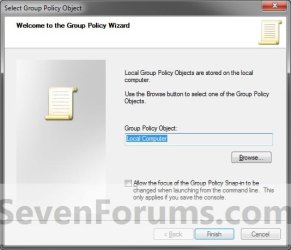
5. Repeat steps 3 and 4 until you added all of the snap-ins that you want in the right pane for this custom MSC file. For example, I wanted to add gpedit.msc (Group Policy Object Editor) as well. (see screenshot below)
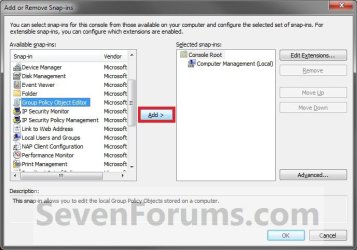
6. When done, click/tap on OK. (see screenshot above)
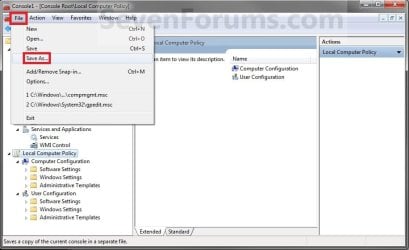
7. Click/tap on File (menu bar) and Save As. (see screenshot below)
8. Navigate to where you want to save this custom .msc file to, type in a name for it, and click/tap on Save. (see screenshot below)
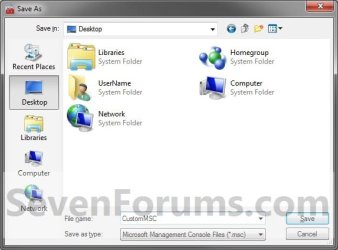
9. You now have a custom MSC file that you can click on to always open a management console with the snap-ins you added for it. Move it to where you like for easy use.
NOTE: You could also Pin to Taskbar or Pin to Start Menu this MSC file.
That's it,
Shawn
Last edited:


