Microsoft Mangement Console - Create Custom MSC

How to Create a Custom MSC in Microsoft Management Console in Windows

   Information
This will show you how to add MSC snap-ins of your choice (ex: gpedit.msc and compmgmt.msc) in the Microsoft Management Console to then save it as a custom MSC file to always open this file with the added snap-ins included in Vista, Windows 7, and Windows 8.

You can place this custom.msc file where you like for easy use, or create a shortcut of the custom.msc file (if saved at C:\Windows\System32) to use the shortcut where you like instead.

   Note
The settings below will be remembered when you save your custom MSC console, and each time you close it afterwards.
  • Column widths
  • Action pane (off/on)
  • Default opening location/position
  • Window size
If you decide you do not want the custom MSC file you created using this tutorial at a later date, then you can always just delete it like any other file without any problems doing so.


EXAMPLE: Custom MSC File
NOTE: For example, I created a custom MSC file that has the gpedit.msc (Local Group Policy Object Editor) and compmgmt.msc (Computer Management) snap-in added in one MSC console. The custom MSC file will open with these two snap-ins, or the ones you added, always included. Step5.jpg
Here's How: 1. Press the Windows + R keys to open the Run dialog, type mmc in the search box, and press Enter.

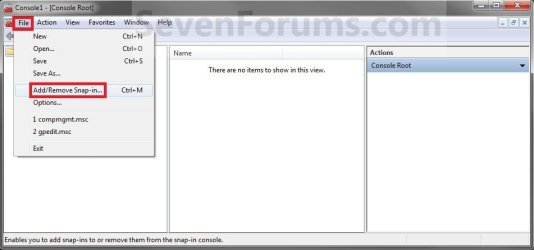
2. Click/tap on File (menu bar) and Add/Remove Snap-in. (see screenshot below) Step1.jpg
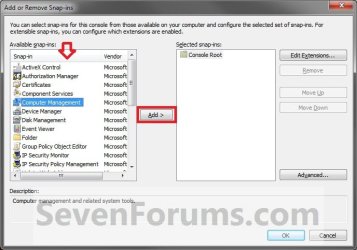
3. In the left pane, select the msc snap-in (ex: Computer Management) you want to add, and click on the Add button in the middle. (see screenshot below) Step2.jpg
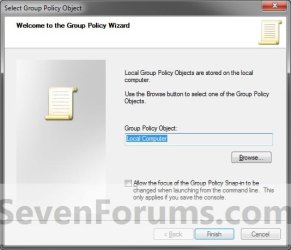
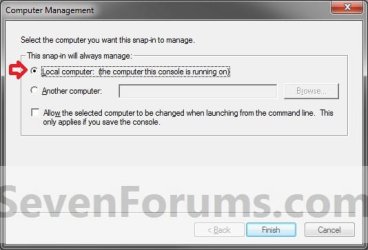
4. If you get option dialog windows for the snap-in, then you can set them to how you like, and click/tap on Next, OK, or Finish until finished. (see screenshots below)
NOTE: Each snap-in will have it's own set of options. Step3.jpg
Step3B.jpg
5. Repeat steps 3 and 4 until you added all of the snap-ins that you want in the right pane for this custom MSC file. For example, I wanted to add gpedit.msc (Group Policy Object Editor) as well. (see screenshot below) Step4.jpg
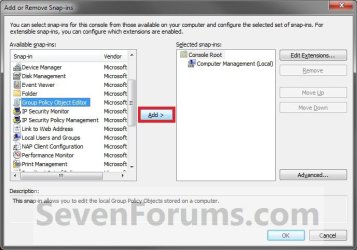
6. When done, click/tap on OK. (see screenshot above)

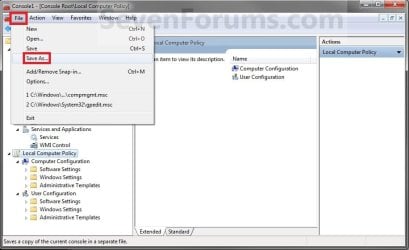
7. Click/tap on File (menu bar) and Save As. (see screenshot below) Step6.jpg
8. Navigate to where you want to save this custom .msc file to, type in a name for it, and click/tap on Save. (see screenshot below) Step7.jpg
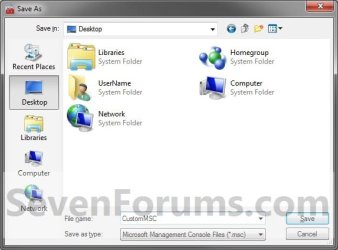
9. You now have a custom MSC file that you can click on to always open a management console with the snap-ins you added for it. Move it to where you like for easy use.
NOTE: You could also Pin to Taskbar or Pin to Start Menu this MSC file.
That's it,
Shawn


Last edited:
Last edited:

My Computer

Computer type
PC/Desktop
Computer Manufacturer/Model Number
n/a
OS
W7 Ultimate SP1, LM19.2 MATE, W10 Home 1703, W10 Pro 1703 VM, #All 64 bit
CPU
AMD Phenom II x6 1100T, 3.3 GHz
Motherboard
ASUS M4A88T-M/USB3 (AM3)
Memory
12GB DDR3 1333 G-Skill (4GB x 2), G-Skill (2GB x 2)
Graphics Card(s)
NVIDIA GeForce GTX 660
Sound Card
Realtek?
Monitor(s) Displays
Samsung S23B350
Screen Resolution
1920x1080
Hard Drives
WD Green 2TB (SATA), WD Green 3TB (SATA), WD Blue 4TB (SATA), WD Blue 6TB (SATA)
PSU
Cooler Master
Case
Antec GX300 Tower
Cooling
3x Antec TRICOOL 120mm Fans
Mouse
Wired Optical
Internet Speed
DSL
Antivirus
Avast
Browser
Pale Moon (64 bit)
Other Info
2018-12-27 Upgraded HDDs
2015-12-10 Upgraded case, graphics card, storage
2015-08-15 Upgraded motherboard & RAM
2015-07-15 Upgraded LM17.1 to LM17.2
Thank you Lehnerus. Added. It also remembers them for when last closed as well. :)
 

My Computer

Computer type
PC/Desktop
Computer Manufacturer/Model Number
Self built custom
OS
64-bit Windows 11 Pro for Workstations
CPU
Intel i7-8700K OC'd to 5 GHz
Motherboard
ASUS ROG Maximus XI Formula Z390
Memory
64 GB (4x16GB) G.SKILL TridentZ RGB DDR4 3600 MHz
Graphics Card(s)
ASUS ROG-STRIX-GTX1080TI-O11G-GAMING
Sound Card
Integrated
Monitor(s) Displays
2 x Samsung Odyssey G7 27"
Screen Resolution
2560x1440
Hard Drives
1TB Samsung 990 PRO M.2,
4TB Samsung 990 PRO PRO M.2,
TerraMaster F8 SSD Plus NAS
PSU
Seasonic Prime Titanium 850W
Case
Thermaltake Core P3
Cooling
Corsair Hydro H115i
Keyboard
Logitech wireless K800
Mouse
Logitech MX Master 4
Internet Speed
2 Gb/s Download and 100 Mb/s Upload
Antivirus
Malwarebyte Anti-Malware Premium
Browser
Google Chrome
Other Info
Logitech Z625 speaker system,
Logitech BRIO 4K Pro webcam,
HP Color LaserJet Pro MFP M477fdn,
APC SMART-UPS RT 1000 XL - SURT1000XLI,
Galaxy S23 Plus phone
Thank you Lehnerus. Added.

No problems (and thank you for writing so many good tutorials in the first place). :)
It just came up on mickey megabyte's thread and when I checked to see if I needed to write a tutorial, I found your one.

It's easy to forget a small detail (or two) when writing instructions.

Although I have only posted 2 (official) tutorials, I am still paranoid that I've forgotten something important/obvious. :(

It also remembers them for when last closed as well. :)

Until I authored mine ("Computer Management") it would always start with the Action pane on and at a small size (i.e. it never remembered how I left it).
 
Last edited:

My Computer

Computer type
PC/Desktop
Computer Manufacturer/Model Number
n/a
OS
W7 Ultimate SP1, LM19.2 MATE, W10 Home 1703, W10 Pro 1703 VM, #All 64 bit
CPU
AMD Phenom II x6 1100T, 3.3 GHz
Motherboard
ASUS M4A88T-M/USB3 (AM3)
Memory
12GB DDR3 1333 G-Skill (4GB x 2), G-Skill (2GB x 2)
Graphics Card(s)
NVIDIA GeForce GTX 660
Sound Card
Realtek?
Monitor(s) Displays
Samsung S23B350
Screen Resolution
1920x1080
Hard Drives
WD Green 2TB (SATA), WD Green 3TB (SATA), WD Blue 4TB (SATA), WD Blue 6TB (SATA)
PSU
Cooler Master
Case
Antec GX300 Tower
Cooling
3x Antec TRICOOL 120mm Fans
Mouse
Wired Optical
Internet Speed
DSL
Antivirus
Avast
Browser
Pale Moon (64 bit)
Other Info
2018-12-27 Upgraded HDDs
2015-12-10 Upgraded case, graphics card, storage
2015-08-15 Upgraded motherboard & RAM
2015-07-15 Upgraded LM17.1 to LM17.2
Until I authored mine ("Computer Management") it would always start with the Action pane on and at a small size (i.e. it never remembered how I left it).

Strange. I created a Computer Management MSC and saved it to the desktop. Each time I open the custom MSC, make changes to it's size, position, etc... and closed it, it would open the same way next time. At least for me it does. :confused:
 

My Computer

Computer type
PC/Desktop
Computer Manufacturer/Model Number
Self built custom
OS
64-bit Windows 11 Pro for Workstations
CPU
Intel i7-8700K OC'd to 5 GHz
Motherboard
ASUS ROG Maximus XI Formula Z390
Memory
64 GB (4x16GB) G.SKILL TridentZ RGB DDR4 3600 MHz
Graphics Card(s)
ASUS ROG-STRIX-GTX1080TI-O11G-GAMING
Sound Card
Integrated
Monitor(s) Displays
2 x Samsung Odyssey G7 27"
Screen Resolution
2560x1440
Hard Drives
1TB Samsung 990 PRO M.2,
4TB Samsung 990 PRO PRO M.2,
TerraMaster F8 SSD Plus NAS
PSU
Seasonic Prime Titanium 850W
Case
Thermaltake Core P3
Cooling
Corsair Hydro H115i
Keyboard
Logitech wireless K800
Mouse
Logitech MX Master 4
Internet Speed
2 Gb/s Download and 100 Mb/s Upload
Antivirus
Malwarebyte Anti-Malware Premium
Browser
Google Chrome
Other Info
Logitech Z625 speaker system,
Logitech BRIO 4K Pro webcam,
HP Color LaserJet Pro MFP M477fdn,
APC SMART-UPS RT 1000 XL - SURT1000XLI,
Galaxy S23 Plus phone
it doesn't for me - it opens at the size it was at the last save.

but then again, mine are mucked up somehow anyway! :)
 

My Computer

Computer Manufacturer/Model Number
mickey megabyte 1234
OS
ultimate 64 sp1
CPU
i5 2500K [email protected]
Motherboard
MSI P67A-GD53
Memory
8 gigs GSkill Ripjaws 1600
Graphics Card(s)
amd hd6950
Sound Card
creative x-fi gamer
Monitor(s) Displays
samsung 24"
Screen Resolution
1920x1080
Hard Drives
ocz vertex 2e 60 gig, samsung f3 1tb, buffalo 2tb ext
PSU
antec 550
Case
antec three hundred
Cooling
i'm a cooling fan
Keyboard
saitek eclipse ii
Mouse
logitech g3
Internet Speed
about 4 Mbps
Other Info
i love win7
It is weird

Until I authored mine ("Computer Management") it would always start with the Action pane on and at a small size (i.e. it never remembered how I left it).

Strange. I created a Computer Management MSC and saved it to the desktop. Each time I open the custom MSC, make changes to it's size, position, etc... and closed it, it would open the same way next time. At least for me it does. :confused:

I meant the default "Computer Management" console.
Unless I choose "Author", I don't get the "Save" option.

Even using "Author" mine won't remember to open showing "Services".
It will remember other choices that I've tried.
I have mine set to open to "Device Manager" instead.

Note:

I haven't tried every possible option though.

I guess it's just like how some people have trouble with certain programs and others don't (e.g. AV programs, Firefox, etc.).
I guess some weird combination of settings and/or software is responsible. :confused:
 

My Computer

Computer type
PC/Desktop
Computer Manufacturer/Model Number
n/a
OS
W7 Ultimate SP1, LM19.2 MATE, W10 Home 1703, W10 Pro 1703 VM, #All 64 bit
CPU
AMD Phenom II x6 1100T, 3.3 GHz
Motherboard
ASUS M4A88T-M/USB3 (AM3)
Memory
12GB DDR3 1333 G-Skill (4GB x 2), G-Skill (2GB x 2)
Graphics Card(s)
NVIDIA GeForce GTX 660
Sound Card
Realtek?
Monitor(s) Displays
Samsung S23B350
Screen Resolution
1920x1080
Hard Drives
WD Green 2TB (SATA), WD Green 3TB (SATA), WD Blue 4TB (SATA), WD Blue 6TB (SATA)
PSU
Cooler Master
Case
Antec GX300 Tower
Cooling
3x Antec TRICOOL 120mm Fans
Mouse
Wired Optical
Internet Speed
DSL
Antivirus
Avast
Browser
Pale Moon (64 bit)
Other Info
2018-12-27 Upgraded HDDs
2015-12-10 Upgraded case, graphics card, storage
2015-08-15 Upgraded motherboard & RAM
2015-07-15 Upgraded LM17.1 to LM17.2
Ah, ok. I get the same as you with that as well. It's only when I create a custom MSC from the tutorial for it when it is remembered.

I've never had "Author" do anything different for me though.
 

My Computer

Computer type
PC/Desktop
Computer Manufacturer/Model Number
Self built custom
OS
64-bit Windows 11 Pro for Workstations
CPU
Intel i7-8700K OC'd to 5 GHz
Motherboard
ASUS ROG Maximus XI Formula Z390
Memory
64 GB (4x16GB) G.SKILL TridentZ RGB DDR4 3600 MHz
Graphics Card(s)
ASUS ROG-STRIX-GTX1080TI-O11G-GAMING
Sound Card
Integrated
Monitor(s) Displays
2 x Samsung Odyssey G7 27"
Screen Resolution
2560x1440
Hard Drives
1TB Samsung 990 PRO M.2,
4TB Samsung 990 PRO PRO M.2,
TerraMaster F8 SSD Plus NAS
PSU
Seasonic Prime Titanium 850W
Case
Thermaltake Core P3
Cooling
Corsair Hydro H115i
Keyboard
Logitech wireless K800
Mouse
Logitech MX Master 4
Internet Speed
2 Gb/s Download and 100 Mb/s Upload
Antivirus
Malwarebyte Anti-Malware Premium
Browser
Google Chrome
Other Info
Logitech Z625 speaker system,
Logitech BRIO 4K Pro webcam,
HP Color LaserJet Pro MFP M477fdn,
APC SMART-UPS RT 1000 XL - SURT1000XLI,
Galaxy S23 Plus phone
Back
Top