The default Windows Administrator is a part of the OS; there can be only one (the original) Windows Administrator. The Administrators Group is also part of the OS. The OOBE when setting up a new desktop or laptop creates the first member account in the Administrators Group. One can use this first created member of the Administrators Group to create more members of the Administrators Group, but just the one (created during the OOBE) is sufficient for all practical purposes when first setting up a new system.
In my rambling/poking/dissecting/deviling-in-the-details of Windows 7, I have found only a handful of registry entries that cannot be tampered with unless one is logged on as the default Windows Administrator. Most users will never go there.
For all other practical purposes, the privileges of a created account in the Administrators Group are sufficient for anything. When UAC is triggered and the box pops up asking if you want to allow such-and-such program to make changes to the computer, when you enter the password for the created account in the Administrators Group and click OK (or if you are logged on using that account, just click OK), you have successfully elevated the privileges of such-and-such program sufficiently to make changes to the computer that will have effects system wide (that is to say, all users), for that instance. Once those changes are made, if you should go back again to such-and-such program to make some more adjustments (system-wide changes), UAC will popup again, asking for permission, again.
In order to avoid unintended consequences and unforeseen intractable conundrums, Windows requires two members in the Administrators Group. The first (the default inactive Windows Administrator) is always there; the second is a created account that is a member of the Administrators Group. Leave the default Windows Administrator account inactive, and the created Administrators Group account will suffice for all your needs.
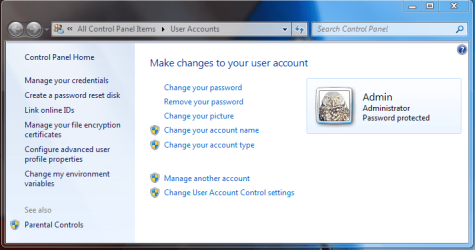
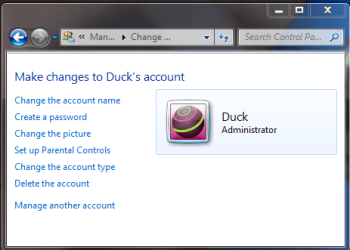
If you find that you wish to run routinely as a Standard User (this is what I always advise, and so does Microsoft) but you don't want to lose all the files and settings that you got used to when running under the OOBE-created Administrators Group account, you can create another account that is a member of the Administrators Group (I always name mine Admin), create a password for that account (make it something you can easily remember and/or write it down), then logoff. Next, logon as the newly created member of the Administrators Group, go to Start > Control Panel > User Accounts and click on "Manage another account". Select your original OOBE account name and then select "Change the account type". Click the radio button for Standard user, and OK your way back out.
This will save all your files and settings from your first account, but that account will now only have the privileges of a Standard User. And you will have an Administrators Group account and password to use whenever UAC pops up asking for permission for some program to make changes to the computer.
Some programs require Administrator privileges and will refuse to run for a Standard User. There are two ways to deal with them. You can right-click the shortcut for such a program whenever you want to run it and select "Run as administrator", then type in the correct password when UAC pops up. The other method saves a step; again, right-click on the shortcut for such a program and select "Properties". Click on the "Advanced" button on the Shortcut properties sheet and put a check in the box by "Run as adminstrator". UAC will still popup, but this saves you the step of always right-clicking the shortcut every time you want to run that program; once and done. Routine system maintenance tasks (defragging, disk cleanup, etc.) can be run in this manner, all from a Standard User account.



 )! I will look as far as I feel comfortable in secpol.msc, but as what exactly or where or for what, I am without sufficient knowledge.