SSD - Install and Transfer the Operating System

How to Physically Install a SSD and Transfer the Operating System


Introduction

If you never owned an SSD, you have missed something. Yes, they are not cheap, but Dollar per Dollar there is no other piece of hardware that can give you as much additional performance than an SSD.

Because SSDs are expensive, their current use is for placing the operating system. That’s how you get the best mileage. Although XP and Vista can be installed on SSDs, it is recommended to use them for Windows7, which is the first system to support Trim.

For desktops, an SSD with a 60GB capacity is usually sufficient. The user data can be moved to the HDD – I will explain the procedure later. Should you have very large programs, e.g., games, you should move their program files during the installation of the game to the HDD too.

For laptops, the situation is more complicated because you usually have only one disk bay. I use 80GB and 90GB SSDs on my laptops. In addition, I use the HDD that I recovered from the laptop after I installed the SSD in an external USB enclosure. But, if you move around a lot with the laptop, that may not be so convenient and a bigger SSD (120GB or 250GB) may be in order (budget allowing).


Hardware Installation

For a desktop, you will need a bracket if it is a 2.5” SSD (like most today). But, there are also 3.5” SSDs that will fit without adaptor brackets into the disk bays. You also need a cable to attach the SSD to the motherboard. For electricity, there is usually an extra plug at the PSU which you can use for the SSD’s.

Once you have all those bits, you can install the SSD in an available disk bay – or if none available, some self-adhesive Velcro will also do. The SSDs are light and do not produce any vibration or heat.

For a laptop, you need an external enclosure that attaches to a USB port. That will allow you to make the initial SSD setups. The one I linked attaches via USB2 and eSata, which may be practical later to use as external drive with the HDD that you recovered from the laptop. Also for hot swapping bare bone HDDs. But there are cheaper enclosures for USB2 only and also some that allow attachment to USB3.

Transfer the Operating System

There are two ways to transfer the operating system from your current HDD to the SSD:
1. The Geeky way which comes for free and
2. The easy way that costs $19.95.

1.The Geeky way requires the following steps:

Prepare the SSD – You first have to initialize the SSD to create the MBR. You can do that with Disk Management or with this program (which you will need later anyhow).

Then you need to align the SSD and define an active partition on it. You use an elevated Command Prompt with the following commands:

Diskpart
List disk
Select disk n (where n is the number that was given for your SSD in List disk)
Clean
Create partition primary align=1024
Format fs=ntfs quick
Active (assuming you want to install an OS)
Exit

Note: If you are more comfortable working with Disk Management, you can also define a primary active partition with Disk Management. On a SSD, the partition will be automatically aligned by 1024.


If you want to verify that the alignment is correct, you use these commands:

Diskpart
List disk
Select disk n
List partition


You should see a result like this:

Partition ### Type Size Offset


------------- ---------------- ------- -------
Partition 1 Primary 59 GB

1024 KB - but 64KB or any number divisible by 4 is also good. The offset has to be divisible by 4.

In Windows7, you may have the 100MB active boot partition. The easiest way to deal with that is to move the bootmgr to the C: partition using EasyBCD. That you do on your HDD before you transfer anything to the SSD. Then you do not have to worry about it and you need only transfer the C: partition to the SSD.


But if you care to keep the 100MB partition, then the partition you just created on the SSD is for that 100MB partition. The next step is to shrink the partition you just created to a 100MB size (make sure it is not any smaller). With Disk Management you will have trouble to do that. I recommend this program for the operation.

From the free space you gained, you create the C: partition for the OS. This partition must not be active and need not be a primary (because the 100MB partition contains the boot manager).

Alternatively and easier is if you first create the 100MB partition with these commands:

Diskpart
List disk
Select disk n (where n is the number that was given for your SSD in List disk)
Clean
Create partition primary size=100 align=1024
Format fs=ntfs quick
Active
Exit

Note: The unit in the size parameter is MB

After this action you can use Disk Management to create the C partition from the remaining unallocated space. That can be a logical partition.

If there is no 100MB partition, things are easy. The partition you created with Command Prompt will receive the C partition including boot manager and all.

There may be more partitions on your factory HDD – e.g., the Recovery partition and a Tools Partition. Those you should not transfer to the SSD because of space constraints. I would back them up – e.g., with an imaging program. The Recovery Partition you can also burn to DVDs.

The OS transfer

This is done with an image. There are a variety of free imaging programs (e.g., the free editions of Macrium, Paragon, Acronis, etc.) that are suitable for the task. You can also use the Windows7 imaging, which has the advantage that it deals with the 100MB active boot partition automatically. Disadvantage is that you never know exactly what it does.

You image your partitions to an external disk (you may have to assign a drive letter to the 100MB partition so that the imaging program can identify it) and then pull the images back in to the SSD (using the bootable recovery program of the imaging program).
The recovery is partition by partition. So you have to make separate runs for the 100MB partition (if any) and the C: partition.

Note: Many free imaging programs cannot shrink the originating partition to fit into the usually much smaller C: partition on the SSD - even if the amount of data in that partition would fit. In that case you will need to shrink the C: partition on the HDD prior to imaging it. The HDD C: partition must be smaller or equal in size to the designated partition on the SSD. For that operation I also recommend this program because Disk Management might not be able to shrink it enough. Note: Free Macrium can image to a smaller disk if the data fits.

It is, of course, understood, that the amount of data on your HDD C: partition must not exceed the capacity of the designated C: partition on the SSD. Should you have more data on your HDD C: partition than the size of the SSD C: partition can hold, I suggest you first create a data partition on the HDD system and move the user data there. Here is my video tutorial that explains how this is done. When you finally are on the SSD system, you then right click on the user folders in the data partition (Documents, Pictures, etc.) and Include them into the appropriate library. That approach does not require you to move the user folders later.

Next step is to change the boot sequence in the BIOS to set the SSD as second boot device (leave the CD/DVD reader as first boot device) and, hopefully, your system will boot.

2.The easy way for transferring the OS requires you to purchase this program. It does everything for you – alignment, deals with the 100MB partition, transfers C:, shrinks the originating partition, etc. All you will have to do is change the boot sequence.

Note: Before you activate the SSD, it is recommended to set the BIOS to AHCI. Best time to do that is just before you change the boot sequence. Once Windows7 is running, you make the corresponding settings in the OS. Here is a tutorial on how to do that.
Many people claim that there is a significant performance gain with AHCI. I, however, did not see that. But it may be different from system to system.

Settings after the OS transfer

Disk Defragmentation makes no sense on an SSD. For a laptop, go into Services, navigate to Disk Defragmenter, right click on it and go to Properties. Here you set the service to Disabled.
For a desktop, you may want to disable defrag in the Disk Defragmenter and only for the SSD so that the remaining HDDs can still be defragmented.

Note: As long as Defrag Service is turned off, you cannot shrink any partition. The partition shrink process requires the Defrag service. If you need to shrink a partition later, turn the Defragmentation Service temporarily on.

Hibernation File – most of us do not use Hibernation, but Sleep instead. But, the hiberfile takes precious space on your SSD – to the same tune as the size as your RAM. To get rid of it, run the following command in elevated Command Prompt: powercfg –h off. If you ever want it back, it is powercfg – h on.

Superfetch – many “experts” suggest to turn Superfetch off. I think that is not appropriate. Fetching a program or data from RAM is still a lot faster than fetching it from a disk – even from an SSD.

There are no other settings that are necessary. On the SSD forums you will find a lot of tweaks. I recommend you stay away from them.


Move the user folders to the HDD

To move the user folders to the HDD is very simple. Create a Data partition on the HDD. Define folders in that partition – e.g., Documents, Music, Pictures, etc. One for each folder you want to move off the SSD. The name of those folders can be anything. The system will rename them anyhow. It is just more obvious if you call them by the same name as the originating folders.

Then, open the Explorer and right click on, e.g., My Documents folder (not the Documents Library) in the left pane. Go to Properties and click on the Location tab. Here you click on Move and navigate to the corresponding folder in your Data Partition on the HDD. Then you Select that folder and Apply it.

Very Important: You must move the SSD folder to the corresponding Data Partition folder – NOT to the root of the partition itself. That would create a mess.


Last edited:
they are a bit of a mystery to me:)
What is the mystery. Maybe I can help clarify it.
 

My Computer My Computer

At a glance

Vista, Windows7, Mint Mate, Zorin, Windows 8from 1.6GHz Duo to i7
Computer Manufacturer/Model Number
HP, Dell, Gateway, Toshiba - 4 laptops and 2 desktops
OS
Vista, Windows7, Mint Mate, Zorin, Windows 8
CPU
from 1.6GHz Duo to i7
Monitor(s) Displays
2x HP w2207
Hard Drives
5x HDD, 7x SSD, 12x Externals
Keyboard
with trackball - no mices
Mouse
Trackball mice
Internet Speed
DSL 6000
@ICit2lol
your results look fine to me.
 

My Computer My Computer

At a glance

Windows 7x64 Home Premium SP1Intel i7 2600kG.Skill Ripjaws (DDR3-1600) 2x4GBNvidia GeForce GTS 450; Intel HD Graphics 300...
Computer type
PC/Desktop
Computer Manufacturer/Model Number
Own build
OS
Windows 7x64 Home Premium SP1
CPU
Intel i7 2600k
Motherboard
ASUS P8Z68 Deluxe
Memory
G.Skill Ripjaws (DDR3-1600) 2x4GB
Graphics Card(s)
Nvidia GeForce GTS 450; Intel HD Graphics 3000(GT2+)
Monitor(s) Displays
Dell Ultrasharp IPS panel U2311H, Samsung SyncMaster P2350
Screen Resolution
1920x1080
Hard Drives
Samsung 850 Pro SSD 256GB, Samsung SSD 840 120GB, Seagates 1TB Barracuda ST31000528AS x2
PSU
Seasonic M12II 520W
Case
Lian Li Lancool PC-K60
Cooling
Case: 1x120mm, 3x140mm CPU: Hyper 212+
Keyboard
Logitech MK520 (wireless)
Mouse
Logitech MK520
Internet Speed
6-7 Mbps
Antivirus
Norton Security Premium, Malwarebytes on 2 (MSE on 3rd PC)
Browser
FireFox
Other Info
Audio: Logitech Z523 2.1
they are a bit of a mystery to me:)
What is the mystery. Maybe I can help clarify it.
Well whs I am just a bit peplexed by core clock speeds and so many Gigs of RAM at ?DDR5? and that running at whatever Mhz it states.

Now if that means or would correlate to a CPU plus the RAM in a machine then it's not so confusing. A bit like a machine sitting on a machine so to speak? or is that too simplistic?

I did read something about pipes and the like and got completely befuddled by it all. I did see what was meant about the power demands though some at 400W thats two thirds of my PSU and I am wondering if I would have to up the ante with that too.
 

My Computer My Computer

At a glance

Desk1 7 Home Prem / Desk2 10 Pro / Main lap A...Desk1 i5 3750K / Laptop i7 GTX 860M / Desk2 i...Desk1 8GB (1866) / Desk2 16GB (1333) / Laptop...Desk 1& 2NVidia GTX 650 & Laptops on board Intel
Computer type
PC/Desktop
Computer Manufacturer/Model Number
Own build (new) Desk1 / Asus ROG Win 7 / Desk2 1st build
OS
Desk1 7 Home Prem / Desk2 10 Pro / Main lap Asus ROG 10 Pro 2 laptop Toshiba 7 Pro Asus P2520 7 & 10
CPU
Desk1 i5 3750K / Laptop i7 GTX 860M / Desk2 i5 2500
Motherboard
Desk1 Asus P877-V / Desk2 Gigabyte H67 UD3H / Laptop ?
Memory
Desk1 8GB (1866) / Desk2 16GB (1333) / Laptop 8Gb DDR3
Graphics Card(s)
Desk 1& 2NVidia GTX 650 & Laptops on board Intel
Sound Card
Desk 1 & 2 -XONAR DG Realtek High Def audio Laptop
Monitor(s) Displays
Desk 1 Benq HD 2450 / Desk2 Philips 24" / Laptop 17.5"
Screen Resolution
1920x1080 D1 & D2 & Laptop 1
Hard Drives
Desk1 Samsung 120GB 830 SSD
Asus ROG 256GB 850 Pro SSD
Desk2 Samsung 840 256 SSD
Toshiba 120GB EVO
PSU
Desk 1 Corsair HX 1050/ Laptop ? / Desk 2 Corsair HX 650
Case
Desk 1 Cooler HAF XM ? Toshiba laptop / Desk2 Coolermaster
Cooling
Fans on all Desk1 -2 Desk2 - all Coolermasters 5 Laptop ?
Keyboard
Desk 1 MS Sidewinder X6 Desk 2 MS Sidewinder X 4
Mouse
Desk 1&2 - Gigabyte MS 900 gamer - laptop - Logitec wireless
Internet Speed
ADSL2+
Other Info
One other Desktop (tester) and spare Toshba laptop both with SSD's
Running Kaspersky 2016 ISS on all machines config'd identically
Logitec audio stereo systems on each machine (x3)
Canon MG5250MFC
Router/modem TP-Link running WPA2SK
@ICit2lol
your results look fine to me.
Thanks MJF thats reassuring to know as I don't really understand a lot of it except the read and write rates :)
 

My Computer My Computer

At a glance

Desk1 7 Home Prem / Desk2 10 Pro / Main lap A...Desk1 i5 3750K / Laptop i7 GTX 860M / Desk2 i...Desk1 8GB (1866) / Desk2 16GB (1333) / Laptop...Desk 1& 2NVidia GTX 650 & Laptops on board Intel
Computer type
PC/Desktop
Computer Manufacturer/Model Number
Own build (new) Desk1 / Asus ROG Win 7 / Desk2 1st build
OS
Desk1 7 Home Prem / Desk2 10 Pro / Main lap Asus ROG 10 Pro 2 laptop Toshiba 7 Pro Asus P2520 7 & 10
CPU
Desk1 i5 3750K / Laptop i7 GTX 860M / Desk2 i5 2500
Motherboard
Desk1 Asus P877-V / Desk2 Gigabyte H67 UD3H / Laptop ?
Memory
Desk1 8GB (1866) / Desk2 16GB (1333) / Laptop 8Gb DDR3
Graphics Card(s)
Desk 1& 2NVidia GTX 650 & Laptops on board Intel
Sound Card
Desk 1 & 2 -XONAR DG Realtek High Def audio Laptop
Monitor(s) Displays
Desk 1 Benq HD 2450 / Desk2 Philips 24" / Laptop 17.5"
Screen Resolution
1920x1080 D1 & D2 & Laptop 1
Hard Drives
Desk1 Samsung 120GB 830 SSD
Asus ROG 256GB 850 Pro SSD
Desk2 Samsung 840 256 SSD
Toshiba 120GB EVO
PSU
Desk 1 Corsair HX 1050/ Laptop ? / Desk 2 Corsair HX 650
Case
Desk 1 Cooler HAF XM ? Toshiba laptop / Desk2 Coolermaster
Cooling
Fans on all Desk1 -2 Desk2 - all Coolermasters 5 Laptop ?
Keyboard
Desk 1 MS Sidewinder X6 Desk 2 MS Sidewinder X 4
Mouse
Desk 1&2 - Gigabyte MS 900 gamer - laptop - Logitec wireless
Internet Speed
ADSL2+
Other Info
One other Desktop (tester) and spare Toshba laptop both with SSD's
Running Kaspersky 2016 ISS on all machines config'd identically
Logitec audio stereo systems on each machine (x3)
Canon MG5250MFC
Router/modem TP-Link running WPA2SK
This is what I'm getting and I feel the 4K-64 Thrd and Acc times are not quite as good as others.
View attachment 201045
Maybe your speeds are influenced by the make of SSD and the laptop.

Definitely the case being that my laptop that I got in '09 is sata II, although that's my best guess.
With that in mind the speeds are as advertised, more or less. I'm guessing all of you guys have newer sata III hardware?
I just wish I could improve ON/OFF times just a bit more.

I did a little bit of reading on chipset drivers but for some reason it was confusing, either Intel never issued any upgrades for this processor or I'm just lost.
I might start different thread on how to make sure I have the latest chipset drivers and whatever else might influence speeds.

Thanks
 

My Computer My Computer

At a glance

Windows 7 Pro
Computer Manufacturer/Model Number
Asus UL80V
OS
Windows 7 Pro
they are a bit of a mystery to me:)
What is the mystery. Maybe I can help clarify it.
Well whs I am just a bit peplexed by core clock speeds and so many Gigs of RAM at ?DDR5? and that running at whatever Mhz it states.

Now if that means or would correlate to a CPU plus the RAM in a machine then it's not so confusing. A bit like a machine sitting on a machine so to speak? or is that too simplistic?

I did read something about pipes and the like and got completely befuddled by it all. I did see what was meant about the power demands though some at 400W thats two thirds of my PSU and I am wondering if I would have to up the ante with that too.
You are right, GPUs can be very confusing they are definitely more complex than CPUs. And some of those GPUs are more powerful than the computers with which they shot Armstrong and Co. on the moon.

I would not get hung up about all the nitty gritty numbers. Best is to study the performance comparisons as a first cut and once you have narrowed it down to ask the guys what they think.

But for any decent GPU you will need a lot of power. Normally a new PSU goes with a new GPU - especially if you work with a stock OEM PSU. But fortunately PSUs are not too expensive - just make sure you buy from a decent company like e.g. Antec.
 

My Computer My Computer

At a glance

Vista, Windows7, Mint Mate, Zorin, Windows 8from 1.6GHz Duo to i7
Computer Manufacturer/Model Number
HP, Dell, Gateway, Toshiba - 4 laptops and 2 desktops
OS
Vista, Windows7, Mint Mate, Zorin, Windows 8
CPU
from 1.6GHz Duo to i7
Monitor(s) Displays
2x HP w2207
Hard Drives
5x HDD, 7x SSD, 12x Externals
Keyboard
with trackball - no mices
Mouse
Trackball mice
Internet Speed
DSL 6000
What is the mystery. Maybe I can help clarify it.
Well whs I am just a bit peplexed by core clock speeds and so many Gigs of RAM at ?DDR5? and that running at whatever Mhz it states.

Now if that means or would correlate to a CPU plus the RAM in a machine then it's not so confusing. A bit like a machine sitting on a machine so to speak? or is that too simplistic?

I did read something about pipes and the like and got completely befuddled by it all. I did see what was meant about the power demands though some at 400W thats two thirds of my PSU and I am wondering if I would have to up the ante with that too.
You are right, GPUs can be very confusing they are definitely more complex than CPUs. And some of those GPUs are more powerful than the computers with which they shot Armstrong and Co. on the moon.

I would not get hung up about all the nitty gritty numbers. Best is to study the performance comparisons as a first cut and once you have narrowed it down to ask the guys what they think.

But for any decent GPU you will need a lot of power. Normally a new PSU goes with a new GPU - especially if you work with a stock OEM PSU. But fortunately PSUs are not too expensive - just make sure you buy from a decent company like e.g. Antec.
Thanks whs sorry late reply mate had some clearing up to do outside - storms.

Ok will do just as you said I have the Corsair HX 650 on board but seeing as that one I picked out was 400W perhaps I'd better move to a 750+W to be sure.

In actual fact my mate and I are waiting for the Ivy Bridge to arrive perhaps that might be a better option don't you think?
Then I can start with a clean slate as it were as I didn't realise that amount of power was involved. (Bit of a procrastinator)

Hum I did hear or see somewhere once they the equivalent of a Commodore 64 as the computer on board that spacecraft - thats a scary thought don't you think?:shock:

Anyway thanks for your time and trouble everyone who chipped in.:cool:
 

My Computer My Computer

At a glance

Desk1 7 Home Prem / Desk2 10 Pro / Main lap A...Desk1 i5 3750K / Laptop i7 GTX 860M / Desk2 i...Desk1 8GB (1866) / Desk2 16GB (1333) / Laptop...Desk 1& 2NVidia GTX 650 & Laptops on board Intel
Computer type
PC/Desktop
Computer Manufacturer/Model Number
Own build (new) Desk1 / Asus ROG Win 7 / Desk2 1st build
OS
Desk1 7 Home Prem / Desk2 10 Pro / Main lap Asus ROG 10 Pro 2 laptop Toshiba 7 Pro Asus P2520 7 & 10
CPU
Desk1 i5 3750K / Laptop i7 GTX 860M / Desk2 i5 2500
Motherboard
Desk1 Asus P877-V / Desk2 Gigabyte H67 UD3H / Laptop ?
Memory
Desk1 8GB (1866) / Desk2 16GB (1333) / Laptop 8Gb DDR3
Graphics Card(s)
Desk 1& 2NVidia GTX 650 & Laptops on board Intel
Sound Card
Desk 1 & 2 -XONAR DG Realtek High Def audio Laptop
Monitor(s) Displays
Desk 1 Benq HD 2450 / Desk2 Philips 24" / Laptop 17.5"
Screen Resolution
1920x1080 D1 & D2 & Laptop 1
Hard Drives
Desk1 Samsung 120GB 830 SSD
Asus ROG 256GB 850 Pro SSD
Desk2 Samsung 840 256 SSD
Toshiba 120GB EVO
PSU
Desk 1 Corsair HX 1050/ Laptop ? / Desk 2 Corsair HX 650
Case
Desk 1 Cooler HAF XM ? Toshiba laptop / Desk2 Coolermaster
Cooling
Fans on all Desk1 -2 Desk2 - all Coolermasters 5 Laptop ?
Keyboard
Desk 1 MS Sidewinder X6 Desk 2 MS Sidewinder X 4
Mouse
Desk 1&2 - Gigabyte MS 900 gamer - laptop - Logitec wireless
Internet Speed
ADSL2+
Other Info
One other Desktop (tester) and spare Toshba laptop both with SSD's
Running Kaspersky 2016 ISS on all machines config'd identically
Logitec audio stereo systems on each machine (x3)
Canon MG5250MFC
Router/modem TP-Link running WPA2SK
In actual fact my mate and I are waiting for the Ivy Bridge to arrive perhaps that might be a better option don't you think?

I am not such a fan of brand new technology especially since you will probably need a brand new board too - have been close to the development of that stuff myself for 35 years.. Remember the fiasco they had with the i-series at the beginning. Rumor has it that this adventure cost them 1 Billion bucks.

I think you would be well advised to wait at least 6 months after release of Ivy Bridge - at least that's what I would do. I never buy a new car model in the first year either.
 

My Computer My Computer

At a glance

Vista, Windows7, Mint Mate, Zorin, Windows 8from 1.6GHz Duo to i7
Computer Manufacturer/Model Number
HP, Dell, Gateway, Toshiba - 4 laptops and 2 desktops
OS
Vista, Windows7, Mint Mate, Zorin, Windows 8
CPU
from 1.6GHz Duo to i7
Monitor(s) Displays
2x HP w2207
Hard Drives
5x HDD, 7x SSD, 12x Externals
Keyboard
with trackball - no mices
Mouse
Trackball mice
Internet Speed
DSL 6000
In actual fact my mate and I are waiting for the Ivy Bridge to arrive perhaps that might be a better option don't you think?

I am not such a fan of brand new technology especially since you will probably need a brand new board too - have been close to the development of that stuff myself for 35 years.. Remember the fiasco they had with the i-series at the beginning. Rumor has it that this adventure cost them 1 Billion bucks.

I think you would be well advised to wait at least 6 months after release of Ivy Bridge - at least that's what I would do. I never buy a new car model in the first year either.
You are so right whs I didn't mean we were going to dive in straight away like you said look at the fiasco (and thats being polite) that surrounded th Sandy Bridge boards.

Plus I never buy a brand spanking new car unless it is into it's second or third "version". Never fails to amaze me how a car gets so obsolete in such a short time. Suppose it is the same with computers the one you buy is outdated as you walk out the shop eh?
 

My Computer My Computer

At a glance

Desk1 7 Home Prem / Desk2 10 Pro / Main lap A...Desk1 i5 3750K / Laptop i7 GTX 860M / Desk2 i...Desk1 8GB (1866) / Desk2 16GB (1333) / Laptop...Desk 1& 2NVidia GTX 650 & Laptops on board Intel
Computer type
PC/Desktop
Computer Manufacturer/Model Number
Own build (new) Desk1 / Asus ROG Win 7 / Desk2 1st build
OS
Desk1 7 Home Prem / Desk2 10 Pro / Main lap Asus ROG 10 Pro 2 laptop Toshiba 7 Pro Asus P2520 7 & 10
CPU
Desk1 i5 3750K / Laptop i7 GTX 860M / Desk2 i5 2500
Motherboard
Desk1 Asus P877-V / Desk2 Gigabyte H67 UD3H / Laptop ?
Memory
Desk1 8GB (1866) / Desk2 16GB (1333) / Laptop 8Gb DDR3
Graphics Card(s)
Desk 1& 2NVidia GTX 650 & Laptops on board Intel
Sound Card
Desk 1 & 2 -XONAR DG Realtek High Def audio Laptop
Monitor(s) Displays
Desk 1 Benq HD 2450 / Desk2 Philips 24" / Laptop 17.5"
Screen Resolution
1920x1080 D1 & D2 & Laptop 1
Hard Drives
Desk1 Samsung 120GB 830 SSD
Asus ROG 256GB 850 Pro SSD
Desk2 Samsung 840 256 SSD
Toshiba 120GB EVO
PSU
Desk 1 Corsair HX 1050/ Laptop ? / Desk 2 Corsair HX 650
Case
Desk 1 Cooler HAF XM ? Toshiba laptop / Desk2 Coolermaster
Cooling
Fans on all Desk1 -2 Desk2 - all Coolermasters 5 Laptop ?
Keyboard
Desk 1 MS Sidewinder X6 Desk 2 MS Sidewinder X 4
Mouse
Desk 1&2 - Gigabyte MS 900 gamer - laptop - Logitec wireless
Internet Speed
ADSL2+
Other Info
One other Desktop (tester) and spare Toshba laptop both with SSD's
Running Kaspersky 2016 ISS on all machines config'd identically
Logitec audio stereo systems on each machine (x3)
Canon MG5250MFC
Router/modem TP-Link running WPA2SK
Yeah, very right. The wife bought a Gateway laptop a few years ago. But there was something wrong with the ethernet unit. We went back to BestBuy to exchange it for the same model (because other than the problem she liked it). They told us that this was an 'old model' that they did not stock any more - and that was 3 weeks after the initial purchase.
 

My Computer My Computer

At a glance

Vista, Windows7, Mint Mate, Zorin, Windows 8from 1.6GHz Duo to i7
Computer Manufacturer/Model Number
HP, Dell, Gateway, Toshiba - 4 laptops and 2 desktops
OS
Vista, Windows7, Mint Mate, Zorin, Windows 8
CPU
from 1.6GHz Duo to i7
Monitor(s) Displays
2x HP w2207
Hard Drives
5x HDD, 7x SSD, 12x Externals
Keyboard
with trackball - no mices
Mouse
Trackball mice
Internet Speed
DSL 6000
Yeah, very right. The wife bought a Gateway laptop a few years ago. But there was something wrong with the ethernet unit. We went back to BestBuy to exchange it for the same model (because other than the problem she liked it). They told us that this was an 'old model' that they did not stock any more - and that was 3 weeks after the initial purchase.
Likewise whs I got my Toshiba L550 "latest thing out" only to see the dealer had the L650 in the shop the very next week - worse still at a cheaper "introductory" price - I wasn't impressed to say the least.

Notwithstanding I have nothing but problems with the L550 since I got it (and the very last Toshiba product I shall ever buy).

I also had a 24" Toshiba monitor that dropped a bundle of pixels after two months so it's sitting in the spare room as a spare.

Toshiba - :mad:
 

My Computer My Computer

At a glance

Desk1 7 Home Prem / Desk2 10 Pro / Main lap A...Desk1 i5 3750K / Laptop i7 GTX 860M / Desk2 i...Desk1 8GB (1866) / Desk2 16GB (1333) / Laptop...Desk 1& 2NVidia GTX 650 & Laptops on board Intel
Computer type
PC/Desktop
Computer Manufacturer/Model Number
Own build (new) Desk1 / Asus ROG Win 7 / Desk2 1st build
OS
Desk1 7 Home Prem / Desk2 10 Pro / Main lap Asus ROG 10 Pro 2 laptop Toshiba 7 Pro Asus P2520 7 & 10
CPU
Desk1 i5 3750K / Laptop i7 GTX 860M / Desk2 i5 2500
Motherboard
Desk1 Asus P877-V / Desk2 Gigabyte H67 UD3H / Laptop ?
Memory
Desk1 8GB (1866) / Desk2 16GB (1333) / Laptop 8Gb DDR3
Graphics Card(s)
Desk 1& 2NVidia GTX 650 & Laptops on board Intel
Sound Card
Desk 1 & 2 -XONAR DG Realtek High Def audio Laptop
Monitor(s) Displays
Desk 1 Benq HD 2450 / Desk2 Philips 24" / Laptop 17.5"
Screen Resolution
1920x1080 D1 & D2 & Laptop 1
Hard Drives
Desk1 Samsung 120GB 830 SSD
Asus ROG 256GB 850 Pro SSD
Desk2 Samsung 840 256 SSD
Toshiba 120GB EVO
PSU
Desk 1 Corsair HX 1050/ Laptop ? / Desk 2 Corsair HX 650
Case
Desk 1 Cooler HAF XM ? Toshiba laptop / Desk2 Coolermaster
Cooling
Fans on all Desk1 -2 Desk2 - all Coolermasters 5 Laptop ?
Keyboard
Desk 1 MS Sidewinder X6 Desk 2 MS Sidewinder X 4
Mouse
Desk 1&2 - Gigabyte MS 900 gamer - laptop - Logitec wireless
Internet Speed
ADSL2+
Other Info
One other Desktop (tester) and spare Toshba laptop both with SSD's
Running Kaspersky 2016 ISS on all machines config'd identically
Logitec audio stereo systems on each machine (x3)
Canon MG5250MFC
Router/modem TP-Link running WPA2SK
My 3 month old Toshiba laptop has to be mailed into their shop next week. They are currently sending me a box. The mousepad and the clickers stopped working over night. And that is not a software problem. I checked all angles, reset to a restore point from last month and also tried with Win8.

I bought the thing because it has a backlit keyboard (which is very dim though) after I had to return my superb Sony which had a completely retarded BIOS - the saga is here. But quality wise the Sony was miles better than the Toshiba, it was also more expensive.
 

My Computer My Computer

At a glance

Vista, Windows7, Mint Mate, Zorin, Windows 8from 1.6GHz Duo to i7
Computer Manufacturer/Model Number
HP, Dell, Gateway, Toshiba - 4 laptops and 2 desktops
OS
Vista, Windows7, Mint Mate, Zorin, Windows 8
CPU
from 1.6GHz Duo to i7
Monitor(s) Displays
2x HP w2207
Hard Drives
5x HDD, 7x SSD, 12x Externals
Keyboard
with trackball - no mices
Mouse
Trackball mice
Internet Speed
DSL 6000
I'm surprised you haven't seen a dramatic change, especially booting and shutting down. I get one fade of the splash screen and I'm into the logon screen. The Windows user page then appears almost instantly. Shutting down is around a second.

Edit: BIOS POST will always take its time.

After doing tweaks that I lost count on I think these helped significantly although I don't know which one because I was't testing after each one.
-in power options set turn off hard drive to "never"
-decrease regedit "WaitToKillServiceTimeout" to 2 sec
-patriot ssd drives have "garbage collection" that from what I understand is kinda like defrag for ssd and they recommend leaving comp overnight to idle and let it do whatever it does.

This morning when I returned to it, monitor was off (it is set to turn off at some point) and comp was frozen, press and hold power button, back ON, everything seems OK, good.

Then I tested times again and now it's ~40sec for ON and ~10sec for OFF.
This I can live with and finally feel I got my money's worth.

PS my wife was mocking me "oh you're gonna save so much time now", why is it that they absolutely don't care about these life saving details?
 

My Computer My Computer

At a glance

Windows 7 Pro
Computer Manufacturer/Model Number
Asus UL80V
OS
Windows 7 Pro
PS my wife was mocking me "oh you're gonna save so much time now", why is it that they absolutely don't care about these life saving details?
:roflmao:
I'd say to mine - it gives gives me more time to pay attention to you.
 

My Computer My Computer

At a glance

Windows 7x64 Home Premium SP1Intel i7 2600kG.Skill Ripjaws (DDR3-1600) 2x4GBNvidia GeForce GTS 450; Intel HD Graphics 300...
Computer type
PC/Desktop
Computer Manufacturer/Model Number
Own build
OS
Windows 7x64 Home Premium SP1
CPU
Intel i7 2600k
Motherboard
ASUS P8Z68 Deluxe
Memory
G.Skill Ripjaws (DDR3-1600) 2x4GB
Graphics Card(s)
Nvidia GeForce GTS 450; Intel HD Graphics 3000(GT2+)
Monitor(s) Displays
Dell Ultrasharp IPS panel U2311H, Samsung SyncMaster P2350
Screen Resolution
1920x1080
Hard Drives
Samsung 850 Pro SSD 256GB, Samsung SSD 840 120GB, Seagates 1TB Barracuda ST31000528AS x2
PSU
Seasonic M12II 520W
Case
Lian Li Lancool PC-K60
Cooling
Case: 1x120mm, 3x140mm CPU: Hyper 212+
Keyboard
Logitech MK520 (wireless)
Mouse
Logitech MK520
Internet Speed
6-7 Mbps
Antivirus
Norton Security Premium, Malwarebytes on 2 (MSE on 3rd PC)
Browser
FireFox
Other Info
Audio: Logitech Z523 2.1
My 3 month old Toshiba laptop has to be mailed into their shop next week. They are currently sending me a box. The mousepad and the clickers stopped working over night. And that is not a software problem. I checked all angles, reset to a restore point from last month and also tried with Win8.

I bought the thing because it has a backlit keyboard (which is very dim though) after I had to return my superb Sony which had a completely retarded BIOS - the saga is here. But quality wise the Sony was miles better than the Toshiba, it was also more expensive.
Yeah I know what you mean whs I had to factory default my L550 four times and it still is only 95c in the dollar. In my mind Toshiba has gone down the toilet as far as quality goes and like I said after that monitor no more Toshiba stuff for me unless they ca get their act together.

I bought a cheap little Compaq for a knockabout and yes it's a bit slower but quality wise it out strips the Toshy. As a matter of interest I have done some work on HP's and Compaq's just lately and am impressed with the build quality especially the older stuff. Mind you the bundled stuff is a erm pain eh?
 

My Computer My Computer

At a glance

Desk1 7 Home Prem / Desk2 10 Pro / Main lap A...Desk1 i5 3750K / Laptop i7 GTX 860M / Desk2 i...Desk1 8GB (1866) / Desk2 16GB (1333) / Laptop...Desk 1& 2NVidia GTX 650 & Laptops on board Intel
Computer type
PC/Desktop
Computer Manufacturer/Model Number
Own build (new) Desk1 / Asus ROG Win 7 / Desk2 1st build
OS
Desk1 7 Home Prem / Desk2 10 Pro / Main lap Asus ROG 10 Pro 2 laptop Toshiba 7 Pro Asus P2520 7 & 10
CPU
Desk1 i5 3750K / Laptop i7 GTX 860M / Desk2 i5 2500
Motherboard
Desk1 Asus P877-V / Desk2 Gigabyte H67 UD3H / Laptop ?
Memory
Desk1 8GB (1866) / Desk2 16GB (1333) / Laptop 8Gb DDR3
Graphics Card(s)
Desk 1& 2NVidia GTX 650 & Laptops on board Intel
Sound Card
Desk 1 & 2 -XONAR DG Realtek High Def audio Laptop
Monitor(s) Displays
Desk 1 Benq HD 2450 / Desk2 Philips 24" / Laptop 17.5"
Screen Resolution
1920x1080 D1 & D2 & Laptop 1
Hard Drives
Desk1 Samsung 120GB 830 SSD
Asus ROG 256GB 850 Pro SSD
Desk2 Samsung 840 256 SSD
Toshiba 120GB EVO
PSU
Desk 1 Corsair HX 1050/ Laptop ? / Desk 2 Corsair HX 650
Case
Desk 1 Cooler HAF XM ? Toshiba laptop / Desk2 Coolermaster
Cooling
Fans on all Desk1 -2 Desk2 - all Coolermasters 5 Laptop ?
Keyboard
Desk 1 MS Sidewinder X6 Desk 2 MS Sidewinder X 4
Mouse
Desk 1&2 - Gigabyte MS 900 gamer - laptop - Logitec wireless
Internet Speed
ADSL2+
Other Info
One other Desktop (tester) and spare Toshba laptop both with SSD's
Running Kaspersky 2016 ISS on all machines config'd identically
Logitec audio stereo systems on each machine (x3)
Canon MG5250MFC
Router/modem TP-Link running WPA2SK
I loved my 2007 HP desktop. I took it apart a few times and changed PSU, Graphics and added the SSD. Real easy to work with. Now I have this Dell XPS - supposedly their top of the line. Looks like a Cadillac from the outside and like a Yugo from the inside - in other words a real mess. But I should have known better. I have a Dell Inspiron 530 in Germany and that is the same mess. It does not even have disk bays. Had to install my SSD with Velcro dots.
 

My Computer My Computer

At a glance

Vista, Windows7, Mint Mate, Zorin, Windows 8from 1.6GHz Duo to i7
Computer Manufacturer/Model Number
HP, Dell, Gateway, Toshiba - 4 laptops and 2 desktops
OS
Vista, Windows7, Mint Mate, Zorin, Windows 8
CPU
from 1.6GHz Duo to i7
Monitor(s) Displays
2x HP w2207
Hard Drives
5x HDD, 7x SSD, 12x Externals
Keyboard
with trackball - no mices
Mouse
Trackball mice
Internet Speed
DSL 6000
Recovery partition vs System Reserve

Tutorial looks great - thanks - and I'm about to try it out. But I have a Q first.

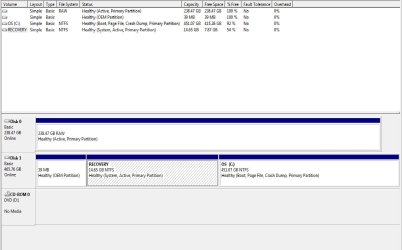
In my Disk Management window instead of a System Reserved partition with the Bootmgr, I see one called Recovery (see below). I'm assuming this partition has the bootmgr because it indicates it as 'system, active'. But rather than being 100MB, this partition is 14.65GB! Any ideas on why this is? It's a Dell laptop and Window 7 HE 64-bit came preinstalled so I can only assume that the extra space is taken up by Dell's various recovery tools. Also, what's the purpose of the 39MB OEM partition? Is this important to transfer over?

In this case rather than copy the bootmgr to the C: before transfering over just the C: partition to the SSD, I'm thinking I should transfer over the Recovery partition as well. The SSD is a 256GB Crucial so I have some space to spare. Any thoughts?

Tx
Disk Mgmt.jpg
 

My Computer My Computer

At a glance

Windows 7 Home Premium 64bitintel i5 m4504 GB
Computer Manufacturer/Model Number
Dell Studio 1749 notebook
OS
Windows 7 Home Premium 64bit
CPU
intel i5 m450
Motherboard
not sure
Memory
4 GB
Hard Drives
1 500GB HDD
1 256GB SDD Crucial M4
This is no problem. I have two Dell systems myself and know the setup. It is actually a smart setup because it a) saves an extra system partition and b) if you ever want to install Windows 8 in a double boot, you would have enough room for the very large Windows 8 BCD.

Nevertheless, I always transferred the bootmgr first to C because I do not run double boots. I run my Windows 8 in virtual Box which is a lot more practical.

So you have 2 options:

Option 1. transfer the bootmgr to C first with this procedure: http://www.sevenforums.com/tutorials/209885-bootmgr-move-c-easybcd.html It is very simple and takes only 2 minutes.

Option 2. Make 2 partitions on the SSD - the first one must be aligned, then the second one is aligned automatically. It must also be sized. The partition creation command would then be create partition primary align=1024 size=15000. This would create a 15GB partition for your recovery partition. For the rest of the unallocated space you then create a partition for the OS. That can be a logical partition. I would use Disk Management to do that because then you need not have to calculate the offset and the exact size.

You then make two independent images of these two partitions on the HDD and dump them into their respective SSD partitions. Just make sure that the C partition on the HDD is not larger then the partition you got on the SSD for it. If it is larger for starters, then you have to first shrink it down. During that operation I also recommend to eliminate the hiberfile with the powercfg -h off command and to reduce the pagefile to 2GB.

Another really simple option would be to use the Paragon Migration Tool. It costs $19.95 but it does the job with 2 clicks - alignment, transfer of both partitions, shrink C: and make settings that you otherwise have to do manually.

PS: The little 39MB partition is for Dell tools. Leave it alone. No need to transfer it. It is probably transferred in Fat32 anyhow.

That reminds me that your SSD does not seem to be formatted. Format it in NTFS first - with Disk Management and do not allocate unaligned partitions.
 

My Computer My Computer

At a glance

Vista, Windows7, Mint Mate, Zorin, Windows 8from 1.6GHz Duo to i7
Computer Manufacturer/Model Number
HP, Dell, Gateway, Toshiba - 4 laptops and 2 desktops
OS
Vista, Windows7, Mint Mate, Zorin, Windows 8
CPU
from 1.6GHz Duo to i7
Monitor(s) Displays
2x HP w2207
Hard Drives
5x HDD, 7x SSD, 12x Externals
Keyboard
with trackball - no mices
Mouse
Trackball mice
Internet Speed
DSL 6000
Thanks for the quick and thorough response whs - which of course leads me to more questions :D

1) When you say the Dell setup saves an extra system partition, what do you mean, are there two bootmgrs?
2) What is a double boot? - is that when there are two bootmgrs in seperate partitions?
3) If I transfer the bootmgr to C: first using EasyBCD, should I make an image of the Recovery partition to DVD as a backup and then not bother installing it on the SSD?
4) I've already initialized the SSD in Disk Management and used the commands you list in the "geeky way" to align the SSD, but you're right I don't recall formatting it. Should I format it in Disk Management and then recreate the partition with create partition primary align=1024 size=15000 ? Or will the alignment stay intact if I format, and could I then use Partition Wizard to simpy change the size of the partition to 15GB, and then create the C: partition using Disk Management?
5) I will have to shrink down the C: partition - was going to use Partition Wizard. Can I make the changes to the hiberfile and pagefile there? Or use your command?

Sorry for all the questions. I like to really understand what I'm doing, both out of interest and to make sure I don't mess things up! - cheers
 

My Computer My Computer

At a glance

Windows 7 Home Premium 64bitintel i5 m4504 GB
Computer Manufacturer/Model Number
Dell Studio 1749 notebook
OS
Windows 7 Home Premium 64bit
CPU
intel i5 m450
Motherboard
not sure
Memory
4 GB
Hard Drives
1 500GB HDD
1 256GB SDD Crucial M4
1. There is only 1 bootmgr - the one in the recovery partition. But normally you would have that extra dumb 100MB active system partition. That is as needed as a shot into the knee.

2. Double boot is when you run multiple systems on the same PC. There is only one bootmgr but all partitions put their BCD into that bootmgr's partition.


3. That is an option. But NEVER image to DVDs, only to disks. But you can burn recovery DVDs from the recovery partition - that is not imaging. You can also leave it sitting on the HDD.

4. The alignment stays intact when you format it in Disk Management. You can always check that as per the tutorial. If you do not plan to move the recovery partition and move the bootmgr to C:, no need to recreate the partition on the SSD.

5. For the hiberfile you need to use the command. For the pagefile, type pagefile into Start/search. It will tell you how to do that.Partition Wizard is OK, but can be very dangerous. If you make a mistake, you may loose everything on the disk (has happened to me). Better first make safety images of everything. Then after shrinking, you have to image C: again for the SSD.

No problem, keep asking what you do not yet understand. If you don't ask, you never learn anything.
 

My Computer My Computer

At a glance

Vista, Windows7, Mint Mate, Zorin, Windows 8from 1.6GHz Duo to i7
Computer Manufacturer/Model Number
HP, Dell, Gateway, Toshiba - 4 laptops and 2 desktops
OS
Vista, Windows7, Mint Mate, Zorin, Windows 8
CPU
from 1.6GHz Duo to i7
Monitor(s) Displays
2x HP w2207
Hard Drives
5x HDD, 7x SSD, 12x Externals
Keyboard
with trackball - no mices
Mouse
Trackball mice
Internet Speed
DSL 6000
Back
Top