
You are using an out of date browser. It may not display this or other websites correctly.
You should upgrade or use an alternative browser.
You should upgrade or use an alternative browser.
how do i make my notepad docs open in full screen rather than half
- Thread starter jturk
- Start date

- Local time
- 4:11 AM
- Messages
- 1,036
Type notepad in start menu search field> right click it> properties> shortcut tab> for the 'Run' option, select 'Maximized'. Apply> ok.
See if it works.
You can also just right click any shortcut to notepad you may have lying around.
See if it works.
You can also just right click any shortcut to notepad you may have lying around.
My Computer
- Computer Manufacturer/Model Number
- HCL
- OS
- Winbdows 7 ultimate x64 | Ubuntu 12.04 x64 LTS
- CPU
- Core 2 Duo e7400 @ 2.90GHz
- Motherboard
- Gigabyte G31M-ES2L
- Memory
- 3GB DDR2
- Graphics Card(s)
- Asus Nvidia GTX 560Ti 1GB
- Sound Card
- On-board
- Monitor(s) Displays
- HCL eZeeBee 18.5" LCD
- Screen Resolution
- 1366x768 @ 60Hz
- Hard Drives
- Western Digital 320GB
- PSU
- Corsair CX500 V2 500W
- Cooling
- Stock
- Keyboard
- Stock
- Mouse
- Stock
- Internet Speed
- 15-25kBps D/L | 10kBps U/L | Hey Don't laugh
how do i get a saved notepad doc to open in max size instead of half
i just asked a similar question & the guys advice worked for a blank notepad doc but it didnt change any of the saved notepad docs. those still open as half size. how do i make the saved notepad docs open in max size?
i just asked a similar question & the guys advice worked for a blank notepad doc but it didnt change any of the saved notepad docs. those still open as half size. how do i make the saved notepad docs open in max size?
Last edited by a moderator:
My Computer
- OS
- windows 7

Notepad always opens files using the same size as last closed Notepad file had. If you close a Notepad file maximized, it also opens maximized next time. If you close it when its size is smaller than full screen, it opens next time using that same size.
Solution is to use shortcuts. A shortcut lets you set the size of the application window. So, create a shortcut for your Notepad file, right click it and select Properties, select Shortcut tab, select Run: Maximized, click OK to close and save settings.
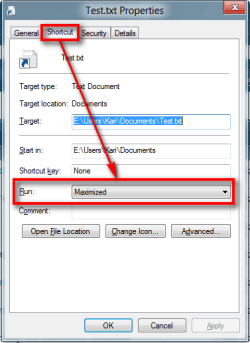
Now use shortcut rather than original file icon to open your file and it opens always maximized, regardless what size it had when last time closed.
Kari
Solution is to use shortcuts. A shortcut lets you set the size of the application window. So, create a shortcut for your Notepad file, right click it and select Properties, select Shortcut tab, select Run: Maximized, click OK to close and save settings.
Now use shortcut rather than original file icon to open your file and it opens always maximized, regardless what size it had when last time closed.
Kari
My Computer
- Computer type
- Laptop
- Computer Manufacturer/Model Number
- HP ENVY 17-1150eg
- OS
- Windows 10 Pro x64 EN-GB
- CPU
- 1.6 GHz Intel Core i7-720QM Processor
- Memory
- 6 GB
- Graphics Card(s)
- ATI Mobility Radeon HD 5850 Graphics
- Sound Card
- Beats sound system with integrated subwoofer
- Monitor(s) Displays
- 17" laptop display, 22" LED and 32" Full HD TV through HDMI
- Screen Resolution
- 1600*900 (1), 1920*1080 (2&3)
- Hard Drives
- Internal: 2 x 500 GB SATA Hard Disk Drive 7200 rpm
External: 2TB for backups, 3TB USB3 network drive for media
- Cooling
- As Envy runs a bit warm, I have it on a Cooler Master pad
- Keyboard
- Logitech diNovo Media Desktop Laser (bluetooth)
- Mouse
- Logitech Performance Mouse MX
- Internet Speed
- 50/10 Mbps VDSL
- Antivirus
- Windows Defender 4.3.9431.0
- Browser
- Maxthon 3.5.2., IE11
Notepad always opens files using the same size as last closed Notepad file had. If you close a Notepad file maximized, it also opens maximized next time. If you close it when its size is smaller than full screen, it opens next time using that same size.
Solution is to use shortcuts. A shortcut lets you set the size of the application window. So, create a shortcut for your Notepad file, right click it and select Properties, select Shortcut tab, select Run: Maximized, click OK to close and save settings.
View attachment 209342
Now use shortcut rather than original file icon to open your file and it opens always maximized, regardless what size it had when last time closed.
Kari
kari,
i did what you said however there was no shortcut tab to click.
also i tried opening notepad, saving something in maximized size & it still opens in half size.
My Computer
- OS
- windows 7
kari,
i did what you said however there was no shortcut tab to click.
Of course there is! If you did not see one you opened wrong properties, the original file's instead of the shortcut's.
See here the difference. Notice that General tab tells you the file type. If you open Properties for the shortcut, you most certainly have the Shortcut tab. Left one is the Properties of shortcut, right one the Properties of the original file:
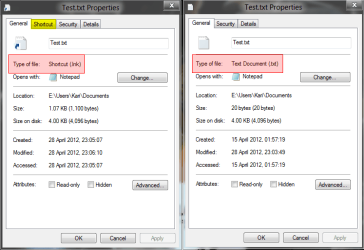
Kari
My Computer
- Computer type
- Laptop
- Computer Manufacturer/Model Number
- HP ENVY 17-1150eg
- OS
- Windows 10 Pro x64 EN-GB
- CPU
- 1.6 GHz Intel Core i7-720QM Processor
- Memory
- 6 GB
- Graphics Card(s)
- ATI Mobility Radeon HD 5850 Graphics
- Sound Card
- Beats sound system with integrated subwoofer
- Monitor(s) Displays
- 17" laptop display, 22" LED and 32" Full HD TV through HDMI
- Screen Resolution
- 1600*900 (1), 1920*1080 (2&3)
- Hard Drives
- Internal: 2 x 500 GB SATA Hard Disk Drive 7200 rpm
External: 2TB for backups, 3TB USB3 network drive for media
- Cooling
- As Envy runs a bit warm, I have it on a Cooler Master pad
- Keyboard
- Logitech diNovo Media Desktop Laser (bluetooth)
- Mouse
- Logitech Performance Mouse MX
- Internet Speed
- 50/10 Mbps VDSL
- Antivirus
- Windows Defender 4.3.9431.0
- Browser
- Maxthon 3.5.2., IE11
kari,
i did what you said however there was no shortcut tab to click.
Of course there is! If you did not see one you opened wrong properties, the original file's instead of the shortcut's.
See here the difference. Notice that General tab tells you the file type. If you open Properties for the shortcut, you most certainly have the Shortcut tab. Left one is the Properties of shortcut, right one the Properties of the original file:
View attachment 209454
Kari
hi kari,
thank you for your help. i actually dont have a shortcut. i only have the original. is there a way to make the original open in maximized size?
My Computer
- OS
- windows 7
PLEASE CREATE A SHORTCUT FOR YOUR NOTEPAD FILE AND YOUR PROBLEMS ARE RESOLVED!
http://www.sevenforums.com/tutorials/182161-shortcut-create-file-folder-program.html
Kari
http://www.sevenforums.com/tutorials/182161-shortcut-create-file-folder-program.html
Kari
My Computer
- Computer type
- Laptop
- Computer Manufacturer/Model Number
- HP ENVY 17-1150eg
- OS
- Windows 10 Pro x64 EN-GB
- CPU
- 1.6 GHz Intel Core i7-720QM Processor
- Memory
- 6 GB
- Graphics Card(s)
- ATI Mobility Radeon HD 5850 Graphics
- Sound Card
- Beats sound system with integrated subwoofer
- Monitor(s) Displays
- 17" laptop display, 22" LED and 32" Full HD TV through HDMI
- Screen Resolution
- 1600*900 (1), 1920*1080 (2&3)
- Hard Drives
- Internal: 2 x 500 GB SATA Hard Disk Drive 7200 rpm
External: 2TB for backups, 3TB USB3 network drive for media
- Cooling
- As Envy runs a bit warm, I have it on a Cooler Master pad
- Keyboard
- Logitech diNovo Media Desktop Laser (bluetooth)
- Mouse
- Logitech Performance Mouse MX
- Internet Speed
- 50/10 Mbps VDSL
- Antivirus
- Windows Defender 4.3.9431.0
- Browser
- Maxthon 3.5.2., IE11
Another option is to use WinSplit Revolution. I have mine setup such that when I press ALT+Z the foreground application goes to a predetermined location and size.
My Computer
- Computer type
- PC/Desktop
- OS
- Windows 10 x64
- CPU
- Intel i5-3570K
- Motherboard
- Asus Maximus V Gene
- Memory
- Crucial 16GB
- Graphics Card(s)
- nVidia Geforce 660 GTX
- Sound Card
- onboard
- Monitor(s) Displays
- NEC 2490WUXi2
- Screen Resolution
- 1920x1200
- Hard Drives
- Crucial M4 256GB
- PSU
- Corsair 650TX
- Case
- Fractal Design - Define Mini
- Keyboard
- Filco Majestouch Tenkeyless Black MX
- Mouse
- Logitech MBJ58
There has been a lot written about how to make Notepad Text files open maximised but none of the suggestions work for me. I have Notepad itself set to open maximised using the shortcut's properties page and this works fine. However, no matter what means I use to close the maximised file (File>Exit, the cross in the top right corner or Alt+F4) it always opens next time occupying a third of the screen! Creating a shortcut for each text file and editing its Properties to open maximised is not a realistic option.
I"m using Windows 7 Home Premium 32bit.
Anyone else having the same problem? Anyone know the solution?
I"m using Windows 7 Home Premium 32bit.
Anyone else having the same problem? Anyone know the solution?
My Computer
- OS
- Windows 7 Home Premium 32bit
Similar threads

- Replies
- 2
- Views
- 8K

- Replies
- 2
- Views
- 1K
- Replies
- 1
- Views
- 2K
