System won't boot after removing second hard drive, EFI?

KayinAngel

New member
Local time
10:08 AM
Messages
3
So this I've never encountered, not sure what to think about it. Hopefully someone can give me a hand.

I re-installed windows 7 to a fresh hard drive, while keeping my old hard drive with old install of windows still in my computer so I could transfer any personal files over later.
Upon startup, Windows boot manager lets me choose the new windows installation (default) or the previous one. Both boot properly.

However, if I try and remove the old hard drive from the system, it just give me a black screen when I boot.

I've tried changing the boot order of the drives in bios; it's giving me 'windows boot manager' as default, which I assume is giving me the menu to choose OS. If I change it to boot the main hard drive first, and ignore the second hard drive, it does the same thing (not booting).

Did I screw something up ? Did installing windows with the second drive attatched write some part of the boot partition on the second HD (disclaimer: I know little about what windows uses to boot).

In disk management, what should I be expecting to see ? Currently I have disk 0 (C: one large NTFS partition with boot, page file, crash dump, and primary) and disk 1 (includes one 100MB partition for EFI System Partition, and one large NTFS partition for D: as a primary partition).

Am I correct in thinking that the EFI System Partition needs to be on the main drive ? I've since learned that's what Win 7 does apparently, if there's already an EFI System Partition anywhere on drives, it adds the new OS info to that.

So, short of reinstalling windows with only the main drive in, is there anything I can do to move it, or delete and restore it on the main drive ? I don't care about the second hard drive being bootable, but I'm not quite ready to format it (and am unsure what would even happen at this point if I did).

If anyone can guide me in what to do. If reinstalling windows is the only option, I'd rather just leave the ******* second drive in there and forget about it. Otherwise, since I've already set up this fresh install of windows exactly as I like it (I'm picky), and didn't really have the time to reinstall it and start again from scratch, is there a way to perfectly and reasonably easily back this up then restore it if I were to reinstall windows?

Any help would be appreciated. This is really doing my head in.

Thanks.
 

My Computer My Computer

At a glance

Windows 7 Pro x64
OS
Windows 7 Pro x64
Your boot files are in the 100MB partition! Post screenshot of disk management
 

My Computer My Computer

At a glance

Microsoft Windows 7 Home Premium 64-bits 7601...Intel(R) Core(TM) i3 CPU M 370 @ 2.40GHz4,00 GBATI Mobility Radeon HD 5400 Series
Computer type
Laptop
Computer Manufacturer/Model Number
ACER ASPIRE 5742G
OS
Microsoft Windows 7 Home Premium 64-bits 7601 Multiprocessor Free Service Pack 1
CPU
Intel(R) Core(TM) i3 CPU M 370 @ 2.40GHz
Motherboard
Acer Aspire 5742G
Memory
4,00 GB
Graphics Card(s)
ATI Mobility Radeon HD 5400 Series
Sound Card
(1) AMD High Definition Audio Device (2) Realtek High Defi
Screen Resolution
1366 x 768 x 32 bits (4294967296 colors) @ 60 Hz
Hard Drives
WDC WD5000BEVT-22ZAT0

My Computer My Computer

At a glance

Microsoft Windows 7 Home Premium 64-bits 7601...Intel(R) Core(TM) i3 CPU M 370 @ 2.40GHz4,00 GBATI Mobility Radeon HD 5400 Series
Computer type
Laptop
Computer Manufacturer/Model Number
ACER ASPIRE 5742G
OS
Microsoft Windows 7 Home Premium 64-bits 7601 Multiprocessor Free Service Pack 1
CPU
Intel(R) Core(TM) i3 CPU M 370 @ 2.40GHz
Motherboard
Acer Aspire 5742G
Memory
4,00 GB
Graphics Card(s)
ATI Mobility Radeon HD 5400 Series
Sound Card
(1) AMD High Definition Audio Device (2) Realtek High Defi
Screen Resolution
1366 x 768 x 32 bits (4294967296 colors) @ 60 Hz
Hard Drives
WDC WD5000BEVT-22ZAT0
Does EasyBcd support EFI/UEFI ?
Which version ?
 

My Computer My Computer

At a glance

Win 8 RP, Win 7, XPIntel
Computer Manufacturer/Model Number
Acer Notebook
OS
Win 8 RP, Win 7, XP
CPU
Intel
This is what I'm looking at in disk management. The EFI partition isn't touchable at all in this (context menu is completely greyed)

Also, EasyBCD has zero EFI and GPT support from what I can tell.

So unfortunately this isn't going to help me.

It appears there aren't any tools that will solve this yet. This EFI thing is pretty intent on staying where it is, without a full re-install.

So, either I leave everything as it is (because like I said, I'm not even sure what happens if I format the second drive...

So, my second question then. If I were to do a full back up of the new install, reinstall windows with only the one disk plugged in, then restore the back up, will everything be restored as it is now?
I've actually never made backups of windows, ever. So I'm not sure what to expect.

Is it possible to make a perfect back up of this and restore ? Does it include everything such as drivers, installed programs, and various settings ? (ie, would I notice a difference from it's current state now?)

The reason I'm trying to avoid reinstalling is that I actually don't really have the time to do it again (I'm finicky about how it's set up, and I have to be working tomorrow, not downloading drivers, software, and setting up again.)

Again, any advice is appreciated.
 

My Computer My Computer

At a glance

Windows 7 Pro x64
OS
Windows 7 Pro x64
I would redo the Clean Reinstall correctly with the other HD unplugged.

EFI installs provide many complications including with repairs which is why we cannot use normal methods to repair your new install so it boots on its own, which are to unplug the other HD, mark Win7 Active then run Startup Repair - Run 3 Separate Times

What I would suggest you do is remove EFI boot disk from the BIOS setup Boot Order, then clean and format the target HD (by itself) using Diskpart Clean Command followed by the command Convert MBR. Access DISKPART At PC Startup .
You can then install normally. After install plug in the other HD to access it's data.

If you want to install using EFI, follow these instructions: UEFI (Unified Extensible Firmware Interface) - Install Windows 7 with - Windows 7 Forums which are more trouble than their worth, and require difficult steps to repair Win7.
 
It seems you second install is also a EFI install. If you had installed them without the other drive installed, you would have gotten two Windows Boot Mangers, each with the drive ident attached - hopefully.

I think your problem now, is that there is no room on the new drive for the EFI partition. If you were to shrink the partition so you had some unallocated space, a startup repair would probalby add the partition behind the first one.

The second drive is probably configured as a GPT drive, so you can't use an active partition and boot directly to it. If it is not a GPT drive, you could. To check if it is configured as GPT, right click the info box on the left end of Disk Management and see if it says "Convert to GPT" or "Convert to MBR". It will, of course, be the one not listed as convert.
 

My Computer My Computer

At a glance

Windows 7 x64i7-2600K8 GGTX 480
Computer Manufacturer/Model Number
Homebuilt
OS
Windows 7 x64
CPU
i7-2600K
Motherboard
Asus P8Z77-v Pro
Memory
8 G
Graphics Card(s)
GTX 480
Sound Card
Onboard
Monitor(s) Displays
LG W2753V
Screen Resolution
1920x1080
Hard Drives
Crucial M4 128 G SSD
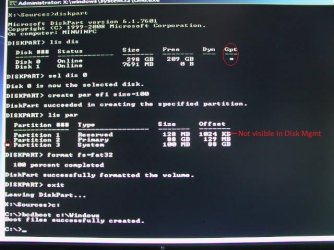
This post concerns restoring boot capability to a UEFI install when the install drive being used does not have a EFI partition, such as the situation in this thread.

The overall process is much like a Legacy (MBR) install where you do not have an active partition with the boot files included. But basically, you have to create a 100 MB EFI partition, format it with FAT32, and install the boot files.

All boots have to be done to the UEFI version of the media, whether flash drive, Install DVD, or actual install. Using the F8 or F12 keys, or whatever your system used for a boot device menu, is usually best. Since the boot device can change, you need to choose it prior to every boot.

Start by configuring the partitions on the new primary drive while still in Windows 7 using Disk Management. You can do this in Diskpart, but easier here. The end result has to be at least 100 MB of unallocated space on the drive.

Now, shutdown and disconnect the old drive, and any external drives you don’t need. Reboot into the Install Media and go to the page where you would normally select to Install, but do not. Instead, use the Shift+F10 key combination to open a command prompt window.

Type the following commands with enter after. Comments are for information, and not to be entered. You can use the first 3 letters of most words, except for Diskpart.

Diskpart
List Disk
<- check for the drive you will be using and note the number.
Select disk 0
<- use the number for you drive, if using flash drive, be careful and don’t select it.

Create partition efi size=100
<- size= designation only used if more than 100 MB available. If you left exactly the correct room on the drive, remove the size=100.

List Partition
<- just to verify the correct partition is selected by checking for asterik on left.

Format fs=fat32
<- after creating a partition, it normally becomes the selected partition. If you want to make sure, use the List Partition command and then select the partition you need with select partition 3 for example. An asterisk on the left side will designate what is selected.
Note: If a command you use shows Volume numbes instead of Partition numbers, Volume numbers and Partition numbers may not always agree, so use what is shown. If you select the wrong partition, you may wipe out your install.

Exit

We have left Diskpart, and back in the Command Prompt window. Now we need to put the boot files in the new partition. In the command prompt window, switch to the OS install partition, normally C: and it would be good to do a dir command and make sure the Windows folder is listed.


C:
Dir
<-check for Windows folder. If another drive letter shows as the OS install use it in the next command.

Bcdboot C:\Windows

Wait for it to finish and give the successfully created message. You can now exit the install and should now be able to select the Windows Boot Manager during restart and boot into your Windows 7 install. If still not able to boot, do a Repair Install. See the attachment for actual command window.
 

Attachments

  • DisPart.jpg
    DisPart.jpg
    52.4 KB · Views: 221

My Computer My Computer

At a glance

Windows 7 x64i7-2600K8 GGTX 480
Computer Manufacturer/Model Number
Homebuilt
OS
Windows 7 x64
CPU
i7-2600K
Motherboard
Asus P8Z77-v Pro
Memory
8 G
Graphics Card(s)
GTX 480
Sound Card
Onboard
Monitor(s) Displays
LG W2753V
Screen Resolution
1920x1080
Hard Drives
Crucial M4 128 G SSD
Good info, Saltgrass, tho I'm sure you're referring to Startup Repair - Run 3 Separate Times
if it fails to boot, rather than a Repair Install.

Does the SysReserved partition also need to be marked Active, as it does when constructing an NTFS System Reserved partition on an MBR disk?

I recommend using free Partition Wizard bootable CD to shrink C from the left by 100mb+:
Partition Wizard Move/Resize Partition Video Help.
Partition Wizard Create Partition Video Help

Finally, does this tutorial correctly show how to boot the installer to do these repairs and installation? UEFI (Unified Extensible Firmware Interface) - Install Windows 7 with - Windows 7 Forums
 
Good info, Saltgrass, tho I'm sure you're referring to Startup Repair - Run 3 Separate Times
if it fails to boot, rather than a Repair Install.
The Startup Repair is a little strange. I found booting to the Repair option first gave you a "Reoair and Restart" option. Allow that the first time, but say no the second time and continue to Startup Repair. The second run will fix the boot problem, so you only need two if you make these selections.

Does the SysReserved partition also need to be marked Active, as it does when constructing an NTFS System Reserved partition on an MBR disk?
There is not an option to mark the EFI partition active. Linux does show it has a boot flag, but does not appear to use the same configuration. You cannot boot a GPT drive in an MBR system anywy.

I recommend using free Partition Wizard bootable CD to shrink C from the left by 100mb+:
Partition Wizard Move/Resize Partition Video Help.
Partition Wizard Create Partition Video Help

Finally, does this tutorial correctly show how to boot the installer to do these repairs and installation? UEFI (Unified Extensible Firmware Interface) - Install Windows 7 with - Windows 7 Forums
The info on using the Boot device F key should be enough, but maybe more is needed. It is shown on the Tutorial you link, every bios setup is a little different as to how they handle the boot options. Looking for the UEFI version is necessary.

Edit: I should be clear in this. Even if you leave space on the drive for the EFI partition, a Startup Repair will not repair the boot. All you will get is a compatibility error. You must make and probably format the EFI partition yourself. At least that is what my testing shows.
 
Last edited:

My Computer My Computer

At a glance

Windows 7 x64i7-2600K8 GGTX 480
Computer Manufacturer/Model Number
Homebuilt
OS
Windows 7 x64
CPU
i7-2600K
Motherboard
Asus P8Z77-v Pro
Memory
8 G
Graphics Card(s)
GTX 480
Sound Card
Onboard
Monitor(s) Displays
LG W2753V
Screen Resolution
1920x1080
Hard Drives
Crucial M4 128 G SSD
A quick thank you for the great info. I'll see what I can do with it all when I get a chance this weekend. I just wanted to post and let you know I appreciate it.

Also, you are correct: without doing anything else, the start-up repair didn't do anything except give a compatibility error.
 

My Computer My Computer

At a glance

Windows 7 Pro x64
OS
Windows 7 Pro x64
KayinAngel,

Read carefully and execute carefully the advice given to you by GregRocker.
 

My Computer My Computer

At a glance

MS Windows 7 Ultimate SP1 64-bitAMD A10-4600M6.00 GB Dual-Channel DDR3 @ 798MHz (11-11-12-28)AMD Radeon HD 7660G
Computer Manufacturer/Model Number
Toshiba Satellite S875D-S7239 laptop
OS
MS Windows 7 Ultimate SP1 64-bit
CPU
AMD A10-4600M
Motherboard
AMD Pumori (Socket FT1)
Memory
6.00 GB Dual-Channel DDR3 @ 798MHz (11-11-12-28)
Graphics Card(s)
AMD Radeon HD 7660G
Sound Card
High Definition Audio Device
Monitor(s) Displays
Generic PnP Monitor (1600x900@60Hz)
Screen Resolution
1600x900@60Hz
Hard Drives
SSD 119GB Corsair CSSD-V128GB2 ATA Device
Keyboard
Standard PS/2 Keyboard
Mouse
HP Wireless Optical Mobile Mouse Model FHA-3410
Internet Speed
What the local pub, local coffee shop offers.
Other Info
Optical Drive:MATSHITA BD-CMB UJ160B ATA Device


Also have an Asus ha1002xp netbook with Win 7 Ultimate installed.
This post concerns restoring boot capability to a UEFI install when the install drive being used does not have a EFI partition, such as the situation in this thread.

The overall process is much like a Legacy (MBR) install where you do not have an active partition with the boot files included. But basically, you have to create a 100 MB EFI partition, format it with FAT32, and install the boot files.

All boots have to be done to the UEFI version of the media, whether flash drive, Install DVD, or actual install. Using the F8 or F12 keys, or whatever your system used for a boot device menu, is usually best. Since the boot device can change, you need to choose it prior to every boot.

Start by configuring the partitions on the new primary drive while still in Windows 7 using Disk Management. You can do this in Diskpart, but easier here. The end result has to be at least 100 MB of unallocated space on the drive.

Now, shutdown and disconnect the old drive, and any external drives you don’t need. Reboot into the Install Media and go to the page where you would normally select to Install, but do not. Instead, use the Shift+F10 key combination to open a command prompt window.

Type the following commands with enter after. Comments are for information, and not to be entered. You can use the first 3 letters of most words, except for Diskpart.

Diskpart
List Disk
<- check for the drive you will be using and note the number.
Select disk 0
<- use the number for you drive, if using flash drive, be careful and don’t select it.

Create partition efi size=100
<- size= designation only used if more than 100 MB available. If you left exactly the correct room on the drive, remove the size=100.

List Partition
<- just to verify the correct partition is selected by checking for asterik on left.

Format fs=fat32
<- after creating a partition, it normally becomes the selected partition. If you want to make sure, use the List Partition command and then select the partition you need with select partition 3 for example. An asterisk on the left side will designate what is selected.
Note: If a command you use shows Volume numbes instead of Partition numbers, Volume numbers and Partition numbers may not always agree, so use what is shown. If you select the wrong partition, you may wipe out your install.

Exit

We have left Diskpart, and back in the Command Prompt window. Now we need to put the boot files in the new partition. In the command prompt window, switch to the OS install partition, normally C: and it would be good to do a dir command and make sure the Windows folder is listed.


C:
Dir
<-check for Windows folder. If another drive letter shows as the OS install use it in the next command.

Bcdboot C:\Windows

Wait for it to finish and give the successfully created message. You can now exit the install and should now be able to select the Windows Boot Manager during restart and boot into your Windows 7 install. If still not able to boot, do a Repair Install. See the attachment for actual command window.

Whilst i understand this is an old posting maybe this would help me..
I being the deadhead i am decided i was going to remove a hard drive from my system but when i did all hell broke loose nothing would boot. I know i removed the correct drive and the one left in was my win 7 32bit ultimate.
I tried the windows disk repair route about 8 times in the end that gave up on the job then like an idiot i was messing with the MBR/boot Programs on Hirens 15. and now nothing when i plug it into the system it says it need to be formatted to use it... and i cannot do anything with it at all. So i stopped there and here i am anyone tell me what i need to do and with what to rescue my drive and get it back up and running. Is this the same thing Saltgrass that i need to do to my drive..
I want to get it all back and booting correctly as there is stuff on there i need...
By the way the drive shows up in list disk as two shown in the pic as disk 2 and disk 3 its a WD 1.0tb. Disk 0 being the newly set up windows disk i am using at the moment..and Disk 1 is the my clickfree backup drive.
thanks for your time.
 

Attachments

  • hard1.JPG
    hard1.JPG
    29.4 KB · Views: 38
Last edited:

My Computer My Computer

At a glance

Windows 7 32bit
Computer type
PC/Desktop
Computer Manufacturer/Model Number
Dell
OS
Windows 7 32bit
Did you Mark Win7 Partition Active first before running Startup Repair - Run up to 3 Separate Times?

You can run repair as many times as you want but it won't write the system boot files to C without being marked Active first, which points the repair utility to the intended boot partition.

But if this is a UEFI BIOS it will not work unless you follow the steps given by Saltgrass, or reinstall to UEFI (Unified Extensible Firmware Interface) - Install Windows 7 with - Windows 7 Forums. So check your BIOS to see if it is UEFI BIOS vs. Legacy BIOS - YouTube
 
I just moved my EFI partition from my secondary HDD to my primary HDD on my x64 Windows 8.1 installation, because I wanted to remove the secondary HDD. Using the steps Saltgrass provided I have been able to do this. At first I forgot to remove the secondary HDD which caused the bcdboot command not to execute the proper tasks. The second time I did remove the secondary HDD and now everything works perfectly.
 

My Computer My Computer

At a glance

Windows 7 Professional x64
OS
Windows 7 Professional x64
With both disks attached Do this:

http://www.sevenforums.com/tutorials/209885-bootmgr-move-c-easybcd.html

Then mark 100MB partition on old drive inactive to prevent to use it as BOOT partition
http://www.sevenforums.com/tutorials/197157-partition-mark-inactive.html

Now it works

Thanks for the info on EasyBCD

Followed these instruction and but did not work at first. I added the Windows 7 to Boot menu list of OS's and that worked perfectly. I know this thread is old, but hope it helps out.
 

Attachments

  • BCD.jpg
    BCD.jpg
    49.5 KB · Views: 1
  • BootOrder.jpg
    BootOrder.jpg
    37.8 KB · Views: 27

My Computer My Computer

At a glance

Windows 7 Ultimate X64I5KingstonGeforce 770 GTX
Computer type
PC/Desktop
Computer Manufacturer/Model Number
Custom CM Storm Trooper
OS
Windows 7 Ultimate X64
CPU
I5
Motherboard
MSI Global P67A-C45
Memory
Kingston
Graphics Card(s)
Geforce 770 GTX
Hard Drives
120GB SSD, 2T, 500GB
Browser
Chrome
This post concerns restoring boot capability to a UEFI install when the install drive being used does not have a EFI partition, such as the situation in this thread.

The overall process is much like a Legacy (MBR) install where you do not have an active partition with the boot files included. But basically, you have to create a 100 MB EFI partition, format it with FAT32, and install the boot files.

All boots have to be done to the UEFI version of the media, whether flash drive, Install DVD, or actual install. Using the F8 or F12 keys, or whatever your system used for a boot device menu, is usually best. Since the boot device can change, you need to choose it prior to every boot.

Start by configuring the partitions on the new primary drive while still in Windows 7 using Disk Management. You can do this in Diskpart, but easier here. The end result has to be at least 100 MB of unallocated space on the drive.

Now, shutdown and disconnect the old drive, and any external drives you don’t need. Reboot into the Install Media and go to the page where you would normally select to Install, but do not. Instead, use the Shift+F10 key combination to open a command prompt window.

Type the following commands with enter after. Comments are for information, and not to be entered. You can use the first 3 letters of most words, except for Diskpart.

Diskpart
List Disk
<- check for the drive you will be using and note the number.
Select disk 0
<- use the number for you drive, if using flash drive, be careful and don’t select it.

Create partition efi size=100
<- size= designation only used if more than 100 MB available. If you left exactly the correct room on the drive, remove the size=100.

List Partition
<- just to verify the correct partition is selected by checking for asterik on left.

Format fs=fat32
<- after creating a partition, it normally becomes the selected partition. If you want to make sure, use the List Partition command and then select the partition you need with select partition 3 for example. An asterisk on the left side will designate what is selected.
Note: If a command you use shows Volume numbes instead of Partition numbers, Volume numbers and Partition numbers may not always agree, so use what is shown. If you select the wrong partition, you may wipe out your install.

Exit

We have left Diskpart, and back in the Command Prompt window. Now we need to put the boot files in the new partition. In the command prompt window, switch to the OS install partition, normally C: and it would be good to do a dir command and make sure the Windows folder is listed.


C:
Dir
<-check for Windows folder. If another drive letter shows as the OS install use it in the next command.

Bcdboot C:\Windows

Wait for it to finish and give the successfully created message. You can now exit the install and should now be able to select the Windows Boot Manager during restart and boot into your Windows 7 install. If still not able to boot, do a Repair Install. See the attachment for actual command window.


Saltgrass's instructions worked to fix my Windows 8.1 issue where the boot files were accidentally installed on a the 2nd HDD. Initially I did a fresh install of Windows 8.1 on a new SSD when I still had my old HDD installed in the PC (mistake). Windows 8.1 installed and worked fine, but I could not delete a small partition on the 2nd HDD (even using DiskPart) and then I realized that the system would not boot unless the 2nd HDD was installed. The reason was that the boot files were residing on the HDD. If I ran "Bcdboot C:\Window /s C:" in admin cmd (or repair cmd) it would tell me say that the boot files were created, but they were not - the reason is because I needed to create a separate 100MB partition on my new SSD. Creating the EFI partition (as per Saltgrass's instructions) fixed this! Now my machine boots properly. THANKS!
 

My Computer My Computer

At a glance

Windows 8.1
Computer type
PC/Desktop
OS
Windows 8.1
This post concerns restoring boot capability to a UEFI install when the install drive being used does not have a EFI partition, such as the situation in this thread.

The overall process is much like a Legacy (MBR) install where you do not have an active partition with the boot files included. But basically, you have to create a 100 MB EFI partition, format it with FAT32, and install the boot files.

All boots have to be done to the UEFI version of the media, whether flash drive, Install DVD, or actual install. Using the F8 or F12 keys, or whatever your system used for a boot device menu, is usually best. Since the boot device can change, you need to choose it prior to every boot.

Start by configuring the partitions on the new primary drive while still in Windows 7 using Disk Management. You can do this in Diskpart, but easier here. The end result has to be at least 100 MB of unallocated space on the drive.

Now, shutdown and disconnect the old drive, and any external drives you don’t need. Reboot into the Install Media and go to the page where you would normally select to Install, but do not. Instead, use the Shift+F10 key combination to open a command prompt window.

Type the following commands with enter after. Comments are for information, and not to be entered. You can use the first 3 letters of most words, except for Diskpart.

Diskpart
List Disk
<- check for the drive you will be using and note the number.
Select disk 0
<- use the number for you drive, if using flash drive, be careful and don’t select it.

Create partition efi size=100
<- size= designation only used if more than 100 MB available. If you left exactly the correct room on the drive, remove the size=100.

List Partition
<- just to verify the correct partition is selected by checking for asterik on left.

Format fs=fat32
<- after creating a partition, it normally becomes the selected partition. If you want to make sure, use the List Partition command and then select the partition you need with select partition 3 for example. An asterisk on the left side will designate what is selected.
Note: If a command you use shows Volume numbes instead of Partition numbers, Volume numbers and Partition numbers may not always agree, so use what is shown. If you select the wrong partition, you may wipe out your install.

Exit

We have left Diskpart, and back in the Command Prompt window. Now we need to put the boot files in the new partition. In the command prompt window, switch to the OS install partition, normally C: and it would be good to do a dir command and make sure the Windows folder is listed.


C:
Dir
<-check for Windows folder. If another drive letter shows as the OS install use it in the next command.

Bcdboot C:\Windows

Wait for it to finish and give the successfully created message. You can now exit the install and should now be able to select the Windows Boot Manager during restart and boot into your Windows 7 install. If still not able to boot, do a Repair Install. See the attachment for actual command window.

Amazing post; just exactly the solution I required (RE creating and formatting EFI partition then adding files).
 

My Computer My Computer

At a glance

Windows 10 ProCore i7 477016GBDDR3GTX 770 2GB
Computer type
PC/Desktop
Computer Manufacturer/Model Number
Acer Predator
OS
Windows 10 Pro
CPU
Core i7 4770
Memory
16GBDDR3
Graphics Card(s)
GTX 770 2GB
Hard Drives
Corsair Neutron GTX
Samsung 850 Pro
Seagate 2TB HDD
Antivirus
BD IS 2016
Browser
Chrome
Is there any possibility of using this method, but without having to take out the second HDD? I've installed Windows 10 on an SSD, with my old HDD in a optical drive HDD caddy. But to remove it, requires opening up my laptop, whose screws are failing and I would like to avoid doing so...
 

My Computer My Computer

At a glance

Windows 10 64bit
Computer type
PC/Desktop
OS
Windows 10 64bit
Back
Top