How to Manually Extract Files from a Backup in Vista and Windows 7
Information
This will show you how to manually extract files from a Windows Backup in Vista and Windows 7. This can be handy if you are unable to restore the files from the backup normally in Windows.
This tutorial is not for manually extracting files from a system image backup.
This tutorial is not for manually extracting files from a system image backup.
Note
New backups are saved in this format:
drive letter:\computer name\Backup Set YYYY-MM-DD HHMMSS
For example: If your computer name is Brink-PC, your backup location is on hard drive (network or local) F: , and you backed up on July 9th 2011 at 3:10:38 PM (it will use 24 hour time), then your backup would be located at:
F:\BRINK-PC\Backup Set 2011-07-09 151038
There will be a incremental Backup Files YYYY-MM-DD HHMMSS folder in the Backup Set... folder location above that contains ZIP folders each under 200MB in size. These ZIP folders contain the selected backed up files. If a file that you included to be backed up is larger 200MB then it will be automatically broken up into several pieces each under 200 MB to fit into multiple ZIP files.
drive letter:\computer name\Backup Set YYYY-MM-DD HHMMSS
For example: If your computer name is Brink-PC, your backup location is on hard drive (network or local) F: , and you backed up on July 9th 2011 at 3:10:38 PM (it will use 24 hour time), then your backup would be located at:
F:\BRINK-PC\Backup Set 2011-07-09 151038
There will be a incremental Backup Files YYYY-MM-DD HHMMSS folder in the Backup Set... folder location above that contains ZIP folders each under 200MB in size. These ZIP folders contain the selected backed up files. If a file that you included to be backed up is larger 200MB then it will be automatically broken up into several pieces each under 200 MB to fit into multiple ZIP files.
EXAMPLE: Original Files that were Backed Up
NOTE: As an example used in this tutorial, these are the files that I included to be backed up in Windows Backup. I used two files as an example, AOE-3_setup.exe (over 200MB) and GPU-Z.0.5.0.exe (under 200MB) to help make the steps below easier to compare with what you want to restore instead.

OPTION ONE
To Extract Your Windows Backup Files using 7-Zip
NOTE: Thank you to Michael for pointing out this option.
1. If you have not already, you will need to download and install the latest version of the free 7-Zip program.
2. Create a New folder on your desktop. You can name it anything you like.
3. Open the drive that you saved the Windows Backup to, right click on the computer-name file (ex: BRINK-PC), and click on Open. (see screenshot below)
NOTE: If you double click on the file to try and open it, this will not work. You must right click and click on Open.
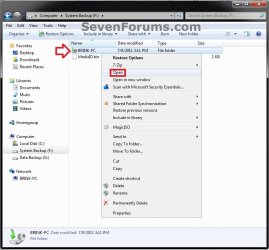
4. If prompted, click on Continue and Yes (UAC-Windows 7) or Continue (UAC-Vista). (see screenshot below)
NOTE: You will only get this prompt if this is the first time that you opened the file from step 1. You must be logged in as an administrator to approve.

5. From here, open the Backup Set YYYY-MM-DD HHMMSS folder (ex: Backup Set 2011-07-09 151038) with the date and time of a backup that you would like to restore files from. (see screenshot below)
NOTE: Each Backup Set folder is a separate new backup.

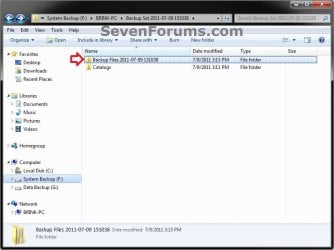
6. From here, open the Backup Files YYYY-MM-DD HHMMSS folder (ex: Backup Files 2011-07-09 151038) with the date and time of a backup that you would like to restore files from. (see screenshot below)
NOTE: Each Backup Files folder is an incremental backup of the files in the specific Backup Set folder.
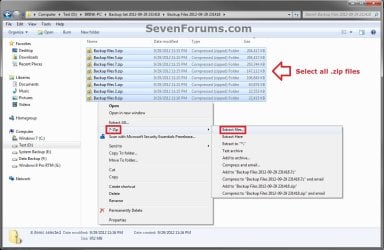
7. Select all of the listed Backup files #.zip files, right click on them, click on 7-Zip and Extract files. (see screenshot below)
8. Click on the browse button, select the New folder from step 2, and click on OK twice. (see screenshot below)
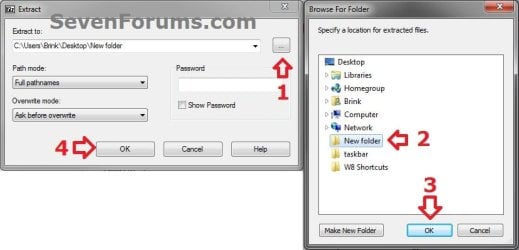
9. 7-Zip will now start extracting your files from the compressed Backup files #.zip files into the New folder from step 2. (see screenshot below)
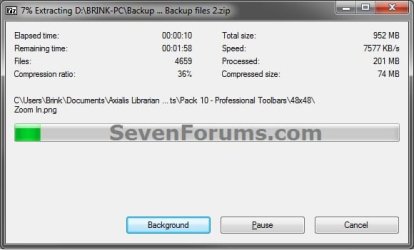
10. If prompted by 7-Zip, click on Yes to All. (see screenshot below)
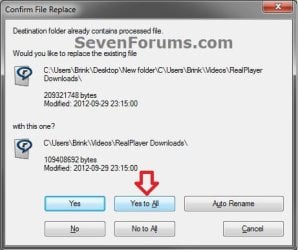
11. When 7-Zip is finished extracting your files, you will now be able to open the New folder on your desktop to do what you like with your files from the Windows Backup.
OPTION TWO
To Manually Extract Your Windows Backup Files
1. Open the drive that you saved the Windows Backup to, right click on the computer-name file (ex: BRINK-PC), and click on Open. (see screenshot below)
NOTE: If you double click on the file to try and open it, this will not work. You must right click and click on Open.
2. If prompted, click on Continue and Yes (UAC-Windows 7) or Continue (UAC-Vista). (see screenshot below)
NOTE: You will only get this prompt if this is the first time that you opened the file from step 1. You must be logged in as an administrator to approve.
3. From here, open the Backup Set YYYY-MM-DD HHMMSS folder (ex: Backup Set 2011-07-09 151038) with the date and time of a backup that you would like to restore files from. (see screenshot below)
NOTE: Each Backup Set folder is a separate new backup.
4. From here, open the Backup Files YYYY-MM-DD HHMMSS folder (ex: Backup Files 2011-07-09 151038) with the date and time of a backup that you would like to restore files from. (see screenshot below)
NOTE: Each Backup Files folder is an incremental backup of the files in the specific Backup Set folder.
5. From here, you will see the Backup files #.zip files that each contain your backup files up to 200MB per ZIP file. (see screenshot below)
NOTE: Unfortunately, you will have to open and search through each ZIP file to find the file that you wanted to restore from the backup.
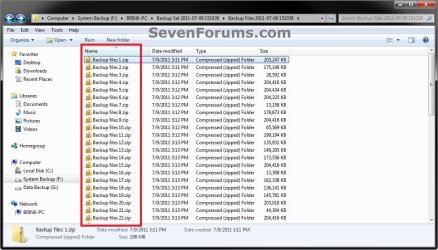
6. Set Windows to show known file extenstions, then do step 7 or 8 depending on the size of the original file that you wanted to restore.
7. If the Original File is 200 MBs or Under
NOTE: You will know if the file is 200MB or under if there is only one listing of the file (ex: GPU-Z.0.5.0.exe) in the opened ZIP file, and the ZIP files above and below it.
A) Open the ZIP file (ex: Backup files 1.zip) until you see files in it.
B) Select the file (ex: GPU-Z.0.5.0.exe) that you wanted to restore, then copy (drag and drop) it to your desktop. (see screenshot below)
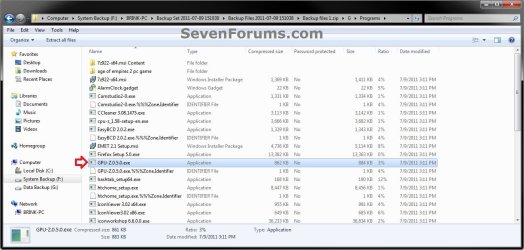
C) When finished, go to step 9.
8. If the Original File is Larger than 200 MBs
NOTE: You will know if the file is over 200MB if there is one or more listings of the file (ex: AOE-3_setup.exe) in the currently opened ZIP file, and more listings of this file in the ZIP files above and below it.
A) First, find out how many ZIP files that the file (ex: AOE-3_setup.exe) you want to restore is listed in. (see screenshot below)
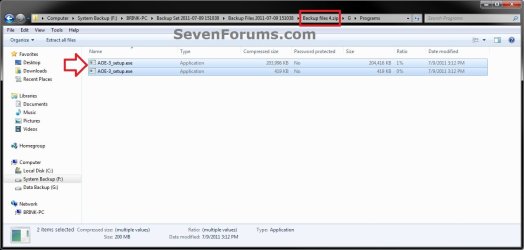
NOTE: For example, my AOE-3_setup.exe file (612MB) was listed in the Backup files 4.zip to the Backup files 7.zip file. It will listed in order. You will just need to find the first and last ZIP file that it's listed in.
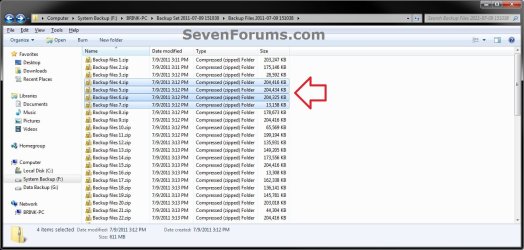
B) Open the first ZIP folder (ex: Backup files 4.zip) in the order, select all listings of the file (ex: AOE-3_setup.exe), then copy (drag and drop) it to your desktop. (see screenshot below)
NOTE: Each listing of the file is a piece of that file that had been broken down to pieces under 200MB when it was backed up.
Warning
You must be sure to extract the listings of the file in the exact order that they are listed from the ZIP files.
Top to bottom in the ZIP file, and say from the 4, 5, 6, to 7 ZIP files in that order.
Top to bottom in the ZIP file, and say from the 4, 5, 6, to 7 ZIP files in that order.
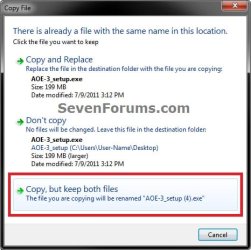
C) If prompted, check the Do this for all conflicts box, and click on Copy, but keep both files. (see screenshots below)
NOTE: This will automatically rename the files to include a (#) in the file name.

D) Repeat step 8B to 8C until you have copied all listings of the file (ex: AOE-3_setup.exe) to the desktop from all ZIP files it was listed in.
NOTE: For example, I had 2 listings of AOE-3_setup.exe in the Backup files 4.zip file, and only 1 listing of it in the other ZIP files (5, 6, 7).
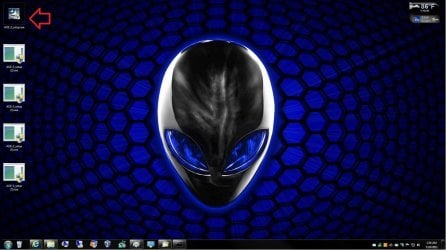
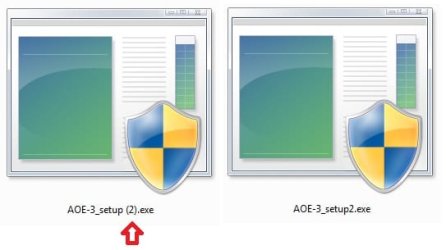
E) When finished, you will now need to rename the extracted files from the backup to only remove () from the file name to leave just the number inbetween them.
NOTE: For example, rename from AOE-3_setup(2).exe to AOE-3_setup2.exe. (see screenshot below)
Warning
If () are left in the name, then the extracted files would not be combined back together in the correct order.
F) Open a command prompt.
G) In the command prompt, type the command below, and press Enter. (see screenshot below)
NOTE: This will combine all of the extracted pieces of the file (ex: AOE-3_setup.exe) back to it's original full size.
Code:
copy /b "%userprofile%\Desktop\[COLOR=red][B]file-name[/B][/COLOR]*.[B][COLOR=red]file-extension[/COLOR][/B]" "%userprofile%\Desktop\Combined.[B][COLOR=#ff0000]file-extension[/COLOR][/B]"
Code:
copy /b "%userprofile%\Desktop\[COLOR=red][B]AOE-3_setup[/B][/COLOR]*.[COLOR=red][B]exe[/B][/COLOR]" "%userprofile%\Desktop\Combined.[B][COLOR=red]exe[/COLOR][/B]"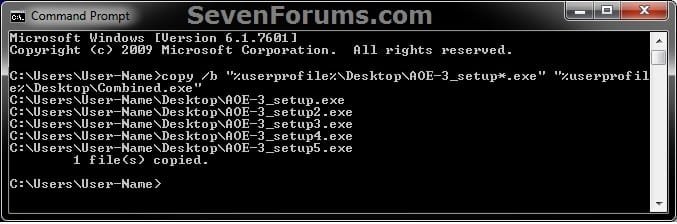
H) When it's finished combining the extracted files, close the command prompt.
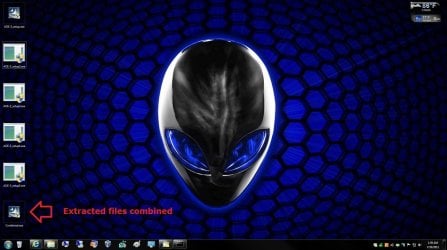
I) You will now see this as an example on your desktop. Delete all of the extracted files to leave only the Combined.exe file on your desktop. (see screenshot below)
9. The backup file has now been extracted from the backup. You can now rename it and/or move it to where you like.
10. Repeat step 6 above if you would like to manually restore another file from the same backup.
That's it,
Shawn
Related Tutorials
- How to Backup User and System Files in Windows 7
- How to Restore Backup User and System Files in Windows 7
- How to Enable or Disable Restoring Backup Files in Windows 7
- How to Create a "Restore Files from Selected Backup Location" Shortcut
- How to Create a System Image Backup in Windows 7
- How to Do a System Image Recovery in Windows 7
- How to Extract Files from Windows 7 System Image using Virtual PC
- How to Extract Windows 7 System Image Files Using Disk Management
- How to Extract Files from the Windows 7 Installation DVD
- How to Restore Files and Folders in Windows 7 with Previous Versions
- How to Extract Files and Folders from System Restore Points in Windows 7 and Vista
- How to Make a "Create Incremental Backup" Shortcut in Windows 7 and Vista
- How to Make a "Create New Backup" Shortcut in Windows 7 and Vista
- How to Create a "Manage Windows Backup Disk Space" Shortcut in Windows 7
- How to Restore your System with a Broken Windows 7 System Image
Last edited: