Having trouble triple booting WinXP & Win7. Please help.

NellyPuff

New member
Local time
1:11 PM
Messages
24
"but you only listed 2 OS" you say. I know :)

I know this can be done as i've ran it for years. In the past 3 years i've had to format 2-3 times & each time i've had problems doing this, but managed to stumble through. I can't seem to do it any more.

Basically, i want 1x WinXP installed & 2x Win7 installed (please let's not get into why 2 lots of Win7 as it's not important).

I installed WinXP first, then Win7, then Win7 again.
Ran EasyBCD on the final Win7 install, arranged the boot order - didn't work. Wrote to MBR - didn't work.

Both Win 7 partitions boot but not WinXP.
When I select to boot to WinXP it tells me:
Windows failed to start.
File: \NST\ntldr
Status: 0xc000000f
Info: the selected entry could not be loaded because the application is missing or corrupt.

I don't know how key this is but this morning i noticed a difference:
last time, WinXP & one Win7 install were on the same physical HDD - just split into 2 partitions. The other Win7 install was on a separate physical SSD.
This time however, each install is on it's own separate physical disk - both Win7s on their own SSD & WinXP on it's own HDD.

So this morning i re-install WinXP. This means i can only boot to WinXP - the bootmenu is not "seeing" either Win7 install. However when i try to start up EasyBCD in WinXP - it's a no go. Nothing "lights up".

I also wondered this morning what order in BIOS the physical drives should be in. Right now in order it's pointing to:
Win7 install 1 SSD
WinXP install HDD
Win7 install 2 SSD.

If i point it to 1) WinXP 2) Win7 #1 3) Win7 #2 then it doesn't like it & nothing boots.


If i have to start all over again then so be it, but i just want this fixed. I know it can be done, but not sure how.


EDIT: I have looked here: http://www.sevenforums.com/tutorials/8057-dual-boot-installation-windows-7-xp.html & can't see much different to what i did, except instead of installing 1x Win7 i installed 1x Win7 on 1 separate drive & then went on to do the same again on another separate drive.

As said, after it didn't work going WinXP>Win7>Win7 i then tried deleting the WinXP partition & re-installing it.
The link for NET framework 2.0 in that link isn't working & via MS Updates i think it was 3.5 i ended up downloading (either 3.0 or 3.5, can't remember, sorry).
I fired up EasyBCD from within WinXP & got an error message & nothing 'lit up'.

Getting very frustrated :(
 

My Computer My Computer

At a glance

Win7 Pro 64bit & WinXP Pro
OS
Win7 Pro 64bit & WinXP Pro
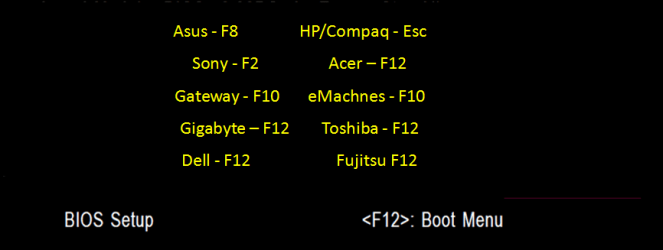
Can you boot to each OS HD drive from the BIOS boot menu?

GA BIOS-12.PNG
 

My Computer My Computer

At a glance

ME/XP/Vista/Win7
OS
ME/XP/Vista/Win7
I just went into BIOS & altered the order that the HDDs/SSDs boot in & here's the results...

1) WinXP
2) Win7 #1
3) Win7 #2
Result: Boots straight into WinXP. Don't even get a Win7 option

1) Win7 #1
2) WinXP
3) Win7 #2
Result: Triple boot menu but only access to both Win7 options. WinXP provides the error mentioned in post #1

1) Win7 #2
2) Win7 #1
3) WinXP
Result: Reboot & select proper boot device or insert boot media in selected boot device & press a key.


I really don't think i'm doing anything differently to last time (although i guess i must be). The only difference is there are now 3 physical drives in the equation instead of 2.


As EasyBCD will only work in Win7 #1, here's a screenshot:

atm3ys.jpg


EDIT: Instead of installing WinXP, Win7, Win7 & then trying the EasyBCD, should i have...

disconnected final Win7 SSD
installed WinXP
installed Win7
Ran EasyBCD from within Win7
re-connected final Win7 SSD
Install Win7 to final Win7 SSD

& hopefully have it working? Or would this make no difference?
 

My Computer My Computer

At a glance

Win7 Pro 64bit & WinXP Pro
OS
Win7 Pro 64bit & WinXP Pro
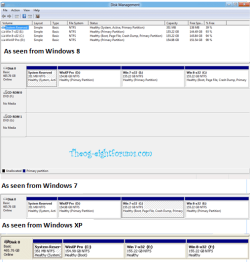
If installed as below, no need for EasyBCD

1) Install Windows XP.
2) Install Windows 7.
3) Install Windows 8.

Win8-7-XP-000001.PNG
XP-7-8pic-002.png
 

My Computer My Computer

At a glance

ME/XP/Vista/Win7
OS
ME/XP/Vista/Win7
Do this:

1) Windows 7 #1
2) WinXP
3) Windows 7 #2
Result: Triple boot menu but only access to both Windows 7 options. WinXP provides the error mentioned in post #1

Boot into win7 #1 or #2 and post output of disk management
 

My Computer My Computer

At a glance

Microsoft Windows 7 Home Premium 64-bits 7601...Intel(R) Core(TM) i3 CPU M 370 @ 2.40GHz4,00 GBATI Mobility Radeon HD 5400 Series
Computer type
Laptop
Computer Manufacturer/Model Number
ACER ASPIRE 5742G
OS
Microsoft Windows 7 Home Premium 64-bits 7601 Multiprocessor Free Service Pack 1
CPU
Intel(R) Core(TM) i3 CPU M 370 @ 2.40GHz
Motherboard
Acer Aspire 5742G
Memory
4,00 GB
Graphics Card(s)
ATI Mobility Radeon HD 5400 Series
Sound Card
(1) AMD High Definition Audio Device (2) Realtek High Defi
Screen Resolution
1366 x 768 x 32 bits (4294967296 colors) @ 60 Hz
Hard Drives
WDC WD5000BEVT-22ZAT0
I'm confused...

1) i don't want to install Windows 8 at all. I had a play with Win8 in town yesterday actually & i think it's horrendous, but that's by-the-by
2) In those screenshots, all those OS are installed on the same physical drive. In my case the 3 OS are installed on 3 separate drives (though i'm not sure if this will make any difference).


I've always installed:
WinXP
Win7
Win7

& every time i've needed EasyBCD to allow WinXP to boot. This time it's just not happening.
 

My Computer My Computer

At a glance

Win7 Pro 64bit & WinXP Pro
OS
Win7 Pro 64bit & WinXP Pro
Boot into win7 #1 or #2 and post output of disk management
Sorry but you'll have to hold my hand a bit here, i'm not that good. How do i do what you're asking me to do?
 

My Computer My Computer

At a glance

Win7 Pro 64bit & WinXP Pro
OS
Win7 Pro 64bit & WinXP Pro
1. Open the Control Panel (All Items view), and click on the Administrative Tools icon. then close the Control Panel window.

2. Click on Computer Management in Administrative Tools, then close the Administrative Tools window.

3. In the left pane under Storage, click on Disk Management. (See screenshot below)


Don't create the volume. Just post screenshot of partition layout
 

My Computer My Computer

At a glance

Microsoft Windows 7 Home Premium 64-bits 7601...Intel(R) Core(TM) i3 CPU M 370 @ 2.40GHz4,00 GBATI Mobility Radeon HD 5400 Series
Computer type
Laptop
Computer Manufacturer/Model Number
ACER ASPIRE 5742G
OS
Microsoft Windows 7 Home Premium 64-bits 7601 Multiprocessor Free Service Pack 1
CPU
Intel(R) Core(TM) i3 CPU M 370 @ 2.40GHz
Motherboard
Acer Aspire 5742G
Memory
4,00 GB
Graphics Card(s)
ATI Mobility Radeon HD 5400 Series
Sound Card
(1) AMD High Definition Audio Device (2) Realtek High Defi
Screen Resolution
1366 x 768 x 32 bits (4294967296 colors) @ 60 Hz
Hard Drives
WDC WD5000BEVT-22ZAT0
My god this is getting frustrating!!! I figured it out before you replied, but it's taken me 20 minutes to do that as my PC keeps freezing. I don't know why it keeps doing it but it keeps hanging. Some web pages don't load properly either & need many refreshes. I'm trying firefox now in case it's an IE issue. But let's deal with 1 problem at a time...


2chrfqw.jpg


This is from within the Win7 #2 install.

C = Win7 #2
D = storage drive
E = WinXP
F = another storage drive
G = another storage drive
H = Win7 #1


before all this mess, it used to be:

C=non existent as i only bought that drive yesterday
D=same
H=Win7 #2 (i'm 99% sure when i last did this i disconnected that drive while installing the others & then re-connected to install Win7 on it)
E=Win7 #1
F=WinXP
G=same
(although E & F were different sizes before this mess)
 

My Computer My Computer

At a glance

Win7 Pro 64bit & WinXP Pro
OS
Win7 Pro 64bit & WinXP Pro
remove the winxp bootentry in easybcd. Then in http://www.sevenforums.com/tutorials/783-elevated-command-prompt.html

Code:
bcdedit /create {ntldr} /d "Windows XP"
bcdedit /set {ntldr} device partition=[COLOR=red]E:[/COLOR]
bcdedit /set {ntldr} path \ntldr
bcdedit /displayorder {ntldr} /addlast

Be sure your winxp is E
Can you boot all 3 operating systems now?
 

My Computer My Computer

At a glance

Microsoft Windows 7 Home Premium 64-bits 7601...Intel(R) Core(TM) i3 CPU M 370 @ 2.40GHz4,00 GBATI Mobility Radeon HD 5400 Series
Computer type
Laptop
Computer Manufacturer/Model Number
ACER ASPIRE 5742G
OS
Microsoft Windows 7 Home Premium 64-bits 7601 Multiprocessor Free Service Pack 1
CPU
Intel(R) Core(TM) i3 CPU M 370 @ 2.40GHz
Motherboard
Acer Aspire 5742G
Memory
4,00 GB
Graphics Card(s)
ATI Mobility Radeon HD 5400 Series
Sound Card
(1) AMD High Definition Audio Device (2) Realtek High Defi
Screen Resolution
1366 x 768 x 32 bits (4294967296 colors) @ 60 Hz
Hard Drives
WDC WD5000BEVT-22ZAT0

My Computer My Computer

At a glance

Microsoft Windows 7 Home Premium 64-bits 7601...Intel(R) Core(TM) i3 CPU M 370 @ 2.40GHz4,00 GBATI Mobility Radeon HD 5400 Series
Computer type
Laptop
Computer Manufacturer/Model Number
ACER ASPIRE 5742G
OS
Microsoft Windows 7 Home Premium 64-bits 7601 Multiprocessor Free Service Pack 1
CPU
Intel(R) Core(TM) i3 CPU M 370 @ 2.40GHz
Motherboard
Acer Aspire 5742G
Memory
4,00 GB
Graphics Card(s)
ATI Mobility Radeon HD 5400 Series
Sound Card
(1) AMD High Definition Audio Device (2) Realtek High Defi
Screen Resolution
1366 x 768 x 32 bits (4294967296 colors) @ 60 Hz
Hard Drives
WDC WD5000BEVT-22ZAT0
remove the winxp bootentry in easybcd. Then in http://www.sevenforums.com/tutorials/783-elevated-command-prompt.html

Code:
bcdedit /create {ntldr} /d "Windows XP"
bcdedit /set {ntldr} device partition=[COLOR=red]E:[/COLOR]
bcdedit /set {ntldr} path \ntldr
bcdedit /displayorder {ntldr} /addlast
Be sure your winxp is E
Can you boot all 3 operating systems now?
No, i can't.

I select WinXP, which is now the final entry & then the screen goes blank/black & then the PC just reboots itself.

Win7 still accessible.


Also, the drive letter of WinXP now seems to have changed from E to F & the drive letter of the terabyte drive is now E for some reason.
 

My Computer My Computer

At a glance

Win7 Pro 64bit & WinXP Pro
OS
Win7 Pro 64bit & WinXP Pro

My Computer My Computer

At a glance

Win7 Pro 64bit & WinXP Pro
OS
Win7 Pro 64bit & WinXP Pro
Thinking about this....

IIRC the reason i originally had Windows XP installed was because some programes (namely games: Street Fighter 4 for e.g.) i could not get to work within Win7 64 bit. Looking on google & i'm not the only one. I have a 1GB graphics card (some Nvidia 460 series) & had the latest directX & it just wouldn't work in Win7 64bit, even when i chose to run as WinXP compatibility mode.

So i had WinXP installed & i could play the game.


As well as my Win7 64bit DVD, i also have a Win7 32bit DVD. I'm wondering if i install this instead of the WinXP partition 1) is it likely to work with the game - but i guess you guys couldn't tell me that, but 2) would it 'do away with' this current boot issue as i'd then have 2x Win7 64 bit & 1 Win7 32bit?
 

My Computer My Computer

At a glance

Win7 Pro 64bit & WinXP Pro
OS
Win7 Pro 64bit & WinXP Pro
That screencap was taken before the cmd prompt exercise which changed drive letters.

Anyway, this is taking up way too much time & i've just about had enough of it. I need 3 installs, so i'm looking at doing 3x installs of Win7, but as ever, i'm having problems.

Win7 install 1 onto SSD went great
Win7 install 2 onto HDD went great, both are bootable
Win7 install 3 onto final SSD, well when i went to install it it told me Windows couldn't be installed to the drive, but i went ahead anyway. It's now not bootable though - keep getting an error when it tries to boot. The other 2 are still bootable.

Prior to all this i scrapped EVERYTHING - deleted all partitions so everything was set to stock - that included the system reserved 100mb.

Just can't understand why i can't install Windows to the new SSD & why it's not bootable?
 

My Computer My Computer

At a glance

Win7 Pro 64bit & WinXP Pro
OS
Win7 Pro 64bit & WinXP Pro
Anyway, this has been a total waste of a weekend off work. My god has this been painful, but the end is in sight.

Want to know what was causing the problem with Win7 triple boot (3x Win7, not the WinXP i was trying earlier)???

The connection point on the motherboard that the final Win7 SSD was connected to (SATA6) was disabled in BIOS. All i had to do was change it to "auto" & it solved it.

I now wonder whether this has been the problem all along. I've wasted about 24 hours & had little sleep as i was up until the early hours trying to fix it. I feel like taking a hammer to the damn thing!!!
 

My Computer My Computer

At a glance

Win7 Pro 64bit & WinXP Pro
OS
Win7 Pro 64bit & WinXP Pro
Install XP, Install 7, Install 7. Simple , fast , done. No problems. 3 OS options at boot.
Use partition wizard boot cd to create the 3 partitions b4 you start. Don`t mark anyhting active , don`t mark anything inactive. No need for EasyBCD unless you want to alter the OS names at the boot screen.

You sound as if you didn`t have any fun ? Weren`t you doing something that you wanted to do ?
 

My Computer My Computer

At a glance

Windows 10 Pro x64Intel Core i7 6700KGSkill TridentZ RGB 16GB 3600 16-16-16-36EVGA GTX 980 Ti SC x2
Computer type
PC/Desktop
Computer Manufacturer/Model Number
Skylake Special #666
OS
Windows 10 Pro x64
CPU
Intel Core i7 6700K
Motherboard
Asus Sabertooth Z170 Mark 1
Memory
GSkill TridentZ RGB 16GB 3600 16-16-16-36
Graphics Card(s)
EVGA GTX 980 Ti SC x2
Sound Card
Realtek High Definition
Monitor(s) Displays
AOC G2460PG
Screen Resolution
1920 x 1080 144Hz
Hard Drives
Samsung 860 Pro 256GB, Seagate Barracuda 4TB x2
PSU
EVGA 1000 P2, EVGA White Custom Braided Cables
Case
Corsair Vengeance C70 Gunmetal Black
Cooling
Corsair H100i v2, Corsair ML120 x2, Thermal Grizzly Kryonaut
Keyboard
Logitech G910 Orion Spectrum
Mouse
Logitech G700s
Internet Speed
Verizon Fios Quantum Gateway 75/75
Antivirus
Windows Defender, Malwarebytes Free 3.8.3
Browser
Chrome
Other Info
Corsair SP120 x4, LG Blu-ray Drive, Durabrand HT-395 100 Watt Dolby Digital Amp, Corsair H2100 Wireless 7.1 Headset
If Disk2 was the one disabled in BIOS then nothing could boot since the System boot files booting all three OS's are on H, as signified by the System flag.

2chrfqw.jpg


This is the reason we recommend installing each OS with the other HD's unplugged, booting your choice via Boot order or one-time BIOS Boot Menu key - to keep them independent of the others and self-bootable.
 
Back
Top