How can I unlock my hard drive clean with HDAT2?

DaZapper

New member
Member
Local time
5:13 PM
Messages
25
Hello, I have an acer aspire one that has been sitting around and I have not been able to use it because the hard disk got locked with a password randomly one day... that was years ago, now I am just trying to do a clean install and wipe everything from the hard drive but I cant even access it. I got ultimate boot cd to start off a usb drive and have tried using dariks boot and nuke, and hdd erase 4... unfortunately hdd erase says it cant access a partition, and DBAN just scrolls forever with a bunch of letters and numbers and does not go to the progress of the autonuke or dod/dodshort screen. So then I tried using HDAT2 off of ultimate boot CD and even then I cant wipe it because it says I need the password... I try using "unlock" but then it says "aborted press any key" or something similar. I need help wiping this drive clean, any help would be appreciated.
 

My Computer My Computer

At a glance

windows 7 professional 64bit
OS
windows 7 professional 64bit

My Computer My Computer

At a glance

Windows 7 Home Premium 32 bit
OS
Windows 7 Home Premium 32 bit
Thanks, I'll give it a shot I used rufus to make my ultimate boot cd and I'll see if I can use ubuntu for it, I heard of it, but aint it like a OS? anyway maybe it will wipe the drive and unlock it like I need it to do.
 

My Computer My Computer

At a glance

windows 7 professional 64bit
OS
windows 7 professional 64bit
Hi there
I take it this aspire one system is a laptop.

There is a slightly unconventional way to do this.

1) Remove HDD from laptop -- really easy just remove the screws on the base of the laptop and slide out the HDD.
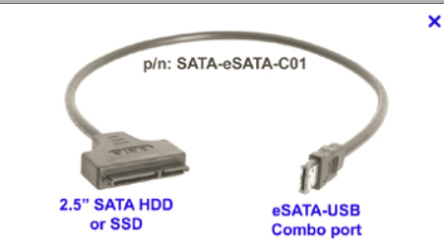
2) attach the HDD to one of those STAT==>USB adapters --these are really cheap if you don't have one.
3) find a colleagues or other computer that has a USB port on it.
4) Boot up partition wizard and delete all the partitions on the disk. (Download partition wizard (FREE) and create bootable media).
5) Format / create partitions as you need.
6) now install back into original computer and do your Windows install.

You might not need step 4 if the disk re-formats from Windows on the other computer you've connected it (via USB) to.

I'd advise to have a separate partition for OS + Apps like Office etc and user data.

Here's a pic of the SATA==>USB adapter I'm talking about.

By removing the HDD and working with it on another machine all the lock info will have gone from the drive - and if you have to use Partition Wizard it's essentially Linux based so the HDD is just DATA to it. If it's Hardware locked then that's another problem but cheap laptop drives aren't Military strength drives with special hardware / firmware in them so I doubt whether the drive is hardware locked.

Cheers
jimbo
 

Attachments

  • satausb.png
    satausb.png
    13.9 KB · Views: 7

My Computer My Computer

At a glance

Linux CENTOS 7 / various Windows OS'es and se...Intel i7 Intel i58GB, 16GBOn Motherboard
Computer type
PC/Desktop
Computer Manufacturer/Model Number
Custom built, several laptops HP/ASUS
OS
Linux CENTOS 7 / various Windows OS'es and servers
CPU
Intel i7 Intel i5
Memory
8GB, 16GB
Graphics Card(s)
On Motherboard
Sound Card
Realtek HD audio
Monitor(s) Displays
Apple Cinema display, Samsung LCD
Screen Resolution
1920 X 1080
Hard Drives
4 X 1TB SATA
Mouse
Toshiba wireless laser
Internet Speed
> 20MB up
I am trying to format with ubuntu and it gives me an error always saying "error creating partition table: helper exited with exit code 1:Error calling fsync(2) on/dev/sda: input/output error" I also do not know how to unmount the drive. the instructions on the ehow article were not clear for me because I could not find system, administration, and gnome partition editior
 

My Computer My Computer

At a glance

windows 7 professional 64bit
OS
windows 7 professional 64bit
It would be a call on Linuxperts to look into the above problem and shed any light on it..:) Let us wait and see if anyone else has some ideas on it.( Perhaps you may have to use an older version of the Distro for which the instructions may be applicable.)

Basically what is tried in there is to use Linux to partition/format the drive with its built-in tool.

Now referring to jimbo45's post above wherein he has recommended to take the HDD out and try MiniTools Partition Wizard on the premise that it is Linux-based, I was mulling over why not try Partition Wizard Home Edition with the HDD as it is in its place.

You may try it.

You will download Bootable CD version (ISO -42.6 MB) of Partition Wizard from Free download Magic Partition Manager Software, partition magic alternative, free partition magic, partition magic Windows 7 and server partition software - Partition Wizard Online

You may burn it to a CD or create a bootable pen drive with Rufus. (If you create a bootable pen drive with Rufus, when booting with it you have to type linux0 against boot prompt and press enter for the boot process to continue)

If it can see your HDD then delete all partitions and then format it. ( This is the same process which jimbo45 has recommended but you will be trying it in-situ without removing the HDD.)

Good Luck.
 

My Computer My Computer

At a glance

Windows 7 Home Premium 32 bit
OS
Windows 7 Home Premium 32 bit
wheb i start up the partition wizard it gives me an error saying error reading partition table drive01h sector and then says c:\> allowing me to type commands. so i got no clue...
 

My Computer My Computer

At a glance

windows 7 professional 64bit
OS
windows 7 professional 64bit
I went back to ubuntu and found gparted but when I loaded it up it could not find the hitachi hard drive it just shows the usb at 2gb... I think this might be way it is not working but i am not sure, how can i get gparted to recognize the hdd?
 

My Computer My Computer

At a glance

windows 7 professional 64bit
OS
windows 7 professional 64bit
wheb i start up the partition wizard it gives me an error saying error reading partition table drive01h sector and then says c:\> allowing me to type commands. so i got no clue...

Most probably you did not create the bootable pen drive with Partition Wizard ISO properly. It will not show a C:\> prompt at all. (Only the bootable DOS pen drive will show it.)

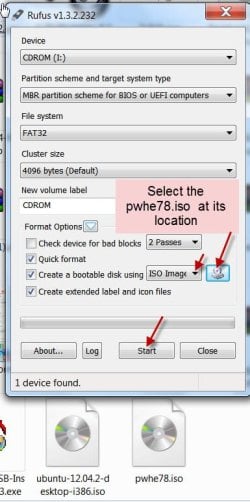
To create a bootable Partition Wizard pen drive, insert the pen drive, run Rufus, check the correct drive is shown, from the dropdown menu in "Create a bootable disk using" select "ISO Image", and then select the pwhe78.iso at its location. Click on Start to create.

03-05-2013 11-43-03.jpg

When booting from this pen drive, you will get an error message "vesamenu.c32: Not a COM32R image" and it will go to the "boot" prompt. Press the TAB key and you will get 3 options linux0 , linux1, local. Against the boot prompt type linux0, press Enter and wait. The boot process will continue and you will enter into Partition Wizard. ( If linux0 does not work, type linux1 and enter. local and enter will boot from the local drive.)

I have detailed this procedure so that it may help others who want to run Partition Wizard from a pen drive.

In your case however I would think that this is redundant. You have already run gparted from Ubuntu, and it did not find the hard drive. So most probably even Partition Wizard may not see the hard drive.

That would take us back to square one and I have run out of any further ideas to resolve your problem.

Perhaps, you may have to take out the hard drive, connect it with the Sata to USB cable or an external USB case and try out as jimbo45 has suggested but honestly I am now skeptical.
 
Last edited:

My Computer My Computer

At a glance

Windows 7 Home Premium 32 bit
OS
Windows 7 Home Premium 32 bit
I just that what happened was it failed to scan the pwhe iso... so when i tried it there was nothing on the usb... what now guys? I still have ultimate boot cd iso any ideas cause UBCD has a lot of tools.
 

My Computer My Computer

At a glance

windows 7 professional 64bit
OS
windows 7 professional 64bit
Hi,

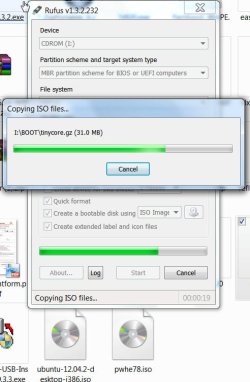
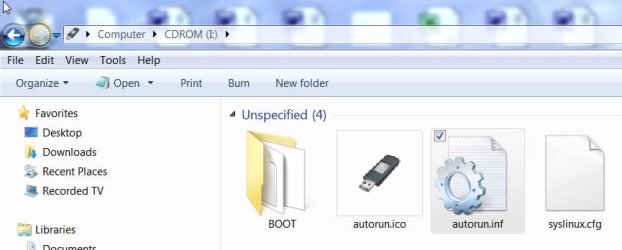
Rufus can scan and create a bootable pen drive only with the latest version of the pwhe78.iso. (With older ISOs Rufus failed to scan.) You should download the latest pwhe78.iso . I have created and tested it umpteen times. Did it again just now. Check the time of screenshots.(Rufus gives the Volume Label as CDROM for the pen drive)

Screenshots:

04-05-2013 08-16-28.jpg

04-05-2013 08-20-19.jpg

04-05-2013 08-23-34.jpg
 

My Computer My Computer

At a glance

Windows 7 Home Premium 32 bit
OS
Windows 7 Home Premium 32 bit
I downloaded the latest version and it still says failed to scan... I do not know whats wrong with the ISO or Rufus? But I did get UBCD on my usb again, and loaded up dariks boot and nuke, then I remove my usb press enter, then it takes like 5 minutes of random numbers letters and errors just scrolling continuously to get to the interactive screen. Once I am in the screen it sees my hitachi hard drive. so for I choose the quick erase method and press f10 to start. but immediately after I press f10 it just goes black and white and starts scrolling on forever with [x.x] ata1:00 followed by some words like "failed" "error" "status" and "complete" the x.x part being a number that rises to infinity.... so I am thinking this Dban way might be the way to go as this and ubuntu I have gone the farthest with... so anybody here experienced with Dban?
 

My Computer My Computer

At a glance

windows 7 professional 64bit
OS
windows 7 professional 64bit
Back
Top