Real puzzle here--All recovery methods fail, however...

SarahThom

New member
Local time
9:10 AM
Messages
10
My system continues to boot up and run pretty well. Most programs are fine. I can get online, access my C drive, as well as my data partition drives and my external HD backup. Windows live mail is fine. However, none of the following apps/processes work:

SCAN DISK
stops at 36%--"Windows Resource Protection could not perform the requested operation"
(elevated command prompt, in windows, at boot, in recovery mode, etc. all same result.)
Also: findstr /c:"[SR]" %windir%\Logs\CBS\CBS.log >"%userprofile%\Desktop\sfcdetails.txt
Fails to create text file
Also, running:
findstr /c:"[SR] Cannot" %windir%\logs\cbs\cbs.log|more
findstr /c:"[SR] Repairing" %windir%\logs\cbs\cbs.log|more
Shows many corrupted .dlls

DISK MANAGER
Snapin Error--"MMC has detected an error in a snap-in. It is recommended that you shut down and restart MMC"
If I "Ignore this error and continue running", there is no Disk Management snap-in under Storage.
Disk Management is listed in Add or Remove Snap-ins, but with no Vendor listed (unlike the others with an MS Corporation Vendor ID.)
Attempting to add it results in the same error as opening Computer Management shown above, followed by "MMC Window--MMC cannot initialize the snap-in Name: Disk Managment
CLSD: {DBFCA500-8C31-11D0-AA2C-00A0C92749A3}"

CHECK DISK:
Set to run at reboot, does not appear to run.

But, and here's the really fun part--all Recovery/Repair methods fail.


Not my screenshot, but the same.

STARTUP REPAIR
Does not fix any of these problems.

SYSTEM RESTORE
"The Application was unable to start correctly (0xc000007b). Click OK to close the application."
(Though it will allow me to create new system restore points from within windows, but same error trying use it.)

SYSTEM IMAGE RECOVERY
I do not have a backup image. (Because I had a recovery partition, which I can't seem to access, and a DELL/Windows recovery disk.)

WINDOWS MEMORY DIAGNOSTIC
Results report said all tests were finished and no problems were found. However, under the two disk test LISTINGS (SSD Cache, and HDD w/system and data partitions) remained a "running" message (gif?)

COMMAND PROMPT
No solution, as noted above.

DELL DATE SAFE RESTORE and EMERGENCY BACKUP
My OS is not listed. My recovery partition (which I had used twice before to restore craptastic factory condition) does not show up. I can access the recovery DVD, but I can't find any setup files that load the drivers needed. I can get into my attached External HDD, but there's no recovery files there, either.

Not my screen shot, but this is how the test gui appears.


Also tried LAST GOOD CONFIGURATION
Does not fix any of these problems.

As a result of something I tried (but I can't recall exactly what) I received this message:
"The partition table does not have a valid system partition" That can't be good. Sure would be great if Disk Manager worked.

I have just 12 more days until my warranty runs out, so I'll probably have to call Dell support soon. But I dread that process. You know how it is. So, I figured if anyone could help me avoid that, it would be you guys.

:note:DELL XPS ONE 2710 (non touch screen)
Win 7 Home Premium 64 bit w/ all Windows updates
16 GBs physical memory

I did a number of things that might have caused this. I removed Spybot S&D and had it delete quarantined objects. (The newest was from 6 months ago, and I'd noticed no problems.) I also downloaded and installed a lot of driver updates that the Dell site recommended. (Intel Rapid Storage Technology Driver, Intel USB 3.0 eXtensible Host Controller Driver, Intel Management Engine Interface Driver, Intel Chipset Driver. etc. And heaven only knows what else might have upset the non-apple cart.

Any questions? Any ideas?
 

My Computer My Computer

At a glance

Windows 7 Home Premium 64bit
Computer type
PC/Desktop
Computer Manufacturer/Model Number
Dell XPS One 2710
OS
Windows 7 Home Premium 64bit
I would try a disk diagnostic downloaded directly from the manufacturer's web site. Also you could run one of the disk benchmarks that shows retries(such as HDTune.) If you're getting a lot of retires, the HD may be bad.
 

My Computer My Computer

At a glance

Windows 7 32 bitAMD 5200+ dual core2 GBNVidia GeForce 6150SE 128 MB
Computer Manufacturer/Model Number
HP Media Center
OS
Windows 7 32 bit
CPU
AMD 5200+ dual core
Memory
2 GB
Graphics Card(s)
NVidia GeForce 6150SE 128 MB
Monitor(s) Displays
CRT
Screen Resolution
1280x1024
Hard Drives
500 GB Sata internal :

SIIG USB 3.0 docking stations w/WD Caviar Black 6 Gb/s drives
Keyboard
PS/2
Mouse
PS/2 Wheel Mouse
Other Info
SIIG USB 3.0 PCIexpress card.
I would try a disk diagnostic downloaded directly from the manufacturer's web site. Also you could run one of the disk benchmarks that shows retries(such as HDTune.) If you're getting a lot of retires, the HD may be bad.

Thank you! I wish I'd thought of that.

Dling Seagate SeaTools now. Wondering if there's any chance using it will void my warranty. (Once I ran an HDD check from the Maxtor and it seemed like it just fried my drive by ramping it up to warp speed for a long time before I thought to shut it down. Of course, yeah, I guess it didn't cause the disk failure, it just seemed that way. It was out of warranty before I ran that, though.)

Your suggestion also made me think to check Dell's site for Diagnostic tools. They use Iolo System Check up. Just ran that and it found that "One or more hard disk drives have signs of corruption, along with 979 registry irregularities. That's no surprise, but let's see what "Repair signs of corruption on detected Drive C" does. I just hope it doesn't use windows own tools, which we know aren't working.

On edit: Well, as I suspected, Iolo wants money for the fix. FU Dell and Iolo. Tell me that up front and you won't seem so sleazy. On to SeaTools now.
 
Last edited:

My Computer My Computer

At a glance

Windows 7 Home Premium 64bit
Computer type
PC/Desktop
Computer Manufacturer/Model Number
Dell XPS One 2710
OS
Windows 7 Home Premium 64bit
OK, I used Seagate's SeaTools to test my drives and both the SSD and the HDD passed.

It seems that I have file and/or driver corruption, but I can't see a way to fix that.

Hoping for more suggestions.
 

My Computer My Computer

At a glance

Windows 7 Home Premium 64bit
Computer type
PC/Desktop
Computer Manufacturer/Model Number
Dell XPS One 2710
OS
Windows 7 Home Premium 64bit
Do you have a UPS on the system? Those fraction of a second power glitches can easily corrupt files.
As far as the registry corruption and the like, if you don't have an image backup or a good restore point I don't know how you can back out of it. First thing though is to find out why stuff is getting corrupted.
 

My Computer My Computer

At a glance

Windows 7 32 bitAMD 5200+ dual core2 GBNVidia GeForce 6150SE 128 MB
Computer Manufacturer/Model Number
HP Media Center
OS
Windows 7 32 bit
CPU
AMD 5200+ dual core
Memory
2 GB
Graphics Card(s)
NVidia GeForce 6150SE 128 MB
Monitor(s) Displays
CRT
Screen Resolution
1280x1024
Hard Drives
500 GB Sata internal :

SIIG USB 3.0 docking stations w/WD Caviar Black 6 Gb/s drives
Keyboard
PS/2
Mouse
PS/2 Wheel Mouse
Other Info
SIIG USB 3.0 PCIexpress card.
Do you have a UPS on the system? Those fraction of a second power glitches can easily corrupt files.
Yes, I have everything plugged in to a decent APC UPS.

As far as the registry corruption and the like, if you don't have an image backup or a good restore point I don't know how you can back out of it. First thing though is to find out why stuff is getting corrupted..

I've had this system for almost a year and had few problems with corruption or otherwise. I'm pretty sure everything got messed up because of the Driver updates, removing Sypbot S&D, or possibly I used the registry cleaner in Enhance my Se7en and didn't back up the registry (stupid, I know.)

I have always had good luck with Windows System Restore and back up my files manually to an external drive. With my data files seperated from my OS drive, it's worked out well. if worse comes to worst, I can go back to factory settings, either through the Dell recovery partition, or, the Dell recovery disk.. It's a pain to have to reinstall all the updates and programs, but it's happened infrequently enough that I've always kind of liked getting a fresh start on my system.

It never occurred to me that, short of a disk failure, I'd not be able to do what I've always done. How can my system be so messed up as I described in the OP, yet run just fine? It seems crazy to me, but then I'm no expert.

Add though it seems to be running normally still, I can't live without the Disk Manager and System Restore working. Plus, with all the problems I listed, it seems only a matter of time before other things go wrong.

I dread spending the 8 hours or more having them take me through, "Make sure your system is plugged in. Go to the Start Menu. Click on Control Panel..." but I guess I'd better call Dell before my warranty runs out. Though, I appreciate your help so far and would love to hear any other suggestions you might have.
 

My Computer My Computer

At a glance

Windows 7 Home Premium 64bit
Computer type
PC/Desktop
Computer Manufacturer/Model Number
Dell XPS One 2710
OS
Windows 7 Home Premium 64bit
It might be a good idea to call Dell. Before doing that have you searched your model for weird problems? I don't remember the model PC but I'm reminded of one new machine that had all kinds of HD unreliability. There seemed to be no apparent reason. Turned out that heat from the Power Supply was being carried due to air flow right by the HD. It would run ok for awhile. But after being left on for serveral hours, disk file corruption etc... There might be something odd like that going on.
 

My Computer My Computer

At a glance

Windows 7 32 bitAMD 5200+ dual core2 GBNVidia GeForce 6150SE 128 MB
Computer Manufacturer/Model Number
HP Media Center
OS
Windows 7 32 bit
CPU
AMD 5200+ dual core
Memory
2 GB
Graphics Card(s)
NVidia GeForce 6150SE 128 MB
Monitor(s) Displays
CRT
Screen Resolution
1280x1024
Hard Drives
500 GB Sata internal :

SIIG USB 3.0 docking stations w/WD Caviar Black 6 Gb/s drives
Keyboard
PS/2
Mouse
PS/2 Wheel Mouse
Other Info
SIIG USB 3.0 PCIexpress card.
My system continues to boot up and run pretty well. Most programs are fine. I can get online, access my C drive, as well as my data partition drives and my external HD backup. Windows live mail is fine. However, none of the following apps/processes work:

SCAN DISK
stops at 36%--"Windows Resource Protection could not perform the requested operation"
(elevated command prompt, in windows, at boot, in recovery mode, etc. all same result.)
Also: findstr /c:"[SR]" %windir%\Logs\CBS\CBS.log >"%userprofile%\Desktop\sfcdetails.txt
Fails to create text file
Also, running:
findstr /c:"[SR] Cannot" %windir%\logs\cbs\cbs.log|more
findstr /c:"[SR] Repairing" %windir%\logs\cbs\cbs.log|more
Shows many corrupted .dlls

DISK MANAGER
Snapin Error--"MMC has detected an error in a snap-in. It is recommended that you shut down and restart MMC"
If I "Ignore this error and continue running", there is no Disk Management snap-in under Storage.
Disk Management is listed in Add or Remove Snap-ins, but with no Vendor listed (unlike the others with an MS Corporation Vendor ID.)
Attempting to add it results in the same error as opening Computer Management shown above, followed by "MMC Window--MMC cannot initialize the snap-in Name: Disk Managment
CLSD: {DBFCA500-8C31-11D0-AA2C-00A0C92749A3}"

CHECK DISK:
Set to run at reboot, does not appear to run.

But, and here's the really fun part--all Recovery/Repair methods fail.


Not my screenshot, but the same.

STARTUP REPAIR
Does not fix any of these problems.

SYSTEM RESTORE
"The Application was unable to start correctly (0xc000007b). Click OK to close the application."
(Though it will allow me to create new system restore points from within windows, but same error trying use it.)

SYSTEM IMAGE RECOVERY
I do not have a backup image. (Because I had a recovery partition, which I can't seem to access, and a DELL/Windows recovery disk.)

WINDOWS MEMORY DIAGNOSTIC
Results report said all tests were finished and no problems were found. However, under the two disk test LISTINGS (SSD Cache, and HDD w/system and data partitions) remained a "running" message (gif?)

COMMAND PROMPT
No solution, as noted above.

DELL DATE SAFE RESTORE and EMERGENCY BACKUP
My OS is not listed. My recovery partition (which I had used twice before to restore craptastic factory condition) does not show up. I can access the recovery DVD, but I can't find any setup files that load the drivers needed. I can get into my attached External HDD, but there's no recovery files there, either.

Not my screen shot, but this is how the test gui appears.


Also tried LAST GOOD CONFIGURATION
Does not fix any of these problems.

As a result of something I tried (but I can't recall exactly what) I received this message:
"The partition table does not have a valid system partition" That can't be good. Sure would be great if Disk Manager worked.

I have just 12 more days until my warranty runs out, so I'll probably have to call Dell support soon. But I dread that process. You know how it is. So, I figured if anyone could help me avoid that, it would be you guys.

:note:DELL XPS ONE 2710 (non touch screen)
Win 7 Home Premium 64 bit w/ all Windows updates
16 GBs physical memory

I did a number of things that might have caused this. I removed Spybot S&D and had it delete quarantined objects. (The newest was from 6 months ago, and I'd noticed no problems.) I also downloaded and installed a lot of driver updates that the Dell site recommended. (Intel Rapid Storage Technology Driver, Intel USB 3.0 eXtensible Host Controller Driver, Intel Management Engine Interface Driver, Intel Chipset Driver. etc. And heaven only knows what else might have upset the non-apple cart.

Any questions? Any ideas?

Hi SarahThom,

I understand most of the recovery options are not working on the system. It could be due corrupt recovery partition on the system or some virus caused this issue.

It would be best to do a clean install on the windows. Please follow this tutorial to clean install windows on the system and ensure ISRT enabled on the system:

http://dell.to/13EbJpn

If you need backup discs then you can go to the link below for requesting them:

http://dell.to/Zj7oHA

Keep us posted with the results so we can advise you further.
 

My Computer My Computer

At a glance

Winndows 7 32 bit
Computer type
PC/Desktop
OS
Winndows 7 32 bit
It might be a good idea to call Dell..
I called them today. After about 4 hours, they couldn't solve it and now must send me a USB Key to try. Now I have to wait a few days for that. I guess I should have done it sooner. The person helping me was not as bad as I'd feared, but not as good as I'd hoped.

Before doing that have you searched your model for weird problems? I don't remember the model PC but I'm reminded of one new machine that had all kinds of HD unreliability. There seemed to be no apparent reason. Turned out that heat from the Power Supply was being carried due to air flow right by the HD. It would run ok for awhile. But after being left on for serveral hours, disk file corruption etc... There might be something odd like that going on.

I saw that some people were having a problem with weird system beeps involved, but nothing that matched my estensive problems.
 

My Computer My Computer

At a glance

Windows 7 Home Premium 64bit
Computer type
PC/Desktop
Computer Manufacturer/Model Number
Dell XPS One 2710
OS
Windows 7 Home Premium 64bit
Hi SarahThom,

I understand most of the recovery options are not working on the system. It could be due corrupt recovery partition on the system or some virus caused this issue.

It would be best to do a clean install on the windows. Please follow this tutorial to clean install windows on the system and ensure ISRT enabled on the system:

http://dell.to/13EbJpn

If you need backup discs then you can go to the link below for requesting them:

http://dell.to/Zj7oHA

Keep us posted with the results so we can advise you further.


Hiya SandeepP,

Thank you for the suggestions. I was on the phone with Dell today for hours and we could not get anywhere. They are sending me a "USB Key" to try next. Unfortunatley, while trying to fix things before I called them, I ended up with a system that no longer even will boot into windows, so I can't follow the instructions at your link for a clean install.

Looking at my disks with Diskpart, I saw that the Dell Recovery partition is the only one set as active. I read somewhere on line that the XPS One 2710 normally boots "through" the Recovery partition. But the Dell CS rep told me that it doesn't. He said it should boot to the C drive where my OS is installed. I wondered if I should try making C active to see if I could boot up the system again. However, I think that's a little over my head, so I guess I'd probably do best to wait for the Dell USB key.

Then again, two or three days is a long time to wait and do nothing...
 

My Computer My Computer

At a glance

Windows 7 Home Premium 64bit
Computer type
PC/Desktop
Computer Manufacturer/Model Number
Dell XPS One 2710
OS
Windows 7 Home Premium 64bit
Hi SarahThom,

Thanks for your reply. I understand we are sending out the USB recovery key for your system.

You should be able to re-install windows using the recovery USB key. However, please mark the bootable partition as active if you have a bootable disc:

http://www.sevenforums.com/tutorials/71432-partition-mark-active.html

If you have an access to a different system you can create a system repair disc to perform the same:

http://www.sevenforums.com/tutorials/2083-system-repair-disc-create.html

Keep us posted with the results so we can advise you further.
 

My Computer My Computer

At a glance

Winndows 7 32 bit
Computer type
PC/Desktop
OS
Winndows 7 32 bit
Hey guys, here's the latest.

The good news: I somehow managed to recovery system to Dell DataSafe original factory image.

The bad news: It did not have all the programs the system had when I first got it. (Yeah, a lot of them are garbage, but some were good and I used them.) Worse, I had no network functionality. All the drivers were missing. So, I decided to just recover to the factory image again and see if it installed everything this time.

The good news: It claimed to successfully recover the factory image again.

The bad news: When it restarted after that, it would not boot into Windows and keeps trying and failing to repair. I even used bootrec to successfully rebuild the BCD. That didn't help.

I was not expecting the USB key to come util Thursday or Friday, but I just looked and it was on my doorstep. So, here's my dilemna--If I could just get the system to boot, I would have all my partitions in tact. I had most of my files backed up, but not all and I have a huge collection of media files. So, even though the USB key recovery process will allow me to save my files to an external HDD, it will take ages and ages again copying them back later.

If I could avoid reformatting the entire HDD and keep my partitions and data in place, I could avoid all that. I'm pretty sure the USB key method does not allow the user to select a partition for the Windows install (annoying--they could have made that an option, no?)

Considering that the Dell Datasafe recovery claims to have restored my computer to the factory settgings and I still can't boot my system, I'm afraid that the same will happen afer using the USB key recovery, only then my partitions will be wiped.

So, any ideas for how I might get the system to boot now?I did already try all of the options suggested here so far. My only question is about marking the bootable partion as active. Apparently I don't know which is the bootable partition. I assume it is either the OS partition or the recovery partition. I have tried marking each as active and neither way allows me to boot into Windows.
 

My Computer My Computer

At a glance

Windows 7 Home Premium 64bit
Computer type
PC/Desktop
Computer Manufacturer/Model Number
Dell XPS One 2710
OS
Windows 7 Home Premium 64bit
Update: So, I was able to set the OS partition as active with diskpart and create the boot files there with bootrec in the Dell recovery disk command prompt. Then I run Startup Repair. It runs tests multiple times and reports Startup Repair could not detect a problem. Root cause: "Boot status indicates that the OS booted sucessfully."

Yet, when I try to restart the system, booting from the OS disk, I get the Windows Error Recovery screen. Windows failed to start. Why?! I have done this repeatedly and Startup Repair claims there is no problem and the the OS booted successfully. But when I exit Repair and try to boot the system, it fails every time. This does not make sense, does it?
 

My Computer My Computer

At a glance

Windows 7 Home Premium 64bit
Computer type
PC/Desktop
Computer Manufacturer/Model Number
Dell XPS One 2710
OS
Windows 7 Home Premium 64bit
Update: So, I was able to set the OS partition as active with diskpart and create the boot files there with bootrec in the Dell recovery disk command prompt. Then I run Startup Repair. It runs tests multiple times and reports Startup Repair could not detect a problem. Root cause: "Boot status indicates that the OS booted sucessfully."

Yet, when I try to restart the system, booting from the OS disk, I get the Windows Error Recovery screen. Windows failed to start. Why?! I have done this repeatedly and Startup Repair claims there is no problem and the the OS booted successfully. But when I exit Repair and try to boot the system, it fails every time. This does not make sense, does it?

Hi SarahThom,

Thanks for your reply. It seems to me that something else is wrong rather than only operating system.

Please run a thorough diagnostics on the system using the link below to ensure hardware functionality:

http://dell.to/18xQpRy

Please don't worry about the softwares you can have all the softwares for your system by following the link below:

http://dell.to/18vHplX

Also, if you have two RAM installed on the system then try with one of them individually to check if any of the RAM is causing the issue on the system.

First and foremost please ensure there are no USB devices connected to the system while you are trying to boot from it.

Keep us posted with the results so we can advise you further.
 

My Computer My Computer

At a glance

Winndows 7 32 bit
Computer type
PC/Desktop
OS
Winndows 7 32 bit
Thanks SandeepP, but I have aready run the diagnostics, and shown in my OP, repeatedly and all tests are passed.

As for the RAM idea, unless it's far less tricky than I imagine, I don't want to try opeining this all in one system to remove a ram module.

All I want to do now is get some unsaved photos off of my HDD before letting the USB key destroy my partitions and possibly files. It is a shame that it does not allow me to deselect any of the default files chosen to save. I don't care about my Windows settings or many of the other default-selected ones. ALmost all of the files I do care about are already saved to my external HDD. There are just some recent pix I didn't back up.

I have many, many GBs of files even in the preselected. Dell tech support told me that if my HDD cannot hold all of the selected files, none will be saved.

The Dell USB key does not allow me to have it install to the C drive, but, instead, will wipe my partitions. And it does not allow me to select which files to back up. Dell should add these functions.

When I boot from the recovery CD, and click to search for drivers to install, I can see that all of my drives and partitions are intact. I can even manipulate the files within that limited explorer, but only within one drive at a time. So, there must be a way to move files from one drive to another.

Can anyone here tell me how to do that? If so, I would really appreciate it. Thanks!
 

My Computer My Computer

At a glance

Windows 7 Home Premium 64bit
Computer type
PC/Desktop
Computer Manufacturer/Model Number
Dell XPS One 2710
OS
Windows 7 Home Premium 64bit
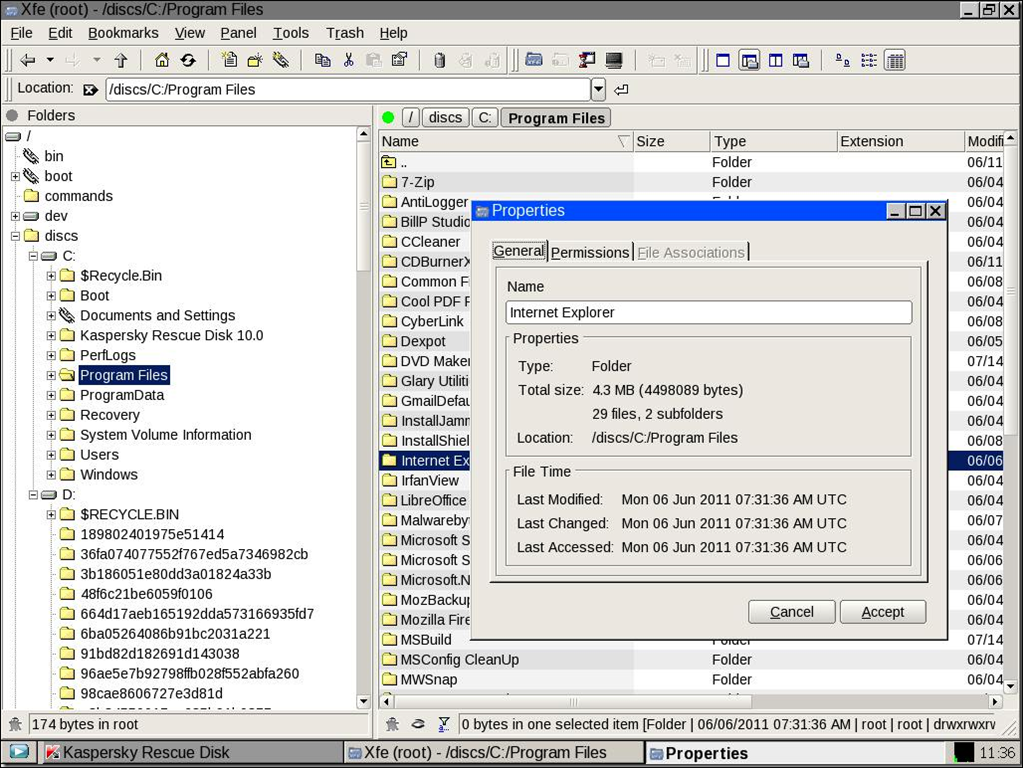
YES!!! Kaspersky Rescue Disk integrated file manager

I knew there had to be a way to save my files! I had an old Kaspersky Rescue Disk. Of course, I can't use the virus scan because it can't update itself because my network adapter can't be found (which I knew from the last time I was able to boot into windows.)

However, the Kaspersky disk has a file manager which is allowing me to copy all my files to my extrenal HDD. Awesome!!:)


image57.png


I still can't figure out why I can't boot into Windows. Looking at the C drive with the file manager I can see that all the the boot files are there. There are also boot files on the recovery drive (partition on C drive). And we knew that because of the Start-up repair reports saying the OS had booted successfully. But every time I restart the machine, it goes to the error screen.

I would love to figure this out to avoid having to repartion and reinstall programs, etc. But aside from that, I would just like to know what the heck the problem is. Anyone want to take a stab at it?
 

My Computer My Computer

At a glance

Windows 7 Home Premium 64bit
Computer type
PC/Desktop
Computer Manufacturer/Model Number
Dell XPS One 2710
OS
Windows 7 Home Premium 64bit
Hi SarahThom,

Its great to hear that you were able to take backup of the important data you had on the system. I believe best would be to do a clean install on the windows wiping all partitions:

http://www.sevenforums.com/tutorials/1649-clean-install-windows-7-a.html

Once windows is loaded you can check this video to install all the drivers for the system:

Updating Dell Drivers

You can install the supplied software for your system from my dell downloads:

My Dell Downloads

Keep us posted with the results so we can advise you further.
 

My Computer My Computer

At a glance

Winndows 7 32 bit
Computer type
PC/Desktop
OS
Winndows 7 32 bit
Back
Top