User Profiles - Create and Move During Windows 7 Installation

How to Create User Accounts on another Partition or Disk During Windows 7 Installation

   Information
There are several methods to move user profiles to another disk or partition after you have installed Windows 7. The easiest way is to use Audit Mode and System Preparation Tool, both built-in Windows 7 features, to permanently move the location of the folder Users.

This tutorial shows how to relocate both Users and ProgramData to another disk or partition when doing a new, fresh and clean install of Windows 7. If you have already installed Seven, and you'd like to move those folders away from their default location in C: drive, please read first post number 22 in this thread. Follow the steps told in that post, and continue then from beginning of the page 4 in this tutorial.
When Windows 7 is installed, 5 or 6 system folders are created depending on chosen bit-version:

  • PerfLogs (Performance Logs), where Windows stores performance and reliability logs
  • Program Files, where applications and software are installed. Windows x86 (32-bit) stores all applications here, Windows x64 (64-bit) only native 64-bit applications
  • Program Files (x86), only in Windows x64. All non-x64 applications are stored here
  • Windows, which contains core operating system files and drivers
  • ProgramData, where some applications store application and user specific settings and configuration files
  • Users. This is the "home" of all user folders. When a new user account is created and this new user logs in first time, Windows creates a set of user specific folders Users\New_User
Moving Windows and Program Files folders is not recommend by Microsoft. However, moving both Users and ProgramData folders is safe and can save a lot of space on system disk. Pictures, mp3’s videos, documents and so on, a user folder with its subfolders can be tens, sometimes hundreds of gigabytes.

For instance, using this laptop of mine as an example, the total size of Users folder and subfolders is at the moment about 240 GB. The size of ProgramData folder is at the moment almost 18 GB. I simply could not have these folders stored in my system C: drive, there’s not enough space.

When installing Windows 7, I recommend using Windows System Preparation Tool (Sysprep) in so called Audit Mode to relocate Users and ProgramData, leaving C: drive only for Windows and applications.

   Warning

An upgraded Windows cannot be sysprepped. As this method is based in sysprepping, this tutorial is valid only for Windows setups which have not been upgraded.

This means that if you have for instance in-place upgraded Vista to Seven, you cannot sysprep. The same applies if you have upgraded from a lesser edition to a better edition, for instance from Windows 7 Home Premium to Professional.

Notice that a repair install is also an upgrade install, so if you have ever done a repair install (= in-place upgrade to same edition), you cannot sysprep.

In other words, when sysprepping an existing Windows setup it only works if the Windows was installed clean and has never been upgraded or repaired using repair install, or if it is the original pre-installed Windows.

Using this method causes Windows 7 to lose activation information, and it needs to be reactivated afterwards. If your Windows 7 is an OEM version, you might not be able to reactivate it, at least not without phone activation option.

   Warning
IE10 Users: Please read this article first: Sysprep Fatal Error With IE 10 (FIX) | System Administration


Complete tutorial as PDF: View attachment Relocate User folders during Windows 7 installation.pdf (1.22 MB)

Kari


Last edited:
Seems to be OK, both folder location variables point to K: drive.
Code:
<FolderLocations> 
                <ProfilesDirectory>K:\Users</ProfilesDirectory> 
                <ProgramData>K:\ProgramData</ProgramData> 
            </FolderLocations>
Strange. It is not possible that sysprep moves one of the folders but not the other, as both are moved to same drive. This is normally only possible outcome when A) <ProfilesDirectory> and <ProgramData> variables point to different drives and one of those drives is not present when sysprepped or B) user has at some point relocated one of the folders back to C:.
 

My Computer My Computer

Computer type
Laptop
Computer Manufacturer/Model Number
HP ENVY 17-1150eg
OS
Windows 10 Pro x64 EN-GB
CPU
1.6 GHz Intel Core i7-720QM Processor
Memory
6 GB
Graphics Card(s)
ATI Mobility Radeon HD 5850 Graphics
Sound Card
Beats sound system with integrated subwoofer
Monitor(s) Displays
17" laptop display, 22" LED and 32" Full HD TV through HDMI
Screen Resolution
1600*900 (1), 1920*1080 (2&3)
Hard Drives
Internal: 2 x 500 GB SATA Hard Disk Drive 7200 rpm
External: 2TB for backups, 3TB USB3 network drive for media
Cooling
As Envy runs a bit warm, I have it on a Cooler Master pad
Keyboard
Logitech diNovo Media Desktop Laser (bluetooth)
Mouse
Logitech Performance Mouse MX
Internet Speed
50/10 Mbps VDSL
Antivirus
Windows Defender 4.3.9431.0
Browser
Maxthon 3.5.2., IE11
Thanks for looking, I think I'll be doing a fresh install soon, new motherboard, or not.
I did make a Macrium image of both drives and restored them, but I don't think that would have changed it. But as we agree, no harm and it works fine.

Isn't it time for a Laphroaig Triple Wood? :p
 

My Computer My Computer

Computer type
PC/Desktop
Computer Manufacturer/Model Number
Home Built Desktop By DataTech
OS
Windows 7 Ultimate X64 SP1
CPU
Intel i5-2550K, Differing ~4.4-4.8GHz No built in GPU
Motherboard
ASUS P8Z68-V PRO/GEN3
Memory
16GB G.Skill Sniper 1866MHz @ 2133MHz 2x8GB
Graphics Card(s)
ASUS GTX650TIB-DC2OC-2GD5, (650TI Boost)
Sound Card
Onboard Realtek 5-1
Monitor(s) Displays
Samsung P2570HD
Screen Resolution
1920x1080
Hard Drives
Samsung 840 Pro 256GB SSD for OS, 500GB Seagate Constellation (Enterprise drive) for Data
PSU
Corsair HX650W
Case
Inwin Dragon Rider
Cooling
Hyper 212 EVO w/two Noctua fans, push-pull, @1300 RPM
Keyboard
E-Z Eyes, bright yellow keys with large characters
Mouse
steelseries SENSEI Laser Pro Gaming
Internet Speed
48-51Mbs Mbs down, 11 Mbs up Xfinity Cable
Antivirus
Norton Internet Security 2013
Browser
IE 10, Opera, Pale Moon if needed
Other Info
4 case fans, LG BluRay-RE, ASUS DVD-RW, Mr. Fusion power supply, 1.21 gigawatts.
Kari,

Thanks for the forum posting with the user profile change for win 7. I am not a great tech person but was able to follow your instructions and successfully reinstalled win 7 a while back.

I have purchased a larger, faster data hard drive and would like to use it to replace the current separate hard drive I am using for data only. I tried cloning my old data drive and simply replacing the new cloned drive, but it did not work and have spent the afternoon restoring the original setup. I was able to do so after a few hours of work using system restore.

Let's assume I have C: as the opp system on SSD and D: old data drive and K: new cloned data drive to replace or be main data drive. What are the steps to make the switch? I do not think is simply remapping the drive letter Disk Management.

Regards
 

My Computer My Computer

Computer type
PC/Desktop
Computer Manufacturer/Model Number
Custome Build
OS
Win 7 64 bit Ultimate
Hi Paveway7, welcome to the Seven Forums.

I'm a bit preoccupied just now. The answer will be quite long, I need an hour or two before I have time to compose it. Come back later tonight :).

Kari
 

My Computer My Computer

Computer type
Laptop
Computer Manufacturer/Model Number
HP ENVY 17-1150eg
OS
Windows 10 Pro x64 EN-GB
CPU
1.6 GHz Intel Core i7-720QM Processor
Memory
6 GB
Graphics Card(s)
ATI Mobility Radeon HD 5850 Graphics
Sound Card
Beats sound system with integrated subwoofer
Monitor(s) Displays
17" laptop display, 22" LED and 32" Full HD TV through HDMI
Screen Resolution
1600*900 (1), 1920*1080 (2&3)
Hard Drives
Internal: 2 x 500 GB SATA Hard Disk Drive 7200 rpm
External: 2TB for backups, 3TB USB3 network drive for media
Cooling
As Envy runs a bit warm, I have it on a Cooler Master pad
Keyboard
Logitech diNovo Media Desktop Laser (bluetooth)
Mouse
Logitech Performance Mouse MX
Internet Speed
50/10 Mbps VDSL
Antivirus
Windows Defender 4.3.9431.0
Browser
Maxthon 3.5.2., IE11
Thanks. Do not expect you to dedicate your Sunday to this frankly. But was hoping is a quick win.... oh well.

That said, a follow up article on how to maintain, backup, etc this arrangement (split drives for op and data) in case of a hdd or ssd failure, etc I think would be good. I found lots of chatter about setting it up, but nothing on maintaining and enhancing the setup.
 

My Computer My Computer

Computer type
PC/Desktop
Computer Manufacturer/Model Number
Custome Build
OS
Win 7 64 bit Ultimate
Please wait for Kari's reply. I have my w7 installed wit this method on two machines. Instead of cloning I used Macrium to image each drive and found I needed to restore both images for it to work again. You still should wait for Kari. This was for info.
http://www.sevenforums.com/tutorials/73828-imaging-free-macrium.html#post648001

I keep the images files on two separate external drives.
 

My Computer My Computer

Computer type
PC/Desktop
Computer Manufacturer/Model Number
Home Built Desktop By DataTech
OS
Windows 7 Ultimate X64 SP1
CPU
Intel i5-2550K, Differing ~4.4-4.8GHz No built in GPU
Motherboard
ASUS P8Z68-V PRO/GEN3
Memory
16GB G.Skill Sniper 1866MHz @ 2133MHz 2x8GB
Graphics Card(s)
ASUS GTX650TIB-DC2OC-2GD5, (650TI Boost)
Sound Card
Onboard Realtek 5-1
Monitor(s) Displays
Samsung P2570HD
Screen Resolution
1920x1080
Hard Drives
Samsung 840 Pro 256GB SSD for OS, 500GB Seagate Constellation (Enterprise drive) for Data
PSU
Corsair HX650W
Case
Inwin Dragon Rider
Cooling
Hyper 212 EVO w/two Noctua fans, push-pull, @1300 RPM
Keyboard
E-Z Eyes, bright yellow keys with large characters
Mouse
steelseries SENSEI Laser Pro Gaming
Internet Speed
48-51Mbs Mbs down, 11 Mbs up Xfinity Cable
Antivirus
Norton Internet Security 2013
Browser
IE 10, Opera, Pale Moon if needed
Other Info
4 case fans, LG BluRay-RE, ASUS DVD-RW, Mr. Fusion power supply, 1.21 gigawatts.
Let's assume I have C: as the opp system on SSD and D: old data drive and K: new cloned data drive to replace or be main data drive. What are the steps to make the switch? I do not think is simply remapping the drive letter Disk Management.

OK, a bit about possible scenarios for you. Basically there are a lot of alternatives to achieve what you want to but I would use one of these three methods:
  1. Clean install
    • Remove the old data disk
    • Reinstall Windows to SSD
    • Shut down after reinstall, attach the new data drive
    • Relocate Users and ProgramData normally
    • Create all user accounts you need to
    • Attach the old data drive either directly or using an USB enclosure, copy user data to respective user folders on new data (user profiles) drive
    -- OR --
  2. Move folders back to C:, replace data disk, move to new data disk
    • Backup your user data from the old data drive, make Users folder as small as possible by moving as much as possible to a temporary storage (docs, pics, media etc.)
    • Move Users and ProgramData back to C: (SSD) by running sysprep with an edited answer file. This post although being a response to a different issue tells how, see Option 2 of said post. The more data there is to move the longer the sysprep process will take
    • Shut down, replace the old data disk with the new one
    • Relocate the Users and ProgramData to your new data disk using sysprep, edit answer file (<FolderLocations> tags) accordingly
    • Copy the user data from temporary storage to new data disk to respective folders
    -- OR --
  3. Relocating directly to new data disk (if your case has slots for all disks (SSD, old HDD, new HDD))
    • Attach the new disk, assign it a letter. Notice that you are not able to use the letter previously reserved by old data drive)
    • Run sysprep with an edited answer file, changing the <FolderLocations> as needed to point to the new data partition
Kari
 

My Computer My Computer

Computer type
Laptop
Computer Manufacturer/Model Number
HP ENVY 17-1150eg
OS
Windows 10 Pro x64 EN-GB
CPU
1.6 GHz Intel Core i7-720QM Processor
Memory
6 GB
Graphics Card(s)
ATI Mobility Radeon HD 5850 Graphics
Sound Card
Beats sound system with integrated subwoofer
Monitor(s) Displays
17" laptop display, 22" LED and 32" Full HD TV through HDMI
Screen Resolution
1600*900 (1), 1920*1080 (2&3)
Hard Drives
Internal: 2 x 500 GB SATA Hard Disk Drive 7200 rpm
External: 2TB for backups, 3TB USB3 network drive for media
Cooling
As Envy runs a bit warm, I have it on a Cooler Master pad
Keyboard
Logitech diNovo Media Desktop Laser (bluetooth)
Mouse
Logitech Performance Mouse MX
Internet Speed
50/10 Mbps VDSL
Antivirus
Windows Defender 4.3.9431.0
Browser
Maxthon 3.5.2., IE11
Kari, thanks for the quick response. I think option 3 is what I would try first as I have the room in the PC. Follow on question. Assume my mappings before were C: ssd/op sys D: old data K: new intended data drive. Can I in Disk Manager rename D: to E: (as an example), then rename K: to D:. I then use the sysprep file again for D: (as when originally set up and now the remapped new data drive. Once set up, I copy the files from E: to D: (new)?
 

My Computer My Computer

Computer type
PC/Desktop
Computer Manufacturer/Model Number
Custome Build
OS
Win 7 64 bit Ultimate
Kari, thanks for the quick response. I think option 3 is what I would try first as I have the room in the PC. Follow on question. Assume my mappings before were C: ssd/op sys D: old data K: new intended data drive. Can I in Disk Manager rename D: to E: (as an example), then rename K: to D:. I then use the sysprep file again for D: (as when originally set up and now the remapped new data drive. Once set up, I copy the files from E: to D: (new)?
No!

The thing is, you can never change the drive letter of a drive which contains system files and folders. Some smart geek may join this discussion and tell you of course you can, but it includes so much registry editing and is almost certainly going to fail that I will not even go deeper to that, nor will I assist in any way in doing so.

Why this method to relocate some system folders with sysprep and an unattended answer file works so well is because it changes the values of some internal Windows environment variables, in this case the ProfilesDirectory and PrograData variable values.

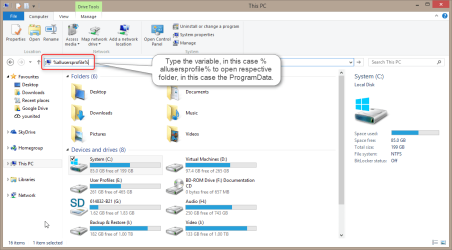
You can see how Windows environment variables work by opening Windows Explorer and testing some of them by typing the variable in addressbar between the %-signs and hitting enter to open a certain folder. Try these:
  • Type %appdata% to open the roaming appdata folder on your user profile folder
  • Type %localappdata% to open the local appdata folder on your user profile folder
  • Type %userprofile% to open your user profile folder
  • Type %public% to open the public user folder
  • Type %allusersprofile% to open the ProgramData folder
For instance the last one in above list, the %allusersprofile% tells Windows the user wants to go to the ProgramData folder. The user does not need to know on which drive the said folder is located. He simply gives the variable...:

2014-01-12_23h46_40.png
... and is taken to correct location:

2014-01-12_23h48_39.png
(Screenshots from Windows 8.1 but it works similar on Windows 7.)

This works as long as we have told Windows the exact value of each environment variable. If you have sysprepped your system telling Windows that the value of variable <ProgramData> = D:\ProgramData and you then change the drive letter, Windows now has a variable pointing to a non-existing value (folder) and can no longer find it, causing Windows not to work anymore.

Using Disk Management to change the drive letter for a drive which contains Users and ProgramData or any other system folder will totally destroy your system beyond repair.

That being said, you eiher accept that your new data drive (user profile drive) has a new drive letter, or you select the method 2 from my previous post.

Kari
 
Last edited:

My Computer My Computer

Computer type
Laptop
Computer Manufacturer/Model Number
HP ENVY 17-1150eg
OS
Windows 10 Pro x64 EN-GB
CPU
1.6 GHz Intel Core i7-720QM Processor
Memory
6 GB
Graphics Card(s)
ATI Mobility Radeon HD 5850 Graphics
Sound Card
Beats sound system with integrated subwoofer
Monitor(s) Displays
17" laptop display, 22" LED and 32" Full HD TV through HDMI
Screen Resolution
1600*900 (1), 1920*1080 (2&3)
Hard Drives
Internal: 2 x 500 GB SATA Hard Disk Drive 7200 rpm
External: 2TB for backups, 3TB USB3 network drive for media
Cooling
As Envy runs a bit warm, I have it on a Cooler Master pad
Keyboard
Logitech diNovo Media Desktop Laser (bluetooth)
Mouse
Logitech Performance Mouse MX
Internet Speed
50/10 Mbps VDSL
Antivirus
Windows Defender 4.3.9431.0
Browser
Maxthon 3.5.2., IE11
Kari, thanks once again. I think the option 3 is the way to go for me. Basically I follow the instructions for an in place Win 7 installation in the original forum. As my User files are currently on D: drive and am looking to map to K:, I do not see where in the XML script I tell Windows that the existing User files I want to move are on D:. I see where I switch D: to K: in the script. Any suggestion?
 

My Computer My Computer

Computer type
PC/Desktop
Computer Manufacturer/Model Number
Custome Build
OS
Win 7 64 bit Ultimate
Windows knows where the folders are at the moment of you running the sysprep command. Sysprep checks the current environment variables to find what it needs. The answer file only needs to tell sysprep where to move the folders, not where they are now.
 

My Computer My Computer

Computer type
Laptop
Computer Manufacturer/Model Number
HP ENVY 17-1150eg
OS
Windows 10 Pro x64 EN-GB
CPU
1.6 GHz Intel Core i7-720QM Processor
Memory
6 GB
Graphics Card(s)
ATI Mobility Radeon HD 5850 Graphics
Sound Card
Beats sound system with integrated subwoofer
Monitor(s) Displays
17" laptop display, 22" LED and 32" Full HD TV through HDMI
Screen Resolution
1600*900 (1), 1920*1080 (2&3)
Hard Drives
Internal: 2 x 500 GB SATA Hard Disk Drive 7200 rpm
External: 2TB for backups, 3TB USB3 network drive for media
Cooling
As Envy runs a bit warm, I have it on a Cooler Master pad
Keyboard
Logitech diNovo Media Desktop Laser (bluetooth)
Mouse
Logitech Performance Mouse MX
Internet Speed
50/10 Mbps VDSL
Antivirus
Windows Defender 4.3.9431.0
Browser
Maxthon 3.5.2., IE11
Kari, thanks once again. I think the option 3 is the way to go for me. Basically I follow the instructions for an in place Win 7 installation in the original forum. As my User files are currently on D: drive and am looking to map to K:, I do not see where in the XML script I tell Windows that the existing User files I want to move are on D:. I see where I switch D: to K: in the script. Any suggestion?
Something in your post remained in my small brain, disturbing me all last night, until about midday today I realized what it was: your mention of in-place installation.

Hopefully I do not post this too late for you:

   Warning

An upgraded Windows cannot be sysprepped. As this method is based in sysprepping, this tutorial is valid only for Windows setups which have not been upgraded.

This means that if you have for instance in-place upgraded Vista to Seven. The same applies if you have upgraded from a lesser edition to a better edition, for instance from Windows 7 Home Premium to Professional.

Notice that a repair install is also an upgrade install, so if you have ever done a repair install (= in-place upgrade to same edition), you cannot sysprep.

In other words, when sysprepping an existing Windows setup it only works if the Windows was installed clean and has never been upgraded or repaired using repair install, or if it is the original pre-installed Windows.

This post earlier in this thread is about upgrading to 8 or 8.1 from a sysprepped Seven with relocated Users and ProgramData, but the same procedures and principles apply also when upgrading to another edition of Seven or when repair installing (repair install = in-place upgrade to same edition).

Kari
 

My Computer My Computer

Computer type
Laptop
Computer Manufacturer/Model Number
HP ENVY 17-1150eg
OS
Windows 10 Pro x64 EN-GB
CPU
1.6 GHz Intel Core i7-720QM Processor
Memory
6 GB
Graphics Card(s)
ATI Mobility Radeon HD 5850 Graphics
Sound Card
Beats sound system with integrated subwoofer
Monitor(s) Displays
17" laptop display, 22" LED and 32" Full HD TV through HDMI
Screen Resolution
1600*900 (1), 1920*1080 (2&3)
Hard Drives
Internal: 2 x 500 GB SATA Hard Disk Drive 7200 rpm
External: 2TB for backups, 3TB USB3 network drive for media
Cooling
As Envy runs a bit warm, I have it on a Cooler Master pad
Keyboard
Logitech diNovo Media Desktop Laser (bluetooth)
Mouse
Logitech Performance Mouse MX
Internet Speed
50/10 Mbps VDSL
Antivirus
Windows Defender 4.3.9431.0
Browser
Maxthon 3.5.2., IE11
Kari, thanks. I have not gone ahead, need to make sure everything is backed up in case of a meltdown. Likely in the next couple of weekends I will have a crack at it. I have a clean install of Win 7 Ultimate on the machine, my jargon was not correct above, it is not an upgrade from Vista or repair install etc. It was rebuilt using your approach a couple of months back.

Chris
 

My Computer My Computer

Computer type
PC/Desktop
Computer Manufacturer/Model Number
Custome Build
OS
Win 7 64 bit Ultimate
Kari, have made the various backups before trying the approach for moving existing users from already separate D: drive to new separate K: drive (in your honour no less!). A couple of final sanity checks. In the script I have modified the location of the windows source from E: to a G: to use an ISO Win 7 SP1 Ultimate install, as my original Win 7 disk is pre SP1. I understood that for this to work the install disk has to have SP1. Never have tried this but will have a go.

Is there anything else in the script that needs to be modified as the Users are on D: and is not a clean install? From your post 22 it looks like everything in the Users files will be moved to the new location. Good news.

As is moving the Users from D: to separate new K: drive, I do not have to get into the users.old renaming aspects.

Finally I have IE11 installed on my machine. As per the note warning of IE10 users, I have checked the registry and all the entries reflect System32, not the SYSWOW64. At the end of that note a user asks for help when he is still getting the error but his registry has been corrected. Is this something that is now fixed via patch for IE11? If not what is the advice regarding correction -- uninstall IE 11 back to 9? Most of the forum commentary on it is fairly old so hoping it has been repaired now.

I have disabled the Windows Media Service...

Noob questions I know.

Chris
 

My Computer My Computer

Computer type
PC/Desktop
Computer Manufacturer/Model Number
Custome Build
OS
Win 7 64 bit Ultimate
Is there anything else in the script that needs to be modified as the Users are on D: and is not a clean install? From your post 22 it looks like everything in the Users files will be moved to the new location. Good news.
Only change in answer file in your case is the drive letter you want to move your Users (and possibly ProgramData) folder.

Finally I have IE11 installed on my machine. As per the note warning of IE10 users, I have checked the registry and all the entries reflect System32, not the SYSWOW64. At the end of that note a user asks for help when he is still getting the error but his registry has been corrected. Is this something that is now fixed via patch for IE11? If not what is the advice regarding correction -- uninstall IE 11 back to 9? Most of the forum commentary on it is fairly old so hoping it has been repaired now.
That issue was only with IE10, does not exist when using IE11.
 

My Computer My Computer

Computer type
Laptop
Computer Manufacturer/Model Number
HP ENVY 17-1150eg
OS
Windows 10 Pro x64 EN-GB
CPU
1.6 GHz Intel Core i7-720QM Processor
Memory
6 GB
Graphics Card(s)
ATI Mobility Radeon HD 5850 Graphics
Sound Card
Beats sound system with integrated subwoofer
Monitor(s) Displays
17" laptop display, 22" LED and 32" Full HD TV through HDMI
Screen Resolution
1600*900 (1), 1920*1080 (2&3)
Hard Drives
Internal: 2 x 500 GB SATA Hard Disk Drive 7200 rpm
External: 2TB for backups, 3TB USB3 network drive for media
Cooling
As Envy runs a bit warm, I have it on a Cooler Master pad
Keyboard
Logitech diNovo Media Desktop Laser (bluetooth)
Mouse
Logitech Performance Mouse MX
Internet Speed
50/10 Mbps VDSL
Antivirus
Windows Defender 4.3.9431.0
Browser
Maxthon 3.5.2., IE11
Kari, did the switch yesterday. Would call it a 90% success. The main steps went well. The profiles had about 480gb of information, at the reboot with the "checking video performance" message, it took about 3h to complete or so as it moved the info across.

A few quirks:
1. Got the Fatal Error message on each restart, had to disable the Media service with each restart.
2. USB drive worked well despite being a Student version of the software. Reactivivation went fine.
3. Several programs reacted to the move: HP software, Dropbox, Fences screen icon thing, Norton Security, Outlook was still looking for old psts. With uninstall and reinstall, most are working now, and in some cases setup again.
4. If only read the xml file from the D: drive, it would not read it when in the K: drive, got the Fatal Error message. I had two instances with identical files.

There are still a series of folders in the original location. I will check if there are any contents but assume is safe to delete them and remove the drive.

Chris
 

My Computer My Computer

Computer type
PC/Desktop
Computer Manufacturer/Model Number
Custome Build
OS
Win 7 64 bit Ultimate
Kari, really big thanks for all your assistance. It is really appreciated. Seems to be running well now.

Chris
 

My Computer My Computer

Computer type
PC/Desktop
Computer Manufacturer/Model Number
Custome Build
OS
Win 7 64 bit Ultimate
Good to hear.

Your Dropbox, Fences etc. issue is because of "almost good" ;) coding: Installer checks the location of ProgramData and/or Users from environment variable, but still creates register and ini references to an absolute location.
An example: An application installer needs to create a folder in ProgramData to store settings. Installer reads the environment variable showing the location of ProgramData, Windows tells installer it is relocated on D:. Now the app would have no issues even when PrograData would be relocated again in another location if the installer would write registry entries and ini/settings files using a relative location %ProgramData%, but instead the installer writes these values using D:\ProgramData.

The process of relocating ProgramData and Users can be done multiple times, to a new location or returning them to a prior location, but each new relocation brings more of these small issues. It's not serious and the work needed is nothing compared to what you can gain.

Kari
 

My Computer My Computer

Computer type
Laptop
Computer Manufacturer/Model Number
HP ENVY 17-1150eg
OS
Windows 10 Pro x64 EN-GB
CPU
1.6 GHz Intel Core i7-720QM Processor
Memory
6 GB
Graphics Card(s)
ATI Mobility Radeon HD 5850 Graphics
Sound Card
Beats sound system with integrated subwoofer
Monitor(s) Displays
17" laptop display, 22" LED and 32" Full HD TV through HDMI
Screen Resolution
1600*900 (1), 1920*1080 (2&3)
Hard Drives
Internal: 2 x 500 GB SATA Hard Disk Drive 7200 rpm
External: 2TB for backups, 3TB USB3 network drive for media
Cooling
As Envy runs a bit warm, I have it on a Cooler Master pad
Keyboard
Logitech diNovo Media Desktop Laser (bluetooth)
Mouse
Logitech Performance Mouse MX
Internet Speed
50/10 Mbps VDSL
Antivirus
Windows Defender 4.3.9431.0
Browser
Maxthon 3.5.2., IE11
Tried and failed.

So i attempted this method as per instructions. I made sure to stop the wmpnetworksvc so i got passed that error. I have installed windows 7 from the factory restore.(i had to factory restore my computer from recovery partition)That being said there is no disc in my E: drive. So I referred to post #22 for preinstalled steps. The strange part is when i run the command prompt for audit mode it does not actually cause me to have to create a new profile. It reboots, gives me the "setup is preparing" screen, and then returns me to the desktop in my same user account with screen from page 4 of your tutorial showing. I have the script file prepared but if i run it without closing this box, it states sysprep is already running. If I close the box and run the script, it will reboot do the exact same thing as before and return me to the page 4 screen.I copy and pasted the script to notepad for the .xml. All locations, architecture, and windows are exactly the same, down to the location of the relocate.xml file. Nothing broke, actually i don't think it did anything. Any ideas where I messed up first.
 

My Computer My Computer

Computer type
Laptop
Computer Manufacturer/Model Number
HP
OS
Windows 7 Ultimate X64
CPU
Intel Core i7-2860QM
Memory
16GB Corsair DDR3
Graphics Card(s)
Intel switchable graphics w/ Radeon HD 7690M XT (2GB GDDR5)
Hard Drives
Corsair Force GT 240GB SSD (For OS)
Western Digital(Hitachi) 750GB HDD (For Storage)
Antivirus
Norton 360 Premier
Browser
Mozilla Firefox, Internet Explorer 11, Google Chrome
Your post is quite difficult to understand but I will try. What's clear is that you have misunderstood something.

First, let me just say that this method, relocating with sysprep, works every time if you follow the instructions to the letter, use original install media and your Windows 7 is not in-place upgraded.

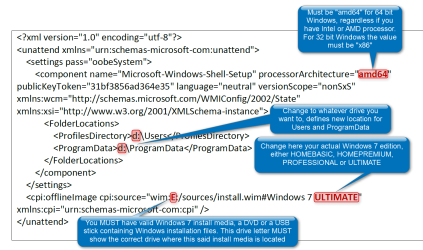
You MUST edit the answer file as told in screenshot below. All four points MUST be checked and correct:
  1. Correct bit architecture
  2. Correct drive letter for Users and ProgramData (new location, where you want them to be moved)
  3. Correct Windows edition
  4. Correct location of valid Windows 7 install media (no factory recovery partition but either an original Windows 7 DVD, or self from original and valid Windows ISO file burned DVD or USB stick)
2014-01-24_23h14_10.png

That being said there is no disc in my E: drive.
You MUST have valid Windows install media inserted, either a DVD or a USB stick. It DON'T HAVE TO BE on drive E: which is only used as an example in tutorial. Any drive will do; if you have created a Windows 7 USB stick from a valid Microsoft Windows 7 ISO file by yourself and have it attached as drive X:, then you replace the E: in the tutorial's answer file example to X:.

The strange part is when i run the command prompt for audit mode it does not actually cause me to have to create a new profile. It reboots, gives me the "setup is preparing" screen, and then returns me to the desktop in my same user account with screen from page 4 of your tutorial showing.
Have a shot of good single malt, take a deep breath and read the post #22 once again. Arriving to desktop as seen in screenshot in tutorial page 4 means you have booted to Audit Mode, not to your personal user account but to built-in administrative account.

It is not supposed to ask you to enter a new user name now but instead first after you have run sysprep with the answer file, exited Audit Mode and returned to normal Windows.
 

My Computer My Computer

Computer type
Laptop
Computer Manufacturer/Model Number
HP ENVY 17-1150eg
OS
Windows 10 Pro x64 EN-GB
CPU
1.6 GHz Intel Core i7-720QM Processor
Memory
6 GB
Graphics Card(s)
ATI Mobility Radeon HD 5850 Graphics
Sound Card
Beats sound system with integrated subwoofer
Monitor(s) Displays
17" laptop display, 22" LED and 32" Full HD TV through HDMI
Screen Resolution
1600*900 (1), 1920*1080 (2&3)
Hard Drives
Internal: 2 x 500 GB SATA Hard Disk Drive 7200 rpm
External: 2TB for backups, 3TB USB3 network drive for media
Cooling
As Envy runs a bit warm, I have it on a Cooler Master pad
Keyboard
Logitech diNovo Media Desktop Laser (bluetooth)
Mouse
Logitech Performance Mouse MX
Internet Speed
50/10 Mbps VDSL
Antivirus
Windows Defender 4.3.9431.0
Browser
Maxthon 3.5.2., IE11
Back
Top