User Profiles - Create and Move During Windows 7 Installation

How to Create User Accounts on another Partition or Disk During Windows 7 Installation

   Information
There are several methods to move user profiles to another disk or partition after you have installed Windows 7. The easiest way is to use Audit Mode and System Preparation Tool, both built-in Windows 7 features, to permanently move the location of the folder Users.

This tutorial shows how to relocate both Users and ProgramData to another disk or partition when doing a new, fresh and clean install of Windows 7. If you have already installed Seven, and you'd like to move those folders away from their default location in C: drive, please read first post number 22 in this thread. Follow the steps told in that post, and continue then from beginning of the page 4 in this tutorial.
When Windows 7 is installed, 5 or 6 system folders are created depending on chosen bit-version:

  • PerfLogs (Performance Logs), where Windows stores performance and reliability logs
  • Program Files, where applications and software are installed. Windows x86 (32-bit) stores all applications here, Windows x64 (64-bit) only native 64-bit applications
  • Program Files (x86), only in Windows x64. All non-x64 applications are stored here
  • Windows, which contains core operating system files and drivers
  • ProgramData, where some applications store application and user specific settings and configuration files
  • Users. This is the "home" of all user folders. When a new user account is created and this new user logs in first time, Windows creates a set of user specific folders Users\New_User
Moving Windows and Program Files folders is not recommend by Microsoft. However, moving both Users and ProgramData folders is safe and can save a lot of space on system disk. Pictures, mp3’s videos, documents and so on, a user folder with its subfolders can be tens, sometimes hundreds of gigabytes.

For instance, using this laptop of mine as an example, the total size of Users folder and subfolders is at the moment about 240 GB. The size of ProgramData folder is at the moment almost 18 GB. I simply could not have these folders stored in my system C: drive, there’s not enough space.

When installing Windows 7, I recommend using Windows System Preparation Tool (Sysprep) in so called Audit Mode to relocate Users and ProgramData, leaving C: drive only for Windows and applications.

   Warning

An upgraded Windows cannot be sysprepped. As this method is based in sysprepping, this tutorial is valid only for Windows setups which have not been upgraded.

This means that if you have for instance in-place upgraded Vista to Seven, you cannot sysprep. The same applies if you have upgraded from a lesser edition to a better edition, for instance from Windows 7 Home Premium to Professional.

Notice that a repair install is also an upgrade install, so if you have ever done a repair install (= in-place upgrade to same edition), you cannot sysprep.

In other words, when sysprepping an existing Windows setup it only works if the Windows was installed clean and has never been upgraded or repaired using repair install, or if it is the original pre-installed Windows.

Using this method causes Windows 7 to lose activation information, and it needs to be reactivated afterwards. If your Windows 7 is an OEM version, you might not be able to reactivate it, at least not without phone activation option.

   Warning
IE10 Users: Please read this article first: Sysprep Fatal Error With IE 10 (FIX) | System Administration


Complete tutorial as PDF: View attachment Relocate User folders during Windows 7 installation.pdf (1.22 MB)

Kari


Last edited:
Hi Kari - I have used your tutorial on 3 computers since you first posted, and the method in post 30 works great... this is a pdf file I have in a folder!

So, I would like to restore the current location (a WD VR 600) back to the SSD in the system (deleted and/or off-loaded a bunch of files to an external disk) before swapping that SSD out for a new larger one.

How do I use audit mode to restore users and appdata back to C: ?

Put my Win7 disk in , boot from it, enter Audit mode and run the script changing the drive letter to "C" from the current "E"?
jpm
 

My Computer My Computer

Computer Manufacturer/Model Number
Custom
OS
windows 7 home premium x64
CPU
i2700K @46 (via offset)
Motherboard
AsRock exteme3 gen 3
Memory
16Gb 2133
Graphics Card(s)
HD 7970 (2 xfire). 1125/1575
Sound Card
MB
Monitor(s) Displays
HP ZR30w
Screen Resolution
2560x1600
Hard Drives
PLextor 256 SSD
WD Raptor 1Tb
WD Black 1T
Seagate Green 2T
PSU
Silverstone Strider 1500W
Case
Sliverstone TJ09
Cooling
Custom water (Aquacomputer) CPU/GPUs, 720xt MK4
Keyboard
Razor mechanical
Mouse
G700
Internet Speed
80/35. (Fiber optic)
Other Info
Liang DCC aux pump
Hi Kari - I have used your tutorial on 3 computers since you first posted, and the method in post 30 works great... this is a pdf file I have in a folder!

So, I would like to restore the current location (a WD VR 600) back to the SSD in the system (deleted and/or off-loaded a bunch of files to an external disk) before swapping that SSD out for a new larger one.

How do I use audit mode to restore users and appdata back to C: ?

Put my Win7 disk in , boot from it, enter Audit mode and run the script changing the drive letter to "C" from the current "E"?
jpm
Last time I posted answer to this question in this thread was just two days ago, three posts before yours (this post of your's is number 700 in this thread, my answer post number 697). I know it's boring to go through page after page to see if your question is already answered, but please check at least a few last posts.

This a bit older post tells you how to boot to Audit Mode on an existing Windows. You can of course also run sysprep from Windows normal mode desktop, but it's somewhat more secure procedure if done in Audit Mode.

Kari
 

My Computer My Computer

Computer type
Laptop
Computer Manufacturer/Model Number
HP ENVY 17-1150eg
OS
Windows 10 Pro x64 EN-GB
CPU
1.6 GHz Intel Core i7-720QM Processor
Memory
6 GB
Graphics Card(s)
ATI Mobility Radeon HD 5850 Graphics
Sound Card
Beats sound system with integrated subwoofer
Monitor(s) Displays
17" laptop display, 22" LED and 32" Full HD TV through HDMI
Screen Resolution
1600*900 (1), 1920*1080 (2&3)
Hard Drives
Internal: 2 x 500 GB SATA Hard Disk Drive 7200 rpm
External: 2TB for backups, 3TB USB3 network drive for media
Cooling
As Envy runs a bit warm, I have it on a Cooler Master pad
Keyboard
Logitech diNovo Media Desktop Laser (bluetooth)
Mouse
Logitech Performance Mouse MX
Internet Speed
50/10 Mbps VDSL
Antivirus
Windows Defender 4.3.9431.0
Browser
Maxthon 3.5.2., IE11
Oh, geeze... That's what i get for skimming! I see you instructions to reverse the sysprep user location - simple enough for a noob like me. Will give it a go as soon as the new SSD arrives.

Much appreciated. Great tutorial and thread!
 

My Computer My Computer

Computer Manufacturer/Model Number
Custom
OS
windows 7 home premium x64
CPU
i2700K @46 (via offset)
Motherboard
AsRock exteme3 gen 3
Memory
16Gb 2133
Graphics Card(s)
HD 7970 (2 xfire). 1125/1575
Sound Card
MB
Monitor(s) Displays
HP ZR30w
Screen Resolution
2560x1600
Hard Drives
PLextor 256 SSD
WD Raptor 1Tb
WD Black 1T
Seagate Green 2T
PSU
Silverstone Strider 1500W
Case
Sliverstone TJ09
Cooling
Custom water (Aquacomputer) CPU/GPUs, 720xt MK4
Keyboard
Razor mechanical
Mouse
G700
Internet Speed
80/35. (Fiber optic)
Other Info
Liang DCC aux pump
Ran the "reverse" script as you described. Worked like a charm!

Frankly, this is such a great tool (and your tutorial very effective), why is this windows capability not more well known!

Great job Kari, and thank you
 

My Computer My Computer

Computer Manufacturer/Model Number
Custom
OS
windows 7 home premium x64
CPU
i2700K @46 (via offset)
Motherboard
AsRock exteme3 gen 3
Memory
16Gb 2133
Graphics Card(s)
HD 7970 (2 xfire). 1125/1575
Sound Card
MB
Monitor(s) Displays
HP ZR30w
Screen Resolution
2560x1600
Hard Drives
PLextor 256 SSD
WD Raptor 1Tb
WD Black 1T
Seagate Green 2T
PSU
Silverstone Strider 1500W
Case
Sliverstone TJ09
Cooling
Custom water (Aquacomputer) CPU/GPUs, 720xt MK4
Keyboard
Razor mechanical
Mouse
G700
Internet Speed
80/35. (Fiber optic)
Other Info
Liang DCC aux pump
It is a really good way to install I think. Audit mode can do much more than this if you research it. Kari can whip it into shape very well to do his will. :D
 

My Computer My Computer

Computer type
PC/Desktop
Computer Manufacturer/Model Number
Home Built Desktop By DataTech
OS
Windows 7 Ultimate X64 SP1
CPU
Intel i5-2550K, Differing ~4.4-4.8GHz No built in GPU
Motherboard
ASUS P8Z68-V PRO/GEN3
Memory
16GB G.Skill Sniper 1866MHz @ 2133MHz 2x8GB
Graphics Card(s)
ASUS GTX650TIB-DC2OC-2GD5, (650TI Boost)
Sound Card
Onboard Realtek 5-1
Monitor(s) Displays
Samsung P2570HD
Screen Resolution
1920x1080
Hard Drives
Samsung 840 Pro 256GB SSD for OS, 500GB Seagate Constellation (Enterprise drive) for Data
PSU
Corsair HX650W
Case
Inwin Dragon Rider
Cooling
Hyper 212 EVO w/two Noctua fans, push-pull, @1300 RPM
Keyboard
E-Z Eyes, bright yellow keys with large characters
Mouse
steelseries SENSEI Laser Pro Gaming
Internet Speed
48-51Mbs Mbs down, 11 Mbs up Xfinity Cable
Antivirus
Norton Internet Security 2013
Browser
IE 10, Opera, Pale Moon if needed
Other Info
4 case fans, LG BluRay-RE, ASUS DVD-RW, Mr. Fusion power supply, 1.21 gigawatts.
maybe this methos it's OK ?

OK, I have tested a new, different scenario now on three PC's, and it works. Here's what you should do if installing Seven on SSD and relocating User folders using this method, or if for any reason wanting to move ProgramData and / or Users after Windows is already installed. This method can be used whenever you want to relocate Users to another disk on an existing installation of Seven.

If you want to install Seven on an SSD: Install Seven normally to SSD, disconnecting all other disks. After Windows has booted first time normally after installation, shut the computer down and reconnect other disks. Reboot Windows.

Relocating Users and ProgramData folders when Windows Seven is already installed:

Run Command Prompt as administrator by clicking Start Menu > All Programs > Accessories, then right clicking Command Prompt and selecting Run as Administrator:

View attachment 128354

Type this to command prompt: C:\Windows\System32\Sysprep\Sysprep.exe /audit /reboot, hit Enter.

View attachment 128355

Kari

I have tested in an exsisting Windows installation with different method,
Code:
Sysprep.exe /audit /reboot /unattend:D:\relocate.xml
and after reboot enter OOBE, please see this video and check if it's OK.
https://www.youtube.com/watch?v=jLhsnqxVVgE

Thanks.
 

My Computer My Computer

Computer Manufacturer/Model Number
MSI
OS
Windows 7
What do you mean a different method? The method you use is exactly the same method described in the tutorial. There's a reason to start the procedure in Audit Mode but only difference I can see in the video compared to the tutorial is that you'll do it in normal mode.

I have three reasons why I do not like the video.

1). The video does not explain why, does not give any background information. It is simply too blatant, non-explaining "Do this, don't ask why!"

2). A written tutorial is easier to update when things change. A video lives its own life and later might cause issues after changes or updates in Windows require the things to be done in slightly a different way.

3). Of course this method was not invented by me. Sysprep and its usage are built-in features in Windows. I have simply written this tutorial about how to use Sysprep in this particular scenario.

That being said, when I wrote this tutorial we had just had some lively discussion here about some other sites using our content without telling the readers it originated from the Seven Forums. This in mind I made with purpose an unnecessary step in this procedure, to be able to tell if a similar tutorial or guide was a copy & paste job originating from here, or originally written. As the method got some popularity I simply left this telltale there as it really is harmless.

Your video has this telltale, an unnecessary step that tell me you have not made an original thing, based on your experience or Microsoft Windows documentation, but that you have instead copied some content published here at Seven Forums, then made a video based on it, and you mention our forums only as a footnote to get more info on Sysprep.

For these reasons I do not recommend your video. I watched it, as if I did not know the Sysprep, and it did not explain things to me.

Kari
 

My Computer My Computer

Computer type
Laptop
Computer Manufacturer/Model Number
HP ENVY 17-1150eg
OS
Windows 10 Pro x64 EN-GB
CPU
1.6 GHz Intel Core i7-720QM Processor
Memory
6 GB
Graphics Card(s)
ATI Mobility Radeon HD 5850 Graphics
Sound Card
Beats sound system with integrated subwoofer
Monitor(s) Displays
17" laptop display, 22" LED and 32" Full HD TV through HDMI
Screen Resolution
1600*900 (1), 1920*1080 (2&3)
Hard Drives
Internal: 2 x 500 GB SATA Hard Disk Drive 7200 rpm
External: 2TB for backups, 3TB USB3 network drive for media
Cooling
As Envy runs a bit warm, I have it on a Cooler Master pad
Keyboard
Logitech diNovo Media Desktop Laser (bluetooth)
Mouse
Logitech Performance Mouse MX
Internet Speed
50/10 Mbps VDSL
Antivirus
Windows Defender 4.3.9431.0
Browser
Maxthon 3.5.2., IE11
That being said, when I wrote this tutorial we had just had some lively discussion here about some other sites using our content without telling the readers it originated from the Seven Forums. This in mind I made with purpose an unnecessary step in this procedure, to be able to tell if a similar tutorial or guide was a copy & paste job originating from here, or originally written. As the method got some popularity I simply left this telltale there as it really is harmless.

Your video has this telltale, an unnecessary step that tell me you have not made an original thing, based on your experience or Microsoft Windows documentation, but that you have instead copied some content published here at Seven Forums, then made a video based on it, and you mention our forums only as a footnote to get more info on Sysprep.

you're right. so I'll add the credits in the video for this site and for "Kari".

new link for the video.

For these reasons I do not recommend your video. I watched it, as if I did not know the Sysprep, and it did not explain things to me.

Kari

because the process its a bit different (in normal mode) perhaps something isn't good.
i'm only interested in your opinion, not for teaching something new or better.

thank's.
 

My Computer My Computer

Computer Manufacturer/Model Number
MSI
OS
Windows 7
You got it wrong!!! Although I have never been modest ;), the credits belong to the Seven Forums, not to me. The method uses native Windows tools and features, Seven Forums has a tutorial of how to use them in a certain scenario and your video is based on this Seven Forums tutorial.
The Audit Mode uses the built-in administrator profile instead of a normal profile in an "enhanced Safe Mode" (a term I just made up, not de facto technical Windows term). Less services, less background activities and so on. I recommend using sysprep only when in Audit Mode, others might tell you something else.

Kari
 

My Computer My Computer

Computer type
Laptop
Computer Manufacturer/Model Number
HP ENVY 17-1150eg
OS
Windows 10 Pro x64 EN-GB
CPU
1.6 GHz Intel Core i7-720QM Processor
Memory
6 GB
Graphics Card(s)
ATI Mobility Radeon HD 5850 Graphics
Sound Card
Beats sound system with integrated subwoofer
Monitor(s) Displays
17" laptop display, 22" LED and 32" Full HD TV through HDMI
Screen Resolution
1600*900 (1), 1920*1080 (2&3)
Hard Drives
Internal: 2 x 500 GB SATA Hard Disk Drive 7200 rpm
External: 2TB for backups, 3TB USB3 network drive for media
Cooling
As Envy runs a bit warm, I have it on a Cooler Master pad
Keyboard
Logitech diNovo Media Desktop Laser (bluetooth)
Mouse
Logitech Performance Mouse MX
Internet Speed
50/10 Mbps VDSL
Antivirus
Windows Defender 4.3.9431.0
Browser
Maxthon 3.5.2., IE11
Relocate User folders during Windows 7 installation

Re: Relocate User folders during Windows 7 installation.pdf

My last relocation of user file folders took such a long painstaking time editing the registry after the OS install. And it still had User folders on the C: drive anyway.

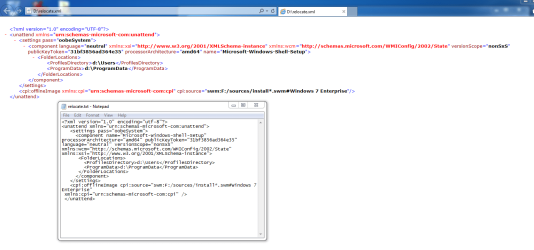
Thank you so VERY much for this guide. Nice! The example xml file in the PDF file uses one insall.wim file, but I used the following XML script file to load two .swm files:
(note the following is a text file edited in notepad, I then changed the file extension from .txt to .xml)

relocate_but rename with xml extension.txt (file attachment)

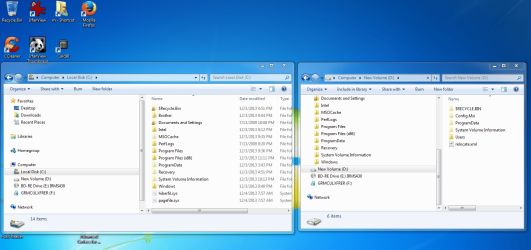
It worked like a charm. Here are a couple of pictures. You can see that my C: drive has no Users folder. Kind regards and a big thank you!! :party:

namitutonka
 

Attachments

My Computer My Computer

Computer type
PC/Desktop
Computer Manufacturer/Model Number
Gigabyte GA-Z77-UD5H rev 1.1
OS
Windows 7 Enterprise x64
CPU
i5 3570K delidded 4.2Ghz
Motherboard
Gigabyte GA-Z77X-UD5H rev 1.1
Memory
8Gb DDR3 1600 CL9 @ 800MHz - Kingston Hyperx
Graphics Card(s)
AMD Radeon 6670
Sound Card
Integrated Realtek ALC898
Monitor(s) Displays
Acer S201HL
Screen Resolution
1600 X 900
Hard Drives
OCZ Agility 4 - 250Gb
Single 1TB Toshiba
PSU
Antec Neo ECO 400W
Case
CoolerMaster HAF 922
Cooling
Noctua NH-D14
Keyboard
Logitech K120
Mouse
Razer Death Adder 3500DPI
Antivirus
Emisisoft Internet Security - Full Version
Browser
Firefox
Other Info
BIOS: f16mod10 Tweaktown.com
Hi Namitutonka, welcome to the Seven Forums.

Following the instructions on this tutorial, the original Users folder on C: is still there for purpose. Some individual programs which are coded "badly", not using Windows environment variables to check folder locations but instead using absolute locations, will need it.

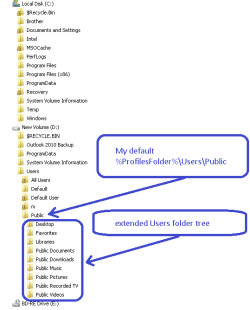
An example: on this Windows 8 machine I am writing my post now, one program (Stardock Fences) has created content on Documents folder on original folder C:\Users\Public instead of my relocated E:\Users\Public. This is because of the coders of said program have used location string C:\Users\Public instead of what they should have been using, %ProfilesDirectory%\Users\Public or %ProfilesFolder%\Users\Public.

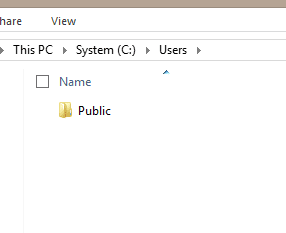
The original C:\Users is there on purpose and should not bother you, it never grows to be big enough to take important storage space away from your C: drive. Check the screenshot below to see the difference between the original C:\Users and my relocated E:\Users:

2013-12-12_13h41_16.png

The content of the original C:\Users:

2013-12-12_13h37_49.png

2013-12-12_13h38_18.png

Kari
 

My Computer My Computer

Computer type
Laptop
Computer Manufacturer/Model Number
HP ENVY 17-1150eg
OS
Windows 10 Pro x64 EN-GB
CPU
1.6 GHz Intel Core i7-720QM Processor
Memory
6 GB
Graphics Card(s)
ATI Mobility Radeon HD 5850 Graphics
Sound Card
Beats sound system with integrated subwoofer
Monitor(s) Displays
17" laptop display, 22" LED and 32" Full HD TV through HDMI
Screen Resolution
1600*900 (1), 1920*1080 (2&3)
Hard Drives
Internal: 2 x 500 GB SATA Hard Disk Drive 7200 rpm
External: 2TB for backups, 3TB USB3 network drive for media
Cooling
As Envy runs a bit warm, I have it on a Cooler Master pad
Keyboard
Logitech diNovo Media Desktop Laser (bluetooth)
Mouse
Logitech Performance Mouse MX
Internet Speed
50/10 Mbps VDSL
Antivirus
Windows Defender 4.3.9431.0
Browser
Maxthon 3.5.2., IE11
Re: Relocate User folders, is it advisable to create C:\Users\Public?

Thank you for the welcome Kari,

Wonderful help here on SevenForums. So, for the sake of "badly" coded programs, would it be sufficient to create C:\Users\Public? Or perhaps the creation of a more extended Users folder tree on the C: drive, similar to the extended %ProfilesFolder%\Users\Public on my D: drive?

Kind Regards,
namitutonka

p.s My son is a Scotch man. Which Xmas gift should I pick for him? Laphroaig Triple Wood, or Ardbeg Uigeadail.
 

Attachments

  • Users folder.PNG
    Users folder.PNG
    7.9 KB · Views: 337

My Computer My Computer

Computer type
PC/Desktop
Computer Manufacturer/Model Number
Gigabyte GA-Z77-UD5H rev 1.1
OS
Windows 7 Enterprise x64
CPU
i5 3570K delidded 4.2Ghz
Motherboard
Gigabyte GA-Z77X-UD5H rev 1.1
Memory
8Gb DDR3 1600 CL9 @ 800MHz - Kingston Hyperx
Graphics Card(s)
AMD Radeon 6670
Sound Card
Integrated Realtek ALC898
Monitor(s) Displays
Acer S201HL
Screen Resolution
1600 X 900
Hard Drives
OCZ Agility 4 - 250Gb
Single 1TB Toshiba
PSU
Antec Neo ECO 400W
Case
CoolerMaster HAF 922
Cooling
Noctua NH-D14
Keyboard
Logitech K120
Mouse
Razer Death Adder 3500DPI
Antivirus
Emisisoft Internet Security - Full Version
Browser
Firefox
Other Info
BIOS: f16mod10 Tweaktown.com
Most of the programs will know how to create folders if a needed folder does not exist, but to be on the safe side I would create the C:\Users, C:\Users\Public and C:\Users\Your_Username folders.

Forgetting this trivial issue and moving on to real essential questions, both single malts you mentioned are really good. The main difference is the casks used; Laphroaig Triple Wood is first matured in American oak barrels (used previously for bourbon), finalized in sherry casks. This together with the traditional Laphroaig distilling methods gives it a nice, deep color and a very strong, nice smoke flavor.

Ardbeg Uigeadail is matured only in sherry casks, which together with Ardbeg's traditional distilling methods gives it a walnut like flavor and almost dark red color. Both single malts are excellent, in a scale 0 to 100 I would give Laphroaig 90 and Ardbeg 85.

Kari
 

My Computer My Computer

Computer type
Laptop
Computer Manufacturer/Model Number
HP ENVY 17-1150eg
OS
Windows 10 Pro x64 EN-GB
CPU
1.6 GHz Intel Core i7-720QM Processor
Memory
6 GB
Graphics Card(s)
ATI Mobility Radeon HD 5850 Graphics
Sound Card
Beats sound system with integrated subwoofer
Monitor(s) Displays
17" laptop display, 22" LED and 32" Full HD TV through HDMI
Screen Resolution
1600*900 (1), 1920*1080 (2&3)
Hard Drives
Internal: 2 x 500 GB SATA Hard Disk Drive 7200 rpm
External: 2TB for backups, 3TB USB3 network drive for media
Cooling
As Envy runs a bit warm, I have it on a Cooler Master pad
Keyboard
Logitech diNovo Media Desktop Laser (bluetooth)
Mouse
Logitech Performance Mouse MX
Internet Speed
50/10 Mbps VDSL
Antivirus
Windows Defender 4.3.9431.0
Browser
Maxthon 3.5.2., IE11
LOL

BTW thanks also for the 'trivial' stuff.

nami
 

My Computer My Computer

Computer type
PC/Desktop
Computer Manufacturer/Model Number
Gigabyte GA-Z77-UD5H rev 1.1
OS
Windows 7 Enterprise x64
CPU
i5 3570K delidded 4.2Ghz
Motherboard
Gigabyte GA-Z77X-UD5H rev 1.1
Memory
8Gb DDR3 1600 CL9 @ 800MHz - Kingston Hyperx
Graphics Card(s)
AMD Radeon 6670
Sound Card
Integrated Realtek ALC898
Monitor(s) Displays
Acer S201HL
Screen Resolution
1600 X 900
Hard Drives
OCZ Agility 4 - 250Gb
Single 1TB Toshiba
PSU
Antec Neo ECO 400W
Case
CoolerMaster HAF 922
Cooling
Noctua NH-D14
Keyboard
Logitech K120
Mouse
Razer Death Adder 3500DPI
Antivirus
Emisisoft Internet Security - Full Version
Browser
Firefox
Other Info
BIOS: f16mod10 Tweaktown.com
I apologized if this has already been answered but I am not in a place to effectively search the thread.

I used this tutorial flawlessly 6 months ago and it worked great. Now my data drive crashed but the ssd with the OS is fine. I have a new hard drive to replace the data drive but am unsure how to proceed. I can't boot to windows bc there are no user profiles present. And I do not want to reinstall the OS if that drive is fine. I'm sure it's something simple but I'd appreciate the help. Thanks.
 

My Computer My Computer

Computer type
PC/Desktop
Computer Manufacturer/Model Number
Lenovo
OS
Windows 7 64bit
Hi Geremye, welcome to the Seven Forums.

It's the same if your Users folder is on system drive or another drive, if the drive crashes you have very limited options. Replacing the damaged drive and reinstalling Windows is your best option.

Alternatively if you have recently created a system image of the whole system, including the data drive, you can replace the image after replacing the damaged drive.

Kari
 

My Computer My Computer

Computer type
Laptop
Computer Manufacturer/Model Number
HP ENVY 17-1150eg
OS
Windows 10 Pro x64 EN-GB
CPU
1.6 GHz Intel Core i7-720QM Processor
Memory
6 GB
Graphics Card(s)
ATI Mobility Radeon HD 5850 Graphics
Sound Card
Beats sound system with integrated subwoofer
Monitor(s) Displays
17" laptop display, 22" LED and 32" Full HD TV through HDMI
Screen Resolution
1600*900 (1), 1920*1080 (2&3)
Hard Drives
Internal: 2 x 500 GB SATA Hard Disk Drive 7200 rpm
External: 2TB for backups, 3TB USB3 network drive for media
Cooling
As Envy runs a bit warm, I have it on a Cooler Master pad
Keyboard
Logitech diNovo Media Desktop Laser (bluetooth)
Mouse
Logitech Performance Mouse MX
Internet Speed
50/10 Mbps VDSL
Antivirus
Windows Defender 4.3.9431.0
Browser
Maxthon 3.5.2., IE11
Drive failure after relocating user folders during Win7 installation

Geremye,

I agree with Kari. Usually I do two backups. The first being a complete system backup including the drive with the relocated user folders right after installing the OS. The second system backup is after I have installed and configured most of the programs I intend to use. This second system backup usually isn't much more than 30Gb in size, as there as yet hasn't been an accumulation of documents and files in my user libraries containing documents, pictures, audio, and video files. Sorry for the drive crash, it takes time and cash to recover.

namitutonka
 

My Computer My Computer

Computer type
PC/Desktop
Computer Manufacturer/Model Number
Gigabyte GA-Z77-UD5H rev 1.1
OS
Windows 7 Enterprise x64
CPU
i5 3570K delidded 4.2Ghz
Motherboard
Gigabyte GA-Z77X-UD5H rev 1.1
Memory
8Gb DDR3 1600 CL9 @ 800MHz - Kingston Hyperx
Graphics Card(s)
AMD Radeon 6670
Sound Card
Integrated Realtek ALC898
Monitor(s) Displays
Acer S201HL
Screen Resolution
1600 X 900
Hard Drives
OCZ Agility 4 - 250Gb
Single 1TB Toshiba
PSU
Antec Neo ECO 400W
Case
CoolerMaster HAF 922
Cooling
Noctua NH-D14
Keyboard
Logitech K120
Mouse
Razer Death Adder 3500DPI
Antivirus
Emisisoft Internet Security - Full Version
Browser
Firefox
Other Info
BIOS: f16mod10 Tweaktown.com
Kari,
My 36 year old son was very pleased to receive Laphroaig Triple Wood for Christmas.
Kind regards,
namitutonka

Most of the programs will know how to create folders if a needed folder does not exist, but to be on the safe side I would create the C:\Users, C:\Users\Public and C:\Users\Your_Username folders.

Forgetting this trivial issue and moving on to real essential questions, both single malts you mentioned are really good. The main difference is the casks used; Laphroaig Triple Wood is first matured in American oak barrels (used previously for bourbon), finalized in sherry casks. This together with the traditional Laphroaig distilling methods gives it a nice, deep color and a very strong, nice smoke flavor.

Ardbeg Uigeadail is matured only in sherry casks, which together with Ardbeg's traditional distilling methods gives it a walnut like flavor and almost dark red color. Both single malts are excellent, in a scale 0 to 100 I would give Laphroaig 90 and Ardbeg 85.

Kari
 

My Computer My Computer

Computer type
PC/Desktop
Computer Manufacturer/Model Number
Gigabyte GA-Z77-UD5H rev 1.1
OS
Windows 7 Enterprise x64
CPU
i5 3570K delidded 4.2Ghz
Motherboard
Gigabyte GA-Z77X-UD5H rev 1.1
Memory
8Gb DDR3 1600 CL9 @ 800MHz - Kingston Hyperx
Graphics Card(s)
AMD Radeon 6670
Sound Card
Integrated Realtek ALC898
Monitor(s) Displays
Acer S201HL
Screen Resolution
1600 X 900
Hard Drives
OCZ Agility 4 - 250Gb
Single 1TB Toshiba
PSU
Antec Neo ECO 400W
Case
CoolerMaster HAF 922
Cooling
Noctua NH-D14
Keyboard
Logitech K120
Mouse
Razer Death Adder 3500DPI
Antivirus
Emisisoft Internet Security - Full Version
Browser
Firefox
Other Info
BIOS: f16mod10 Tweaktown.com
Kari,
My 36 year old son was very pleased to receive Laphroaig Triple Wood for Christmas.
Kind regards,
namitutonka

Nice! I got some, too. Got a bottle of 25 year old Laphroaig, one "normal" Laphroaig 10 year old and one Bunnahabhain 12 years.
 

My Computer My Computer

Computer type
Laptop
Computer Manufacturer/Model Number
HP ENVY 17-1150eg
OS
Windows 10 Pro x64 EN-GB
CPU
1.6 GHz Intel Core i7-720QM Processor
Memory
6 GB
Graphics Card(s)
ATI Mobility Radeon HD 5850 Graphics
Sound Card
Beats sound system with integrated subwoofer
Monitor(s) Displays
17" laptop display, 22" LED and 32" Full HD TV through HDMI
Screen Resolution
1600*900 (1), 1920*1080 (2&3)
Hard Drives
Internal: 2 x 500 GB SATA Hard Disk Drive 7200 rpm
External: 2TB for backups, 3TB USB3 network drive for media
Cooling
As Envy runs a bit warm, I have it on a Cooler Master pad
Keyboard
Logitech diNovo Media Desktop Laser (bluetooth)
Mouse
Logitech Performance Mouse MX
Internet Speed
50/10 Mbps VDSL
Antivirus
Windows Defender 4.3.9431.0
Browser
Maxthon 3.5.2., IE11
Upgrading 8.1

Hey guys I was just wondering if anyone has upgraded to 8.1 windows with their system configured this way and was there any problems?
 

My Computer My Computer

OS
Windows 7 Home Premium 64bit
Back
Top