
"Choose a file to show on this folder icon."

2mg

New member
Local time
1:52 PM
Messages
7
How to: "Choose a file to show on this folder icon."

Hello,

"Customize" > "Folder pictures" > "Choose a file to show on this folder icon." no matter what picture I choose, nothing changes.

I am the sole user with full privileges/permissions. There are no thumbs.db, desktop.ini or folder.jpg files inside. I didn't disable showing icons/pictures in the explorer options.

Is there a specific image resolution I need to choose, or is something else?

"Folder.jpg" seems to work okay, but I really want to know why the normal route doesn't.
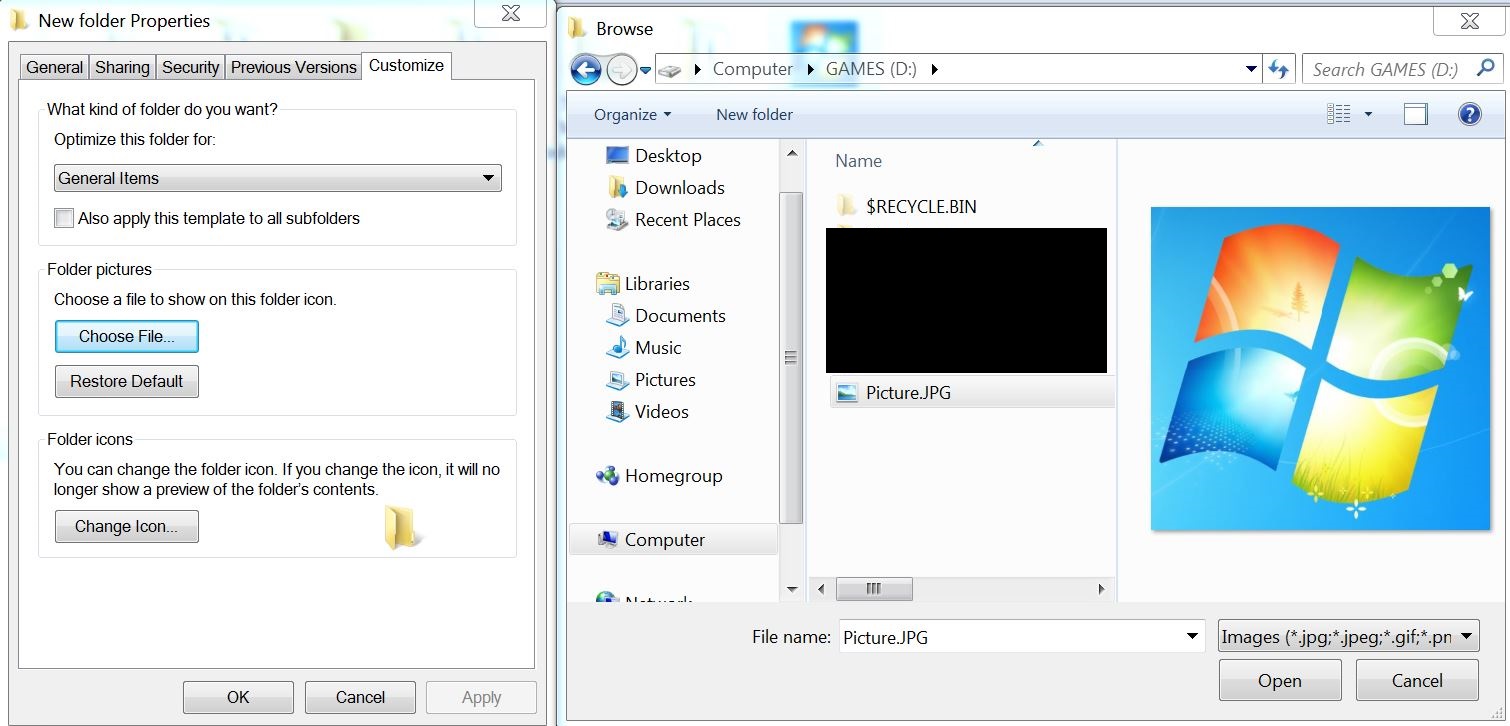
soHBsuU.jpg
 

My Computer My Computer

OS
Windows 7 Ultimate x64

My Computer My Computer

Computer type
PC/Desktop
Computer Manufacturer/Model Number
Self-Built
OS
Windows 7 Professional X64
CPU
Core i7 (2nd gen) i7-2600K / 3.40GHz
Motherboard
ASUS P8Z77-V Intel 7 Series Motherboard
Memory
DDR3 2400MHz (OC) 16gb
Graphics Card(s)
Intel(R) HD Graphics 3000, -1988 Mb
Sound Card
8 ChannelsAudio Chipset Realtek ALC892
Monitor(s) Displays
LG 29UM65 Black 29"
Screen Resolution
2560 x 1080
Hard Drives
840 EVO 250 GB SSD ;2tb (2);Seagate;1tb Seagate; 750 gb Seagate; wd ext (2) 750 gb,WD 2tb X 2;WD 3TB Black
PSU
750 watt
Case
Thermaltake RX -1
Cooling
2120mm Fans Included 1Other Fan Ports 5x 200mm Fan Ports
Keyboard
Microsoft Digital Media Pro
Mouse
Microsoft Wireless 6000
Internet Speed
U-verse 18 mbps
Antivirus
MSE
Browser
Firefox, Chrome and my favorite: Pale Moon
Other Info
HdHomerun Dual Tuner.
SRS Audio Lab,
Pioneer BDR 208-DBK
PS3-What a difference in my Surround Sound Receiver!
HP 4540s - My new Toy.
Epson R280 Printer- To personalize my Dvds.
Canon MP 560 - For scanning.

- And directly under it says:

"When you view the folder in Thumbnails view in Windows Explorer, the folder now has the custom image that you created, unless you use the Customize tab of the folder's Properties dialog box to select a folder picture. The folder picture that is specified on the Customize tab overrides the manual Folder.gif customization."

- To continue:

"Note The Customize tab is not available for special folders where Windows has already set their default appearances. But, you may be able to customize the folder picture for the Thumbnails view of some special folders by using the steps in the Manually create a folder picture section of this article."

- These are NOT special folders I am working with, they are generic folders that contain games or other stuff. I want to know why their very own default instructions won't work - this I want:

"Folder Pictures

You can select the picture file (that has an image file with a .bmp, .gif, .jpg, .jpeg, .jpe, .jfif, .tiff, .png, or .ico file name extension) that identifies a folder in Thumbnails view. If you do not select a picture, Windows Explorer uses the folder icon. If you do not select a folder icon, Windows Explorer automatically creates a folder picture for Thumbnails view by using a Folder.gif file in the folder or by using up to the first four image files in the folder. If the folder does not contain any images, Windows Explorer uses the default folder picture.

To find the picture that you want to use to identify the folder, click Choose Picture."


*It's not the question of how, but why?*


Last edited:

My Computer My Computer

OS
Windows 7 Ultimate x64
Bump? :confused:
 

My Computer My Computer

OS
Windows 7 Ultimate x64
There should be a desktop.ini there. Can you see it if you disable tools > folder options > view > hide protected operating system files?
 

My Computer My Computer

Computer type
Laptop
Computer Manufacturer/Model Number
Dell
OS
Windows 7 Home Premium 64bit
CPU
i7-2630QM
Yeah it's not, I manually deleted it to see if it was causing problems, and a new one isn't being generated.
 

My Computer My Computer

OS
Windows 7 Ultimate x64
Back
Top