Solved Seagate 2TB Hard Drive not responding, stops programs from working

Hi

By looking at the fdisk output, it seems that sdd is without any partitions and sdc is with a single NTFS partition. So i think sdc is your failing drive. But i see another potential issue - sdc is reporting 4096 bytes physical and logical sector size but sdd is a 512 byte sector sized disk. sdc reports 488378645 total sectors and sdd reports 3907029164 total sectors. It is not possible to directly clone your failing disk to the source disk as they are different in physical aspects. I think using "Photorec" and rescuing as much as data to the new disk is the only practical way in your case.
 

My Computer My Computer

Computer type
PC/Desktop
OS
Windows 7 Ultimate x64
To make sure which one is which, connect only the failing disk at first and run fdisk. Note the sector size and total number of sectors it reports. Then disconnect the failing disk and only connect the new one - repeat the fdisk step.

Usually it should be the new disk which should have 4096 byte sized sectors. The lack of partition on "sdd" is what confusing me. If you can post screenshots, it will be better to identify the disks.
 

My Computer My Computer

Computer type
PC/Desktop
OS
Windows 7 Ultimate x64
Okay.

The new disk has 4096 byte sized sectors.

The old faulty disk has 512 byte sized sectors.

Hi

By looking at the fdisk output, it seems that sdd is without any partitions and sdc is with a single NTFS partition. SO sdc is your failing drive. But i see another potential issue - sdc is reporting 4096 bytes physical and logical sector size but sdd is a 512 byte sector sized disk. sdc reports 488378645 total sectors and sdd reports 3907029164 total sectors. It is not possible to directly clone your failing disk to the source disk as they are different in physical aspects. I think using "Photorec" and rescuing as much as data to the new disk is the only practical way in your case.

I see. That is unfortunate. I've already done a completed Photorec recover of the faulty drive.

I think the sdc (4096 sector size/488378645 total sectors) must have become faulty after I began the ddrescue on it but then halted progress before completion.
 

My Computer My Computer

Computer type
PC/Desktop
OS
Windows 7 Ultimate 32-bit
CPU
Intel(R) Core(TM)2 Quad CPU Q8200 @ 2.33GHz
Motherboard
ASRock G31M-S
Memory
3.00 GB
Graphics Card(s)
NVIDIA GeForce GT 220
Sound Card
(1) High Definition Audio Device (2) NVIDIA Virtual Audio
Monitor(s) Displays
23'' Asus VS239H-J
Screen Resolution
1920x1080
Hard Drives
SAMSUNG HD502HI ATA Device
I think the sdc (4096 sector size/488378645 total sectors) must have become faulty after I began the ddrescue on it but then halted progress before completion.

I don't think the new one is faulty. Cloning 512 byte sector sized disk to 4096 sector sized disk will cause the target disk's file system to be destroyed.

I have a plan.

1. Connect the new HDD to a Windows machine and use "Partition Wizard" to delete any existing partition and create a single NTFS partition spanning from start to end.

2. Connect both old and new disk to the Linux machine and use "ddrescue" to capture a full image of the failing disk and save it to the new disk ( instead of cloning). We can work data recovery on this saved image.

When we take disk image, target disk's sector size is not an issue (obviously because we are not doing a sector by sector clone ).


Which is the Linux distro you are using ?. Are you booting it from the 500 GB HDD or DVD/USB ?.
 

My Computer My Computer

Computer type
PC/Desktop
OS
Windows 7 Ultimate x64
Question to OP:

Did you buy a more than 2TB drive? Can you please give the model no. of the drive you purchased?
 

My Computer My Computer

OS
Windows 7 Home Premium 32 bit
I've already done a completed Photorec recover of the faulty drive.

Is "photorec" was able to recover all important files ?.

I am not sure. I got many files back but they all had the unhelpful names of "fXXXXXXXXXX" ("f" followed by numbers). So... I'd need to sort out all the files to know what they are. I already sorted out some but the majority need to be looked at. Even then I cannot be sure if all files are recovered. I don't know all the files that were lost since there were so many.
 

My Computer My Computer

Computer type
PC/Desktop
OS
Windows 7 Ultimate 32-bit
CPU
Intel(R) Core(TM)2 Quad CPU Q8200 @ 2.33GHz
Motherboard
ASRock G31M-S
Memory
3.00 GB
Graphics Card(s)
NVIDIA GeForce GT 220
Sound Card
(1) High Definition Audio Device (2) NVIDIA Virtual Audio
Monitor(s) Displays
23'' Asus VS239H-J
Screen Resolution
1920x1080
Hard Drives
SAMSUNG HD502HI ATA Device

My Computer My Computer

Computer type
PC/Desktop
OS
Windows 7 Ultimate 32-bit
CPU
Intel(R) Core(TM)2 Quad CPU Q8200 @ 2.33GHz
Motherboard
ASRock G31M-S
Memory
3.00 GB
Graphics Card(s)
NVIDIA GeForce GT 220
Sound Card
(1) High Definition Audio Device (2) NVIDIA Virtual Audio
Monitor(s) Displays
23'' Asus VS239H-J
Screen Resolution
1920x1080
Hard Drives
SAMSUNG HD502HI ATA Device
I think the sdc (4096 sector size/488378645 total sectors) must have become faulty after I began the ddrescue on it but then halted progress before completion.


Why did you halted "ddrescue" ?.

It might be the USB-SATA bridge which is reporting the disk as a 4096 byte sector sized. The disk may report different geometry when connected directly instead of USB-SATA bridge.

3TB hard disk used as external USB connection or internal Sata connection

I am still not sure whether a clone to the new disk will work but it will worth a try as nothing to loose here.

@Jumanji

What is your opinion ?.
 

My Computer My Computer

Computer type
PC/Desktop
OS
Windows 7 Ultimate x64
Please try the below steps.

1. Connect both source and destination disk at the same time and use "fdisk -l" to identify which one is old and which one is new.

2. Assuming source disk is /dev/sdc and destination disk is /dev/sdd , type the below command.

ddrescue -d -f -r3 /dev/sdc /dev/sdd recovery.log


This is the command options which gave me best results. The cloning process will take a long time so make sure to not abort it. I had to keep the system powering on a full day including night to successfully clone a 500 gb disk with lot of bad sectors.
 

My Computer My Computer

Computer type
PC/Desktop
OS
Windows 7 Ultimate x64
The OP indeed bought a drive formatted with advanced format technology, that is one with 4K sector size.

But should it really matter? And for that matter should it matter even if it is a 3TB drive with GPT?

I think we are adopting a very safe procedure while we recommend that it should have the same disk structure to avoid any unforeseen problems arising out of dealing with something different in anyway.

In my thinking, since we are doing a sector by sector cloning, the disk on which it is cloned is going to take the same structure as the faulty drive. If it is an MBR drive that will also turn into an MBR drive.If it is a 2TB partition, the same 2TB partition table will be cloned leaving the rest of the space as unallocated. But again I may be missing something that can make the above theory go wrong.:) So unless we experiment and check we shall still proceed with the conventional wisdom of not entertaining any unforeseen problems.:)

So let the OP format the new drive as a MBR drive with 520 byte sector size and start sector by sector cloning. The only requirement then will be the available number of sectors on the new drive is more than that of the faulty drive. Is the image you suggest compressed? Otherwise it will also be of the same size.

Now the OP has already recovered whatever he can.We are only trying to see if he can better with whatever bad sector recovery takes place with ddrescue. And definitely better data recovery is possible on a good drive.

So I am OK with whatever you suggest to the OP.:) Practicing hands take precedence over a non-practitioner who can only theorize. :) ( I can experiment and come to conclusions but right now I have no time for it. I just want to sleep for some days passing the buck onto you.:D)
 

My Computer My Computer

OS
Windows 7 Home Premium 32 bit
@Jumanji

I am decided to go with a sector by sector clone first. "fdisk" seems to detect a valid partition on the new drive starting at sector 63 ( from the aborted cloning attempt ). I think the internal disk might be 512 byte sector based and it is the USB-SATA bridge which is doing the 4096 to 512 conversion.

Let's see how the outcome of cloning first. Taking an image requires a disk with larger capacity than the source.
 

My Computer My Computer

Computer type
PC/Desktop
OS
Windows 7 Ultimate x64
Why did you halted "ddrescue" ?.

Since I could resume later, I thought I'd try and interrupt it and do something else at the time.

Which is the Linux distro you are using ?. Are you booting it from the 500 GB HDD or DVD/USB ?.

I'm using Linux Mint 15 Olivia 32-bit MATE I think. Boot from a partition on the 500GB HDD (I installed the linux mint onto the partition).

So should I continue with

1. Connect the new HDD to a Windows machine and use "Partition Wizard" to delete any existing partition and create a single NTFS partition spanning from start to end.

2. Connect both old and new disk to the Linux machine and use "ddrescue" to capture a full image of the failing disk and save it to the new disk ( instead of cloning). We can work data recovery on this saved image.

OR switch to

1. Connect both source and destination disk at the same time and use "fdisk -l" to identify which one is old and which one is new.

2. Assuming source disk is /dev/sdc and destination disk is /dev/sdd , type the below command.

ddrescue -d -f -r3 /dev/sdc /dev/sdd recovery.log
 

My Computer My Computer

Computer type
PC/Desktop
OS
Windows 7 Ultimate 32-bit
CPU
Intel(R) Core(TM)2 Quad CPU Q8200 @ 2.33GHz
Motherboard
ASRock G31M-S
Memory
3.00 GB
Graphics Card(s)
NVIDIA GeForce GT 220
Sound Card
(1) High Definition Audio Device (2) NVIDIA Virtual Audio
Monitor(s) Displays
23'' Asus VS239H-J
Screen Resolution
1920x1080
Hard Drives
SAMSUNG HD502HI ATA Device
I would suggest starting the cloning process from scratch. The command line i posted will use direct disk to disk copying ( avoiding kernel's cache ) and is what suggested by "ddrescue" experts. It is better to change the log file's name to something else.

ddrescue -d -f -r3 /dev/sdc /dev/sdd recovery2.log
 

My Computer My Computer

Computer type
PC/Desktop
OS
Windows 7 Ultimate x64
I think the ddrescue has finished now. It said that the disk has no space left and then stopped.

What do I do now?
 

My Computer My Computer

Computer type
PC/Desktop
OS
Windows 7 Ultimate 32-bit
CPU
Intel(R) Core(TM)2 Quad CPU Q8200 @ 2.33GHz
Motherboard
ASRock G31M-S
Memory
3.00 GB
Graphics Card(s)
NVIDIA GeForce GT 220
Sound Card
(1) High Definition Audio Device (2) NVIDIA Virtual Audio
Monitor(s) Displays
23'' Asus VS239H-J
Screen Resolution
1920x1080
Hard Drives
SAMSUNG HD502HI ATA Device
Thais is bad news. It means our fear came true - source and destination disk geometries are different so direct cloning is not possible :(.

On the positive side, the disk media is not entirely trashed so there is still chance for successful file recovery :). Do you remember the error size shown by "DDrescue" ? ( a screenshot will be better ).

If you boot in to Windows and connect the failing disk, is Windows detect a NTFS file system or just a RAW disk ?. It will be helpful if you can post a snapshot of "Disk Management" as per http://www.sevenforums.com/tutorials/274797-disk-management-post-screen-capture-image.html
 

My Computer My Computer

Computer type
PC/Desktop
OS
Windows 7 Ultimate x64
Not sure what you mean by error size. Ddrescue reached 2000gb which is the size of both partitions and then said there was no space left and stopped. I already closed ddrescue so cant get the screenshot. Dont know if its possible to do the ddrescue again and have it resume at 2000gb (to see error).

As for the failing disk, I assume it will not be detected by windows and stall everything from working as it did in the past. There has been no changes made to the failing disk, after all.
 

My Computer My Computer

Computer type
PC/Desktop
OS
Windows 7 Ultimate 32-bit
CPU
Intel(R) Core(TM)2 Quad CPU Q8200 @ 2.33GHz
Motherboard
ASRock G31M-S
Memory
3.00 GB
Graphics Card(s)
NVIDIA GeForce GT 220
Sound Card
(1) High Definition Audio Device (2) NVIDIA Virtual Audio
Monitor(s) Displays
23'' Asus VS239H-J
Screen Resolution
1920x1080
Hard Drives
SAMSUNG HD502HI ATA Device
I already closed ddrescue so cant get the screenshot. Dont know if its possible to do the ddrescue again and have it resume at 2000gb (to see error).

This is where the log file came handy. If you entered the command ddrescue -d -f -r3 /dev/sdc /dev/sdd recovery2.log , you will find a file named recovery2.log inside the "Home" directory. Please copy that file and attach with next reply. You may need to zip it before attaching.

As for the failing disk, I assume it will not be detected by windows and stall everything from working as it did in the past. There has been no changes made to the failing disk, after all.

Since Linux is not hanging, let's examine the disks health from Mint. First remove the new disk and then install "GsmartControl" from the below link.

gsmartcontrol - Linux Mint Community

Open the tool and select your failing HDD from the selection screen.

main_ok.png


Navigate to the "Attributes" tab and press the "Save AS" button to save the report. Then attach that report too with next reply.


Although the cloning operation is incomplete and disk geometry is not correct, there is still a chance for recovering files from the clone. After copying the log file and SMART report, boot in to Windows and connect the new HDD. Open "Disk management" and check whether it detects a valid file system. Most probably the disk will be detected as RAW due to incomplete cloning/disk geometry issues. However try running CHKDSK on the RAW partition and if we are lucky, Windows may be able to repair the file system.
 

My Computer My Computer

Computer type
PC/Desktop
OS
Windows 7 Ultimate x64
This is where the log file came handy. If you entered the command ddrescue -d -f -r3 /dev/sdc /dev/sdd recovery2.log , you will find a file named recovery2.log inside the "Home" directory. Please copy that file and attach with next reply. You may need to zip it before attaching.
Will the it be in the "Home" directory of my Linux Mint?

The failing disk is now working on Windows all of a sudden. Although, the only files I can see are the ones that were visible in Linux. So, the disk works, but the files are still missing from view.

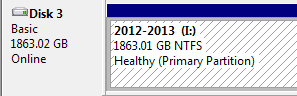
Here is the snapshot from Disk Management (for the failing disk).

Capture.PNG

The new disk is indeed "RAW" in Disk Management. Is the CHKDSK the "Error-checking" tool accessible from "properties"?

Capture2.PNG

Here is the report for failing HDD

View attachment ST2000DM001-9YN164_W2F02AB9_2014-07-04.txt
 
Last edited:

My Computer My Computer

Computer type
PC/Desktop
OS
Windows 7 Ultimate 32-bit
CPU
Intel(R) Core(TM)2 Quad CPU Q8200 @ 2.33GHz
Motherboard
ASRock G31M-S
Memory
3.00 GB
Graphics Card(s)
NVIDIA GeForce GT 220
Sound Card
(1) High Definition Audio Device (2) NVIDIA Virtual Audio
Monitor(s) Displays
23'' Asus VS239H-J
Screen Resolution
1920x1080
Hard Drives
SAMSUNG HD502HI ATA Device
Will the it be in the "Home" directory of my Linux Mint?

By default the current working directory of a Linux console will be the user's Home directory. So probably the log will will be there.

The good news is SMART report indicates the disk structure is not so bad. There is indeed bad sectors but it is possible to scan for lost files with the help of tools which supports failing disks. Unfortunately there is no free utilities available which can reconstruct damaged MFT. Probably DMDE will be able to reconstruct the original file and folder structure and it is not an expensive tool either. I will post step by step instructions later - currently kind of busy.
 

My Computer My Computer

Computer type
PC/Desktop
OS
Windows 7 Ultimate x64
Back
Top