Solved Windows 7 Clean Install - Worked fine until restart

Madnesslink5

New member
Local time
11:42 PM
Messages
19
Hi there, my first post here and hoping some knowledgable people will be able to help me with my problem.

EDIT: May well be fixed, manually booted onto my second hard drive and it booted fine. Must've accidentally installed OS onto that one instead. I'll change the BIOS order and it should all be good.

Back-story
So I obtained the official Windows 7 Home Premium 64bit iso from the microsoft website, burned it onto a USB flash drive and performed the clean install onto my laptop. Whilst doing this I deleted the partition which had all the dell drivers and utilities etc on, no biggy I thought since I have that installation disc anyway.

Anyway the clean install worked fine, booted to the desktop at which point I noticed I didn't have the tools needed to connect to Wi-Fi so I used the dell drivers/utilities installation disc to install the necessary things. At this point I restarted the laptop.

The Problem
Now after the restart, the initial screen appears with the usual "F2 for setup, F12 for boot options" prompt. After this it turns to a black screen with _ flashing in the upper left of it (before the clean install it would do this for a few seconds before going onto the windows logo and booting up as usual). However now it is just stuck on this screen indefinitely.

Any help/ideas? At the moment I'm just re-downloading the iso to try do the clean install again, as I stupidly deleted it once the clean install was done!

Thanks in advance!
 

My Computer My Computer

Computer type
Laptop
Computer Manufacturer/Model Number
Dell
OS
Windows 7 Home Premium 64bit.
Hello Madnesslink5 and welcome to Seven Forums.

It looks like you can now boot ok. Is that what your EDIT means ???

Post a screen print of Disk Management so experts here can see what you have and may be able to help clean things up.
http://www.sevenforums.com/tutorials/274797-disk-management-post-screen-capture-image.html

It sounds like you installed Windows with multiple HDs connected ...
It's best to only have the HD connected where you are installing Windows while installing.
Then none of the installation/boot files can be put on some other HD.

Here are some tutorials by gregrocker you should review:
http://www.sevenforums.com/tutorials/219487-clean-reinstall-factory-oem-windows-7-a.html (applies to Retail also)
http://www.sevenforums.com/tutorials/219533-troubleshooting-windows-7-failure-boot.html

I suggest keeping the install media.
You may need it some day for a Startup Repair, Reinstall, etc.
I burn a bootable DVD, create bootable flash stick, and keep the ISO file on HD.
Maybe overkill, but if any one media fails, I have other options if needed ...
 

My Computer My Computer

Computer type
PC/Desktop
Computer Manufacturer/Model Number
home built
OS
Multi-Boot W7_Pro_x64 W8.1_Pro_x64 W10_Pro_x64 +Linux_VMs +Chromium_VM
CPU
AMD Athlon II x4 620
Motherboard
Gigabyte GA-MA785G-UD3H
Memory
6GB GSkill DDR2 800
Graphics Card(s)
AMD 4670 GPU + AMD 4200 IGP
Sound Card
on board Realtek ALC889A
Monitor(s) Displays
RCA 40" LCD TV, Insignia 32" LCD TV, HP 15" LCD monitor
Screen Resolution
1680 x 1050
Hard Drives
OCZ Vertex 3 120GB,
Samsung F3 1TB (3),
Several others - WD, Seagate, Hitachi, ...
PSU
Corsair 500 W
Case
Rosewill mid tower
Cooling
CM 90mm rifle
Keyboard
Gyration wireless, Logitech wireless, Dell USB wired
Mouse
Gyration wireless, Logitech wireless, V7 USB wired
Internet Speed
Spectrum - 100Mbps D / 10Mbps U
Antivirus
Avast, MBAM3, EMET, WinPatrol
Browser
Pale Moon, Firefox, IE
Other Info
2 multi-boot PC's
Mainly HTPC/Office/Gen purpose (no gaming).
Trendnet USB KVM.
LG DVD burner/Blue Ray Player.
Tray system for removable SATA backup drives.

Not currently OCd, under-volted.
I use Hybrid sleep, rarely re-boot or shutdown.

Hauppauge HD-PVR, Avermedia PCIe TV Tuner, Hauppauge PCI TV Tuner.
Hello Madnesslink5 and welcome to Seven Forums.

It looks like you can now boot ok. Is that what your EDIT means ???

Yeah it boots fine now I, I just swapped First and Second hard drives around in the BIOS order.

It sounds like you installed Windows with multiple HDs connected ...
It's best to only have the HD connected where you are installing Windows while installing.
Then none of the installation/boot files can be put on some other HD.

I bought the laptop advertised as having a 1TB hard drive, but there appears to be actually 2 500GB hard drives inside, so I couldn't just disconnect one.

As long as I can get all the utilities working again, having it boot off the second hard drive should have no negative consequences assuming the hard drives are identical, right?
 

My Computer My Computer

Computer type
Laptop
Computer Manufacturer/Model Number
Dell
OS
Windows 7 Home Premium 64bit.
It sounds like your bootmgr went AWOL. You probably did not disconnect the other disk during the installation. So what most likely happened is that the installer put the bootmgr on the first primary partition is could find - and that was on the other disk. If you post a picture of your Disk Management, we could verify that. It is easy to fix too but I would first like to see what the situation on those disks is.
 

My Computer My Computer

Computer Manufacturer/Model Number
HP, Dell, Gateway, Toshiba - 4 laptops and 2 desktops
OS
Vista, Windows7, Mint Mate, Zorin, Windows 8
CPU
from 1.6GHz Duo to i7
Monitor(s) Displays
2x HP w2207
Hard Drives
5x HDD, 7x SSD, 12x Externals
Keyboard
with trackball - no mices
Mouse
Trackball mice
Internet Speed
DSL 6000
As long as I can get all the utilities working again, having it boot off the second hard drive should have no negative consequences assuming the hard drives are identical, right?
I don't know.

Use this tutorial by Golden to post a Disk Management screen print:
http://www.sevenforums.com/tutorials/274797-disk-management-post-screen-capture-image.html

Did the laptop come from Dell with Windows 7 pre-installed ?
Did you "clean install" the same version ?
Why did you re-install ?
 

My Computer My Computer

Computer type
PC/Desktop
Computer Manufacturer/Model Number
home built
OS
Multi-Boot W7_Pro_x64 W8.1_Pro_x64 W10_Pro_x64 +Linux_VMs +Chromium_VM
CPU
AMD Athlon II x4 620
Motherboard
Gigabyte GA-MA785G-UD3H
Memory
6GB GSkill DDR2 800
Graphics Card(s)
AMD 4670 GPU + AMD 4200 IGP
Sound Card
on board Realtek ALC889A
Monitor(s) Displays
RCA 40" LCD TV, Insignia 32" LCD TV, HP 15" LCD monitor
Screen Resolution
1680 x 1050
Hard Drives
OCZ Vertex 3 120GB,
Samsung F3 1TB (3),
Several others - WD, Seagate, Hitachi, ...
PSU
Corsair 500 W
Case
Rosewill mid tower
Cooling
CM 90mm rifle
Keyboard
Gyration wireless, Logitech wireless, Dell USB wired
Mouse
Gyration wireless, Logitech wireless, V7 USB wired
Internet Speed
Spectrum - 100Mbps D / 10Mbps U
Antivirus
Avast, MBAM3, EMET, WinPatrol
Browser
Pale Moon, Firefox, IE
Other Info
2 multi-boot PC's
Mainly HTPC/Office/Gen purpose (no gaming).
Trendnet USB KVM.
LG DVD burner/Blue Ray Player.
Tray system for removable SATA backup drives.

Not currently OCd, under-volted.
I use Hybrid sleep, rarely re-boot or shutdown.

Hauppauge HD-PVR, Avermedia PCIe TV Tuner, Hauppauge PCI TV Tuner.
As long as I can get all the utilities working again, having it boot off the second hard drive should have no negative consequences assuming the hard drives are identical, right?
I don't know.

Use this tutorial by Golden to post a Disk Management screen print:
http://www.sevenforums.com/tutorials/274797-disk-management-post-screen-capture-image.html

Did the laptop come from Dell with Windows 7 pre-installed ?
Did you "clean install" the same version ?
Why did you re-install ?

Yes it came pre-installed, yes I clean installed the same version. I re-installed simply because my laptop had become very cluttered over the years with various programs, drivers and unnecessary junk and I read that occasionally doing a clean install will keep it more up to speed.

I'll post the Disk Management screen tomorrow when I can access my laptop, thanks for the replies so far.
 

My Computer My Computer

Computer type
Laptop
Computer Manufacturer/Model Number
Dell
OS
Windows 7 Home Premium 64bit.
Always unplug all other hard drives during install.

I would consider starting over to do it correctly following http://www.sevenforums.com/tutorials/219487-clean-reinstall-factory-oem-windows-7-a.html#post1839164. The steps for how to handle drivers are printed in red so they can't be missed.

Your network driver should be in your backup so if it's not supplied during install (plug in by ethernet cable to maximize this chance) you can install it to get online quickly to get all other drivers from Windows Update.
 
Sorry for the delay in replying, been very busy. Okay so everything appears to be working fine (all drivers/utilities installed and running fine etc).

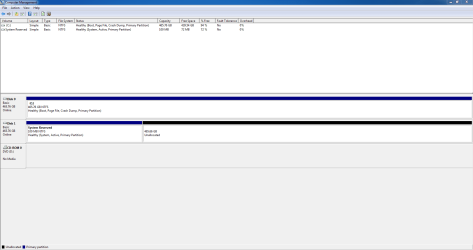
Here is the disk management capture: Capture.PNG
 

My Computer My Computer

Computer type
Laptop
Computer Manufacturer/Model Number
Dell
OS
Windows 7 Home Premium 64bit.
It looks like the PC originally shipped with two 500gb hard drives, possibly in a RAID array. But it was reinstalled only to one of the hard drives, placing the boot manager on the other one. I'm not sure how you could have missed that you were installing Win7 to one of two 500gb hard drives, or that after you created and formatted partitions it showed that it had placed the boot partition on the second hard drive. Did you follow http://www.sevenforums.com/tutorials/1649-clean-install-windows-7-a.html ?


This is OK now since Win7 doesn't much like RAID anyway so you're better off with the OS reinstalled to one hard drive. Now you can format the second hard drive as a data and storage drive to save your Win7 backup and a backup image in case the first hard drive ever dies.

But first you must move the Boot Manager to C. I would use EasyBCD (click Download - no Name or Email required) following these illustrated steps to move http://www.sevenforums.com/tutorials/209885-bootmgr-move-c-easybcd.html.

Once that's done mark the System Reserved partition Inactive and then delete it in Disk Mgmt, repartition it as a data drive: http://www.sevenforums.com/tutorials/197157-partition-mark-inactive.html
http://www.sevenforums.com/tutorials/2668-partition-volume-delete.html
http://www.sevenforums.com/tutorials/2674-partition-volume-create-new.html

Now you can set up a backup of your User folders and a System image to the new Data drive:
http://www.sevenforums.com/tutorials/615-backup-user-system-files.html
http://www.sevenforums.com/tutorials/663-backup-complete-computer-create-image-backup.html

Some users like to keep the C image smaller so also move their User folders to the data drive: http://www.sevenforums.com/tutorials/18629-user-folders-change-default-location.html This way if C ever becomes irreparable you can reimage it from the stored image using http://www.sevenforums.com/tutorials/675-system-image-recovery.html and your User folders are safe, current and waiting in their own data partition. Otherwise the data in the image will be dated, however you can always replace it with the files backup as another option.

Let us know how it goes.
 
It looks like the PC originally shipped with two 500gb hard drives, possibly in a RAID array. But it was reinstalled only to one of the hard drives, placing the boot manager on the other one. I'm not sure how you could have missed that you were installing Win7 to one of two 500gb hard drives, or that after you created and formatted partitions it showed that it had placed the boot partition on the second hard drive. Did you follow http://www.sevenforums.com/tutorials/1649-clean-install-windows-7-a.html ?

I followed a different tutorial. After I formatted the partitions and had to choose where to install the OS, I had 2 choices of either 500GB drive, so I arbitrarily chose the top one (Disk 0 IIRC).

This is OK now since Win7 doesn't much like RAID anyway so you're better off with the OS reinstalled to one hard drive. Now you can format the second hard drive as a data and storage drive to save your Win7 backup and a backup image in case the first hard drive ever dies.

But first you must move the Boot Manager to C. I would use EasyBCD (click Download - no Name or Email required) following these illustrated steps to move http://www.sevenforums.com/tutorials/209885-bootmgr-move-c-easybcd.html.

Once that's done mark the System Reserved partition Inactive and then delete it in Disk Mgmt, repartition it as a data drive: http://www.sevenforums.com/tutorials/197157-partition-mark-inactive.html
http://www.sevenforums.com/tutorials/2668-partition-volume-delete.html
http://www.sevenforums.com/tutorials/2674-partition-volume-create-new.html

Now you can set up a backup of your User folders and a System image to the new Data drive:
http://www.sevenforums.com/tutorials/615-backup-user-system-files.html
http://www.sevenforums.com/tutorials/663-backup-complete-computer-create-image-backup.html

Some users like to keep the C image smaller so also move their User folders to the data drive: http://www.sevenforums.com/tutorials/18629-user-folders-change-default-location.html This way if C ever becomes irreparable you can reimage it from the stored image using http://www.sevenforums.com/tutorials/675-system-image-recovery.html and your User folders are safe, current and waiting in their own data partition. Otherwise the data in the image will be dated, however you can always replace it with the files backup as another option.

Let us know how it goes.

I will try this later. Indeed before doing the clean install one of the hard drives was used for the OS and the other was used for backup + system image.
 

My Computer My Computer

Computer type
Laptop
Computer Manufacturer/Model Number
Dell
OS
Windows 7 Home Premium 64bit.
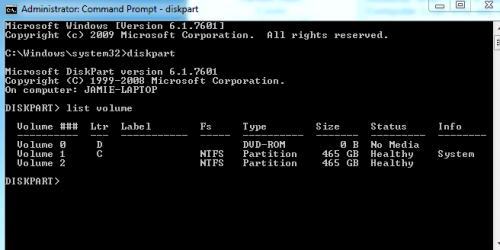
Okay so I followed the steps up to until creating the new partition, created it and quick-formatted as in the guide.

However when I try to back-up/system image it doesn't see the hard drive available (likewise in My Computer I can only see C:\ and my DVD drive). Any suggestions?

See the image attached, Volume 2 is the relevant partition I believe.

Capture.PNG
 
Last edited:

My Computer My Computer

Computer type
Laptop
Computer Manufacturer/Model Number
Dell
OS
Windows 7 Home Premium 64bit.
Please post back another screenshot of http://www.sevenforums.com/tutorial...nt-post-screen-capture-image.html#post2261610.

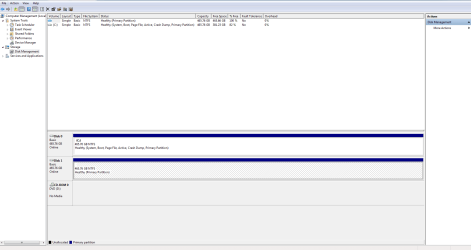
It appears the new partition you created on Disk1 after moving the Bootmgr to C and deleting System Reserved partition does not have a drive letter, as it must to be seen in Explorer: Drive Letter - Add, Change, or Remove in Windows 7 - Windows 7 Forums

Here's the picture I'll just wait for you/somebody to confirm before I add the drive letter or whatnot.

Capture.PNG
 

My Computer My Computer

Computer type
Laptop
Computer Manufacturer/Model Number
Dell
OS
Windows 7 Home Premium 64bit.
Yes, you need a drive letter. ;)

Thanks for clarifying this ;)

Anyway all issues seem to be resolved now, thank you very much everybody for your help, lovely community!
 

My Computer My Computer

Computer type
Laptop
Computer Manufacturer/Model Number
Dell
OS
Windows 7 Home Premium 64bit.
Back
Top