Windows 7 Installation - Transfer to a New Computer

How to Transfer your Complete Windows 7 Installation to New Computer

To start, a warning from Microsoft:

   Note
Important

You must use the Sysprep /generalize command to generalize a complete Windows installation before you can use the installation for deployment to a new computer, whether you use imaging, hard disk duplication, or another method. Moving or copying a Windows image to a different computer without running the Sysprep /generalize command is not supported.

This tutorial will show you how to do the transfer.

   Information
Windows 7 System Preparation Tool is a powerful, native Windows tool. When for instance used in so called Audit Mode, it let's you to freely configure Windows 7 to be then deployed to other computers as hardware independent image.

In this tutorial we use System Preparation Tool (sysprep) to prepare your Windows 7 installation to be moved to a new computer, keeping all your installed applications, program settings and user profiles. You can use this method for instance when you have bought a new PC and want to transfer your existing setup completely, without need to reinstall everything, or when you want to make major hardware changes like change the motherboard or GPU, which would usually cause Windows to stop booting normally.

   Warning
Using this method causes Windows 7 to lose all activation information, and it needs to be reactivated afterwards. If your Windows 7 is an OEM version, you might not be able to reactivate it, at least not without phone activation option.

I do not recommend to use this method on RAID systems. All experiments on RAID I know have failed.

With the speed of today's hardware evolution, most of us geeks are upgrading the hardware more often than operating system. Upgrading hardware can be painfully slow process if we need to reinstall the operating system and all our installed applications, plus transfer program settings and user profiles.

Using sysprep makes this easy. Changing the motherboard, or for instance an old ATI GPU to a new nVidia GPU quite often causes Windows 7 not to be able to boot anymore. This fact is usually accepted by the user, who then reinstalls the OS and all applications and transfers user profiles from a backup location.

Same thing when buying a new computer with completely different hardware setup compared to the old one, or trying to restore a system image to different hardware setup. Normally this would include a complete reinstallation of Windows 7 and all applications.

Why not use sysprep to avoid reinstalling? Here are the different scenarios where you can use it.


   Warning

An upgraded Windows cannot be sysprepped. As this method is based in sysprepping, this tutorial is valid only for Windows setups which have not been upgraded.

This means that if you have for instance in-place upgraded Vista to Seven, or using Anytime Upgrade upgraded for instance a Home Premium to Ultimate, you cannot sysprep and this tutorial cannot be used in your case.

Notice that a repair install is also an upgrade install, so if you have ever done a repair install (= in-place upgrade to same edition), you cannot sysprep.


PLEASE DO NOT FORGET TO CREATE A SYSTEM IMAGE BEFORE PROCEEDING!​


As you can read on this thread, on rare occasions this method does not work. If this happens, you can always restore your system using your backup image.

Backup Complete Computer - Create an Image Backup
System Image Recovery

IE10 Users: Please read this article first: Sysprep Fatal Error With IE 10 (FIX) | System Administration


METHOD ONE

Changing hardware components but keeping old hard disk(s)


Use this method if you:
- Change other hardware components but keep your old HD containing Windows 7
- Move the HD containing Windows 7 to another computer
  1. Before installing new hardware, boot Windows 7 normally
  2. Disconnect all external hardware except mouse, keyboard and main display. If your system folders are located only on C: drive, disconnect all other hard disks except that containing the C:. In case of relocated system folders, for instance the profile folder Users located in another drive and other system folders on C:, first move the relocated system folders back to C: then disconnect all other drives. Reboot after this
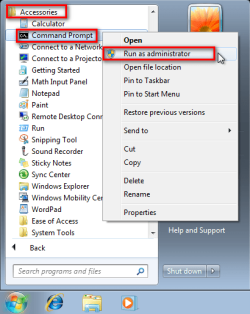
  3. Run Command Prompt as administrator
    .
    Audit_1.png
    .
  4. Type to Command Prompt: %windir%\System32\Sysprep\Sysprep.exe, and hit Enter
    .
    sysprep_start.png
    .
  5. In sysprep dialog that opens, choose System Cleanup Action as Enter System Out-of-Box-Experience (OOBE), select Generalize, select Shutdown Options Shutdown. Click OK
    .
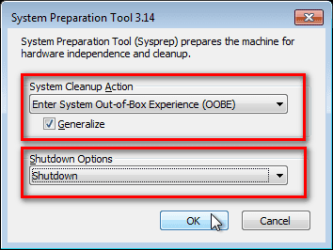
    Sysprep_Run_and_generalize.png
    .
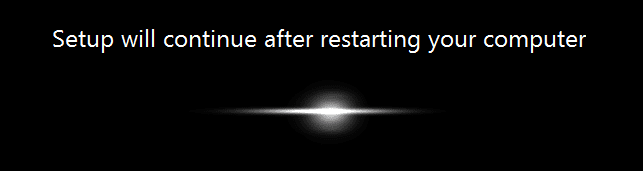
  6. Sysprep generalizes now your Windows 7 setup and shuts down your computer. Do not run any other programs during this phase!
    .
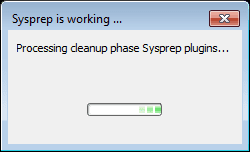
    Sysprep_Run_and_generalize_2.png
    .
    Sysprep_Run_and_generalize_3.png
    .
  7. Switch the main power of your PC off and install the new hardware OR dismount the hard disk(s) and mount it (them) to a new computer
  8. Boot the PC from sysprep generalized hard disk. You will notice Windows booting as if it was the first boot after installation, installing default drivers and updating registry. One or two reboots are needed, depending on your system specifications
    .

    Sysprep_Reinstalling_devices.png
    .
    Sysprep_Registry_settings.png
    .
    Sysprep_Reboot_needed.png
    .
  9. When Windows finally boots up, you will need to enter all information as if this really was a new, fresh installation
    .
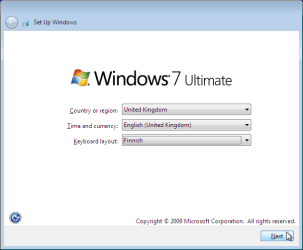
    Sysprep_First_boot_2.png
    .
  10. Because your old user profiles already exist, Windows does not accept your normal username, but instead you have to create a new temporary user. I use username Test for this purpose
    .
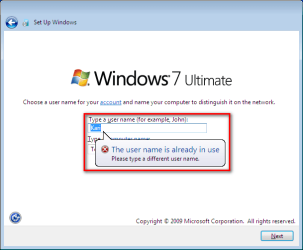
    Sysprep_First_boot_3.png
    .
  11. When login screen appears, choose your old user account to login
    .

    Sysprep_First_boot_5.png
    .
  12. Windows boots now to default OOBE first boot desktop, with default 800*600 resolution and default theme. All your installed applications are there, as well as your old user profiles and folders. Windows has installed the default drivers for your setup, you can update them if needed
    .
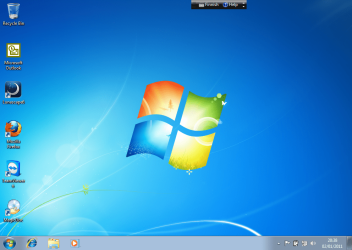
    Sysprep_First_boot_6.png
    .
  13. Go to Control Panel > User Accounts and delete the temporary user account (in this case Test) that you just created


METHOD TWO

Change the hard disk(s) or move Windows 7 setup to a new computer using third party imaging software

Use this method if you:
- Replace the HD containing Windows 7 on your old computer
- Move Windows 7 to a new HD on another computer
  1. Follow steps 1 through 5 above (method 1)
  2. Boot PC with an imaging CD/DVD (Paragon, Macrium etc.). See Macrium Reflect Free:at our sister site TenForums.com: Backup and Restore with Macrium Reflect Windows 10 Backup Restore Tutorials . Also see this post for a practical tip to create a Macrium system image.
  3. Create an image of your system
  4. Turn PC off, change the hard disk(s) and reboot with imaging application, restoring the image OR boot the new computer with imaging software and restore the image
  5. Continue from step 7 above (method 1)

This procedure is failsafe, and works every time. There is nothing to worry, but of course it is recommended to make a backup before trying this. I have even used this method when some serious driver issues caused the PC to constantly crash (BSOD), to reset all drivers to Windows defaults and then reinstalling them one by one to find the culprit.

   Note
What does Sysprep generalizing do to my Windows 7 setup?
  • All system specific information is removed or uninstalled
  • Security ID (SID) of your hardware setup is reseted
  • All system restore points are deleted
  • All event logs are deleted
  • All personalization is removed (taskbar, toolbars, folder options, start orb etc.)
  • Built-in administrator account is disabled (if it was enabled) and needs to be re-enabled after the transfer if needed

What happens when booting first time after sysprep generalizing?
  • First boot configuration is run
  • New SID is created
  • Re-arm counter is reseted if not already re-armed three times
  • Windows 7 is booted using first boot default drivers and settings


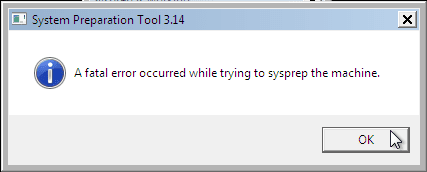
I have tested all above mentioned methods with all versions of Windows 7, from Starter to Enterprise. It works every time, with one exception: for reasons unknown to me, sysprep seems sometimes dislike Windows Media Player networking service, which is by default started every time Windows 7 starts. In about every third time I've done this, I've got an error message when trying to generalize:
Sysprep_Fatal_Error.png

However, this is not a big problem. You just need to stop the WMP networking service, and run sysprep with generalize option again. You can stop the service in question by typing net stop WMPNetworkSvc to command prompt, and hitting Enter:

Sysprep_Stop_WMP_service.png

If you have any questions, do not hesitate to ask.

Happy computing!

Kari

EDIT: A Useful tip from xxxwea, as later confirmed by Victor:
Kari, just a suggestion.

You might note in the tutorial that if on first booting Windows can't finish configuring, a reboot into safe mode, then a normal reboot will allow it to finish successfully.

This has happened to me both times I used a sysprepped system drive in a new computer. I found the answer to this problem buried deep in this thread the first time I ran into it, and the same thing happened yesterday on a different computer.

It's a seemingly very silly solution, but it works. I do believe many people have abandoned their sysprep work when they encounter the problem.

I think the solution deserves more visibility.
 
Last edited:
Using method in this tutorial, Windows boots to OOBE / Welcome mode where you name the PC.

In your case, deploying the same image to multiple computers you should use moer advanced methods. An officially supported deployment method by MS TechNet, showing how to create first the reference image and go from there, complete guide for deployment: Create a Windows 8.1 Reference Image

Kari
 

My Computer My Computer

Computer type
Laptop
Computer Manufacturer/Model Number
HP ENVY 17-1150eg
OS
Windows 10 Pro x64 EN-GB
CPU
1.6 GHz Intel Core i7-720QM Processor
Memory
6 GB
Graphics Card(s)
ATI Mobility Radeon HD 5850 Graphics
Sound Card
Beats sound system with integrated subwoofer
Monitor(s) Displays
17" laptop display, 22" LED and 32" Full HD TV through HDMI
Screen Resolution
1600*900 (1), 1920*1080 (2&3)
Hard Drives
Internal: 2 x 500 GB SATA Hard Disk Drive 7200 rpm
External: 2TB for backups, 3TB USB3 network drive for media
Cooling
As Envy runs a bit warm, I have it on a Cooler Master pad
Keyboard
Logitech diNovo Media Desktop Laser (bluetooth)
Mouse
Logitech Performance Mouse MX
Internet Speed
50/10 Mbps VDSL
Antivirus
Windows Defender 4.3.9431.0
Browser
Maxthon 3.5.2., IE11
Administrative problems ever since transferring to new motherboard?

So can anyone help me with this? I posted a couple months ago, but no one replied.

I've been having various problems throughout my computer ever since I sysprepped my OEM version of Windows and transferred the HDD from an AMD motherboard to an Intel mobo.
For example, all of the folders in my C\Users\*User*\AppData local folders were, for whatever reason, locked, until I went through all of them one by one, clicking "confirm" on the dialog box notifying me that I didn't have access to the folders. Also, I'm not able to do execute some or all commands in the command prompt unless I run cmd.exe as an administrator. Other programs have refused to run properly or at all without first running them as an administrator, despite the fact that I never had to run them as an administrator prior to transferring my HDD to the new mobo. Another peculiar thing that happened recently, which I somehow managed to fix, is that I couldn't save any settings in Minesweeper, and it kept prompting me for a difficulty every time I opened it up, as if I were playing for the first time. Lastly, Chrome has had various issues ever since the transfer, which I have reason to believe is at least related to the administrative problems I'm having. For example, I can't watch any videos on facebook, and on at least one video website, the volume defaults to 0 and I can't change it via the volume slider.

I would be very appreciative of any help. Thanks.
 

My Computer My Computer

Computer type
PC/Desktop
OS
Windows 7 Home Premium x64 SP1
CPU
i5 4590 3.3ghz
Motherboard
Gigabyte H81M-H
Memory
G.SKILL Ares Series 8GB (2 x 4GB) 240-Pin DDR3 SDRAM DDR3 16
Graphics Card(s)
GIGABYTE GeForce GTX 760 GV-N760OC-2GD REV2.0 2GB
So can anyone help me with this? I posted a couple months ago, but no one replied.

First, I am very sorry your earlier post went unanswered. I have no excuse, I really try to response to each post in tutorials I have written and in threads I have started about my own issues. Somehow I have missed your post.

OK, all your issues sound like if your Windows 7 loads a temporary user profile instead of your original profile. You might want to try a repair procedure described in this tutorial: http://www.sevenforums.com/tutorial...-failed-logon-user-profile-cannot-loaded.html

This is not first time I hear about an OEM version causing issues after the transfer. Basically you have already violated the End User License Agreement (EULA); the reason OEM version is cheaper is that it can according to its terms and conditions only be re-activated on the same hardware it was originally activated. Changing the mobo makes it a new hardware setup and according to EULA you have no longer right to to use the OEM license.

Another thing that might cause issues with permissions is if some of the system folders were moved to another location than drive C:. IF the main profile folder were for instance on drive X: when you sysprepped the machine, or if you had located Documents and Pictures folders on drive Z:. After running the sysprep tio generalize the installation this would cause permission issues.

If nothing else works I recommend re-install.

Kari
 

My Computer My Computer

Computer type
Laptop
Computer Manufacturer/Model Number
HP ENVY 17-1150eg
OS
Windows 10 Pro x64 EN-GB
CPU
1.6 GHz Intel Core i7-720QM Processor
Memory
6 GB
Graphics Card(s)
ATI Mobility Radeon HD 5850 Graphics
Sound Card
Beats sound system with integrated subwoofer
Monitor(s) Displays
17" laptop display, 22" LED and 32" Full HD TV through HDMI
Screen Resolution
1600*900 (1), 1920*1080 (2&3)
Hard Drives
Internal: 2 x 500 GB SATA Hard Disk Drive 7200 rpm
External: 2TB for backups, 3TB USB3 network drive for media
Cooling
As Envy runs a bit warm, I have it on a Cooler Master pad
Keyboard
Logitech diNovo Media Desktop Laser (bluetooth)
Mouse
Logitech Performance Mouse MX
Internet Speed
50/10 Mbps VDSL
Antivirus
Windows Defender 4.3.9431.0
Browser
Maxthon 3.5.2., IE11
That boot menu does not look like the default Windows boot menu. Which install media you have used, where did you get it and how was it activated?
 

My Computer My Computer

Computer type
Laptop
Computer Manufacturer/Model Number
HP ENVY 17-1150eg
OS
Windows 10 Pro x64 EN-GB
CPU
1.6 GHz Intel Core i7-720QM Processor
Memory
6 GB
Graphics Card(s)
ATI Mobility Radeon HD 5850 Graphics
Sound Card
Beats sound system with integrated subwoofer
Monitor(s) Displays
17" laptop display, 22" LED and 32" Full HD TV through HDMI
Screen Resolution
1600*900 (1), 1920*1080 (2&3)
Hard Drives
Internal: 2 x 500 GB SATA Hard Disk Drive 7200 rpm
External: 2TB for backups, 3TB USB3 network drive for media
Cooling
As Envy runs a bit warm, I have it on a Cooler Master pad
Keyboard
Logitech diNovo Media Desktop Laser (bluetooth)
Mouse
Logitech Performance Mouse MX
Internet Speed
50/10 Mbps VDSL
Antivirus
Windows Defender 4.3.9431.0
Browser
Maxthon 3.5.2., IE11
Hello everyone ! Great tutorial btw ! I'm having trouble with the part where I need to enter the code in cmd prompt. When I enter the code it says path not specified.. Tried retyping it but that didn't help. I'm rrying to get a new HD to work after my previous one from my Acer Aspire. M3970 started making a strange clicking noise and afterwards broke down. I then took the old HD from my Acer Aspire laptop 5738 and put it inside of my desktop. Whenever I load I can only start from repair mode or normal then acces cmd prompt and try to reset my HD . I'm very noobie around pcs any helpfull comments would be helpfull. Cheers
 

My Computer My Computer

Computer type
PC/Desktop
Computer Manufacturer/Model Number
acer
OS
windows 7 home premium 32 bit
CPU
i5 core processors
Memory
4gb ram
I'm having trouble with the part where I need to enter the code in cmd prompt. When I enter the code it says path not specified.. Tried retyping it but that didn't help.

Hi Soulslayer, welcome to the Seven Forums.

What code do you mean? Please tell the step number from tutorial and the exact error message, word by word. Even better if you could post a screenshot.

Screenshot tutorials in case you need them:
 
Last edited:

My Computer My Computer

Computer type
Laptop
Computer Manufacturer/Model Number
HP ENVY 17-1150eg
OS
Windows 10 Pro x64 EN-GB
CPU
1.6 GHz Intel Core i7-720QM Processor
Memory
6 GB
Graphics Card(s)
ATI Mobility Radeon HD 5850 Graphics
Sound Card
Beats sound system with integrated subwoofer
Monitor(s) Displays
17" laptop display, 22" LED and 32" Full HD TV through HDMI
Screen Resolution
1600*900 (1), 1920*1080 (2&3)
Hard Drives
Internal: 2 x 500 GB SATA Hard Disk Drive 7200 rpm
External: 2TB for backups, 3TB USB3 network drive for media
Cooling
As Envy runs a bit warm, I have it on a Cooler Master pad
Keyboard
Logitech diNovo Media Desktop Laser (bluetooth)
Mouse
Logitech Performance Mouse MX
Internet Speed
50/10 Mbps VDSL
Antivirus
Windows Defender 4.3.9431.0
Browser
Maxthon 3.5.2., IE11
Long time to load??

Hi all,
So this is my first attempt to move my win 7 ssd from existing laptop to new desktop. The OS seems to be stuck on the 'Setup is starting services screen when trying to install on the new PC. It's been on this screen for 30+ minutes: is this normal?? Should I just let it keep running until it stops? If not, I'm open to suggestions on how to fix this issue.

Edit: it has moved on. To installing devices screen shoeing 2% complete. However it is still taking a very long time to do this. Again, is this normal for this process? How long did it take y'all?


Thanks,
Paul
 

My Computer My Computer

Computer type
Laptop
Computer Manufacturer/Model Number
Dell Studio XPS 1645
OS
Windows 7 Home Premium x64
CPU
Processor Intel(R) Core(TM) i7 CPU Q 720 @ 1.60GHz, 1
Motherboard
Dell OVV228 A13
Memory
8GB DDR3
Graphics Card(s)
AMD Radeon HD 6570M/5700 Series
Hard Drives
Samsung 840 EVO 500G
Antivirus
McAfee Anti Virus Plus
Browser
Google Chrome
It is normal for the process to take quite a long time.
 

My Computer My Computer

Computer type
Laptop
Computer Manufacturer/Model Number
HP ENVY 17-1150eg
OS
Windows 10 Pro x64 EN-GB
CPU
1.6 GHz Intel Core i7-720QM Processor
Memory
6 GB
Graphics Card(s)
ATI Mobility Radeon HD 5850 Graphics
Sound Card
Beats sound system with integrated subwoofer
Monitor(s) Displays
17" laptop display, 22" LED and 32" Full HD TV through HDMI
Screen Resolution
1600*900 (1), 1920*1080 (2&3)
Hard Drives
Internal: 2 x 500 GB SATA Hard Disk Drive 7200 rpm
External: 2TB for backups, 3TB USB3 network drive for media
Cooling
As Envy runs a bit warm, I have it on a Cooler Master pad
Keyboard
Logitech diNovo Media Desktop Laser (bluetooth)
Mouse
Logitech Performance Mouse MX
Internet Speed
50/10 Mbps VDSL
Antivirus
Windows Defender 4.3.9431.0
Browser
Maxthon 3.5.2., IE11
Windows cannot be installed on your computer hardware.

So, I got so far in the process as to finish installing new devices( but then as t system was applying settings, I got the message that Windows couldn't install on my new hardware... So it rebooted and since then I've gotten. It has twice rebooted bc of message 'windows couldn't complete install. Will restart your computer. ' and that s the farthest I seem to have gotten in the process. Has something gone completely wrong?? I'm this close to abandoning the effort to migrate my windows 7 via sysprep and just do a clean install.
 

My Computer My Computer

Computer type
Laptop
Computer Manufacturer/Model Number
Dell Studio XPS 1645
OS
Windows 7 Home Premium x64
CPU
Processor Intel(R) Core(TM) i7 CPU Q 720 @ 1.60GHz, 1
Motherboard
Dell OVV228 A13
Memory
8GB DDR3
Graphics Card(s)
AMD Radeon HD 6570M/5700 Series
Hard Drives
Samsung 840 EVO 500G
Antivirus
McAfee Anti Virus Plus
Browser
Google Chrome
So, I got so far in the process as to finish installing new devices( but then as t system was applying settings, I got the message that Windows couldn't install on my new hardware... So it rebooted and since then I've gotten. It has twice rebooted bc of message 'windows couldn't complete install. Will restart your computer. ' and that s the farthest I seem to have gotten in the process. Has something gone completely wrong?? I'm this close to abandoning the effort to migrate my windows 7 via sysprep and just do a clean install.

Please answer these questions:
  • Is your current Windows 7 you are trying to Sysprep a clean install, or upgraded from Vista or from an inferior edition of Windows 7?
  • Have you ever done a so called Repair Install for your current Windows 7?
  • Do you have any system folders relocated on an another drive than C:, for example the user profiles on another drive or the C:\Users\Your-Username\Documents on drive X:?
  • Why are you Sysprepping (changing the HDD, changing the MoBo, completely moving Windows to a new PC, any other reason)
  • Are the error messages already shown when you are sysprepping the existing Windows 7 on the old hardware setup, or after you have replaced some hardware or moved the HDD to a new computer?
 

My Computer My Computer

Computer type
Laptop
Computer Manufacturer/Model Number
HP ENVY 17-1150eg
OS
Windows 10 Pro x64 EN-GB
CPU
1.6 GHz Intel Core i7-720QM Processor
Memory
6 GB
Graphics Card(s)
ATI Mobility Radeon HD 5850 Graphics
Sound Card
Beats sound system with integrated subwoofer
Monitor(s) Displays
17" laptop display, 22" LED and 32" Full HD TV through HDMI
Screen Resolution
1600*900 (1), 1920*1080 (2&3)
Hard Drives
Internal: 2 x 500 GB SATA Hard Disk Drive 7200 rpm
External: 2TB for backups, 3TB USB3 network drive for media
Cooling
As Envy runs a bit warm, I have it on a Cooler Master pad
Keyboard
Logitech diNovo Media Desktop Laser (bluetooth)
Mouse
Logitech Performance Mouse MX
Internet Speed
50/10 Mbps VDSL
Antivirus
Windows Defender 4.3.9431.0
Browser
Maxthon 3.5.2., IE11
Hi Kari,
Thanks for helping me out. Answers to your questions:
1. The windows 7 Hone Premium x64 is a clean install that u am trying G to setup.
2. I have had to do a repair install before ( on original HDD that came with the Dell Laptop.) since then, I have replaced the HDD with an ssd that has worked very well.
3. All of my files are on the C: drive on the ssd ( and are backed up; no fear of losing data.)
4. I was sysprepping to move my ssd from my laptop to my newly built desktop PC. I'd have liked to keep my programs and data files rather than having to restore/ re-install them.
5. At first, I was having trouble sysprepping the laptop; however I got over it ( it was the Windows Media Center service, had to be stopped). Since then, I have been experiencing error messages when trying to setup new desktop computer, notably "windows cannot finish installing" in several attempts, as well as "Windows could not install on this hardware configuration ( something to that effect.)

I am just realizing that I read somewhere you can't do a sysprepping with a repair install of Windows. If that is the case, then I will stop efforts to sysprep and continue trying to do a clean install ( which I have also been having issues with...)

Again, thanks!
 

My Computer My Computer

Computer type
Laptop
Computer Manufacturer/Model Number
Dell Studio XPS 1645
OS
Windows 7 Home Premium x64
CPU
Processor Intel(R) Core(TM) i7 CPU Q 720 @ 1.60GHz, 1
Motherboard
Dell OVV228 A13
Memory
8GB DDR3
Graphics Card(s)
AMD Radeon HD 6570M/5700 Series
Hard Drives
Samsung 840 EVO 500G
Antivirus
McAfee Anti Virus Plus
Browser
Google Chrome
I am just realizing that I read somewhere you can't do a sysprepping with a repair install of Windows.

That "somewhere" could also be this very tutorial. This warning is from the beginning of this tutorial, I have highlighted the parts concerning you:

   Warning

An upgraded Windows cannot be sysprepped. As this method is based in sysprepping, this tutorial is valid only for Windows setups which have not been upgraded.

This means that if you have for instance in-place upgraded Vista to Seven, or using Anytime Upgrade upgraded for instance a Home Premium to Ultimate, you cannot sysprep and this tutorial cannot be used in your case.

Notice that a repair install is also an upgrade install, so if you have ever done a repair install (= in-place upgrade to same edition), you cannot sysprep.


PLEASE DO NOT FORGET TO CREATE A SYSTEM IMAGE BEFORE PROCEEDING!​


As you can read on this thread, on rare occasions this method does not work. If this happens, you can always restore your system using your backup image.

http://www.sevenforums.com/tutorials/663-backup-complete-computer-create-image-backup.html
http://www.sevenforums.com/tutorials/675-system-image-recovery.html

IE10 Users: Please read this article first: Sysprep Fatal Error With IE 10 (FIX) | System Administration


There's an easy and fast workaround, though. See this post at our sister site the Eight Forums: User Profiles - Relocate to another Partition or Disk - Page 56. The procedure is exactly the same in Windows Seven.

Notice that of course you have to do that on your laptop, then generalize with Sysprep as told in this tutorial, then take the SSD to desktop.

Kari
 

My Computer My Computer

Computer type
Laptop
Computer Manufacturer/Model Number
HP ENVY 17-1150eg
OS
Windows 10 Pro x64 EN-GB
CPU
1.6 GHz Intel Core i7-720QM Processor
Memory
6 GB
Graphics Card(s)
ATI Mobility Radeon HD 5850 Graphics
Sound Card
Beats sound system with integrated subwoofer
Monitor(s) Displays
17" laptop display, 22" LED and 32" Full HD TV through HDMI
Screen Resolution
1600*900 (1), 1920*1080 (2&3)
Hard Drives
Internal: 2 x 500 GB SATA Hard Disk Drive 7200 rpm
External: 2TB for backups, 3TB USB3 network drive for media
Cooling
As Envy runs a bit warm, I have it on a Cooler Master pad
Keyboard
Logitech diNovo Media Desktop Laser (bluetooth)
Mouse
Logitech Performance Mouse MX
Internet Speed
50/10 Mbps VDSL
Antivirus
Windows Defender 4.3.9431.0
Browser
Maxthon 3.5.2., IE11
Kari,
First, thanks for this tutorial, it was great! My mobo was on the fritz, and had to be replaced. So, used your tutorial to transfer my W7 Home Premium x64 to the new mobo. Couple things I wanted to report:

1. After executing Sysprep, i was getting a fatal error. Reviewed the log file and Googled the issue. Solution: I had to manually stop the WMPNetworkSvc service. Seems a number of folks had this issue. Anyway, ran fine after that.
2. I have an OEM version of Win7. It successult activated using the online method. I did NOT have to make a phone call to Microsoft.

Anyway, thanks again.
James
 

My Computer My Computer

Computer type
PC/Desktop
Computer Manufacturer/Model Number
Custom
OS
Windows 7 Home Premium 64 bit
CPU
i7-2600K
Motherboard
ASRock Z77 Extreme 4
Memory
8gb
Graphics Card(s)
PNY GeForce GTX770
Sound Card
Realtek onboard mobo
Monitor(s) Displays
Acer 27 in LED; Samsung 19 in LCD
Screen Resolution
1920X1080
Hard Drives
1X Intel 530 SSD 180gb (Windows)
1X OCV Vertex 460 240GB
1X WD Caviar Black 2TB
PSU
CoolerMaster 1000W
Case
NZXT
Cooling
Corsair H80i water cooler
Keyboard
Logitech K800 wireless
Mouse
Logitech Performance MX
Internet Speed
40/2 Cable
Antivirus
MS Security Essentials
Browser
Firefox
Hi Szln6z, welcome to the Seven Forums.

1. After executing Sysprep, i was getting a fatal error. Reviewed the log file and Googled the issue. Solution: I had to manually stop the WMPNetworkSvc service. Seems a number of folks had this issue. Anyway, ran fine after that.

It is often a good idea to first read instructions through before starting. This warning and workaround are from the end of the tutorial.

2. I have an OEM version of Win7. It successult activated using the online method. I did NOT have to make a phone call to Microsoft.
A bit surprising, I am happy to hear that.
 

My Computer My Computer

Computer type
Laptop
Computer Manufacturer/Model Number
HP ENVY 17-1150eg
OS
Windows 10 Pro x64 EN-GB
CPU
1.6 GHz Intel Core i7-720QM Processor
Memory
6 GB
Graphics Card(s)
ATI Mobility Radeon HD 5850 Graphics
Sound Card
Beats sound system with integrated subwoofer
Monitor(s) Displays
17" laptop display, 22" LED and 32" Full HD TV through HDMI
Screen Resolution
1600*900 (1), 1920*1080 (2&3)
Hard Drives
Internal: 2 x 500 GB SATA Hard Disk Drive 7200 rpm
External: 2TB for backups, 3TB USB3 network drive for media
Cooling
As Envy runs a bit warm, I have it on a Cooler Master pad
Keyboard
Logitech diNovo Media Desktop Laser (bluetooth)
Mouse
Logitech Performance Mouse MX
Internet Speed
50/10 Mbps VDSL
Antivirus
Windows Defender 4.3.9431.0
Browser
Maxthon 3.5.2., IE11
It is often a good idea to first read instructions through before starting. This warning and workaround are from the end of the tutorial.
Kari,
First wanted to thank you for all the great info you provide in this thread.
But wanted to touch on the above comment. For what its worth at first glance it is not apparent that you provide additional general info at the end of your post. You start with a bunch of general info then start a break down of methods 1, 2 & 3. I figure most people skip over the last bit because they assume its an extension of method 3 which may not be applicable to them.
Suggestion is that the general info that applies to all methods be grouped together and presented before you start the breakdown. Or perhaps add an additional title showing that it is a conclusion of sorts with more info that is separate from Method 3.
 

My Computer My Computer

Computer type
PC/Desktop
OS
Win 7 64 bit
Thank you for this wonderful topic and info.

I needed to move my wife's machine to SSD and new system board..

the EaseUS software moved the data to the smaller driver and the Paragon CD fixed the driver problem
(found that after a day of looking for ways around the driver crash!)..

still have to fix the system activation, will call them shortly
 

My Computer My Computer

Computer type
PC/Desktop
Computer Manufacturer/Model Number
custom
OS
Win 7 pro 64bit
CPU
amd FX-8350
Motherboard
MSI
Memory
16gig
Hard Drives
250db SSD
I have used Macrium Reflect Free to create a system image and recover it successfully. It works splendidly.

I will be building a new computer within the next year and will eventually get it to windows 10. Now as I understand sysprep will not work on an upgraded operating system (without altering registry anyway) , I will have to move over 7 first..and wish to use a new SSD.

So, in regard to method 2, stps 2 and 3......

The Macrium Reflect Free rescue disc I have now------- it allows me to get into Windows PE and of course restore an image to a chosen destination.

What I am not sure of is will it allow me to image sysprepped/generalized drive C... ? I understand the system image would have to be created in this manner because if rebooting the machine,the sysprepping is undone.

Anyone know ?

edit---also there seem to be more users at brothers eightforums and tenforums now. Is it appropriate to ask over there or is that violating some forum decorum ?

:)
 

My Computer My Computer

Computer Manufacturer/Model Number
Custom build; parts from the Egg
OS
windows 7 Professional 64 Bit
CPU
I7-3930
Motherboard
Asus P9X79 PRO
Memory
G.Skill 4X 4 GB DR3 240 pin 16GB total
Graphics Card(s)
EVGA 670
Sound Card
Energy Take 5, Sennheiser HD 205 phones, X-FI
Monitor(s) Displays
Hanns G 21.5" HH221 and Samsung 19" 940BW and Hannspree
Screen Resolution
2X 1920X1080 and 1X 1440X900
Hard Drives
3-- internal 250 GB WD; 1-- internal 1 TB Samsung ---plus 3 WD external HDs (sizes vary to 1.5 TB); Crucial M4 128GB SSD, 1 Pioneer BDR-207 Bluray writer;
and 1--LG Lightscribe DVD drive
PSU
1000 Watt XFX Pro Series
Case
Thermaltake Chaser
Cooling
Corsair H80
Keyboard
Logitech Wireless and backlit
Mouse
Logitech Rollerball
Other Info
79 " long desk from Ikea. Sauder 71 inch long "speaker" shelf.

Optical and analog outs to a Yamaha RX-V 650 driving Energy Take 5.1 speaker system. Technics TT. Realistic mixer. Senns cans.
So, in regard to method 2, stps 2 and 3......

The Macrium Reflect Free rescue disc I have now------- it allows me to get into Windows PE and of course restore an image to a chosen destination.

What I am not sure of is will it allow me to image sysprepped/generalized drive C... ? I understand the system image would have to be created in this manner because if rebooting the machine,the sysprepping is undone.

Anyone know ?

No issues there whatsoever. Simply boot with PE, create the image and you are done. Check the two videos in the beginning of this tutorial (Part Two): http://www.sevenforums.com/tutorials/319903-windows-7-image-customize-audit-mode-sysprep.html

Videos show the customizing process with creating Macrium image. Videos are the same, the second one is just a shortened, edited version of the longer one. Below the points interesting you, red = approx. timestamp in video #1, green= approx. timestamp in video #2:
  • Boot with WinPE (0:59:35)(0:11:41)
  • WinPE desktop (1:00:06)(0:12:00)
  • Create System Image (Macrium) (1:00:15)(0:12:10)
  • Image ready, shutdown (1:15:40)(0:12:39)
Part Twelve in above mentioned tutorial shows then the detailed imaging process with Macrium.

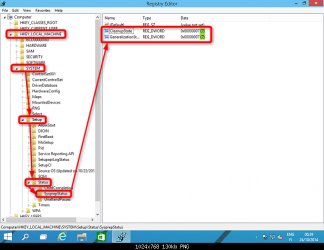
When done with sysprepping, remember to edit registry to allow upgrade (the "Sysprep Paradox", upgraded Windows cannot be sysprepped, Sysprepped Windows cannot be upgraded).

In registry editor browse to key HKEY_LOCAL_MACHINE\SYSTEM\Setup\Status\SysprepStatus, if either DWORD CleanupState or DWORD GeneralizationState has any other value than 7, change it to 7 by double clicking the DWORD in question and entering the new value:

7862d1415047084-users-folder-move-location-windows-10-a-7388d1414118861t-esd-iso-create-bootable.png

Kari
 
Last edited:

My Computer My Computer

Computer type
Laptop
Computer Manufacturer/Model Number
HP ENVY 17-1150eg
OS
Windows 10 Pro x64 EN-GB
CPU
1.6 GHz Intel Core i7-720QM Processor
Memory
6 GB
Graphics Card(s)
ATI Mobility Radeon HD 5850 Graphics
Sound Card
Beats sound system with integrated subwoofer
Monitor(s) Displays
17" laptop display, 22" LED and 32" Full HD TV through HDMI
Screen Resolution
1600*900 (1), 1920*1080 (2&3)
Hard Drives
Internal: 2 x 500 GB SATA Hard Disk Drive 7200 rpm
External: 2TB for backups, 3TB USB3 network drive for media
Cooling
As Envy runs a bit warm, I have it on a Cooler Master pad
Keyboard
Logitech diNovo Media Desktop Laser (bluetooth)
Mouse
Logitech Performance Mouse MX
Internet Speed
50/10 Mbps VDSL
Antivirus
Windows Defender 4.3.9431.0
Browser
Maxthon 3.5.2., IE11
   Note
EDIT:

Had accidentally a wrong link to customization tutorial videos in previous post. Link now updated.
 

My Computer My Computer

Computer type
Laptop
Computer Manufacturer/Model Number
HP ENVY 17-1150eg
OS
Windows 10 Pro x64 EN-GB
CPU
1.6 GHz Intel Core i7-720QM Processor
Memory
6 GB
Graphics Card(s)
ATI Mobility Radeon HD 5850 Graphics
Sound Card
Beats sound system with integrated subwoofer
Monitor(s) Displays
17" laptop display, 22" LED and 32" Full HD TV through HDMI
Screen Resolution
1600*900 (1), 1920*1080 (2&3)
Hard Drives
Internal: 2 x 500 GB SATA Hard Disk Drive 7200 rpm
External: 2TB for backups, 3TB USB3 network drive for media
Cooling
As Envy runs a bit warm, I have it on a Cooler Master pad
Keyboard
Logitech diNovo Media Desktop Laser (bluetooth)
Mouse
Logitech Performance Mouse MX
Internet Speed
50/10 Mbps VDSL
Antivirus
Windows Defender 4.3.9431.0
Browser
Maxthon 3.5.2., IE11
Outstanding. Learned something new. I learned earlier this week about not being supposedly able to sysprep an upgraded Windows 7 and learned the fix this afternoon. And now I learn there is "part 2" ! Thanks ! I likely wont be starting this project until mid-summer but can't wait hardly :)
 

My Computer My Computer

Computer Manufacturer/Model Number
Custom build; parts from the Egg
OS
windows 7 Professional 64 Bit
CPU
I7-3930
Motherboard
Asus P9X79 PRO
Memory
G.Skill 4X 4 GB DR3 240 pin 16GB total
Graphics Card(s)
EVGA 670
Sound Card
Energy Take 5, Sennheiser HD 205 phones, X-FI
Monitor(s) Displays
Hanns G 21.5" HH221 and Samsung 19" 940BW and Hannspree
Screen Resolution
2X 1920X1080 and 1X 1440X900
Hard Drives
3-- internal 250 GB WD; 1-- internal 1 TB Samsung ---plus 3 WD external HDs (sizes vary to 1.5 TB); Crucial M4 128GB SSD, 1 Pioneer BDR-207 Bluray writer;
and 1--LG Lightscribe DVD drive
PSU
1000 Watt XFX Pro Series
Case
Thermaltake Chaser
Cooling
Corsair H80
Keyboard
Logitech Wireless and backlit
Mouse
Logitech Rollerball
Other Info
79 " long desk from Ikea. Sauder 71 inch long "speaker" shelf.

Optical and analog outs to a Yamaha RX-V 650 driving Energy Take 5.1 speaker system. Technics TT. Realistic mixer. Senns cans.
Back
Top