Is it safe to delete an almost empty partition?

Tracey Lowndes

New member
Local time
2:49 PM
Messages
18
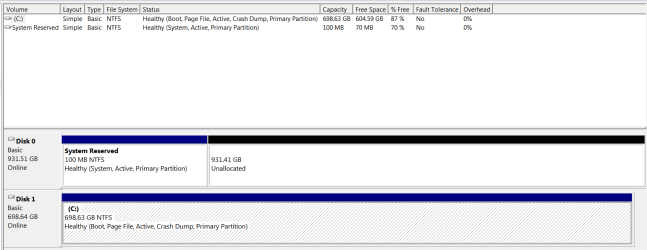
I have two disk drives on my computer, Disk 0 and Disk 1 (see attached screenshot). Disk 0 has two partitions, System Reserved and E:. Disk 1 is given over to the C: drive.

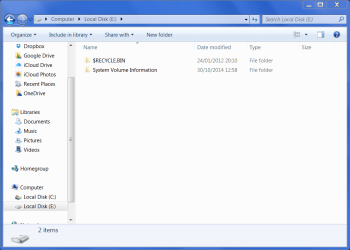
E: only has Recycle Bin and System Volume Information on it (see attached screenshot).

I want to delete the E: partition in order to create unallocated space to install Linux. Is it safe to do so?
 

Attachments
  • My disk drives.PNG
    My disk drives.PNG
    13.6 KB · Views: 10
  • E drive.PNG
    E drive.PNG
    37.6 KB · Views: 0

My Computer My Computer

Computer type
Laptop
OS
Windows 7 Home Premium 64bit
Sure, there's no data on it.

Your disk configuration is a bit odd, the loader is on drive 0 and the OS is on Drive 1. Everything will work as long as both drives are in the machine.

It's usually better to have both the System Reserve and the OS on the same drive. I'm not sure of the best way to change it though other than a clean reinstall with only one drive in the machine.

Bill
.
 

My Computer My Computer

Computer type
Laptop
Computer Manufacturer/Model Number
HP Pavilion dv6-6c10us
OS
x64 (6.3.9600) Win8.1 Pro & soon dual boot x64 (6.1.7601) Win7_SP1 HomePrem
CPU
AMD A6-3420M APU with Radeon(tm) HD Graphics
Motherboard
Hewlett-Packard 1805
Memory
6.00 GB
Graphics Card(s)
AMD Radeon(TM) HD 6520G
Sound Card
(1) AMD High Definition Audio Device (2) IDT High Definiti
Monitor(s) Displays
HP W2072a 20" LCD (1600 x 900) @ 60 Hz
Screen Resolution
1366 x 768 x 32 bits (4294967296 colors) @ 60 Hz
Hard Drives
ST640LM0 00 HM641JI SATA Disk Device
Keyboard
Logitech k520 wireless KB
Mouse
Logitech m320 wireless mouse (bundled with KB)
Internet Speed
15/5 | 54 MB Wireless 'n'
Antivirus
Realtime: Defender or Avast | On-demand: Malwarebytes, ESET
Browser
IE 11 on Win8, IE 10 on win 7
Other Info
Media: [Gimp, Audacity, VLC] || Comm: [WEmail 2012, Skype] || Productivity: [OpenOffice,| Textpad] || Utils: [Sysinternals, cCleaner, Speccy, Defraggler]
You simply mark disk 1 active using disk management, then unplug disk 0, then run startup repair until disk 1 (C) boots on its own.

Then I would move the sata cable from disk 1 (C) to the 1st sata port on the motherboard. (Sometimes labeled sata 0)

But back to your question, Yes it`s safe to delete E but don`t touch the System Reserved partition or Windows won`t boot anymore.

If you apply the fix I described above, then you can format the entire 1 TB drive and do whatever you want with it.
 
Last edited:

My Computer My Computer

Computer type
PC/Desktop
Computer Manufacturer/Model Number
Skylake Special #666
OS
Windows 10 Pro x64
CPU
Intel Core i7 6700K
Motherboard
Asus Sabertooth Z170 Mark 1
Memory
GSkill TridentZ RGB 16GB 3600 16-16-16-36
Graphics Card(s)
EVGA GTX 980 Ti SC x2
Sound Card
Realtek High Definition
Monitor(s) Displays
AOC G2460PG
Screen Resolution
1920 x 1080 144Hz
Hard Drives
Samsung 860 Pro 256GB, Seagate Barracuda 4TB x2
PSU
EVGA 1000 P2, EVGA White Custom Braided Cables
Case
Corsair Vengeance C70 Gunmetal Black
Cooling
Corsair H100i v2, Corsair ML120 x2, Thermal Grizzly Kryonaut
Keyboard
Logitech G910 Orion Spectrum
Mouse
Logitech G700s
Internet Speed
Verizon Fios Quantum Gateway 75/75
Antivirus
Windows Defender, Malwarebytes Free 3.8.3
Browser
Chrome
Other Info
Corsair SP120 x4, LG Blu-ray Drive, Durabrand HT-395 100 Watt Dolby Digital Amp, Corsair H2100 Wireless 7.1 Headset
Agree you need to move the System boot files from the System Reserved partition which once booted DISK0 to C, since DISK0 was not correctly unplugged during install to avoid this.

Another way to move the Bootmgr - Move to C:\ with EasyBCD - Windows 7 Forums.

Be sure to mark C Active and swap cables so C becomes DISK0 assuring no future repairs or reinstalls can derail the boot files again to a preceding primary partition.

Once this is done and C can boot itself wipe the HD with Diskpart Clean Command
to get it cleanest to repartition in Disk Mgmt. Otherwise to delete System Resrved you'll need to first Mark Partition as Inactive - Windows 7 Forums
 
Well, I was not planning to touch the System Reserved partition - I was planning to leave it alone since I can't delete it anyway (and it's only 100 MB). Is it OK to have it on the same disk as Linux? Would it have any impact on the Linux bootloader or any other part of the Linux system?
 

My Computer My Computer

Computer type
Laptop
OS
Windows 7 Home Premium 64bit
No it's not okay to have the boot partition on another hard drive. Move it to C now using one of the methods we gave you. I told you how to then delete the System Reserved partition on the drive which should not have one.

If you have any further questions ask back.
 
Here's an update!

I asked a computer expert to come and help me do the things you suggested.

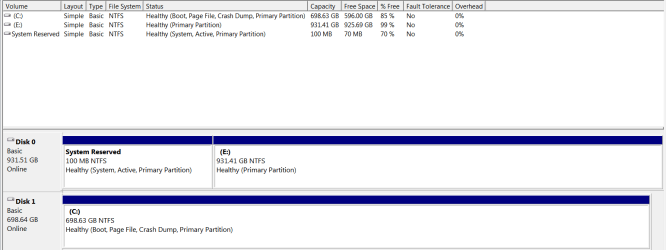
He changed the boot partition to the C: drive using EasyBCD (which he put on my computer for me!), but he didn't swap cables so C: is still on Disk 1. He also deleted E: from Disk 0.

He advised me to keep the System Reserved partition on Disk 0 as removing it could cause major trouble. Was this advice correct?

Here is a screenshot of my disk drives in Disk Management to show you the work that was done.
 

Attachments

  • My new disk drive arrangement.PNG
    My new disk drive arrangement.PNG
    13.7 KB · Views: 5

My Computer My Computer

Computer type
Laptop
OS
Windows 7 Home Premium 64bit
Here's an update!

I asked a computer expert to come and help me do the things you suggested.

He changed the boot partition to the C: drive using EasyBCD (which he put on my computer for me!), but he didn't swap cables so C: is still on Disk 1. He also deleted E: from Disk 0.

He advised me to keep the System Reserved partition on Disk 0 as removing it could cause major trouble. Was this advice correct?

Here is a screenshot of my disk drives in Disk Management to show you the work that was done.

To answer your question "Was this advice correct", this is quoted from gregrocker;
"No it's not okay to have the boot partition on another hard drive."
So, what do you think?
 

My Computer My Computer

Computer type
PC/Desktop
Computer Manufacturer/Model Number
Custom Built
OS
Windows 7 Professional x64
CPU
Intel i5 quad processor
Motherboard
DP67BG
Memory
16 GB
Graphics Card(s)
Radeon HD 5770
Sound Card
Realtek High Definition Audio
Monitor(s) Displays
Samsung SyncMaster
Screen Resolution
1920X1080
Hard Drives
WD 2TB (SATA Internal)
WD 1TB (USB External)
PSU
Corsair GS800
Case
Tower (Generic)
Cooling
3 Internal Fans
Keyboard
MS Wireless
Mouse
MS Optical Wired
Internet Speed
54 mbps
Antivirus
Emsisoft
Browser
IE-Version 9, Palemoon-Version 24.2.0

My Computer My Computer

Computer type
PC/Desktop
Computer Manufacturer/Model Number
Skylake Special #666
OS
Windows 10 Pro x64
CPU
Intel Core i7 6700K
Motherboard
Asus Sabertooth Z170 Mark 1
Memory
GSkill TridentZ RGB 16GB 3600 16-16-16-36
Graphics Card(s)
EVGA GTX 980 Ti SC x2
Sound Card
Realtek High Definition
Monitor(s) Displays
AOC G2460PG
Screen Resolution
1920 x 1080 144Hz
Hard Drives
Samsung 860 Pro 256GB, Seagate Barracuda 4TB x2
PSU
EVGA 1000 P2, EVGA White Custom Braided Cables
Case
Corsair Vengeance C70 Gunmetal Black
Cooling
Corsair H100i v2, Corsair ML120 x2, Thermal Grizzly Kryonaut
Keyboard
Logitech G910 Orion Spectrum
Mouse
Logitech G700s
Internet Speed
Verizon Fios Quantum Gateway 75/75
Antivirus
Windows Defender, Malwarebytes Free 3.8.3
Browser
Chrome
Other Info
Corsair SP120 x4, LG Blu-ray Drive, Durabrand HT-395 100 Watt Dolby Digital Amp, Corsair H2100 Wireless 7.1 Headset
This so-called "expert" did nothing that I can see. He did not move the Bootmgr - Move to C:\ with EasyBCD - Windows 7 Forums or it would be labeled System. You can do this yourself since the steps in the blue link are easy to understand.

Then power down to swap the data cables between hard drives so that C is now in Disk0 slot, set as first hard drive to boot in BIOS setup. Keep the other hard drive unplugged until you are sure C can boot on its own.

Then power down to plug back in the other hard drive, wipe it with Diskpart Clean Command to clear the System Reserved partition but most importantly boot code on the disk which can interfere later. You can then partition it as desired in Disk Mgmt: Partition or Volume - Create New

At all times make sure C hard drive remains set as first HD to boot, or Primary hard drive. This can be achieved easiest by swapping the data cable from the old System Reserved drive to C, since you want it in DISK0 position anyway so that the boot files cannot again be derailed during a Repair or Reinstall to the first available Primary partition on any preceding drive.
 
Last edited:
Tracy I not going to try and help you solve this problem because you are already getting great help.

What I will try to do is help you understand what you have and what you need.

Your Reserve partition is on Disc (0) which has your boot manager in it. Your boot manager has directions in it that directs how your system boots.

When you boot your computer that is the first thing your system sees and that is why it staying Disk (0).

The boot manager needs to be on the same drive as Windows 7. Either in a Reserve partition or included with Windows 7.

What these good folks are trying to help you with is getting this done.

Please read back through the thread and if you have question, as Greg posted please just ask.

If you do your own tinkering and disable either Drive you will not be able to boot as your system is set now.
 

My Computer My Computer

Computer type
PC/Desktop
Computer Manufacturer/Model Number
Home made Desktop
OS
Windows 10 Pro. 64/ version 1709 Windows 7 Pro/64
CPU
Intel i7-6800K @ 4.3
Motherboard
ASUS X-99 Deluxe II
Memory
Corsair Platinum 16 gig @2400
Graphics Card(s)
EVGA GTX 1070 OC
Monitor(s) Displays
Asus 27" LED LCD/VE278Q
Screen Resolution
1920-1080 or 1280-720 HDMI
Hard Drives
INTEL SSD 730-240 Gb Sata 3.0/
PSU
EVGA Platium 1200W
Case
Phanteks Luxe Tempered Glass 8 fans/ one radiator
Cooling
XSPC/ Water Cooled CPU
Keyboard
Das 4 Professional
Mouse
Logitech M705/MX Anywhere 2-S
Internet Speed
100 mbits
Antivirus
Microsoft Security Essentials/ Malwarebytes Premium 3.0/ SAS
Browser
I.E. 11 default/Firefox/ ISP Time Warner Cable/Spectrum
Other Info
LG BluRay Burner/
Sound system-KLipsch-THX/
Icy Dock ssd Hot Swap bays.
You are confusing me! On the one hand the computer expert told me "Don't remove the System reserved partition from Disk 0, it'll cause major problems if you do so" and on the other hand you're telling me to remove it from Disk 0. I don't know what to do!
 
Last edited:

My Computer My Computer

Computer type
Laptop
OS
Windows 7 Home Premium 64bit
No that is not what anybody here is telling you.

What everybody here on this forum is saying is you need your system reserve (boot manager) and Windows 7 on the same drive.

If you follow Greg's instructions he will be able to guide you.
 

My Computer My Computer

Computer type
PC/Desktop
Computer Manufacturer/Model Number
Home made Desktop
OS
Windows 10 Pro. 64/ version 1709 Windows 7 Pro/64
CPU
Intel i7-6800K @ 4.3
Motherboard
ASUS X-99 Deluxe II
Memory
Corsair Platinum 16 gig @2400
Graphics Card(s)
EVGA GTX 1070 OC
Monitor(s) Displays
Asus 27" LED LCD/VE278Q
Screen Resolution
1920-1080 or 1280-720 HDMI
Hard Drives
INTEL SSD 730-240 Gb Sata 3.0/
PSU
EVGA Platium 1200W
Case
Phanteks Luxe Tempered Glass 8 fans/ one radiator
Cooling
XSPC/ Water Cooled CPU
Keyboard
Das 4 Professional
Mouse
Logitech M705/MX Anywhere 2-S
Internet Speed
100 mbits
Antivirus
Microsoft Security Essentials/ Malwarebytes Premium 3.0/ SAS
Browser
I.E. 11 default/Firefox/ ISP Time Warner Cable/Spectrum
Other Info
LG BluRay Burner/
Sound system-KLipsch-THX/
Icy Dock ssd Hot Swap bays.
You want Win7 to be booted on its own drive, not by another hard drive which could fail which would then unnecessarily cause Win7 to stop booting. It is also wasting the other hard drive to keep a tiny boot partition for the sole purpose of booting another hard drive's OS which should be booting itself.

You said this "expert" moved the boot files to C which would have made the System Reserved partition useless and ready to delete. He did not, or C would be labeled System. So if he told you that you needed System Reserved to boot Win7 and also told you he moved the Boot Manager to C then you either misunderstood him or he doesn't know what he is talking about.

Please follow the simple steps to move the Bootmgr - Move to C:\ with EasyBCD - Windows 7 Forums which I gave you above.

If you're afraid to do this then you can leave it the way it is, partition the Unallocated space next to System Reserved for storage. But it is not correct for the reasons given.
 
Should I set the System Reserved partition as inactive, as suggested further up the thread?
 

My Computer My Computer

Computer type
Laptop
OS
Windows 7 Home Premium 64bit
Once again, no one told you to delete the system reserved partition, you are going to unplug that drive, you are not going to do anything else to it until you get windows booting on it`s own on the other hard drive. Why are you having such a hard time understanding this ?

Once you get windows booting on it`s own, you are then gonna hook the other drive back up and format it, so don`t worry about setting it inactive yet.

Just listen to our advice. :)

This is how it will look when you`re done, look at the difference between it and your C partition.
 
Last edited:

My Computer My Computer

Computer type
PC/Desktop
Computer Manufacturer/Model Number
Skylake Special #666
OS
Windows 10 Pro x64
CPU
Intel Core i7 6700K
Motherboard
Asus Sabertooth Z170 Mark 1
Memory
GSkill TridentZ RGB 16GB 3600 16-16-16-36
Graphics Card(s)
EVGA GTX 980 Ti SC x2
Sound Card
Realtek High Definition
Monitor(s) Displays
AOC G2460PG
Screen Resolution
1920 x 1080 144Hz
Hard Drives
Samsung 860 Pro 256GB, Seagate Barracuda 4TB x2
PSU
EVGA 1000 P2, EVGA White Custom Braided Cables
Case
Corsair Vengeance C70 Gunmetal Black
Cooling
Corsair H100i v2, Corsair ML120 x2, Thermal Grizzly Kryonaut
Keyboard
Logitech G910 Orion Spectrum
Mouse
Logitech G700s
Internet Speed
Verizon Fios Quantum Gateway 75/75
Antivirus
Windows Defender, Malwarebytes Free 3.8.3
Browser
Chrome
Other Info
Corsair SP120 x4, LG Blu-ray Drive, Durabrand HT-395 100 Watt Dolby Digital Amp, Corsair H2100 Wireless 7.1 Headset
Should I set the System Reserved partition as inactive, as suggested further up the thread?

It won't be necessary to do that if you wipe the old HD once Win7 is booting on its own without it. The only way to know for sure it will boot on its own though is to test this after you move the Bootmgr by unplugging it. If C boots on its own then you can plug the other HD back in and wipe it as suggested which gets it cleaner than deleting its old partition since there is hidden boot code on it that can possibly interfere later.

There are two methods to move the Bootmgr:

Bootmgr - Move to C:\ with EasyBCD
uses EasyBCD to move it to C, set C Active and System Reserved Inactive.

Or Mark C Partition Active,
power down to swap the Disk0 data cable to C,
and then run Startup Repair - Run 3 Separate Times
 
OK, how do I open the computer to access the drives? And then how do I swap the cables around?
 

My Computer My Computer

Computer type
Laptop
OS
Windows 7 Home Premium 64bit
I see you have a laptop. What is the exact model?

Reboot and tap the key to enter BIOS setup. Look for where the Hard drives are listed, probably under Storage or SATA drives and possibly by their Serial Numbers which you can google to determine which is which.

Is there a way to disable either drive on any BIOS setup tab?

Now look for how to set the smaller drive as Primary since it will now be secondary. If this isn't shown on any tab in BIOS, look at the Boot tab to see if you can choose which hard drive to boot first there.

Pictures will help if you can take them: Screenshots and Files - Upload and Post in Seven Forums - Windows 7 Forums

Report back what you find.
 
I see you have a laptop. What is the exact model?

It's from a "build to order" company called PC Specialist, here in the UK.

Reboot and tap the key to enter BIOS setup. Look for where the Hard drives are listed, probably under Storage or SATA drives and possibly by their Serial Numbers which you can google to determine which is which.

They are listed in the Main menu.

Is there a way to disable either drive on any BIOS setup tab?

No.

Now look for how to set the smaller drive as Primary since it will now be secondary. If this isn't shown on any tab in BIOS, look at the Boot tab to see if you can choose which hard drive to boot first there.

There is no way to do that.

But I can tell you the boot sequence.

1. USB KEY
2. USB ODD
3. SATA HDD P1: WDC WD10JPVT-00A1YT0
4. SATA ODD
5. USB HDD
6. USB HDD
7. USB KEY
8. PCI BEV JMC25X Gigabit Ethernet Controller

Pictures will help if you can take them: Screenshots and Files - Upload and Post in Seven Forums - Windows 7 Forums

Report back what you find.

As well as the above, a bit of further information.

My disk drives are both Western Digital.

The first drive's model number is WDC WD7500BPVT-00HXZT3, and the serial number is WD-WX11E8195032.

The other has a model number of WDC WD10JPVT-00A1YT0, and the serial number is WD-WXB1A91E8008.

In the BIOS, the Main menu has these entries:

SATA Port0 WDC WD10JPVT-0 (1000.2GB)

SATA Port1 WDC WD7500BPVT (750.1GB)

The BIOS is from American Megatrends and is version 1.01.07.

If you need any further information, I will be happy to provide it.
 

My Computer My Computer

Computer type
Laptop
OS
Windows 7 Home Premium 64bit
Back
Top