
Solved "Preparing your Desktop" and then blue screen with no HDD activity

Snugglebugs

New member
Member
Local time
12:04 PM
Messages
79
Location
Vormark in Denmark
"Preparing your Desktop" and then blue screen with no HDD activity

I have read many posts with similar headings but none of them quite fit with the way my PC installation got into trouble.

I had the PC fitted with one HD and loaded the XP Pro sp3 32 bit OS on to that when it was first available. It has gone through all the updating procedures and is pretty stable.

But once the full support ceased I thought it was probably time to try out a later OS and settled on Win 7 Pro as the one most likely to fit my requirements. Earlier this year I added a new HD and partitioned it to suit a Win 7 installation from a MS DVD - paid for and fully licensed. I installed Win 7 to the partition I called W and that was fine and since then I have gradually been learning the oddities and kinks in the new OS. BUT, mostly I use the XP installation on partition C on the first HD. I used the Win 7 msconfig to set the boot options to default "Earlier version of Windows" and the alternative "Windows 7 Professional".

All was fine for several months until a couple of days ago when I selected the Windows 7 start option and Win 7 failed to start, as it has done OK many times before, and the Preparing your desktop/blue screen/no activity/not genuine windows routine that others have described came into play :(

I tried the boot from DVD and then try to repair 3 times and ended up with no improvement. On the last attempt I tried the explorer.exe method and then got a very incomplete desktop with a list of programmes. I tried to access them but every one failed with a message that access was not possible.

At that point I tried some lateral thinking and searching in XP to see if I could find information in either OS set of files. I stumbled across a log file called bcdinfo.txt and there all references to Win 7 mentioned the new name it had been given by the repair process "Windows 7 Professional (recovered)". Even worse, when I went to My Computer I discovered that the Win 7 partition W: was now called O: :eek: so hardly surprising that ALL programme shortcuts failed as the path via W: no longer existed.

Using the XP system manager I got the drive partitions letters back to where they should be and on XP all is still well. Checking the files on W shows all the folders and programme files where they should be and apparently undamaged.

So, eventually, to my question!
I don't want to try another repair via the boot from DVD route in case I simply end up in a mess again, and maybe with damaged files as well.

Is there a file somewhere (in XP or 7) that I can simply edit to put the correct name and drive letter back so that boot will work correctly again?

Tony
 

My Computer My Computer

At a glance

XP Pro and Win7 Pro both 32 bit plus Win 8.1 ...4 G
Computer type
PC/Desktop
Computer Manufacturer/Model Number
Acer twice plus Lenovo
OS
XP Pro and Win7 Pro both 32 bit plus Win 8.1 64bit
Memory
4 G
Hard Drives
300G and 500 G with 4TB backup drive
Antivirus
AVG, MS Essentials and Windows Defender
Browser
IE8, IE9, IE11 and Opera.
Other Info
The various items listed are NOT all on one PC! But all PCs are connected via a combined LAN/WLAN which also provides connection to a network printer
Please post back a screenshot of Disk Mgmt from XP. To capture it you press Print Screen, paste into Paint, then save the file to attach in reply box using paper clip. Screenshot with Paint

Try installing EasyBCD (click Download - no Name or Email required) to XP, under Edit OS Menu tab delete the Win7 listing and then add it again on Add OS Entry tab.

If this fails, back up an XP image using a program like Macrium Imaging - Windows 7 Help Forums. In XP Disk Mgmt Mark Win7 Partition Active then reboot into Win7 disk to run Startup Repair - Run 3 Separate Times to move the Boot Manager to Win7 while checking it over to see if it can be made to boot. If so then you can install EasyBCD to add XP, if not you can move the Active flag back to XP to start it again.

If these fail and Disk Mgmt doesn't reveal why, follow these steps to this time do a perfect Clean Reinstall Windows 7 sticking with the steps, tools and methods given which has helped over a million users get and keep a perfect install without a single complaint.
 
Thanks. I will try all that but since i sent the question xp has developed a fault and now wont start! Even trying to boot it from the cd wont work.

I guess i need to try the win7 dteps first and see if i can get that back with all my files. I have inspected thd xp hd using Freedos and all the files are still on both drives so there is hope. I can make the HDs active using a Freedos programme so that will be one way of achievibg it.
 

My Computer My Computer

At a glance

XP Pro and Win7 Pro both 32 bit plus Win 8.1 ...4 G
Computer type
PC/Desktop
Computer Manufacturer/Model Number
Acer twice plus Lenovo
OS
XP Pro and Win7 Pro both 32 bit plus Win 8.1 64bit
Memory
4 G
Hard Drives
300G and 500 G with 4TB backup drive
Antivirus
AVG, MS Essentials and Windows Defender
Browser
IE8, IE9, IE11 and Opera.
Other Info
The various items listed are NOT all on one PC! But all PCs are connected via a combined LAN/WLAN which also provides connection to a network printer
PS sent using my Tablet and thtag explians the typing errors - I hater touch screens!
 

My Computer My Computer

At a glance

XP Pro and Win7 Pro both 32 bit plus Win 8.1 ...4 G
Computer type
PC/Desktop
Computer Manufacturer/Model Number
Acer twice plus Lenovo
OS
XP Pro and Win7 Pro both 32 bit plus Win 8.1 64bit
Memory
4 G
Hard Drives
300G and 500 G with 4TB backup drive
Antivirus
AVG, MS Essentials and Windows Defender
Browser
IE8, IE9, IE11 and Opera.
Other Info
The various items listed are NOT all on one PC! But all PCs are connected via a combined LAN/WLAN which also provides connection to a network printer
I am gradually reading through your suggestions and downloading the programmes Macrium and BCD - initially to my wifes XP Pro PC for easier study than using this Tablet. (I have now plugged in a USB keyboard which makes my typing better!)

But I find the Help file in Easy BCD very poor. At some point when I first found this marvellous forum I did find a message with a link to a Tutorial here which was very much better. Now I cant find it again! Do you know where it is?
 

My Computer My Computer

At a glance

XP Pro and Win7 Pro both 32 bit plus Win 8.1 ...4 G
Computer type
PC/Desktop
Computer Manufacturer/Model Number
Acer twice plus Lenovo
OS
XP Pro and Win7 Pro both 32 bit plus Win 8.1 64bit
Memory
4 G
Hard Drives
300G and 500 G with 4TB backup drive
Antivirus
AVG, MS Essentials and Windows Defender
Browser
IE8, IE9, IE11 and Opera.
Other Info
The various items listed are NOT all on one PC! But all PCs are connected via a combined LAN/WLAN which also provides connection to a network printer
Sorry, I thought I had made it clear in my follow up reply. I no longer have the ability to boot into XP so cant make any screen shots from that OS.

After that boot option disappeared from the Boot (F12) menu, I tried to boot from the XP installation CD, but just got a message after the Windows setup files were loaded that windows has been shut down - the BSOD. I tried F8 for other options but nothing happened.
 

My Computer My Computer

At a glance

XP Pro and Win7 Pro both 32 bit plus Win 8.1 ...4 G
Computer type
PC/Desktop
Computer Manufacturer/Model Number
Acer twice plus Lenovo
OS
XP Pro and Win7 Pro both 32 bit plus Win 8.1 64bit
Memory
4 G
Hard Drives
300G and 500 G with 4TB backup drive
Antivirus
AVG, MS Essentials and Windows Defender
Browser
IE8, IE9, IE11 and Opera.
Other Info
The various items listed are NOT all on one PC! But all PCs are connected via a combined LAN/WLAN which also provides connection to a network printer
I will get back to you tomorrow. I will append document (.txt) with a full summary which will be much easier than keeping track of various message. I will use the FreeDos programme Bootmaster to check the parameters of the two HDs which should give most of the information that XP Disk Mgmt has. If necessary I can photograph the screen as screenshots are not possible in that!
Thanks for your patience - luckily my wife's XP Pro PC is still working so I can use that from time to time.
Tony
 

My Computer My Computer

At a glance

XP Pro and Win7 Pro both 32 bit plus Win 8.1 ...4 G
Computer type
PC/Desktop
Computer Manufacturer/Model Number
Acer twice plus Lenovo
OS
XP Pro and Win7 Pro both 32 bit plus Win 8.1 64bit
Memory
4 G
Hard Drives
300G and 500 G with 4TB backup drive
Antivirus
AVG, MS Essentials and Windows Defender
Browser
IE8, IE9, IE11 and Opera.
Other Info
The various items listed are NOT all on one PC! But all PCs are connected via a combined LAN/WLAN which also provides connection to a network printer
If XP now won't start then complete these steps. If you need a Win7 disk for your licensed version it is provided in Step 6 of Troubleshooting Windows 7 Failure to Start along with hardware tests if problems persist:

Since for some reason you don't have your files backed up then rescue your files from the booted Win7 disk to an external or other HD or flash stick using Copy & Paste - in Windows Recovery Console .

Then Mark Win7 Partition Active and run Startup Repair - Run 3 Separate Times until Win7 boots on its own and holds the System Active flags on its partition in Disk Mgmt.

Next install EasyBCD (click Download - no Name or Email required) to Win7 to add XP and any other OS to a Windows Boot Menu.

Unplug all other drives, if disk fails to boot try the flash stick alternative. Set HD to boot first, trigger media to boot using one-time Boot Menu. If it continues to fail reset the BIOS to defaults after entering BIOS setup at boot.

While you can confirm the Partition Marked Active using the Win7 disk as shown in the blue link tutorial, it might be better to download and burn to CD with Windows Image Burner free Partition Wizard boot CD to use for that and then Partition Wizard Rebuild MBR - Video Help before running the 3 Startup Repairs. You can also test HD with Partition surface test with Partition Wizard and take a camera snap of the drive map and listings to post back for analysis using paper clip in Reply Box.
 
I am very slow at present as I am having to take turn and turn about on my wife's PC <ggg>. I have only just seen your last suggestions as I was getting ready to send the details I promised.
So anyway, here it is attached until I get time to copy your instructions to paper so I can try it all out. (In between times I am rebuilding an old (slow!) laptop so I have an email etc capability to keep me going.)

Tony
 

Attachments

My Computer My Computer

At a glance

XP Pro and Win7 Pro both 32 bit plus Win 8.1 ...4 G
Computer type
PC/Desktop
Computer Manufacturer/Model Number
Acer twice plus Lenovo
OS
XP Pro and Win7 Pro both 32 bit plus Win 8.1 64bit
Memory
4 G
Hard Drives
300G and 500 G with 4TB backup drive
Antivirus
AVG, MS Essentials and Windows Defender
Browser
IE8, IE9, IE11 and Opera.
Other Info
The various items listed are NOT all on one PC! But all PCs are connected via a combined LAN/WLAN which also provides connection to a network printer
Let us know when you are ready to cooperate and we will resolve your problem as we do for tens of thousands of others. So far you've done absolutely nothing even after I took the time to write out detailed steps, and won't even provide a Disk Management screenshot.

Instead of writing an essay in response to very specific steps and requests for information, please reply to each step and request as they are given. When you cooperate interactively with us then you will get your problem solved. So you stand out as completely uncooperative.
 
Greg

I am very sorry to have upset you. I am unable to work any faster but AM trying to cooperate in the way you want. I WILL do my best to take the steps you have so very helpfully spent so much effort to give me as soon as I am able to.

Tony
 

My Computer My Computer

At a glance

XP Pro and Win7 Pro both 32 bit plus Win 8.1 ...4 G
Computer type
PC/Desktop
Computer Manufacturer/Model Number
Acer twice plus Lenovo
OS
XP Pro and Win7 Pro both 32 bit plus Win 8.1 64bit
Memory
4 G
Hard Drives
300G and 500 G with 4TB backup drive
Antivirus
AVG, MS Essentials and Windows Defender
Browser
IE8, IE9, IE11 and Opera.
Other Info
The various items listed are NOT all on one PC! But all PCs are connected via a combined LAN/WLAN which also provides connection to a network printer
I'm not the slightest bit upset, just waiting to help you the way which works best.
 
Greg¨

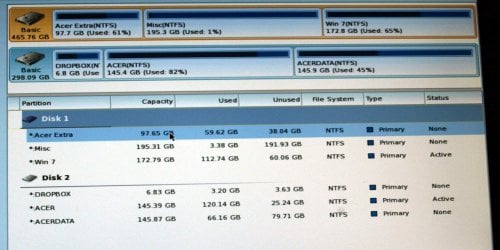
This is the partition info you asked for. If it is not clear enough, then I will have another try using different camera settings.

I am running the surface tests at the moment on both HDs - results later.

Tony
 

Attachments

  • partitions.JPG
    partitions.JPG
    181.5 KB · Views: 0

My Computer My Computer

At a glance

XP Pro and Win7 Pro both 32 bit plus Win 8.1 ...4 G
Computer type
PC/Desktop
Computer Manufacturer/Model Number
Acer twice plus Lenovo
OS
XP Pro and Win7 Pro both 32 bit plus Win 8.1 64bit
Memory
4 G
Hard Drives
300G and 500 G with 4TB backup drive
Antivirus
AVG, MS Essentials and Windows Defender
Browser
IE8, IE9, IE11 and Opera.
Other Info
The various items listed are NOT all on one PC! But all PCs are connected via a combined LAN/WLAN which also provides connection to a network printer
From what we can see the Win7 and XP (Acer) partitions are marked Active, but neither is also marked System (or Boot in Partition Wizard) signifying it is booting the Dual Boot system. So we have to assume you have no functional System partition.

To attempt to repair this, unplug the XP hard drive, boot into the Win7 installation media or System Repair Disk to run Startup Repair - Run 3 Separate Times until Win7 starts and wears the System Active flags in Disk Mgmt. The Win7 disk is provided in Step 6 of Troubleshooting Windows 7 Failure to Start .

Then power down to plug back in the XP drive making sure the Win7 drive remains set as Primary Hard Drive set first to boot in BIOS setup, boot again into Win7 partition to install EasyBCD (click Download - no Name or Email required), add XP on the Add New Entry tab:

4782180475_15db29b8aa.jpg
 
Greg

With different time zones I actually did some more work before I got your message #16. So I had done the surface tests on both discs. Both of them show zero errors.

I will get on with your instructions with only the Win7 HD connected. Just one question - in my working installation I had XP installed on Acer partition 2 on drive 2 named as C:. The later Win7 installation was to Win7 partition 3 on drive 1 named as W:.

Now with drive 2 disconnected the 3 x times repair procedure I think will rename what was W: as C: . What will EasyBCD do when confronted with the reconnected drive 2 where the XP installation was on drive named C: ? If it is a problem, then should I do anything to forestall it? (I see on your screenshot that a checkbox mentions 'correct drive')

Tony
 

My Computer My Computer

At a glance

XP Pro and Win7 Pro both 32 bit plus Win 8.1 ...4 G
Computer type
PC/Desktop
Computer Manufacturer/Model Number
Acer twice plus Lenovo
OS
XP Pro and Win7 Pro both 32 bit plus Win 8.1 64bit
Memory
4 G
Hard Drives
300G and 500 G with 4TB backup drive
Antivirus
AVG, MS Essentials and Windows Defender
Browser
IE8, IE9, IE11 and Opera.
Other Info
The various items listed are NOT all on one PC! But all PCs are connected via a combined LAN/WLAN which also provides connection to a network printer
If you incorrectly installed Win7 from XP and not by booting its installer, then it locked out the C drive letter for use so that Win7 will not boot as C as it always does when correctly installed from boot. You can keep it this way although most users don't want another drive letter and choose to Clean Reinstall Windows 7.

Startup Repairs will not be able to change the drive letter so that Win7 correctly boots as C if it does not already.

The Repairs are only to reestablish the boot files so that Win7 boots itself, then install EasyBCD to add XP to the Dual Boot.

You can first try running Startup Repair with both drives plugged in which can sometimes reestablish the Dual Boot. But if it won't then unplug the XP drive, confirm Win7 partition remains marked Active in Partition Wizard, highlight it's drive number, from the PW Disk tab select Rebuild MBR, OK, Apply. Since the Win7 partition likely never had its boot files to begin with (they were written to XP to establish the Dual Boot), it will then require running Startup Repair - Run 3 Separate Times until Win7 starts.

Once Win7 starts install EasyBCD to add XP. Make sure the Win7 drive remains the Primary HD set first to boot in BIOS setup when you plug back in the XP drive otherwise it will not boot.

Judging by the PW screenshot, XP also does not have its boot files intact so if adding it with EasyBCD doesn't give it the assist it needs to boot, you may need to unplug the Win7 drive to run Boot Repairs or an XP Repair Install. Then you can plug back in Win7, set it in BIOS setup as first HD to boot, select XP if needed to boot using the one-time BIOS Boot menu key. If this isn't to your liking install EasyBCD to Win7 to add XP.
 
Last edited:
Greg

Today I tried your suggested steps to repair startup as in message 18. I used the method that "might reestablish the Dual Boot", that is with both drives plugged in.

Just to confirm, PW shows both drives there with both OS partitions as Active.

I went through the Startup Repair sequence from the Win 7 Pro DVD. The first two attempts showed in the log reports of Missing/corrupt Boot Manager file and then of Boot Sector code corrupt. But Win 7 would still not boot from either drive.

I tried twice more and the log did not report any more errors - just that OS booted OK - but I guess that means just from the "Windows setup (EMS enabled)" boot from DVD.

When the log showed repair attempts = 5 and that "Startup could not detect a problem", I gave up for the day :(

So my next attempt will be with the XP drive disconnected as in your next suggestion.

Tony
PS I did make sure that my webcam, scanner and touchpad were all disconnected.
PPS I found that my wireless mouse will not work on PW so had to find a USB mouse that would - just a note, not a complaint!
PPPS The file refernced in "OS missing on boot" is file/ntldr so I guess that is wrong. By the way, I did not install Win7 through XP - I setup a new partition and chose there to install by choosing it from the the Win 7 DVD install menu.
 

My Computer My Computer

At a glance

XP Pro and Win7 Pro both 32 bit plus Win 8.1 ...4 G
Computer type
PC/Desktop
Computer Manufacturer/Model Number
Acer twice plus Lenovo
OS
XP Pro and Win7 Pro both 32 bit plus Win 8.1 64bit
Memory
4 G
Hard Drives
300G and 500 G with 4TB backup drive
Antivirus
AVG, MS Essentials and Windows Defender
Browser
IE8, IE9, IE11 and Opera.
Other Info
The various items listed are NOT all on one PC! But all PCs are connected via a combined LAN/WLAN which also provides connection to a network printer
In PW rightclick XP partition to Modify>Set to Inactive, OK, Apply.

Then run Startup Repair again.

If Win7 is going to provide the Dual Boot for both then only its partition should be marked Active.

If this fails then unplug the XP drive and try again.
 
Back
Top