How to display Bios boot menu on startup?

MrJWilson

New member
Local time
10:56 PM
Messages
53
Location
United Kingdom
Hi,

I plan to have two installations of windows 7, on each harddrive. I don't want a dual boot setup in the traditional sense, where Windows adds it to startup options, and the boot files are all placed on one drive, if that makes sense.

What I am after are two totally independant systems that are not aware of each other, by installing one first, then unplugging that drive, then installing the other.

The only way to boot these is via F12 boot menu, where you would select to boot from a drive, usb, or cd.

My question is, would it be possible to set in BIOS options, to always display this F12 boot menu on startup, rather than having to quickly time hitting the F12 key?

I guess this is dependant on the motherboard bios itself (Gigabyte Z87) but I have no idea what this option would be called or if it exists.

Any help would be appreciated.

Thanks.
 

My Computer My Computer

Computer Manufacturer/Model Number
Custom Build
OS
Windows 7 Home Premium 64bit SP1 (x2. Dual Boot)
CPU
Intel(R) Core(TM) i5 CPU 750 @2.67GHz
Motherboard
ASUS P7P55D
Memory
Corsair DDR3 4096MB
Graphics Card(s)
ATI Radeon HD 4650
Sound Card
RME HDSP 9632
Monitor(s) Displays
Two LCD Sharp Monitors (Dualscreen)
Hard Drives
1 x SAMSUNG HD502HJ 500GB
1 x WDC WD1600AAJS-00L7A0 - 160GB
1 x WDC WD5000AAKB-00UKA0 - 500GB
PSU
Corsair PSU 600W
Case
Lilan Li
Not possible as far as I know. I have not seen any option in the BIOS to do that. The best you can do is set the drive with the OS you use most often as the first boot device. Then use F12 to switch to the other drive when need be.
 

My Computer My Computer

Computer type
PC/Desktop
Computer Manufacturer/Model Number
Home Built
OS
Windows 10 Education 64 bit
CPU
AMD Phenom II X4 980 Black Edition Deneb 3.7GHz
Motherboard
Asus M4N68T-M V2 µATX Motherboard
Memory
8GB 4GBx2 Kingston PC10600 DDR3 1333 Memory
Graphics Card(s)
Zotac NVIDIA Geforce GT640 2 Gig DDR3 PCIe
Sound Card
VIA VT1708s High Definition Audio 8-channel Onboard
Monitor(s) Displays
22" LG E2242 1080p and 2 19" I-INC AG191D
Screen Resolution
1280x1024 - 1920x1080 - 1280x1024
Hard Drives
Crucial M100 256 GB SSD and 500 GB WD Blue SATA
PSU
Thermaltake TR 620
Case
Power Up Black ATX Mid-Tower Case
Cooling
Stock heatsink and fan
Keyboard
Logitech Wireless K350 Wave
Mouse
Logitech Wireless M570 Trackman Wheel
Internet Speed
80 Mbps Down 30 Mbps Up
Antivirus
Windows Defender
Browser
Internet Explorer 11
Other Info
HP DVD1040e Lightscribe - External USB2
Nah, is hitting F12 such a problem.

When you install on disk2, make sure disk1 is physically disconnected. Else your disk2 bootmgr may end up on disk1.
 

My Computer My Computer

Computer Manufacturer/Model Number
HP, Dell, Gateway, Toshiba - 4 laptops and 2 desktops
OS
Vista, Windows7, Mint Mate, Zorin, Windows 8
CPU
from 1.6GHz Duo to i7
Monitor(s) Displays
2x HP w2207
Hard Drives
5x HDD, 7x SSD, 12x Externals
Keyboard
with trackball - no mices
Mouse
Trackball mice
Internet Speed
DSL 6000
Yeh I was planning on setting the most used drive as 1st priority.

Its not a problem hitting F12 as such, but my computer is in the other room, meaning as soon as I switch it on, I have to leg it to my computer keyboard in other room and hit F12 in time, otherwise it will boot into the drive I do not wish to use.
I guess that is the way so I'll make do.

I found dual boots under Windows to be messy with how it manages a single boot manager between installations and dumping it on Disk 0 regardless of where the installs are.

Is it possible that rather than disconnecting drives, I could install a single fresh W7 to one drive (no other installations present) and use Macrium to back it up in its fresh state, then "restore" this image to the other drive, thereby giving two installtions that are seperate from each other, with their own system reserved partitions and boot managers?

I can't see why this wouldn't work, but if not, I can physically disconnect one before installing the other.
 

My Computer My Computer

Computer Manufacturer/Model Number
Custom Build
OS
Windows 7 Home Premium 64bit SP1 (x2. Dual Boot)
CPU
Intel(R) Core(TM) i5 CPU 750 @2.67GHz
Motherboard
ASUS P7P55D
Memory
Corsair DDR3 4096MB
Graphics Card(s)
ATI Radeon HD 4650
Sound Card
RME HDSP 9632
Monitor(s) Displays
Two LCD Sharp Monitors (Dualscreen)
Hard Drives
1 x SAMSUNG HD502HJ 500GB
1 x WDC WD1600AAJS-00L7A0 - 160GB
1 x WDC WD5000AAKB-00UKA0 - 500GB
PSU
Corsair PSU 600W
Case
Lilan Li
On second thoughts, Is restoring a W7 installation plus its system reserved partition, to another drive likely to cause a non boot, because the restored boot manager will be looking at the wrong disk location?
 

My Computer My Computer

Computer Manufacturer/Model Number
Custom Build
OS
Windows 7 Home Premium 64bit SP1 (x2. Dual Boot)
CPU
Intel(R) Core(TM) i5 CPU 750 @2.67GHz
Motherboard
ASUS P7P55D
Memory
Corsair DDR3 4096MB
Graphics Card(s)
ATI Radeon HD 4650
Sound Card
RME HDSP 9632
Monitor(s) Displays
Two LCD Sharp Monitors (Dualscreen)
Hard Drives
1 x SAMSUNG HD502HJ 500GB
1 x WDC WD1600AAJS-00L7A0 - 160GB
1 x WDC WD5000AAKB-00UKA0 - 500GB
PSU
Corsair PSU 600W
Case
Lilan Li
Unplug all other drives when applying the image or cloning to the target drive. If it doesn't start confirm the Partition Marked Active and then run Startup Repair until it starts.

As to Boot menu: Once you've assured that each hard drive is independently bootable as you're doing and intend, you can then install EasyBCD (click Download - no Name or Email required) to add the other to a more convenient Windows Dual Boot menu. Each drive will remain independently bootable but only have the Windows menu overlaid onto them, which can be removed at any time in msconfig>Boot or EasyBCD.
 
Cheers,

Is there no way around having to open up my pc and physically disconnect the other drives? I know that sounds lazy but the inside of my pc is not the easiest to navigate. I wonder if i can disable specific sata ports in bios, which would effectivly disconnect them during installations right?
 

My Computer My Computer

Computer Manufacturer/Model Number
Custom Build
OS
Windows 7 Home Premium 64bit SP1 (x2. Dual Boot)
CPU
Intel(R) Core(TM) i5 CPU 750 @2.67GHz
Motherboard
ASUS P7P55D
Memory
Corsair DDR3 4096MB
Graphics Card(s)
ATI Radeon HD 4650
Sound Card
RME HDSP 9632
Monitor(s) Displays
Two LCD Sharp Monitors (Dualscreen)
Hard Drives
1 x SAMSUNG HD502HJ 500GB
1 x WDC WD1600AAJS-00L7A0 - 160GB
1 x WDC WD5000AAKB-00UKA0 - 500GB
PSU
Corsair PSU 600W
Case
Lilan Li

My Computer My Computer

Computer Manufacturer/Model Number
HP, Dell, Gateway, Toshiba - 4 laptops and 2 desktops
OS
Vista, Windows7, Mint Mate, Zorin, Windows 8
CPU
from 1.6GHz Duo to i7
Monitor(s) Displays
2x HP w2207
Hard Drives
5x HDD, 7x SSD, 12x Externals
Keyboard
with trackball - no mices
Mouse
Trackball mice
Internet Speed
DSL 6000
Also, how do I know if both installations are completly independant and have their own boot managers on their respective drives?

Would it be that they both have a system reserved partition, and if they were not independant, they would share a system reserved partition, dumped on the first physical disk?
 

My Computer My Computer

Computer Manufacturer/Model Number
Custom Build
OS
Windows 7 Home Premium 64bit SP1 (x2. Dual Boot)
CPU
Intel(R) Core(TM) i5 CPU 750 @2.67GHz
Motherboard
ASUS P7P55D
Memory
Corsair DDR3 4096MB
Graphics Card(s)
ATI Radeon HD 4650
Sound Card
RME HDSP 9632
Monitor(s) Displays
Two LCD Sharp Monitors (Dualscreen)
Hard Drives
1 x SAMSUNG HD502HJ 500GB
1 x WDC WD1600AAJS-00L7A0 - 160GB
1 x WDC WD5000AAKB-00UKA0 - 500GB
PSU
Corsair PSU 600W
Case
Lilan Li
The Macrium image way should work without opening the box. I see no complications. Just make sure you also get the 100MB system partition or copy the bottmgr first to C - before you make the image of C only.

http://www.sevenforums.com/tutorials/209885-bootmgr-move-c-easybcd.html


I think I understand this but not sure if i'd have to do that.

So when backing up the W7 install, I would naturally back it up along with the system reserved partition (containg boot manager)

Would simply restoring / copying this W7 + system partition via Macrium to new disk, allow me to boot into this new restored installation without having to mess with bootmanger?
 

My Computer My Computer

Computer Manufacturer/Model Number
Custom Build
OS
Windows 7 Home Premium 64bit SP1 (x2. Dual Boot)
CPU
Intel(R) Core(TM) i5 CPU 750 @2.67GHz
Motherboard
ASUS P7P55D
Memory
Corsair DDR3 4096MB
Graphics Card(s)
ATI Radeon HD 4650
Sound Card
RME HDSP 9632
Monitor(s) Displays
Two LCD Sharp Monitors (Dualscreen)
Hard Drives
1 x SAMSUNG HD502HJ 500GB
1 x WDC WD1600AAJS-00L7A0 - 160GB
1 x WDC WD5000AAKB-00UKA0 - 500GB
PSU
Corsair PSU 600W
Case
Lilan Li
Cheers,

Is there no way around having to open up my pc and physically disconnect the other drives? I know that sounds lazy but the inside of my pc is not the easiest to navigate. I wonder if i can disable specific sata ports in bios, which would effectivly disconnect them during installations right?

You can try disabling a hard drive or it's port in BIOS to see how that works.

You only need to pull one of the cables off the drive. At least one should be within reach? Just be sure to touch the metal case before ever reaching inside near the electronics, and never work on a carpet in stocking feet.

I have never considered the System Reserved partition to be any type of problem and can take it or leave it. Just make sure it remains marked Active at all times if you keep it. Some imaging/cloning apps give you access to needed settings to mark Active, include MBR and Track0. Macrium automates all of this which is another reason it is a favorite here.
 
Cheers,

Is there no way around having to open up my pc and physically disconnect the other drives? I know that sounds lazy but the inside of my pc is not the easiest to navigate. I wonder if i can disable specific sata ports in bios, which would effectivly disconnect them during installations right?

You can try disabling a hard drive or it's port in BIOS to see how that works.

You only need to pull one of the cables off the drive. At least one should be within reach? Just be sure to touch the metal case before ever reaching inside near the electronics, and never work on a carpet in stocking feet.

I have never considered the System Reserved partition to be any type of problem and can take it or leave it. Just make sure it remains marked Active at all times if you keep it. Some imaging/cloning apps give you access to needed settings to mark Active, include MBR and Track0. Macrium automates all of this which is another reason it is a favorite here.

I understand and appreciate the advice on doing this via physical disconecting drives or disabling sata ports, but i'm curious about copying an image over via Macrium.

so are you saying, copying an existing W7 and its respective SR partition images, to a new physcial disk, while leaving the original installation on the first disk, would be a simple process in Macrium i.e it would update the boot manager, so that i'm left with two independant installs, each with their own respective system reserved partitions (marked as active)?

I just need clarification on this method, as I don't see why i would need to opt for disabling drives, unless i was installing from a windows installtion disc.

I'm assuming my way would be more straightforward - restoring os and sr image to new drive, but a potential issue would be when prompted by macrium to restore MBR from image or do not replace.

I'm assuming I would select do not replace, and this would allow this newly copied image to boot up independantly.

By restoring the MBR from the image, would this not cause a non-boot because the MBR would be looking at the incorrect physical disk?
 

My Computer My Computer

Computer Manufacturer/Model Number
Custom Build
OS
Windows 7 Home Premium 64bit SP1 (x2. Dual Boot)
CPU
Intel(R) Core(TM) i5 CPU 750 @2.67GHz
Motherboard
ASUS P7P55D
Memory
Corsair DDR3 4096MB
Graphics Card(s)
ATI Radeon HD 4650
Sound Card
RME HDSP 9632
Monitor(s) Displays
Two LCD Sharp Monitors (Dualscreen)
Hard Drives
1 x SAMSUNG HD502HJ 500GB
1 x WDC WD1600AAJS-00L7A0 - 160GB
1 x WDC WD5000AAKB-00UKA0 - 500GB
PSU
Corsair PSU 600W
Case
Lilan Li
You would know because it boots without the presence of the other drive.

You can also look at Disk Mgmt to see that each drive when booted has a System and Active flag planted on the System Reserved partition or C.

Macrium fully automates all of this. So if the OS already has the System Active flags on System Reserved they should be transferred and it should start - providing that drive is set to boot first in BIOS, another reason to unplug the other drives since otherwise you'll need to confirm this in BIOS.

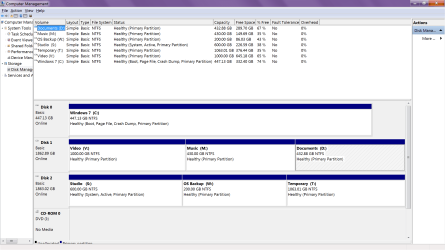
Perhaps it would be best if we see screenshots of Disk Management - Post a Screen Capture Image
of all of the involved drives to see that they are already independently bootable.
 
Last edited:
I've got myself into a mess with this.

I can easily disable sata ports in bios, so i did as recommended and disabled one w7 drive before installing the other.
The stupid thing i did was not disable other drives which did not contain any operating systems. I didn't think i would need to.

Now i have one independant W7 drive with a system reserved partition on it. Fine.

I have another W7 drive independant from the other, however it doesn't have a system reserved partition. It has dumped the bootmngr on a random non operating system drive that i use for files.

I think i understand right. This was my fault for not disabling those too, but i expected Windows to create the normal system reserved partition on the operating system disk. I don't know why it did not? This is just a normal W7 fresh install, if the other W7 drive has been disabled first.

Is there anything i can do here?

You can see from attached image that Windows 7 C: should have system and active flags, or a small system partition on Disk 0 - basically everything should be self contained and independant on Disk 0 that relates to that OS and bootmngr

Why the hell did it make my "Studio" partition on Disk 2 the system active partition containing the bootmngr?

Any help would be appreciated. Thanks
 

Attachments

  • 2015-05-31 13_06_46-Computer Management.png
    2015-05-31 13_06_46-Computer Management.png
    83.7 KB · Views: 3

My Computer My Computer

Computer Manufacturer/Model Number
Custom Build
OS
Windows 7 Home Premium 64bit SP1 (x2. Dual Boot)
CPU
Intel(R) Core(TM) i5 CPU 750 @2.67GHz
Motherboard
ASUS P7P55D
Memory
Corsair DDR3 4096MB
Graphics Card(s)
ATI Radeon HD 4650
Sound Card
RME HDSP 9632
Monitor(s) Displays
Two LCD Sharp Monitors (Dualscreen)
Hard Drives
1 x SAMSUNG HD502HJ 500GB
1 x WDC WD1600AAJS-00L7A0 - 160GB
1 x WDC WD5000AAKB-00UKA0 - 500GB
PSU
Corsair PSU 600W
Case
Lilan Li

My Computer My Computer

Computer type
PC/Desktop
Computer Manufacturer/Model Number
Custom Build
OS
Windows 7 Ultimate x64 SP1
CPU
AMD Phenom 2 1090T
Motherboard
Gigabyte GA-890FXA-UD5
Memory
2x8GB Kingston HyperX Fury Black 1600Mhz Unganged
Graphics Card(s)
MSI GTX 970 Gaming 4G
Sound Card
Realtek On-Board HD 7.1 Audio / Logitech G35
Monitor(s) Displays
3xAcer GD245HQ
Screen Resolution
1920x1080
Hard Drives
Samsung 850 Pro 512GB SSD - OS /
WD Caviar Black SATA 3 - 1 TBx2 - Dynamic RAID 0 /
WD Caviar Green SATA 2 - 640GBx2 - Dynamic RAID 0 /
WD Caviar Green SATA 2 - 640GB - Internal Backup /
Seagate Barracude SATA 3 - 3TB - External Backup/ Sync
PSU
HighPower 1000W
Case
Cooler Master HAF 932
Cooling
Noctua NH-D14
Keyboard
Logitech G19
Mouse
Logitech G500
Internet Speed
100/4 Mbit Cable (100GB quota)
Antivirus
ZoneAlarm Extreme Security / MBAM Pro / MBAE Free / SAS Free
Browser
IE 11 - Firefox - Chrome
Other Info
Logitech F710/ G27/ G940/ Z5500 // TrackIR 5 // Nvidia 3D Surround Vision
So that easyBCD method would mark Windows 7 C: partition on disk 0 as system and active, containing the bootmngr folder/files? I could then delete these from my "studio" partition on Disk 2 and my windows 7 would boot up?

Can i also do this step to copy boot files from system reserved partition on my other os disk (not in screenshot), to its C: windows partition, and remove the system reserved partition?

Thanks
 

My Computer My Computer

Computer Manufacturer/Model Number
Custom Build
OS
Windows 7 Home Premium 64bit SP1 (x2. Dual Boot)
CPU
Intel(R) Core(TM) i5 CPU 750 @2.67GHz
Motherboard
ASUS P7P55D
Memory
Corsair DDR3 4096MB
Graphics Card(s)
ATI Radeon HD 4650
Sound Card
RME HDSP 9632
Monitor(s) Displays
Two LCD Sharp Monitors (Dualscreen)
Hard Drives
1 x SAMSUNG HD502HJ 500GB
1 x WDC WD1600AAJS-00L7A0 - 160GB
1 x WDC WD5000AAKB-00UKA0 - 500GB
PSU
Corsair PSU 600W
Case
Lilan Li
Once you move the Bootmgr - Move to C:\ with EasyBCD - Windows 7 Forums reboot the PC and if Win7 boots correctly with the System Active flags on C, you can mark S Inactive if it is still Active: Partition - Mark as Inactive - Windows 7 Forums.

Once you plug back in your other OS hard drive, make sure the preferred one remains set first to boot in BIOS setup, then use the BIOS Boot Menu key to trigger the other one to boot. If this isn't to your liking, use EasyBCD to add the other OS to a Windows Boot Menu.

Once it's all back together we should see another DIsk Mgmt screenshot.

You may find that folders on one big data partition are preferable to managing the size of a bunch of smaller data partitions which really ought to be folders. But if you need to shuffle space between partitions you can do it easily with How to extend partition easily with Partition Wizard - video help even if they're not adjacent.
 
So that easyBCD method would mark Windows 7 C: partition on disk 0 as system and active, containing the bootmngr folder/files? I could then delete these from my "studio" partition on Disk 2 and my windows 7 would boot up?

Can i also do this step to copy boot files from system reserved partition on my other os disk (not in screenshot), to its C: windows partition, and remove the system reserved partition?

Thanks

Yes, I had System Reserved partition when I first installed OS and used EasyBCD, then used Partition Wizard free bootable media to delete System Reserved, and "Move/Resize" C into that unallocated space to the left.

I will let Greg lead you though, he has much more experience than me.
 

My Computer My Computer

Computer type
PC/Desktop
Computer Manufacturer/Model Number
Custom Build
OS
Windows 7 Ultimate x64 SP1
CPU
AMD Phenom 2 1090T
Motherboard
Gigabyte GA-890FXA-UD5
Memory
2x8GB Kingston HyperX Fury Black 1600Mhz Unganged
Graphics Card(s)
MSI GTX 970 Gaming 4G
Sound Card
Realtek On-Board HD 7.1 Audio / Logitech G35
Monitor(s) Displays
3xAcer GD245HQ
Screen Resolution
1920x1080
Hard Drives
Samsung 850 Pro 512GB SSD - OS /
WD Caviar Black SATA 3 - 1 TBx2 - Dynamic RAID 0 /
WD Caviar Green SATA 2 - 640GBx2 - Dynamic RAID 0 /
WD Caviar Green SATA 2 - 640GB - Internal Backup /
Seagate Barracude SATA 3 - 3TB - External Backup/ Sync
PSU
HighPower 1000W
Case
Cooler Master HAF 932
Cooling
Noctua NH-D14
Keyboard
Logitech G19
Mouse
Logitech G500
Internet Speed
100/4 Mbit Cable (100GB quota)
Antivirus
ZoneAlarm Extreme Security / MBAM Pro / MBAE Free / SAS Free
Browser
IE 11 - Firefox - Chrome
Other Info
Logitech F710/ G27/ G940/ Z5500 // TrackIR 5 // Nvidia 3D Surround Vision
It isn't worth bothering with the System Reserved partition at all. There is no gain whatsoever and some risk.
 
It isn't worth bothering with the System Reserved partition at all. There is no gain whatsoever and some risk.

Do you mean its not worth it with SR partition, in the sense that it is better practice to use EasyBCD to move bootmngr to C: partition, or in the sense that, trying to remove / delete the system reserved partition after moving bootmngr to C: partition, is risky and not worth it?

Regarding the way I have my partitions set up for data, rather than one big partition for data and have everything reside in folders, this is because I have multiple data hard drives. Its has never really been a problem for me.

I'll give easybcd a try. Thanks for the help
 

My Computer My Computer

Computer Manufacturer/Model Number
Custom Build
OS
Windows 7 Home Premium 64bit SP1 (x2. Dual Boot)
CPU
Intel(R) Core(TM) i5 CPU 750 @2.67GHz
Motherboard
ASUS P7P55D
Memory
Corsair DDR3 4096MB
Graphics Card(s)
ATI Radeon HD 4650
Sound Card
RME HDSP 9632
Monitor(s) Displays
Two LCD Sharp Monitors (Dualscreen)
Hard Drives
1 x SAMSUNG HD502HJ 500GB
1 x WDC WD1600AAJS-00L7A0 - 160GB
1 x WDC WD5000AAKB-00UKA0 - 500GB
PSU
Corsair PSU 600W
Case
Lilan Li
Back
Top