
OEM hidden partition questions

betaupsilon

New member
Local time
4:11 PM
Messages
179
I chose to post to this tutorial thread since my problem seems to parallel the subject matter, but I do not know if this thread is being monitored. I will create a new thread if there is no response.

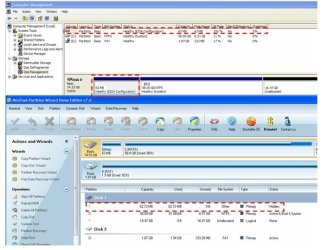
I recently used MACRIUM to image a laptop. I have never used MACRIUM before so I restored the image to a similar (not identical) model laptop to verify the image. The restored computer had trouble booting initially & I had to do a repair install to get it working. Upon booting I examined the OEM partition & noticed that it was empty because DISK MGR indicated that the space is UNALLOCATED.

I have included a screenshot of the original laptop configuration using both DISK MGR & PARTITION WIZARD. Note that both do not indicate a file system, and DISK MGR indicates an EISA configuration. I could not view the OEM partition using DISKPART in administrator mode, but could do so when I booted from a rescue DVD. DISKPART indicated that the partition was RAW & the partition is hidden.

Should I convert the filesystem, assign a drive letter, & reimage the computer to clear up the boot problem or will that ruin the original laptop?
 

Attachments
  • hidden oem partition.jpg
    hidden oem partition.jpg
    60 KB · Views: 16
Last edited by a moderator:

My Computer My Computer

Computer type
PC/Desktop
OS
Windows 7 Home Prem 32 bit
In this case you really only wanted to drag the C drive from its source drive to the target drive using Macrium imaging app. Once there a link will open underneath which when clicked will let you rearrange the borders to resize the partition.

More complicated is reimaging to different hardware, which sometimes requires to Adjust Win7 to boot on new hardware with Paragon Adaptive Restore CD.

If you want to keep what you have then you can delete the small EISA Tools OEM partition following the same steps as here: Delete and Remove to Unlock EISA Hidden Recovery or Diagnostic Partition.

It's really too small to bother but you can still have a go at this cool tool which can transfer space between partitions, even if they're not adjacent: How to extend partition easily with Partition Wizard - video help.
 
In this case you really only wanted to drag the C drive from its source drive to the target drive using Macrium imaging app. Once there a link will open underneath which when clicked will let you rearrange the borders to resize the partition.

More complicated is reimaging to different hardware, which sometimes requires to Adjust Win7 to boot on new hardware with Paragon Adaptive Restore CD.

If you want to keep what you have then you can delete the small EISA Tools OEM partition following the same steps as here: Delete and Remove to Unlock EISA Hidden Recovery or Diagnostic Partition.

It's really too small to bother but you can still have a go at this cool tool which can transfer space between partitions, even if they're not adjacent: How to extend partition easily with Partition Wizard - video help.
I will try your suggestions. I think I need to retain that OEM partition in my image because there are some quirks on the restored laptop even though it boots up. Currently the restored laptop does not have that OEM partition. So I think the question is how can I preserve that partition in the image?
 

My Computer My Computer

Computer type
PC/Desktop
OS
Windows 7 Home Prem 32 bit
What is your exact make and model PC?

That OEM partition should not affect how Win7 performs. Why exactly do you think it does? But you can leave it.

You should explain your issues so we can help you resolve them since we deal with thousands of these cases here and are intimately familar with each OEM configuration having helped over 1.3 million consumers do a Clean Reinstall Factory OEM Windows 7.

Issues may likely be due to the change in hardware so needs to have those kinks worked out. How was it adjusted exactly to the new hardware? Did you see it change out almost every driver in the System tray? Did you Enable hardware auto-updating via Windows Update (Steps 3 and 6) to Check for Updates and install all Important and Optional Updates?
 
What is your exact make and model PC?

That OEM partition should not affect how Win7 performs. Why exactly do you think it does? But you can leave it.
It is actually an old XP system DELL LATITUDE D800, but I figured the OEM partition is similar to WINDOWS 7 platforms. I restored the image onto a DELL LATITUDE D800. The reason I think there are problems is on the initial boot after the RESTORE operation I had to do a repair install with a recovery disk to get it to boot. Also the HELP & WINDOWS SEARCH do not appear to be functioning. So my thoughts that the missing OEM partition may be the source of some of these quirks.

So I have little confidence in the image & reticent to RESTORE to the original laptop as a test. I would simply like to verify if the image is correct. Maybe a better approach is to remove the hard drive from the D800 & put it in the D810 and then RESTORE?

I have learned in the past to verify images & not blindly accept they will work. Plus this is my first use of MACRIUM.
 
Last edited:

My Computer My Computer

Computer type
PC/Desktop
OS
Windows 7 Home Prem 32 bit
As I understand it, you made an image of a partition on a hard drive in machine A and then restored that image to machine B--different hardware. Is that correct?

I'd expect it to have "quirks", regardless of whether or not that OEM partition was included.

I'd assume the OEM partition on machine A was deliberately not included in whatever image you made--which accounts for why it does not appear on the restored hard drive.

So called "verification" doesn't mean a lot in my experience. It doesn't mean that you will necessarily be able to restore successfully without issues.
 

My Computer My Computer

Computer type
PC/Desktop
Computer Manufacturer/Model Number
Ignatz Special; 4 speed manual gearbox; factory air conditioning; one of one
OS
Windows 7 Home Premium SP1, 64-bit
CPU
Intel Skylake i5-6600K, not overclocked
Motherboard
AsRock Z170M Extreme 4, micro ATX
Memory
8 GB HyperX DDR4-2666 (2 x 4 GB)
Graphics Card(s)
none; graphics are integrated on CPU
Sound Card
onboard: Realtek ALC1150; external: USB Behringer UF0-202
Monitor(s) Displays
Dell S2340M 23 inch IPS
Screen Resolution
1600 x 900
Hard Drives
System: Crucial MX100 series SSD, 128 GB;
Data: Samsung Spinpoint 103SJ, 1 TB;
Backup: WD Caviar Green WD30EZRX-00D8PB0, 3 TB
PSU
Rosewill SilentNight 500 watt fanless, semi-modular
Case
Antec Solo II
Cooling
Noctua NH-U12S; Noctua F12 intake, Noctua S12A exhaust
Keyboard
Microsoft 200 6JH-00001 USB
Mouse
Dell or Microsoft optical wired; USB
Antivirus
Microsoft Security Essentials and Malwarebytes Premium
Browser
Pale Moon
Other Info
All fans PWM; speeds at idle: CPU circa 500 rpm; intake circa 600 rpm; exhaust circa 600 rpm; CPU temps 27 idle and 47 C load in a warm room (27 C/81 F) when running Intel Extreme Tuning Utility stress test.
I recently used MACRIUM to image a laptop. I have never used MACRIUM before so I restored the image to a similar (not identical) model laptop to verify the image.
This is not a good approach to verifying an image. I think your original laptop has a OEM:SLP (System Locked Pre-installation) license product key. This is a one machine license for the PC it was originally installed on.
When you restored the system image from the original PC you restored the original MBR which includes the partition table for the original PC. This means you get the original partition structure including the OEM partition but it will be unallocated.
 

My Computer My Computer

Computer type
PC/Desktop
Computer Manufacturer/Model Number
Own build
OS
Windows 7x64 Home Premium SP1
CPU
Intel i7 2600k
Motherboard
ASUS P8Z68 Deluxe
Memory
G.Skill Ripjaws (DDR3-1600) 2x4GB
Graphics Card(s)
Nvidia GeForce GTS 450; Intel HD Graphics 3000(GT2+)
Monitor(s) Displays
Dell Ultrasharp IPS panel U2311H, Samsung SyncMaster P2350
Screen Resolution
1920x1080
Hard Drives
Samsung 850 Pro SSD 256GB, Samsung SSD 840 120GB, Seagates 1TB Barracuda ST31000528AS x2
PSU
Seasonic M12II 520W
Case
Lian Li Lancool PC-K60
Cooling
Case: 1x120mm, 3x140mm CPU: Hyper 212+
Keyboard
Logitech MK520 (wireless)
Mouse
Logitech MK520
Internet Speed
6-7 Mbps
Antivirus
Norton Security Premium, Malwarebytes on 2 (MSE on 3rd PC)
Browser
FireFox
Other Info
Audio: Logitech Z523 2.1
You can look at the contents of the OEM partition on the original PC by unhiding System and Hidden files in Control Panel>File Options>View.

With Dells that should be the bootable Diagnostics via F12. It would be highly unusual if they copied and are functional now on new hardware since it requires reviving the hotlink with a reagent command.

If it is Windows Help and Search that is not now working, run SFC /SCANNOW Command. The only way that OEM utility partition could affect those is if it was some odd Dell unit that had Dell software loaded that aided Help and Search which I've never seen before.

You will have a considerably better install if you do a Clean Reinstall Windows 7 as the factory install on any OEM is the worst possible install of Win7, and those who suffer under one will never even experience native Win7 performance until you do.
 
This is not a good approach to verifying an image. I think your original laptop has a OEM:SLP (System Locked Pre-installation) license product key. This is a one machine license for the PC it was originally installed on.
When you restored the system image from the original PC you restored the original MBR which includes the partition table for the original PC. This means you get the original partition structure including the OEM partition but it will be unallocated.
After seeing your response I went ahead & removed the harddrive from computer B & put it in A. I restored the image & it booted up immediately & all WINDOWS utilities seem intact. Now I have a cloned harddrive along with my system image.

So I should have done that in the first place. I surmise by your statement on the OEM:SLP I would have had problems even if computer B was an identical model to computer A?
 

My Computer My Computer

Computer type
PC/Desktop
OS
Windows 7 Home Prem 32 bit
You would only need to reactivate at Computer>Properties with a retail Product Key, which will reset activation in MS Activation Servers by overwriting the old hardware signature with a new one. You can move retail Win7 anywhere you want.

As Michael said, you cannot do that with OEM even though some have reported that it was allowed.

Did this answer your questions?
 
After seeing your response I went ahead & removed the harddrive from computer B & put it in A. I restored the image & it booted up immediately & all WINDOWS utilities seem intact. Now I have a cloned harddrive along with my system image.

So I should have done that in the first place. I surmise by your statement on the OEM:SLP I would have had problems even if computer B was an identical model to computer A?
What you are saying is a little confusing so to be clear. I assume computer A is a Dell Latitude 810 with Windows 7 and B is a Dell Latitude 800 with XP.
You made a Macrium image of computer A. Swapped the computer B drive into computer A. Performed a system image restore to A. I would have expected A to boot because all you have done is replace the drive and reimaged. You can go down to the shop and buy a brand new drive and do the same thing. BTW this is not cloning.

The OEM:SLP is likely to be an issue if you put the computer A drive (810 pc) into the computer B (800 pc). There is a SLIC table in the BIOS used to authenticate licensing. If it worked and I was MS I'd be knocking on Dell's door.
 

My Computer My Computer

Computer type
PC/Desktop
Computer Manufacturer/Model Number
Own build
OS
Windows 7x64 Home Premium SP1
CPU
Intel i7 2600k
Motherboard
ASUS P8Z68 Deluxe
Memory
G.Skill Ripjaws (DDR3-1600) 2x4GB
Graphics Card(s)
Nvidia GeForce GTS 450; Intel HD Graphics 3000(GT2+)
Monitor(s) Displays
Dell Ultrasharp IPS panel U2311H, Samsung SyncMaster P2350
Screen Resolution
1920x1080
Hard Drives
Samsung 850 Pro SSD 256GB, Samsung SSD 840 120GB, Seagates 1TB Barracuda ST31000528AS x2
PSU
Seasonic M12II 520W
Case
Lian Li Lancool PC-K60
Cooling
Case: 1x120mm, 3x140mm CPU: Hyper 212+
Keyboard
Logitech MK520 (wireless)
Mouse
Logitech MK520
Internet Speed
6-7 Mbps
Antivirus
Norton Security Premium, Malwarebytes on 2 (MSE on 3rd PC)
Browser
FireFox
Other Info
Audio: Logitech Z523 2.1
What you are saying is a little confusing so to be clear. I assume computer A is a Dell Latitude 810 with Windows 7 and B is a Dell Latitude 800 with XP.

The OEM:SLP is likely to be an issue if you put the computer A drive (810 pc) into the computer B (800 pc). There is a SLIC table in the BIOS used to authenticate licensing. If it worked and I was MS I'd be knocking on Dell's door.

No, both computers were XP SP3 or at least the D810 is. What the original version of XP for the D800 I am not sure because that drive was swiped prior to me obtaining it. I assumed the 2 platforms were close enough that I could test the image of computer A on computer B. It worked somewhat, but there were some quirks.

If I understand you correctly, I would still have quirks even if the 2 computers are identical models?
 

My Computer My Computer

Computer type
PC/Desktop
OS
Windows 7 Home Prem 32 bit
Is this XP? If so run an XP Repair Install.

If not you can also reinstall Win7 while keeping all of your files, programs and settings in place, also adjusting to the new hardware following Repair Install.

But an image to different hardware should adjust enough to boot using Adjust Win7 to boot on new hardware with Paragon Adaptive Restore CD which may also sort out some quirks that may be related to differing SID's and HID's. Drivers are all swapped out during the first boot in a cascade that you can monitor from the System Tray icon, until it prompts for a final reboot after all are changed. If they weren't then definitely run the PAR CD on the install.
 
If not you can also reinstall Win7 while keeping all of your files, programs and settings in place, also adjusting to the new hardware following Repair Install.

I was actually contemplating this, but I decided to image the old system 1st. Then when I had trouble reconstructing that image I lost sight of my ultimate objective. If I had no confidence in my image I did not want to risk the upgrade to WIN7 due to software that predates WIN7 & might have compatibility issues.

Once I have 100% confidence in the image I will probably do the upgrade.
 

My Computer My Computer

Computer type
PC/Desktop
OS
Windows 7 Home Prem 32 bit
You still didn't answer if you have XP. :rolleyes: If so then you can't do an in-place (Win7 Repair Install) Upgrade to Win7.

But the solution to XP performing badly on new hardware is to do the Repair Install.
 
Is this XP? If so run an XP Repair Install.

If not you can also reinstall Win7 while keeping all of your files, programs and settings in place, also adjusting to the new hardware following Repair Install.

But an image to different hardware should adjust enough to boot using Adjust Win7 to boot on new hardware with Paragon Adaptive Restore CD which may also sort out some quirks that may be related to differing SID's and HID's. Drivers are all swapped out during the first boot in a cascade that you can monitor from the System Tray icon, until it prompts for a final reboot after all are changed. If they weren't then definitely run the PAR CD on the install.

The PARAGON tool actually corrected the quirks; whereas, the REPAIR install could not. I think I will post to that thread that this tool also works on XP systems as well.
 

My Computer My Computer

Computer type
PC/Desktop
OS
Windows 7 Home Prem 32 bit
Is this XP? If so run an XP Repair Install.

If not you can also reinstall Win7 while keeping all of your files, programs and settings in place, also adjusting to the new hardware following Repair Install.

But an image to different hardware should adjust enough to boot using Adjust Win7 to boot on new hardware with Paragon Adaptive Restore CD which may also sort out some quirks that may be related to differing SID's and HID's. Drivers are all swapped out during the first boot in a cascade that you can monitor from the System Tray icon, until it prompts for a final reboot after all are changed. If they weren't then definitely run the PAR CD on the install.

The PARAGON tool actually corrected the quirks; whereas, the REPAIR install could not. I think I will post to that thread that this tool also works on XP systems as well.

Well it appears I do have 1 menacing device driver missing which I am not sure of. Other than that the PARAGON tool outperforms a REPAIR install by not only effectiveness, but also time expense.

I should probably initiate a new thread, but I'll try here 1st. The remaining driver that I cannot seem to resolve has to do with BASE SYSTEM DEVICE. Under DEVICE MGR it is falls within the OTHER DEVICES category. The specifics are when I view PROPERTIES "This device is not configured correctly. (Code 1) To reinstall the drivers for this device, click Reinstall Driver." LOCATION: PCI bus 2, device 1, function 3. It is identified as a BASE SYSTEM DEVICE with ID: PCI\VEN_104C&DEV_8204&SUBSYS_014E1028&REV_00\4&39A85202&0&0BF0.

There are no other specs or descriptions. How else could I resolve this besides simply disabling the device whatever that device might be?
 

My Computer My Computer

Computer type
PC/Desktop
OS
Windows 7 Home Prem 32 bit
Back
Top